The quickest way to open an MDB file without Microsoft Access is to import its tables into Excel with Data > Get Data > From Database > From Microsoft Access Database.
If you do not have Excel, LibreOffice Base, a dedicated viewer, an online service, a text editor or a friend's copy of Access can also get the data out, and buying Access remains the option when you need the forms and reports too.
7 ways to open an MDB file without Microsoft Access
Each route gets you a different amount of the database. Pick the row that matches what you have installed and what you need from the file.
| Method | Cost | What you get | Best for |
|---|---|---|---|
| Import it with Excel | Included with Excel | Tables and saved queries as sheets | Reading or analysing the data |
| Use LibreOffice Base | Free | Tables and queries inside a database window | No Microsoft Office on the PC |
| Use a third-party MDB viewer | Varies | Read-only view of tables | Browsing many old files |
| Use an online MDB service | Varies | Tables exported to CSV or a spreadsheet | One file, no software installed |
| Use a text editor | Free | Readable text fragments only | Checking what a file contains |
| Use someone else's Access | Free if you can borrow it | Full export or conversion to .accdb | Keeping forms, reports and macros |
| Buy Access | Microsoft 365 or Access 2024 | Everything, including editing | Working with the database long term |
Only Access itself runs the forms, reports, macros and VBA code saved in an MDB file. Every other route gives you the tables and, at best, the queries.
Import it with Excel
Excel reads Access databases through Power Query. Each table you load lands in a worksheet, where you can sort, filter and save it as an Excel file.
- Open Excel and create a blank workbook.
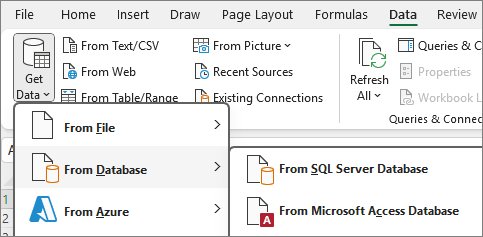
- Select Data > Get Data > From Database > From Microsoft Access Database.
- In the Import Data dialog, browse to the .mdb file, select it, and select Open.
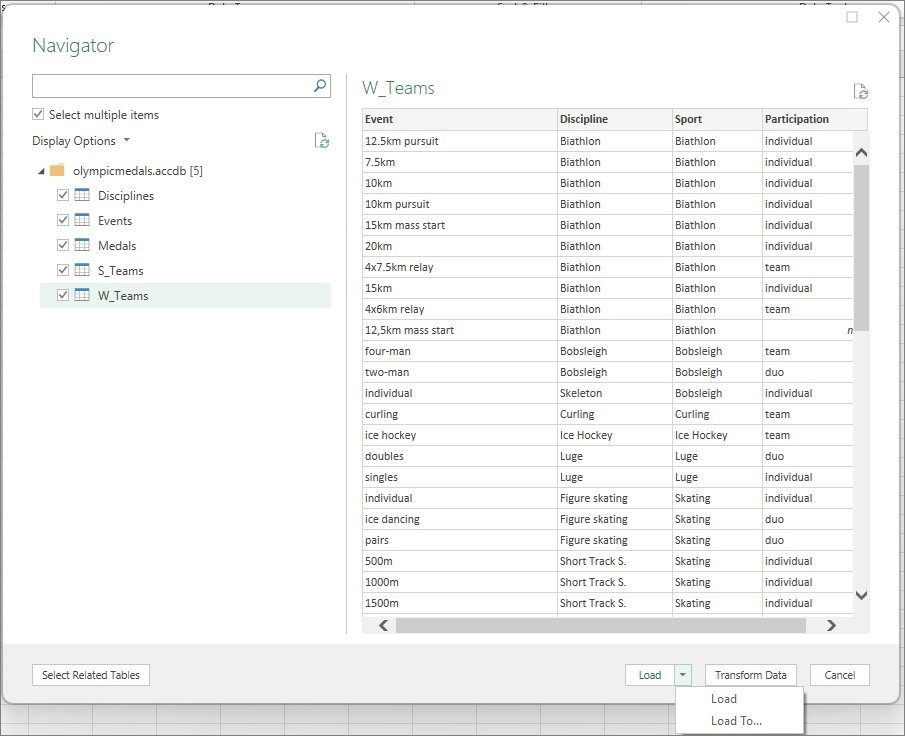
- In Navigator, select a table or query in the left pane to preview it on the right.
- Select Load to drop the data into worksheets, or Transform Data to clean it first in Power Query Editor.
- Save the workbook with File > Save As so you no longer depend on the MDB file.
The import is read-only. Changes you make in Excel do not write back to the MDB file. Power BI Desktop uses the same Access database connector if you want charts instead of sheets.
Use an open source alternative to Access
LibreOffice Base is the free, open source database app in the LibreOffice suite. Its Database Wizard can connect to an existing Microsoft Access file and show its tables.
- Install LibreOffice from libreoffice.org and open it.
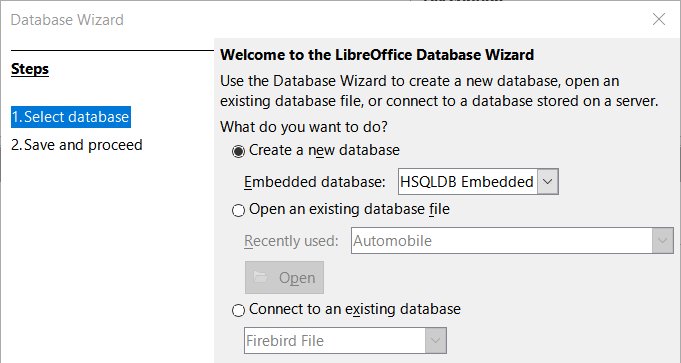
- Choose File > New > Database to start the Database Wizard.
- Select Connect to an existing database, choose Microsoft Access in the Database type list, and select Next.
- Next to Microsoft Access database file, select Browse, pick the .mdb file, and select Next.
- Choose No, do not register the database unless you want it in mail merges, keep Open the database for editing ticked, and select Finish.
- Save the small .odb file that LibreOffice asks for. It stores the connection, not a copy of your data.
- In the database window that opens, double-click a table to view its records.
If the Microsoft Access connection fails, the Base help page for the Microsoft Access connection links to a LibreOffice wiki article on connecting to Access databases.
Use a third-party MDB viewer
Small viewer apps open MDB files without Access or Office. They suit people who receive old databases regularly and only need to look inside them.
- Download the viewer only from its developer's own website, not from a download portal.
- Check that the viewer lists support for your file's Access version, such as Access 97 or Access 2000-2003 .mdb files.
- Make a copy of the MDB file and open the copy, so a crash cannot damage the original.
- Open the file in the viewer's read-only mode if it offers one.
- Export the tables you need to CSV or Excel format from the viewer's export menu.
If a viewer reports a missing Access driver or provider, install the free Microsoft 365 Access Runtime. It includes the Access Database Engine and its Microsoft Access Driver (*.mdb, *.accdb).
Use an online MDB opening service
Online converters accept an MDB upload and return the tables as CSV or spreadsheet files. Nothing is installed, but your data leaves your PC.
- Check the file for personal, customer or financial data. If it holds any, use an offline method instead.
- Read the service's privacy policy for how long it keeps uploaded files.
- Upload a copy of the MDB file and choose CSV or XLSX as the output format.
- Download the converted tables and open them in Excel, Google Sheets or LibreOffice Calc.
- Delete the uploaded file from the service if it offers a delete option.
Check the upload size limit before you send a large database, and remember that the service sees every record in the file.
Use a text editor
An MDB file is a binary database, so Notepad shows mostly unreadable symbols. Short text values and object names can still appear as plain words, which is enough to tell what a mystery file contains.
- Make a copy of the MDB file.
- Right-click the copy and select Open with > Notepad.
- Press Ctrl + F and search for a name, a product or another word you expect in the data.
- Close Notepad without saving. Saving the file from a text editor corrupts it.
This method never gives you rows and columns. Use it to identify a file, then pick another method to read it.
Convert it with (someone else’s) Access
A colleague, school or library PC with Access can turn the MDB file into something you can open. Export the tables to Excel, or save the whole database in the newer .accdb format.
- Open the MDB file in Access with File > Open.
- In the Navigation Pane, select the table or query you want.
- On the External Data tab, in the Export group, select Excel.
- In the Export – Excel Spreadsheet dialog, check the file name and pick a File Format.
- Tick Export data with formatting and layout to keep the column formatting.
- Select OK, then repeat for each table you need.
- To keep the whole database, choose File > Save As > Save Database As, pick the Access (.accdb) type, and save.
Access 2013 and later cannot convert an Access 97 file directly. That file has to go through Access 2003 first, using Tools > Database Utilities > Convert Database > To Access 2002-2003 file format.
Consider buying Access
Buy Access when you need the forms, reports, macros or VBA code, or when you must keep editing the database. No other method runs those parts of an MDB file.
| Option | What you get | Good to know |
|---|---|---|
| Microsoft 365 subscription | The latest Access, kept up to date | A one-month free trial covers a single job |
| Access 2024 one-time purchase | The current standalone version | Compatible with Windows 11 |
| Microsoft 365 Access Runtime | Free; runs finished Access apps | All design tools are removed or disabled |
Access is a Windows PC app only, so Mac users need one of the other methods or a Windows PC. A Microsoft Access free trial is enough for a one-off export, and knowing what Microsoft Access does helps you decide whether a subscription is worth it.
What is an MDB file?
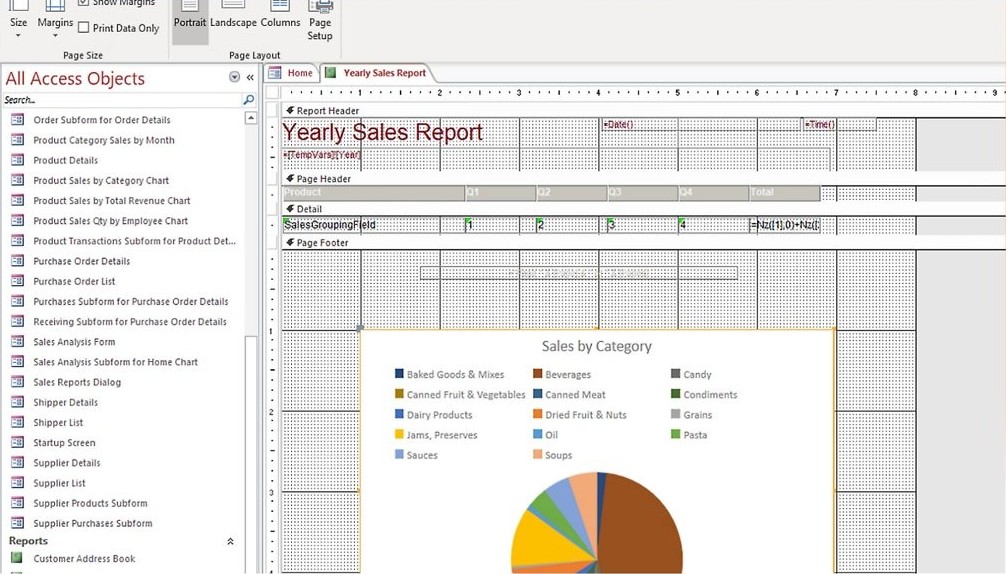
MDB is the database format used by Microsoft Access before Access 2007. One file holds the tables, queries, forms, reports and macros together.
| MDB fact | Detail |
|---|---|
| Created by | Access 97, Access 2000 and Access 2002-2003, among older versions |
| Replaced by | .accdb, the default format starting with Access 2007 |
| Opens in current Access | Access 2000 and 2002-2003 files open normally |
| Access 97 files | Access 2013 and later cannot convert them directly |
| Access 2.0 and Access 95 files | Access 2007 was the last version that could open or import them |
| Still used for | Replication and user-level security, which .accdb does not support |
| Driver that reads it | Microsoft Access Driver (*.mdb, *.accdb) in the Access Database Engine |
A file ending in .accdb opens with the same Excel and LibreOffice steps above. The .mdb and .accdb names only tell you which Access generation saved the file.
MDB file not opening in Excel or Power BI
Excel, Power BI Desktop and most viewers read MDB files through the Access Database Engine. Most errors mean that engine is missing, hidden or the wrong bit version.
"The 'Microsoft.ACE.OLEDB.12.0' provider is not registered"
Power BI Desktop is 64-bit, but the Access Database Engine on the PC is 32-bit, usually because 32-bit Office is installed.
- Make sure you run the 64-bit Power BI Desktop, which is the only version available.
- Install the 64-bit Microsoft 365 Access Runtime, which includes the Access Database Engine.
- If the runtime will not install alongside 32-bit Office, replace Office with the 64-bit edition.
- Import the MDB file again.
"Provider cannot be found" or the Access driver is missing in another app
An older Click-to-Run install of Office keeps the Access Database Engine inside Office, out of reach of other programs.
- Update Microsoft 365 Apps to Version 2009 or later, which exposes the engine to other apps.
- On Office 2016 or 2019 volume-licensed Click-to-Run, upgrade to Office LTSC 2021 or install the Microsoft Access 2013 Runtime.
- On a PC without Office, install the free Microsoft 365 Access Runtime.
- Open the MDB file in the app again.
Old MDB file from Access 2.0, Access 95 or Access 97 will not convert
Current versions of Access dropped support for those early formats.
- For an Access 97 file, open it in Access 2003 and convert it to the 2002-2003 format.
- For an Access 2.0 or Access 95 file, convert it in Access 2007, or in Access 2000-2003 first.
- Open the converted file in current Access and save it as .accdb.
- Import the converted file into Excel or LibreOffice if you still do not want to use Access.
MDB file FAQ
Can Excel open an MDB file?
Yes. In Excel select Data > Get Data > From Database > From Microsoft Access Database, pick the .mdb file, and load the tables you want from Navigator. Excel imports a read-only copy of the data, not the forms or reports.
Is there a free Microsoft Access viewer?
Microsoft offers the free Microsoft 365 Access Runtime, which runs finished Access applications with every design tool removed or disabled. It also installs the Access Database Engine that Excel, Power BI and many viewers use to read MDB files.
Can LibreOffice open MDB files?
Yes. LibreOffice Base connects to Microsoft Access files through its Database Wizard: choose File > New > Database, select Connect to an existing database, choose Microsoft Access, and browse to the .mdb file. The tables then open in Base.
What is the difference between MDB and ACCDB?
MDB is the Access format used before Access 2007, and ACCDB has been the default since Access 2007. ACCDB files cannot be opened by Access versions before 2007, while MDB still supports replication and user-level security, which ACCDB dropped.
Can I open an MDB file on a Mac?
Microsoft Access is available for Windows PCs only, so a Mac needs another route. An online MDB service, a Mac viewer from its developer's site, or a Windows PC running Excel or Access can extract the tables.
How do I convert an MDB file to Excel?
Import the tables into Excel with Get Data > From Database > From Microsoft Access Database, then save the workbook. In Access, you can instead select a table and use External Data > Export > Excel to write it straight to a workbook.
Why does my MDB file show strange symbols in Notepad?
An MDB file is a binary database, not a text file, so Notepad shows its raw bytes as symbols. Only short text values and object names appear as words. Close the file without saving, because saving from Notepad corrupts it.
It’s all about that (data) base
Import the MDB file into Excel if you have it, use LibreOffice Base if you do not, and borrow or buy Access only when you need the forms, reports or macros inside the file. The tables are almost always what people need from an old MDB file, and Excel and LibreOffice reach them for free. Everything else in the file only runs in Access.