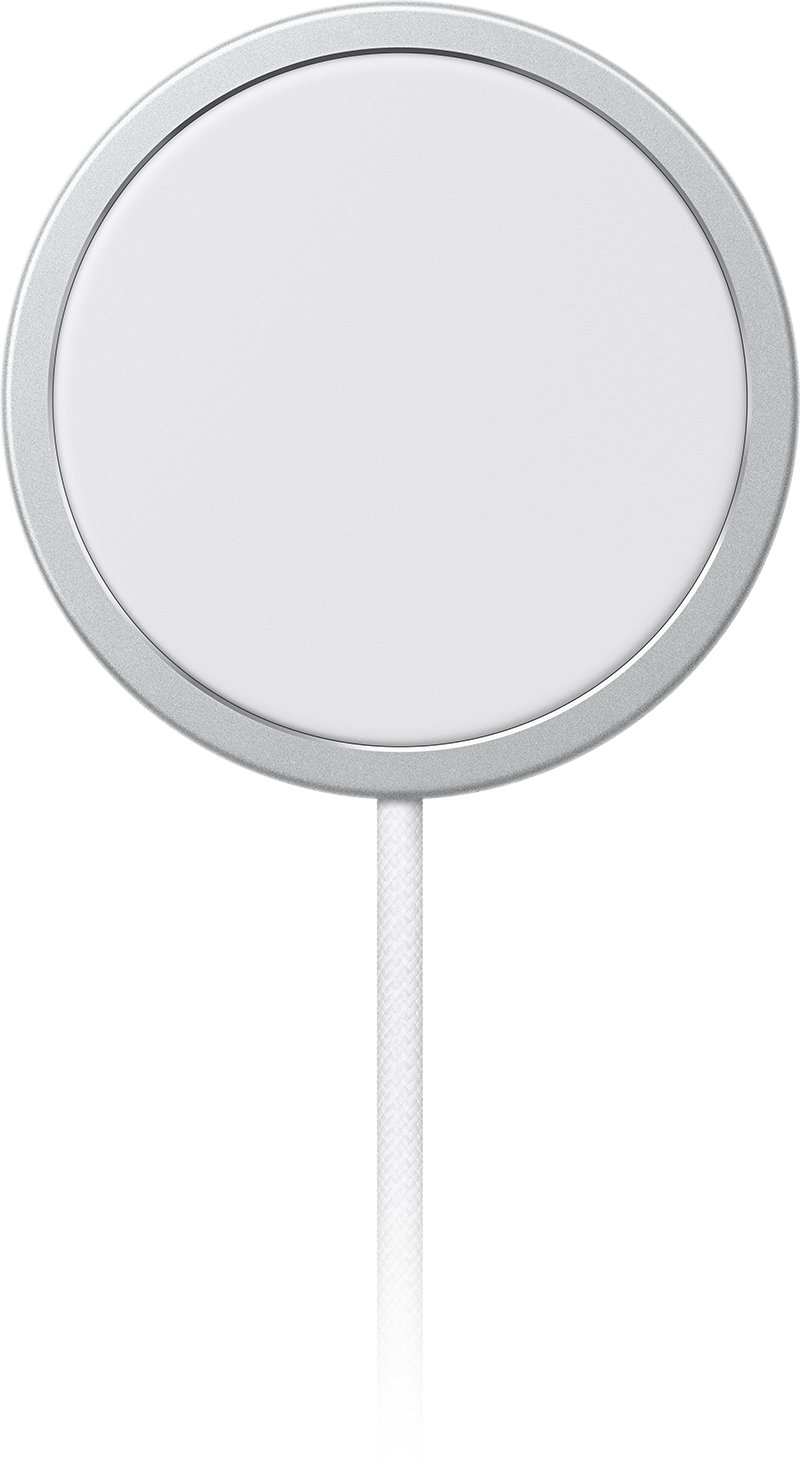
Yes, you can leave a MagSafe Charger plugged in and leave your iPhone on it overnight, as long as the cable and adapter are undamaged and the charger sits in an open, well-ventilated spot.
This guide covers what iPhone does to its battery while it sits on MagSafe, the real risks (heat, bedding, cards and metal), the settings that limit wear, and fixes when charging stops.
Is it safe to leave MagSafe charger plugged in?
Apple's guidance sets conditions for using a charger while it is connected to power, not a rule to unplug it between uses. Find your situation below.
| Your situation | Safe? | What to do |
|---|---|---|
| Charger plugged into the wall with no iPhone on it | Yes | Keep it face up on a flat surface, clear of metal objects |
| iPhone left on MagSafe overnight | Yes | Leave Optimized Battery Charging or Charge Limit on |
| Charger on a bed, under a pillow or blanket | No | Move it to a table or nightstand; Apple warns against covering chargers or sleeping on them |
| Keys, coins, jewelry or a metal case on the charger | No | Remove them; metal objects can get warm or interfere with charging |
| Credit card or badge between iPhone and charger | No | Take the card out first; it can damage magnetic strips and RFID chips |
| Frayed cable, damaged adapter or wet location | No | Stop using it and replace the damaged part |
| You have a pacemaker or implanted defibrillator | With care | Keep the charging iPhone more than 12 inches (30 cm) away from the device |
Apple's own setup order is to plug the MagSafe Charger into power first and then place the iPhone on it, so leaving it connected is the normal state.
Is MagSafe bad for battery?
No. iPhone manages its own charging on MagSafe the same way it does on a cable, and partial charging through the day does not harm the battery. Heat is the factor that ages a battery faster.
| What iPhone does | When | Effect on the battery |
|---|---|---|
| Fast charging | Up to about 80% | Quick top-up while the battery is low |
| Trickle charging | After about 80% | Slows charging to reduce battery stress and heat |
| Optimized Battery Charging | When iPhone predicts a long stay on the charger | Holds at 80% and finishes just before you usually unplug |
| Charge Limit (iPhone 15 and later) | Always, at the limit you choose | Stops charging at 80% to 100%, in 5% steps |
| Thermally limited charging | When the battery gets too warm | Slows or pauses charging, or limits it above 80% |
Lithium-ion batteries lose capacity slowly with each complete charge cycle. A cycle counts 100% of capacity used in total, even across several days.
How to use MagSafe charger safely
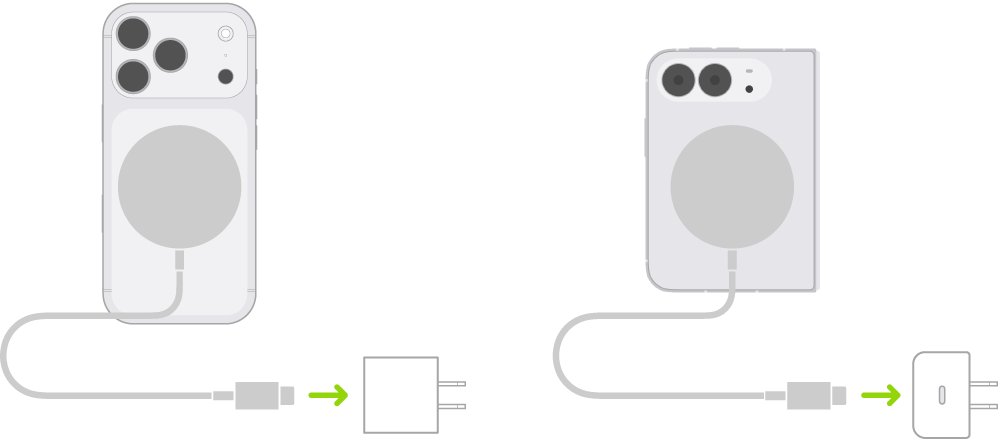
- Connect the MagSafe Charger's USB-C connector to a USB-C power adapter, or to a USB-C port on a Mac or PC.
- Plug the power adapter directly into a wall outlet, away from sinks, bathtubs and showers.
- Place the charger face up on a flat, hard surface, clear of metal objects.
- Remove credit cards, badges, passports or key fobs from the back of your iPhone or its case.
- Place your iPhone on the charger and check for the charging icon on the battery indicator.
- If you placed the iPhone on the charger before plugging it in, lift it off, wait three seconds and put it back.
Plugging in first lets MagSafe check that it is safe to deliver maximum power. If the iPhone is also plugged in by cable, it charges through the cable instead of MagSafe.
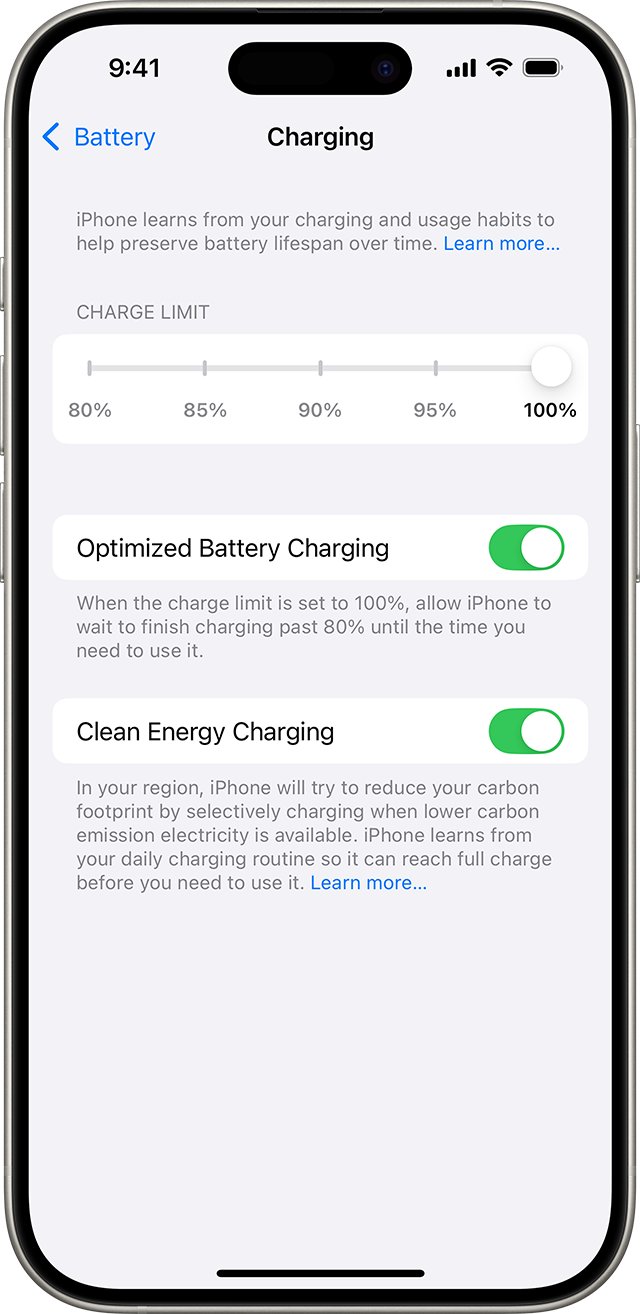
Turn on Optimized Battery Charging for overnight MagSafe charging
This setting is on by default, so check it rather than assume it was turned off.
- Open Settings and tap Battery.
- On iPhone 15 and later, tap Charging. On iPhone 14 and earlier, tap Battery Health & Charging.
- On iPhone 15 and later, pick a charge limit between 80% and 100%; at 100%, turn on Optimized Battery Charging.
- On iPhone 14 and earlier, turn on Optimized Battery Charging.
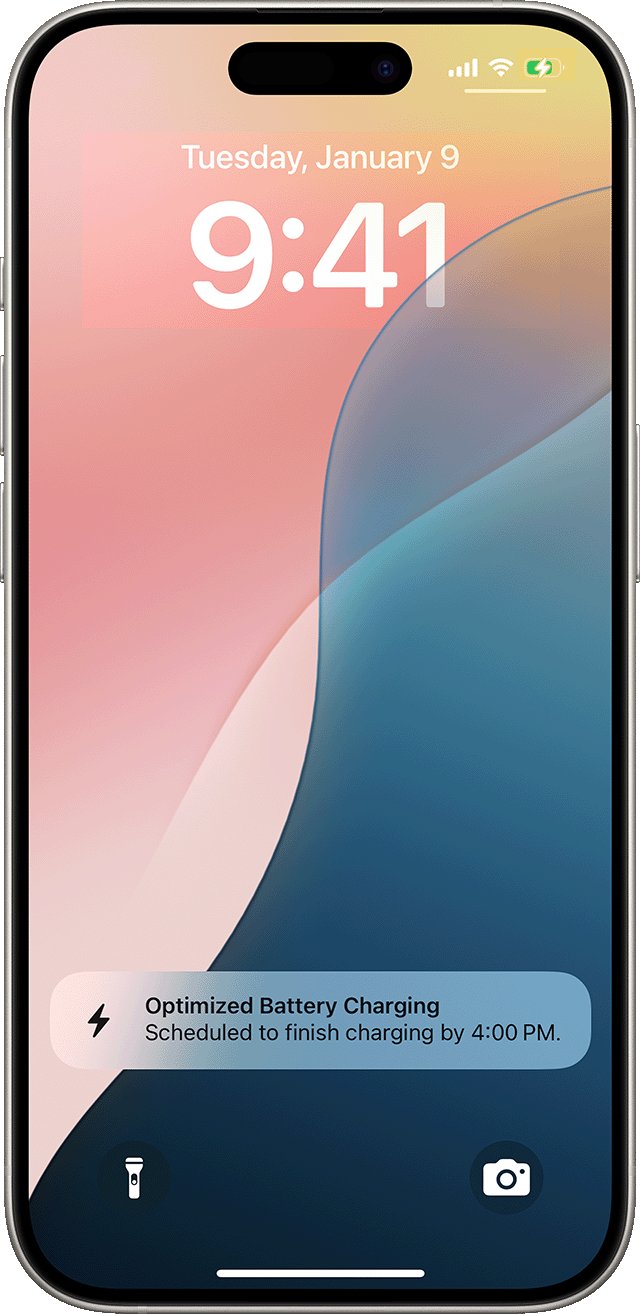
- When you need a full battery sooner, touch and hold the Lock Screen charging notification and tap Charge Now.
Optimized Battery Charging needs at least 14 days and 9 charges of 5 hours or more in one location before it starts holding at 80%. With a limit below 100%, iPhone still charges to 100% now and then to keep its battery estimate accurate.
How hot should a MagSafe charger get?
Slightly warm is normal. Apple lists wireless charging among the activities that make iPhone feel warmer, and both the iPhone and the MagSafe Charger can warm up while charging.
| What you notice | What it means | What to do |
|---|---|---|
| iPhone and charger feel slightly warm | Normal wireless charging | Nothing; keep the area ventilated |
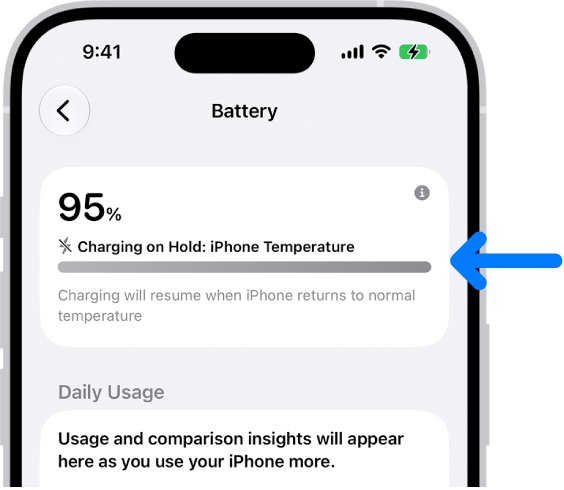
| Charging stops at 80% | Battery is too warm, or Optimized Battery Charging is holding | Move both to a cooler spot; charging resumes when the temperature drops |
| "Charging On Hold" on the Lock Screen | iPhone is too hot or too cold to charge | Wait for it to return to normal temperature |
| Temperature warning screen | iPhone passed its safe internal temperature | Turn it off, move it out of the sun and let it cool |
| Hot to the touch for long periods | Sustained heat can cause discomfort or injury | Do not rest skin on it, sleep on it or cover it |
Charge iPhone where the room is between 32° and 95° F (0° and 35° C). Remove the case if your iPhone tends to heat up while charging. These protections work on a cable, MagSafe or any other wireless charger and cannot be turned off.
Is MagSafe safe for credit card?
Not during charging. Apple says not to place credit cards, security badges, passports or key fobs between iPhone and the MagSafe Charger, because the charger can damage magnetic strips or RFID chips.
| Item | Between iPhone and charger | Safe option |
|---|---|---|
| Credit or debit card | Risk of damage to the magnetic strip or chip | Take it out of the case before charging |
| Security badge or key fob | Risk to RFID chips | Keep it off the back of the iPhone while charging |
| Passport | Risk to RFID chips | Store it away from the charger |
| MagSafe wallet | Must not sit between the phone and charger | Detach the wallet before placing iPhone on the charger |
Does MagSafe work without a MagSafe case?
Yes. The magnets are built into MagSafe-compatible iPhone models (iPhone 12 and later, except iPhone 16e), so the charger attaches and charges with no case at all. A case changes how well it works.
| Case on your iPhone | Will MagSafe work through it? | Note |
|---|---|---|
| No case | Yes | Full magnetic alignment and power |
| MagSafe case | Yes | Built for MagSafe accessories |
| Thick case | May charge slowly | Remove it if charging is slow or stops |
| Metal case | No | Apple says to remove metallic cases before wireless charging |
| Battery case or card wallet case | Not reliably | Remove it, or take the cards out first |
A case also traps heat, so take it off when iPhone gets warm on the charger. Only cases built for MagSafe carry their own magnets for a firm hold.
What power adapter does MagSafe charger need?
Use an Apple or compatible third-party USB-C adapter that meets safety standards. The adapter's volts and amps decide how fast it charges, not whether it is safe to leave plugged in.
| iPhone model | Adapter | Peak MagSafe power |
|---|---|---|
| iPhone 17, 17 Pro, 17 Pro Max, 18 Pro, 18 Pro Max, 16 Plus, 16 Pro Max | 30W or more (15V/2.0A), MagSafe Charger A3502, A3503, A2580 or A3250 | Up to 25W |
| iPhone 16 and iPhone 16 Pro | 30W or more | 22.5W |
| iPhone Air | 30W or more | 20W |
| iPhone 17e, iPhone 15 and earlier | 20W or more (9V/2.22A or 9V/2.56A) | Up to 15W |
| Any model | 12W minimum (5V/2.4A) | Works, but charges slowly |
Non-MagSafe iPhones that support Qi, such as iPhone 11 or iPhone 16e, also charge on MagSafe, with different power and charge times.
MagSafe charger not charging or stopping at 80%
iPhone stops charging at 80% on MagSafe
Optimized Battery Charging, a Charge Limit, or heat is holding the charge.
- Check the Lock Screen notification; tap and hold it, then tap Charge Now if you need a full charge.
- On iPhone 15 and later, open Settings > Battery > Charging and check the limit.
- Move the iPhone and charger to a cooler place and remove the case.
MagSafe charges slowly
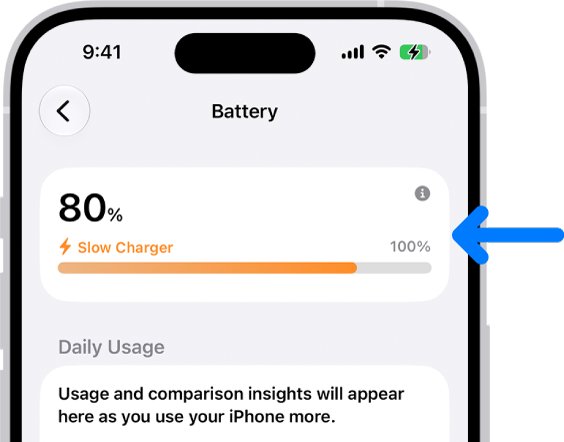
A low-wattage adapter, or iPhone was placed on the charger before power was connected.
- Lift the iPhone off, wait three seconds and place it back.
- Switch to a 20W or 30W USB-C adapter for your model.
- Disconnect headphones or other USB-C or Lightning accessories, which lower wireless charging power.
MagSafe not charging at all
A damaged accessory, a case in the way, or a cable plugged into the iPhone at the same time.
- Unplug any cable from the iPhone's port; it charges through the cable when both are connected.
- Remove a thick, metal or battery case.
- Check the cable and adapter for damage and try a different wall outlet.
- Restart the iPhone and try again.
"Charging On Hold" appears overnight
iPhone is too warm or too cold to charge.
- Move the charger off bedding and out of direct sunlight.
- Let the iPhone return to room temperature; charging resumes on its own.
If a cable also fails to charge the phone, the cause is not MagSafe, so fix an iPhone that is not charging.
MagSafe charger safety FAQ
Is MagSafe bad for battery?
No. iPhone fast-charges to about 80% and then trickle-charges, and Optimized Battery Charging or Charge Limit reduces the time it spends full. Heat ages a battery faster, so charge in a cool, open spot and remove the case if the phone warms up.
Does MagSafe work without a MagSafe case?
Yes. MagSafe iPhone models from iPhone 12 on have the magnets built in, so the MagSafe Charger attaches and charges with no case. A thick, metal or battery case can slow or stop charging.
Will MagSafe work through a case?
It works through a MagSafe case. Through a thick case it may charge slowly, and a metal or battery case should come off. Apple's advice for slow wireless charging is to remove the case and try again.
Is MagSafe safe for credit card?
Not while charging. Apple warns that cards, badges, passports and key fobs placed between iPhone and the MagSafe Charger can have their magnetic strips or RFID chips damaged. Remove them before you put the phone on the charger.
Are MagSafe cases safe?
Yes, when the case does not hold cards or metal between the phone and the charger. If your case carries a card or key fob, take it out before charging, and remove the case if the iPhone runs warm.
How does MagSafe work?
MagSafe is wireless charging by magnetic induction, with magnets that hold the charger in the best position on the back of the iPhone. The alignment gives faster, more efficient charging than an ordinary Qi pad, up to 25W on supported models.
What is the point of MagSafe?
It lines the charger up automatically. Apple says the magnetic alignment gives faster, more efficient charging, and that MagSafe includes technologies that reduce energy waste compared with other wireless charging methods.
Is MagSafe worth it?
It is if you charge wirelessly. Many Qi-certified chargers top out at 7.5W on iPhone, while MagSafe reaches up to 25W depending on the iPhone model and adapter.
How do you use MagSafe?
Connect the MagSafe Charger to a USB-C power adapter, plug it in, then place the iPhone on it so the magnets snap into place. Keep the charger face up on a flat surface, clear of metal objects.
Can I leave my iPhone on MagSafe overnight?
Yes. Leave Optimized Battery Charging or Charge Limit on so the battery spends less time at 100%. Keep the charger on a nightstand, not on the bed or under a pillow, and remove cards from the case.