To mirror a Windows boot drive in software, convert both disks to dynamic, run add disk=1 on the C: volume in DiskPart, then copy the EFI partition and BCD store to the second disk.
This guide covers the GPT boot mirror, a data-only mirrored volume, boot testing, replacing a failed drive and what Microsoft says about dynamic disks.
How to mirror a Windows boot drive with software RAID1
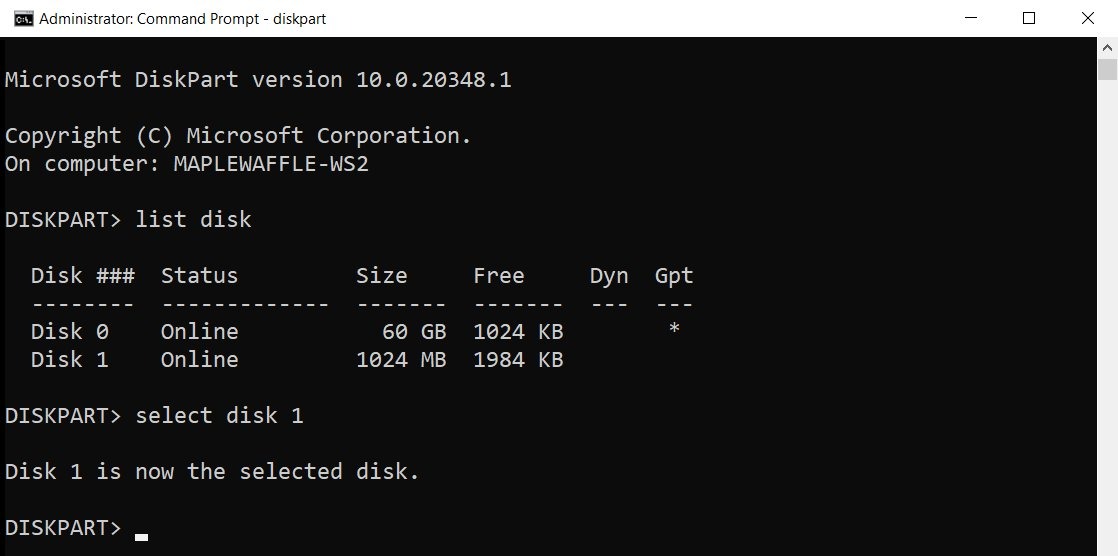
These are the stages on a UEFI PC with GPT disks. Disk 0 is the Windows disk and Disk 1 is the empty second disk.
- Back up the PC, open Command Prompt as administrator and run
diskpart. - Convert Disk 1 to GPT, then create EFI and MSR partitions matching the sizes on Disk 0.
- Run
convert dynamicon Disk 1, then on Disk 0. - Run
select volume c, thenadd disk=1, and wait for the mirror to finish syncing. - Format the new EFI partition as FAT32 and copy the boot files and BCD store to it.
- Restart and start Windows once from the second disk to prove it boots.
The exact commands and expected results for each stage follow. Skipping the EFI copy leaves a mirror that holds your files but cannot start the PC on its own.
Software RAID1 vs hardware RAID for the Windows boot drive
| Your situation | Use this | Why |
|---|---|---|
| Your motherboard or a controller card offers RAID | Hardware RAID controller | Microsoft points to a hardware RAID controller for mirroring the volume Windows boots from |
| You have no RAID controller and Windows must survive a drive failure | Dynamic disk mirror | Microsoft keeps mirror boot volumes as the one dynamic disk use it does not deprecate |
| You only need to protect data drives | Storage Spaces two-way mirror | Microsoft recommends Storage Spaces for data, but a storage space cannot host Windows |
| You need to get back deleted or overwritten files | A separate backup | Microsoft says software mirroring is not intended as an offline backup |
A two-way mirror on Windows 11 is the simpler choice when the drives only hold data.
Software RAID1 requirements for a Windows boot drive
| Requirement | What Microsoft's procedure expects |
|---|---|
| Administrator rights | Membership of the local Administrators group to run DiskPart and convert a disk |
| Second disk | A raw basic disk with no data partitions and unallocated space equal to or greater than the primary disk's system and boot partitions |
| Partition style | GPT on both disks, with an EFI partition on the second disk because a disk needs one to start Windows |
| Backup | Back up the data and close programs that use the disk before converting it |
| BitLocker | Microsoft lists a dynamic disk among the reasons a drive cannot be encrypted with BitLocker |
| Windows version | The GPT boot mirror steps are written for Windows Server. DiskPart and BCDEdit also ship with Windows 10 and 11, but Microsoft publishes no client procedure, so test on a spare PC first |
Disk 0 and Disk 1 are examples. Run list disk first and use your own numbers, because a wrong number can erase the wrong drive.
If the Windows disk still uses MBR, convert it from MBR to GPT before you begin.
Create a mirrored volume with two data disks on Windows
This route is for two empty data disks, not the Windows drive. Microsoft recommends Storage Spaces for new data mirrors, so use it when another tool or an existing setup requires a dynamic mirror.
If a disk has old partitions, clean removes them. That command permanently destroys all data on the selected disk.
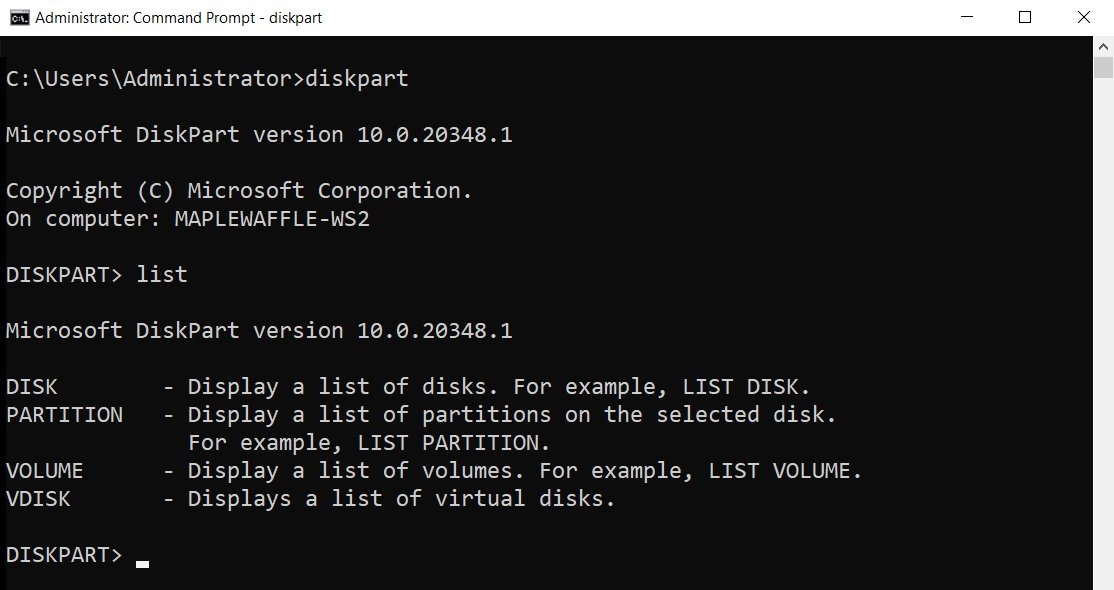
- Open Command Prompt as administrator, run
diskpart, thenlist disk, and note the two empty disks. - Run
select disk 1, thenconvert dynamic. - Run
select disk 2, thenconvert dynamic. - Run
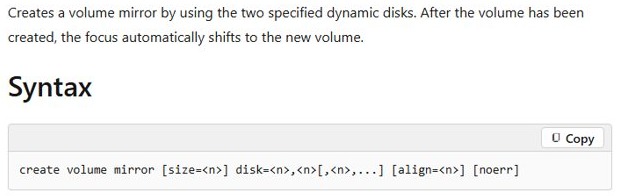
create volume mirror disk=1,2to build the mirror across both disks. - Run
format fs=ntfs label=Data quickto format the new volume, which already has focus. - Run
assign letter=E, using any free drive letter. - Run
exitto leave DiskPart.
Without a size value, the volume takes the remaining free space on the smaller disk and an equal amount on the other. Add size= with a value in megabytes to make it smaller, for example create volume mirror size=1000 disk=1,2.
Configuring a software RAID1 for the Windows boot drive
Start with the second disk. The EFI system partition holds the files that start Windows, and Disk 1 needs its own copy to boot if Disk 0 fails.
Only DiskPart commands can create these partitions. Disk Management cannot create or mirror EFI or MSR partitions.
- Open Command Prompt as administrator, run
diskpart, thenlist diskto identify both disks. - Run
select disk 1, thenconvert gpt, thenlist partition. - Confirm that one Reserved partition is the only entry. More than one means you selected the wrong drive or it is not raw, so stop and correct that.
- Run
select partition 1, thendelete partition overrideto remove the automatic MSR partition. - Run
select disk 0, thenlist partition, and write down the sizes of System and Reserved. - Run
select disk 1, thencreate partition efi size=<System size in MB>. - Run
create partition msr size=<Reserved size in MB>. - Run
list partitionand confirm Disk 1 shows System and Reserved at those sizes.
Microsoft's example uses 200 MB and 128 MB, but match your own Disk 0. The EFI partition minimum is 200 MB on 512-byte and 512e drives and 300 MB on 4K native drives.
Mirror the C: drive with the diskpart add disk command
Microsoft's general conversion page tells you to delete all volumes before converting a disk, but its boot mirror procedure converts Disk 0 in place. Have a current backup before you run this, because the Windows disk is changing type.
- Run
select disk 1, thenconvert dynamic. - Run
select disk 0, thenconvert dynamic. - Restart the PC if DiskPart says a reboot is needed, then open DiskPart again as administrator.
- Run
select volume c. - Run
add disk=1. DiskPart reports that it succeeded in adding a mirror to the volume. - Wait for synchronization to finish before you continue. Disk Management shows the progress.
The add command mirrors only the selected volume. Any other volume on the disk, including the Recovery partition, is not copied by this step.
The operation also creates a second Windows boot entry labelled secondary plex, which points at the copy of Windows on Disk 1.

Copy the EFI partition and BCD store to the second drive
The second disk still has an empty EFI partition at this point. These steps format it, clone the boot manager entry and copy the boot files across.
- In DiskPart, run
select disk 1,select partition 1,assign letter=S, thenformat fs=FAT32 quick. - Run
select disk 0,select partition 1,assign letter=P, thenexit. - At the prompt, run
bcdedit /copy {bootmgr} /d "Windows Boot Manager Cloned"and note the GUID it returns. - Run
bcdedit /set {GUID} device partition=s:, replacing {GUID} with that value. - Run
bcdedit /export P:\EFI\Microsoft\Boot\BCD2to export the store. - Run
robocopy p:\ s:\ /e /r:0to copy the system files to the second disk. - Run
rename S:\EFI\Microsoft\Boot\BCD2 BCD, thendel P:\EFI\Microsoft\Boot\BCD2. - In DiskPart, run
select volume P,remove,select volume S, thenremoveto clear the letters.
Repeat this copy whenever the BCD store changes on either drive. Microsoft calls for it explicitly, because the two EFI partitions are separate copies and do not sync themselves.

Boot Windows from the second drive in a RAID1 mirror
Test this before you need it. Open your firmware's boot manager menu during startup to reach the cloned entry.
- Shut down Windows and start the PC again.
- In the firmware startup menu, select Windows Boot Manager Cloned.
- In the Windows Boot Manager list, select the entry whose name ends in secondary plex.
- Wait for the desktop. Windows is now running from the second drive.
Keep the pair matched. Use Windows Boot Manager with the normal Windows entry, and Windows Boot Manager Cloned with the secondary plex entry.
If the entry name displays badly, rename it with bcdedit /set {GUID} description "Your name", then repeat the EFI and BCD copy.
Check RAID1 mirror status with diskpart list volume
Run this in DiskPart at any time to read the state of the mirror. Disk Management shows the same information in its volume list.
list volumeLists every volume with its type and status. The boot volume is the row marked Boot in the Info column.
You should see: Mirror under Type and Healthy under Status. Rebuild means the sync is still running, and Failed Rd means one disk of the mirror is missing.
Are dynamic disks deprecated in Windows?
Yes, with one exception that matters here. Microsoft's pages differ in emphasis, so read them together before you commit a new PC to this setup.
| Microsoft page | What it says | What it means for a boot mirror |
|---|---|---|
| Basic and Dynamic Disks | Deprecated for all usages except mirror boot volumes | A boot mirror is the one use not deprecated |
| Convert a disk to Dynamic or Basic | Deprecated and not recommended for new deployments, with hardware RAID suggested for the boot volume | New builds should prefer a RAID controller |
| Deprecated features in the Windows client | No longer being developed, to be fully replaced by Storage Spaces in a future release (announced with version 2004) | Do not expect new features, and watch for removal |
A storage space cannot host Windows, so no Microsoft replacement exists yet for a software mirror of the boot drive.
Replacing a failed drive in a software RAID1 mirror on Windows
This sequence assumes Disk 0 failed and Disk 1 survives. If Disk 1 failed instead, swap the numbers and the drive letters in the commands.
- Replace the failed drive following your hardware vendor's directions. If the new drive was used before,
cleanwipes it, and that destroys everything on it. - Start the PC, select Windows Boot Manager Cloned, then the secondary plex entry.
- In DiskPart, run
select disk 1,select partition 1,assign letter=s, thenexit. - Run
bcdedit /import S:\EFI\Microsoft\Boot\BCD /cleanto make that store the active one. - In DiskPart, run
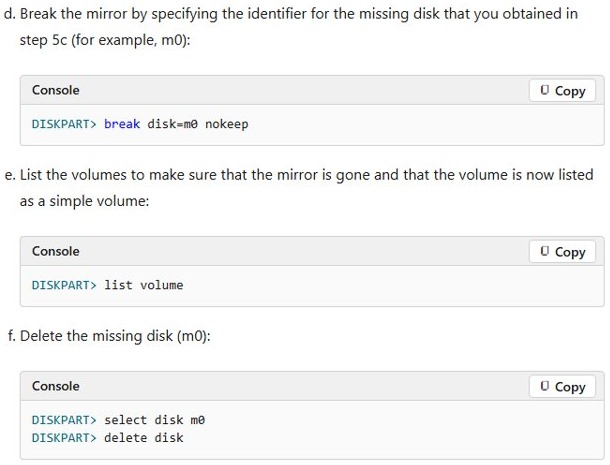
select volume c, thendetail volume, and note the missing disk, typically M0. - Run
break disk=m0 nokeep, thenlist volume, and confirm the volume now shows as Simple. - Run
select disk m0, thendelete disk, thenexit.
For a data mirror, the job is shorter. Select the volume, run break disk=m0 nokeep, delete the missing disk, run convert dynamic on the new disk, select the volume again and run add disk= with the new disk number.
Remove stale BCD entries after a RAID1 drive failure
Run bcdedit /enum all /v and find each entry below. The failed disk leaves entries with a device of unknown or no device at all. Your Windows entries carry your own Windows name.
| Entry you see | Command | What it does |
|---|---|---|
| Windows Boot Manager, device unknown or missing | bcdedit /set {GUID} device partition=s: |
Points the entry at Disk 1 |
| Windows Boot Manager Cloned | bcdedit /delete {GUID} |
Removes the old Disk 1 entry |
| Windows Resume Application, device unknown or missing | bcdedit /delete {GUID} |
Removes the failed disk's entry |
| Windows Resume Application – Secondary Plex | bcdedit /set {GUID} description "Windows Resume Application" |
Makes it the primary entry |
| Windows entry, device unknown or missing | bcdedit /delete {GUID} |
Removes the failed disk's entry |
| Windows entry ending in Secondary Plex | bcdedit /set {GUID} description "Your Windows name" |
Makes it the primary entry |
| Windows Memory Diagnostic | bcdedit /set {GUID} device partition=s: |
Points the memory tester at Disk 1 |
Run bcdedit /enum all /v again to check the result, then restart and select Windows Boot Manager and your Windows entry.
Add a new drive back to the Windows boot mirror
Windows is now running from Disk 1, so this rebuilds the mirror on the new Disk 0. The MSR size to create is the Reserved size plus the Dynamic Reserved size on Disk 1.
- In DiskPart, run
select disk 0,convert gpt,list partition,select partition 1, thendelete partition override. - Run
select disk 1, thenlist partition, and record the layout. - Run
select disk 0, thencreate partition efi size=<EFI size in MB>andcreate partition msr size=<MSR size in MB>. - Run
list partitionand confirm Disk 0 has both partitions. - Run
select disk 0, thenconvert dynamic. Do the same on Disk 1 if it is not already dynamic. - Run
select volume c, thenadd disk=0. - While it resyncs, run
select disk 0,select partition 1, thenformat fs=fat32 quick. - Wait for the resync to finish in Disk Management.
Copy boot files to a replacement RAID1 drive
Disk 1 is the new primary at this point, so the copy runs in the opposite direction from the first setup.
- In DiskPart, assign
letter=pto partition 1 on Disk 0 andletter=sto partition 1 on Disk 1, then runexit. - Run
bcdedit /copy {bootmgr} /d "Windows Boot Manager Cloned"and note the GUID. - Run
bcdedit /set {GUID} device partition=p:. - Run
bcdedit /export S:\EFI\Microsoft\Boot\BCD2. - Run
robocopy s:\ p:\ /e /r:0. - Run
rename P:\EFI\Microsoft\Boot\BCD2 BCD, thendel S:\EFI\Microsoft\Boot\BCD2. - In DiskPart, run
select volume p,remove,select volume s, thenremove. - Restart and confirm the PC starts from each disk.
The boot entries now point to Disk 1 by default. To change the store while running from Disk 0, assign letter=p to its EFI partition and run bcdedit /import P:\EFI\Microsoft\Boot\BCD /clean first.
Software RAID1 mirror errors and failed redundancy on Windows
Mirror shows Failed Rd and a disk shows Missing
The disk was recently available but can no longer be located. It may be corrupted, powered down or disconnected.
- Repair any disk, controller or cable problem and confirm the disk has power.
- In Disk Management, right-click the disk and select Reactivate Disk.
- If the disk stays Missing and cannot be repaired, replace it with the steps above.
"The arguments you specified for this command are not valid" on diskpart break
One disk of the mirror is missing and the command lacks the required parameters. The same cause can return "The disk management services could not complete the operation."
- Run
select volumewith the mirror's number or letter, thendetail volume. - Note the missing disk identifier, such as M0.
- Run
break disk=m0 nokeep, using that identifier.
Disk shows Online (Errors) and volume shows Healthy (At Risk)
The dynamic disk has I/O errors on a region of the disk.
- In Disk Management, right-click the disk and select Reactivate Disk.
- If the status returns, back up your data and replace the disk as soon as possible.
Second drive will not start Windows
The second disk needs its own EFI partition with current boot files, and those files are not kept in sync automatically.
- Start from the working drive and repeat the EFI and BCD copy.
- Test Windows Boot Manager Cloned again.
- If an EFI partition is corrupted, boot from Windows installation media and press Shift + F10.
- Run
diskpart,list vol, thenexitto find the Windows letter. - Run
bcdboot D:\Windows, replacing D with that letter, then restart.
Do not delete a Missing disk's volumes or choose Remove Disk unless you removed that drive on purpose. Afterward you may not be able to bring it back online on the same system.
You can boot from a USB drive to reach that command prompt.
Remove a software RAID1 mirror from the boot drive
This keeps Windows on Disk 0 as a simple volume and frees the space on Disk 1. Confirm in detail volume which disk you are removing before you run the break command.
- Open DiskPart as administrator and run
select volume c, thendetail volume. - Run
break disk=1 nokeepto delete the half of the mirror on Disk 1. - Run
list volume, confirm C: shows as Simple, thenexit. - Run
bcdedit /enum all /vand note the GUIDs of the cloned boot manager and secondary plex entries. - Run
bcdedit /delete {GUID}for each of those entries.
Disk 0 stays dynamic. Converting back to basic means deleting every volume on the disk, which is not possible on the disk that is running Windows.
Is software RAID1 on the boot drive a backup?
No, keep a separate backup as well. Microsoft describes Windows software mirroring as a fault-tolerant solution for hardware disk failure, and says it is not intended as an offline backup mechanism.
Do not break a healthy boot mirror to create a spare drive either. Microsoft warns that the manually broken drive gets the next available drive letter, recorded permanently in the LDM database, so Windows cannot run correctly from it.
Software RAID1 boot drive FAQ
Can Windows boot from a software RAID1 mirror?
Yes. A mirrored boot volume on dynamic disks can start Windows from either drive once the second drive has its own EFI partition and a copied BCD store. Microsoft documents the GPT procedure for Windows Server and publishes no separate version for Windows 10 or 11.
Can Storage Spaces mirror the Windows boot drive?
No. Microsoft states that you cannot use a storage space to host the Windows operating system. Use Storage Spaces for data drives, and use a hardware RAID controller or a dynamic disk mirror for the drive that runs Windows.
Can Disk Management mirror a boot drive without DiskPart?
Only partly. Disk Management can convert the disks to dynamic and establish the mirror on the boot volume. It cannot create or mirror EFI or MSR partitions, so the second drive still needs DiskPart before it can start Windows.
Do both drives in a RAID1 mirror need to be the same size?
No. The second drive needs unallocated space equal to or greater than the primary disk's system and boot partitions. A data mirror created without a size value uses the free space on the smaller disk and an equal amount on the other.
Does BitLocker work on a mirrored boot drive?
Microsoft lists a dynamic disk among the reasons a drive cannot be encrypted with BitLocker. A software boot mirror requires dynamic disks, so choose a hardware RAID controller instead if the Windows drive has to stay encrypted.
What is the secondary plex entry in the Windows boot menu?
It is the boot entry created when you run add disk to mirror the boot volume. It starts Windows from the mirror copy on the second drive. You select it after choosing Windows Boot Manager Cloned in the firmware startup menu.
Does a software RAID1 mirror copy the Recovery partition?
No. The add command mirrors only the volume you select, and the EFI and MSR partitions are created by hand on the second drive. Microsoft's boot mirror procedure does not include a step for the Recovery partition, so it stays on the original disk.
Can MBR disks use a software RAID1 boot mirror?
Microsoft's GPT article says MBR mirrors on 32-bit Windows need fewer steps than GPT mirrors, because GPT disks also need the EFI partition work. The steps in this article are written for GPT disks, so they do not apply as written to an MBR disk.