EFI is the firmware interface that UEFI PCs use to start Windows, and the EFI system partition (ESP) is the small FAT32 partition on a GPT disk that holds the boot files the firmware loads; on Windows 11 you can identify it in DiskPart, where it is listed with the type System.
This guide shows three ways to find the ESP, what it contains, why Disk Management will not shrink or delete it, and how to rebuild its boot files if they are damaged.
How to identify EFI system partition Windows 11/10?
DiskPart is the quickest way, because it labels the ESP by type instead of by drive letter.
- Right-click Start and select Terminal (Admin), then approve the prompt.
- Type
diskpartand press Enter. - Type
list diskand press Enter. An asterisk in the Gpt column marks a GPT disk. - Type
select disk 0(use the number of your Windows disk) and press Enter. - Type
list partitionand press Enter. - Find the partition whose Type reads System. That is the EFI system partition.
- Type
exitto leave DiskPart.
To confirm the file system, type list volume before you exit. The ESP appears as a small FAT32 volume marked Hidden, with no drive letter.
Find the EFI partition with DiskPart, PowerShell or Disk Management
| Tool | What identifies the ESP | Best for |
|---|---|---|
DiskPart (list partition) |
Type column shows System | Any PC, including Windows PE and recovery prompts |
PowerShell (Get-Partition) |
GPT type GUID c12a7328-f81f-11d2-ba4b-00a0c93ec93b |
Scripts and exact identification |
| Disk Management | A small FAT32 partition with no drive letter at the start of the Windows disk | A visual check of the whole disk layout |
Identify the EFI system partition with PowerShell
Every GPT partition carries a type GUID. Microsoft defines c12a7328-f81f-11d2-ba4b-00a0c93ec93b as the EFI system partition, so filtering on it returns only the ESP.
Get-Partition | Where-Object GptType -eq '{c12a7328-f81f-11d2-ba4b-00a0c93ec93b}'Run it in an elevated PowerShell window. It lists every partition, then keeps only the one whose GPT type is the EFI system partition GUID.
You should see: One row with the disk number, partition number and a size of a few hundred MB. No output means the disk is MBR or has no ESP.
To check whether a disk is GPT at all, run Get-Disk and read the Partition Style column.
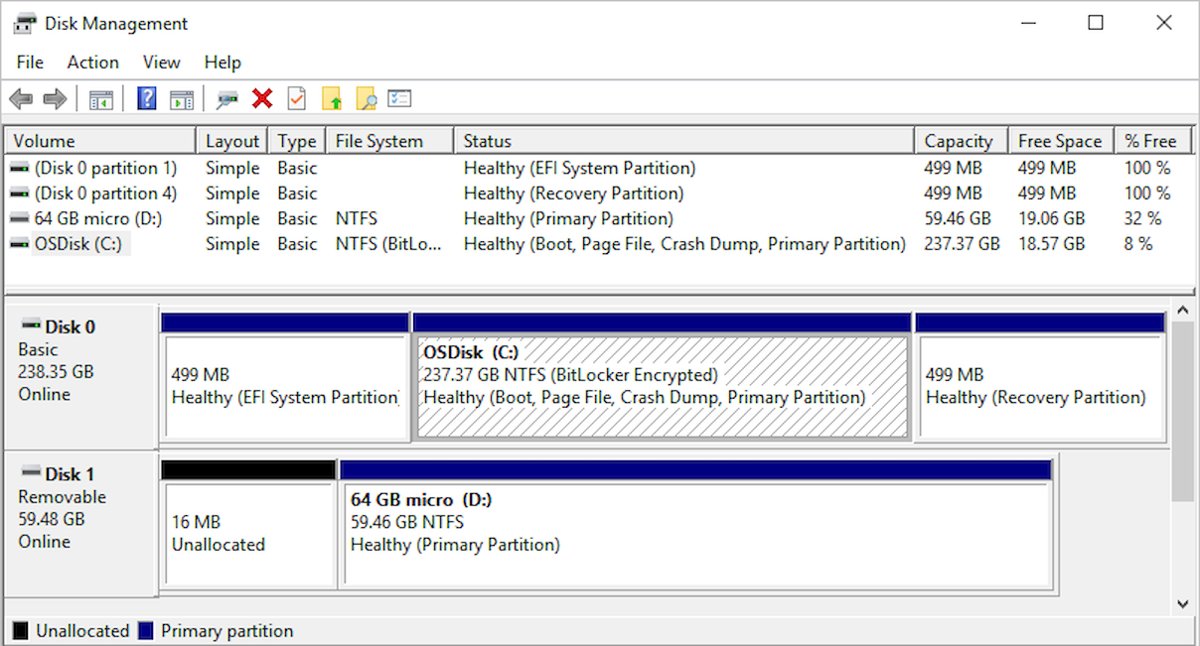
Check the EFI partition in Disk Management
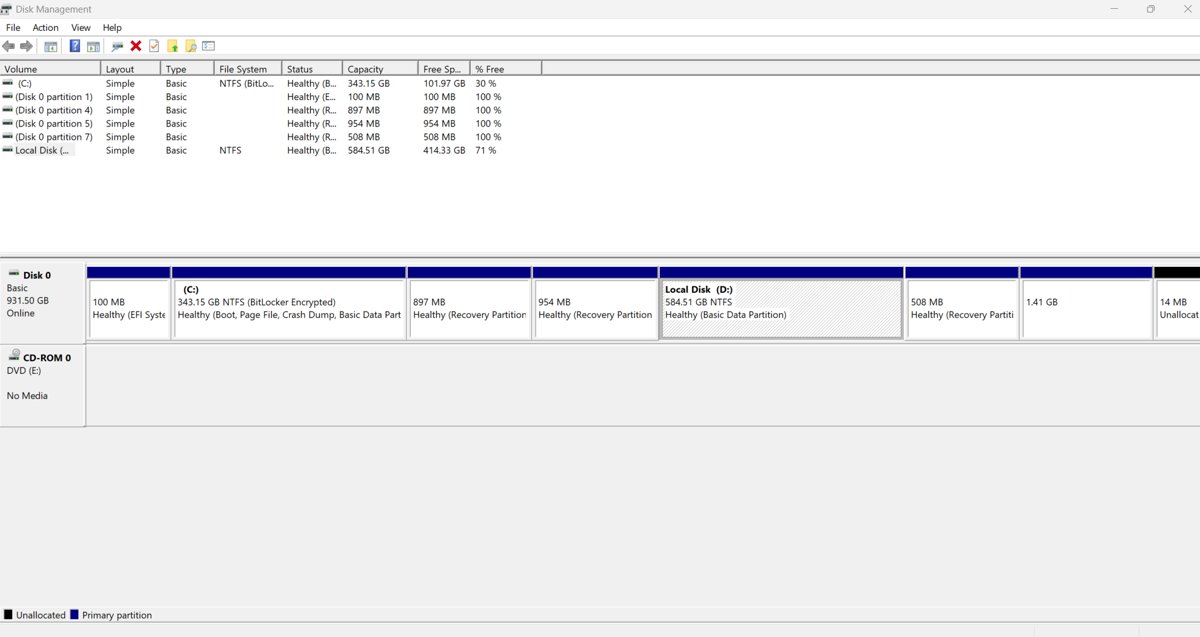
- Right-click Start and select Disk Management.
- In the bottom pane, find the disk that holds (C:).
- Look for the small FAT32 partition with no drive letter, usually first on the disk. That is the ESP.
- To confirm the disk is GPT, right-click the disk label (for example Disk 0) and select Properties.
- Open the Volumes tab and read the value next to Partition style.
What is EFI partition in Windows?
On GPT drives the system partition is called the EFI System Partition, and the device boots to it. Windows manages it, and it should hold no other files, including Windows RE tools.
| Property | EFI system partition |
|---|---|
| File system | FAT32 |
| Minimum size, 512-byte or 512e sector drives | 200 MB |
| Minimum size, 4K native sector drives | 300 MB |
| GPT type GUID | c12a7328-f81f-11d2-ba4b-00a0c93ec93b |
| Drive letter | None by default |
| Main contents | Windows Boot Manager and the BCD store in \EFI\Microsoft\Boot |
| Fallback boot file | \EFI\Boot\bootx64.efi on x64 PCs |
The default UEFI layout for Windows is the EFI system partition, a 16 MB Microsoft reserved partition (MSR), the Windows partition and a recovery partition.
What is the difference between EFI and MBR?
MBR is a partition style used with legacy BIOS boot. A UEFI PC boots Windows from a GPT disk, and the EFI system partition takes the place of the active System Reserved partition used on MBR disks.
| UEFI with GPT | Legacy BIOS with MBR | |
|---|---|---|
| Boot partition | EFI system partition, FAT32 | Active system partition |
| Partitions per disk | Up to 128 | Up to 4 primary, or 3 plus an extended partition |
| Maximum partition size | About 18 exabytes | 2 TB with 512-byte sectors |
| Boot folder | \EFI\Microsoft\Boot | \Boot |
| Windows 11 support | Required: UEFI, Secure Boot capable | Not supported |
Does Windows 11 need an EFI-based partition to upgrade?
Yes. Microsoft lists the Windows 11 firmware requirement as UEFI, Secure Boot capable, and a UEFI PC boots Windows from a GPT disk with an EFI system partition. A Windows 10 PC on an MBR disk can be converted with MBR2GPT, which creates the ESP.
- Back up the PC, and suspend BitLocker if it is on.
- Open Terminal (Admin).
- Run
mbr2gpt /validate /disk:0 /allowFullOSand wait for Validation completed successfully. - Run
mbr2gpt /convert /disk:0 /allowFullOS. - Restart, open the firmware settings and switch the boot mode to UEFI. The disk only boots in UEFI mode after conversion.
MBR2GPT needs a disk with at most three primary partitions and no extended or logical partitions. The conversion cannot be undone.
How can I see what's in the EFI partition?
The ESP has no drive letter, so mount it temporarily with mountvol, which has a switch made for the EFI system partition.
- Open Terminal (Admin) and switch to Command Prompt, or run
cmd. - Type
mountvol S: /sand press Enter to mount the ESP as drive S:. - Type
dir S:\EFIand press Enter to list the boot folders, such as Microsoft and Boot. - Do not add, rename or delete files on S:.
- Type
mountvol S: /dand press Enter to remove the drive letter.
File Explorer can refuse to open the mounted ESP even from an admin account. Use the dir command instead.
Should I delete the EFI partition?
No. Do not delete the EFI system partition on the disk Windows boots from. The firmware boots to this partition. Without it, the PC has no Windows Boot Manager to load and Windows will not start until the boot files are rebuilt.
How can I delete the EFI partition in Windows? Only on a disk you are wiping, such as an old drive or a USB stick. In DiskPart, select that disk and run clean, which removes every partition on it. Check the disk number twice, because clean cannot be undone. If a leftover UEFI partition is on a USB stick, you can remove the UEFI_NTFS partition from a USB drive the same way.
Shrink volume is greyed out in Windows 11 [fix]
Shrink Volume is greyed out on the EFI system partition
Disk Management only shrinks volumes that are NTFS or have no file system, and the ESP is FAT32.
- Leave the ESP at its current size; it needs at least 200 MB, or 300 MB on 4K native drives.
- Shrink the Windows (C:) partition instead if you need unallocated space.
Shrink Volume on C: offers less space than the free space shown
Unmovable files such as the page file or shadow copy storage sit near the end of the volume.
- Open Event Viewer and check the Application log for event ID 259, which names the unmovable file.
- Move the page file or stored shadow copies to another disk from Control Panel.
- Shrink the volume, then move the page file back.
Shrink is refused from the command line too
DiskPart uses the same rules as Disk Management.
- Open Terminal (Admin) and run
diskpart. - Run
list volume, thenselect volume <number>for C:. - Run
shrink desired=<MB>. If the desired size is too large, addminimum=<MB>for a smaller fallback.
How do I restore the EFI partitions?
If the ESP still exists but its boot files are corrupted, BCDBoot recreates them from the Windows folder.
- Boot from Windows installation media and press Shift + F10 to open Command Prompt.
- Run
diskpart, thenlist vol, and note the letters of the Windows volume and the FAT32 system volume. - Run
exitto leave DiskPart. - Optionally format the system partition with
format S: /q, replacing S with its letter. - Run
bcdboot D:\Windows, replacing D with the letter of the Windows volume. - Restart the PC. Windows should start normally.
EFI system partition Windows 11 FAQ
What is EFI in a computer?
EFI, now developed as UEFI, is the firmware interface between a PC's hardware and its operating system. It starts the PC and loads the boot files from the EFI system partition. Windows 11 requires UEFI firmware that is Secure Boot capable.
What does EFI stand for?
EFI stands for Extensible Firmware Interface. UEFI, the current version, stands for Unified Extensible Firmware Interface. On cars and engines EFI means electronic fuel injection, which is unrelated to PCs.
How do I identify the EFI partition in DiskPart?
Run diskpart as administrator, then list disk, select disk 0 and list partition. The partition with the type System is the EFI system partition. Running list volume shows it as a small hidden FAT32 volume without a drive letter.
Where is the EFI partition located?
It is a separate partition on the disk Windows boots from, usually the first one. It has no drive letter, so it does not appear in File Explorer. DiskPart, Disk Management and the Get-Partition command in PowerShell all show it.
What is the EFI folder?
The EFI folder is the top-level folder on the EFI system partition. On Windows it contains EFI\Microsoft\Boot, which holds Windows Boot Manager and the BCD store, and EFI\Boot, which holds the fallback boot file the firmware opens by default.
How big should the EFI partition be?
Microsoft sets a minimum of 200 MB on drives with 512-byte or 512e sectors and 300 MB on 4K native drives. It must be formatted FAT32 and should contain only the files Windows manages.
Can I open the EFI partition in File Explorer?
Not by default, because it has no drive letter. Mount it with mountvol S: /s from an elevated Command Prompt, list its contents with dir S:\EFI, and remove the letter afterwards with mountvol S: /d.
Does upgrading to EFI offer any benefits?
Yes. Moving from legacy BIOS and MBR to UEFI and GPT allows Secure Boot, up to 128 partitions and partitions larger than 2 TB, and it is required for Windows 11. MBR2GPT converts a Windows system disk without deleting data.
Why can't I shrink the EFI partition?
Disk Management and DiskPart only shrink volumes that are NTFS or have no file system. The EFI system partition is FAT32, so Shrink Volume is greyed out for it.