To access the boot manager in Windows 11, hold Shift while you select Power > Restart, and the PC reopens on the Advanced startup menu.
This guide covers all six routes, including Settings, Command Prompt, the firmware boot menu and a USB drive, plus how to change the boot menu and fix it when it will not appear.
1. Using the Restart Sequence
This is the fastest route and it works from the Start menu or the sign-in screen, so you do not need to reach the desktop.
- Save your open work.
- Open Start and select the Power icon. On the sign-in screen, the Power icon sits in the lower-right corner.
- Press and hold Shift, then select Restart.
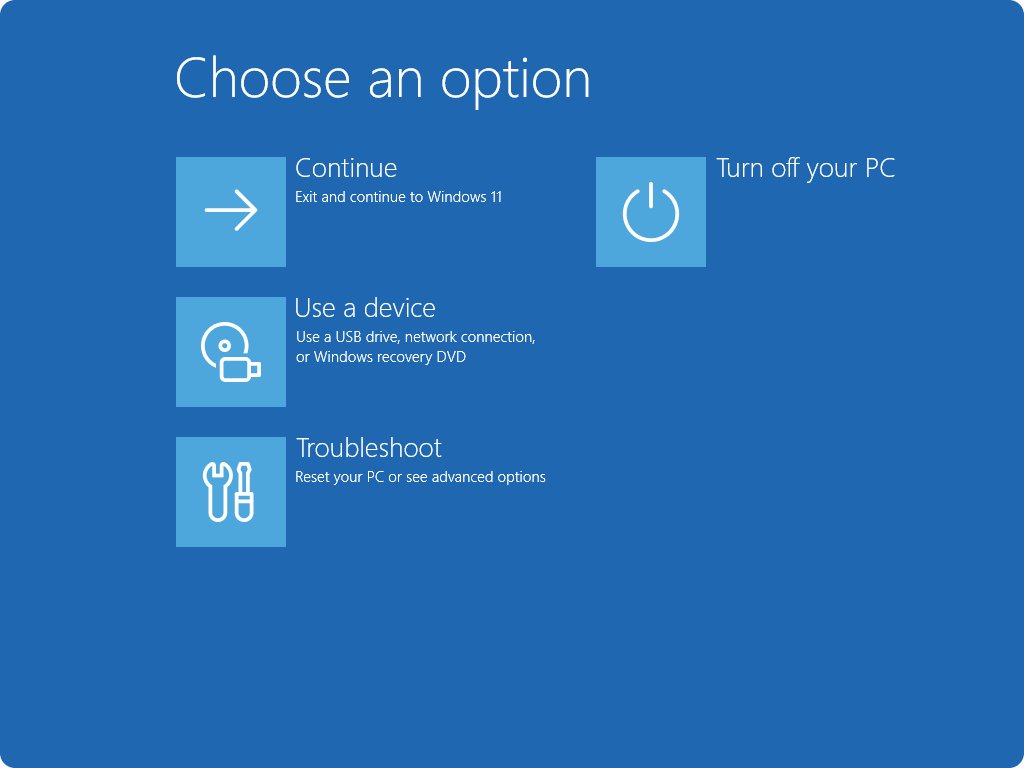
- Keep holding Shift until the blue Choose an option screen appears.
- Pick what you came for: Continue to start Windows, Troubleshoot > Advanced options for recovery tools, or the boot-from-a-device option to start from a USB drive.
Microsoft notes that this restart signs every user out before the Advanced startup menu opens. On a PC with more than one operating system, this menu also lets you choose which one to start.
Which route to the boot manager should you use?
"Boot manager" means two different screens. Windows Boot Manager is the Windows menu for recovery tools and choosing an operating system. The firmware boot menu belongs to your PC maker and picks the physical drive to start from.
| Your situation | Use this | Why |
|---|---|---|
| You are signed in or at the sign-in screen | Method 1: Shift + Restart | Two clicks, no menus to find |
| The keyboard's Shift key is unreliable or you prefer menus | Method 2: Settings > System > Recovery | No key combination needed |
| You want a one-line restart, or you are scripting it | Method 6: shutdown /r /o /t 0 |
Goes straight to the Advanced boot options menu |
| You need to pick a USB drive or another disk to start from | Method 4: the firmware boot menu | Chooses the physical drive before Windows loads |
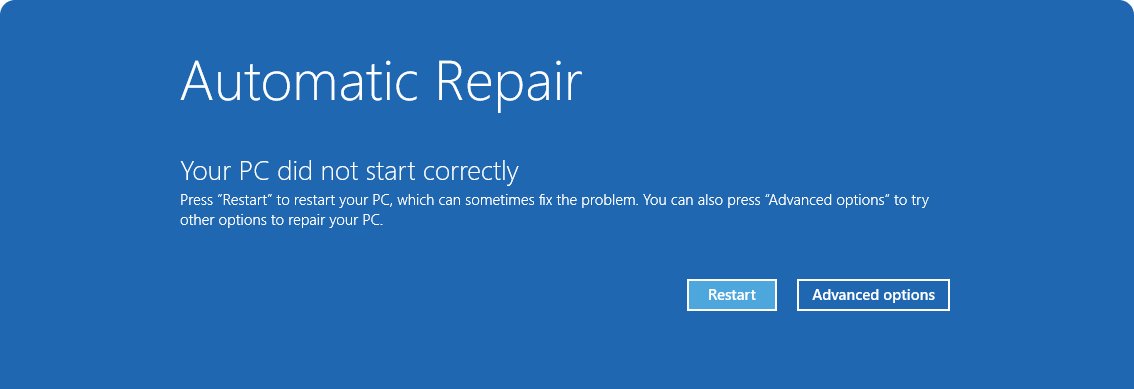
| Windows will not start at all | Automatic repair, or Method 5 with a USB drive | Windows opens recovery by itself after repeated failed starts |
| You are used to pressing F8 from older Windows | Method 3, after turning the legacy menu on | Windows 11 ignores F8 by default |
2. Through Windows Settings
- Press Win + I to open Settings.
- Select System > Recovery. On Windows 10, the path is Update & Security > Recovery.
- Under Recovery options, find Advanced startup and select Restart now.
- Confirm the restart if Windows asks you to save your work.
- Wait for the Choose an option screen, then pick Troubleshoot, Continue or another entry.
If BitLocker protects the drive, some recovery tools ask for the BitLocker recovery key. Have it ready before you restart.
3. Using Shift + F8 Key Combination
Pressing Shift + F8 or F8 during startup does nothing on a default Windows 11 PC. Microsoft's BCDEdit reference states that with the default Standard boot menu policy, the F8 key is ignored, because modern PCs start too quickly to catch it.
You can still get the old F8-style Advanced options menu once, on the next start, by setting a boot option from an administrator Command Prompt.
- Select Start, type
cmd, right-click Command Prompt and select Run as administrator. - Type
bcdedit /set {current} onetimeadvancedoptions onand press Enter. In PowerShell, put quotes around"{current}". - Wait for The operation completed successfully.
- Restart the PC normally. The legacy Advanced options menu appears before Windows loads.
- Choose an entry with the arrow keys and press Enter. The setting applies to that one start only.
The permanent alternative is the bootmenupolicy Legacy setting, which keeps F8 active on every start. Microsoft warns that changing BCD options can leave a PC unable to start, so the one-time option is the safer choice.
4. Accessing Boot Manager from BIOS/UEFI
The firmware boot menu lists every drive the PC can start from. On a UEFI PC, Windows appears in it as Windows Boot Manager. Setup keys vary by brand — check how to access BIOS on your PC for the full list.
- Shut the PC down completely.
- Press Power, then tap your manufacturer's boot menu or setup key straight away. Microsoft lists Esc, Delete, F1, F2, F10, F11 and F12 as common keys; tablets often use Volume up or Volume down.
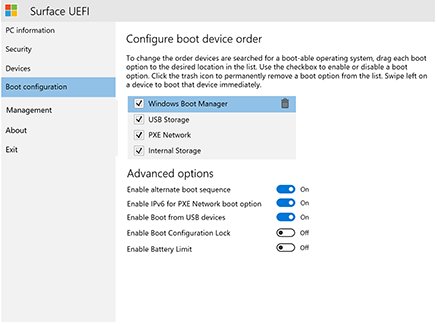
- On Dell PCs, tap F12 to open the One Time Boot Menu. On Surface, hold Volume Down while you press Power to start from USB, or open UEFI with Volume-Up + Power and use the Boot configuration page.
- In the list, select Windows Boot Manager to start Windows, or an entry such as UEFI: USB Drive to start from a USB stick.
- Press Enter to start from the selected device.
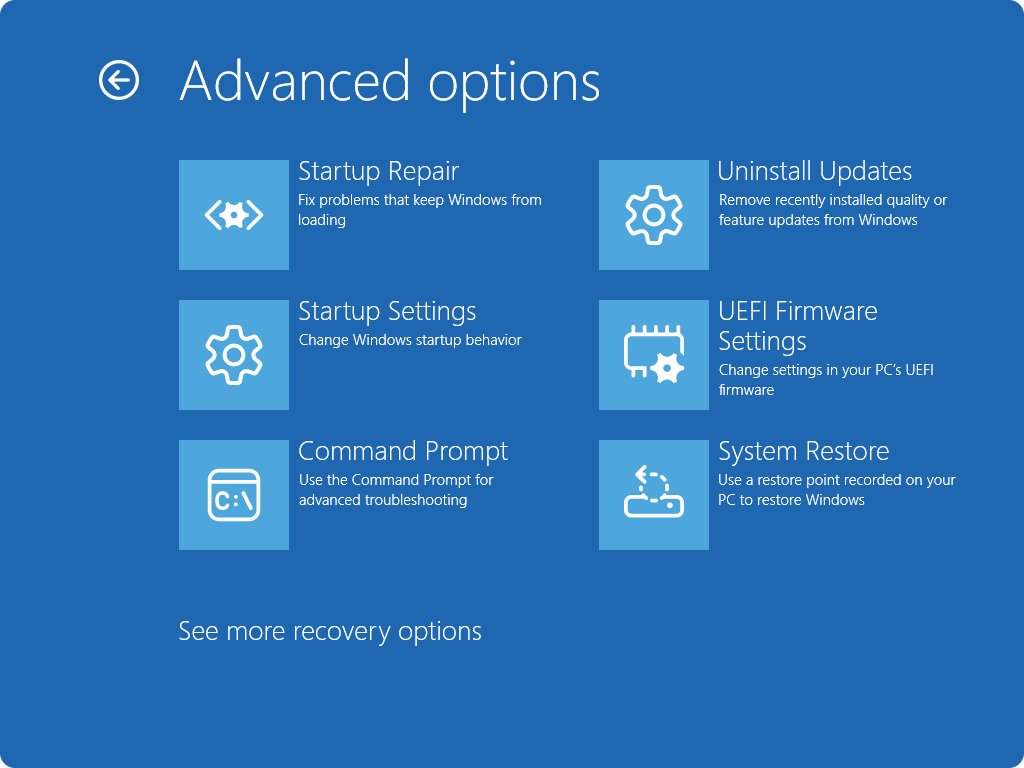
Already in Windows? Go to Troubleshoot > Advanced options > UEFI Firmware Settings from the Advanced startup menu instead of racing the startup key. The option appears only on UEFI PCs.
5. Using a Bootable Windows 11 USB Drive
When Windows cannot start and the automatic repair screen never appears, boot from a recovery drive or Windows installation media. Both open the same Windows Recovery Environment.
| What you have | How to start from it | What to select next |
|---|---|---|
| A USB recovery drive | Plug it in, power on, and pick it in the firmware boot menu (Method 4) | It opens Windows RE directly |
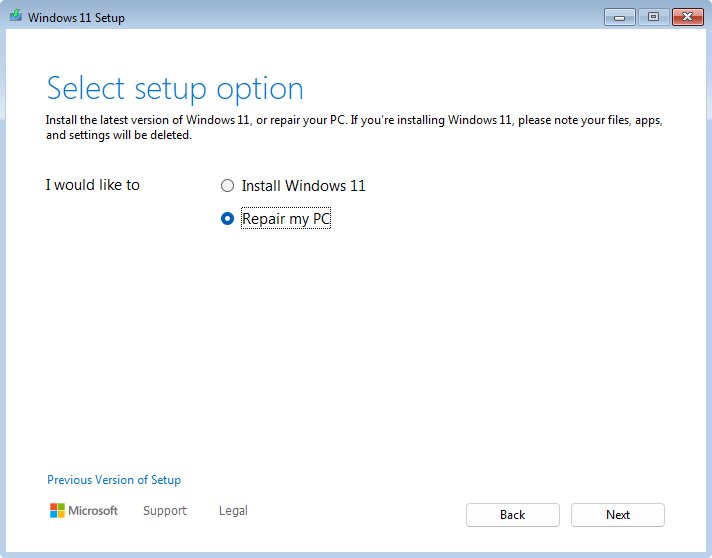
| Windows installation media made with the Media Creation Tool | Plug it in and start from it through the firmware boot menu | Set your language, select Next, then Repair my PC |
| A Windows Repair Disc (CD/DVD) | Insert it and start from the optical drive | It opens Windows RE directly |
| No media, but Windows fails to start | Power on, and hold Power to force a shutdown as the Windows logo appears; repeat once | On the third start, select Advanced options on the Automatic Repair screen |
If the PC skips the USB drive and the setup screen never shows, Microsoft says the PC may not be set to boot from a drive. Change the boot order in firmware or use the one-time boot menu.
6. Using Command Prompt
The shutdown command's /o switch restarts the PC straight into the Advanced boot options menu. Save your work first, because /t 0 restarts immediately.
shutdown /r /o /t 0/r restarts the PC, /o sends that restart to the Advanced boot options menu (it must be used with /r), and /t 0 removes the default 30-second countdown. The same line works in Command Prompt, PowerShell and Windows Terminal.
You should see: Windows signs you out, restarts, and shows the Choose an option screen instead of the desktop.
To restart into the firmware setup screen instead, replace /o with /fw: shutdown /r /fw /t 0.
How to check you reached the right boot manager
- Look at the screen title. Choose an option on a blue background is the Windows Advanced startup menu.
- Select Troubleshoot > Advanced options and confirm tools such as Startup Repair, Startup Settings, Command Prompt, Uninstall Updates and System Image Recovery are listed.
- If you see only a plain list of drives, such as Windows Boot Manager and UEFI: USB Drive, you are in the firmware boot menu instead.
- To see what Windows Boot Manager holds without restarting, open an administrator Command Prompt and run
bcdedit /enum. The first block, headed Windows Boot Manager, lists its display order and timeout.
What is Windows Boot Manager?
Windows Boot Manager is the first Windows component that runs at startup. Microsoft describes it as the part that starts the system, displays the boot menu and loads the selected operating system loader.
| Component | What it does | Where you meet it |
|---|---|---|
| Windows Boot Manager | Starts the system, shows the boot menu and hands off to the chosen loader | The OS choice menu on a dual-boot PC; the Windows Boot Manager entry in firmware |
| Windows operating system loader | Lives in the Windows partition and loads Windows itself | Each Windows entry listed by bcdedit /enum OSLOADER |
| Boot Configuration Data (BCD) store | Holds the boot entries and options Windows Boot Manager reads | Viewed with bcdedit /enum, edited with BCDEdit or MSConfig |
| Advanced startup menu (Windows RE) | Recovery tools, booting from a device and firmware access | Methods 1, 2, 5 and 6 in this guide |
| Firmware boot menu | Your PC maker's list of bootable drives, shown before Windows | Method 4, opened with a startup key |
With a single Windows installation, the menu stays hidden. Microsoft's BCDEdit reference says the standard boot menu appears only after a startup failure, when booting from repair or installation media, with multiple boot entries, or when Advanced startup is requested.
How to set up and configure Windows Boot Manager
BCDEdit changes what Windows Boot Manager shows and for how long. Run these from an administrator Command Prompt. Microsoft recommends the System Configuration utility (msconfig) for everyday boot settings, because a wrong BCD change can stop the PC from starting.
| What you want | Command | What it changes |
|---|---|---|
| List every entry in the boot menu | bcdedit /enum |
Shows entries in display order; same as running bcdedit alone |
| See all entries, including hidden ones | bcdedit /enum ALL |
Lists firmware apps, loaders and resume entries |
| Show the boot menu longer before the default starts | bcdedit /timeout 30 |
Waits 30 seconds before Windows Boot Manager picks the default entry |
| Add Windows back to the boot menu | bcdboot C:\Windows |
Copies boot files from that Windows folder and adds a boot entry |
| Get the F8 menu on the next start only | bcdedit /set {current} onetimeadvancedoptions on |
Shows the legacy Advanced options menu once |
Microsoft's BCDEdit documentation notes that you may need to suspend BitLocker before changing BCD options. Otherwise the next start can ask for the recovery key.
Fix boot manager problems in Windows 11
The boot manager menu never appears at startup
On a PC with one Windows installation, the standard menu only shows under specific conditions, such as a failed start or multiple boot entries.
- Use Method 1, 2 or 6 to request Advanced startup from inside Windows.
- If you want an operating system picker, check that both systems are listed by running
bcdedit /enumas administrator. - Raise the wait time with
bcdedit /timeout 30so the menu stays on screen long enough to choose.
Pressing F8 or Shift + F8 does nothing
The default Standard boot menu policy ignores F8 during startup.
- Follow Method 3 to turn on
onetimeadvancedoptionsfor the next start. - Or use Shift + Restart from the Start menu, which reaches the same recovery tools.
Windows Boot Manager is missing or Windows will not start
The boot manager, the BCD store or the system partition is missing or damaged, which also stops Windows RE from opening on its own.
- Start from Windows installation media and, on the setup screen, press Shift + F10 to open a command line.
- Run
diskpart, thenlist vol, thenexitto find the drive letter of the Windows partition. - Run
bcdboot D:\Windows, replacingDwith that Windows drive letter. - Remove the USB drive and restart. Windows should start again.
- If it does not, start from the media again, select Repair my PC and run Startup Repair.
A second operating system no longer shows in the boot menu
Installing another system can drop the Windows entry from the boot menu.
- Open Command Prompt as administrator in the working copy of Windows.
- Run
bcdboot D:\Windows, whereDis the drive holding the missing Windows copy. - Restart. The boot menu should now list both systems.
UEFI Firmware Settings or the boot-from-device option is missing
Microsoft lists both options as UEFI only, so they are absent on a PC running in legacy BIOS mode.
- Restart and use your manufacturer's startup key from Method 4 instead.
- Pick the drive from the firmware boot menu directly.
Conclusion
Use Shift + Restart for the Windows boot manager and recovery tools, and your PC's boot menu key only when you need to start from a different drive. Shift + Restart needs no timing and works from the sign-in screen, while the firmware key is the only route that picks a physical drive before Windows loads. Keep a USB recovery drive for the day neither route is available.
Frequently Asked Questions
How do I access boot manager on Windows 10?
The steps match Windows 11. Hold Shift and select Power > Restart, or open Settings > Update & Security > Recovery and select Restart now under Advanced startup. The command shutdown /r /o /t 0 also works on Windows 10.
What is Windows Boot Manager?
Windows Boot Manager is the Windows component that starts the system, displays the boot menu and loads the operating system you choose. It reads its entries from the Boot Configuration Data store, which you can list with bcdedit /enum from an administrator Command Prompt.
How do I open Windows Boot Manager from Command Prompt?
Run shutdown /r /o /t 0. The /o switch restarts the PC into the Advanced boot options menu and must be combined with /r. Save your work first, because /t 0 restarts the PC immediately with no countdown.
How do I boot to Windows Boot Manager from the BIOS?
Open your PC's firmware boot menu with the manufacturer's key, such as F12 on Dell, and select Windows Boot Manager. To make it the default, move Windows Boot Manager to the top of the boot order in the firmware setup screen and save.
How do I install or add Windows Boot Manager?
Windows Setup installs it automatically. To add it back, run bcdboot C:\Windows as administrator, replacing C with your Windows drive. BCDBoot copies the boot files to the system partition and adds a boot entry for that Windows copy.
How do I configure Windows Boot Manager?
Use bcdedit from an administrator Command Prompt. bcdedit /enum lists entries and bcdedit /timeout 30 sets how long the menu waits. Microsoft recommends the System Configuration utility (msconfig) for routine boot settings, because a wrong BCDEdit change can stop Windows from starting.
How do I get to Windows Boot Manager if Windows will not start?
Windows opens its recovery environment by itself after repeated failed starts. You can force this by holding Power as the Windows logo appears, twice; the third start shows Automatic Repair. Otherwise, boot from a recovery drive or installation media and select Repair my PC.
Does F8 still open the boot menu in Windows 11?
No, not by default. Windows 11 uses the Standard boot menu policy, which ignores F8 during startup. Run bcdedit /set {current} onetimeadvancedoptions on as administrator to show the legacy F8 menu on the next start only.
How do I use boot manager to start from a USB drive?
From the Choose an option screen on a UEFI PC, use the boot-from-a-device option and pick the USB drive. Or restart, press your firmware boot menu key, and select the entry that names the USB drive, such as UEFI: USB Drive.