To set up RAID 1 on Windows 11, open Storage Spaces, add two spare drives to a new pool, and choose Two-way mirror so every file is written to both drives.
This guide covers the Storage Spaces mirror, the PowerShell equivalent, motherboard RAID, how to confirm the mirror is healthy, and how to remove a drive safely.
How to setup RAID 1 on Windows 11/10
Storage Spaces is built into Windows 11 and Windows 10, and its two-way mirror is the software equivalent of RAID 1. You need at least two drives in addition to the drive Windows runs from.
Back up anything on the spare drives first. Drives added to a pool are taken over by Storage Spaces, and their existing contents should not be relied on.
- Connect two spare drives, ideally of the same size, to the PC.
- Select Start, type Storage Spaces, and open it.
- Under Add a new Storage Pool, select Add.
- Name the pool, select both drives under Add disks, and select Create.
- Name the storage space and choose Two-way mirror as the resiliency type.
- Enter the maximum size and select Create.
- Set a Label and a Drive Letter, choose a File System, and select Format.
The new mirrored drive appears in File Explorer like any other drive. If one of the two drives fails, your files stay readable from the other.
Does Windows 11 support RAID?
Yes. Windows 11 offers software resiliency through Storage Spaces, and many motherboards add firmware RAID on top. The Storage Spaces types map to classic RAID levels as follows.
| Storage Spaces type | Closest RAID level | Drive failures tolerated | Minimum drives |
|---|---|---|---|
| Simple (no resiliency) | RAID 0 | None | 1 |
| Two-way mirror | RAID 1 | One | 2 |
| Three-way mirror | No direct equivalent | Two at once | 5 |
| Parity | RAID 5 | One | 3 |
A two-way mirror stores every file twice, so two 2 TB drives give about 2 TB of usable space. Parity uses capacity more efficiently but writes more slowly, so it suits archives and backups.
Create a RAID 1 mirror in Windows 11 with PowerShell
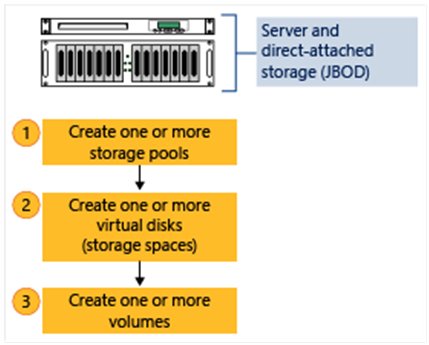
Open Windows PowerShell as administrator. First list the drives that can join a pool with Get-PhysicalDisk -CanPool $True.
Then create the pool from those drives with New-StoragePool -FriendlyName StoragePool1 -StorageSubsystemFriendlyName "Windows Storage*" -PhysicalDisks (Get-PhysicalDisk -CanPool $True).
New-VirtualDisk -StoragePoolFriendlyName StoragePool1 -FriendlyName Mirror1 -ResiliencySettingName Mirror -UseMaximumSizeCreates a mirrored storage space that uses all the free capacity in StoragePool1. With two drives in the pool, this is a two-way mirror.
You should see: PowerShell lists Mirror1 with ResiliencySettingName Mirror. Run Get-VirtualDisk -FriendlyName Mirror1 | Get-Disk | Initialize-Disk -Passthru | New-Partition -AssignDriveLetter -UseMaximumSize | Format-Volume to make it a usable drive.
How to enable RAID 1 in BIOS
Motherboard RAID is set up in the UEFI firmware before Windows loads, and every board maker labels the menus differently. Follow your motherboard or PC maker's manual for the exact names.
Unlike Storage Spaces, firmware RAID can mirror the drive Windows boots from.
- Back up both drives, because creating a firmware array erases them.
- Restart the PC and enter the UEFI firmware setup with the key your PC maker lists.
- Change the storage controller mode to RAID, as named in the manual.
- Open the RAID configuration utility and create a RAID 1 volume from the two drives.
- Save and exit, then install Windows 11 or load the board maker's RAID driver when Windows Setup cannot see the volume.
Switching an existing Windows installation from AHCI to RAID mode can leave it unable to boot, so plan the change before installing Windows.
RAID 1 on the Windows 11 boot drive
Use Storage Spaces to mirror data drives only, and use motherboard RAID if you need the Windows drive itself mirrored. A storage space cannot host the Windows operating system. The older Disk Management mirrored volume relies on dynamic disks, which Microsoft now lists as deprecated and not recommended for new setups.
A mirror protects against a drive failing, not against deletion, ransomware or corruption, which are copied to both drives instantly. Keep a separate backup as well.
Check the RAID 1 mirror is working in Windows 11
- Open Storage Spaces from the Start menu.
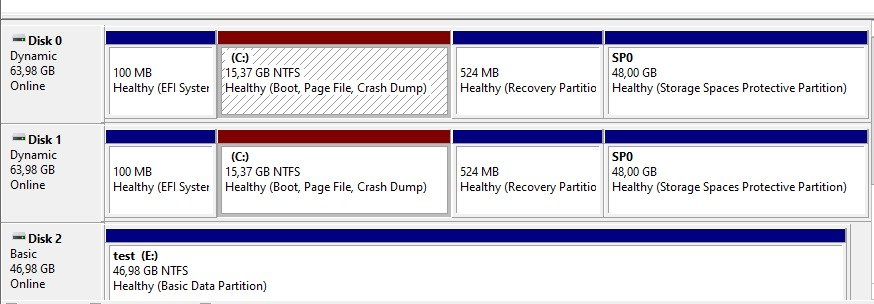
- Confirm the storage space lists Two-way mirror as its resiliency type.
- Select Physical drives for the pool and check that both drives are listed.
- In PowerShell, run
Get-VirtualDiskand check the mirror's HealthStatus column. - Copy a test file to the new drive letter in File Explorer and open it.
Remove a drive from a Windows 11 storage pool
Remove a drive this way before you unplug or replace it, so Storage Spaces moves its data first.
- Open Storage Spaces and select Manage Storage Spaces.
- Select Physical drives for the pool.
- Choose Prepare for removal next to the drive, then select the Prepare for removal button.
- Keep the PC plugged in while data moves to the other drives; this can take hours.
- When the drive shows Ready to remove, select Remove, then Remove drive.
If preparation fails for lack of free space, add a drive at least as large as the one you are removing and try again. A two-way mirror needs two drives, so add the replacement before removing the old one.
Cloned hard drive or SSD is very slow on Windows 11
Slow cloned drives and slow mirrors usually share a cause: the drive connection or controller rather than Windows itself.
Mirror or cloned drive is slow over USB
Storage Spaces supports USB drives, but USB is not the optimal bus for them.
- Connect the drives internally over SATA or NVMe where the PC allows it.
- Recreate the pool on the internal drives and copy the data back.
Drives do not appear under Add disks
The disks are below 4 GB, already formatted with volumes, or hidden behind a RAID controller.
- Back up and delete the existing volumes on the spare drives.
- Set any RAID-capable controller to non-RAID mode, since Storage Spaces needs direct access to each disk.
- Reopen Storage Spaces and select Add again.
Writes are slow on a parity space
Parity spaces trade write speed for capacity.
- Create a new storage space with Two-way mirror instead.
- Move the files across, then delete the parity space.
Windows 11 RAID 1 setup FAQ
How do I set up RAID 1 on Windows 11?
Open Storage Spaces from the Start menu, select Add under Add a new Storage Pool, choose two spare drives, and select Create. Pick Two-way mirror as the resiliency type, set the size, then format the new drive.
How do I set up RAID 1 on Windows 10?
The steps are the same as on Windows 11. Search Start for Storage Spaces, create a pool from two spare drives, choose Two-way mirror, and format the new storage space with a label, drive letter and file system.
Can I set up RAID 1 after installing Windows?
Yes, for data drives. A Storage Spaces two-way mirror can be created at any time from two spare drives. Mirroring the Windows drive itself needs motherboard RAID, which is normally set up before installing Windows.
How do I set up RAID 0 on Windows 11?
Create a Storage Spaces pool and choose Simple (no resiliency). It stripes data across the drives for speed and capacity, but one failed drive loses the whole space, so use it only for data you can recreate.
How do I set up RAID 5 on Windows 11?
Use the Parity resiliency type in Storage Spaces with at least three drives. It survives one drive failure and uses capacity more efficiently than a mirror, but writes are slower, so it suits archives and backups.
Is a two-way mirror the same as RAID 1?
It does the same job. A two-way mirror keeps two copies of every file on separate drives and survives one drive failure. Storage Spaces also stripes data across drives, so it can use more than two drives in one pool.
Does RAID 1 replace a backup?
No. RAID 1 protects against a single drive failing, but deleted files, ransomware and corruption are copied to both drives at once. Keep a separate backup on another drive or in cloud storage.