To use Microsoft Lists, open the Lists app from the Microsoft 365 app launcher, select +New list, pick a template, Excel file or blank list, and start adding items.
This guide covers creating a list, adding columns and items, sharing it with the right permission level, building views, automating it with rules and Power Automate, and where to find a list again.
How to create a list in Microsoft Lists
These steps work in Microsoft Lists on the web with a Microsoft 365 work or school account.
- At the top of any Microsoft 365 page, select the app launcher, select More apps, and then select Lists.
- Select +New list.
- On the Create a list page, choose Blank list, From existing list, From Excel, From CSV or one of the Templates.
- Type a Name and an optional Description.
- Choose whether to save the list to My lists or to one of your SharePoint sites.
- Select Create. The new list opens, ready for its first item.
What is Microsoft Lists?
Microsoft Lists is the Microsoft 365 app for tracking structured information such as issues, assets, routines, contacts and inventory. A list is a collection of rows and columns you can share with your team.
The same lists live in three places, so you can open one wherever you already work.
| Where you create it | What you get | Who sees it by default |
|---|---|---|
| Lists app in Microsoft 365 | Templates, recent and favorite lists from every location | Only you, if saved to My lists |
| SharePoint site | A list stored on that site, optionally shown in site navigation | Everyone with permission to the site |
| Microsoft Teams | A list added as a tab in a channel | Members of that team |
Lists that live in My lists follow your OneDrive sharing settings; lists on a SharePoint site follow that site's settings.
Microsoft Lists templates vs blank list vs Excel import
| Your situation | Start with | What happens |
|---|---|---|
| Common job such as issues or assets | Templates (for example Issue tracker) | Columns and sample data are ready; select Use template |
| Data already sits in a spreadsheet | From Excel or From CSV | Columns and rows are built from the file |
| You want the layout of a list you already own | From existing list | Same columns, none of the original data |
| Nothing fits | Blank list | Empty list; you add every column yourself |
Using Microsoft Lists
Once the list exists, the daily work is adding items and shaping the columns that hold them.
- Open the list and select + Add new item to fill in one row through a form.
- Select Edit in grid view to type into several rows and columns at once, like a spreadsheet.
- Select + Add column to add a new type of information, such as text, currency, a date, a person or a multiple-choice field.
- Select the list title, type a new name, and select Save to rename the list.
- Select Settings, then List settings, to change properties, manage columns, set permissions or delete the list.
A single SharePoint site collection holds up to 2,000 lists and libraries combined, including subsites.
Sharing a list
Only list or site owners can share a list by default, because sharing needs the manage permissions right in SharePoint.
- Open the list, or select the single item you want to share.
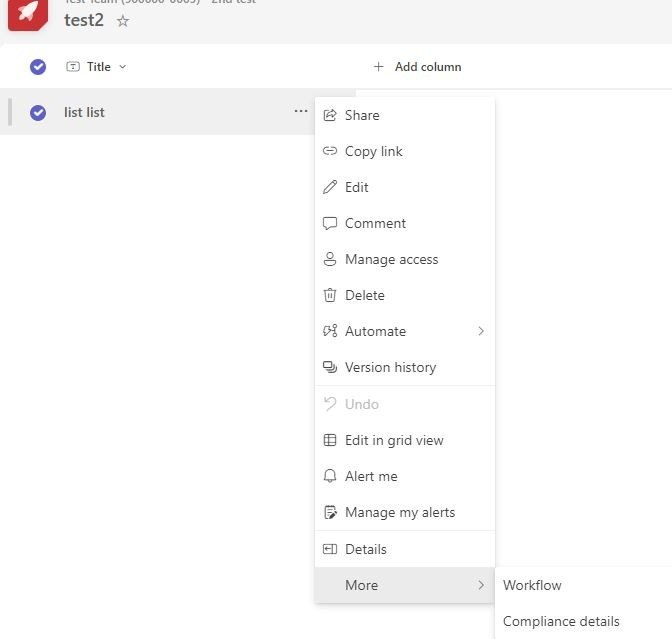
- Select Share in the top ribbon (for an item, it also sits to the right of the Title column).
- Enter the names of the people or groups to share with.
- Select the pencil icon and choose Can edit list, Can edit items or Can view.
- Add a message if you want, then select Send.
To share by link instead, select Share, then Copy link, open Link settings, choose Anyone, People in your organization, People with existing access or People you choose, select Apply and then Copy. A greyed-out option means your admin has restricted it.
Microsoft Lists sharing permissions explained
| Permission | Applies to | What the person can do |
|---|---|---|
| Can edit list | Whole list | Edit, add or remove items, columns and views |
| Can edit items | Whole list | Edit, add or remove items only |
| Can view | Whole list | View the list; no editing or sharing |
| Can edit | Single item | Change that item only |
| Can view | Single item | View that item only |
Access granted by a link lasts only as long as the link exists; disabling the link revokes it.
Creating views in Microsoft Lists
A view changes how the list is displayed without changing the data. Views use columns to sort, group and filter items, and can limit how many items show per page.
Personal views are visible only to you. If you have permission to modify the list, you can create public views for everyone.
| View idea | Set it up with | Typical use |
|---|---|---|
| Only this year's issues | A filter on the created date | Hide closed history |
| Items by owner or status | Group by a person or choice column | Stand-up and status reviews |
| Newest first | Sort on a date column | Triage new requests |
| Calendar layout | A calendar view on a date column | Deadlines and events |
Automate tasks by creating rules
Rules are the simplest automation in Lists: they notify someone automatically when something in the list changes.
| Rule trigger | Example |
|---|---|
| A column changes | Tell the owner when Due date is edited |
| A column value changes | Email the manager when Status becomes Blocked |
| A new item is created | Alert the team when a request is logged |
| An item is deleted | Notify the list owner when a row is removed |
Automate a Microsoft list with Power Automate
Power Automate goes beyond notifications: flows can sync files, collect data and connect Lists to services such as Outlook.
- Open the list in SharePoint or the Lists app.
- Near the top of the page, select Automate, then Power Automate.
- Select Create a flow to build a new workflow.
- Select See your flows to manage existing ones, or Configure flows to require approval.
To build a custom app or form on top of the list, select Power Apps, then Create an app or Customize forms.
Where to find a Microsoft list you created
- Open Microsoft Lists and select My lists to see lists saved there.
- For a list saved to a SharePoint site, open that site and go to Settings > Site contents.
- If you are not sure where it was saved, type its name into the Search box in Microsoft Lists or on the SharePoint site.
Microsoft Lists sharing and creation problems
You are told you do not have permission to share
Sharing needs manage permissions, and the site has access requests turned off.
- Ask a site or list owner to share the list.
- Use Copy link with People with existing access for people who already have access.
The Anyone link option is greyed out
Your organization's admin has disabled it.
- Choose People in your organization or People you choose instead.
- Ask your admin about external or guest sharing if you need outside access.
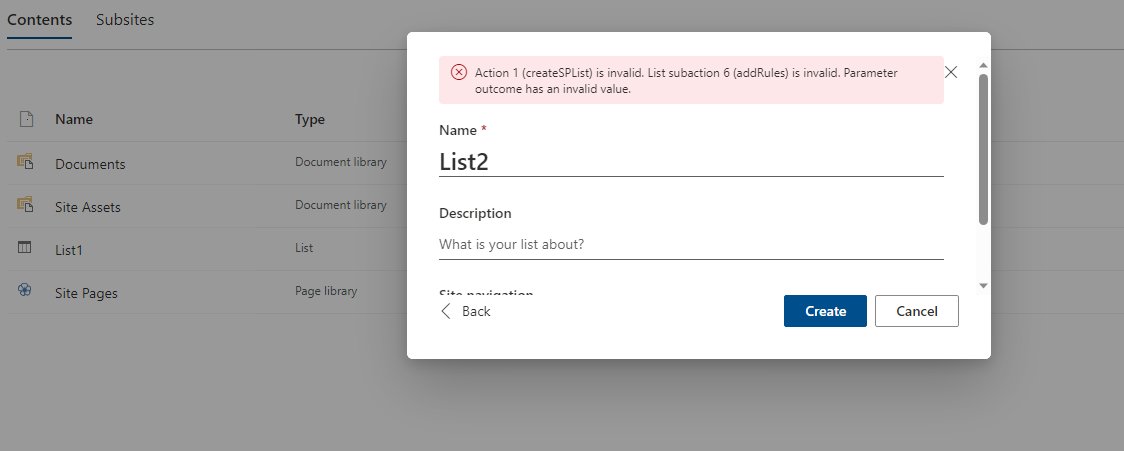
"Exceeds the list view threshold" when creating a list
The site collection has reached 2,000 lists and libraries combined.
- Delete lists the site no longer needs.
- Save the new list to My lists or another site instead.
Is Microsoft Lists worth it?
Yes, if you already have Microsoft 365 for work or school and track anything in a shared spreadsheet. Lists adds per-item sharing, views, version history, rules and Power Automate flows to the same data, and it opens in the Lists app, SharePoint and Teams without extra software.
Microsoft Lists FAQ
How do I open Microsoft Lists?
Select the Microsoft 365 app launcher at the top of any Microsoft 365 page, select More apps, and then select Lists. You can also create a list from a SharePoint site with + New > List.
Can I create a Microsoft list from Excel?
Yes. On the Create a list page, choose From Excel and pick the spreadsheet. A From CSV option also builds a list from a comma-separated values file.
Can I copy the columns of an existing list?
Yes. Choose From existing list. The new list gets all the same columns but none of the data from the original list.
Who can share a Microsoft list?
By default only site or list owners, because sharing requires the manage permissions right. Other people trigger an access request to the site owners if the site allows requests.
Can I share a single list item?
Yes. Select the item, select Share, and give people Can edit or Can view. They see only that item, not the rest of the list.
Does Microsoft Lists keep a history of changes?
Yes, when versioning is on. Each edit creates a new version of the item, and you can view its history and restore an earlier version.
Can Microsoft Lists be used in Teams?
Yes. Lists are available inside Microsoft Teams, so a team can add a list to a channel and work on it without leaving Teams.