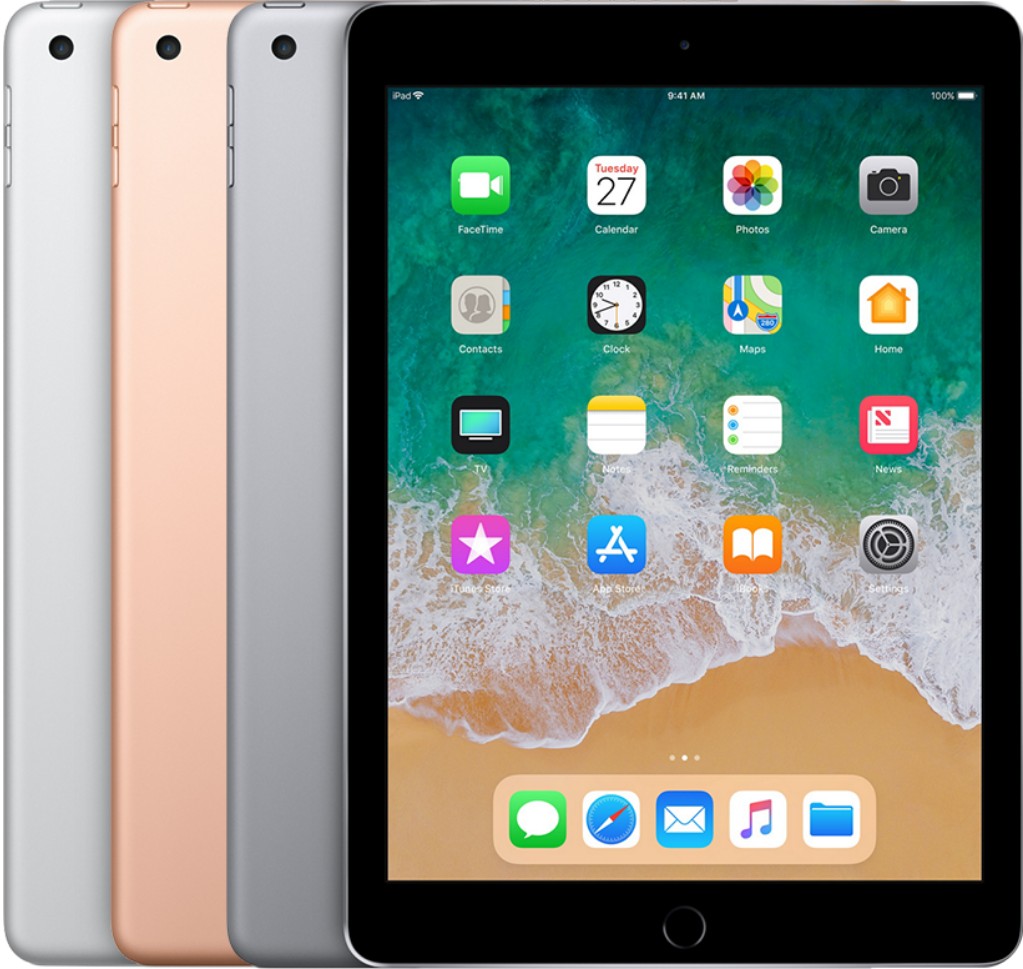
If your iPad won't update to iOS 18, first check that the model supports iPadOS 18, because the iPad 6th generation, iPad Pro 10.5-inch, iPad Pro 12.9-inch 2nd generation and older models cannot install it.
iPads run iPadOS rather than iOS, so the update you want is iPadOS 18. This guide covers the supported models, the Settings and computer update routes, the storage and Wi-Fi alerts that stop an update, and why a newer iPad now shows iPadOS 26 or iPadOS 27 instead.
Why won't my iPad update to iOS 18?
Match your situation to a row. Most failed updates come down to one of these five causes, which are the same ones Apple lists for over-the-air updates.
| What you see | Likely cause | What to do |
|---|---|---|
| Software Update says your iPad is up to date on iPadOS 17 or earlier | The model does not support iPadOS 18 | Check the model in Settings > General > About, then compare it with the list below |
| Software Update offers iPadOS 26 or iPadOS 27, not iPadOS 18 | Your iPad supports a newer release, and Apple has moved on from iPadOS 18 for it | Install the newer version, or stay on your current one |
| An alert asks to remove apps, or the download will not start | Not enough free storage | Tap Continue, or offload apps in iPad Storage |
| Unable to Check for Update or Unable to Download | No connection to Apple's update server | Try Wi-Fi again, switch network, or turn off a VPN |
| The download or install stops partway | Power, a slow network or a damaged download | Plug in, delete the update and download it again |
| No update appears at all on a supported iPad | The wireless update is not offered to that iPad | Update with a Mac or a Windows PC |
Which iPads can update to iPadOS 18?
Apple released iOS 18 and iPadOS 18 on 16 September 2024. These iPad families can install it.
| iPad family | Oldest model that runs iPadOS 18 |
|---|---|
| iPad | iPad (7th generation) |
| iPad mini | iPad mini (5th generation) |
| iPad Air | iPad Air (3rd generation) |
| iPad Pro 11-inch | iPad Pro 11-inch (1st generation) |
| iPad Pro 12.9-inch | iPad Pro 12.9-inch (3rd generation) |
| iPad Pro 13-inch | iPad Pro 13-inch (M4) |
Every later model in each family is supported too, including the iPad mini (A17 Pro), the iPad (A16) and the iPad Air 11-inch and 13-inch with M2 or M3.
Why won't my iPad update anymore?
An older iPad stops at the last major version Apple built for it. Apple still ships security fixes for those versions, which is why Software Update can show an update yet never reach iPadOS 18.
| iPad model | Highest version | Latest release on Apple's list |
|---|---|---|
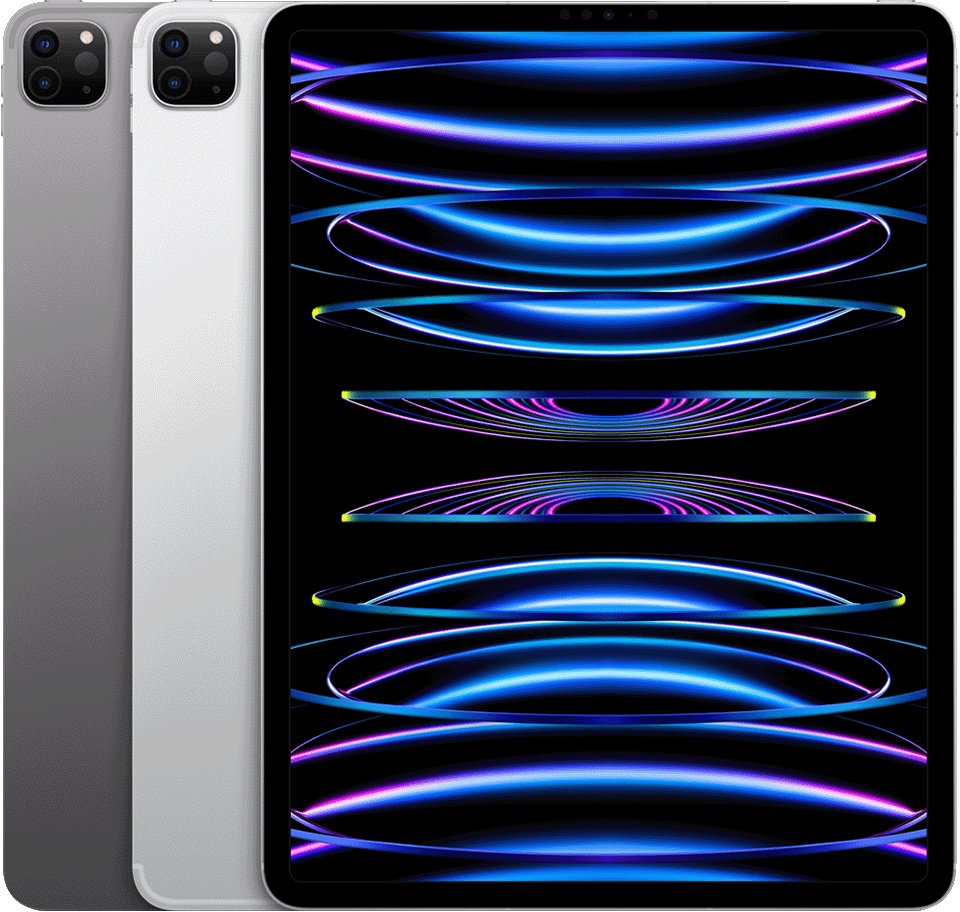
| iPad (6th generation), iPad Pro 10.5-inch, iPad Pro 12.9-inch (2nd generation) | iPadOS 17 | iPadOS 17.7.11, 11 May 2026 |
| iPad (5th generation), iPad Pro 9.7-inch, iPad Pro 12.9-inch (1st generation) | iPadOS 16 | iPadOS 16.7.16, 11 May 2026 |
| iPad Air 2, iPad mini (4th generation) | iPadOS 15 | iPadOS 15.8.8, 11 May 2026 |
No setting, computer or reset moves these models to iPadOS 18. The same ceiling explains why an iPad mini 2 won't take iOS 15 or iOS 16.
Can I still update my iPad to iPadOS 18 instead of iPadOS 26?
Only the iPad (7th generation) still gets iPadOS 18 releases, because iPadOS 26 needs an iPad (8th generation) or later. For every other iPadOS 18 model, the last iPadOS 18 release on Apple's list is iPadOS 18.7.8 from 22 April 2026.
| Your iPad | Newest software Apple lists for it |
|---|---|
| iPad (7th generation) | iPadOS 18.7.12, 9 November 2026 |
| iPad (8th generation), iPad Air (3rd generation), iPad mini (5th generation), iPad Pro 11-inch (1st generation), iPad Pro 12.9-inch (3rd generation) | iPadOS 26.7.3, 9 November 2026 |
| iPad (9th generation) and later, iPad Air (4th generation) and later, iPad mini (6th generation) and later, iPad Pro 11-inch (2nd generation) and later, iPad Pro 12.9-inch (4th generation) and later | iPadOS 27.2.1, 9 November 2026 |
If your iPad is in the second or third row, iPadOS 18 is not missing. Software Update is showing the current release for your model instead.
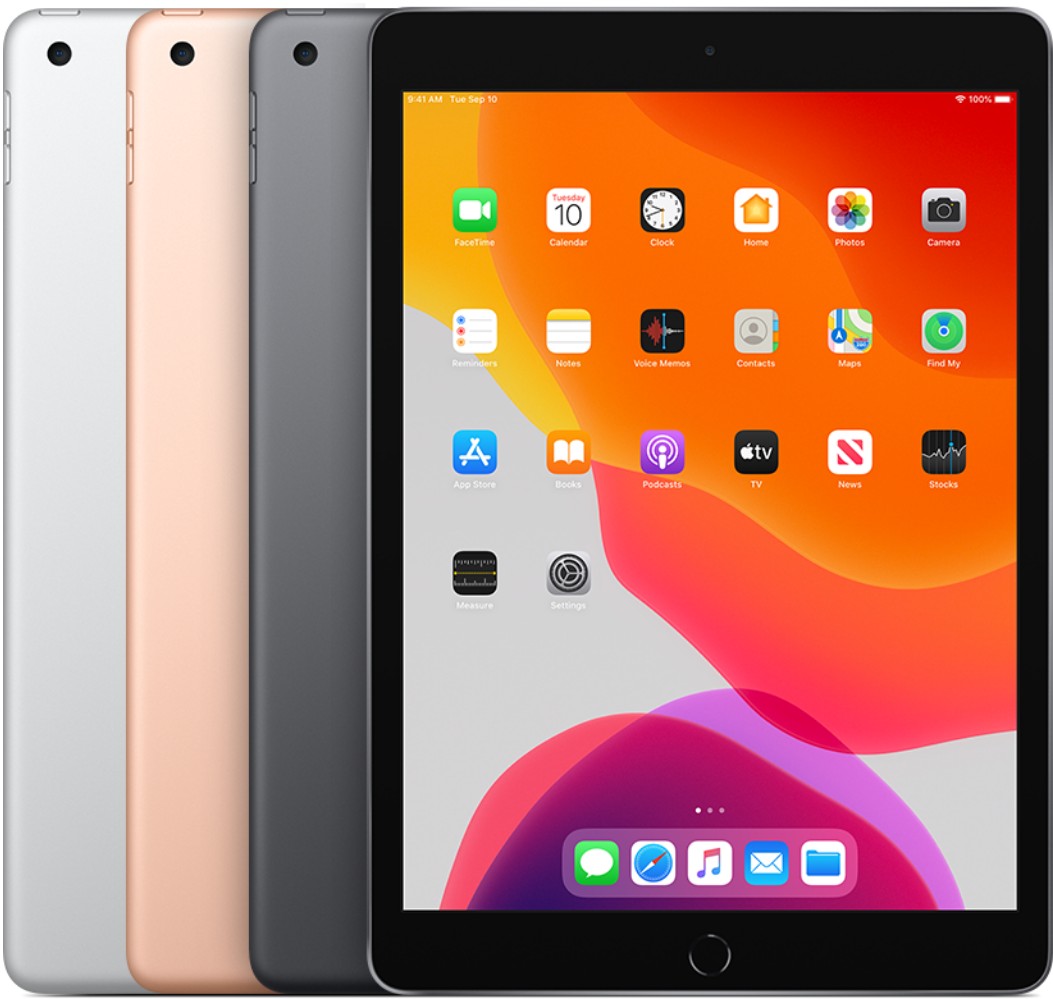
How to check which iPad model you have
- Open Settings and tap General.
- Tap About.
- Find the Model Number row and note the part number to its right.
- Tap the part number to switch it to the model number, which starts with A.
- Match that number on Apple's Identify your iPad model page, then check it against the tables above.
Some older iPads also print the model number on the back cover. An iPad (6th generation) shows A1893 or A1954, and an iPad (7th generation) shows A2197, A2198 or A2200.
How to update iPad software in Settings
Make an iPad backup to iCloud or a computer first, so your data is safe if the install fails.
- Plug the iPad into power and connect it to Wi-Fi.
- Open Settings > General > Software Update.
- Read the installed version and the update offered on that screen.
- Tap Download and Install under the update you want.
- Enter your passcode if asked, then follow the onscreen steps.
- Leave the iPad plugged in until it restarts on the new version.
To stop missing updates, open Settings > General > Software Update > Automatic Updates and turn on Automatically Install. The iPad then installs updates overnight while it charges on Wi-Fi.
iPad won't update because of storage
An iPadOS update needs free space to download and unpack. If an alert offers to remove apps temporarily, tap Continue; those apps reinstall themselves after the update.
- Open Settings > General > iPad Storage.
- Tap Enable next to Offload Unused Apps.
- Scroll the app list and delete large apps you no longer use.
- Return to Settings > General > Software Update and tap Download and Install again.
If you tap Cancel on the remove-apps alert instead, the update waits until you free the space yourself.
Delete the iPad update and download it again
A download that stalls or fails to install can leave a damaged copy on the iPad. Removing it forces a fresh download.
- Open Settings > General > iPad Storage.
- Find the update in the app list.
- Tap the update, then tap Delete Update.
- Open Settings > General > Software Update.
- Download the latest update again over Wi-Fi with the iPad plugged in.
If the update is not in the storage list, or the same failure returns, update with a computer instead.
How to update iPad with a Mac using Finder
A computer update works when the iPad never shows the update over the air. On a Mac with macOS Mojave or earlier, use iTunes instead of Finder.
- Back up the iPad to iCloud or your Mac.
- Open a Finder window and connect the iPad with a cable.
- Select the iPad in the Finder sidebar.
- Click General, then click Check for Update.
- Click Download and Update and follow the onscreen instructions.
- Enter the iPad passcode when it asks.
If the Mac is using the iPad's Personal Hotspot, connect the Mac to another Wi-Fi or Ethernet network first.
How to update iPad on a Windows PC
On Windows, use the Apple Devices app. iTunes for Windows does the same job from the Summary tab with Check for Update and Download and Update.
- Connect the iPad to the PC with a USB or USB-C cable.
- Open the Apple Devices app and select the iPad in the sidebar.
- Click General in the sidebar.
- Click Check for Update.
- Click Update when it appears next to Restore device, then follow the prompts.
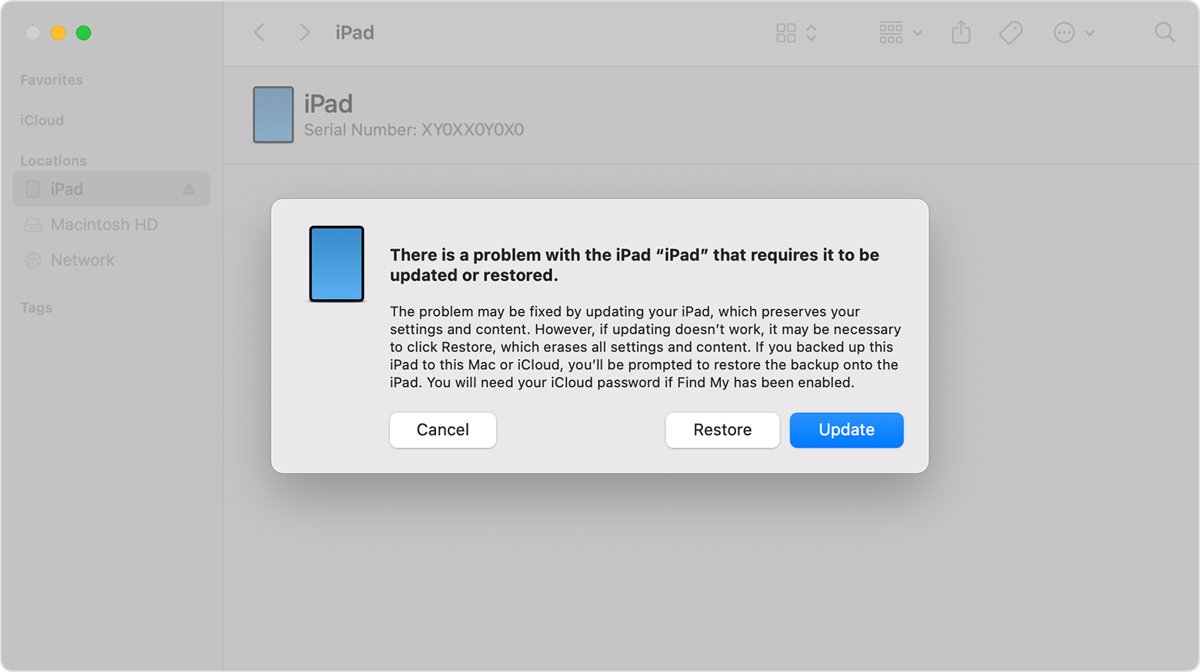
How to update iPad in recovery mode
Use iPad recovery mode only when the computer does not recognize the iPad, or the Apple logo stays on screen for several minutes with no progress bar.
- Connect the iPad to a Mac with Finder, or a PC with the Apple Devices app or iTunes.
- On an iPad without a Home button, press and quickly release the volume button closest to the top button.
- Press and quickly release the volume button farthest from the top button.
- Press and hold the top button past the Apple logo until the recovery mode screen appears. On an iPad with a Home button, hold the Home and top buttons together instead.
- When the computer offers Update or Restore, choose Update.
- If the download takes more than 15 minutes and the iPad leaves recovery mode, repeat these steps.
Choose Restore only if Update fails, because a restore erases the iPad. If a restore then stops with error 1109 or 06B4.0000, the cause is usually the computer's connection to Apple's servers.
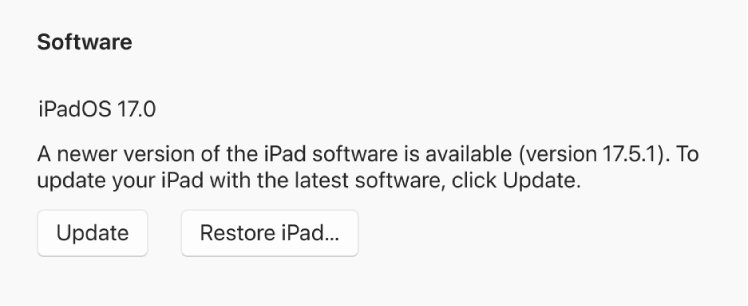
How to tell what iPadOS version is on your iPad
- Open Settings > General > Software Update.
- Read the version number shown at the top of the screen.
- Check that no update is waiting below it.
- Compare the number with the newest release for your model in the table above.
An iPad (7th generation) on iPadOS 18.7.12 is fully current. A newer iPad on iPadOS 26 or iPadOS 27 is past iPadOS 18, so there is nothing further to install.
iPad won't install the iOS update: error alerts and fixes
"Unable to Check for Update. An error occurred while checking for a software update."
The iPad cannot reach Apple's update server.
- Tap Software Update again on the same network.
- Join a different Wi-Fi network if the alert returns.
- Turn off any VPN or proxy, which can block the update servers.
- Update with a Mac or a Windows PC if every network fails.
"Unable to Download. This update requires a Wi-Fi network connection to download."
The iPad is on cellular data or has no Wi-Fi connection.
- Open Settings > Wi-Fi and join a network.
- Return to Software Update and tap Download and Install.
The iPad update download is very slow
Other downloads or a weak connection share the bandwidth.
- Stay on Wi-Fi and pause other downloads and streams.
- Keep using the iPad if you like; the download continues in the background.
The update stopped when the battery ran out
A wireless update needs the iPad on power until it finishes.
- Connect the iPad to power.
- Turn it on and let the update finish.
- Delete the update in iPad Storage and download it again if it does not resume.
The iPad is frozen during the update
The install has stalled.
- Restart the iPad: hold a volume button and the top button, or just the top button on a Home button model, until the slider appears.
- Drag the slider, wait 30 seconds, then hold the top button until the Apple logo appears.
- Use recovery mode and choose Update if the iPad does not respond.
iPad won't update to iOS 18 FAQ
Why can't I update my iPad?
Your iPad either does not support a newer iPadOS version, lacks free storage, cannot reach Apple's update server, or lost power during the install. Check the model in Settings > General > About first, then free up space and update on Wi-Fi with the iPad plugged in.
Why won't my iPad update anymore?
It has reached the last major iPadOS version Apple supports for that model. The iPad 6th generation and iPad Pro 10.5-inch stop at iPadOS 17, and the iPad 5th generation stops at iPadOS 16. Apple still releases security updates within those versions.
Why won't my iPad update software over Wi-Fi?
The usual causes are a network that cannot reach Apple's update server, a VPN or proxy blocking it, or too little storage. Try another Wi-Fi network, turn off the VPN, and offload unused apps. If the update still fails, install it with a Mac or a Windows PC.
Why is my iPad not updating when it is compatible?
A compatible iPad that will not update usually has a damaged download or too little space. Delete the update in Settings > General > iPad Storage, free some space, then download it again. If no update appears at all, connect the iPad to a computer and update from there.
Why can't my iPad update to the latest iOS?
The latest iPadOS 27 needs an iPad 9th generation, iPad Air 4th generation, iPad mini 6th generation, iPad Pro 11-inch 2nd generation, iPad Pro 12.9-inch 4th generation or later. Older iPads that support iPadOS 26 stop there, and the iPad 7th generation stops at iPadOS 18.
Why won't my iPad update to iOS 16?
The iPad Air 2 and iPad mini 4th generation top out at iPadOS 15, so they cannot install iPadOS 16. Apple's latest release for those models is iPadOS 15.8.8. Models that do support iPadOS 16 or later get it from Settings > General > Software Update.
Why won't the apps on my iPad update?
App updates are separate from iPadOS updates. Open the App Store, tap your profile photo, tap App Updates, then tap Update or Update All. To have apps update on their own, open Settings > Apps > App Store and turn on App Updates.
What do I do if I can't get my iPad to update at all?
Connect it to a Mac and use Finder, or to a Windows PC and use the Apple Devices app, then click Check for Update. If the computer cannot see the iPad or it is stuck on the Apple logo, use recovery mode and choose Update, not Restore.