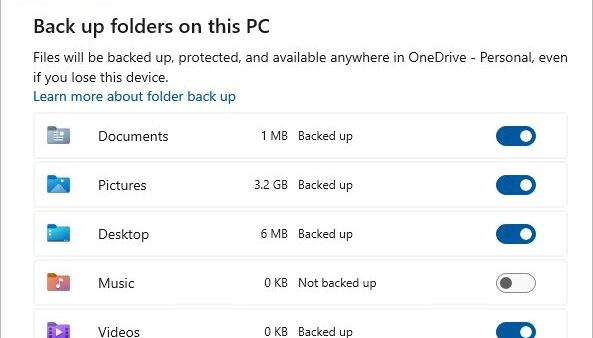
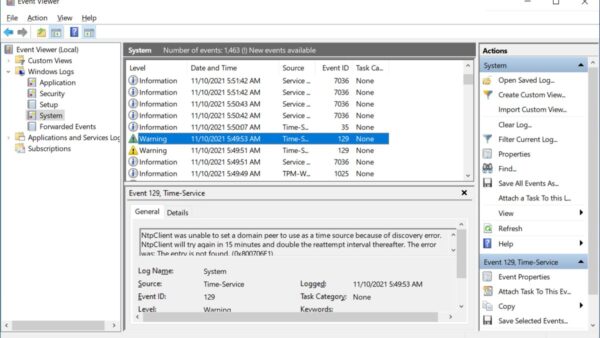
When Rockstar Games Launcher will not open, load or sign in on Windows, close every launcher process, start it again as administrator, and confirm Rockstar's services are online.
If that fails, the fixes below cover missing Visual C++ runtimes, firewall and Controlled folder access blocks, wrong clock settings, conflicting startup apps and a clean reinstall on Windows 11 and Windows 10.
![Rockstar Games Launcher not working on Windows PC [Fix]](https://techdows.com/wp-content/uploads/2026/10/Rockstar-Games-Launcher-not-working-on-Windows-PC-Fix.jpg)
The fastest way to fix Rockstar Games Launcher not opening
A launcher that crashed in the background often keeps running without a window, so a fresh start fixes most launch failures.
- Press Ctrl + Shift + Esc to open Task Manager.
- On the Processes tab, select every Rockstar Games Launcher entry and select End task.
- Close any running Rockstar game and its Steam or Epic Games client.
- Right-click the Rockstar Games Launcher shortcut and select Run as administrator.
- Select Yes in the User Account Control prompt and wait for the sign-in screen.
If the window still does not appear, restart Windows once before moving on, so locked files and half-finished updates are released.
Rockstar Games Launcher not working on Windows PC: common causes
The launcher is a small client that signs you in, updates games and syncs cloud saves, so it depends on the network, a few runtimes and write access to your Documents folder.
| Symptom | Likely cause | Fix in this guide |
|---|---|---|
| Nothing happens when you open it | A stuck background process or a blocked executable | Run as administrator, Controlled folder access |
| Stuck on the loading or sign-in screen | Rockstar services down, firewall block or wrong system clock | Service status, firewall, date and time |
| Error about a missing DLL or runtime | Damaged Microsoft Visual C++ Redistributable | Repair Visual C++ |
| Opens, then closes or freezes | Conflict with an overlay, VPN or startup app | Clean boot |
| Every fix fails | Corrupt launcher install | Clean reinstall |
Which Rockstar Games Launcher fix should you try first?
| Your situation | Try this | Why |
|---|---|---|
| Launcher worked yesterday and stopped today | Check Rockstar service status, then restart as administrator | Outages and stuck processes are the most common short-term causes |
| Launcher never opened on this PC | Repair Visual C++ and allow it through the firewall | A fresh install fails when runtimes or network access are missing |
| Windows was just updated | Install remaining Windows updates and restart | A half-finished update leaves files locked |
| You use an antivirus suite, VPN or overlay | Clean boot | It shows whether background software is blocking the launcher |
| Nothing else worked | Uninstall and reinstall the launcher | Replaces every launcher file at once |
Method 1: Check whether Rockstar Games services are down
The launcher needs Rockstar's online services to sign you in and check your game licences, so an outage looks exactly like a broken install.
- Open a browser and go to Rockstar Support at support.rockstargames.com.
- Open the Service Status page and look for any service marked as limited or down.
- If a PC or Rockstar Games Launcher service shows a problem, wait until it is marked as up again.
- Reopen the launcher once the status returns to normal.
If every service is up, the problem is on your PC or network, so continue with the next method.
Method 2: Run Rockstar Games Launcher as administrator
Running the launcher with admin rights lets it write updates into its own folder. You can also run any app as administrator permanently from its shortcut properties.
- Right-click the Rockstar Games Launcher shortcut on the desktop or in the Start menu and select Properties (in Start, select Open file location first).
- Go to the Compatibility tab.
- Under Compatibility mode, clear Run this program in compatibility mode for: if it is ticked.
- Under Settings, tick Run this program as an administrator.
- If the options are greyed out, select Change settings for all users and make the same changes.
- Select Apply, then OK, and open the launcher again.
Method 3: Repair or reinstall the Microsoft Visual C++ Redistributable
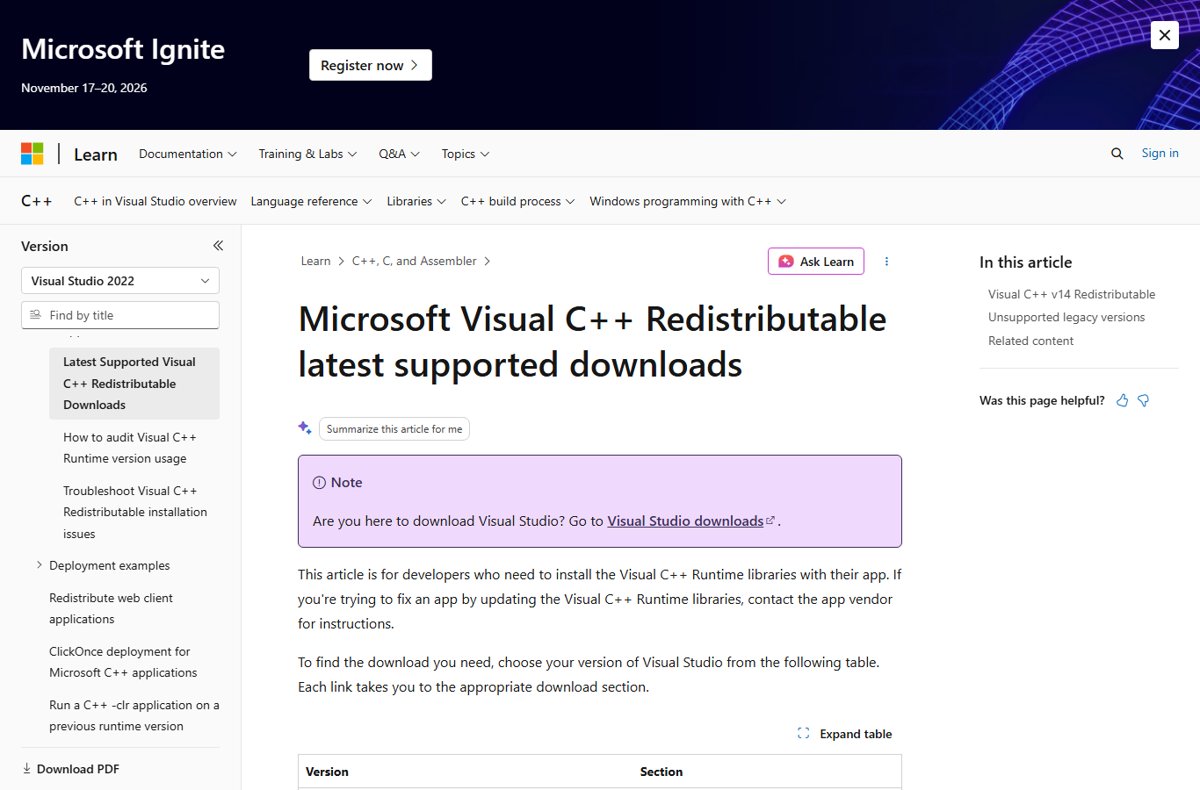
Rockstar's PC games and launcher rely on Microsoft Visual C++ runtimes, and Microsoft publishes one current v14 package that covers Visual Studio 2015 to 2022 builds.
- Select Start > Control Panel > Programs > Programs and Features.
- Right-click each Microsoft Visual C++ 2015-2022 Redistributable entry (x64 and x86) and select Change.
- Select Repair and let it finish, then restart Windows.
- If repair is not offered or fails, install the latest supported X64 package from Microsoft Learn.
- Open Rockstar Games Launcher again.
You can also get the Visual C++ Redistributable installer for both 64-bit and 32-bit Windows in one place.
Method 4: Allow Rockstar Games Launcher through Windows Firewall
A firewall rule that blocks the launcher leaves it spinning on the sign-in or loading screen. Adding the app to the allowed list is safer than opening ports.
- Open the Windows Security app and select Firewall & network protection.
- Select Allow an app through firewall.
- Select Change settings and confirm the administrator prompt.
- Find Rockstar Games Launcher in the list and tick both Private and Public.
- If it is not listed, select Allow another app, browse to the launcher's executable and add it.
- Select OK and restart the launcher.
A third-party firewall or security suite keeps its own app rules, so add the launcher as a trusted app there instead of turning the protection off.
Method 5: Allow the launcher through Controlled folder access
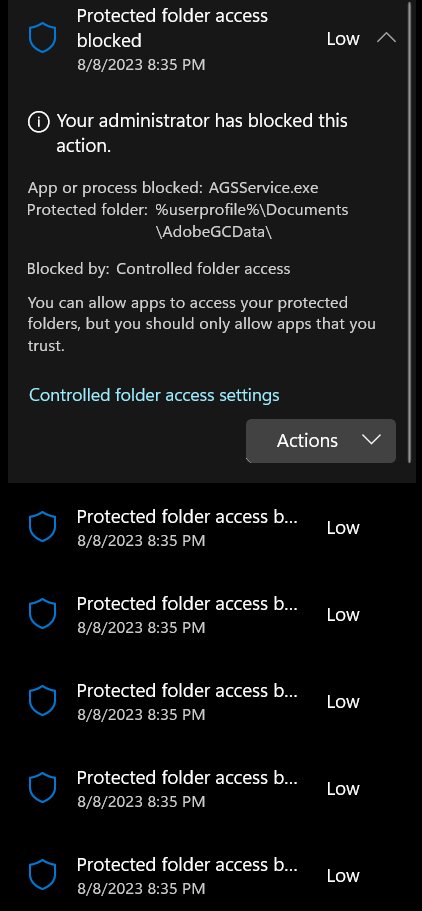
Controlled folder access blocks unknown apps from writing to protected folders such as Documents, where Rockstar games keep settings and saves.
- Open Windows Security and go to Virus & threat protection.
- Under Virus & threat protection settings, select Manage settings.
- Under Controlled folder access, select Manage controlled folder access.
- Select Allow an app through Controlled folder access and choose Yes in the User Account Control prompt.
- Select + Add an allowed app > Recently blocked apps and pick the Rockstar launcher or game, or use Browse all apps to add its .exe file.
- Reopen Rockstar Games Launcher.
The allow list only appears when Controlled folder access is on, so if you cannot see it, this feature is not the cause.
Method 6: Set the correct date, time and time zone
Sign-in services reject requests from a PC whose clock is far off, which shows up as an endless loading or connection error.
- Select Start > Settings > Time & language > Date & time.
- Turn on Set time automatically.
- Turn on Set time zone automatically, or pick the right zone from the Time zone list.
- Restart Rockstar Games Launcher and sign in again.
Method 7: Install pending Windows updates
Updates replace system files the launcher uses, and a pending restart can leave those files locked until you install pending Windows updates and reboot.
- Select Start > Settings > Windows Update.
- Select Check for updates, then Download & install for anything offered.
- Restart the PC when Windows asks.
- Open the launcher again after the restart.
Method 8: Perform a clean boot to find conflicting software
A clean boot starts Windows with only essential drivers and startup programs, so you can see whether an overlay, VPN or background tool is breaking the launcher.
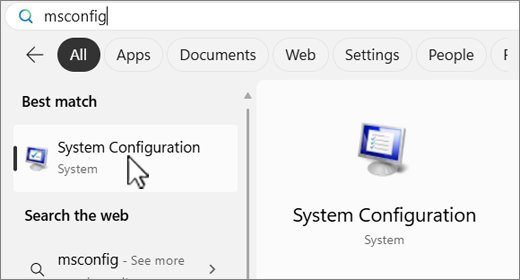
- Sign in with an administrator account, select Search, type msconfig and open System Configuration.
- On the Services tab, select Hide all Microsoft services, then Disable all, and select Apply.
- On the Startup tab, select Open Task Manager.
- On the Startup apps tab, select each enabled item and select Disable, noting what you turned off.
- Close Task Manager, select OK in System Configuration and restart the PC.
- Open Rockstar Games Launcher. If it works now, re-enable the items in small groups until the launcher breaks again to find the culprit.
- When finished, return to System Configuration and re-enable your services and startup apps to start normally.
If the launcher still fails in a clean boot, background software is not the cause and a reinstall is the next step.
Method 9: Repair system files with DISM and SFC
Damaged Windows files can stop apps from starting, and Microsoft recommends running DISM before you run the System File Checker.
DISM.exe /Online /Cleanup-image /Restorehealth
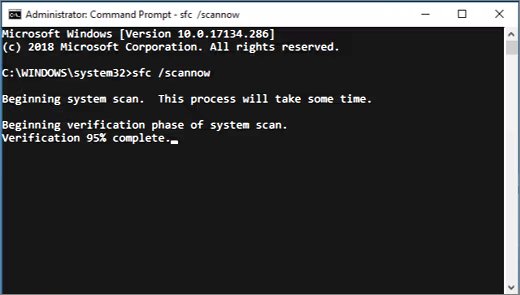
sfc /scannow
Search for Command Prompt, right-click it and select Run as administrator. Run the DISM line first; it downloads clean copies of damaged Windows components through Windows Update. Then run sfc /scannow, which checks protected system files and replaces corrupt ones.
You should see: DISM reports that the restore operation completed successfully, and SFC reports either no integrity violations or that it repaired corrupt files. Restart, then open the launcher.
Method 10: Uninstall and reinstall Rockstar Games Launcher
A reinstall replaces every launcher file. Your games stay installed, but you may need to point the launcher back to their folders afterwards.
- Select Start > Settings > Apps > Installed apps.
- Find Rockstar Games Launcher, select the More icon next to it, then select Uninstall and confirm.
- Restart the PC so no launcher process stays in memory.
- Download a fresh installer from rockstargames.com/launcher and run it as administrator.
- Sign in with your Rockstar Games account and let the launcher detect your installed games.
Only use Rockstar's own site for the installer, and confirm your PC meets the launcher's system requirements before you run it.
How to check Rockstar Games Launcher is working again
- Open the launcher and confirm it reaches the sign-in screen without an error.
- Sign in and check that your library lists your installed games.
- Start one game from the launcher and confirm it opens past the launcher splash.
- Close the launcher, open it again, and confirm it starts on the second launch too.
Rockstar Games Launcher not working on Windows 11 or not loading
Rockstar Games Launcher not working on Windows 11
Compatibility mode, a pending Windows update or a blocked executable.
- Clear Run this program in compatibility mode for: on the shortcut's Compatibility tab.
- Install all updates from Settings > Windows Update and restart.
- Allow the launcher in Windows Security under both the firewall and Controlled folder access.
Rockstar Games Launcher not loading or stuck on the loading screen
Rockstar's services are down, the network blocks the launcher, or the clock is wrong.
- Check Rockstar Support's service status page.
- Turn on Set time automatically under Time & language > Date & time.
- Disconnect any VPN or proxy and restart the launcher.
- Allow the launcher through Windows Firewall and any third-party firewall.
You cannot launch Rockstar games from the launcher
The game install is damaged or a background app conflicts with it.
- Run the launcher as administrator.
- Perform a clean boot and try the game again.
- Repair the Visual C++ Redistributable packages and restart.
Rockstar Games Launcher not working FAQ
Why is Rockstar Games Launcher not working?
The usual causes are a stuck background process, a Rockstar service outage, a firewall or Controlled folder access block, a damaged Visual C++ runtime or a corrupt install. Restart it as administrator first, then work through the other fixes in order.
Why can't I launch Rockstar Games?
Games that will not start from the launcher are often blocked by background software or missing runtimes. Run the launcher as administrator, repair the Microsoft Visual C++ Redistributable packages, and use a clean boot to rule out overlays and other startup apps.
What's wrong with Rockstar launcher today?
If it suddenly stopped working for you, check Rockstar Support's service status page first. When every service is up, the problem is on your PC, so restart the launcher as administrator and check your firewall and clock.
Why is Rockstar Games Launcher not loading?
A launcher stuck on loading usually cannot reach Rockstar's servers. Check the service status, set your clock to update automatically, disconnect a VPN, and allow the launcher through Windows Firewall.
Does Rockstar Games Launcher work on Windows 11?
Yes. Rockstar offers the launcher for Windows, and current Rockstar PC games such as Grand Theft Auto V Enhanced list Windows 11 among their supported systems. Keep Windows updated and avoid compatibility mode on the launcher shortcut.
Will reinstalling Rockstar Games Launcher delete my games?
Uninstalling the launcher removes the client, not your game folders, though you may need to point the launcher back to them after reinstalling. Back up anything important before you uninstall.
Should I disable my antivirus to fix Rockstar Games Launcher?
No. Add the launcher as an allowed app in Windows Firewall, Controlled folder access or your security suite instead. That fixes the block while keeping your PC protected.