To view your Google Chrome bookmarks on a computer, select More (the three dots) > Bookmarks and lists > Bookmark manager, or press Ctrl + Shift + O on Windows.
This guide covers the bookmarks bar, searching bookmarks from the address bar, the side panel, Chrome on Android and iPhone, syncing bookmarks to another computer, and fixes when bookmarks are missing.
Step by step tutorial: Viewing Google Chrome bookmarks
Bookmark Manager shows every bookmark and folder in one window, which makes it the most complete view on Windows, Mac, Linux and ChromeOS.
- Open Google Chrome on your computer.
- Select More (the three vertical dots) at the top right.
- Point to Bookmarks and lists.
- Select Bookmark manager.
- Select a folder on the left, such as Bookmarks bar or Other bookmarks, to see its bookmarks on the right.
- Select a bookmark to open the site.
On a Mac, Command + Option + B opens Bookmark Manager directly. The keyboard route skips the menu entirely.
Where to find bookmarks in Google Chrome
| What you want | Where to look | Why |
|---|---|---|
| One-click access to sites you open daily | Bookmarks bar under the address bar | Always visible on every tab once turned on |
| Find one bookmark by name | Address bar with @bookmarks | Searches every folder without opening a window |
| Browse bookmarks while reading a page | Show all bookmarks side panel | Opens beside the page instead of replacing it |
| Reorganize, rename or export everything | Bookmark manager | The only view with folder tree, sort, export and bulk editing |
| Bookmarks on your phone | More > Bookmarks in Chrome for Android or iPhone | Shows the same Google Account bookmarks when you are signed in |
How to show bookmarks bar in Chrome
The bookmarks bar is the easiest way to open a bookmark. It sits under the address bar and holds the bookmarks saved to the Bookmarks bar folder.
- Open Chrome on your computer.
- Select More at the top right.
- Select Bookmarks and lists.
- Select Show bookmarks bar to turn the bar on.
- Select a bookmark on the bar to open it, or select a folder on the bar to see the bookmarks inside it.
Press Ctrl + Shift + B on Windows and Linux, or Command + Shift + B on a Mac, to show or hide the bar in one step.
How to search bookmarks in Chrome
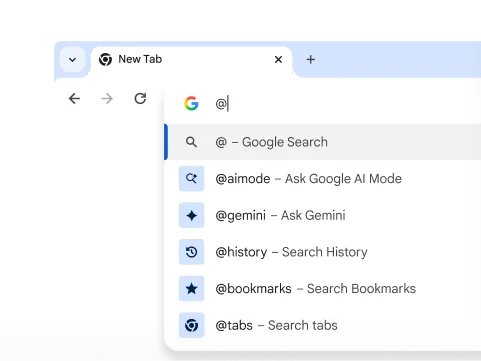
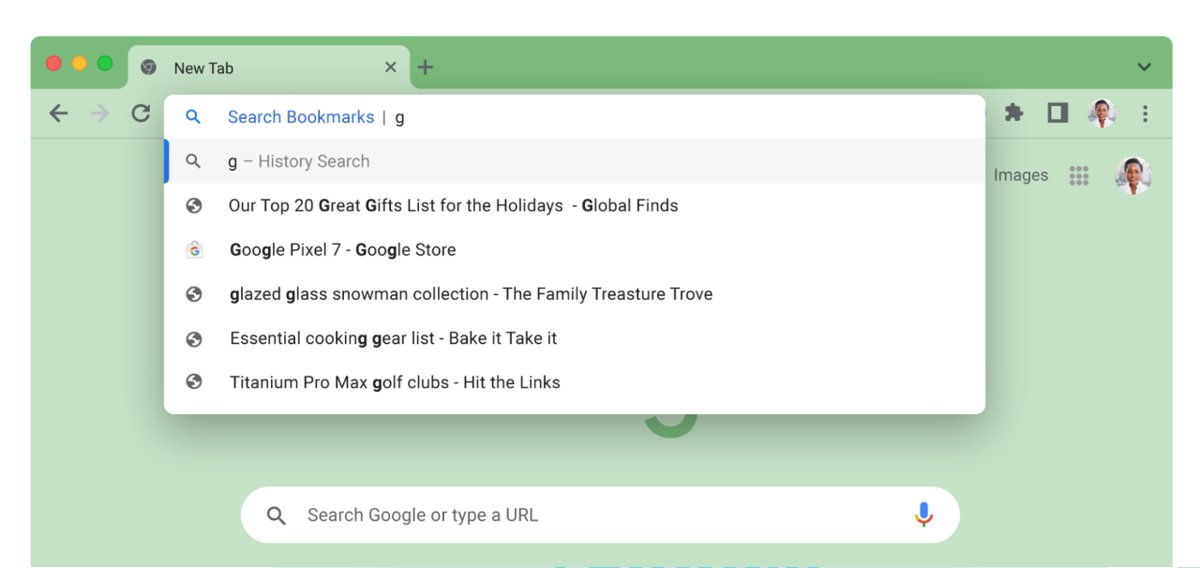
The @bookmarks shortcut turns the address bar into a bookmark search, so you never have to open a folder to find a saved site.
- Open Chrome on your computer.
- Click in the address bar and type
@bookmarks. - Press Tab or Space.
- Type a word or two from the bookmark's name or address.
- Select the bookmark you want from the list.
To find a site you visited but never saved, check your Chrome history instead.
How to see all bookmarks in Chrome side panel
- Open Chrome on your computer.
- Select More at the top right.
- Select Bookmarks and lists.
- Select Show all bookmarks to open your bookmarks in the side panel.
- Select a folder to open it, then select a bookmark to load the site in the current tab.
The side panel stays open while you browse, so you can work through a folder of saved links without switching windows.
How to find bookmarks on Chrome for Android
- Open Chrome on your Android phone or tablet.
- Tap More at the top right, then tap Bookmarks. If your address bar is at the bottom, swipe up on it and tap Bookmarks.
- Tap a folder to open it. Tap Back at the top left to reach other folders.
- Tap the bookmark to open the site.
- To find a bookmark by name, type in the Search your bookmarks bar at the top.
To save the page you are on, tap More > Add to bookmarks. Android tablets can also show a bookmarks bar on the toolbar.
How to view Chrome bookmarks on iPhone and iPad
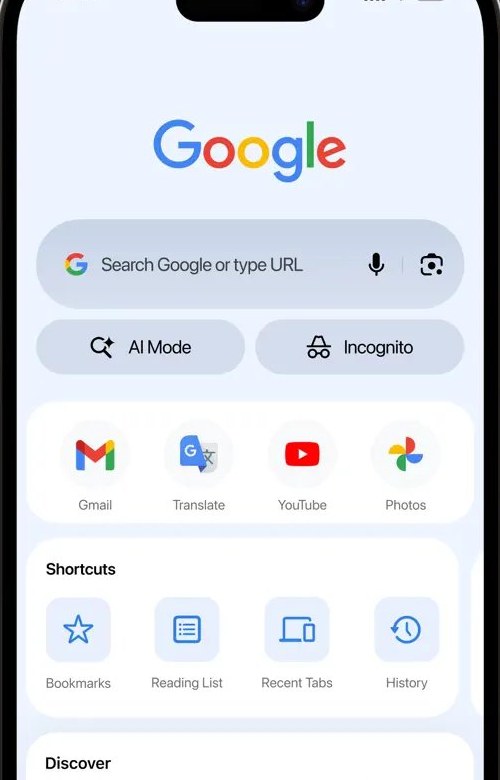
- Open Chrome on your iPhone or iPad.
- Tap More, then tap Bookmarks.
- Tap a folder to see the bookmarks inside it.
- Tap a bookmark to open it, or touch and hold it to open it in a new tab or an Incognito tab.
- If the bookmark is not in that folder, tap Back at the top left and open a different folder.
To bookmark a page on iPhone or iPad, tap More > Add to Bookmarks.
Chrome bookmarks keyboard shortcuts for Windows and Mac
| Action | Windows and Linux | Mac |
|---|---|---|
| Show or hide the bookmarks bar | Ctrl + Shift + B | Command + Shift + B |
| Open Bookmark Manager | Ctrl + Shift + O | Command + Option + B |
| Bookmark the current page | Ctrl + D | Command + D |
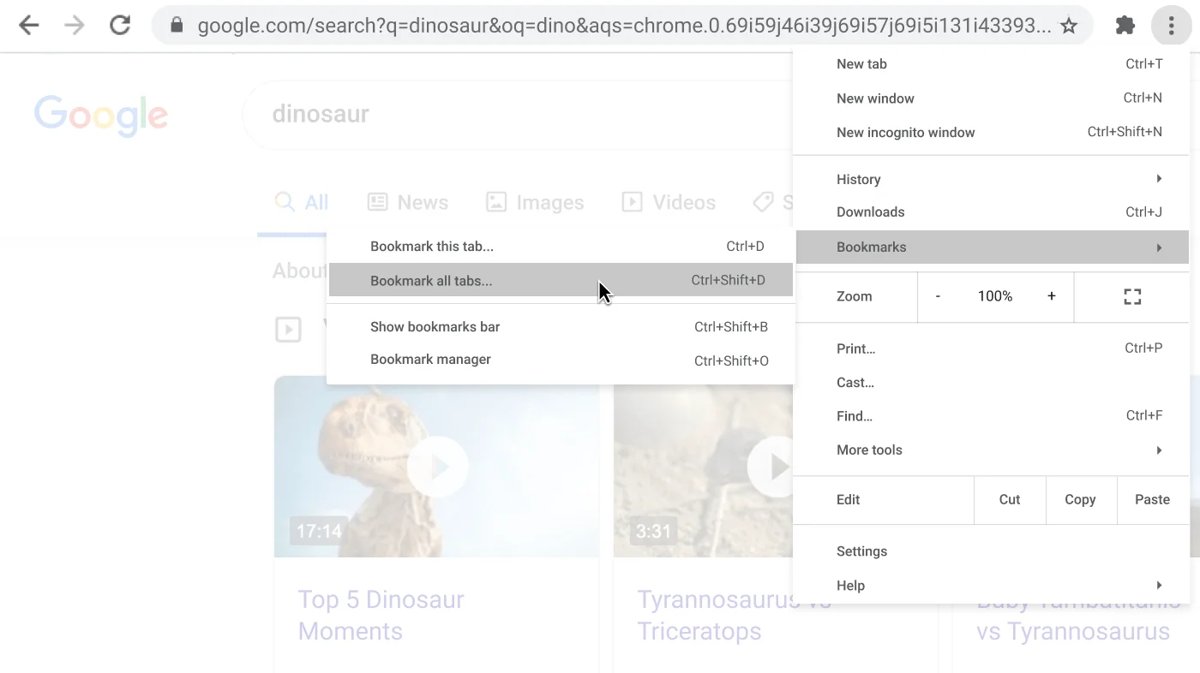
| Bookmark all open tabs in a new folder | Ctrl + Shift + D | Command + Shift + D |
| Search bookmarks | Type @bookmarks in the address bar, then Tab or Space | Type @bookmarks in the address bar, then Tab or Space |
Tips for managing Google Chrome bookmarks
Every change below starts in More > Bookmarks and lists > Bookmark manager. The side panel offers the same edits when you hover over a bookmark and select More.
- Create a folder: in Bookmark Manager, select More at the top right, then Add new folder. On the bookmarks bar, right-click the bar and select Add Folder instead.
- Rename a bookmark or change its address: select More to the right of the bookmark, then Edit.
- Move a bookmark: drag it up or down in the list, or drag it into a folder on the left.
- Put a folder in alphabetical order: select More at the top right, then Sort by name.
- Sort in the side panel instead: open Show all bookmarks and choose newest, oldest, last opened, A to Z or Z to A.
- Delete a bookmark: select More to the right of it, then Delete. A deleted bookmark cannot be recovered, so export a backup first if you are cleaning up a lot.
View Chrome bookmarks without Chrome: export them to an HTML file
Exporting saves every bookmark to one HTML file. You can keep it as a backup or import it into another browser.
- Open Chrome on your computer.
- Select More > Bookmarks and lists > Bookmark manager.
- Select More at the top of Bookmark Manager.
- Select Export bookmarks.
- Choose where to save the HTML file on your computer.
- Import the HTML file into another browser to see the bookmarks there.
How to access Chrome bookmarks on a different computer
When you sign in to Chrome with your Google Account, new bookmarks are saved to that account and appear on every device signed in with it. Bookmarks made while signed out stay only on that device until you move them to your account.
- On the computer that has the bookmarks, sign in to Chrome with your Google Account.
- If Chrome offers it, select Profile at the top right, then Save x items in Account, choose the bookmarks, and select Save in account.
- Select More > Settings > You and Google, select your account name, and make sure bookmarks are saved to your account.
- On the other computer, open Chrome and sign in with the same Google Account.
- Open More > Bookmarks and lists > Bookmark manager to see the bookmarks.
If Chrome is not installed on the second computer yet, download Google Chrome for Windows first, then sign in.
How to import bookmarks into Google Chrome
Chrome imports bookmarks from an HTML file saved by Firefox, Safari or another browser. Save or export the file from the other browser first.
- Open Chrome on your computer.
- Select More > Bookmarks and lists > Import bookmarks and settings.
- Select Choose file.
- Pick the HTML bookmarks file and select Open.
- Select Done.
- Look for the imported bookmarks on the bookmarks bar if Chrome had none before, or in the Other bookmarks folder if it did.
Chrome bookmarks not showing: how to fix
The bookmarks bar is gone from the top of Chrome
Show bookmarks bar is turned off, often after pressing Ctrl + Shift + B by accident.
- Select More > Bookmarks and lists > Show bookmarks bar.
- Or press Ctrl + Shift + B on Windows, or Command + Shift + B on a Mac.
Imported bookmarks are not on the bookmarks bar
Chrome already had bookmarks, so the import went into a separate folder.
- Open Bookmark manager.
- Select Other bookmarks on the left.
- Drag the imported folder onto Bookmarks bar if you want it on the bar.
Bookmarks do not appear on another computer or phone
One device is signed out of Chrome, signed in to a different Google Account, or the bookmarks were saved only on the device.
- Check the profile icon at the top right on both devices and make sure they use the same Google Account.
- On the device with the bookmarks, select Profile > Save x items in Account if it is offered.
- Open More > Settings > You and Google, select your account name, and make sure bookmarks are saved in your account.
- Restart Google Chrome on the second device and open Bookmark Manager again.
Can't find a bookmark in Chrome
The bookmark is inside a folder you have not opened, or it was saved in another Chrome profile.
- Type
@bookmarksin the address bar, press Tab, and search for a word from its name. - Switch to your other Chrome profile from the profile icon and search again there.
The Bookmarks and lists menu looks different from these steps
An older Chrome version uses older menu names.
- Update Google Chrome to the latest version.
- Relaunch Chrome and open More > Bookmarks and lists again.
Google Chrome bookmarks FAQ
Where to find bookmarks in Google Chrome?
On a computer, select More > Bookmarks and lists > Bookmark manager to see every bookmark and folder. Bookmarks also appear on the bookmarks bar under the address bar when it is turned on, and in the Show all bookmarks side panel.
How to show all bookmarks on Chrome?
Select More > Bookmarks and lists > Show all bookmarks to open them in the side panel, or open Bookmark manager with Ctrl + Shift + O on Windows. Both views list every folder, including Bookmarks bar and Other bookmarks.
How to search bookmarks in Chrome?
Type @bookmarks in the address bar, press Tab or Space, then type a word from the bookmark's name. Matching bookmarks appear in the drop-down list. On Android, use the Search your bookmarks bar at the top of the Bookmarks screen.
How to bookmark a page in Google Chrome?
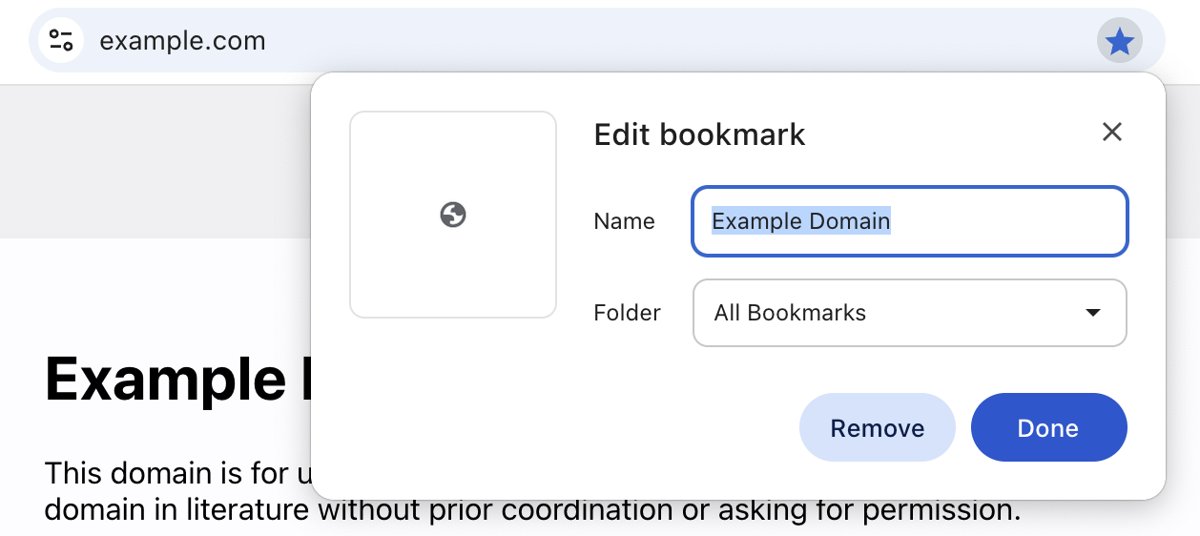
Go to the site and select Bookmark to the right of the address bar, or press Ctrl + D on Windows or Command + D on a Mac. On Android, tap More > Add to bookmarks; on iPhone, tap More > Add to Bookmarks.
How do I create a new bookmark folder in Google Chrome?
Open More > Bookmarks and lists > Bookmark manager, select More at the top right, then Add new folder. If you use the bookmarks bar, right-click the bar and select Add Folder.
Can I import bookmarks from another browser to Google Chrome?
Yes. Export the bookmarks from the other browser as an HTML file, then in Chrome select More > Bookmarks and lists > Import bookmarks and settings > Choose file, pick the file, and select Done.
What happens if I delete a bookmark by accident?
Google states that a deleted bookmark cannot be brought back. Add the site again with Ctrl + D, or import an HTML backup you exported earlier. An exported HTML file is the simplest backup to keep.
How can I access my bookmarks on a different computer?
Sign in to Chrome with the same Google Account on both computers. Bookmarks saved to that account appear in Bookmark manager on each one. Bookmarks made while signed out stay on the original device until you save them to your account.
Can I export my bookmarks from Google Chrome?
Yes. Open Bookmark manager, select More at the top, then Export bookmarks. Chrome saves all bookmarks as one HTML file that any major browser can import.
How to show bookmarks on Chrome under the address bar?
Select More > Bookmarks and lists > Show bookmarks bar, or press Ctrl + Shift + B on Windows and Command + Shift + B on a Mac. Only bookmarks saved to the Bookmarks bar folder appear there.