Most iPhone 16 Pro Max speaker and screen issues clear after you turn off Silent mode, update iOS and force restart the phone; Apple fixed a known iPhone 16 Pro touchscreen bug in iOS 18.0.1.
This guide covers quick fixes for no sound, distorted sound, an unresponsive or jumpy screen and a black screen, plus how to tell when the phone needs Apple service.
Quick fix for iPhone 16 Pro Max speaker and screen issues
Run these in order and test after each one. The first three settle most software causes.
- Open Settings > General > Software Update and install any update shown.
- Swipe down from the top-right corner to open Control Center and make sure Silent mode is off.
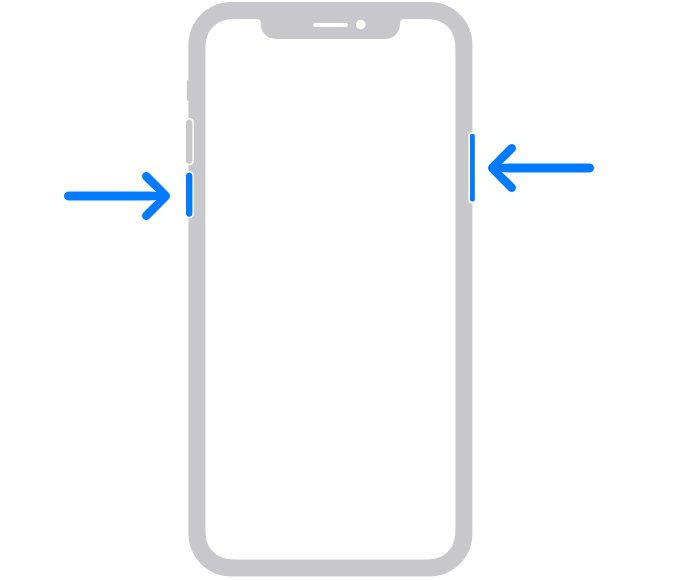
- Force restart: press and quickly release volume up, press and quickly release volume down, then press and hold the side button until the Apple logo appears.
- Remove the case and any screen protector or film.
- Disconnect any USB-C accessory, including the charging cable.
- Test the speaker in Settings > Sounds & Haptics by dragging the Ringtone and Alerts slider.
Known issues with iPhone 16 Pro Max
Apple lists these iPhone 16 Pro fixes in its iOS 18 release notes. Each applies to the Pro Max as part of the iPhone 16 Pro line.
| Issue Apple documented | Fixed in | What to do |
|---|---|---|
| Touch screen temporarily unresponsive in certain circumstances | iOS 18.0.1 | Update iOS |
| Camera freezes recording macro video on the Ultra Wide camera in 4K with HDR off | iOS 18.0.1 | Update iOS |
| Night mode photos could appear degraded | iOS 18.2 | Update iOS |
| Audio playback continues after closing Apple Music | iOS 18.3 | Update iOS |
Any later iOS release includes these fixes, so the current version is always the right target.
iPhone 16 Pro Max speaker not working: fix no sound
These are the checks Apple gives when a speaker plays nothing or sounds distorted.
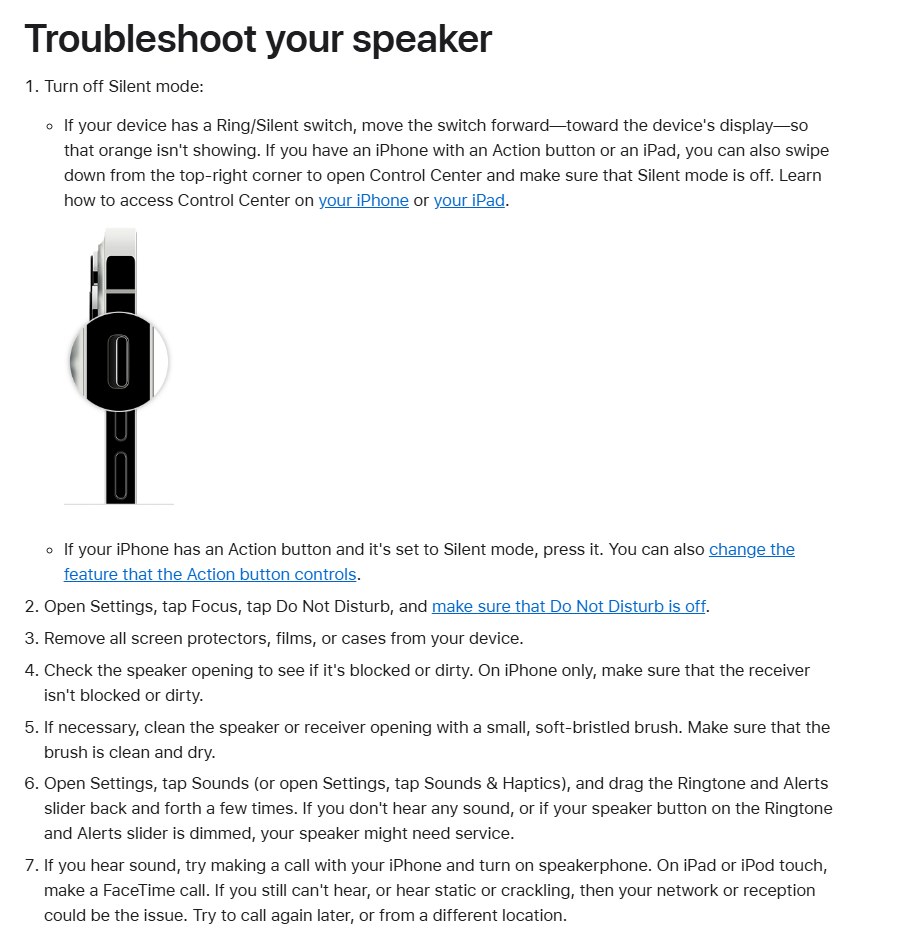
- Check Silent mode. The iPhone 16 Pro Max has an Action button instead of a Ring/Silent switch, so open Control Center or press the Action button if it is set to Silent.
- Open Settings > Focus > Do Not Disturb and make sure it is off.
- Remove any case, screen protector or film.
- Look at the speaker opening at the bottom and the receiver at the top for dirt or blockage.
- Clean the openings with a small, soft-bristled brush and keep them dry.
- Open Settings > Sounds & Haptics and drag the Ringtone and Alerts slider back and forth a few times.
- If you hear sound now, make a call with speakerphone on to test call audio.
If the slider plays nothing, or its speaker button is dimmed, the speaker likely needs service.
iPhone 16 Pro Max screen issues: fix an unresponsive or jumpy touch screen
These are Apple's steps for an unresponsive iPhone touch screen that is too sensitive or responds only some of the time.
- Restart the iPhone. Press and hold either volume button and the side button until the power-off slider appears, drag it, wait 30 seconds, then hold the side button until the Apple logo shows.
- Clean the screen so it is free of debris and water.
- Disconnect any USB-C accessory. If the screen works without it, try a different outlet, cable or charger.
- Remove the case and any screen protector.
- Install the latest iOS from Settings > General > Software Update.
iPhone 16 Pro Max display black or frozen: force restart
A black or frozen display is often a hung phone rather than a broken screen, and most black iPhone screen fixes start with a force restart.
- Press and quickly release the volume up button.
- Press and quickly release the volume down button.
- Press and hold the side button until you see the Apple logo. This can take longer than 10 seconds.
- If nothing appears, charge the iPhone for one hour and try again.
- If a low-battery icon shows, charge for 30 minutes or until it starts.

iPhone 16 Pro Max audio and display issues by symptom
No sound from the speaker at all
Silent mode, a Focus or a blocked opening is the usual cause.
- Turn off Silent mode and Do Not Disturb.
- Clean the speaker opening with a soft, dry brush.
- Test with the Ringtone and Alerts slider in Sounds & Haptics.
Static or crackling only during calls
Apple notes the network can cause call noise.
- Test the speaker with the Ringtone and Alerts slider.
- If the slider sounds clean, call again later or from another location.
Screen stops responding for a few seconds
Apple documented a temporary unresponsive touch screen bug on iPhone 16 Pro models.
- Update to the latest iOS.
- Remove the screen protector and disconnect accessories.
- Restart the iPhone.
Screen stays black or the phone will not turn on
The phone is frozen or the battery is empty.
- Force restart with volume up, volume down, then hold the side button.
- Charge for an hour and try again.
Test iPhone 16 Pro Max speaker and screen after the fix
- Drag the Ringtone and Alerts slider in Settings > Sounds & Haptics and listen for clear sound from the bottom speaker.
- Make a call with speakerphone on and check both speaker and receiver.
- Use the phone without a case or protector for a while and note whether the touch screen still freezes.
- Confirm Settings > General > Software Update reports iOS is up to date.
When iPhone 16 Pro Max needs Apple service
Book service with Apple if the speaker stays silent on the Ringtone and Alerts test, or the screen still misbehaves after updating, cleaning, removing accessories and force restarting. Apple states that a dimmed speaker button on the slider, or a screen fault that survives these steps, points to hardware that needs service.
iPhone 16 Pro Max speaker and screen FAQ
What happened to the iPhone 16 Pro Max touchscreen?
Apple found that the touch screen could become temporarily unresponsive in certain circumstances on iPhone 16 and iPhone 16 Pro models. It fixed the issue in iOS 18.0.1, so updating iOS resolves it.
Are there known issues with the iPhone 16 Pro Max?
Yes. Apple's iOS 18 release notes list fixes for a temporarily unresponsive touch screen and a macro video camera freeze in iOS 18.0.1, and degraded Night mode photos in iOS 18.2. Current iOS includes all of them.
Why is my iPhone 16 Pro Max speaker so quiet?
A blocked or dirty speaker opening is the common cause, along with a case covering it. Remove the case, clean the opening with a soft dry brush, then test with the Ringtone and Alerts slider.
How do I force restart an iPhone 16 Pro Max?
Press and quickly release volume up, press and quickly release volume down, then press and hold the side button until the Apple logo appears. Holding can take longer than 10 seconds.
Can a screen protector cause iPhone 16 Pro Max screen issues?
Yes. Apple advises removing cases and screen protectors when the screen is too sensitive or responds only some of the time. Test without it before booking service.
How is the iPhone 16 Pro Max silenced without a mute switch?
The iPhone 16 Pro Max uses the Action button and Control Center for Silent mode. Swipe down from the top-right corner to check it, or press the Action button if it is set to Silent.

![Copilot not working in Teams [Fix]](https://techdows.com/wp-content/uploads/2026/10/Copilot-not-working-in-Teams-Fix-1-600x338.jpg)