A sync keeps one live copy of your files identical on every device, so an edit or a deletion on one device shows up everywhere, while a backup is a separate copy saved at a point in time that you can restore after a mistake, a failed drive or a lost device.
This guide shows how iCloud sync, iCloud Backup and Time Machine each fit that definition, which mistakes each one can and cannot undo, and how to set up both on an iPhone and a Mac.
Sync vs backup: the difference in one table
The quickest test is to ask what happens when you delete a file by mistake. A sync deletes it everywhere. A backup still has the old copy.
| Question | Sync (iCloud Drive, iCloud Photos) | Backup (Time Machine, iCloud Backup) |
|---|---|---|
| What it stores | The current version of your files, kept the same on every device | Copies of your data saved at set times |
| Delete a file on one device | It is deleted on every device that uses the service | Older backups still hold the file |
| Edit a file by mistake | The change spreads to every device | You can restore the version from before the edit |
| Lose or break a device | Your synced files are still on the other devices and in iCloud | You restore the whole device or chosen files |
| Main purpose | Access to the same files everywhere | Recovery after loss, damage or mistakes |
| Safety net for deletions | Recently Deleted, for 30 days | Hourly, daily and weekly copies kept on the Time Machine disk |
You want both. Sync makes your files available on every device, and a backup lets you go back in time.
Do I need iCloud sync, iCloud Backup or Time Machine?
| Your situation | Use this | Why |
|---|---|---|
| You want the same photos, notes and documents on iPhone, iPad and Mac | iCloud Photos and iCloud Drive (sync) | Changes appear on every signed-in device |
| You want to replace a lost iPhone and get your settings and app data back | iCloud Backup | It saves device settings, Home Screen layout and app data |
| You want to recover a Mac file you changed or deleted weeks ago | Time Machine | It keeps daily backups for the past month and weekly ones before that |
| You want a copy that is not on the internet | Time Machine, or an encrypted local iPhone backup on your Mac | The copy lives on a drive you hold |
| You deleted something from iCloud Drive in the last 30 days | Recently Deleted on iCloud.com | Deleted iCloud Drive files can be recovered for 30 days |
Is iCloud a sync or a backup?
iCloud is both, and the two parts behave differently. iCloud Photos, iCloud Drive, Notes and Messages in iCloud are sync services. iCloud Backup is a separate backup feature for iPhone and iPad.
Apple states that when you delete photos and videos on one device, they are deleted everywhere you use iCloud Photos. That is sync behaviour, not backup behaviour.
| iCloud feature | Type | What happens on delete |
|---|---|---|
| iCloud Photos | Sync | Deleted on every device; kept in Recently Deleted for 30 days |
| iCloud Drive | Sync | Removed from iCloud; recoverable on iCloud.com for 30 days |
| Messages in iCloud | Sync | Messages sync to iCloud and are not part of iCloud Backup |
| iCloud Backup | Backup | Holds settings, app data and data that does not already sync to iCloud |
What does iCloud Backup include and exclude?
iCloud Backup skips anything already stored in iCloud, so it does not hold a second copy of your synced photos or iCloud Drive files.
| Data | In iCloud Backup? |
|---|---|
| Device settings, Home Screen layout and app organisation | Yes |
| Data for apps you downloaded, including Apple apps that do not sync with iCloud | Yes |
| Purchased ringtones and Visual Voicemail password | Yes (Visual Voicemail needs the same SIM or eSIM) |
| Apple Watch backup | Yes, as part of the iPhone backup |
| Text, iMessage and MMS messages | Only when Messages in iCloud is off |
| Photos, videos and People & Pets data | Only when iCloud Photos is off |
| App data stored in iCloud Drive | No, it is already in iCloud |
This is why turning on iCloud Photos changes your safety net. Your photos are then protected by sync and Recently Deleted, not by iCloud Backup.
How to back up an iPhone to iCloud
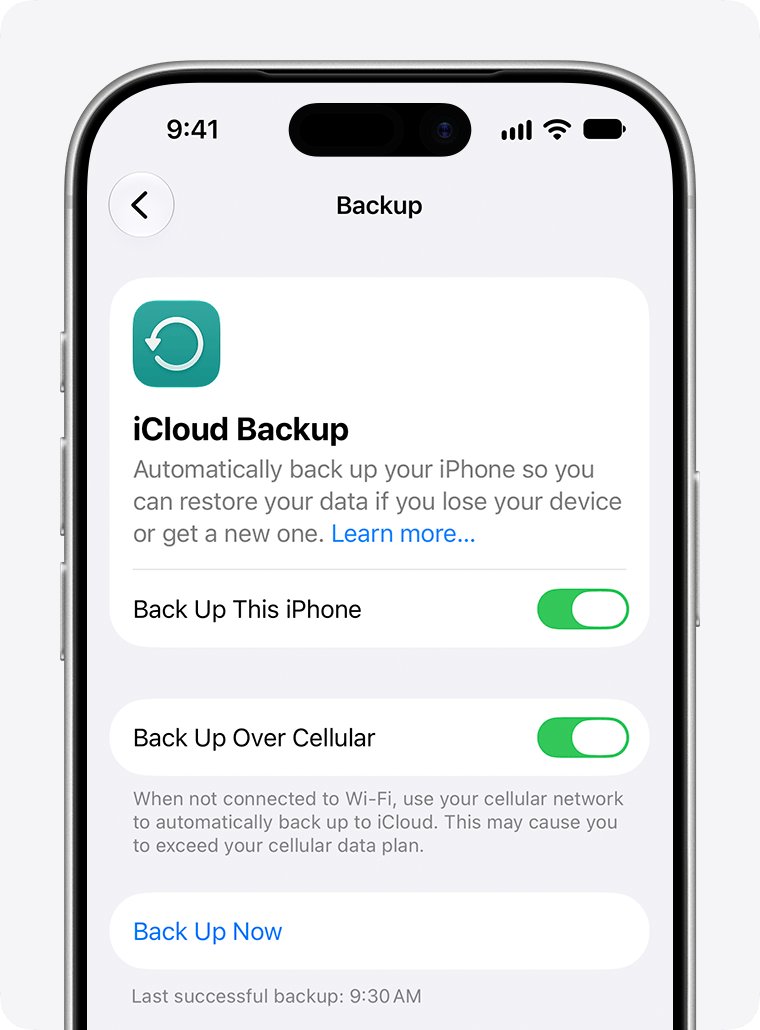
- Connect your iPhone to a Wi-Fi network.
- Open Settings, tap your name, then tap iCloud.
- Tap iCloud Backup.
- Turn on Back Up This iPhone for automatic backups.
- Tap Back Up Now to start a backup straight away, and stay on Wi-Fi until it finishes.
Automatic backups run when the iPhone is on power, connected to Wi-Fi and locked. If an alert says there is not enough iCloud storage, follow the onscreen steps to buy more.
How to set up Time Machine backup on a Mac
Apple recommends a drive with at least twice the storage capacity of your Mac, used only for Time Machine.
- Connect an external USB or Thunderbolt drive to your Mac.
- Choose Apple menu > System Settings.
- Click General in the sidebar, then click Time Machine.
- Click Add Backup Disk.
- Select your drive, then click Set Up Disk.
- Turn on Encrypt Backup if you want the backup protected by a password, and store that password safely.
The first backup starts right after setup. Eject the disk or shut down the Mac before you unplug it.
How often does Time Machine back up?
| Backups kept | For how long |
|---|---|
| Hourly backups | The past 24 hours |
| Daily backups | The past month |
| Weekly backups | All earlier months |
| Oldest backups | Deleted when the disk is full |
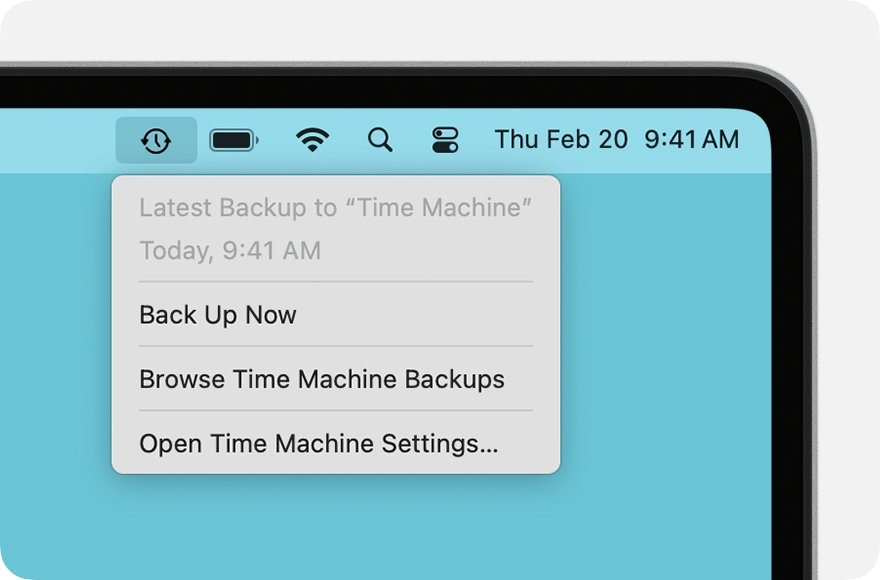
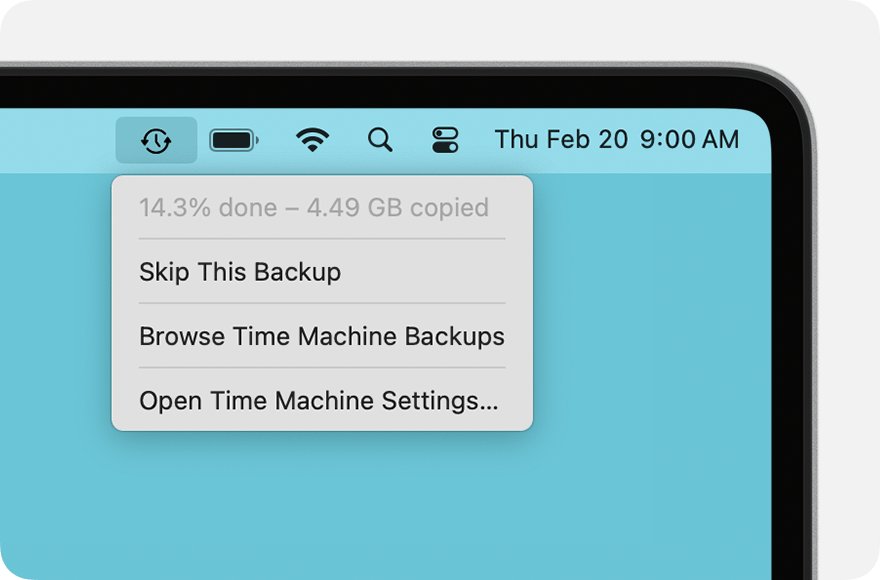
To change the schedule, choose Open Time Machine Settings from the Time Machine menu, click Options and pick a value under Back up frequency.
How to tell if your iPhone and Mac are backed up
- On iPhone, open Settings, tap your name, tap iCloud, then tap iCloud Backup.
- Read the date and time of the last backup under Back Up Now.
- On Mac, open System Settings > General > Time Machine and check that your backup disk is listed with a recent backup.
Recover files deleted from iCloud sync
A file deleted from iCloud Drive on one device is gone from all of them
iCloud Drive is a sync service, so the deletion reached iCloud.
- Go to icloud.com/iclouddrive and sign in.
- Select Recently Deleted in the sidebar.
- Select the files and choose Recover, or choose Recover All.
A file from another app that saves to iCloud is missing
Files from non-iWork apps are restored from a separate recovery page.
- Go to icloud.com/recovery and sign in.
- Select Restore Files.
- Select the files, or choose Select All.
- Select Restore Files again to confirm.
A photo deleted on iPhone also vanished from the Mac
iCloud Photos deletes items everywhere you use it.
- Open Photos and go to the Recently Deleted album.
- Select the photo and recover it within 30 days.
- For anything older than 30 days, restore it from a Time Machine backup made before the deletion.
Sync vs backup FAQ
Is syncing the same as backing up?
No. Syncing keeps the same current files on every device, so deletions and mistakes spread everywhere. A backup is a separate copy from an earlier point in time that you can restore after a deletion, a failed drive or a lost device.
Is iCloud Drive a backup?
No. iCloud Drive syncs files across your devices, so deleting a file removes it from iCloud too. Deleted iCloud Drive files can be recovered on iCloud.com for 30 days, but after that they are gone unless you also have a backup.
Does iCloud Backup include my photos?
Only when iCloud Photos is off. When iCloud Photos is on, your photos and videos are already stored in iCloud, so iCloud Backup leaves them out and they are protected by sync and the Recently Deleted album instead.
If I delete a photo on my iPhone, is it deleted on my Mac?
Yes, when both devices use iCloud Photos. Apple states that photos deleted on one device are deleted everywhere you use iCloud Photos. You can recover them from Recently Deleted for 30 days.
Do I need Time Machine if I use iCloud?
Yes, if you want to undo mistakes on a Mac. iCloud Drive syncs your files, but Time Machine keeps hourly, daily and weekly copies on an external drive, so you can restore a file as it was days or weeks ago.
How big should a Time Machine drive be?
Apple recommends a storage device with at least twice the storage capacity of your Mac. Use it only for Time Machine backups, because the oldest backups are deleted when the disk fills up.
When does iCloud Backup run automatically?
iCloud Backup runs automatically when Back Up This iPhone is on and the iPhone is connected to power, connected to Wi-Fi and locked. You can also start one at any time with Back Up Now.
Can I back up an iPhone without iCloud?
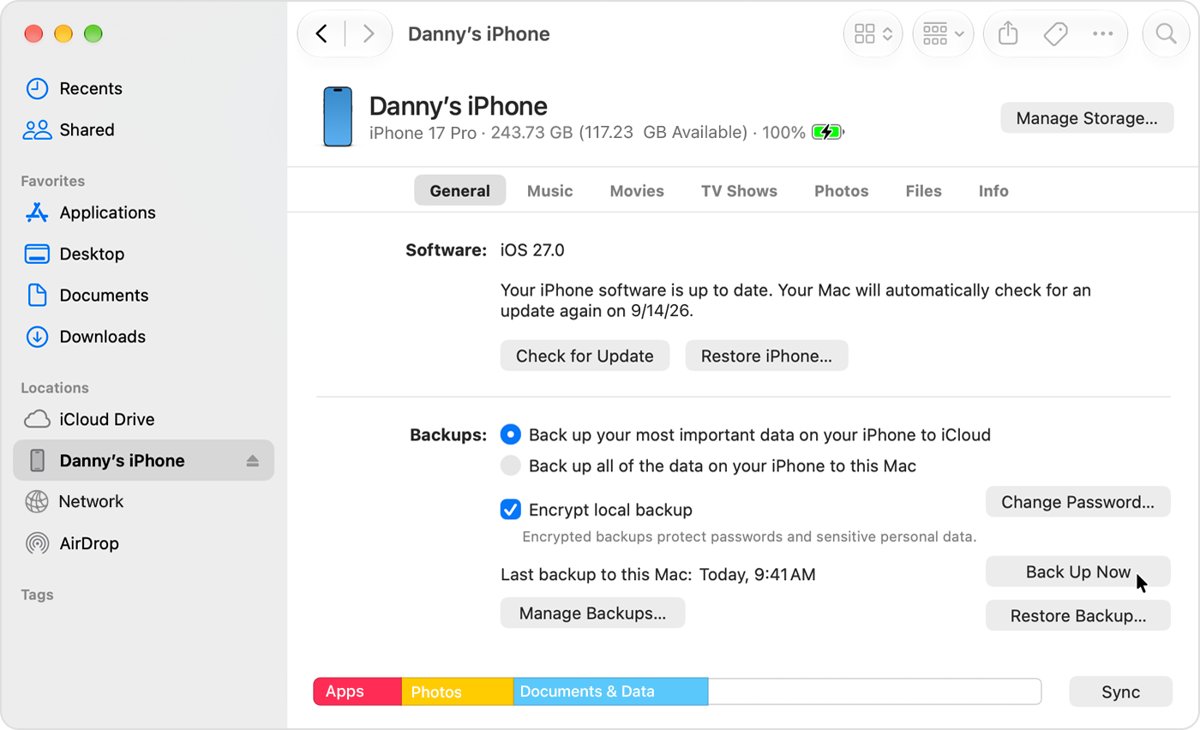
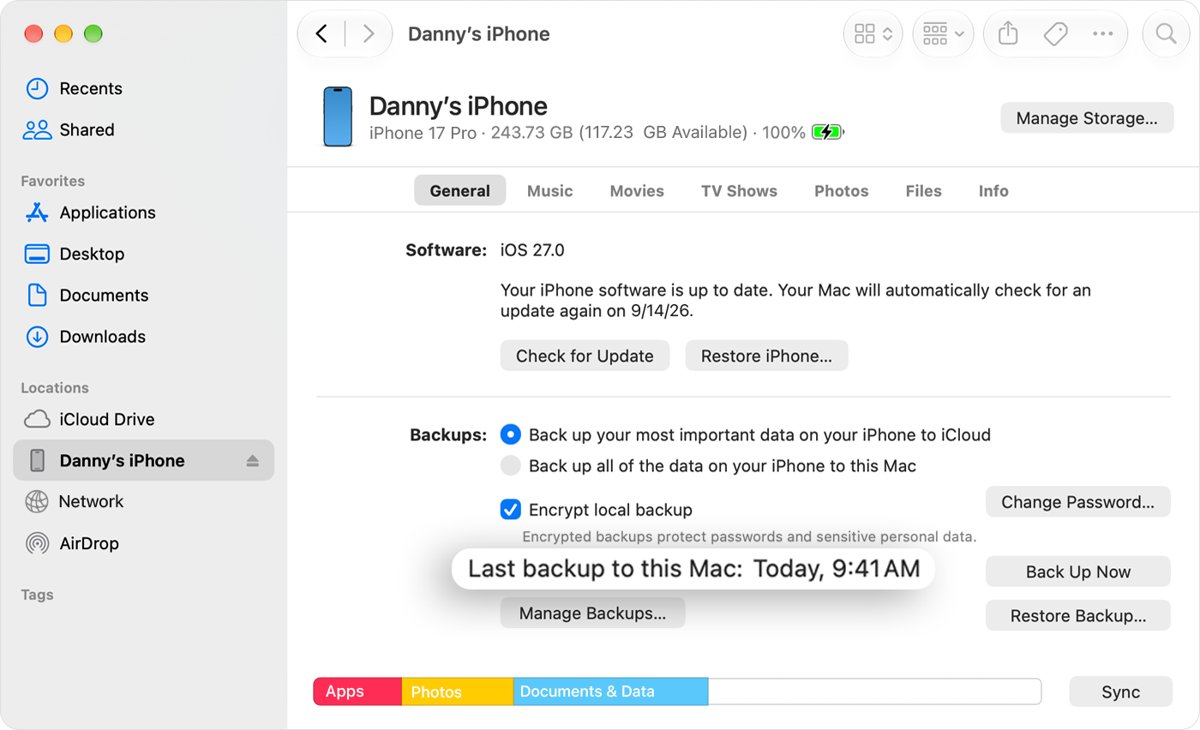
Yes. You can back up an iPhone to a Mac with Finder on macOS Catalina 10.15 or later. Select Encrypt local backup if you want Health and Activity data saved, and keep the password, because the backup cannot be restored without it.
Should you use sync, backup or both?
Use both: keep iCloud sync on for access across devices, and run iCloud Backup on your iPhone plus Time Machine on your Mac. Sync copies your mistakes to every device and only keeps deleted items for 30 days, while a backup keeps older versions you can return to. The same rule applies on Windows, where you can back up files with Windows Backup or keep a copy of OneDrive files outside the sync folder.