When iPhone 17 Pro mobile data usage jumps unexpectedly, the usual causes are Connectivity Assist topping up weak Wi-Fi with cellular data, the Allow More Data on 5G mode, and apps refreshing in the background.
This guide shows how to find what is using the data and how to cut it back with settings built into iOS.
Quick fix for iPhone 17 Pro using too much mobile data
- Open Settings, tap Wi-Fi and turn off Connectivity Assist.
- Go back to Settings, tap Cellular, then tap Cellular Data Options > Data Mode.
- Select Low Data Mode so Allow More Data on 5G is no longer in use.
- Go back to Cellular, scroll to the app list and turn off cellular data for any app you only need on Wi-Fi.
Why is my iPhone 17 Pro data usage so high?
| Cause | What it does | Where to change it |
|---|---|---|
| Connectivity Assist | Uses cellular data alongside Wi-Fi when Wi-Fi is slow or unusable | Settings > Wi-Fi |
| Allow More Data on 5G | Allows higher-quality video and FaceTime HD over 5G | Settings > Cellular > Cellular Data Options > Data Mode |
| Background App Refresh on cellular | Lets suspended apps fetch new content over cellular | Settings > General > Background App Refresh |
| Apps with cellular access | Any app with its switch on can stream or sync over cellular | Settings > Cellular, app list |
| Data Roaming | Uses partner networks outside your carrier's coverage | Settings > Cellular > Cellular Data Options |
How to check data usage on iPhone 17 Pro
The Cellular screen shows data used per app since the statistics were last reset. Your carrier's figure for the current billing period is the most accurate one.
- Open Settings and tap Cellular.
- Scroll to the list of apps and tap Show All; the data used appears under each app.
- Scroll to System Services above the app list to see data used by iOS itself.
- With Dual SIM, select the cellular data number you want to review.
- Scroll to the bottom and tap Reset Statistics to start a fresh count, then check again after a day.
Turn off Connectivity Assist on iPhone 17 Pro
Connectivity Assist replaced Wi-Fi Assist and now sits in Wi-Fi settings. It turns on by default after an update if Wi-Fi Assist was on, and Apple notes it can use more cellular data.
It is not used while international roaming or in cellular Low Data Mode.
- Open Settings and tap Wi-Fi.
- Make sure Wi-Fi is turned on.
- Scroll down and turn off Connectivity Assist.
- To keep it on elsewhere, turn it off only for the network that triggers it.
iPhone 17 Pro cellular data settings for 5G
iPhone 12 models and later with a 5G plan offer data modes that change how much data the phone uses.
| Setting | Path | Effect on data |
|---|---|---|
| Allow More Data on 5G | Cellular Data Options > Data Mode | Higher-quality video and FaceTime HD; uses more data |
| Low Data Mode | Cellular Data Options > Data Mode | Pauses automatic updates and background tasks off Wi-Fi |
| 5G Auto | Cellular Data Options > Voice & Data | Switches to LTE when 5G gives no clear benefit; saves battery |
| LTE | Cellular Data Options > Voice & Data | Turns 5G off |
Turn on Low Data Mode on iPhone 17 Pro
Low Data Mode stops apps using the network when you are not using them, turns off Background App Refresh, lowers streaming quality and pauses automatic downloads and backups.
- Open Settings and tap Cellular.
- Tap Cellular Data Options, then tap Data Mode.
- Select Low Data Mode.
- With Dual SIM, tap the number under Cellular first, then turn on Low Data Mode for it.
Stop background app refresh using mobile data on iPhone
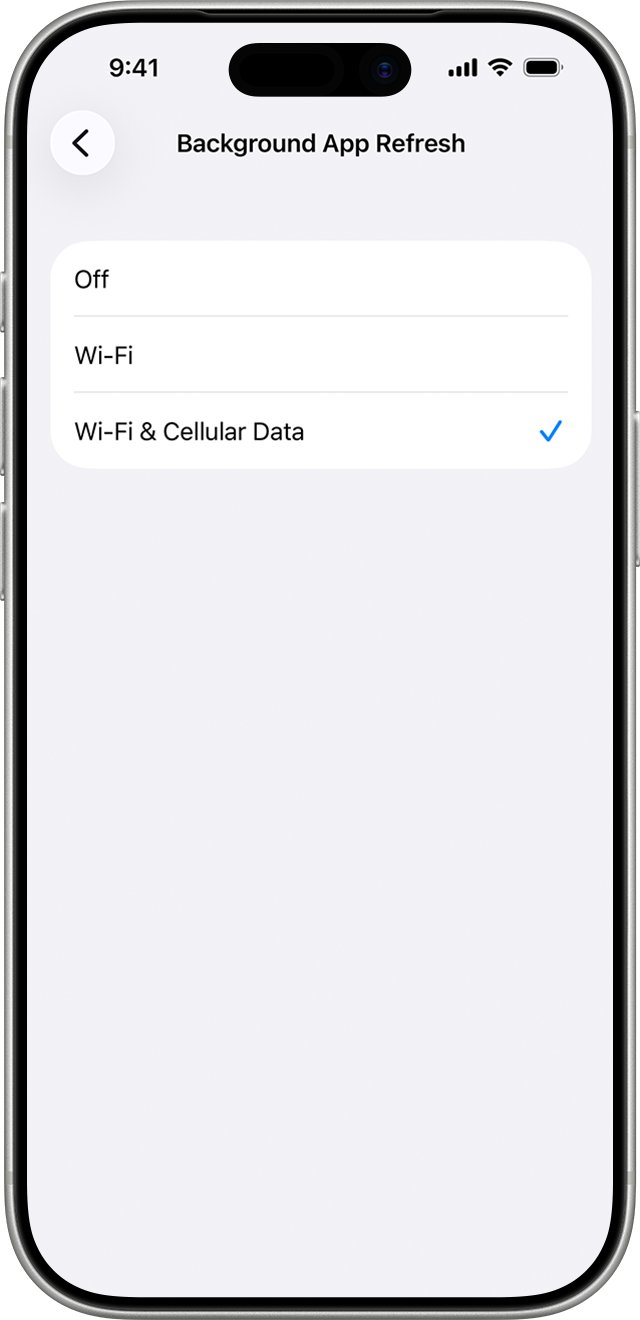
- Open Settings and tap General.
- Tap Background App Refresh.
- Tap Background App Refresh again and select Wi-Fi instead of Wi-Fi & Cellular Data.
- Go back and turn off the switch for any single app that should not refresh in the background.
iPhone 17 Pro data roaming and per-app cellular data
- Open Settings > Cellular > Cellular Data Options and turn off Data Roaming when travelling.
- Go back to Cellular and scroll to the list of apps.
- Turn off the switch for apps with high usage, such as video or cloud storage apps.
- Those apps then use only Wi-Fi.
Confirm iPhone 17 Pro data usage has dropped
- Tap Reset Statistics at the bottom of Settings > Cellular after making changes.
- Use the phone normally for a day.
- Return to Cellular and tap Show All to compare per-app usage.
- Compare the total with your carrier's usage figure for the period.
iPhone 17 Pro mobile data still increasing
Data rises while connected to Wi-Fi at home
Connectivity Assist adds cellular data when the Wi-Fi signal is weak.
- Turn off Connectivity Assist in Settings > Wi-Fi.
- Or turn on Low Data Mode for cellular, which stops Connectivity Assist.
System Services shows high usage
iOS services use cellular data and cannot be switched off one by one.
- Turn on Low Data Mode to pause automatic updates and background tasks off Wi-Fi.
- Keep the phone on Wi-Fi for large updates.
iPhone figures do not match the carrier bill
iPhone counts since the last Reset Statistics, not by billing period.
- Contact your carrier for the current period's usage.
- Reset statistics on your billing date each month.
iPhone 17 Pro mobile data usage FAQ
How do I check data usage on iPhone 16 or iPhone 17?
Open Settings, tap Cellular, scroll to the app list and tap Show All. Each app shows the cellular data it used since you last tapped Reset Statistics. The same steps work on iPhone 16 and iPhone 17 models.
Why does my iPhone use mobile data on Wi-Fi?
Connectivity Assist uses cellular data to support a slow or unusable Wi-Fi connection. Turn it off in Settings > Wi-Fi, or turn it off just for the network where it triggers.
Where are iPhone 17 cellular data settings?
They are in Settings > Cellular. Cellular Data Options holds Data Roaming, Data Mode and Voice & Data, and the app list below controls cellular access per app.
Does 5G use more data on iPhone 17 Pro?
It can. With Allow More Data on 5G selected, the iPhone streams higher-quality video and FaceTime HD over 5G. Choose Low Data Mode under Data Mode to limit it.
Does Low Data Mode stop all background data?
Low Data Mode stops most background network use, turns off Background App Refresh and pauses automatic downloads and backups. Apps you are actively using still use data.
Is the iPhone data usage figure accurate?
It is accurate for the period since the last reset, but it does not follow your billing cycle. Your carrier's figure for the current period is the most accurate.
Can I turn off cellular data for one app on iPhone 17 Pro?
Yes. Open Settings > Cellular, scroll to the app list and turn off the switch next to the app. It then uses only Wi-Fi.