When an iPhone can still make calls but neither cellular data nor Wi-Fi gives you internet, the shared cause is usually on the phone itself: a VPN, a security or filter app, a configuration profile, or damaged network settings.
This guide covers the fastest fix sequence, the cellular and Wi-Fi checks Apple recommends, carrier settings updates, Reset Network Settings, and how to keep calling over the internet once data works again.
Fix iPhone cellular data and Wi-Fi not working when calls still work
Work through these in order and test Safari after each one. Most phones are back online before the last step.
- Open Settings, turn on Airplane Mode for at least 15 seconds, then turn it off.
- Restart your iPhone.
- In Settings, swipe down and search for VPN, profile and filter; turn off or delete anything you did not set up on purpose.
- Turn off or delete VPN, firewall, antivirus, parental-control and content-blocker apps, then restart again.
- Go to Settings > General > Software Update and install any update shown.
- Go to Settings > General > About while on any working Wi-Fi and accept a carrier settings update if one appears.
- If nothing has worked, go to Settings > General > Transfer or Reset iPhone > Reset > Reset Network Settings.
Reset Network Settings erases saved Wi-Fi networks and passwords, cellular settings, and VPN and APN settings, so keep your Wi-Fi password handy before you run it.
Which iPhone internet fix matches your symptom?
| What you see | Most likely cause | Start with |
|---|---|---|
| Calls work, but no internet on cellular or any Wi-Fi network | VPN, security app, profile or corrupted network settings | Remove VPN and profiles, then Reset Network Settings |
| Calls work, Wi-Fi works, cellular data does not | Cellular Data switched off, per-app data blocked, roaming off, or an account/plan issue | Cellular Data Options and your carrier |
| Calls work, cellular data works, one Wi-Fi network fails | Router, hidden network or unsupported router settings | Restart the router and modem, try another band |
| Wi-Fi switch is dimmed (grayed out) | Software state | Restart the iPhone, then update iOS |
| Connected to Wi-Fi but "No Internet Connection" | Router, ISP outage or network configuration | Test other devices, restart router, contact your ISP |
| Status bar shows SOS, No Service or Searching | Not connected to the cellular network | Airplane Mode toggle, carrier settings, carrier account check |
Remove VPN, profiles and security apps blocking iPhone internet
Apple lists VPN apps, firewall apps, antivirus apps, parental-control apps and content blockers as software that can stop an iPhone reaching the internet over both Wi-Fi and cellular. Calls keep working because they do not go through those filters.
- Look on the Home Screen for apps with names that include words such as VPN, Firewall, Security, Shield, Protection, Virus or Malware.
- Open each one and turn off its features, then test Safari.
- If you do not recognize an app, delete it, and cancel any subscription tied to it.
- Open Settings, swipe down to reveal the search field, and search for VPN, profile, firewall and filter.
- Tap any configuration profile you do not need, then confirm that you want to delete it.
- Restart your iPhone and test both Wi-Fi and cellular data.
If your employer or school manages the iPhone, ask them before you remove a profile; the setting may be required and may return. Apple also lists a wrong date, time or time zone as a cause, so confirm the clock is correct.
Turn on cellular data and check Cellular Data Options on iPhone
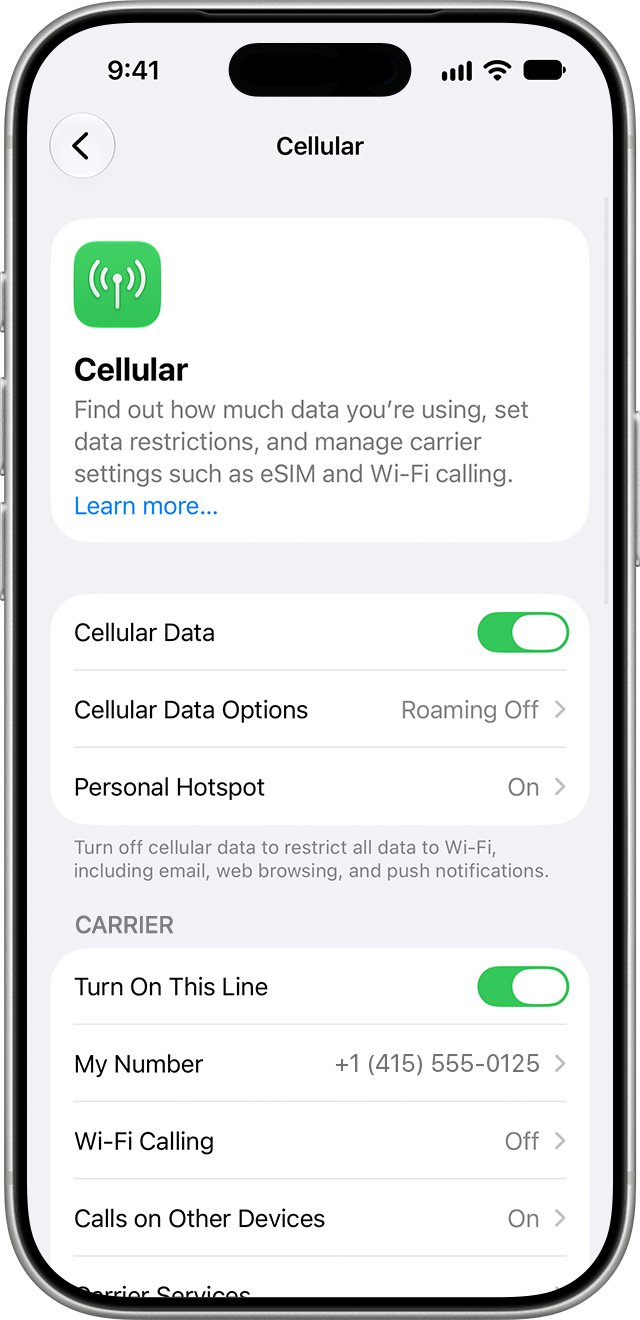
- Open Settings and tap Cellular.
- Turn on the slider next to Cellular Data. On a Dual SIM iPhone, tap Cellular Data and choose the line that should carry data.
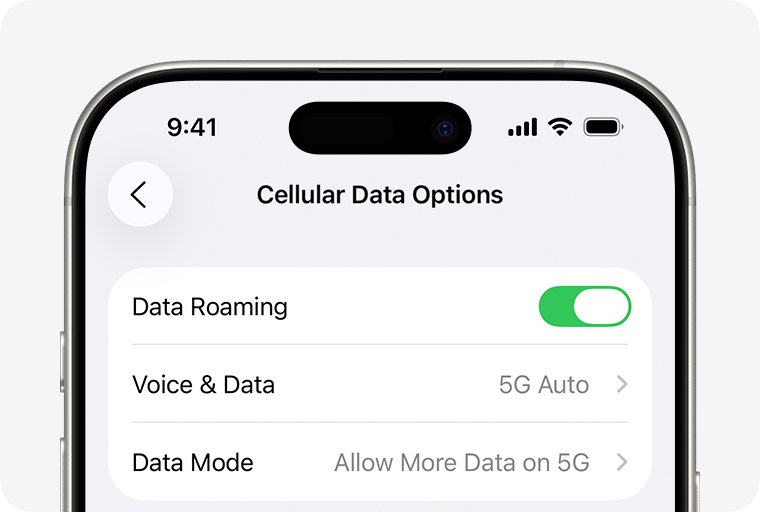
- Tap Cellular Data Options, then Enable LTE, and choose Voice & Data if your carrier offers it.
- If you are outside your home country, turn on Data Roaming in Cellular Data Options.
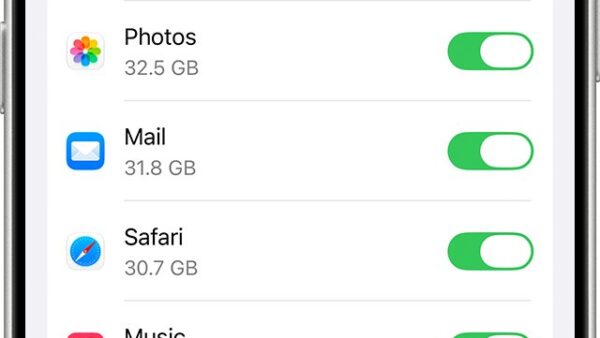
- Scroll down the Cellular screen and make sure the apps you are testing are switched on; an app switched off uses only Wi-Fi.
- On a Dual SIM iPhone, tap each line and tap Turn On This Line if it is off.
Only your carrier can confirm that your account is active, that the line has the right data plan, and that the phone is not blocked from cellular service. Call them if data stays off after these checks.
Check Wi-Fi settings and Connectivity Assist on iPhone
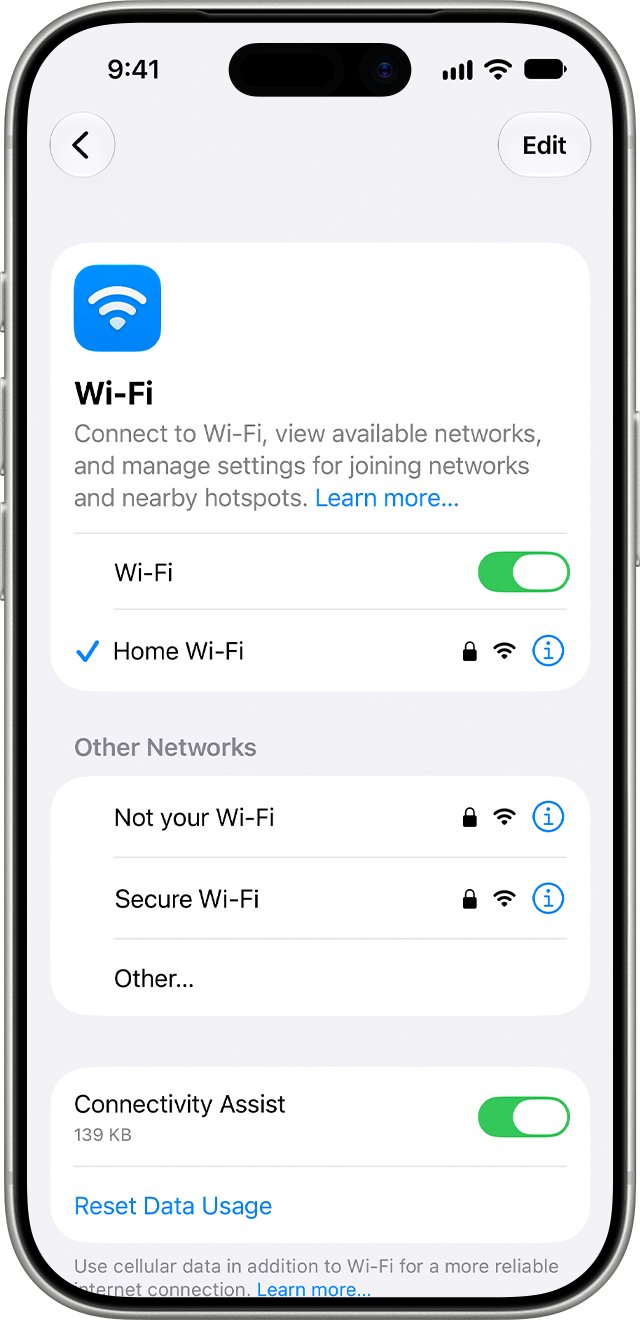
- Open Settings and tap Wi-Fi; make sure Wi-Fi is on.
- Tap your network name and look for the blue checkmark that confirms the connection.
- Go back to Settings and make sure Airplane Mode is off.
- Tap Wi-Fi again, scroll down and turn off Connectivity Assist while you test.
- If the network still fails, check whether other devices can use it; if they cannot, restart the router and cable modem by unplugging them and plugging them back in.
- If your router offers separate bands, join the other one, for example 5 GHz instead of 2.4 GHz.
- Try a different Wi-Fi network in another location to see whether the problem follows the phone.
Connectivity Assist replaces the older Wi-Fi Assist and mixes cellular data with Wi-Fi when Wi-Fi is weak. Turn it back on after testing if you want that behavior.
Update iOS and carrier settings on iPhone
- Connect to any Wi-Fi network that works, such as a friend's or a public one.
- Plug the iPhone into power and back it up with iCloud or your computer.
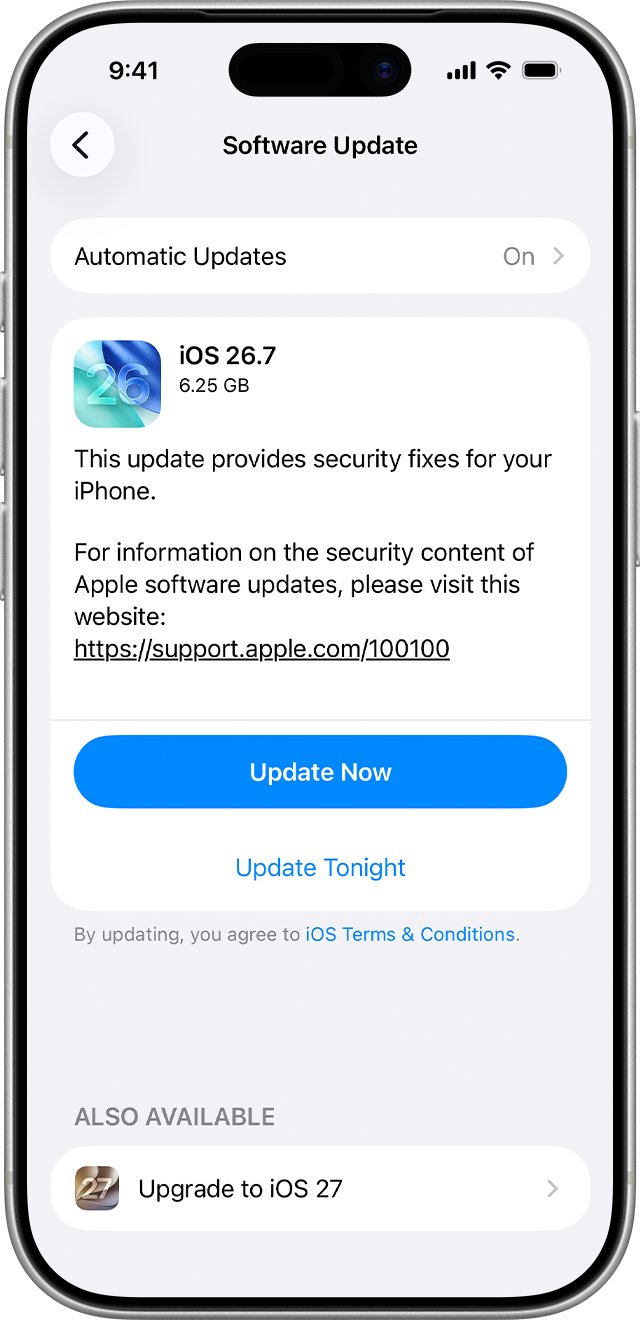
- Open Settings > General > Software Update and tap Download and Install if an update is listed.
- Open Settings > General > About; if a carrier settings update is available, an option to update appears.
- If you recently moved a SIM card into this iPhone, install the carrier settings for the new carrier the same way.
- Restart the iPhone and test cellular data.
If no Wi-Fi works and the update never appears, update the iPhone from a Mac with Finder or from a Windows PC with the Apple Devices app instead.
Reset network settings on iPhone
Use this only after the earlier fixes. It clears every Wi-Fi network and password, cellular settings, and VPN and APN settings. Ask IT first on a work or school phone.
- Open the Settings app and tap General.
- Tap Transfer or Reset iPhone.
- Tap Reset.
- Tap Reset Network Settings and enter your passcode if asked.
- Wait for the iPhone to restart, then rejoin your Wi-Fi network with its password or a Wi-Fi QR code.
- Turn Cellular Data back on if it is off and test both connections.
If Wi-Fi shows as connected after the reset but pages still will not load, the fault is on the network side; contact your internet provider.
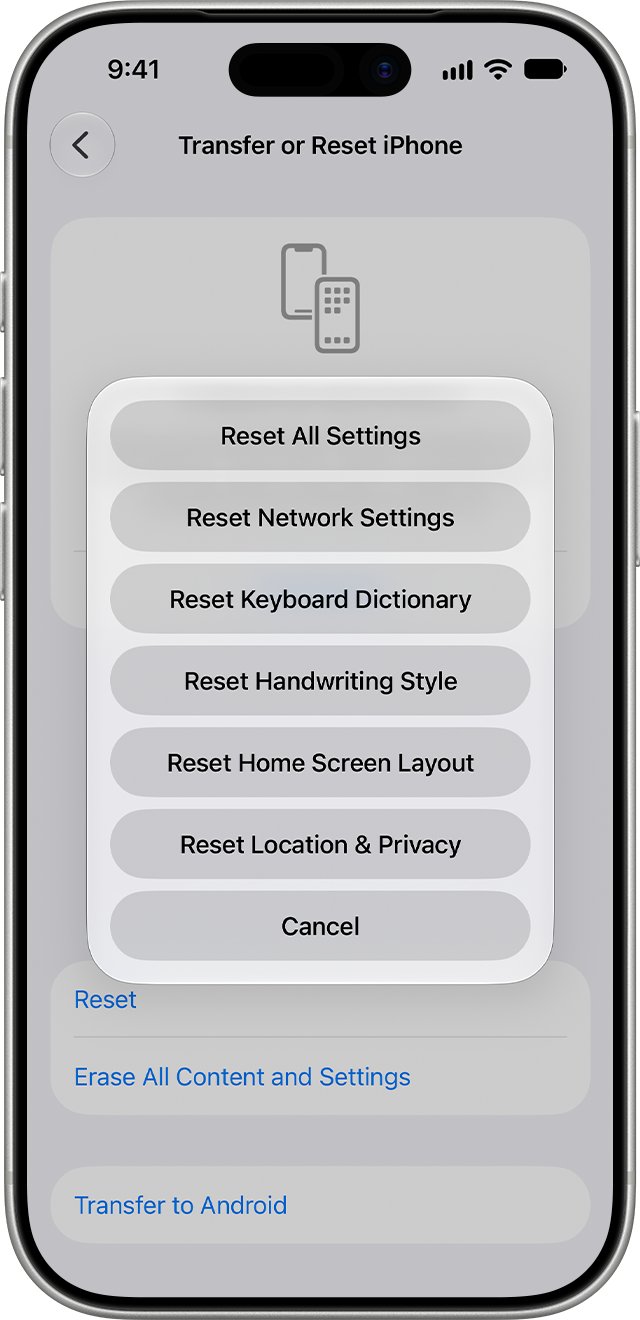
How to check iPhone cellular data and Wi-Fi work again
- Open Settings > Wi-Fi and confirm the blue checkmark next to your network.
- Load a website in Safari while on Wi-Fi, or test your internet speed from Google's homepage.
- Turn Wi-Fi off, keep Cellular Data on, and load a different website.
- Check that the status bar shows a cellular data indicator such as 5G or LTE instead of SOS, No Service or Searching.
- Open Settings > Cellular and confirm that the current-period usage figure rises after browsing.
Why iPhone calls work but internet data does not
Voice calls and internet access are controlled separately. Turning off Cellular Data stops apps and services from using the cellular network to reach the internet, but calls still go through.
| Cause | Affects calls? | Affects cellular data? | Affects Wi-Fi? |
|---|---|---|---|
| Cellular Data switch off or app blocked | No | Yes | No |
| VPN, firewall or content-blocker app or profile | No | Yes | Yes |
| Corrupted network, VPN or APN settings | Usually no | Yes | Yes |
| Data plan or account issue at the carrier | Not always | Yes | No |
| Data Roaming off while abroad | No | Yes | No |
| Router or ISP problem | No | No | Yes, on that network |
| Hardware fault | Possibly | Possibly | Possibly |
When every Wi-Fi network and cellular data fail together, look at the phone first. When only one fails, look at the carrier or the router.
Make internet calls on iPhone with Wi-Fi Calling
Once Wi-Fi works again, Wi-Fi Calling lets you make and receive voice calls over Wi-Fi in places with weak cellular coverage. Your carrier must support it.
- Open the Settings app and tap Cellular.
- On a Dual SIM iPhone, scroll to the line you want to use.
- Tap Wi-Fi Calling and turn on Wi-Fi Calling on This iPhone.
- Tap Enable, then enter or confirm your address for emergency services.
- Open Control Center and look for "Wi-Fi" in the status bar, which shows calls now use Wi-Fi Calling.
If Wi-Fi Calling will not turn on, confirm with your carrier that it is offered, restart the iPhone, try a different Wi-Fi network and toggle the switch off and on, waiting two minutes between steps.
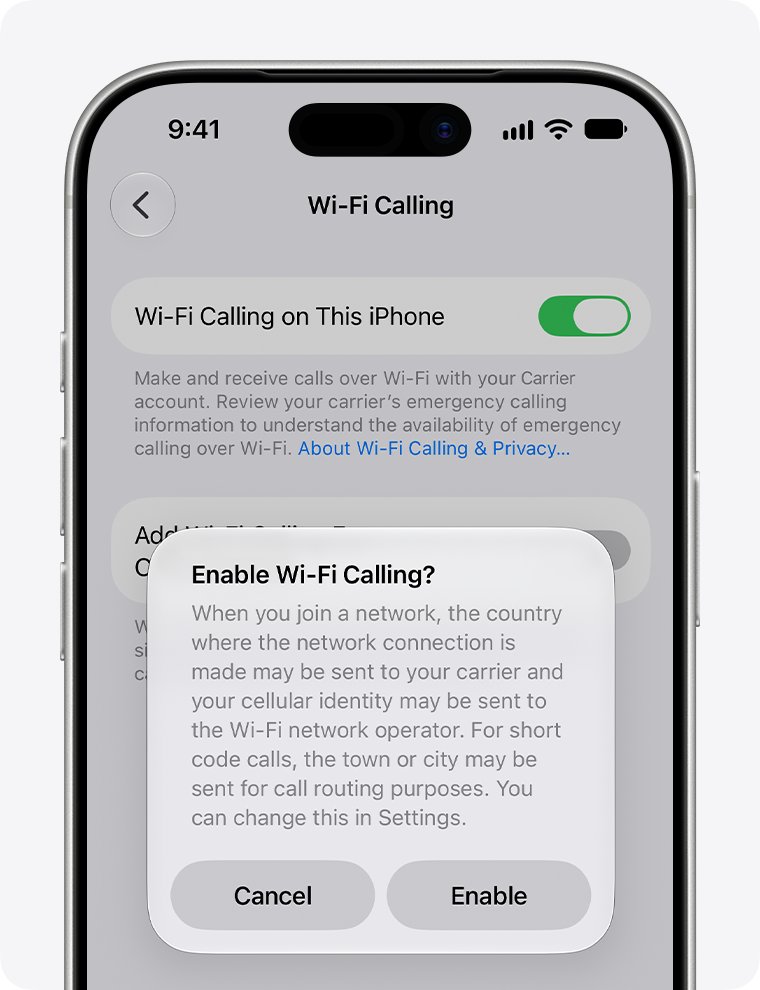
Fix iPhone internet problems that remain after these steps
The Wi-Fi switch is grayed out
The Wi-Fi setting is stuck in a software state Apple says a restart clears.
- Restart your iPhone.
- Open Settings > General > Software Update and install any update.
- If the switch stays dimmed, contact Apple Support.
Wi-Fi connects but shows "No Internet Connection"
The router, the ISP or the network configuration is blocking traffic.
- Check whether other devices can get online on the same network.
- Unplug the router and modem, wait, and plug them back in.
- Update the router firmware or ask its maker for help.
- If no device can get online, contact your internet provider about an outage.
Status bar shows SOS, No Service or Searching
The iPhone is not connected to your carrier's cellular network.
- Turn Airplane Mode on for at least 15 seconds, then off.
- Install any carrier settings update from Settings > General > About.
- Remove the physical SIM card and put it back in, or ask your carrier for a new one if it is damaged.
- Ask your carrier to confirm coverage, outages and that the device is not barred.
Cellular data stops when you leave your home country
Data Roaming is off or the plan has no international data.
- Open Settings > Cellular > Cellular Data Options.
- Turn on Data Roaming.
- Confirm with your carrier that your plan includes data in that country.
Nothing works on any network after a full reset
A hardware fault is possible once the carrier confirms the account and network are fine.
- Ask your carrier to confirm the account has no issue.
- Test Wi-Fi in a different location.
- Contact Apple Support to arrange service.
iPhone calls, cellular data and internet calling FAQ
Can you call without data on an iPhone?
Yes. Regular voice calls work with Cellular Data turned off, because that switch only stops apps and services from using the cellular network for internet. That is why an iPhone can still make calls when cellular data and Wi-Fi both fail.
Does making a phone call use data?
A regular cellular call is a voice call, not an internet session, so it works even with Cellular Data switched off. Wi-Fi Calling uses the Wi-Fi connection; Verizon says Wi-Fi calls to US numbers do not count against your mobile plan's data allowance.
How much data does a Wi-Fi call use?
Verizon puts a Wi-Fi voice call at about 1 to 5 MB of data. A one-minute video call typically uses 6 to 30 MB, depending on video resolution. On Wi-Fi, that data comes from the Wi-Fi network, not your cellular plan.
How do you use the internet while on a call on iPhone?
Set Settings > Cellular > Cellular Data Options > Enable LTE to Voice & Data if your carrier supports VoLTE. That allows voice calls and cellular data over LTE at the same time. Being on Wi-Fi during the call also keeps the internet available.
What are internet calls?
Internet calls carry your voice over a data connection instead of the traditional voice network. On iPhone, Wi-Fi Calling routes normal phone calls over Wi-Fi, and FaceTime audio calls run over an internet connection.
How do you make internet calls on an iPhone?
Turn on Wi-Fi Calling in Settings > Cellular > Wi-Fi Calling > Wi-Fi Calling on This iPhone, then call as usual from the Phone app. Your carrier must support Wi-Fi Calling, and you may need to confirm an emergency address.
Do you need data to call on iPhone?
No. A standard call needs cellular voice service, not a data connection. Data is needed for FaceTime and other app-based calls, and Wi-Fi Calling needs a working Wi-Fi network instead of cellular coverage.
Will Reset Network Settings delete my photos or apps?
No. Reset Network Settings removes only network settings: saved Wi-Fi networks and passwords, cellular settings, and VPN and APN settings. Your photos, apps and messages stay on the iPhone.
Why does my iPhone say "No Internet Connection" on Wi-Fi?
The iPhone has joined the network, but the network is not passing traffic to the internet. Test other devices on the same Wi-Fi, restart the router and modem, and contact your internet provider if no device can get online.
Bottom line: phone or carrier problem when iPhone data and Wi-Fi fail?
Treat it as a phone problem first: remove VPN and security profiles, update iOS and carrier settings, then reset network settings before calling your carrier. Only software on the iPhone can block cellular data and every Wi-Fi network at once while calls still work; a carrier fault leaves Wi-Fi alone, and a router fault leaves cellular data alone.