To find your Apple Card statement on iPhone, open the Wallet app, tap Apple Card, tap Card Balance, then scroll down and pick the month you want.
This guide covers downloading the PDF, exporting transactions, card.apple.com, iPad, Apple Cash activity and your App Store purchase history.
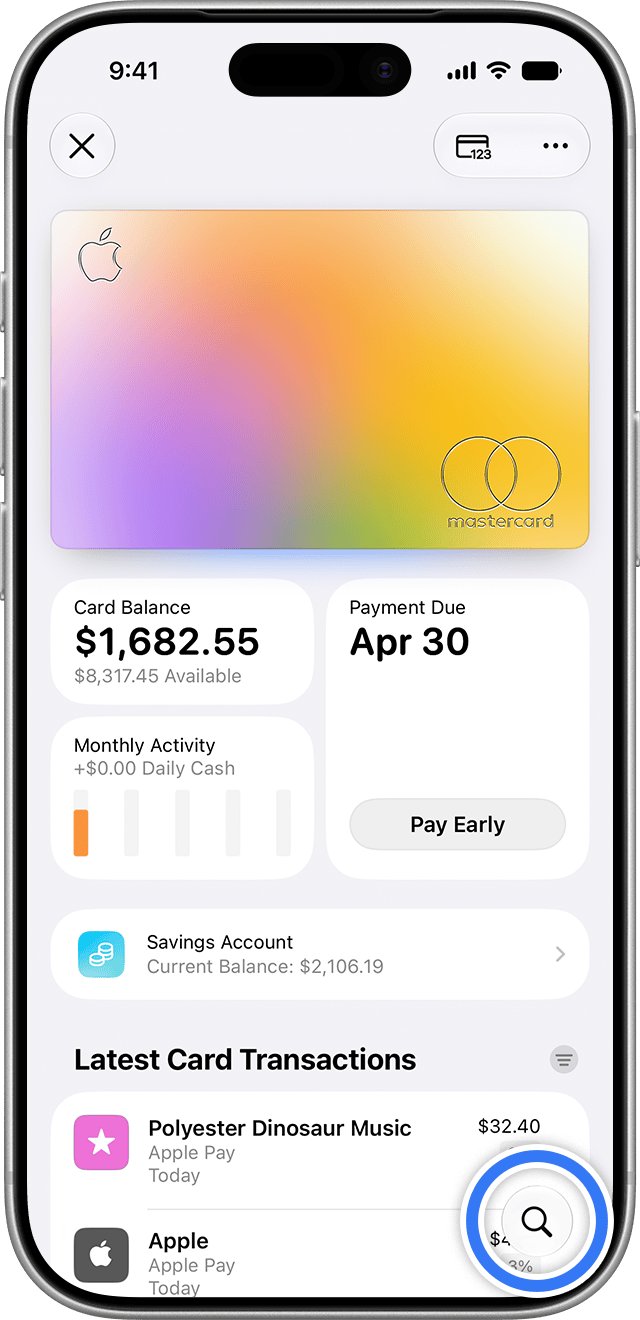
How to find Apple Card statement on iPhone
Apple Card keeps every monthly statement inside the Wallet app, so you do not need to sign in to a separate banking app.
- Open the Wallet app on your iPhone.
- Tap your Apple Card.
- Tap Card Balance.
- Scroll down to the list of monthly statements and tap the month you want.
- Tap Download PDF Statement to open a PDF copy of that statement.
- Tap the Share button to email, print, save or share the PDF.
The PDF is the official monthly statement. Save it to the Files app if you need it for a loan application, tax records or an expense report.
Where to find statements on iPhone for each Apple account
The word statement means different things depending on what charged you. Match your case to a row below.
| What you need | Where to find it | What you get |
|---|---|---|
| Apple Card monthly statement | Wallet > Apple Card > Card Balance | Monthly PDF statements and exported transactions |
| Apple Card statement on a computer | card.apple.com > Statements | PDF statements and date-range exports |
| Apple Card statement on iPad | Settings > Wallet & Apple Pay > Apple Card | The same Card Balance screen as iPhone |
| Apple Cash activity | Wallet > Apple Cash | Latest transactions and transactions by year |
| App Store, Apple Music or iCloud+ charges | App Store > your photo > Purchase History, or reportaproblem.apple.com | A list of apps, subscriptions and content you paid for |
| A bank debit or credit card added to Apple Pay | Your bank's own app or website | Statements issued by that bank |
How to export Apple Card transactions on iPhone
Exporting gives you the transactions from one statement as a file, which is easier to import into a spreadsheet or budgeting app than a PDF.
- Open the Wallet app and tap Apple Card.
- Tap Card Balance.
- Scroll down and select the monthly statement you want.
- Tap Export Transactions.
- Choose the file format for the transactions.
- Pick where the file goes: email it, AirDrop it, or save it to the Files app.
Export Apple Card transactions within a date range
Use a date range when you need a quarter, a tax year or any period that does not line up with one monthly statement.
- Open the Wallet app and tap Apple Card.
- Tap Card Balance.
- Under Statements, tap Export Transactions.
- Choose a start date and an end date.
- Choose the file format for the transactions.
- Tap the Done button, then share or save the file.
How to find Apple Card statement on iPad
iPad has no Wallet app, so Apple Card lives in Settings instead. After that first step, the screens match the iPhone.
- Open Settings on your iPad.
- Tap Wallet & Apple Pay.
- Tap Apple Card.
- Tap Card Balance.
- Scroll down and select the monthly statement you want.
- Tap Download PDF Statement, or tap Export Transactions for a file of that month's purchases.
How to download Apple Card statements at card.apple.com
card.apple.com works in a supported web browser on a Mac, a Windows PC or any other computer. You sign in with the Apple Account that holds the card.
- Go to card.apple.com in a supported web browser.
- Sign in with your Apple Account.
- Click Statements in the sidebar. Statements are listed with the most recent month first.
- Find the statement you want, then click the Download button to save a PDF.
- To export a date range instead, click Export Transactions, choose a start and end date, choose the file format, then click Export.
With Apple Card Family, the account owner and co-owner see shared statements starting from the month Apple Card Family was set up. Earlier months show as individual account statements.
How to check Apple Card balance online
The Payments page on card.apple.com shows the current balance that your next statement builds on, plus any payments you already scheduled.
- Go to card.apple.com and sign in.
- Click Payments in the sidebar.
- Read your total balance and available credit under Card Balance.
- Click Balance Details to see your credit limit and any installment balance.
- To see scheduled payments, click Settings in the sidebar and look in the Payments section.
Your Apple Card balance includes all new spending and any remaining monthly balance. If you have Apple Card Monthly Installments, it also includes the newly billed monthly installment.
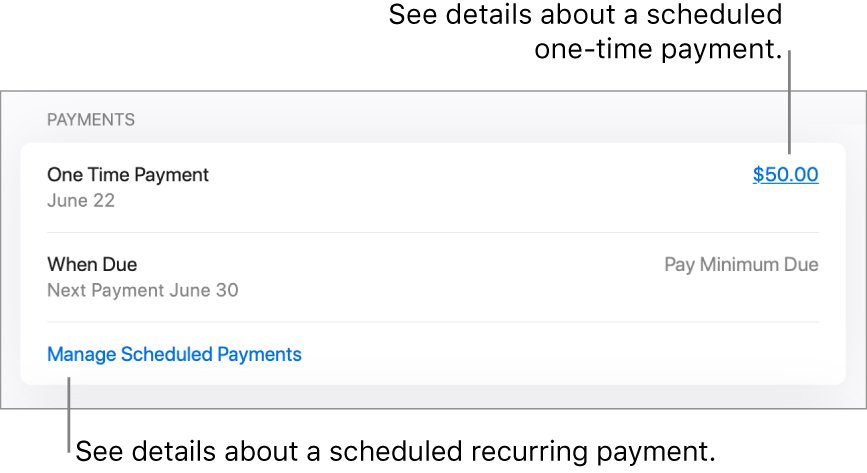
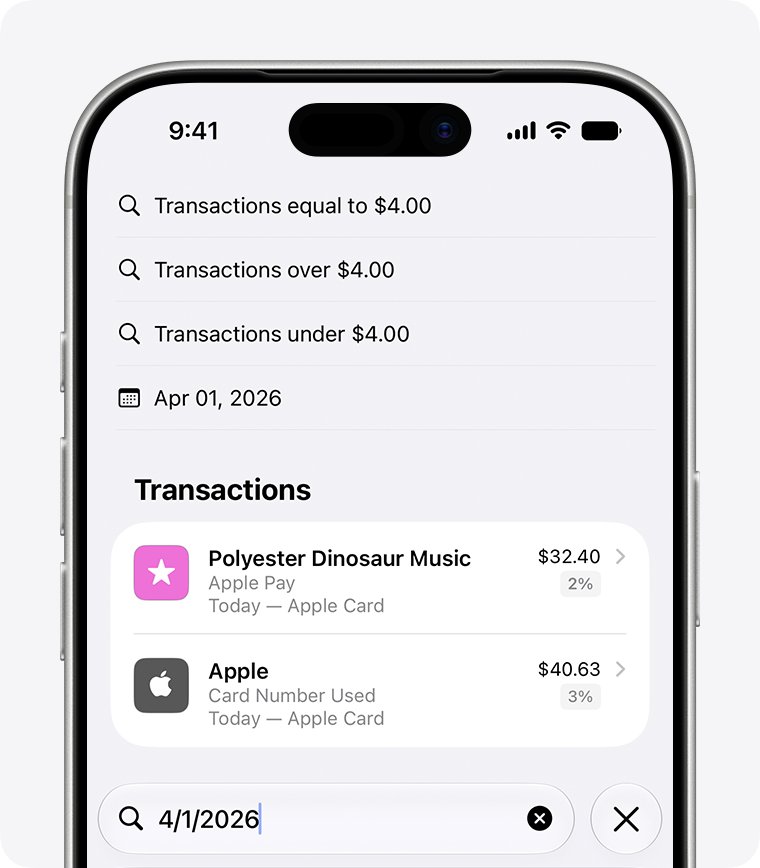
How to see Apple Card transactions on iPhone
When you only need one charge rather than the whole statement, the Wallet search finds it faster than scrolling through a PDF.
- Open the Wallet app and tap Apple Card.
- Scroll down to Latest Card Transactions to see the last month of purchases. Keep scrolling for earlier months and years.
- To search, tap the Search button at the bottom of the screen.
- Type a merchant, category or location, a date such as 4/1/2026, a range such as 2/15/25-6/4/25, or an amount such as 8.
- For an amount, choose equal to, over or under from the options at the top of the screen.
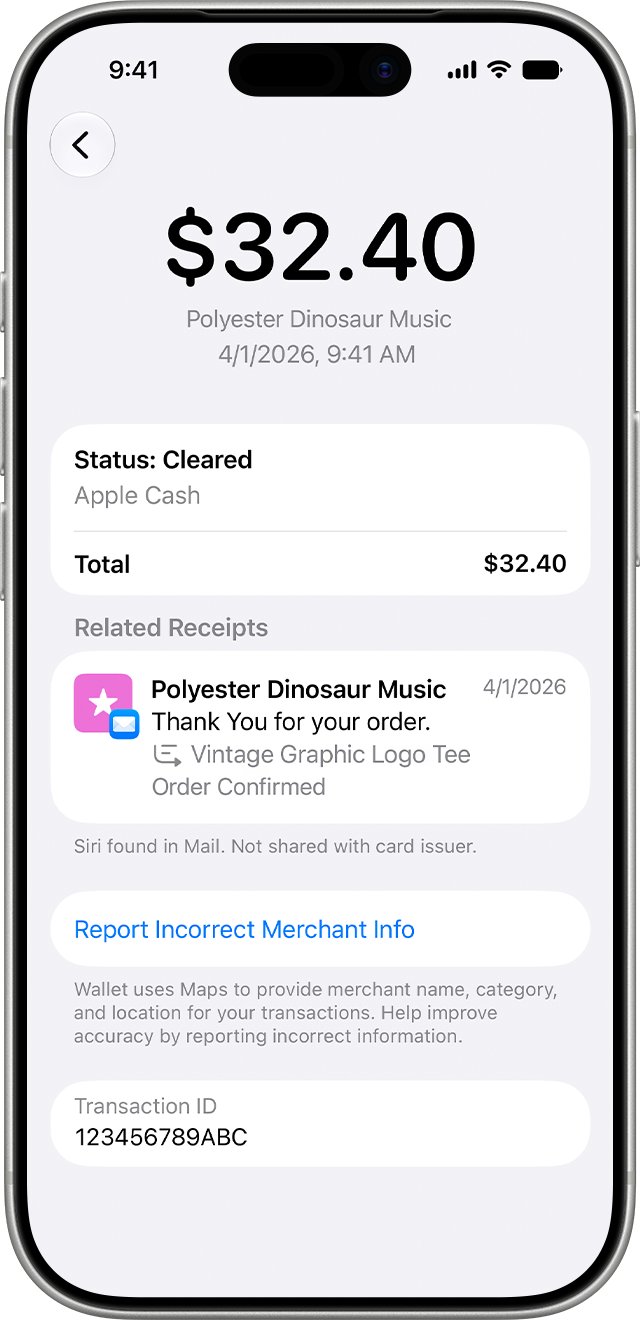
- Tap See All next to Transactions if the list is cut short, then tap a transaction twice to open its details.
For a weekly, monthly or yearly spending view, tap the Monthly Activity summary under Card Balance, then tap Week, Month or Year. If a charge looks wrong, you can report a transaction issue from its details screen.
How to see Apple Cash transactions on iPhone
Apple Cash shows its activity as a transaction list in Wallet. The Apple Card Card Balance statement screens do not apply to it.
- Open the Wallet app.
- Tap your Apple Cash card.
- Read Latest Transactions at the top of the card.
- Scroll down and tap Transactions in [year] to see a full year.
- Tap any transaction to see its details and any receipt found on your device.
On iPad, open Settings, tap Wallet & Apple Pay, tap your Apple Cash card, then tap the Transactions tab. For an unrecognized Apple Cash charge, Apple directs you to an Apple Cash specialist at Green Dot Bank.
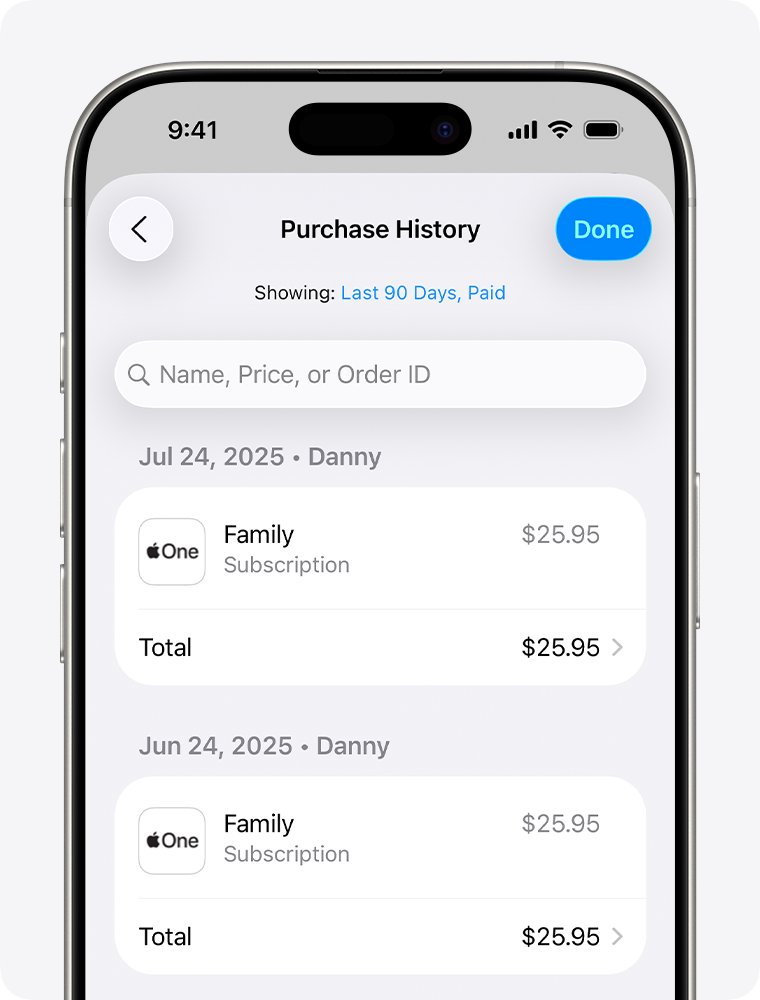
How to see App Store purchase history on iPhone
Charges for apps, subscriptions, Apple Music, iCloud+ and other Apple media services are not on an Apple Card statement unless you paid with Apple Card. Your purchase history lists them all.
- Open the App Store.
- Tap your photo or initials at the top of the screen.
- Tap Apps & Purchase History. Sign in to your Apple Account if asked.
- Tap Purchase History.
- Tap Last 90 days at the top to choose a longer period or another filter.
- If you know the amount but not the item, search for the amount.
View Apple purchase history online at reportaproblem.apple.com
The web version works from any browser and is the first place Apple points you when you are checking a charge.
- Go to reportaproblem.apple.com.
- Sign in with your Apple Account.
- Scroll the list of purchases, or search for the amount you were charged.
- Select a purchase to see its details, or to cancel a subscription or request a refund where eligible.
A line on your bank statement that reads APPLE.COM/BILL comes from these purchases. Matching that line against your purchase history explains what the apple.com/bill charge means on your bank statement.
Charge not showing in Apple purchase history
These are the causes Apple lists when an item or a charge does not appear where you expect it.
The item is missing from your purchase history
The purchase was made with a different Apple Account.
- Sign out and sign in with your other Apple Account.
- Open Purchase History again and look for the item.
One charge on your bank statement covers several purchases
Apple can group several purchases and subscriptions into one bill.
- Open reportaproblem.apple.com and search for the charged amount.
- Add up the purchases from the same date to match the bank line.
A purchase you do not remember buying
A family member may have bought it, or someone else may be using your Apple Account.
- Ask the members of your Family Sharing group whether they bought the item.
- Require a password for every purchase on shared devices.
- Change your Apple Account password if someone else knows it.
An email receipt that does not match your purchase history
The email may not be from Apple at all.
- Ignore links in the email and open Purchase History directly.
- If the charge is not there, treat the email as suspicious.
Older Apple Card statements look different with Apple Card Family
Shared statements start the month Apple Card Family was set up.
- Open Statements at card.apple.com.
- Look for your individual account statements for the months before the account was shared.
Find my statement on iPhone FAQ
Where can I find my statement on iPhone?
For Apple Card, open the Wallet app, tap Apple Card, then tap Card Balance and scroll to your monthly statements. For App Store and Apple subscription charges, open the App Store, tap your photo, then tap Apps & Purchase History and Purchase History.
How do I find my statement date?
Apple Card statements are monthly and listed by month, with the most recent month first. Open Card Balance in Wallet, or Statements at card.apple.com, and pick the month you need to open that statement.
How do I get statements as a PDF?
In Wallet, tap Apple Card, tap Card Balance, select the month, then tap Download PDF Statement. Tap the Share button to email, print or save the PDF. At card.apple.com, click Statements, then click the Download button next to the month.
How do I view my statement online?
Go to card.apple.com, sign in with your Apple Account, and click Statements in the sidebar. Every monthly Apple Card statement is there as a PDF, and Export Transactions downloads any date range you choose.
How do I find my bank statement on iPhone?
The Card Balance statements in Wallet belong to Apple Card. For a debit or credit card from another bank, open that bank's app or website, because the bank that issued the card also issues its statements.
How do I check my statements on iPad?
Open Settings, tap Wallet & Apple Pay, tap Apple Card, then tap Card Balance. Select a monthly statement to download the PDF or export its transactions, exactly as you would on iPhone.
How do I find my Apple Card statement on a Mac or PC?
Use card.apple.com in a supported web browser. Sign in with the Apple Account that holds the card, click Statements, and download the PDF for the month you need.
How do I read a statement for one charge only?
Search for it instead. In Wallet, tap Apple Card, tap the Search button, and enter the merchant, the date or the amount. Tap the transaction twice to open its full details.