Windows 11 shows “We couldn’t find a fingerprint sensor compatible with Windows Hello” when the Windows biometric framework cannot load a usable reader, so fix it by reinstalling the reader under Biometric devices in Device Manager, restarting, and checking Enhanced sign-in security in Sign-in options.
This guide covers each layer that can hide the reader: Device Manager, compatibility, firmware, the driver, the Windows Biometric Service, power management, old enrollments, Enhanced sign-in security, the user profile and failing hardware.
The fingerprint fixes worth trying before you blame the laptop
Sign in with your PIN or password first. These steps take about ten minutes and cover the causes Microsoft lists for a reader that Windows Hello cannot find.
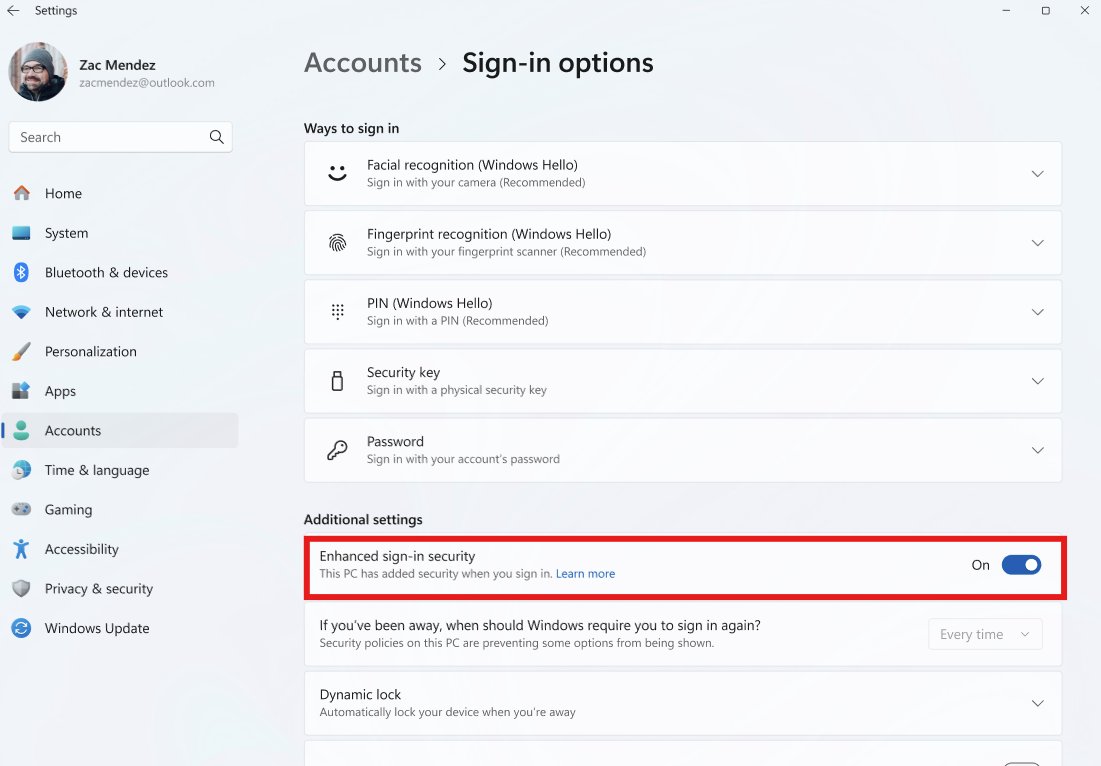
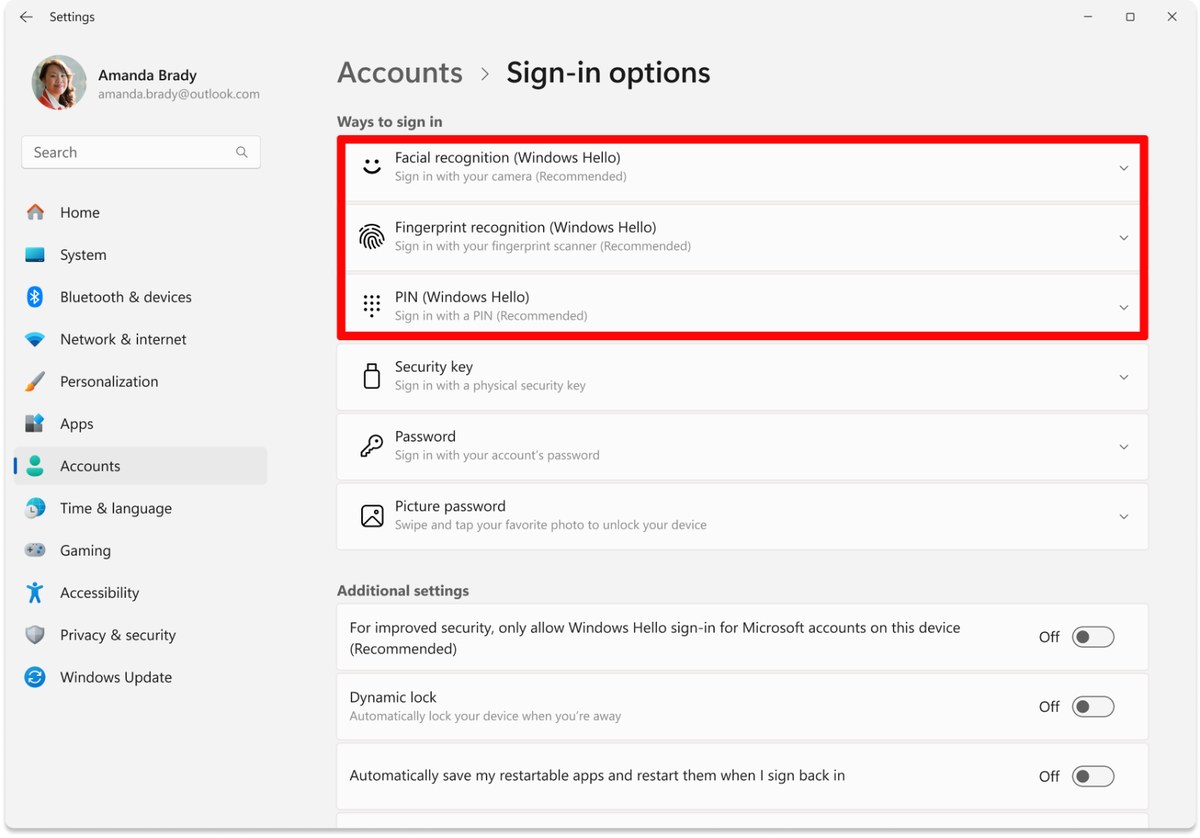
- Restart the PC, then open Settings > Accounts > Sign-in options and check whether Fingerprint recognition (Windows Hello) now offers Set up.
- Right-click Start, select Device Manager, and expand Biometric devices.
- Right-click the fingerprint reader, select Uninstall device, and confirm with Uninstall.
- Restart the PC so Windows reinstalls the driver.
- Open Settings > Windows Update > Advanced options > Optional updates and install any driver update for the reader.
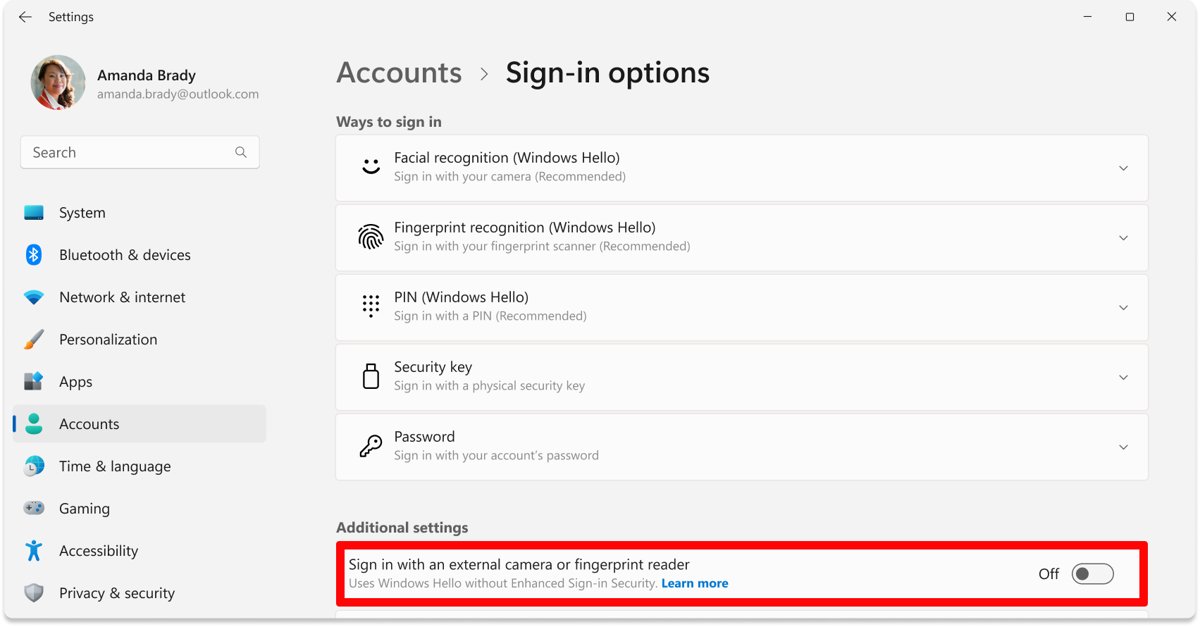
- If the reader is an external USB model, check the Enhanced sign-in security toggle under Sign-in options > Additional settings.
- Go back to Sign-in options and set up Fingerprint recognition (Windows Hello).
If Biometric devices is missing from Device Manager altogether, Windows cannot see the hardware at all. Start with the firmware section below instead of the driver steps.
The error message blames the sensor, but the stack is bigger than the sensor
Fingerprint sign-in is one of several Windows 11 sign-in options, and it depends on several layers working in order. The message appears when any one of them fails, so the sensor itself is often fine.
| Layer | What it does | How it fails |
|---|---|---|
| Sensor hardware | Reads the finger and, on match-on-sensor readers, stores the template | Damaged, disconnected or failing reader |
| UEFI firmware | Exposes the reader to Windows at startup | Reader turned off in firmware setup, or outdated firmware |
| Driver | Lets Windows talk to the specific reader | Missing, generic, outdated or broken after an upgrade |
Windows Biometric Service (wbiosrvc) |
Runs the Windows biometric framework that enumerates sensors | Service stuck, so no sensor is offered to Windows Hello |
| Enhanced sign-in security (ESS) | Isolates biometric data with Virtualization Based Security and TPM 2.0 | Non-ESS sensors are not enumerated while ESS is on |
| Enrollment and account | Holds your fingerprint and the Windows Hello PIN it relies on | Stale or damaged enrollment, or a damaged user profile |
| Policy | Lets an organization limit Windows Hello devices | A work or school PC blocks the reader type |
Work through the layers from the bottom: hardware visible, driver loaded, service running, ESS state right, then enrollment. Each fix below maps to one row.
Device Manager is where the investigation actually starts
Once you open Device Manager, it tells you which layer failed. A healthy reader sits under Biometric devices with no warning icon.
- Right-click Start and select Device Manager.
- Expand Biometric devices and look for an entry with a fingerprint, Synaptics, Goodix, ELAN or similar name.
- If the entry shows a yellow warning icon, right-click it, select Properties, and read the Device status box on the General tab.
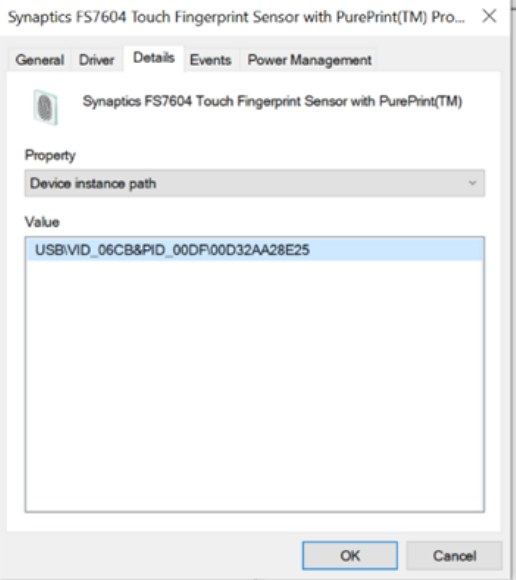
- Select the Details tab, choose Device instance path in the Property list, and note the value for later checks.
- If Biometric devices is missing, the reader is not reaching Windows; check firmware and hardware next.
- If the reader looks healthy, move on to the Windows Biometric Service and Enhanced sign-in security sections.
On an external reader, unplug it, plug it into a different USB port, and watch whether Biometric devices appears. A reader that never shows up on any port points at the hardware or its driver package.
Not every fingerprint reader is a Windows Hello reader
Windows Hello sets hardware accuracy limits for fingerprint readers. A reader that only works with its maker's app may never appear as a Windows Hello option, however good its driver is.
| Reader type | Windows Hello requirement | What to check |
|---|---|---|
| Large area sensor (160 x 160 pixels or more, 320 dpi or higher) | False accept rate below 0.001%, real-world false reject rate below 10%, presentation attack defense required | Built into most modern laptops |
| Small area sensor (under 160 x 160 pixels) | False accept rate below 0.002%, false reject rate below 10%, presentation attack defense required | Common in power buttons and USB keys |
| Swipe sensor | False accept rate below 0.002%, false reject rate below 10%, antispoofing required | Older laptops; check the maker's Windows 11 driver |
| ESS-capable sensor | Match on chip with a Microsoft-issued certificate, plus ESS-capable driver and firmware | Required when ESS is on |
| External USB reader | Must be labelled Windows Hello compatible | Some support ESS; others need ESS turned off |
Microsoft does not support third-party peripherals it did not sell, so a USB reader's own support site is the place for its driver and compatibility list.
Firmware can hide the hardware before Windows gets a vote
If the reader is switched off in the PC's UEFI setup, Windows never sees it and Device Manager shows nothing. The option name and menu differ by manufacturer.
- Save your work and open Settings > System > Recovery.
- Next to Advanced startup, select Restart now.
- On the Choose an option screen, select Troubleshoot > Advanced options.
- Select UEFI Firmware Settings, then Restart.
- Find the fingerprint reader or biometric device setting in the firmware menus, using your PC maker's manual for its exact location.
- Turn the reader on if it is disabled, save the change, and exit to Windows.
- Check Biometric devices in Device Manager again.
Install firmware updates from the PC maker's support site or through Optional updates in Windows Update. Firmware that predates Windows 11 can fail to expose newer reader drivers.
The driver is often the real culprit
A generic or outdated driver lets the reader appear in Device Manager while Windows Hello still cannot use it. Try the three driver moves in order: update, roll back, reinstall. The Windows 11 fingerprint driver usually comes from Windows Update or the laptop maker.
- In Device Manager, right-click the reader under Biometric devices and select Update driver.
- Select Search automatically for updated driver software and let Windows install anything it finds.
- If nothing is found, check Settings > Windows Update > Advanced options > Optional updates, then the PC maker's driver page.
- If the error began after a driver update, open the reader's Properties, select the Driver tab, and select Roll Back Driver.
- If neither helps, right-click the reader, select Uninstall device, confirm with Uninstall, and restart.
- Open Sign-in options and try Fingerprint recognition (Windows Hello) again.
On PCs upgraded from Windows 10 with certain ELAN fingerprint drivers, Microsoft ships an automatic troubleshooter that runs sfc /scannow to repair a broken onnxruntime.dll. You can run the same command yourself from an elevated Command Prompt.
Windows Biometric Service is the quiet middleman
The Windows Biometric Service (wbiosrvc) runs the framework that finds sensors. When it hangs, a healthy reader is never offered to Windows Hello.
Microsoft's sequence is to remove the PIN first under Settings > Accounts > Sign-in options > PIN (Windows Hello), then restart the service from Command Prompt opened as administrator. Removing the PIN also removes fingerprint sign-in, so you set both up again afterwards.
net stop wbiosrvc && net start wbiosrvcThis stops the Windows Biometric Service and starts it again, which makes the biometric framework enumerate every sensor from scratch.
You should see: "The Windows Biometric Service service was started successfully." Then add a PIN again and open Fingerprint recognition (Windows Hello) to check for Set up.
Power management can make a working reader disappear
Windows can switch off devices to save power. If the reader vanishes after sleep and returns after a restart, power management is the likely cause.
- Select Start, type Device Manager, and open it.
- Expand Biometric devices, right-click the reader, and select Properties.
- Select the Power Management tab if the reader has one.
- Clear Allow the computer to turn off this device to save power and select OK.
- For an external reader, repeat the same steps on the USB hub entry it connects through under Universal Serial Bus controllers.
- Put the PC to sleep, wake it, and check that the reader still appears.
Not every reader exposes a Power Management tab. If yours does not, install the PC maker's latest chipset and firmware updates instead.
Old fingerprint enrollments can poison a new setup
A fingerprint saved before an upgrade, a driver swap or an ESS change can stop matching the reader's current configuration. Removing it gives Windows Hello a clean start.
- Sign in with your PIN or password.
- Open Start > Settings > Accounts > Sign-in options > Fingerprint recognition (Windows Hello).
- Select Remove to delete the saved fingerprints.
- Restart the PC.
- Return to Fingerprint recognition (Windows Hello) and select Set up.
- Select Add a finger afterwards to register a second finger as a backup.
An ESS upgrade removes existing non-ESS enrollments and credentials such as passkeys, and on a shared PC every user must enroll again at the next sign-in. If Windows later detects the reader but no longer recognises your finger, that is a separate fingerprint recognition problem with its own fixes.
Enhanced sign-in security has made compatibility more complicated
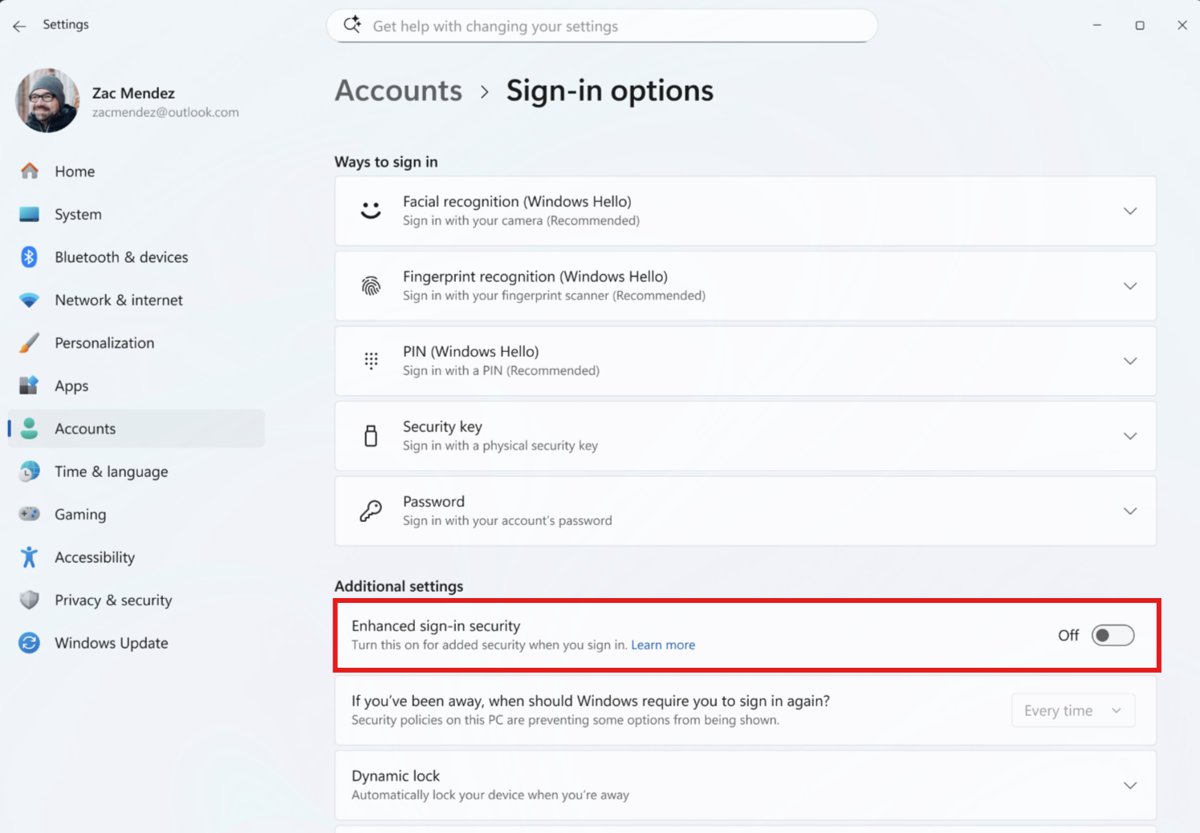
Enhanced sign-in security (ESS) only works with match-on-chip readers that carry a Microsoft-issued certificate. While ESS is on, Windows does not enumerate any other reader, which produces exactly this error for many USB readers. All Copilot+ PCs ship with ESS enabled.
| Windows 11 version | Setting under Sign-in options > Additional settings | To use a non-ESS reader |
|---|---|---|
| Version 24H2 or newer | Enhanced sign-in security toggle | Turn the toggle Off |
| Version 24H2, no toggle shown, ESS says Pending set up | First sensor you enroll sets the ESS state | Enroll the non-ESS reader first |
| Version 23H2 | Sign in with an external camera or fingerprint reader toggle | Turn the toggle On (this disables ESS) |
| Work or school PC | Toggle missing or locked | Ask IT; the organization may block non-ESS devices |
Turning ESS off removes existing ESS enrollments and credentials such as passkeys, so set up the fingerprint and passkeys again afterwards. An ESS-capable USB reader should instead show Enhanced sign-in security as Pending set up after you plug it in.
A new user profile is the cleanest way to expose account-specific damage
If the reader works in a fresh account, Windows and the hardware are fine and the damage sits in your own profile. This test changes nothing on your existing account.
- Open Settings > Accounts > Other users.
- Under Add other user, select Add account.
- Select I don't have this person's sign-in information, then Add a user without a Microsoft account.
- Finish the prompts, sign out, and sign in to the new account.
- Set up a PIN, then try Fingerprint recognition (Windows Hello) in Sign-in options.
- When the test is done, remove the test account from Other users with Remove next to Account and data.
If fingerprint setup works only in the new account, you can set up Windows Hello on that local account and move your files, or repair the original profile.
How to tell if Windows detects the fingerprint reader in Event Viewer
The Windows biometric framework writes an event each time it enumerates a sensor. This log shows whether the reader loaded and whether ESS is active.
- Right-click Start and select Event Viewer.
- Open Applications and Services Logs > Microsoft > Windows > Biometrics > Operational.
- Look for event ID 1108 for your fingerprint reader, matched by its Device instance path from Device Manager.
- Read where the sensor is isolated: a Virtual Secure Mode process means ESS is on, and a System process means ESS is off.
- Open Sign-in options and check that Fingerprint recognition (Windows Hello) offers Set up or shows your saved fingerprint.
No event 1108 for the reader means the framework never loaded it. On an ESS PC, also open System Information > System Summary and check that Virtualization Based Security shows Running.
Hardware failure is the diagnosis after the cheap tests fail
Call it a hardware fault only after the firmware, driver, service and ESS checks all pass. These signs separate a dead reader from a software problem.
| What you see | What it points to | Next move |
|---|---|---|
| Reader missing from Biometric devices and from firmware setup | Disconnected or failed reader | Warranty repair or the PC maker's support |
| Reader appears, then disappears with no sleep involved | Loose internal cable or failing reader | Hardware diagnostics from the PC maker |
| Driver installs, but no event 1108 appears | Reader not answering the framework | PC maker's support |
| USB reader missing on every port and every PC | Faulty reader | Return or replace it |
| Works in a new account only | Profile damage, not hardware | Fix or replace the user profile |
On a Surface with a detachable keyboard reader, detach and reattach the keyboard and install Surface updates from the Surface app before booking a repair.
The repair path should be narrow, not superstitious
Match what you see to one row and do that fix. Reinstalling Windows or resetting the PC is rarely needed for this error.
| Your situation | Do this | Why |
|---|---|---|
| No Biometric devices entry | Check UEFI firmware, then hardware | Windows cannot fix a device it cannot see |
| Reader has a warning icon | Update, roll back or reinstall the driver | The driver failed to load |
| Reader healthy, still no Set up button | Restart wbiosrvc, then check ESS |
The framework is not offering the sensor |
| External USB reader | Turn ESS off if the reader is not ESS-capable | ESS blocks non-ESS sensors |
| Error after sleep | Clear the power-saving checkbox | Windows turned the reader off |
| Error after an upgrade from Windows 10 | Run sfc /scannow and reinstall the driver |
Upgrades can leave a broken driver file |
| Works in another account | Repair or replace your profile | The fault is account-specific |
Fingerprint reader not detected in Windows 11 after an upgrade, sleep or plugging in
Fingerprint option missing after upgrading from Windows 10 to Windows 11
The old driver does not suit Windows 11, or a driver file was left broken.
- Open Command Prompt as administrator and run
sfc /scannow. - Check Settings > Windows Update > Advanced options > Optional updates for a reader driver.
- Uninstall the reader in Device Manager and restart.
- Remove and set up Fingerprint recognition (Windows Hello) again.
Reader disappears after sleep or hibernation
Power saving turns the reader or its USB hub off.
- Clear Allow the computer to turn off this device to save power on the reader's Power Management tab.
- Do the same on the USB hub entry under Universal Serial Bus controllers for an external reader.
- Install the PC maker's latest firmware and chipset updates.
USB fingerprint reader not offered by Windows Hello
Enhanced sign-in security is on and the reader is not ESS-capable.
- Confirm the reader is labelled Windows Hello compatible.
- Open Sign-in options > Additional settings.
- Turn Enhanced sign-in security off on 24H2, or turn Sign in with an external camera or fingerprint reader on in 23H2.
- Set up Fingerprint recognition (Windows Hello) with the USB reader.
Fingerprint setup greyed out on a work or school PC
An organization policy limits Windows Hello devices.
- Ask the IT administrator whether fingerprint sign-in is allowed for your device and reader type.
- Use your PIN until IT changes the policy.
Windows Hello fingerprint sensor not compatible FAQ
Why does Windows 11 say it couldn't find a fingerprint sensor compatible with Windows Hello?
Windows Hello cannot load a usable reader. The usual causes are a missing or broken driver, a reader switched off in firmware, a stuck Windows Biometric Service, or Enhanced sign-in security blocking a reader that does not support it.
Can a laptop fingerprint reader stop being compatible after an update?
Yes. A driver or Windows update can replace the reader's driver with one Windows Hello cannot use. Roll back the driver from the Driver tab in Device Manager, or install the PC maker's Windows 11 driver.
Do all USB fingerprint readers work with Windows Hello?
No. Only readers labelled Windows Hello compatible work, and on PCs with Enhanced sign-in security on, only ESS-capable readers are enumerated. Other compatible readers work after you turn ESS off in Sign-in options.
Is it safe to turn off Enhanced sign-in security?
It lowers the protection on biometric data, because ESS isolates fingerprint matching with Virtualization Based Security and TPM 2.0. Turn it off only to use a non-ESS reader, and expect existing ESS enrollments and passkeys to be removed.
Where is the fingerprint reader in Device Manager?
It is listed under Biometric devices. If that category is missing, Windows is not detecting the reader at all, so check whether it is turned on in UEFI firmware settings and whether the hardware is connected.
How do I restart the Windows Biometric Service?
Remove your PIN in Sign-in options, open Command Prompt as administrator, and run net stop wbiosrvc && net start wbiosrvc. Then add a PIN again and set up fingerprint recognition.
Will resetting Windows fix the fingerprint sensor error?
Rarely. The error usually comes from the driver, firmware, the biometric service or ESS, which you can fix directly. Test a new user account first, and reset only if every targeted fix fails and the hardware checks pass.


