To clear cookies on iPhone, go to Settings > Apps > Safari, tap Clear History and Website Data, pick a timeframe and tap Clear History.
This guide also shows how to clear cookies but keep your Safari history, how to clear cookies in Chrome, where the setting sits on older iOS versions, and what to do when the button is gray.
Step by step tutorial: how to clear cookies on iPhone
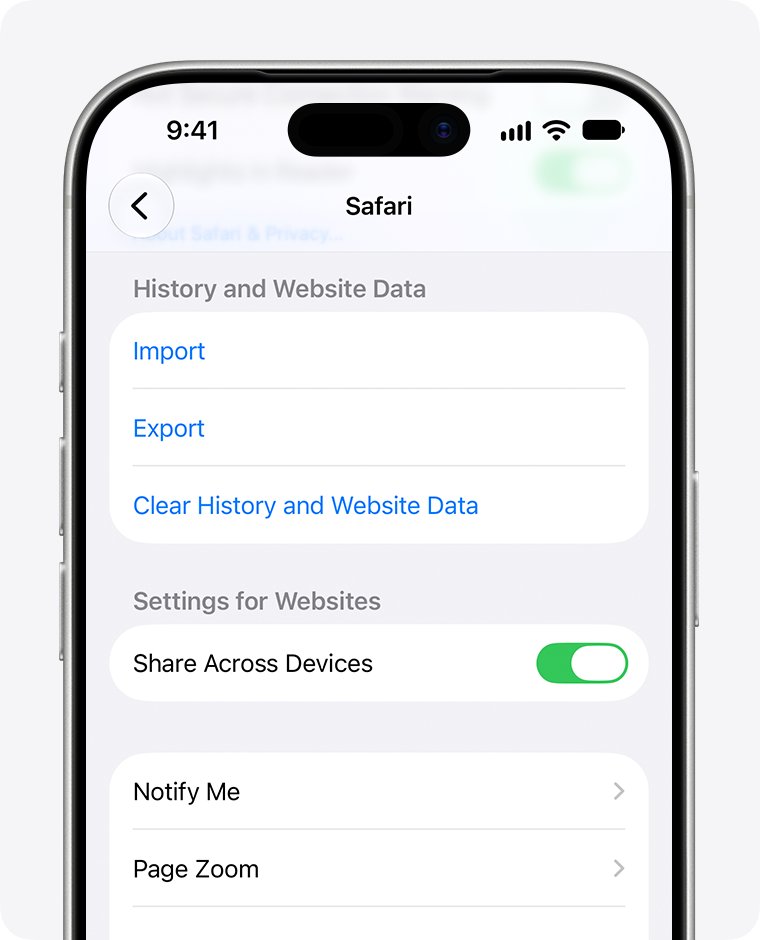
Safari keeps its cookie controls in the Settings app, not inside the browser. These steps clear cookies, cache and browsing history together on iOS 18 and later.
- Open Settings on your iPhone.
- Tap Apps, then tap Safari. On iOS 17 and earlier, scroll down and tap Safari on the main Settings screen.
- Scroll down and tap Clear History and Website Data.
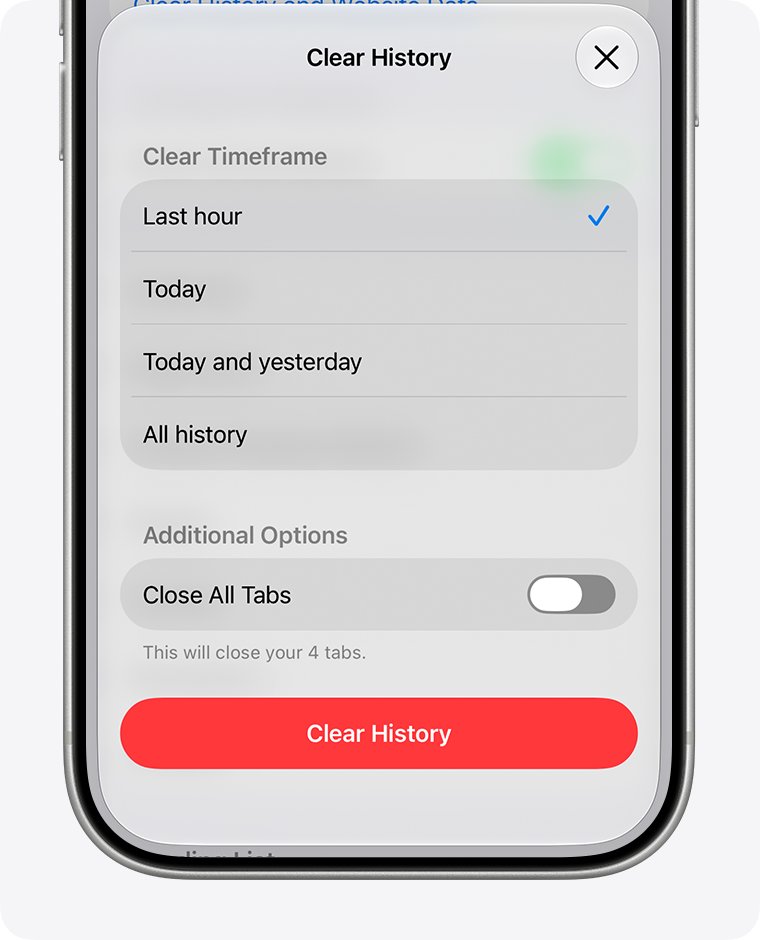
- Confirm the timeframe you want to clear.
- Tap Clear History to confirm.
This does not change your AutoFill information. Websites will ask you to sign in again, because the cookies that kept you signed in are gone.
How to clear cookies on iPhone Safari but keep your history
Use this route when you want cookies and cache gone but still want Safari to remember the sites you visited.
- Open Settings and tap Apps, then Safari.
- Tap Advanced.
- Tap Website Data.
- Tap Remove All Website Data.
- Tap Remove Now to confirm.
This clears the data websites use for tracking and for saving login information. Your Safari history stays in place, and you can delete your iPhone search history separately if you want that gone too.
Why is clearing cookies on iPhone difficult to find?
Most people look inside the Safari app first, but Safari has no clear-cookies button of its own. The option lives in Settings, and Apple moved it in iOS 18.
| Reason | What changed | Where to look now |
|---|---|---|
| The control is in Settings, not Safari | Safari's own menus manage tabs and history, not stored cookies | Settings > Apps > Safari |
| iOS 18 moved app settings | Safari no longer sits on the main Settings list; it is grouped under Apps | Tap Apps, then Safari |
| The cookie-only option is hidden | Removing cookies without history sits two levels deeper | Advanced > Website Data at the bottom of Safari settings |
| The button can be gray | Nothing to clear, or Screen Time web content restrictions are on | Check the restrictions section further down |
| Other browsers keep their own cookies | Clearing Safari does not touch Chrome, and the reverse | Each browser's own settings |
How to clear cookies on iPhone 16, 15, 14, 13 and older models
The steps depend on the iOS version, not the iPhone model. An iPhone 16 Pro, iPhone 13 or iPhone XR on the same iOS version shows the same screens.
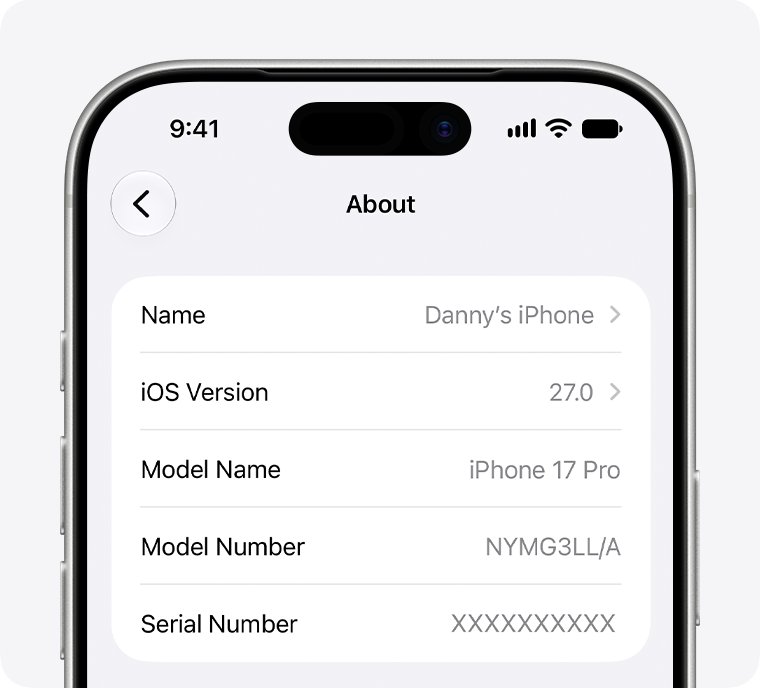
To check your version, open Settings, tap General, tap About and read the number next to iOS Version.
| iOS version on your iPhone | Path to clear all cookies and history | Path to clear cookies only |
|---|---|---|
| iOS 18 and later (including iOS 26) | Settings > Apps > Safari > Clear History and Website Data | Settings > Apps > Safari > Advanced > Website Data > Remove All Website Data |
| iOS 17 and earlier | Settings > Safari > Clear History and Website Data | Settings > Safari > Advanced > Website Data > Remove All Website Data |
How to clear cookies on iPhone Chrome
Chrome stores its own cookies, so clearing Safari leaves them in place. Removing them signs you out of websites in Chrome and can delete saved site preferences.
- Open Chrome on your iPhone.
- Tap More, then Settings.
- Tap Privacy and Security, then Delete Browsing Data.
- Next to Time Range, choose how far back to clear. The default is 15 minutes, so pick a longer range to remove older cookies.
- Check Cookies, Site Data and uncheck the other items.
- Tap Delete Browsing Data, confirm with Delete Browsing Data again, then tap Done.
Alternative ways to clear cookies on iPhone
The Settings routes above are the main ones. These options fit narrower jobs, such as wiping cookies while switching on blocking, or cleaning up a single browser.
| What you want | Use this | What happens |
|---|---|---|
| Remove cookies and stop new ones | Settings > Apps > Safari > Advanced, turn on Block All Cookies, tap Block All | Existing cookies and website data are removed, Safari quits and reloads your tabs |
| Clear only recent cookies in Chrome | Chrome More > Delete Browsing Data, set Time Range | Removes data from that window only |
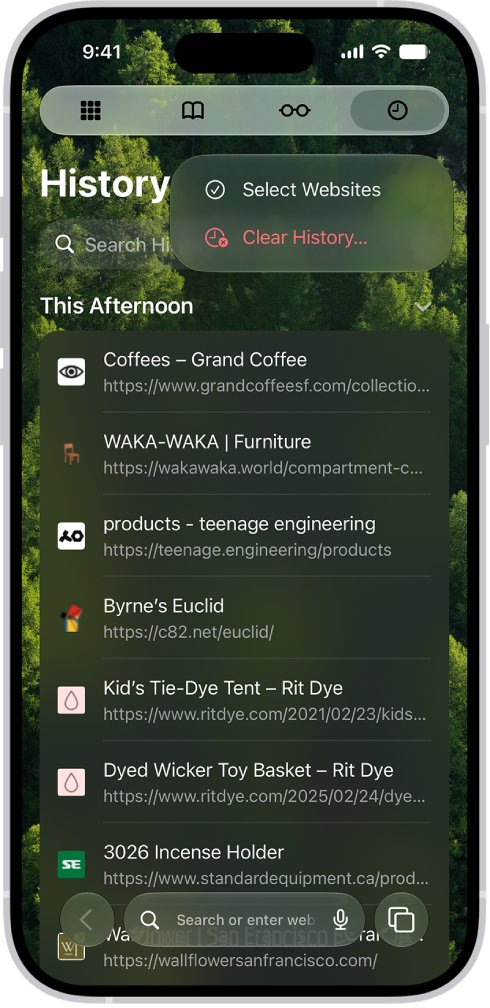
| Remove one site from Safari history | Safari Start Page > History > More > Select Websites > Trash | Deletes the history entry; use Website Data for its cookies |
| Browse without adding to history | Open a Private Browsing tab in Safari | Private tabs do not appear in History or on your other devices |
| Open Chrome's clear dialog fast | Type Delete browsing data in Chrome's address bar and tap the action chip | Opens Delete Browsing Data without going through Settings |
If your real goal is freeing space rather than fixing a site, manage and clear storage on your iPhone instead of clearing cookies again and again.
Tips: how to clear cookies on iPhone
A few choices decide whether clearing cookies fixes the problem or just signs you out of everything.
| Tip | Why it matters |
|---|---|
| Make sure you know your passwords first | Sites need a fresh sign-in after cookies are removed; AutoFill data is not changed by Safari's clear option |
| Pick the timeframe on purpose | Clear History and Website Data asks for a timeframe, so a short range leaves older cookies behind |
| Use Website Data when you want to keep history | Remove All Website Data clears cookies and cache without wiping your browsing history |
| Clear each browser separately | Safari, Chrome and other browsers keep separate cookie stores |
| Sign out of Chrome to sign out of Google everywhere | Google says signing out of Chrome signs your Google Account out of all websites |
| Mail is separate | Mail images and attachments are not website cookies; reset the Mail cache on iPhone for that |
Tips for managing cookies on iPhone
You do not have to clear cookies by hand all the time. Safari's privacy settings limit tracking cookies in the first place.
| Setting | Where it is | What it does |
|---|---|---|
| Prevent Cross-Site Tracking | Settings > Apps > Safari | Limits third-party cookies and data; it is on by default |
| Hide IP address | Settings > Apps > Safari | Protects your IP address from known trackers, and from websites for eligible iCloud+ subscribers |
| Block All Cookies | Settings > Apps > Safari > Advanced | Stops all cookies, but many sign-ins and site features then fail |
| Content blockers | Settings > Apps > Safari > Extensions | Third-party apps from the App Store can block cookies, images, pop-ups and other content |
| Privacy Report | In Safari, tap the page menu, then Privacy & Security > Privacy Report | Shows trackers that Intelligent Tracking Prevention blocked on the current page |
| Chrome cookie settings | Chrome More > Settings > Privacy and Security | Manages Chrome's own cookies separately from Safari |
Why clear cookies on an iPhone
Cookies are files that websites create to remember your visit, such as keeping you signed in or saving preferences. Clearing them is a reset for how sites recognise you.
| Reason | What clearing does |
|---|---|
| A site loads wrongly or keeps an old setting | Removes the stored data so the site starts fresh |
| Privacy on a shared iPhone | Signs you out of sites and removes data used for tracking |
| Too many tracking cookies | Removes third-party cookies that other sites placed through ads and embeds |
| Switching accounts on a site | Forces a clean sign-in instead of the remembered account |
How to tell if cookies are cleared on iPhone
Two signs show the cookies are gone: the Website Data button grays out, and sites ask you to sign in again.
- Open Settings > Apps > Safari > Advanced > Website Data.
- Look at Remove All Website Data. A gray button means there is no website data left to clear.
- Open Safari and visit a site you were signed in to. It should ask you to sign in again.
- For Chrome, visit a site you use in Chrome and check that it asks you to sign in.
Still not working after clearing cookies on iPhone?
Clear History and Website Data is gray
There is no data to clear, or Screen Time web content restrictions are turned on.
- Check whether you already cleared everything; a gray button with no data is normal.
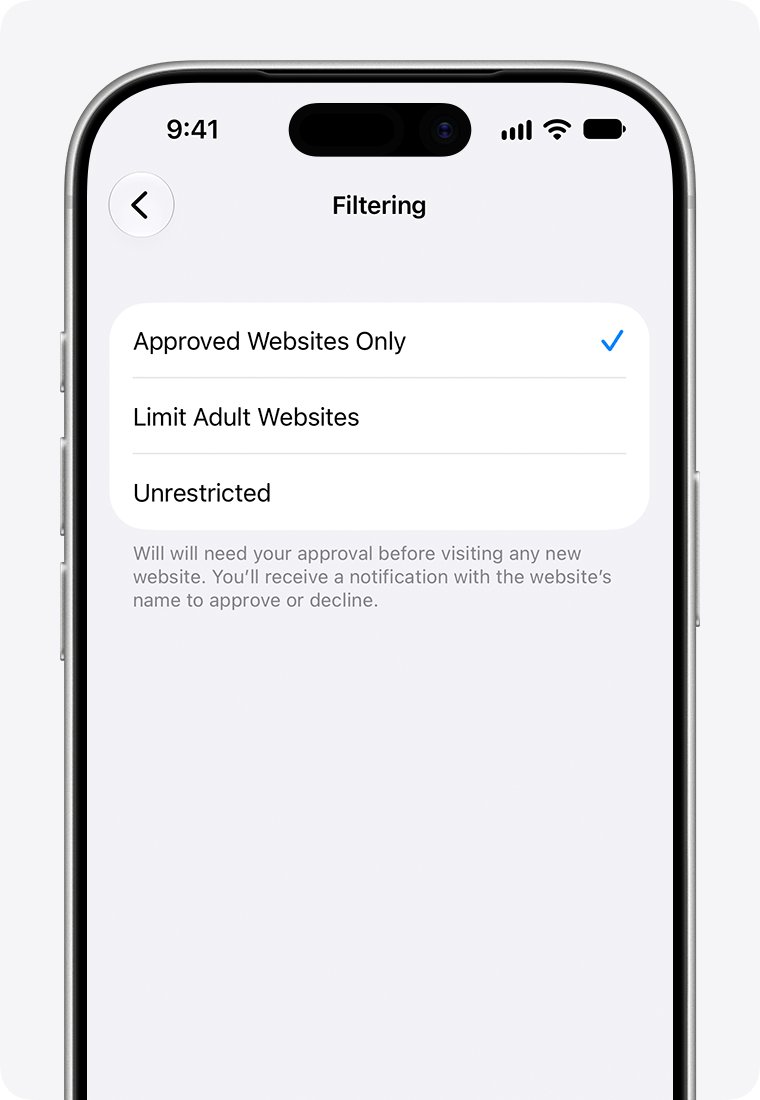
- If the iPhone is managed through Family Sharing, ask the parent to open Settings > Family, tap the child's name and tap Apps & Websites.
- The parent taps Restrictions, then Filtering under Websites, and changes the browsing setting.
- Return to Safari settings and try Clear History and Website Data again.
Sites say cookies are required or you cannot sign in
Block All Cookies is turned on, so sites cannot store a sign-in.
- Open Settings > Apps > Safari > Advanced.
- Turn off Block All Cookies.
- Reload the site in Safari and sign in again.
Chrome still remembers a site after clearing
Chrome's Time Range defaults to 15 minutes, so older cookies were kept.
- In Chrome, tap More > Settings > Privacy and Security > Delete Browsing Data.
- Choose a longer range next to Time Range.
- Check Cookies, Site Data and tap Delete Browsing Data.
iPhone cookies FAQ
What are cookies?
Cookies are small files that websites create on your iPhone to remember your visit. They keep you signed in, save site preferences and show local content. First-party cookies come from the site you visit, and third-party cookies come from other sites embedded in it.
Will clearing cookies log me out of websites?
Yes. Clearing cookies in Safari or Chrome removes the data that websites use to keep you signed in, so you need to sign in again. Safari's clear option does not change your AutoFill information, so saved details can still fill the sign-in form.
Can I clear cookies from third-party browsers on my iPhone?
Yes, but each browser clears its own cookies in its own settings. In Chrome, tap More, Settings, Privacy and Security, Delete Browsing Data, check Cookies, Site Data and delete. Clearing Safari in the Settings app does not affect Chrome.
Does clearing cookies also clear my browsing history?
It depends on the option. Clear History and Website Data removes history, cookies and cache together. Remove All Website Data under Advanced > Website Data removes cookies and cache but keeps your Safari history.
Why should I clear cookies on my iPhone?
Clear cookies when a site loads wrongly, keeps an old setting, signs you into the wrong account, or when you want to remove tracking data on a shared iPhone. You will be signed out of websites afterwards.
How do I clear cache and cookies on iPhone Safari?
Open Settings, tap Apps, then Safari, and tap Clear History and Website Data. To clear cache and cookies but keep history, tap Advanced, then Website Data, then Remove All Website Data and Remove Now.
How do I clear cookies on iPhone 16 or iPhone 17?
On iPhone 16 and iPhone 17 models, which run iOS 18 or later, go to Settings, tap Apps, then Safari, and tap Clear History and Website Data. The model does not change the steps; the iOS version does.
How do I clear cookies on iPhone XR, 11 or 12?
Check your iOS version in Settings, General, About. On iOS 18 or later, use Settings, Apps, Safari. On iOS 17 or earlier, use Settings, Safari, then tap Clear History and Website Data.
Does blocking cookies delete the cookies already on my iPhone?
Yes. Turning on Block All Cookies and tapping Block All removes all existing cookies and website data, then Safari quits and reloads your tabs. Many sites then fail to sign you in, so turn it off if a site stops working.
Quick summary
Use Settings > Apps > Safari > Advanced > Website Data > Remove All Website Data when you only want cookies gone, and Clear History and Website Data when you also want history wiped. The Website Data route fixes sign-in and site problems while keeping your history, and Chrome needs its own Cookies, Site Data clear with a longer Time Range.