To set up Windows Hello on a local account in Windows 11, open Settings > Accounts > Sign-in options, select PIN (Windows Hello), Fingerprint recognition (Windows Hello) or Facial recognition (Windows Hello), and select Set up.
This guide covers the setup steps, the recovery options a local account still has, the features it does not get, and fixes for setup and sign-in errors.
Set up a Windows Hello PIN on a local account
A local account uses the same Sign-in options page as a Microsoft account, so nothing extra needs to be installed. Start with the PIN, because fingerprint and face sign-in use it as their fallback.
- Select Start > Settings > Accounts > Sign-in options.
- Under Ways to sign in, select PIN (Windows Hello).
- Select Set up and confirm your local account password when Windows asks for it.
- Type the new PIN, type it again to confirm, and finish the prompts.
- Press Windows + L to lock the PC, then sign in with the PIN.
Keep your local account password after the PIN works. The I forgot my PIN reset is only offered to Microsoft accounts, so the password is how a local account gets back in.
What is Windows Hello?
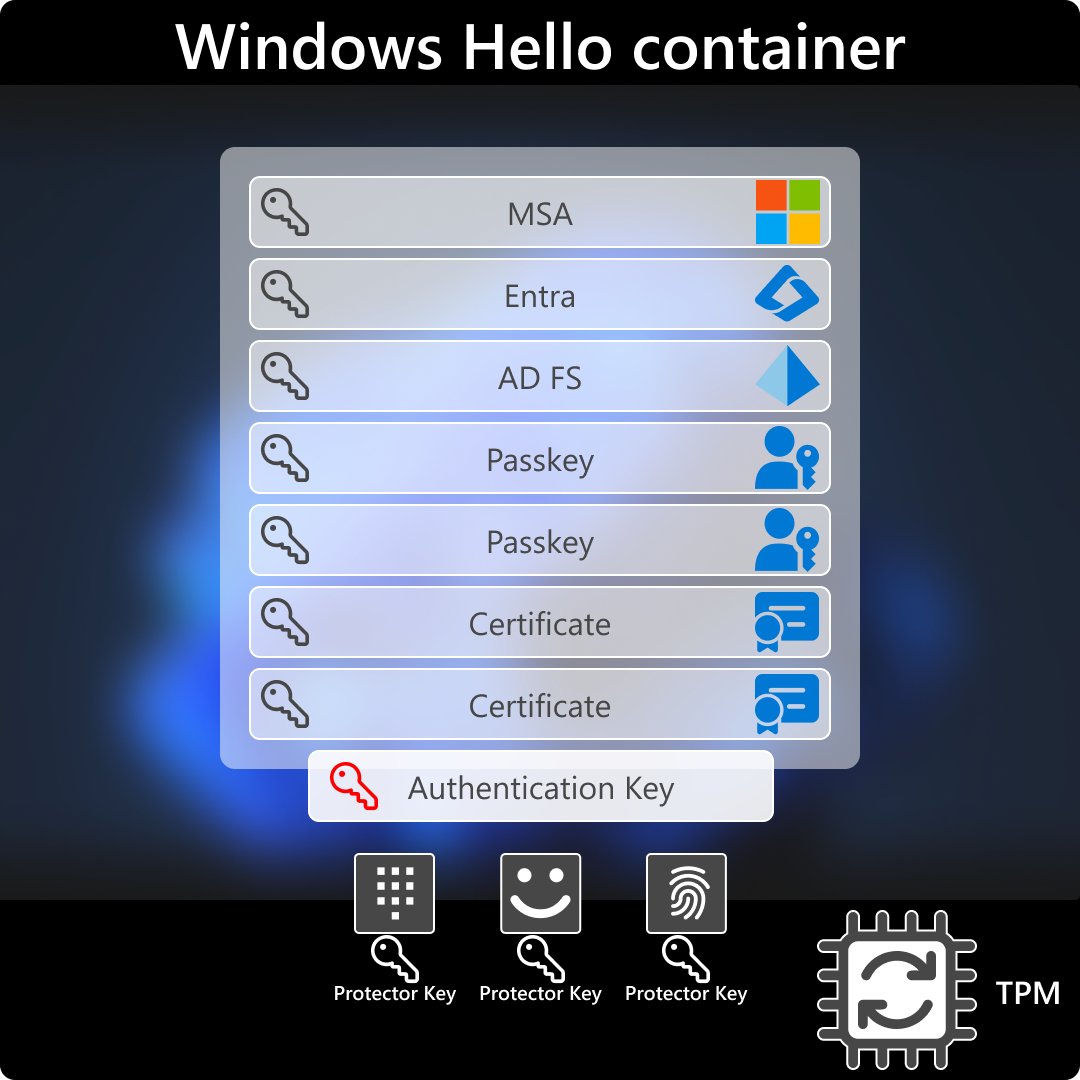
Windows Hello is the Windows sign-in system that replaces typing a password with a PIN, your fingerprint or your face. Once the methods below are set up, you can sign in with Windows Hello instead of typing a password.
| Windows Hello method | What it uses | Works on a local account |
|---|---|---|
| PIN (Windows Hello) | A number tied to this one PC | Yes |
| Fingerprint recognition (Windows Hello) | A built-in or USB fingerprint reader | Yes, with a PIN as fallback |
| Facial recognition (Windows Hello) | A camera that supports near-infrared (IR) imaging | Yes, with a PIN as fallback |
| Windows Hello only sign-in (passwordless) | Removes the password option at sign-in | No, Microsoft accounts only |
Face and fingerprint data stays on the PC in encrypted form and never roams to other devices. Windows stores a representation of your face, not a photo.
Before you begin: Windows Hello requirements for a local account
If you installed Windows 11 with a local account, the account is ready for Windows Hello as it is. Check the hardware and recovery items below first.
| Requirement | What you need | Why it matters |
|---|---|---|
| Local account password | A password you know for the account | It is the way back in if you forget the PIN |
| Password recovery | Security questions or a password reset disk | A forgotten local password cannot be reset online |
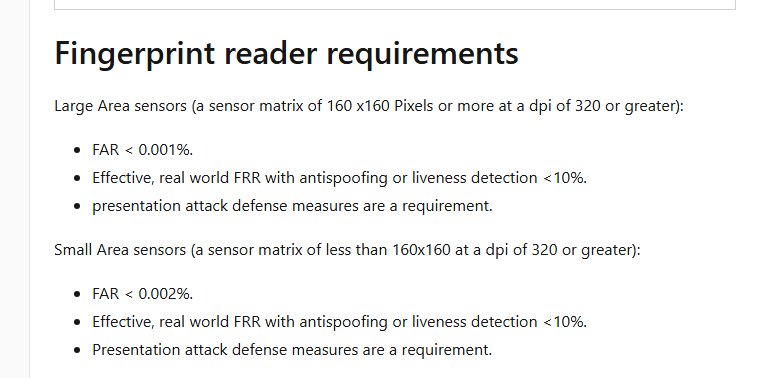
| Fingerprint sign-in | A built-in reader or a USB reader that supports Windows Hello | Without one, the fingerprint option cannot be set up |
| Face sign-in | A camera configured for near-infrared (IR) imaging | A normal colour webcam cannot do Windows Hello face |
| PIN sign-in | No extra hardware | Works on every Windows 11 PC |
Step-by-step guide: add fingerprint and face sign-in to a local account
Set up the PIN first, then add each biometric your PC supports. The steps are the same on a local account and a Microsoft account.
- Open Settings > Accounts > Sign-in options.
- Select Fingerprint recognition (Windows Hello) and then Set up, verify with your PIN, and touch the reader repeatedly until the scan completes.
- Select Add a finger afterwards to register a second finger.
- Select Facial recognition (Windows Hello) and then Set up, verify with your PIN, and look at the camera until the scan finishes.
- Lock the PC with Windows + L.
- On the sign-in screen, select Sign-in options and pick the PIN, fingerprint or face icon you want to use.
If facial recognition reports no compatible camera, the IR camera or its driver is missing. Getting Windows Hello Face installed on Windows 11 is a separate job from enrolling your face.
Configuration: change Windows Hello sign-in options on a local account
Every change happens in Settings > Accounts > Sign-in options. Pick the row that matches what you want to change.
| What you want | Select this | Note |
|---|---|---|
| A new PIN | PIN (Windows Hello) > Change PIN | Changing the PIN needs the old PIN |
| A new local password | Password > Change | Needs the old password |
| Another finger registered | Fingerprint recognition (Windows Hello) > Add a finger | Helps when one finger is often misread |
| Better face recognition | Facial recognition (Windows Hello) > Improve recognition | Adds another face template |
| A fresh face scan | Facial recognition (Windows Hello) > Remove, then Set up | Keeps only the newest scan |
| Stop using a biometric | Select the method > Remove | The PIN and password keep working |
Create a password reset disk for a local account
A local account password cannot be reset through a Microsoft website. A password reset disk on a USB flash drive gives you a way back in without the security questions.
- Sign in with the local account the disk is for.
- Plug a USB flash drive into the PC.
- Type Control Panel in the taskbar search box and open it.
- Type create password reset in the Control Panel search box.
- Select Create a password reset disk and follow the wizard.
- Remove the USB flash drive and keep it somewhere safe.
You do not need a new disk when you change the password later. This option is not available for Microsoft accounts, which reset a forgotten password online instead.
Local account vs. Microsoft account: what you actually lose
A local account belongs to one PC and needs no internet connection to sign in. Windows Hello itself works the same, but the recovery and sync features tied to a Microsoft account are missing.
| Feature | Local account | Microsoft account |
|---|---|---|
| Windows Hello PIN, fingerprint and face | Available | Available |
| I forgot my PIN on the sign-in screen | Not offered; sign in with the password | Offered |
| PIN backup for recovery | No Microsoft account to back it up to | Backed up with the Microsoft account |
| Forgotten password reset | Security questions, a reset disk, or another administrator account | I forgot my password or the online reset page |
| Windows Hello only sign-in | Not available | Additional settings toggle |
| Settings and files across devices | Stay on this one PC | Sync across devices |
| Outlook.com, OneDrive, Office and Xbox | Sign in to each service separately | Connected through the same account |
Switch from a local account to a Microsoft account in Windows 11
If the missing PIN reset or sync matters more than keeping the account offline, switch the account type. Your Windows Hello methods stay on the PC.
- Open Settings > Accounts > Your info.
- Select Sign in with a Microsoft account instead; the link appears only on a local account.
- Follow the prompts to sign in with your Microsoft account.
- Select Next, then sign out and sign back in.
To go the other way, the same page shows Sign in with a local account instead while you use a Microsoft account. You can also change the local account name without switching account types.
Check Windows Hello works on your local account
- Open Settings > Accounts > Sign-in options.
- Expand each method you set up and confirm it shows Change PIN, Add a finger, Improve recognition or Remove instead of Set up.
- Press Windows + L to lock the PC.
- Select Sign-in options on the sign-in screen and confirm the PIN, fingerprint and face icons appear.
- Sign in once with each method, then once with the password icon to confirm the password still works.
Windows Hello tips and troubleshooting on a local account
Windows Hello setup option is greyed out or missing
The PC has no compatible fingerprint reader or IR camera, or a work or school policy controls Windows Hello devices.
- Check the PC's specifications for a fingerprint reader or an IR camera.
- Open Settings > Windows Update, install pending updates, and restart so driver updates arrive.
- Connect a USB fingerprint reader or camera that supports Windows Hello if the PC has neither.
- On a work or school PC, ask IT whether Windows Hello devices are allowed.
- Set up PIN (Windows Hello) in the meantime; it needs no extra hardware.
"Couldn't recognize you" during facial recognition
Lighting, glasses, make-up, a hat or facial hair differ from the original scan.
- Sign in with your PIN or password.
- Clean the camera and avoid harsh light from one side.
- Select Facial recognition (Windows Hello) > Improve recognition and scan again.
- If that fails, select Remove and then Set up to start a fresh scan.
Fingerprint isn't recognized
The finger was scanned poorly, the wrong finger is used, or the reader driver is out of date.
- Sign in with your PIN or password.
- Clean and dry the fingerprint reader.
- Select Fingerprint recognition (Windows Hello) > Add a finger and capture different angles of the finger.
- Register a second finger as a backup.
- Install driver updates from Settings > Windows Update.
PIN creation fails or stops working after an update
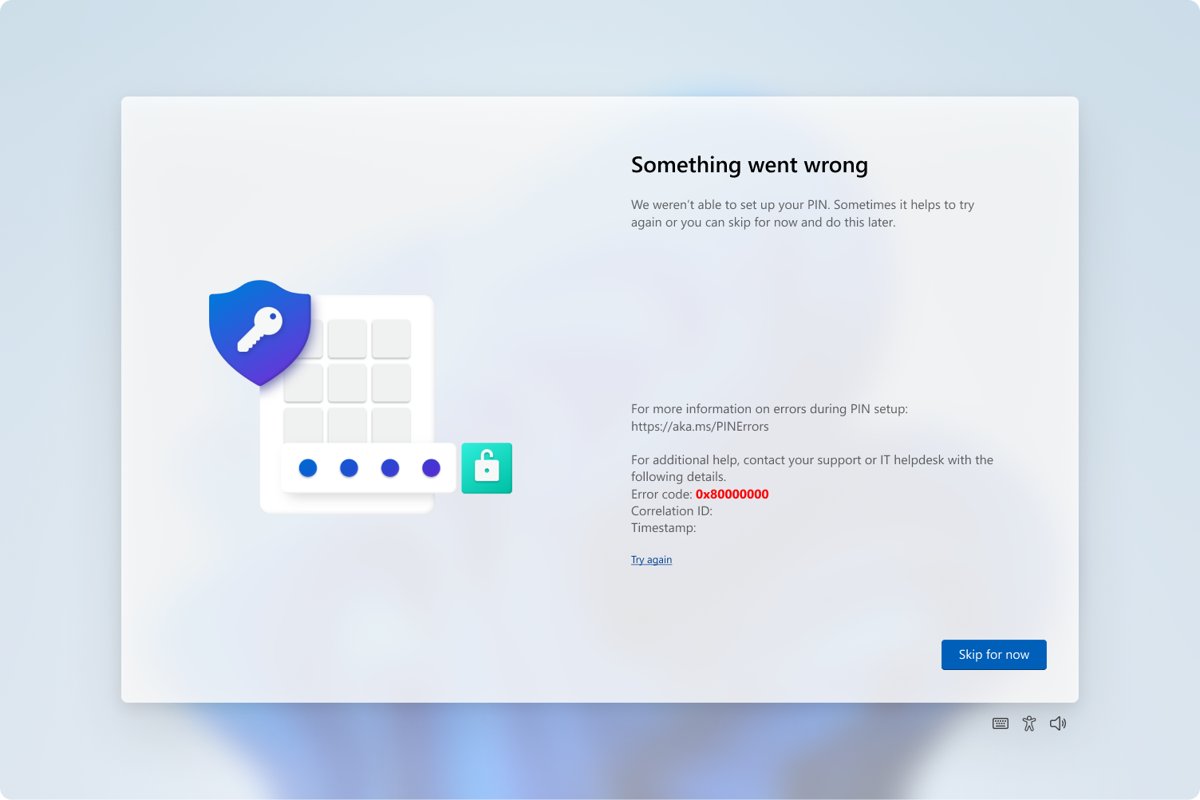
A security update or system change asked for a new PIN, or the TPM is not set up (error 0x80090029).
- Create the PIN again when Windows asks.
- Sign out, sign back in, and retry.
- Restart the PC and retry.
- For error 0x80090029, sign in with an administrator account, select Start, type tpm.msc and open it.
- Select Prepare the TPM in the Actions pane, restart, and create the PIN again.
"I forgot my PIN" doesn't appear
The PIN reset link is only available for Microsoft accounts, not local accounts.
- On the sign-in screen, select Sign-in options and then the password icon.
- Sign in with your local account password.
- Open Settings > Accounts > Sign-in options > PIN (Windows Hello).
- Select I forgot my PIN and follow the prompts to create a new one.
Forgot both the PIN and the local account password
A local account has no online reset, so recovery depends on what you set up earlier.
- Lock the PC, select the password entry button, then select OK and Reset password.
- Answer the security questions you set when the account was created.
- Or select Use a password reset disk and insert the disk.
- Without either, sign in to another administrator account, open Computer Management > Local Users and Groups > Users, right-click the account and select Set Password.
- If no administrator account exists, the only way back in is to reset the PC.
Windows Hello local account FAQ
Can you use Windows Hello without a Microsoft account?
Yes. A local account in Windows 11 can use a Windows Hello PIN, fingerprint and face from Settings > Accounts > Sign-in options. Only the PIN reset link and the Windows Hello only sign-in setting need a Microsoft account.
Why is there no I forgot my PIN option on my local account?
Microsoft offers I forgot my PIN on the sign-in screen for Microsoft accounts only. On a local account, sign in with your password, then reset the PIN from PIN (Windows Hello) in Sign-in options.
Can a local account go passwordless with Windows Hello?
No. The setting that removes the password option, For improved security, only allow Windows Hello sign-in for Microsoft accounts on this device, applies to Microsoft accounts only. A local account keeps its password as a sign-in option.
Is a Windows Hello PIN backed up on a local account?
No online backup exists for it. Microsoft backs up the Windows Hello PIN for recovery with your Microsoft account, and a local account has no Microsoft account behind it, so your local password is the recovery route.
How do I reset a local account password if I forget it?
Lock the PC, select the password entry button, select OK and then Reset password, and answer your security questions. A password reset disk or another administrator account on the PC also works; without them you must reset the PC.
Can Windows Hello face work with a normal webcam?
No. Windows Hello facial recognition needs a camera that supports near-infrared imaging. A standard colour webcam cannot be used, so add a Windows Hello compatible USB camera or use a PIN or fingerprint instead.
Where does Windows Hello store my fingerprint and face on a local account?
On the PC itself, in encrypted form, for local and Microsoft accounts alike. The data never roams to other devices, and selecting Remove under the method in Sign-in options deletes it.
Does switching to a Microsoft account remove Windows Hello?
No. Switching from Settings > Accounts > Your info changes the account type, and your Windows Hello sign-in methods remain on the PC. You then gain I forgot my PIN and the passwordless option.
Should you use Windows Hello on a local account?
Yes: set up a Windows Hello PIN on your local account, add fingerprint or face where the hardware exists, and create a password reset disk or security questions before you stop typing the password. Windows Hello works fully on a local account, but the PIN reset and online password recovery belong to Microsoft accounts, so the password and its recovery options are your only way back in.