Windows Installer patch (.MSP) files are update packages for apps installed with Windows Installer, and you should not delete them by hand from C:\Windows\Installer because Windows needs them to repair, update and uninstall those apps.
This guide explains what an MSP file contains, where Windows keeps it, the supported way to remove a patch, how to cap the patch cache, and what to do if cache files are already gone.
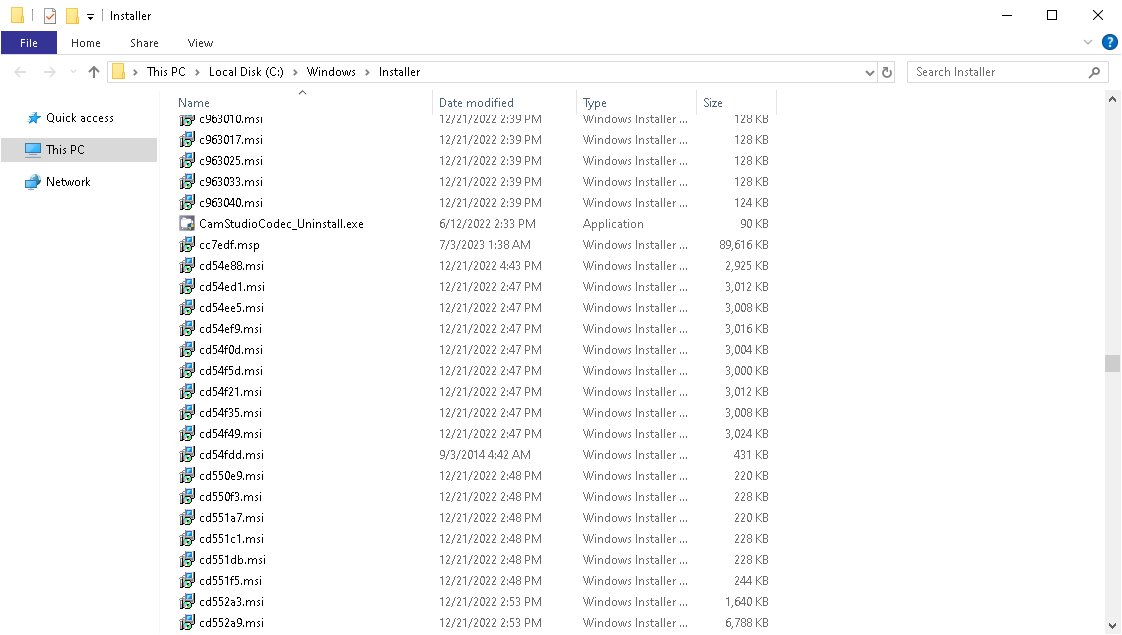
Can you delete Windows Installer patch files?
Microsoft's guidance on the Windows Installer cache is direct: the C:\Windows\Installer folder should not be deleted, and files missing from it cannot be copied from another PC because each one is unique.
Problems do not show up straight away. They appear later, when you try to uninstall, repair or update the app that owned the file.
Do not delete .msp or .msi files from C:\Windows\Installer manually. Remove a patch you no longer want with msiexec or the app's own uninstaller, and free disk space with Storage settings instead. Windows Installer reads the cached patch files whenever it repairs, updates or uninstalls a product, and Microsoft support engineers cannot recover missing cache files. In some cases the only fix is to rebuild Windows and reinstall the app.
What are Windows Installer patch (.MSP) files
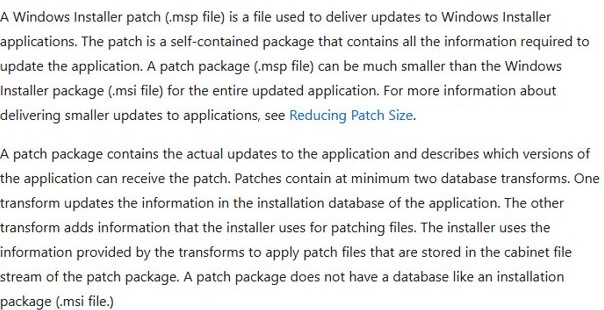
A Windows Installer patch is a self-contained file that delivers updates to an application that was installed from an .msi package.
It can be much smaller than a full .msi because it can carry only the changed bits of a file, and it keeps the user's customisations through the upgrade.
| Part of an .msp file | What it holds |
|---|---|
| Summary information stream | A GUID that identifies the patch, the GUIDs of earlier patches it replaces, and the product codes it can update |
| Transform substorage | At least two database transforms per target: one updates the app's installation database, one adds the patching information |
| Cabinet file stream | Binary patch data, new files added to the app, or whole replacement files |
| MsiPatchSequence table (Windows Installer 3.0+) | The order the patch applies in relative to other updates |
| MsiPatchMetadata table (Windows Installer 3.0+) | Descriptive details, including the AllowRemoval flag that makes a patch uninstallable |
Unlike an .msi installation package, a patch package has no installation database of its own. It only describes changes to an existing one.
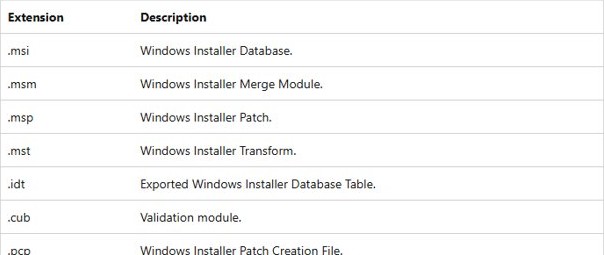
MSI vs MSP vs MST file extensions
Windows Installer uses several related file types. Telling them apart shows why an .msp file is useless without the app it patches.
| Extension | Windows Installer file type | Typical use |
|---|---|---|
| .msi | Windows Installer database | Installs the full application |
| .msp | Windows Installer patch | Updates an application that is already installed |
| .mst | Windows Installer transform | Customises an installation, for example for one organisation |
| .msm | Windows Installer merge module | Shared component built into other .msi packages |
| .pcp | Windows Installer patch creation file | Developer input used to build an .msp |
Why the C:\Windows\Installer folder is so large
When an app installs through Windows Installer, the files needed to update and uninstall it are copied into the Windows Installer cache at C:\Windows\Installer.
Cached files get short generated names such as 1fdb1aec.msp instead of the patch's original name, so the folder gives no clue which app owns which file. Viewing the folder in File Explorer is harmless; show hidden files and folders if Installer does not appear under C:\Windows.
| What builds up | Why it grows | Who controls it |
|---|---|---|
| Cached .msi packages | One per product installed with Windows Installer | Needed to update and uninstall that product |
| Cached .msp patches | One per patch applied, for example each Office or SQL Server update | Needed for later updates and for removing the patch |
| Older file versions saved by patching | Windows Installer keeps old files so later installs need not fetch them from the original media | The MaxPatchCacheSize policy, 10% of disk space by default |
Busy machines with Office, Visual Studio or SQL Server collect many patches over time. That is expected behaviour, not a fault.
What happens if you delete Windows Installer cache files
| Action after deletion | What goes wrong |
|---|---|
| Installing the next update for the app | Setup stops with a missing .msi or .msp error, or error 1635: "This patch package could not be opened" |
| Repairing the app | The repair fails because the cached package is missing |
| Uninstalling the app or a patch | The uninstall fails because the cached file it needs is gone |
| Copying the files from another PC | Does not work, because each cached file is unique to the machine |
Microsoft's only listed recoveries are the vendor's own repair steps, a system state backup of the cache, or rebuilding Windows and reinstalling the app.
How to remove Windows Installer patch (.MSP) files
The supported way to get rid of an .msp is to uninstall the patch from the product it updated. Windows Installer then removes the change and its cached file itself.
Start by finding out which product a cached file belongs to. This only reads the registry and changes nothing.
- Note the name of the cached file you want to identify, for example 1fdb1aec.msp in C:\Windows\Installer.
- Press Win + R, type
regeditand press Enter. - Go to
HKEY_LOCAL_MACHINE\SOFTWARE\Microsoft\Windows\CurrentVersion\Installer\UserData\S-1-5-18\Patches. - Find the subkey whose LocalPackage value is the file you noted. The subkey name is the patch's packed GUID.
- Go to
HKEY_LOCAL_MACHINE\SOFTWARE\Microsoft\Windows\CurrentVersion\Installer\UserData\S-1-5-18\Productsand find the same GUID under a product's Patches subkey. - Read its DisplayName value, for example a KB-numbered update for SQL Server or Office.
- Close Registry Editor without editing anything, then remove the patch with the vendor's uninstall route or the msiexec command below.
Uninstall an MSP patch with msiexec
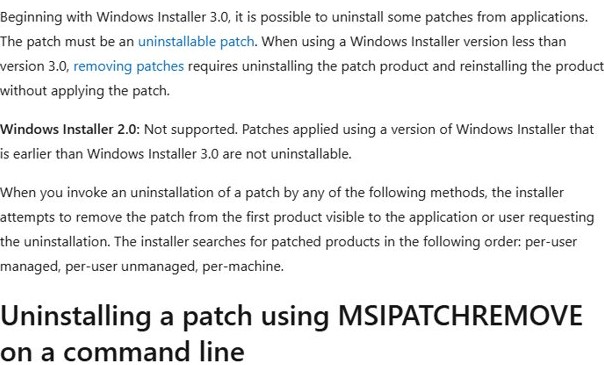
Windows Installer 3.0 and later can uninstall a patch from the command line. Run it from an elevated Command Prompt, and replace the two GUIDs with the product code and the patch code from the vendor's documentation.
msiexec /package {ProductCode} /uninstall {PatchCode} /passive/package names the installed product by its product code or .msi path. /uninstall names the patch by its patch code GUID or the full path to the .msp file. /passive shows a progress bar with no prompts. The older equivalent is msiexec /I {ProductCode} MSIPATCHREMOVE={PatchCode} /qb.
You should see: The progress bar closes without an error message, and the app's version number returns to its pre-patch value.
Add /norestart if the machine must not reboot on its own, because /passive restarts Windows whenever the installer decides a restart is needed.
Why some Windows Installer patches cannot be uninstalled
Whether a patch can be removed depends on how it was built and installed. For a patch that is not uninstallable, the only route is to uninstall the whole app and reinstall it without that patch.
| Reason | What it means for you |
|---|---|
| Applied with Windows Installer 2.0 or earlier | Patch removal did not exist before Windows Installer 3.0 |
| DisablePatchUninstall policy set to 1 | Nobody on the PC can remove patches, administrators included |
| No AllowRemoval = 1 row in MsiPatchMetadata | The vendor built the patch as permanent |
| Patch performs a major upgrade | Reinstall the older version of the app instead |
| Patch applied to an administrative installation | Reinstall from the administrative image |
| Per-machine app and you are not an administrator | Sign in with an administrator account, unless the vendor marked it as a LUA patch |
Limit the Windows Installer patch cache with MaxPatchCacheSize
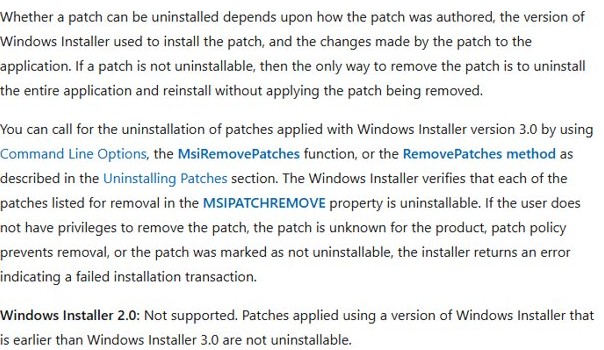
When a patch is applied, Windows Installer can save older versions of the patched files so later installs do not need the original media. The MaxPatchCacheSize policy caps that store as a percentage of disk space.
The default is 10%. A value of 0 stops new files being saved, but it does not delete files already in the cache.
- Press Win + R, type
regeditand press Enter, then approve the User Account Control prompt. - Go to
HKEY_LOCAL_MACHINE\Software\Policies\Microsoft\Windows\Installer. Create the Installer key under Windows if it does not exist. - Right-click the right pane and select New > DWORD (32-bit) Value.
- Name it MaxPatchCacheSize.
- Double-click it, select Decimal, and enter the maximum percentage of disk space, for example 5, or 0 to stop caching old files.
- Select OK and close Registry Editor.
A smaller cache means a later patch install may ask for the app's original installation source.
Windows Installer patch cleanup: safe ways to free disk space
If low disk space is the reason you opened C:\Windows\Installer, the supported tools reclaim space without touching the cache. Start by checking what uses disk space on Windows 11.
| Option | Where to find it | What it removes |
|---|---|---|
| Cleanup recommendations | Settings > System > Storage > Cleanup recommendations | Temporary files, large or unused files, files synced to the cloud, unused apps |
| Storage Sense | Settings > System > Storage | Temporary files and Recycle Bin items, on a schedule |
| Previous version of Windows | Listed under Cleanup recommendations for 10 days after an upgrade | The Windows.old folder; you lose the option to go back |
| Uninstall unused apps | Settings > Apps > Installed apps | The app, through its own installer |
| Third-party orphaned-patch tools | Not a Microsoft tool | Moves or deletes cache files Microsoft says to keep; any mistake cannot be undone by Microsoft support |
Excessive DMP files in Windows 11 System32 folder
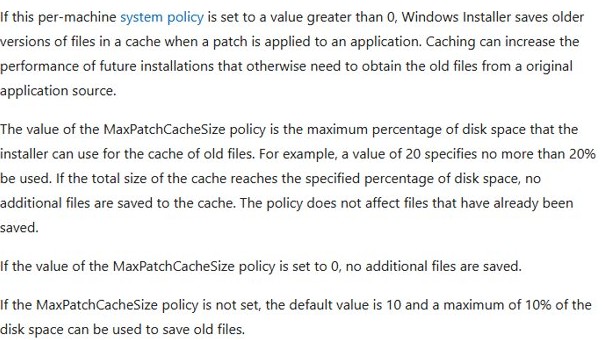
Large .dmp files are a separate space problem from the Installer folder. They are crash dumps written by Windows Error Reporting or by a Stop error, and their location tells you what crashed.
Crash dumps of services that run as System land under the System profile folder inside System32, which is why they appear there.
| Dump file location | What writes it | How many are kept |
|---|---|---|
| %WINDIR%\System32\Config\SystemProfile (CrashDumps under the profile) | Local crash dumps of services running as System, when WER LocalDumps is enabled | DumpCount, default 10; the oldest is replaced |
| %WINDIR%\ServiceProfiles | Crash dumps of Local Service and Network Service processes | DumpCount, default 10 |
| %LOCALAPPDATA%\CrashDumps | Crash dumps of desktop apps for the signed-in user | DumpCount, default 10 |
| %SystemRoot%\Memory.dmp | Complete or kernel memory dump after a blue screen | One file, overwritten by the next dump |
| %SystemRoot%\Minidump | Small memory dumps after each blue screen, named by date | A new file every time |
A steady stream of new dumps means a service or driver keeps crashing. Fix that cause first, or the folder fills up again.
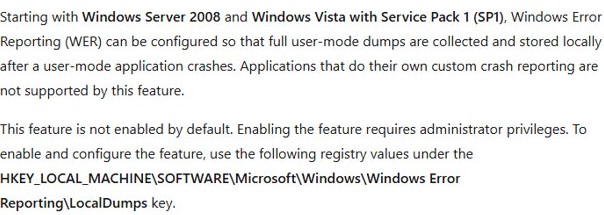
Local user-mode dumps are controlled under HKEY_LOCAL_MACHINE\SOFTWARE\Microsoft\Windows\Windows Error Reporting\LocalDumps, where DumpCount sets how many files are kept.
Windows Installer patches vs Windows Update patches
Windows patching and app patching use different systems. Monthly Windows updates are not .msp files, and they do not live in C:\Windows\Installer, so you uninstall a problematic Windows update from Settings rather than with msiexec.
| Windows Installer patch (.msp) | Windows update | |
|---|---|---|
| Updates | One app installed from an .msi, such as Office or SQL Server | Windows itself |
| Installed by | msiexec, or the vendor's setup program | Windows Update or Component Based Servicing |
| Listed by Get-HotFix | No | Yes |
| Removed with | msiexec /uninstall or the app's uninstaller | Settings > Windows Update > Update history > Uninstall updates |
| Apply manually with | msiexec /update patch.msp | The update's own package from Microsoft |
Install a Windows Installer patch from the command line
Vendors sometimes ship a bare .msp for manual install. Close the app it updates before you start.
- Select Start, type cmd, then select Run as administrator.
- Run
msiexec /update C:\Path\patch.msp /passivewith the real path to the patch file. - Add
/norestartto the command if the PC must not restart automatically. - To log the install, add
/L*v C:\Logs\patch.log; the C:\Logs folder must already exist. - Open the app and confirm its version number changed.
The older Windows Installer form, msiexec /p patch.msp, does the same job.
View installed patches and update history on Windows 11
Windows updates and Windows Installer patches show up in different places, so check the right list for the patch you care about.
- For Windows updates, select Start > Settings > Windows Update > Update history.
- Select Uninstall updates under Related settings to see the updates that can be removed.
- For a command-line list, open PowerShell and run
Get-HotFix. It lists Windows updates with their HotFixID and InstalledOn date. - For an app's .msp patches, read the product's Patches subkey under
HKEY_LOCAL_MACHINE\SOFTWARE\Microsoft\Windows\CurrentVersion\Installer\UserData\S-1-5-18\Products; each patch has a DisplayName. - Check the app's own About or version page; the version should match the latest patch you applied.
Get-HotFix does not return updates delivered by Windows Installer, so an Office or SQL Server .msp patch will not appear in its output.
Fix missing Windows Installer cache file errors
"This patch package could not be opened" (error 1635) during an update
A cached .msp the next update depends on is missing from C:\Windows\Installer.
- Note the cached file name and the original patch name from the error or the setup log.
- Look up the patch's DisplayName in the registry as shown above to get its KB number.
- Download that update from the vendor and extract it, following the vendor's documented extraction switch.
- Copy the original .msp into
%windir%\Installer\and rename it to the cached file name. - Run the update setup again; repeat for any further missing file it reports.
Uninstall or repair asks for the original .msi
The cached installation package for the product is gone.
- Insert or mount the original installation media for the app.
- Point the prompt at the matching .msi on that media.
- If the vendor provides its own repair tool for missing cache files, use it.
- If neither works, restore C:\Windows\Installer from a system state backup.
A patch will not uninstall
The patch is not uninstallable, or your account lacks the rights for that install context.
- Run the msiexec command from an elevated Command Prompt.
- Check that DisablePatchUninstall is not set to 1 under
HKEY_LOCAL_MACHINE\Software\Policies\Microsoft\Windows\Installer. - If the patch is still refused, uninstall the whole app and reinstall it without that patch.
Windows Installer patch files FAQ
Can Windows Installer patch files be deleted?
Not by hand. Microsoft says the C:\Windows\Installer cache should not be deleted, because Windows Installer needs those .msp and .msi files to repair, update and uninstall apps. Remove a patch with msiexec /uninstall or the app's own uninstaller instead.
What is a Windows Installer patch?
A Windows Installer patch is an .msp file that updates an app installed from an .msi package. It contains database transforms and patch data, so it can be far smaller than a full installer and keeps the user's settings through the update.
What is Windows patching?
Windows patching is installing updates that fix security holes and bugs. Windows itself is patched through Windows Update, while apps installed with Windows Installer are patched with .msp files from their vendor, such as Office or SQL Server updates.
What is patch installation?
Patch installation is applying an update package to software that is already installed, rather than reinstalling the whole program. For Windows Installer apps, msiexec /update patch.msp applies a patch and records it so it can be repaired or removed later.
How do I install Windows patches manually?
For a Windows Installer .msp, open an elevated Command Prompt and run msiexec /update followed by the full path to the patch. Windows updates are installed through Settings > Windows Update, or from the update package Microsoft provides for that KB.
How do I check which Windows patches are installed?
Open Settings > Windows Update > Update history to see Windows updates, or run Get-HotFix in PowerShell. Neither shows .msp patches for apps; those are listed under each product's Patches key in the Windows Installer registry data.
Is it safe to use a patch cleaner on C:\Windows\Installer?
It is a risk Microsoft does not support. If such a tool removes a file Windows Installer still needs, later updates, repairs or uninstalls fail, and Microsoft engineers cannot recover the file. Storage settings free space without touching the cache.
What is the Windows patch install command line?
Use msiexec /update C:\Path\patch.msp /passive to apply a Windows Installer patch with a progress bar and no prompts. Use /quiet for no interface at all, and add /norestart if Windows must not restart on its own.