To put an iPhone 4 into recovery mode, connect it to a computer, open Finder or iTunes, then press and hold the Home button and the top Sleep/Wake button together until the recovery screen appears.
This guide covers what you need first, a second button method, choosing Update or Restore, how to confirm the phone is in recovery mode, and fixes when it will not enter it.
How to put an iPhone 4 in recovery mode with the Home and top buttons
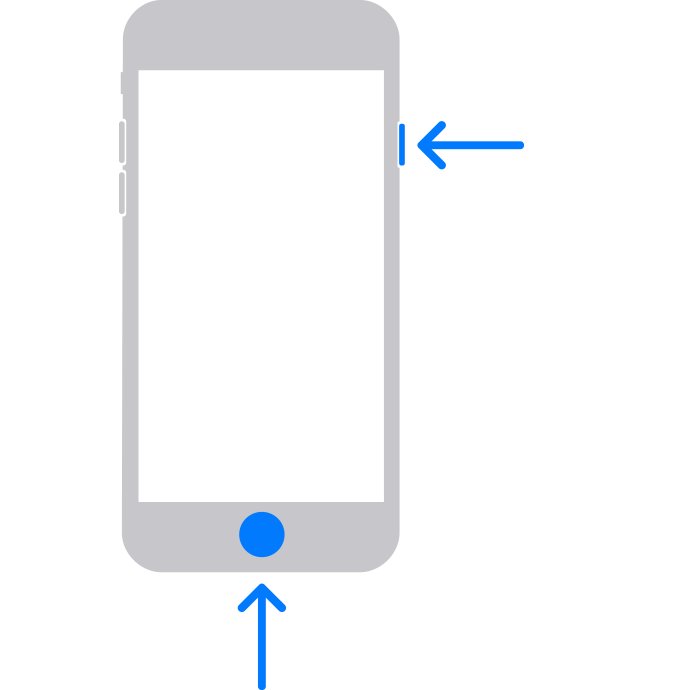
The iPhone 4 has a Home button and a Sleep/Wake button on its top edge, so it uses the same combination Apple gives for iPhone 6s and earlier models.
- Connect the iPhone 4 to your computer with its 30-pin dock connector cable.
- On a Mac with macOS Catalina or later, open Finder. On a Mac with macOS Mojave or earlier, or on a Windows PC, open iTunes.
- Keep the iPhone connected.
- Press and hold the Home button and the top Sleep/Wake button at the same time.
- Keep holding both buttons past the Apple logo. Do not let go when the logo appears.
- Release both buttons when the recovery mode screen, an image of a computer and a cable, appears on the iPhone.
- On the computer, choose Update or Restore when the prompt appears.
Recovery mode is one step short of DFU mode. If you specifically need a firmware-level restore, enter DFU mode on iPhone instead.
What you need to put an iPhone 4 in recovery mode
Recovery mode only does something useful when a computer is waiting on the other end of the cable. Apple suggests setting aside up to an hour for a restore.
| Item | Requirement for iPhone 4 | Why it matters |
|---|---|---|
| Cable | 30-pin dock connector to USB cable that supports data, not only charging | The iPhone 4 has a 30-pin dock connector, not Lightning or USB-C |
| Mac software | Finder on macOS Catalina or later, iTunes on macOS Mojave or earlier | Catalina replaced iTunes with Finder for device updates and restores |
| Windows software | iTunes on Windows, or the Apple Devices app on Windows 10 or later | The app detects the phone in recovery mode and offers Update or Restore |
| Internet connection | Required | The computer downloads the iOS software file from Apple |
| Working buttons | Home and Sleep/Wake must both press and release | A stuck or broken button makes the combination impossible and needs service |
| Your model | A1349 (GSM, 2010) or A1332 (CDMA, 2011) | Both iPhone 4 models use the same button combination |
To tell the two apart, look at the right edge: the GSM model has a micro-SIM tray there, while the CDMA model has no SIM tray at all.
Put an iPhone 4 into recovery mode when it is turned off
Apple's passcode-reset instructions start with the iPhone switched off. For Home-button models such as the iPhone 4, the button you hold is the Home button alone. Use this route when the phone is already off or the iPhone screen stays black.
- Press and hold the top Sleep/Wake button until the power-off slider appears.
- Drag the slider to turn the iPhone 4 off, then wait a few seconds.
- Connect the cable to your computer, then connect it to the iPhone.
- Open Finder or iTunes on the computer.
- Quickly press and hold the Home button.
- Keep holding Home while the Apple logo appears.
- Release the button only when the image of a computer and a cable appears.
If the iPhone boots normally to the lock screen, you let go too early. Turn it off again and repeat the steps.
iPhone 4 recovery mode: Update or Restore?
When the computer finds an iPhone 4 in recovery mode, it asks whether to update or restore. The choice decides whether your data survives.
| Your situation | Choose | What happens |
|---|---|---|
| You have not tried an update yet | Update | The computer reinstalls iOS and tries to keep your data |
| Update already failed or the phone still will not start | Restore | iOS is reinstalled and everything on the phone is erased |
| You forgot the passcode or the iPhone says it is disabled | Restore | Erasing the phone also removes the passcode |
| You have a computer backup from before the problem | Restore, then restore the backup | The phone is erased, then your apps, settings and data return from the backup |
After a restore, set the iPhone up again. If you have a backup on the computer, select the device, click Restore Backup, pick the most recent backup by date and size, and keep the phone connected until it finishes syncing.
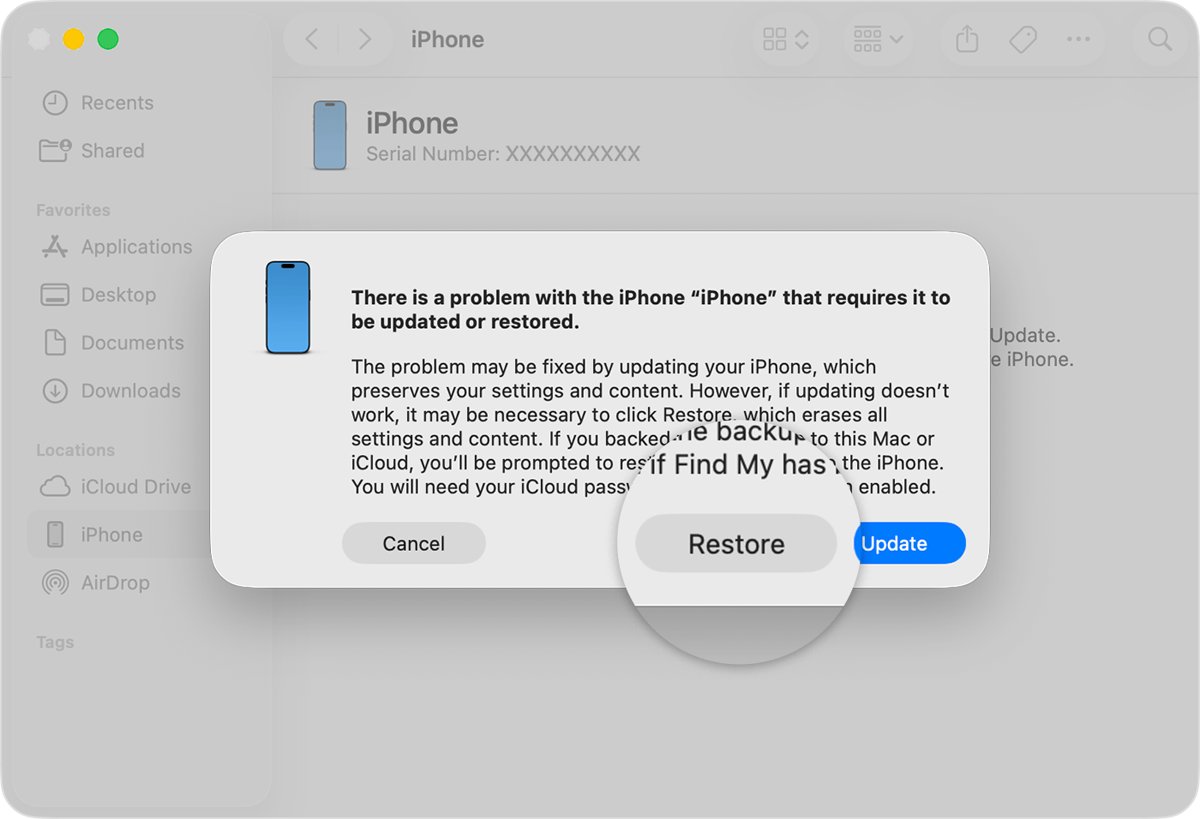
How to tell if an iPhone 4 is in recovery mode
Two screens confirm it: the phone's own display and the computer's prompt. Check both before you pick an option.
- Look at the iPhone screen. It should show an image of a computer and a cable, not the Apple logo or the lock screen.
- Look at the computer. Finder or iTunes shows a prompt with the Update and Restore options.
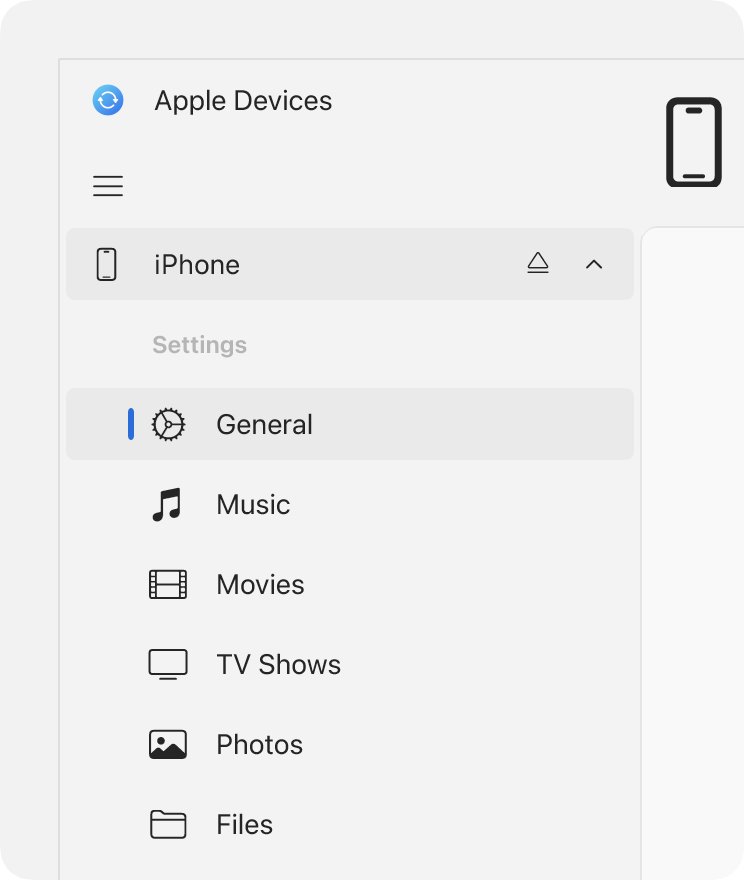
- In Finder, check that the iPhone appears in the sidebar.
- Keep the cable connected. If you unplug it, the phone leaves the recovery screen and you have to repeat the button steps.
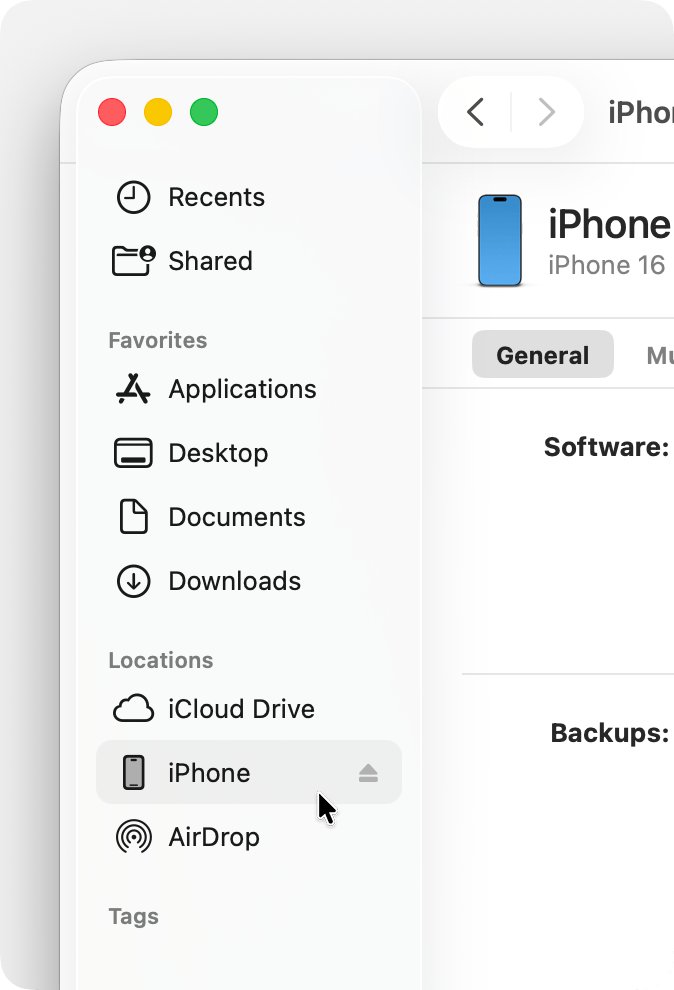
When to use recovery mode on an iPhone 4
Recovery mode is the fix for a phone that cannot finish starting up or that the computer cannot update normally. A phone that is only frozen usually needs just a force restart on iPhone first.
| What you see | Does recovery mode help? | Next step |
|---|---|---|
| Apple logo stays on screen for several minutes with no progress bar | Yes | Enter recovery mode and choose Update first |
| Computer does not recognize the iPhone | Yes, once the cable and computer check out | Enter recovery mode, then look for the device in Finder or iTunes |
| The phone already shows the computer and cable screen | It is already in recovery mode | Connect it to the computer and choose Update or Restore |
| Forgotten passcode or iPhone is disabled | Yes | Choose Restore, which erases the phone and its passcode |
| A progress bar sits on the screen for several minutes | Not yet | Leave the phone alone while the update or restore runs |
iPhone 4 won't go into recovery mode: fixes
Most failures come from timing, the cable, or the computer software. Work through the symptom that matches yours.
The iPhone 4 starts normally instead of showing the recovery screen
The buttons were released when the Apple logo appeared.
- Turn the iPhone off with the Sleep/Wake button and the slider.
- Hold Home and Sleep/Wake together again.
- Keep holding both buttons through the Apple logo.
- Let go only when the computer and cable image appears.
The computer does not recognize the iPhone 4
A charge-only cable, a bad port, outdated software or debris in the dock connector.
- Try a different 30-pin cable that supports data and charging.
- Move the cable to another USB port, or try another computer.
- Check the iPhone's dock connector for lint or debris.
- Update macOS or Windows, and update iTunes or the Apple Devices app.
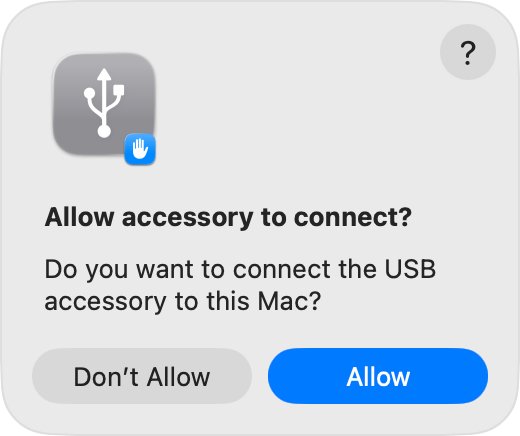
- On a Mac, click Allow if an Allow accessory to connect? alert appears.
- Enter recovery mode again with the computer app already open.
The iPhone leaves the recovery screen during the download
The software download took longer than 15 minutes and the phone timed out of recovery mode.
- Let the download on the computer finish. Do not cancel it.
- Turn the iPhone off.
- Put it back into recovery mode with the same button steps.
- Choose Update or Restore again when the prompt reappears.
A button is broken or stuck
Recovery mode needs a working Home or Sleep/Wake button.
- Try the turned-off method, which needs only the Home button once the phone is off.
- If neither button responds, contact Apple Support or an Apple Authorized Service Provider for service.
The update or restore fails in recovery mode
The software could not be installed, often because of the connection or an error during the restore.
- Note any error number the computer shows.
- Try another cable, port or computer, then repeat recovery mode.
- If you still cannot update or restore, contact Apple Support for service.
iPhone 4 recovery mode FAQ
How do you put an iPhone in recovery mode?
Connect the iPhone to a computer and open Finder, iTunes or the Apple Devices app. Then use the model's button combination and keep holding until an image of a computer and a cable appears. Home-button models up to the iPhone 6s use Home plus the top or side button.
How do you put an iPhone 6 in recovery mode?
The iPhone 6 uses the same combination as the iPhone 4. Connect it to a computer, then press and hold the Home button and the side button together. Keep holding past the Apple logo until the computer and cable screen appears.
How do you put an iPhone 7 in recovery mode?
On an iPhone 7 or iPhone 7 Plus, connect it to a computer, then press and hold the side button and the Volume Down button together. Keep holding until the computer and cable screen appears, then choose Update or Restore.
How do you put an iPhone 11 in recovery mode?
Connect the iPhone 11 to a computer. Quickly press and release Volume Up, quickly press and release Volume Down, then press and hold the side button. Keep holding until the computer and cable screen appears.
How to put iPhone 13 in recovery mode?
The iPhone 13 uses the same steps as every iPhone 8 or later model. Connect it to a computer, press and release Volume Up, press and release Volume Down, then hold the side button until the recovery screen appears.
How to put iPhone in DFU mode?
DFU mode uses a different, timed button sequence from recovery mode. Try recovery mode first, because Apple's own update and restore instructions are written for it, and keep DFU for a phone that recovery mode cannot restore.
How to put your iPhone on computer for a restore?
Connect the iPhone to the computer with a cable that supports data, then open Finder on macOS Catalina or later, or iTunes on older macOS and Windows. The iPhone appears in the Finder sidebar or in iTunes once the computer recognizes it.
Does recovery mode erase an iPhone 4?
Entering recovery mode does not erase anything by itself. Choosing Update tries to keep your data, while choosing Restore reinstalls iOS and erases everything on the iPhone 4. Back up first if the phone still lets you.