To set a hotkey in Windows 11, open the Properties of a desktop shortcut, click the Shortcut key box, press the combination you want, and select OK.
That covers apps, files and folders. For remapping keys, changing existing shortcuts, or hotkeys that work only inside one app, use the taskbar, the app's own settings, or Microsoft PowerToys, all covered below.
Set a hotkey to open an app, file, or folder
A shortcut file can carry its own keyboard combination. Windows stores that combination inside the shortcut, so the hotkey lives as long as the shortcut does.
Example: set Ctrl + Alt + N to open Notepad.
- Press the Windows key, select All, and find Notepad in the app list.
- Drag Notepad from the list onto your desktop. A shortcut appears there.
- Select the new shortcut and press Alt + Enter to open its Properties.
- On the Shortcut tab, click inside the Shortcut key box.
- Press Ctrl + Alt + N. The combination appears in the box.
- Select Apply, then OK.
- Press Ctrl + Alt + N anywhere to open Notepad.
For a file or folder: hold Alt and drag the file or folder from File Explorer onto the desktop. Windows creates a shortcut at the drop point instead of moving the item. Then repeat steps 3 to 6 on that shortcut. Opening a file this way launches it in its default app, so change the default program first if the wrong app opens it.
Alternative for files: right-click the file, select Show more options, then Create shortcut.
What you can—and cannot—set directly in Windows 11
Windows 11 has no single "hotkeys" page in Settings. What you can change depends on where the shortcut lives.
| What you want | Built into Windows 11? | Where to do it |
|---|---|---|
| Open an app, file or folder with a key combination | Yes | Shortcut key box in a shortcut's Properties |
| Open a pinned taskbar app by number | Yes, fixed | Taskbar order decides the number |
| Change what the Copilot key does | Yes | Settings > Personalization > Text input > Customize Copilot key on keyboard |
| Make Print Screen open screen snipping or not | Yes | Settings > Accessibility > Keyboard |
| Reassign a shortcut inside Word | Yes, per app | File > Options > Customize Ribbon > Customize |
| Remap one key to another, or one shortcut to another | No | PowerToys Keyboard Manager |
| Change Win + L or Ctrl + Alt + Del | No | Reserved by Windows; even PowerToys cannot remap them |
| Multi-step macros or typed text expansion | No | PowerToys (text output) or AutoHotkey |
Which hotkey method should you use?
| Your situation | Use this | Why |
|---|---|---|
| Launch one app, file or folder | Shortcut key on a desktop shortcut | Built in, no install, two minutes |
| Open your most-used apps fast | Pin them to the taskbar and press Win + number | Nothing to configure beyond pin order |
| Change a shortcut inside one program | The app's own keyboard settings | The change stays inside that app |
| Swap keys, remap a shortcut, or launch an app with a Win-key combination | PowerToys Keyboard Manager | Microsoft tool, global or per-app, no scripting |
| Chain several actions under one key | AutoHotkey | A scripting language built for that job |
| Reprogram media, macro or Copilot keys | Windows Settings or the keyboard maker's app | These keys often send their own codes |
Use Windows 11’s built-in keyboard shortcuts first
Many hotkeys people try to create already exist. Check this list before building your own, because reusing one of these combinations creates a conflict.
| Press | What it does | Group |
|---|---|---|
| Win + E | Open File Explorer | Essential |
| Win + I | Open Settings | Essential |
| Win + R | Open the Run dialog | Essential |
| Win + S | Open search | Essential |
| Win + V | Open clipboard history (turn it on first) | Essential |
| Win + Shift + S | Capture a screen region to the clipboard | Essential |
| Ctrl + Shift + Esc | Open Task Manager | Essential |
| Win + L | Lock the PC | Essential |
| Win + Left arrow / Right arrow | Snap the window to the left or right side | Window management |
| Win + Up arrow / Down arrow | Maximize or minimize the active window | Window management |
| Win + Z | Open snap layouts | Window management |
| Win + D | Show or hide the desktop | Window management |
| Win + Tab | Open Task View | Window management |
| Win + Ctrl + D | Create a new virtual desktop | Window management |
| Win + Shift + Left arrow / Right arrow | Move the window to the other monitor | Window management |
Microsoft keeps the full list on its Keyboard shortcuts in Windows page.
Set hotkeys for taskbar apps
Every app pinned to the taskbar already has a hotkey: Win plus its position number. The first pinned app is Win + 1, the second Win + 2, up to Win + 0 for the tenth.
- Open the app you want a hotkey for.
- Right-click its taskbar icon and select Pin to taskbar.
- Drag the icon to the position you want. Counting from the left, that position is its number.
- Press Win + that number to open the app, or switch to it if it is already running.
- Press Win + Shift + number to start a new instance of the same app.
- Press Win + Ctrl + Shift + number to open a new instance as administrator.
Win + Alt + number opens that app's jump list. The numbers shift when you reorder or unpin icons, so keep your most-used apps at the left.
Set app-specific hotkeys
Hotkeys that belong to one program are set inside that program. Microsoft Office apps such as Word expose a full keyboard editor.
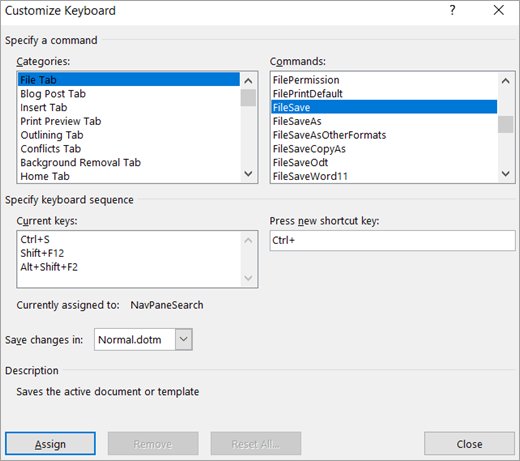
- In Word, go to File > Options > Customize Ribbon.
- At the bottom of the pane, select Customize next to keyboard shortcuts.
- In Save changes in, choose the document or template that should keep the change.
- Pick a Categories entry, then the command in Commands.
- Click the Press new shortcut key box and press your combination. Start it with Ctrl or a function key.
- Read Currently assigned to. If the combination is taken, try a different one.
- Select Assign, then close the dialog.
Adobe apps, browsers, code editors and creative tools each have their own keyboard or shortcut settings, usually under the app's preferences menu. Check that app's help pages for the exact path.
To change a shortcut for one app without touching its settings, use PowerToys Keyboard Manager with a Target app set to the app's process name, such as winword.exe for Word or chrome.exe for Chrome.
Remap keys and shortcuts with Microsoft PowerToys
Microsoft PowerToys is a free Microsoft utility for Windows 11 and Windows 10 version 2004 or newer. Its Keyboard Manager remaps keys, remaps shortcuts, sends text, and launches apps from a shortcut. Remaps take effect as soon as you select OK, with no restart.
- Install PowerToys from the Microsoft Store, then open it.
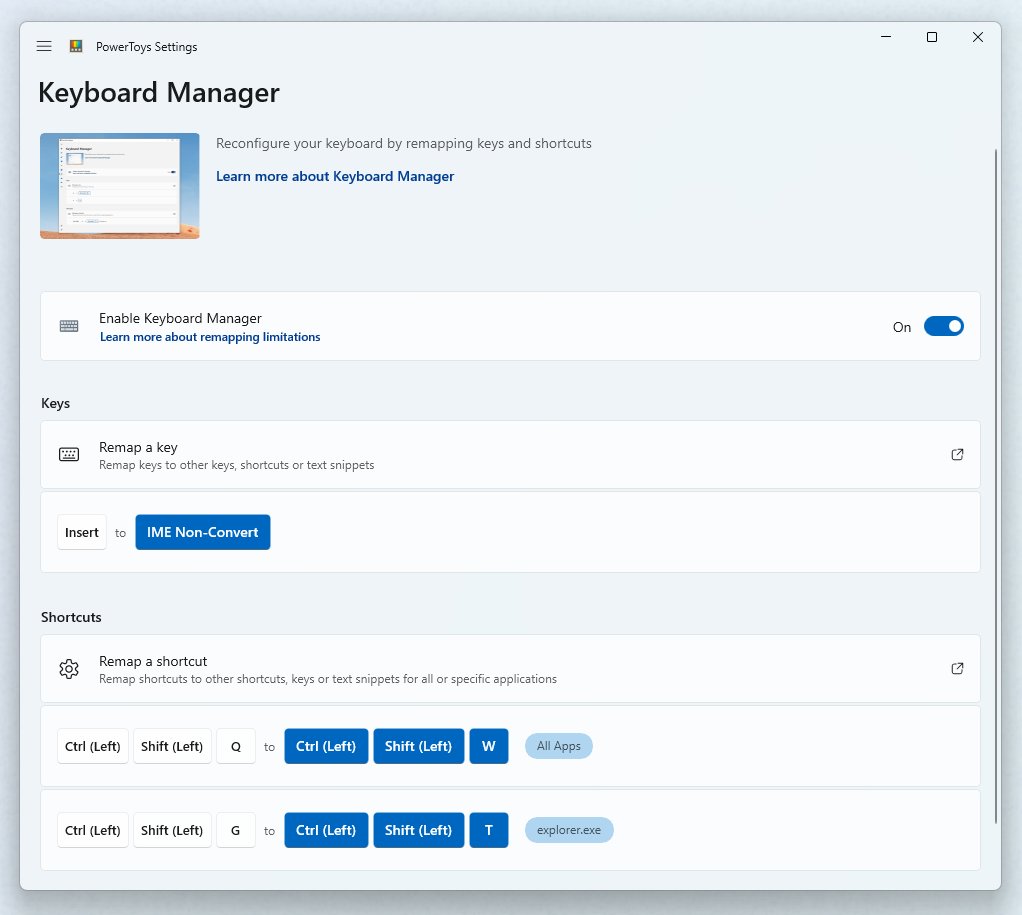
- Select Keyboard Manager and turn on its enable toggle.
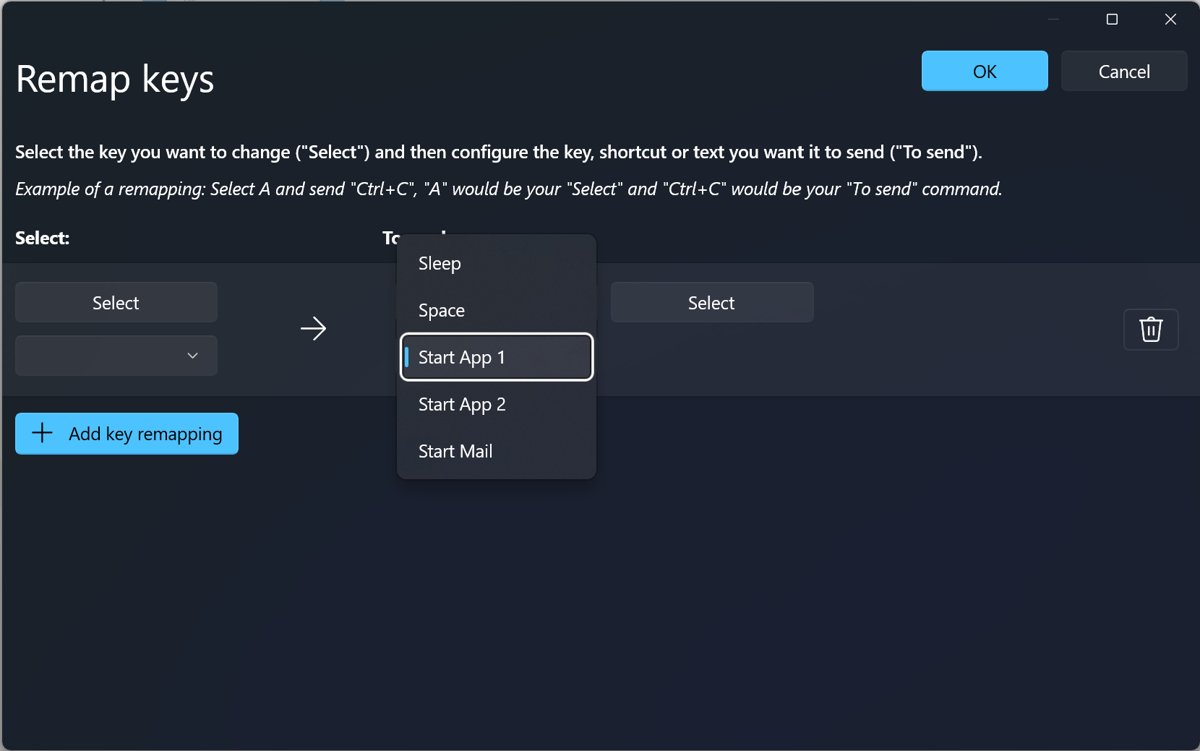
- To swap one key for another, select Remap a key, then Add key remapping. Choose the key under Select and the result under To send, then select OK.
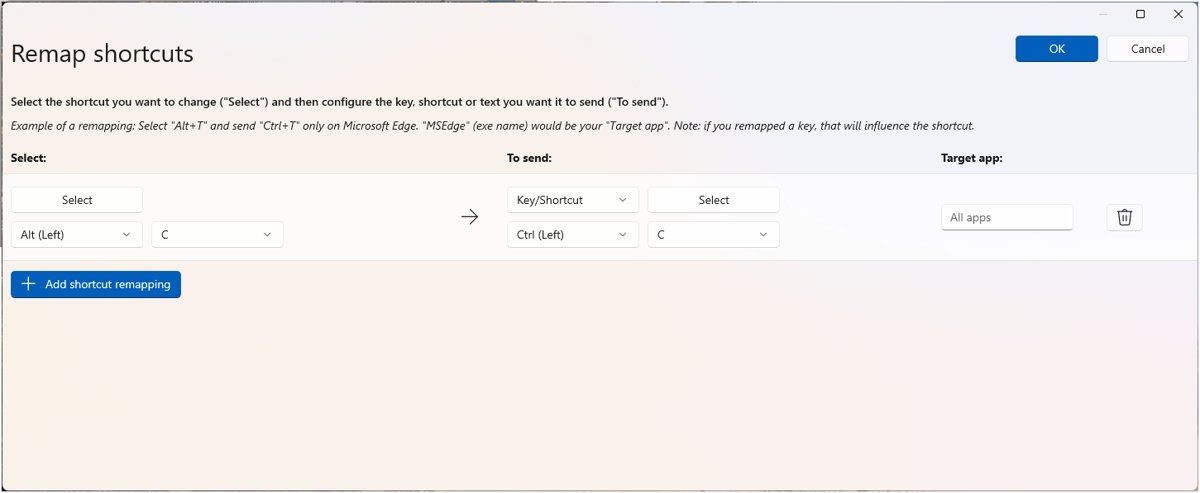
- To replace a shortcut, select Remap a shortcut, then Add shortcut remapping. Enter the old combination under Select and the new one under To send.
- To launch an app from a shortcut, add a shortcut remapping and choose Start App as the action. Enter the app path in App.
- To type text from a key or shortcut, choose Text in the To send list and enter the text.
- To limit a remap to one program, enter its process name in Target app, such as
msedgefor Edge.
Shortcut rules: start with Ctrl, Shift, Alt or Win, end with a non-modifier key, and use at most four keys. Turn on Allow chords in the recording dialog to use two non-modifier keys, such as Shift + Ctrl + V, U.
For accented letters, the Quick Accent utility in PowerToys shows a picker when you hold a letter and press the activation key. Turn it on from its page in PowerToys Settings.
Remaps work only while PowerToys is running. Turn on Run at startup in PowerToys General settings so they return after every sign-in.
Create advanced hotkeys with AutoHotkey
AutoHotkey is a free, open-source scripting tool from autohotkey.com, not a Microsoft product. You write each hotkey as a line in a text script, so one key can open apps, open folders, type repeated text, remap Caps Lock, or run several steps in a row.
Script syntax changes between AutoHotkey versions. Copy examples only from the documentation that matches the version you install.
| If you need | Better tool | Reason |
|---|---|---|
| Open an app with a hotkey | PowerToys Start App or a shortcut key | No script to maintain |
| Open a folder with a hotkey | Shortcut key on a folder shortcut | Built into Windows |
| Type repeated text | PowerToys Text remap | Works for short, fixed text |
| Remap Caps Lock to Escape | PowerToys Remap a key | One row in a table |
| A multi-step hotkey (open, wait, type, save) | AutoHotkey | PowerToys sends one action per remap |
| Hotkeys that change with conditions or windows | AutoHotkey | Scripts can test conditions |
An AutoHotkey script runs only while it is open. To start it with Windows, follow the startup instructions in the AutoHotkey documentation. Install it only from its official site.
Set hotkeys for special keyboard keys
Copilot keys, Print Screen and function-row keys have their own settings. Media and macro keys usually need the keyboard maker's app.
- To change what the Copilot key does, open Settings > Personalization > Text input and select Customize Copilot key on keyboard.
- To choose what Print Screen does, open Settings > Accessibility > Keyboard and set Use the Print Screen button to open screen snipping to On or Off.
- If F1 to F12 control volume or brightness instead of their standard jobs, press F Lock, or turn off your laptop's Fn lock, to toggle them.
- For macro keys, programmable buttons or per-key lighting, use your keyboard manufacturer's software.
- For typing and accessibility options such as Sticky Keys and Filter Keys, press Win + U to open Accessibility settings.
PowerToys lists every known key in its drop-down menus, including Start App 1, but a key works only if your keyboard physically has it. The Fn key itself cannot be remapped in most cases.
How to avoid hotkey conflicts
When two tools claim the same combination, one of them loses. These rules keep new hotkeys out of the way.
| Rule | Why it matters |
|---|---|
| Choose memorable but uncommon combinations, such as Ctrl + Alt + letter | Ctrl + letter alone is taken by copy, paste, bold and more in most apps |
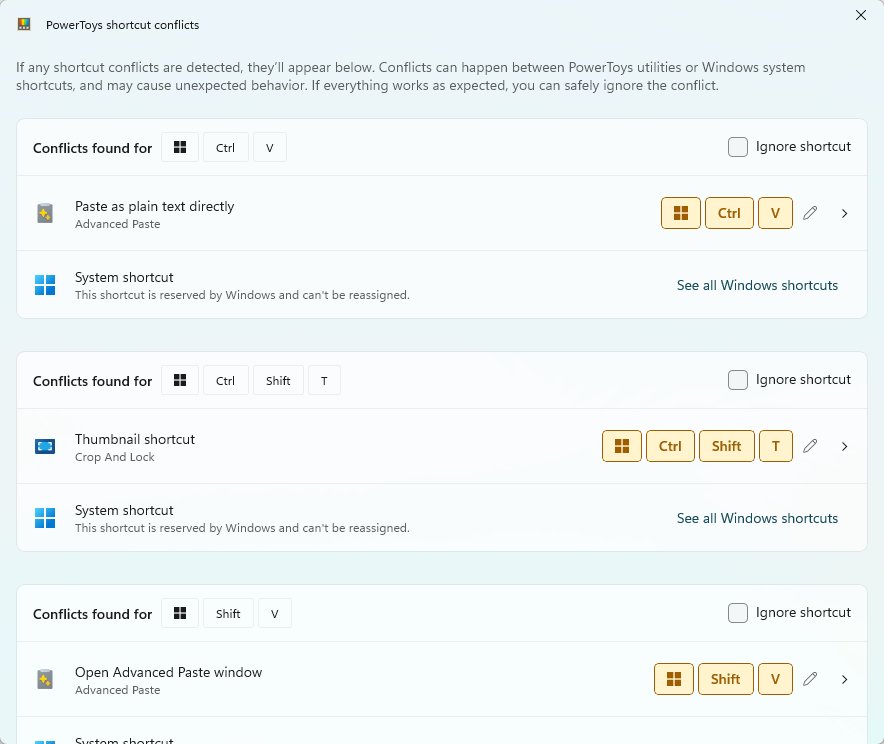
| Avoid Win + letter unless you remap on purpose | Windows uses most Win + letter combinations already |
| Leave Win + L and Ctrl + Alt + Del alone | Windows reserves them; nothing can remap them |
| Expect Win + G to open Game Bar | It often opens even when remapped, unless Game Bar is turned off in Settings |
| Do not stack two tools on one key | PowerToys and a keyboard maker's app both hook the keyboard and can interfere |
| Use PowerToys conflict detection | It flags shortcuts used by more than one PowerToys utility and lets you reassign them |
| Watch AltGr on non-US layouts | AltGr acts as Ctrl + right Alt, so remapping either can break it |
How to remove or change a hotkey
- Shortcut key: press Alt + Enter on the shortcut, click the Shortcut key box, press a new combination, then select OK.
- Delete the shortcut to remove its hotkey at the same time.
- Taskbar: unpin the app or drag it to a new position; its number changes with it.
- Word: in Customize Keyboard, select the entry under Current keys and select Remove, or select Reset All to restore defaults.
- PowerToys: open Remap a key or Remap a shortcut, delete the row, and select OK.
- Stop all PowerToys remaps at once: turn off Keyboard Manager or close PowerToys.
How to check a new hotkey works
- Click the desktop so no app has focus, then press the new combination.
- Confirm the app, file or folder you assigned opens, not something else.
- Open a second app, such as Word or a browser, and press the combination again to check nothing inside that app grabs it first.
- Restart the PC, sign in, and press it once more. PowerToys remaps should still work if Run at startup is on.
- In PowerToys, check that no orphaned-key warning appears. It warns when a key you remapped away no longer has anything that produces it.
Troubleshooting Windows 11 hotkeys
The shortcut key does nothing
The combination is already used by Windows or an open app, or the shortcut was moved or deleted.
- Press Alt + Enter on the shortcut and check the Shortcut key box still shows your combination.
- Compare the combination with the built-in list above and pick another if it is taken.
- Keep the shortcut on the desktop and select OK again after any change.
Hotkeys stopped working after a restart
PowerToys is not running, so Keyboard Manager is off.
- Open PowerToys from the Start menu.
- In General, turn on Run at startup.
- Confirm the Keyboard Manager toggle is on.
A remap does not work in one app
The app runs as administrator and PowerToys does not, or the app hooks the keyboard itself.
- Run PowerToys as administrator.
- In Keyboard Manager, turn the utility off and on again.
- Check the Target app name matches the process name from
tasklist, such aschrome.exe.
F-keys change volume or brightness instead of working as hotkeys
The function row is locked to its alternate commands.
- Press F Lock or your laptop's Fn lock once.
- Press F5 in File Explorer to test it refreshes the window.
Shift or other keys behave oddly after pressing them several times
Sticky Keys or Filter Keys was turned on by its own shortcut.
- Press Shift five times to toggle Sticky Keys.
- Hold right Shift for eight seconds to toggle Filter Keys.
- Press Win + U and check the keyboard options in Accessibility settings.
Remaps do not work on the sign-in screen or in a game
Keyboard Manager does not run on password screens, and some games read keys through APIs it cannot intercept.
- Use the original keys on the sign-in screen.
- Turn off Keyboard Manager while gaming; it can also lower frame rates.
Windows 11 hotkeys FAQ
How do I set hotkeys in Windows 11?
Create a desktop shortcut for the app, file or folder, press Alt + Enter to open its Properties, click the Shortcut key box, press your combination, and select OK. For remaps or shortcuts that Windows cannot set, install Microsoft PowerToys and use Keyboard Manager.
How do I enable hotkeys in Windows 11?
Windows keyboard shortcuts are on by default. If the function keys control media instead, press F Lock or your laptop's Fn lock. If custom remaps stopped, open PowerToys and turn on Keyboard Manager; remaps need PowerToys running in the background.
How do I turn on hotkeys in Windows 11 after a restart?
Open PowerToys, select General, and turn on Run at startup. Keyboard Manager remaps only apply while PowerToys runs, so without this setting they disappear each time you sign in until you start PowerToys yourself.
How do I make hotkeys on Windows 11 without extra software?
Use the Shortcut key box in a shortcut's Properties to launch apps, files and folders, and pin apps to the taskbar to open them with Win + number. Office apps such as Word also let you assign shortcuts under File > Options > Customize Ribbon > Customize.
Where are the hotkey settings in Windows 11?
There is no single hotkey page in Settings. Windows 11 keeps Copilot key options under Settings > Personalization > Text input and the Print Screen option under Settings > Accessibility > Keyboard. General remapping lives in PowerToys Keyboard Manager.
Can I remap Win + L or Ctrl + Alt + Del?
No. Windows reserves Win + L and Ctrl + Alt + Del, and PowerToys Keyboard Manager cannot remap them. The Fn key also cannot be remapped in most cases, although F1 to F24 can.
Do PowerToys hotkeys work on the sign-in screen?
No. Keyboard Manager only works while PowerToys runs in your session, and it does not work on any password screen, including a Run as administrator prompt. Your original keys apply there.
Can I use different key mappings for different keyboards?
No. PowerToys Keyboard Manager applies the same remaps to every connected keyboard, including a laptop keyboard and an external one. For per-device mappings, check whether your keyboard maker's software supports them.
Best way to set hotkeys in Windows 11
Start with the Shortcut key box on a desktop shortcut for launching things, and move to PowerToys Keyboard Manager only when you need to remap keys or change existing shortcuts. The built-in option needs no install and survives restarts on its own, while PowerToys covers the remaps Windows 11 cannot do but only works while it is running.

![How to appear offline on Steam [easy & quick guide]](https://techdows.com/wp-content/uploads/2026/10/Steam-Friends-List-in-a-browser-with-the-status-line-under-the-profile-name-600x338.jpg)