To get Google driving directions in words, open Google Maps, click Directions, choose Driving, enter both addresses and click Details under your route to see every turn written out as a list.
This guide covers the written list on a computer and in the app, text-only printouts, sending and sharing directions, multi-stop routes, offline use and fixes for common problems.
Step by step tutorial: Getting Google driving directions in words
This works in any browser on Windows, macOS or ChromeOS. The written list shows each turn, the road name and the distance to the next step.
- Open Google Maps in your browser at maps.google.com.
- Click Directions.
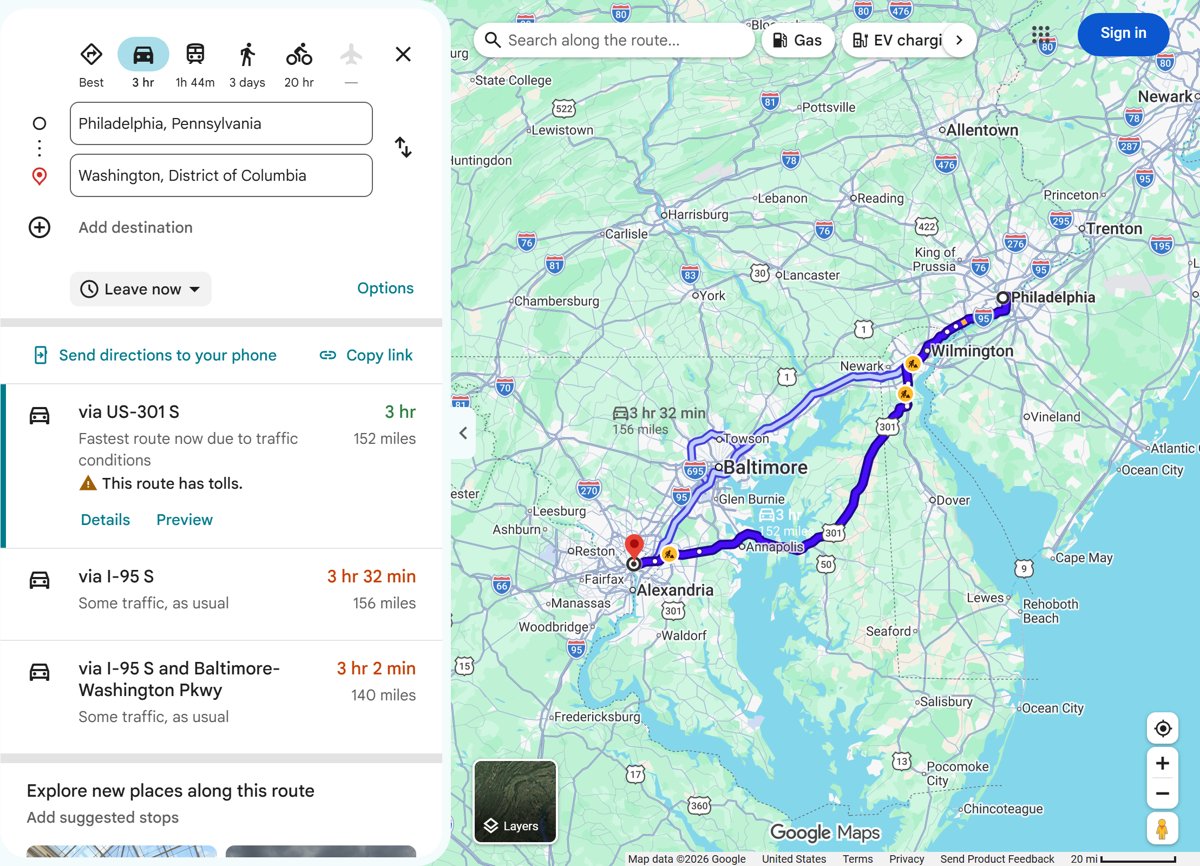
- Enter the starting point and the destination. You can type an address, type a place name or click a point on the map.
- Click Driving to choose the car as your mode of transportation.
- Pick a route. The best route is blue and the others are gray, each with its estimated travel time.
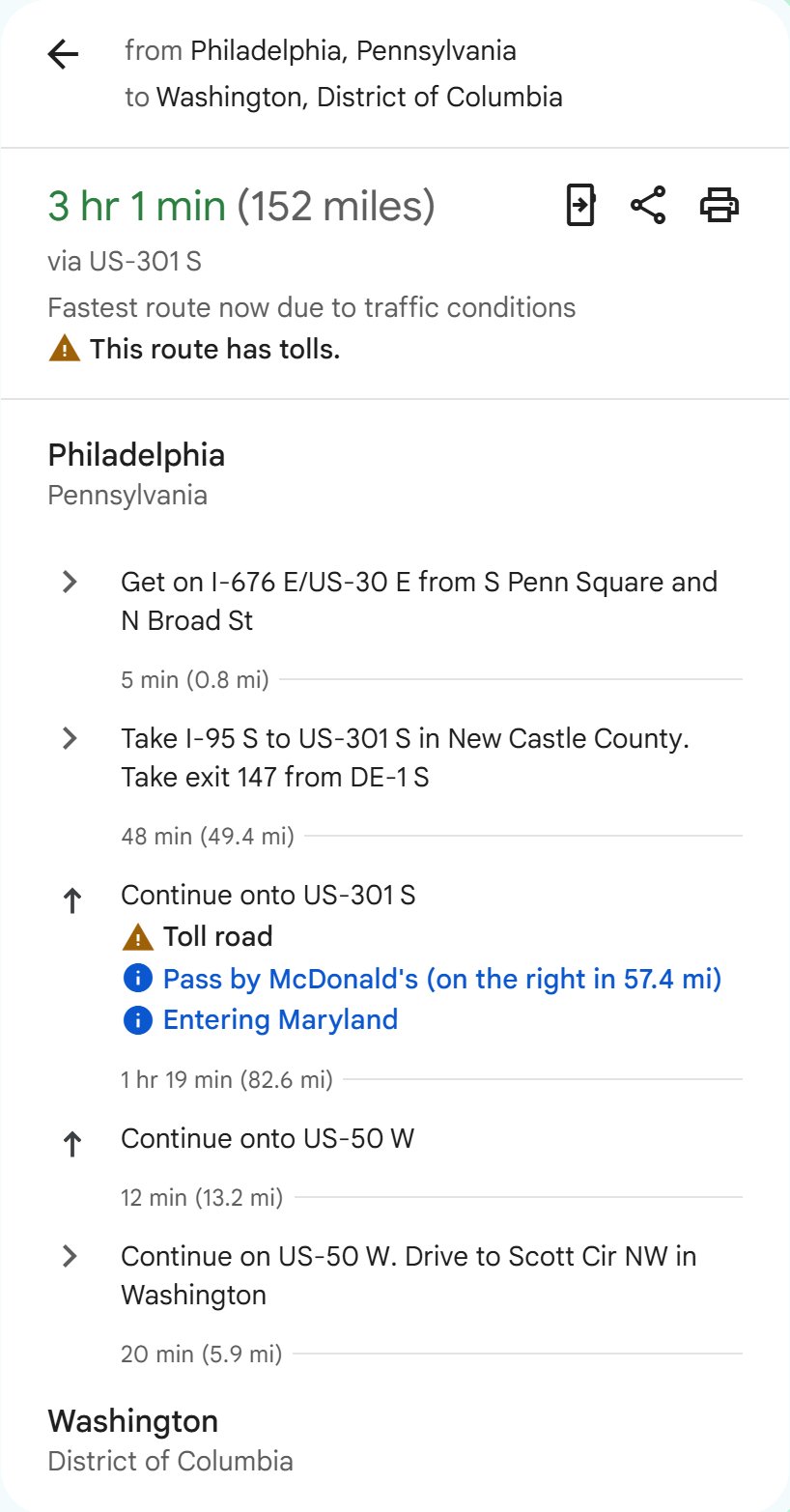
- Under the route you want, click Details to open the written turn-by-turn list.
- Click Expand on a step if you want more detailed directions for that part of the drive.
Point to a step in the list to get a Street View preview photo of that turn, where Street View is available. Click the photo to open Street View for that step.
Print Google driving directions as text only
When you print Google Maps directions as text only, you get the directions in words on paper, with no map images. It is the cleanest option for a glovebox copy or for a driver who does not use a phone.
- On your computer, open Google Maps.
- Click Directions and enter your starting point and destination.
- Choose Driving, then choose a route.
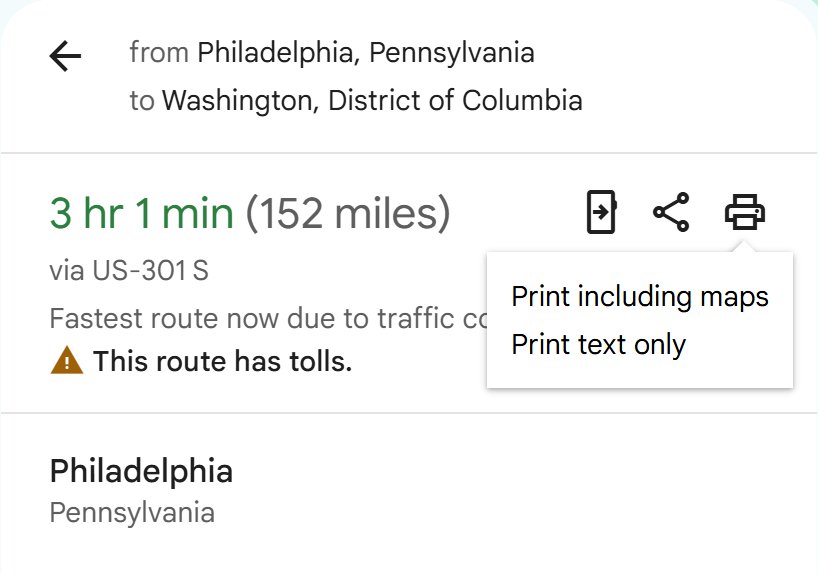
- Click Print.
- Select Print text only. Choose Print including maps instead if you also want the route map on the page.
- Click Print and pick your printer, or choose your browser's save-as-PDF option to keep a digital copy.
Get written driving directions in the Google Maps app
The Google Maps app on Android, iPhone and iPad shows the same written list before you start driving.
- Open the Google Maps app.
- Search for your destination or tap it on the map.
- Tap Directions, then tap Driving.
- To change where the route begins, tap Your location at the top and enter another address.
- Swipe up on the route info at the bottom to get a list of directions in words.
- Tap Preview if you want a turn-by-turn preview instead of the list.
During navigation you can still reach the list: swipe up on the information card at the bottom of the screen and tap Directions.
Send Google Maps driving directions to your phone
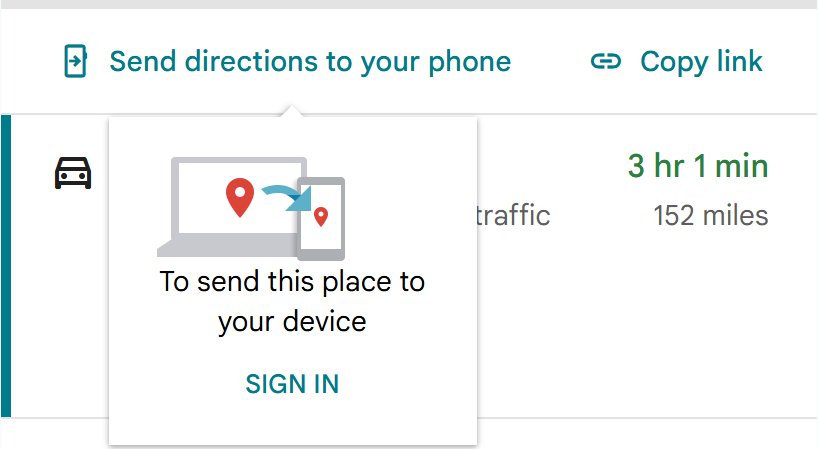
Plan the trip on a large screen, then send it to the phone you will drive with. Both devices must be signed in to the same Google Account, so create a Google Account first if you do not have one.
- On your computer, open Google Maps and click Directions.
- Enter your starting point and destination. Sending does not work for a route with multiple destinations.
- Choose a route.
- Click Send to phone.
- Select the device or the email address you want to send the directions to.
- On your phone, tap the notification to open the route in Google Maps.
Share Google Maps driving directions with someone
| Where you are | Steps | What the other person gets |
|---|---|---|
| Computer | Directions > enter locations > choose a route > Share > Send a link > Copy link | A link that opens the same route in Google Maps |
| Computer, web page | Share > Embed a map > Copy HTML | HTML code that shows the map on a page you control |
| Android phone or tablet | Directions > enter locations > choose a route > More > Share directions > pick an app | The route sent through the messaging or email app you chose |
| While driving | Swipe up on the information card > Share trip progress | Your live location until you arrive |
Add stops to Google driving directions
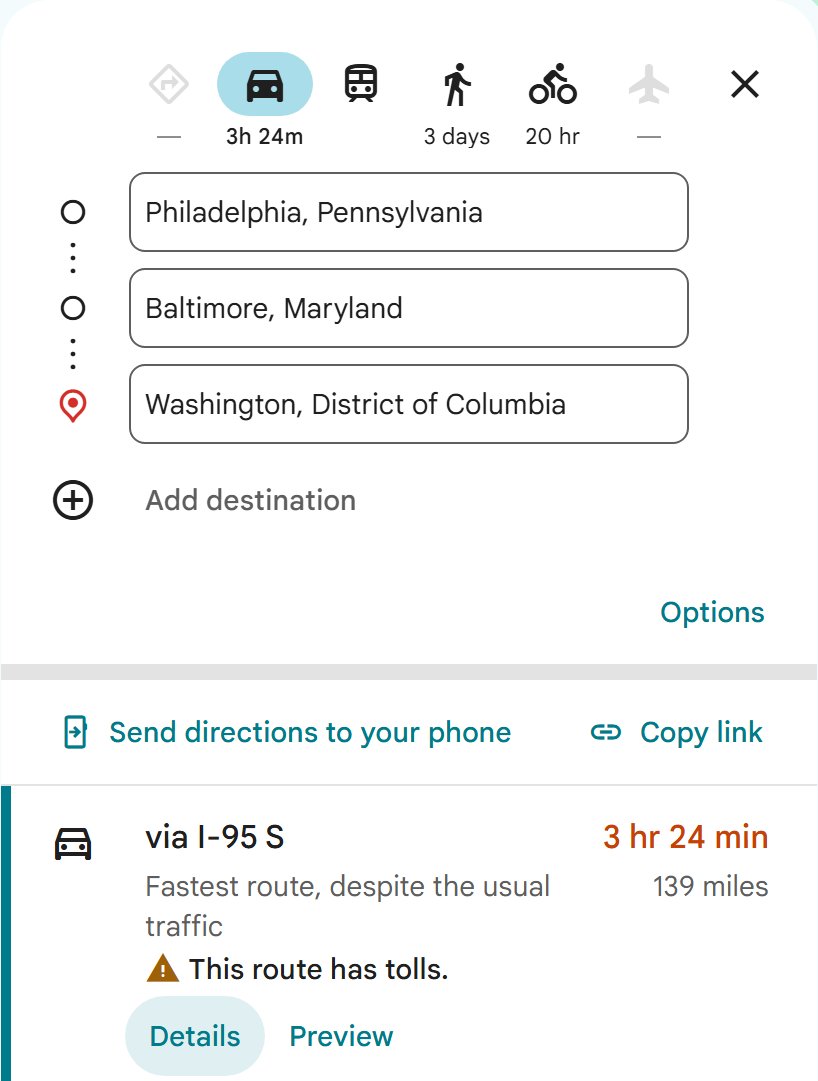
Driving directions can include several destinations. Google Maps allows up to 9 stops, counting the final destination.
- On your computer, open Google Maps and click Directions.
- Add a starting point and a destination.
- Below the destinations you entered, click Add destination.
- Choose the next stop. Repeat for each stop.
- Drag a destination up or down to change the order of your stops.
- Click a route, then click Details to read the full multi-stop route in words.
In the Android app, tap Directions, then tap More > Edit stops at the top right, add your stops and tap Done.
Use Google Maps driving directions offline
Download the area first while you still have a connection. Offline maps can guide you as long as the entire route sits inside the downloaded area.
- Connect to the internet and open the Google Maps app signed in to your account.
- Tap your profile picture or initial, then tap Offline maps.
- Tap Select your own map.
- Adjust the box so it covers your whole route.
- Tap Download.
- Get driving directions as usual. The app uses the downloaded map when your connection is slow or unavailable.
Offline driving has limits: you cannot get traffic info or alternate routes, and transit, cycling and walking directions are unavailable. Offline maps cannot be downloaded in some countries or regions.
Tips for getting Google driving directions in words
| Tip | Why it helps |
|---|---|
| Pick the route before you open Details or Print | The written list and the printout follow the route you selected, not always the blue one |
| Choose Print text only for paper copies | It drops the map images and keeps just the turns in words |
| Turn on the Traffic layer before you leave | On a computer, click Layers > More > Traffic to see local traffic conditions on the map |
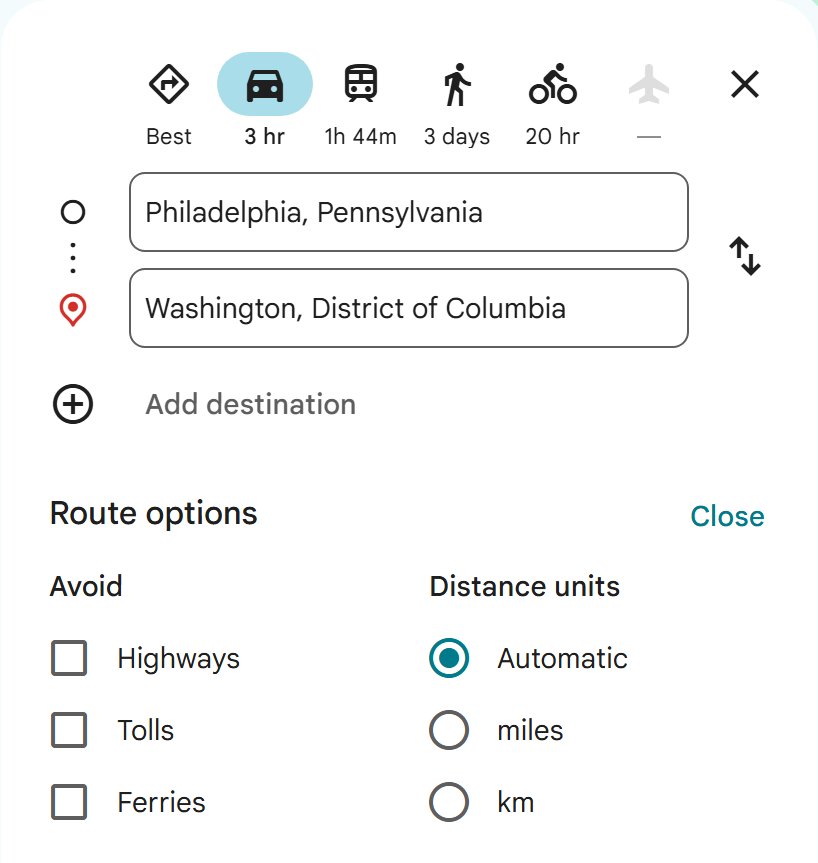
| Switch between miles and kilometers if the distances look wrong | Google Maps offers a route setting for distance units |
| Set a leave or arrive time | Google Maps lets you change the time you leave or arrive when you plan a route |
| Set toll preferences in the app | During navigation, swipe up and open Settings to avoid toll roads |
| Confirm road signs as you drive | Google advises following actual traffic regulations and the signage on the road when in doubt |
Check your Google driving directions before you leave
- Confirm that Driving is selected and not Walking or Transit.
- Check that the start and destination boxes show the exact addresses, not a similar place name.
- Open Details and read the first and last steps against the addresses you expect.
- Compare the estimated travel time shown on the map with the alternatives in gray.
- Point to an unfamiliar turn in the list to preview it in Street View, where available.
Google Maps driving directions not working
Your phone does not show up under Send to phone
The computer and the phone are signed in to different accounts, or phone notifications are off.
- Sign in to the same Google Account in Google Maps on both devices.
- If Google Maps asks you to turn on notifications on your phone, tap Turn on notifications.
- Remove extra stops; directions with multiple destinations cannot be sent.
Google Maps shows a route preview but navigation will not start
Navigation only starts when the starting point is your current location.
- Tap the starting point box at the top.
- Change it back to Your location.
- Tap Start.
Searching for GPS appears when you tap Start
The phone has no GPS signal, for example in a tunnel or parking garage.
- Make sure GPS is turned on and Google Maps can use your location.
- Move out of the tunnel, garage or covered area.
- Wait for the signal, then tap Start again.
Directions look wrong for the road you are on
Map data can lag behind roadworks and new layouts.
- Follow the road signs and traffic rules first.
- Open the Google Maps help page for directions and select Report wrong directions to tell Google about the error.
Frequently asked questions about Google driving directions in words
How do I get Google directions written out instead of a map?
Open Google Maps, click Directions, enter both addresses, choose Driving and click Details under your route. The panel shows every turn as a written step with road names and distances. In the app, swipe up on the route info to get the same list.
Can I print Google driving directions without the map?
Yes. After you choose a route on a computer, click Print and select Print text only. Google Maps then prints the directions in words with no map images. Choose Print including maps if you want the route map as well.
How accurate are Google Maps driving directions?
Google Maps uses real-time traffic information to pick the best route, but roads change. Google itself advises drivers to stay aware of their surroundings and to follow actual traffic regulations and road signs when the directions and the road disagree.
Can I use Google Maps offline?
Yes, in the mobile app. Download an offline map of the area first, and Google Maps can guide you while offline as long as the whole route is inside it. Offline, you get no traffic info or alternate routes, and offline maps are not available in some regions.
Does Google Maps take into account traffic conditions?
Yes. Navigation in the Google Maps app uses real-time traffic information to find the best route, and voice guidance can tell you about traffic and a better route. On a computer, the Traffic layer shows local traffic conditions on the map.
Can I change the route after I have started my journey?
Yes. Alternate routes appear in gray on the map, and you can tap a gray line to follow it. With voice navigation, Google Maps can also tell you when a better route is available while you drive.
How can I share my Google Maps driving directions with someone else?
On a computer, choose a route, click Share, then Send a link and Copy link. On Android, tap More and then Share directions and pick an app. While driving, Share trip progress sends your live location until you arrive.
Can Google driving directions include more than one stop?
Yes. Click Add destination below the addresses you entered. Google Maps allows up to 9 stops including the final destination, for every mode except public transit and flights. Drag a stop to change its place in the order.