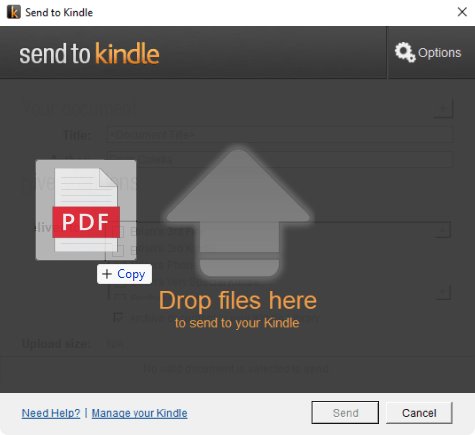
To connect a Kindle Fire to a Windows PC wirelessly, use Amazon's Send to Kindle service: install the Send to Kindle app for Windows, right-click a file and choose Send to > Kindle.
This guide covers the Windows app, sending files by email, the browser upload, the supported file types and the fixes when files do not reach the tablet.
Connect Kindle Fire to PC
Send to Kindle moves files over the internet into your Kindle library, so the PC and the Fire tablet only need to use the same Amazon account. No cable or shared network is required.
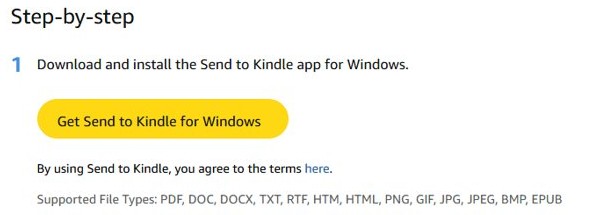
- On the Windows PC, open the Send to Kindle for Windows page at amazon.com/sendtokindle/pc.
- Select Get Send to Kindle for Windows, then install the app and sign in with the Amazon account your Fire tablet uses.
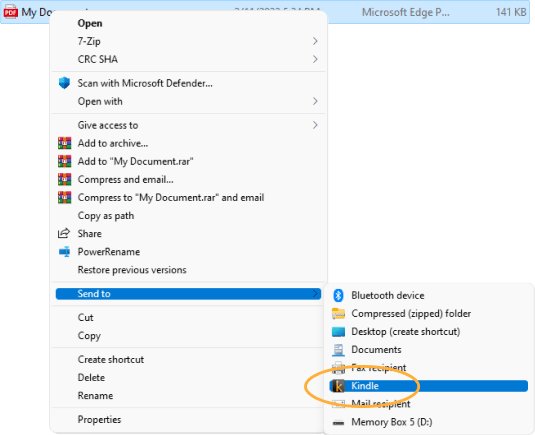
- In File Explorer, right-click the file you want to move.
- Select Send to > Kindle.
- Alternatively, open the Send to Kindle app and drag the file into its window.
- Make sure the Fire tablet is connected to Wi-Fi, then open your Kindle library on it to find the file.
Amazon adds each file to your library, where you can read it with reading progress, notes, highlights and bookmarks.
Send files to Kindle Fire from a Windows PC: app, email or web
| Your situation | Use this | Why |
|---|---|---|
| You send files often from the same PC | Send to Kindle for Windows | Right-click any file in File Explorer |
| You cannot install software on the PC | Send to Kindle web upload | Works in a browser after you sign in |
| The file is already an email attachment | Send to Kindle email address | Forward it with no app needed |
| You browse an article in Chrome | Send to Kindle Chrome extension | Sends web content from the browser |
Send to Kindle supported file types and size limit
| Item | Detail |
|---|---|
| Documents | PDF, DOC, DOCX, TXT, RTF |
| Web pages | HTM, HTML |
| Images | PNG, GIF, JPG, JPEG, BMP |
| eBooks | EPUB |
| Maximum file size (web upload) | 200 MB |
Files outside this list, such as videos or app installers, do not go through Send to Kindle. To add Android apps, install apps on the Fire tablet from the Amazon Appstore instead.
Send a file to Kindle Fire by email from Windows
Each Kindle device and app on your account has its own Send to Kindle email address. Only addresses on your approved list can send to it.
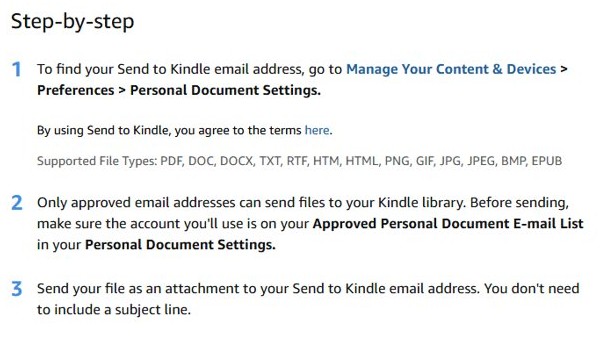
- In a browser on the PC, sign in to Amazon and open Manage Your Content & Devices.
- Select Preferences, then Personal Document Settings.
- Note the Send to Kindle email address listed for your Fire tablet.
- Under Approved Personal Document E-mail List, confirm the address you will send from is listed, and add it if it is not.
- In your mail app, attach the file and send it to the Send to Kindle address. A subject line is not required.
Upload files to Kindle Fire from a browser on PC
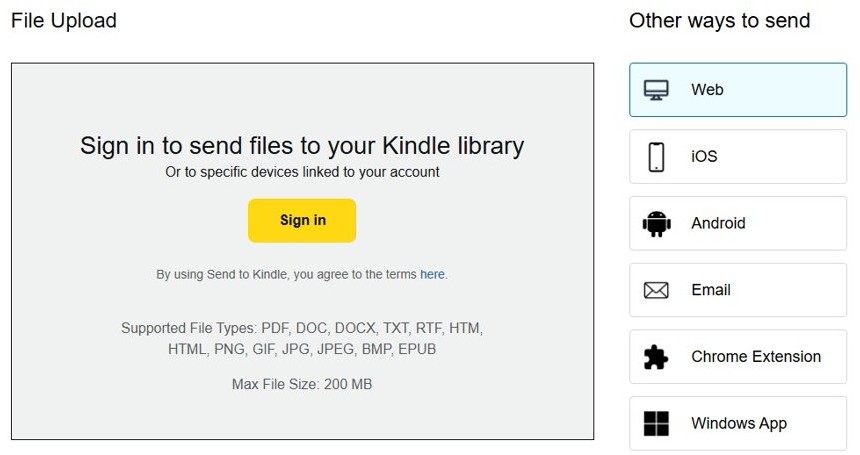
- Open amazon.com/sendtokindle in any browser on the Windows PC.
- Select Sign in under File Upload and sign in with your Amazon account.
- Choose the files to upload, staying within the supported types and the 200 MB limit.
- Pick your Kindle library or a specific device linked to the account, such as the Fire tablet.
- Send the files, then check the library on the tablet.
Check the file arrived on Kindle Fire
- Connect the Fire tablet to Wi-Fi so it can sync with your library.
- Open your Kindle library on the tablet and look for the document title.
- Open the file and confirm it displays, then add a highlight or bookmark to confirm the library features work.
Amazon Kindle is not working on Windows PC
Emailed documents never reach the Kindle Fire
Only approved email addresses can send files to your Kindle library.
- Open Manage Your Content & Devices > Preferences > Personal Document Settings.
- Add the sending address to Approved Personal Document E-mail List.
- Send the attachment again to the device's Send to Kindle address.
Send to Kindle does not appear in the right-click menu
The Send to Kindle app for Windows is not installed or not signed in.
- Install Send to Kindle for Windows from amazon.com/sendtokindle/pc.
- Open the app and sign in with the same Amazon account as the tablet.
- Right-click the file again and look under Send to, or drag the file into the app window.
The file is rejected or will not upload
The format is not supported or the file is larger than the limit.
- Check that the file is one of the supported types, such as PDF, DOCX or EPUB.
- Keep the file under 200 MB for the web upload.
- Save the document in a supported format and send it again.
The Kindle Fire will not connect to Wi-Fi, so nothing syncs
Send to Kindle delivers over the internet, so the tablet must be online.
- Restart the router and the tablet.
- Join the Wi-Fi network again on the tablet.
- Open the library once connected to pull down new documents.
Kindle Fire wireless connection to PC FAQ
How do I connect my Kindle Fire to my PC without a cable?
Use Send to Kindle. Install the Send to Kindle app for Windows, right-click a file in File Explorer and select Send to > Kindle. The file goes to your Kindle library and appears on the Fire tablet when it is online.
How do I connect a Kindle Fire to a laptop?
A Windows laptop works the same way as a desktop. Install Send to Kindle for Windows, sign in with your Amazon account, and send files by right-clicking or by dragging them into the app.
How do I connect a Kindle Fire to the computer to transfer books?
Send EPUB, PDF or Word files with Send to Kindle from the Windows app, a browser upload or email. Books bought from the Kindle Store already sync to the tablet, and to the Kindle app for PC, through your Amazon account.
How do I connect a Kindle Fire to Calibre?
Calibre is third-party software, not an Amazon tool. For a wireless route that Amazon supports, export the book as EPUB or PDF and send it with Send to Kindle from the Windows app, email or web upload.
Why won't my Kindle Fire connect to Wi-Fi?
Restart the router and the tablet, then join the network again. Send to Kindle needs the tablet to be online, so documents sent from the PC will not appear until the Wi-Fi connection works.
What file types can I send to Kindle Fire from a PC?
Send to Kindle accepts PDF, DOC, DOCX, TXT, RTF, HTM, HTML, PNG, GIF, JPG, JPEG, BMP and EPUB. The web upload accepts files up to 200 MB.
Where do I find my Kindle Fire email address?
Sign in to Amazon, open Manage Your Content & Devices, then Preferences, then Personal Document Settings. Each device has its own Send to Kindle email address listed there.