Windows 11 has no setting that changes Alt + F4, so you change it with Microsoft PowerToys Keyboard Manager, which can send a different shortcut whenever you press it.
This guide covers that remap, limiting it to one app, blocking Alt+F4 outright on Enterprise and Education editions, unbinding it in Windows Terminal, and fixing Alt+F4 when it stops working.
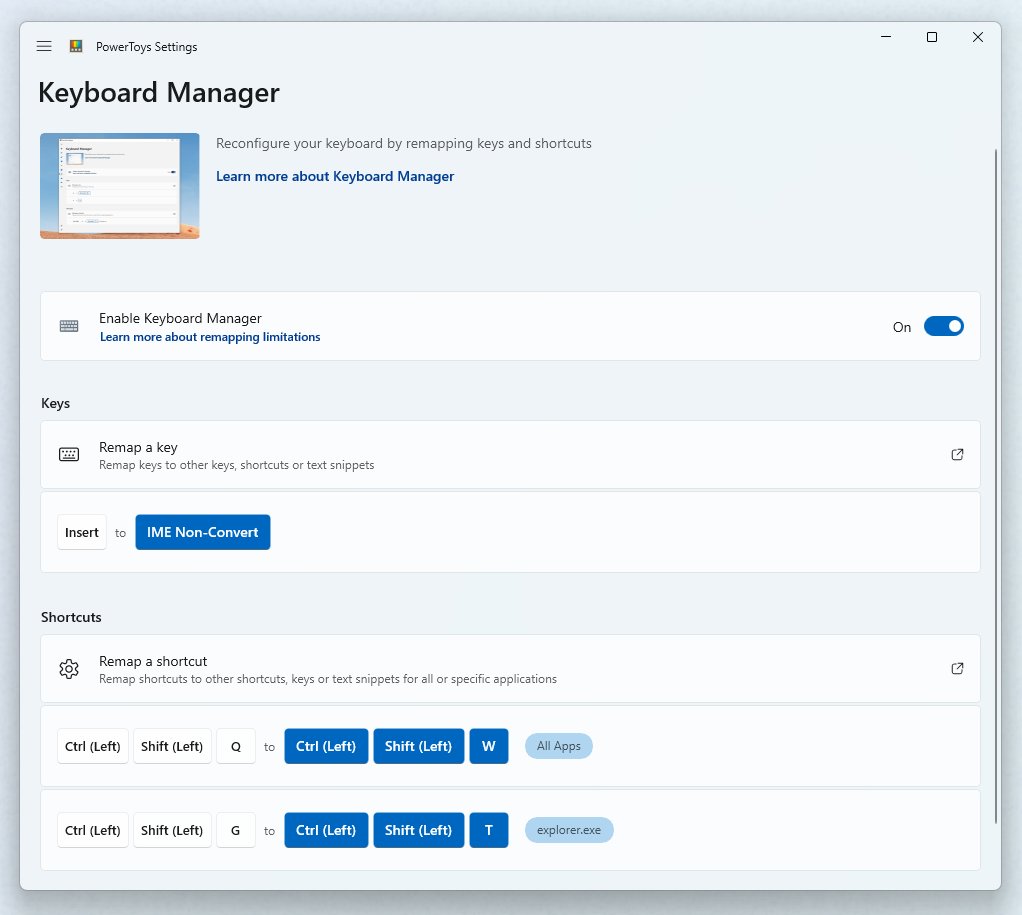
The fastest way to change the Alt+F4 function
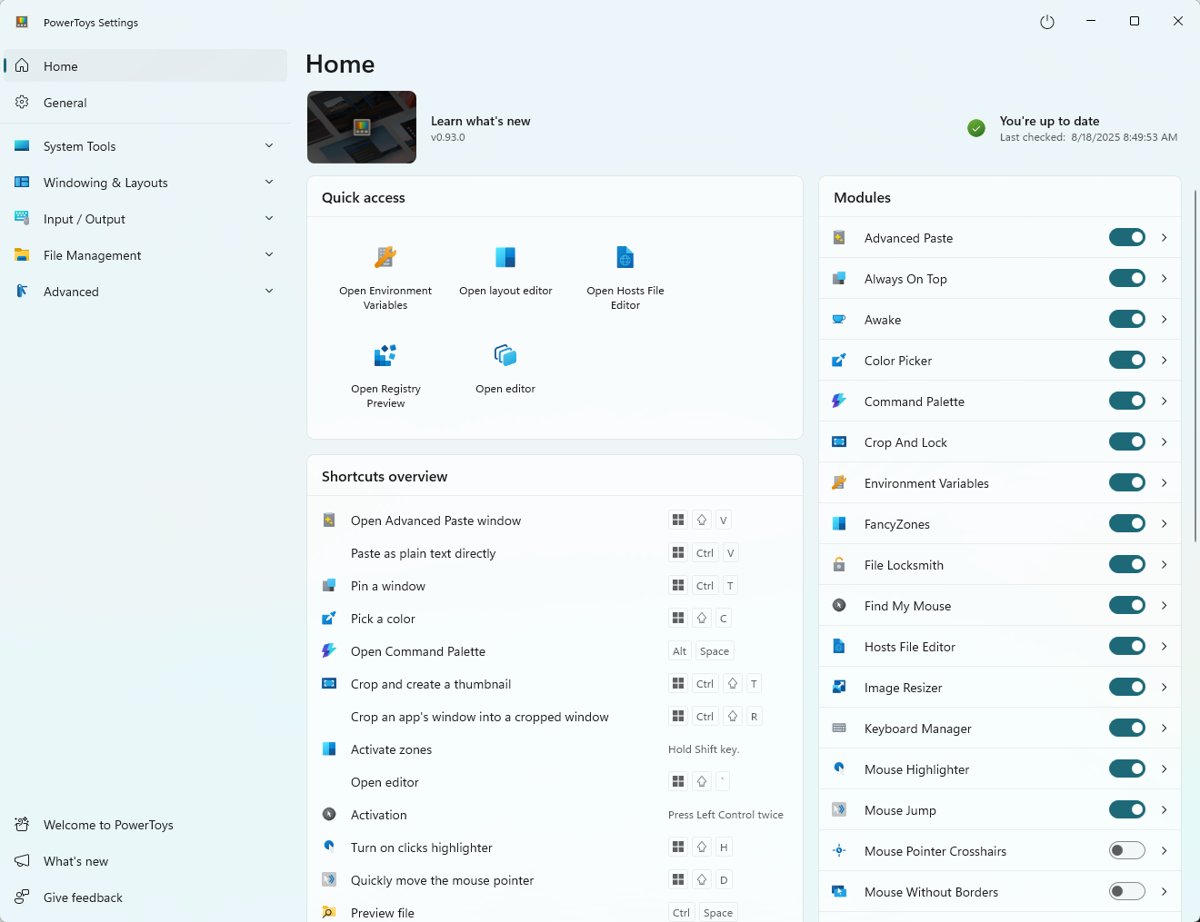
Keyboard Manager is part of PowerToys, a free Microsoft utility for Windows 11 and Windows 10 version 2004 or newer. Install it from the Microsoft Store PowerToys page or with the winget command further down.
- Open PowerToys and go to the Keyboard Manager tab in its settings.
- Turn Keyboard Manager on if it is off.
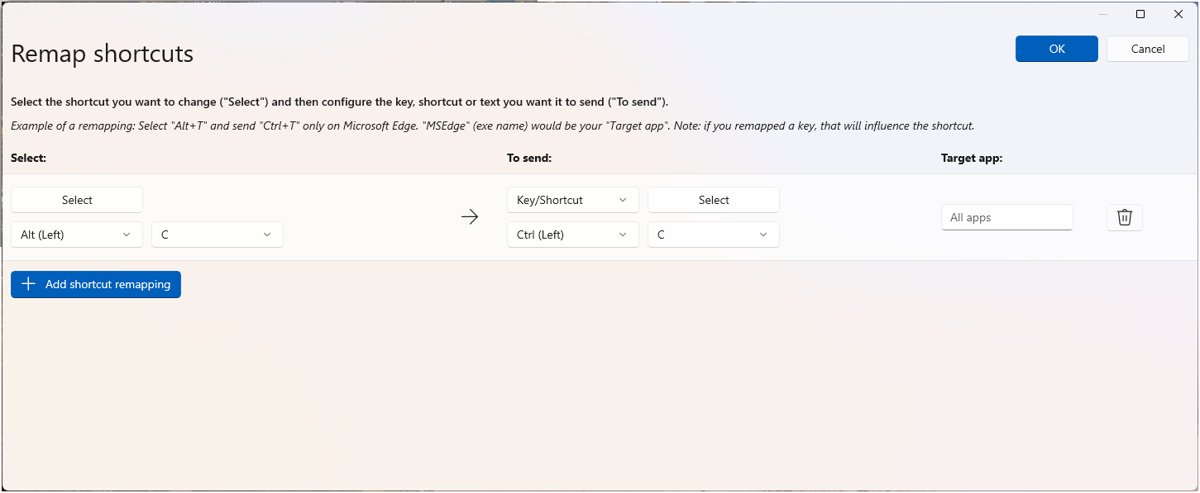
- Select Remap a shortcut.
- Select Add shortcut remapping to create a new row.
- In the Select column, press Alt + F4 in the recording dialog, then hold Enter to confirm.
- In the To send column, choose the shortcut Alt+F4 should trigger instead, for example Windows key + Down arrow to minimize the window rather than close it.
- Select OK. The remap works immediately, with no restart.
The remap only runs while PowerToys is running in the background with Keyboard Manager turned on. Close PowerToys and Alt+F4 closes windows again.
Methods to Change the Alt+F4 Function
The right route depends on your Windows edition and whether you want a new action or no action at all.
| Your goal | Use this | Why |
|---|---|---|
| Make Alt+F4 do something else everywhere | PowerToys Keyboard Manager, global shortcut remap | Works on Home and Pro; takes effect instantly |
| Change Alt+F4 in one app only | PowerToys Keyboard Manager with a Target app | Other apps keep the normal close action |
| Stop accidental closes on a personal PC | Remap Alt+F4 to minimize (Windows key + Down arrow) | A slip hides the window instead of closing it |
| Block Alt+F4 completely for kiosk or shared accounts | Keyboard Filter (Enterprise, Education, IoT Enterprise) | Microsoft's built-in blocker has a predefined Alt+F4 rule |
| Stop Alt+F4 closing Windows Terminal | Unbind it in Terminal's settings.json |
The key passes through to the shell instead |
| Add a second close shortcut | PowerToys: map a new shortcut to send Alt + F4 | Alt+F4 itself stays unchanged |
| Edit the registry Scancode Map | Not suitable | It remaps single keys, not key combinations |
Script tools such as AutoHotkey and other third-party remappers can also intercept Alt+F4. This guide sticks to Microsoft's own tools, which cover every case above.
Understanding the Alt+F4 Shortcut
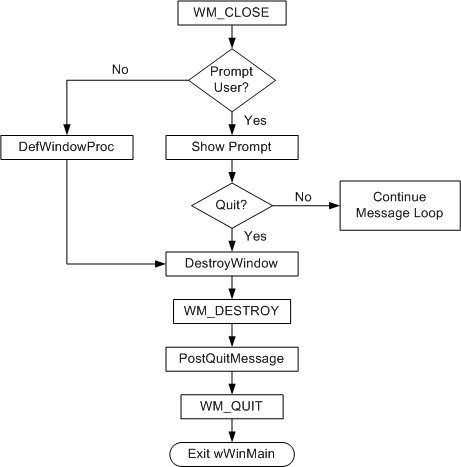
Alt+F4 does not force anything shut. It sends the active window a close request, the same message Windows sends when you select the X button, and the app decides what happens next.
| Where you press it | What happens |
|---|---|
| An open app window | The active window closes, just like selecting Close |
| An app with unsaved work | The app can ask whether to save, or ignore the request and stay open |
| The desktop with no windows open | Windows prompts you to shut down |
| A multi-document app | Ctrl + F4 closes only the current document; Alt+F4 closes the whole app |
| A File Explorer tab | Ctrl + W closes the tab; Alt+F4 closes the whole window |
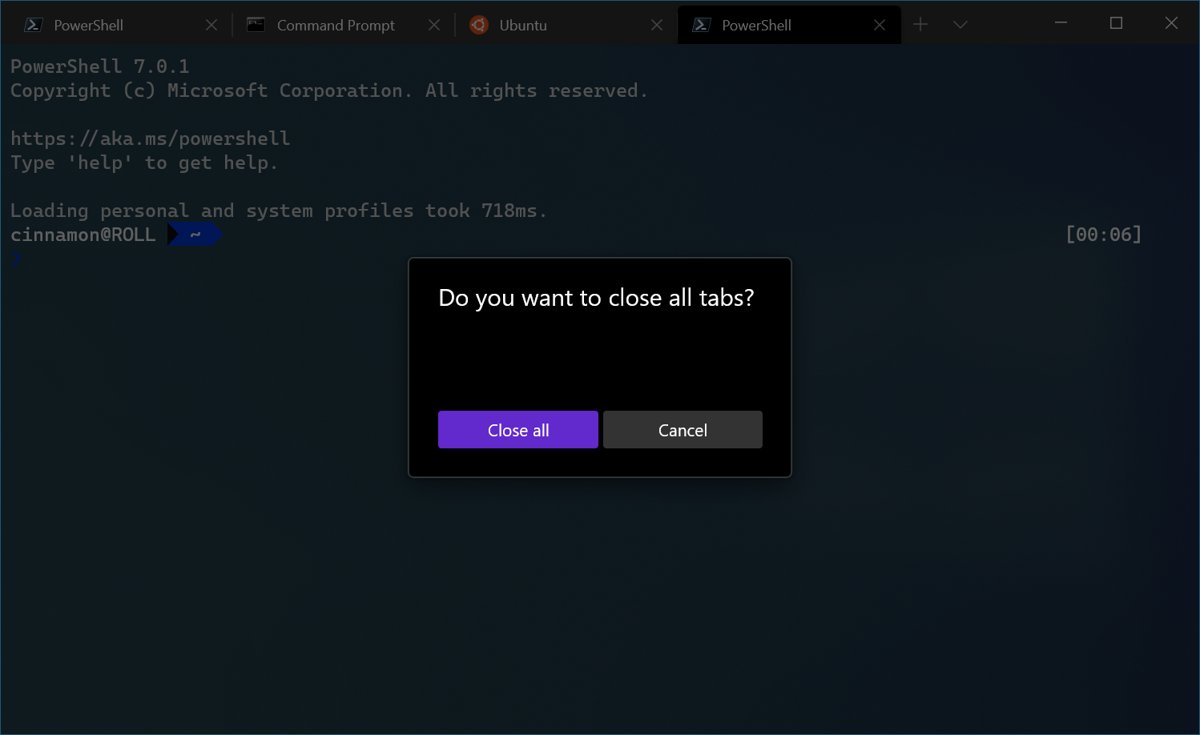
| Windows Terminal | Alt+F4 is Terminal's own default binding for closing the window |
Because Alt+F4 is a request, it cannot harm your PC. The only loss is unsaved work in an app that closes without asking.
What you need before you start
| Method | Windows edition | Other requirement |
|---|---|---|
| PowerToys Keyboard Manager | Windows 11, or Windows 10 version 2004 (build 19041) or newer | 64-bit PC (x64 or ARM64); PowerToys left running |
| Keyboard Filter | Enterprise, Enterprise LTSC, Education, IoT Enterprise | Administrator account and one restart |
| Windows Terminal unbind | Any edition with Windows Terminal | Access to Terminal's settings file |
Install PowerToys from the command line
winget install --id Microsoft.PowerToys --source wingetInstalls Microsoft PowerToys from the Windows Package Manager source. Run it in Terminal, PowerShell or Command Prompt.
You should see: winget reports that the install succeeded, and PowerToys opens an overview window the first time it starts.
Method 1: Remapping Alt+F4 with PowerToys for one app only
Keyboard Manager targets apps by process name, not the name you see in the Start menu. Microsoft Edge is msedge, Word is winword and File Explorer is explorer.
- Open the app you want to target, then open PowerShell and run
Get-Processto find its process name. - In PowerToys, open Keyboard Manager and select Remap a shortcut.
- Select Add shortcut remapping.
- Record Alt + F4 in the Select column.
- Choose the replacement shortcut in the To send column.
- Type the process name in the Target app field, for example
msedge. - Select OK, then press Alt+F4 in that app to test it.
Get-Process names have no .exe extension. If you use tasklist in Command Prompt instead, read the Image Name column.
Method 2: Add a new shortcut that closes windows
Keyboard Manager can also work the other way round: a new shortcut sends Alt+F4 for you. Shortcuts must start with Ctrl, Shift, Alt or the Windows key and end with a normal key.
- Open Keyboard Manager in PowerToys and select Remap a shortcut.
- Select Add shortcut remapping.
- In the Select column, record the new shortcut you want, such as Ctrl + Shift + Q.
- In the To send column, record Alt + F4.
- Select OK and press your new shortcut in any window to close it.
Pick a combination your apps do not already use. The remap overrides the app's own action for that shortcut.
Method 3: How to disable Alt+F4 with Keyboard Filter
Keyboard Filter is Microsoft's built-in key blocker for locked-down devices. It ships with a predefined Alt+F4 rule, but only on Enterprise, Enterprise LTSC, Education and IoT Enterprise editions.
- Type Turn Windows features on or off in the Windows search box and press Enter.
- Expand Device Lockdown and select the Keyboard Filter checkbox.
- Select OK and wait for Windows to apply the change.
- Restart the PC. Keyboard Filter starts automatically after the restart.
- Open Windows PowerShell as administrator and run the blocking command in the next section.
By default, Keyboard Filter does not apply to administrator accounts. Test the block from a standard user account, or change that setting through the Keyboard Filter WMI settings class.
Block Alt+F4 from PowerShell
This command follows Microsoft's own Keyboard Filter sample script. It finds the predefined Alt+F4 rule and turns it on.
$k = Get-WmiObject -Namespace root\standardcimv2\embedded -Class WEKF_PredefinedKey | Where-Object { $_.Id -eq "Alt+F4" }; $k.Enabled = 1; $k.Put()Reads the predefined Keyboard Filter rules, selects the one whose Id is Alt+F4, sets Enabled to 1 (block) and saves it. Setting Enabled to 0 removes the block.
You should see: The command returns without an error, and Alt+F4 no longer closes windows for standard user accounts.
Most Keyboard Filter changes apply immediately. Image builders can set the same block with the Unattend setting <AltF4>Blocked</AltF4> in the Microsoft-Windows-Embedded-KeyboardFilterService component.
Method 4: Stop Alt+F4 closing Windows Terminal
Windows Terminal binds Alt+F4 to its own close action. Unbinding it there lets the key pass through to the shell or command-line app instead.
- Open Windows Terminal and press Ctrl + Shift + , to open its
settings.jsonfile. - Find the
keybindingsarray. - Add this entry:
{ "id": null, "keys": "alt+f4" }. - Save the file, then press Alt+F4 in Terminal to confirm the window stays open.
Delete the entry to bring the default back. This change affects Terminal only, not other apps.
Why the Windows Registry Scancode Map cannot change Alt+F4
Guides often point to the registry for this job. Microsoft documents the Scan Code Mapper under HKEY_LOCAL_MACHINE\SYSTEM\CurrentControlSet\Control\Keyboard Layout, in a binary value named Scancode Map.
| Scancode Map property | What it means for Alt+F4 |
|---|---|
| Each mapping swaps one key's scan code for another | It cannot target the Alt+F4 combination; it could only remove or swap the whole F4 key |
| Applies at system level to all users | No per-user or per-app control |
| Applies to every connected keyboard | No way to spare an external keyboard |
| Needs a restart to take effect or be removed | Slower to test than PowerToys, which applies instantly |
Removing F4 entirely also breaks F4 in File Explorer, where it selects the address bar. PowerToys or Keyboard Filter changes only the combination.
How to check the change worked
- Open a throwaway window, such as a new Notepad window with nothing typed in it.
- Press Alt + F4.
- Confirm the new action happens: the window minimizes, the new shortcut runs, or nothing happens if you blocked it.
- For an app-specific remap, press Alt+F4 in a different app too; it should still close normally.
- For Keyboard Filter, sign in with a standard user account before testing, because administrator accounts are exempt by default.
How to turn Alt+F4 back on
- PowerToys, quick stop: close PowerToys or turn Keyboard Manager off. Every remap stops at once.
- PowerToys, one remap: open Remap a shortcut, delete the Alt+F4 row and select OK.
- Keyboard Filter: run the blocking command again with
$k.Enabled = 0, or clear Keyboard Filter under Device Lockdown in Turn Windows features on or off and restart. - Windows Terminal: delete the
alt+f4entry fromsettings.jsonand save.
Fix Alt+F4 when it is not working
Alt+F4 does nothing on a laptop
The top-row keys send media or brightness functions, and F4 only works with the Fn key.
- Hold Alt + Fn and press F4.
- If that works, look for an Fn lock setting in your laptop maker's documentation to make F1–F12 the default.
- On Surface keyboards, the top-row special keys act as F1–F12 when you press Fn first.
Alt+F4 stopped closing windows after a remap
A PowerToys remap or a Keyboard Filter rule is still active.
- Close PowerToys completely and press Alt+F4 again.
- If it now works, open Remap a shortcut and delete the Alt+F4 row.
- On Enterprise or Education, ask your administrator whether Keyboard Filter blocks Alt+F4.
The remap works in most apps but not in one
The app runs as administrator and PowerToys does not, or another app is hooking the keyboard.
- Run PowerToys as administrator.
- If that does not help, turn Keyboard Manager off and on again in PowerToys settings.
- Avoid Keyboard Manager in games; Microsoft notes it can reduce frame rates and some games bypass it.
Alt+F4 opens the shut down prompt instead of closing an app
No app window had focus, so Alt+F4 went to the desktop.
- Close the prompt without choosing a shutdown option.
- Click inside the app window you want to close.
- Press Alt + F4 again.
The remap does not work at the sign-in screen
Keyboard Manager does not run on password screens.
- Sign in first; the remap applies once PowerToys starts.
- Use Keyboard Filter on a supported edition if the block must cover more of the system.
Frequently Asked Questions
What does Alt+F4 do?
Alt+F4 closes the active window in Windows 11. If no windows are open, it opens a prompt to shut down the PC. Apps receive it as a close request, so an app with unsaved work can ask you to save first.
What does Alt+F4 do to your computer?
Alt+F4 does nothing harmful to your computer. It asks the current app to close, exactly like selecting its X button. On an empty desktop it offers shut down options, and nothing happens until you confirm one of them.
How do I change the Alt+F4 shortcut?
Install Microsoft PowerToys, open Keyboard Manager and select Remap a shortcut. Record Alt+F4 in the Select column and choose a new shortcut in the To send column. The change applies immediately while PowerToys is running.
How do I disable Alt+F4 in Windows 11?
On Enterprise and Education editions, turn on Keyboard Filter and enable its predefined Alt+F4 rule. On Home and Pro, remap Alt+F4 in PowerToys Keyboard Manager to a harmless shortcut such as Windows key + Down arrow, which minimizes instead of closing.
How do I turn Alt+F4 back on?
Close PowerToys or turn off Keyboard Manager to stop every remap at once. To remove only the Alt+F4 remap, delete its row under Remap a shortcut. For Keyboard Filter, set the Alt+F4 rule's Enabled value back to 0.
How do I do Alt+F4 on a laptop?
Hold Alt and press F4. If nothing happens, your laptop's top row probably sends media functions by default, so hold Alt and Fn together and press F4. Your laptop maker's documentation shows whether an Fn lock can make F1 to F12 the default.
Can I change Alt+F4 in Windows 11 Settings?
No. Windows 11 Settings has no option to change or turn off Alt+F4. Microsoft's routes are PowerToys Keyboard Manager for any edition, and Keyboard Filter for Enterprise, Education and IoT Enterprise editions.
Why does Alt+F4 not close some apps?
Alt+F4 sends a close request, and an app can show a save prompt or ignore it. It can also fail when a PowerToys remap or Keyboard Filter rule is active, or when the laptop needs the Fn key for F4.