Press Fn + Esc to turn off Fn Lock on most Windows 11 laptops, including Dell, Lenovo and many ASUS models.
Fn Lock belongs to the laptop maker, not to Windows, so the rest of this guide covers brand keys, BIOS or UEFI settings, vendor apps, external keyboards and fixes when the lock will not release.
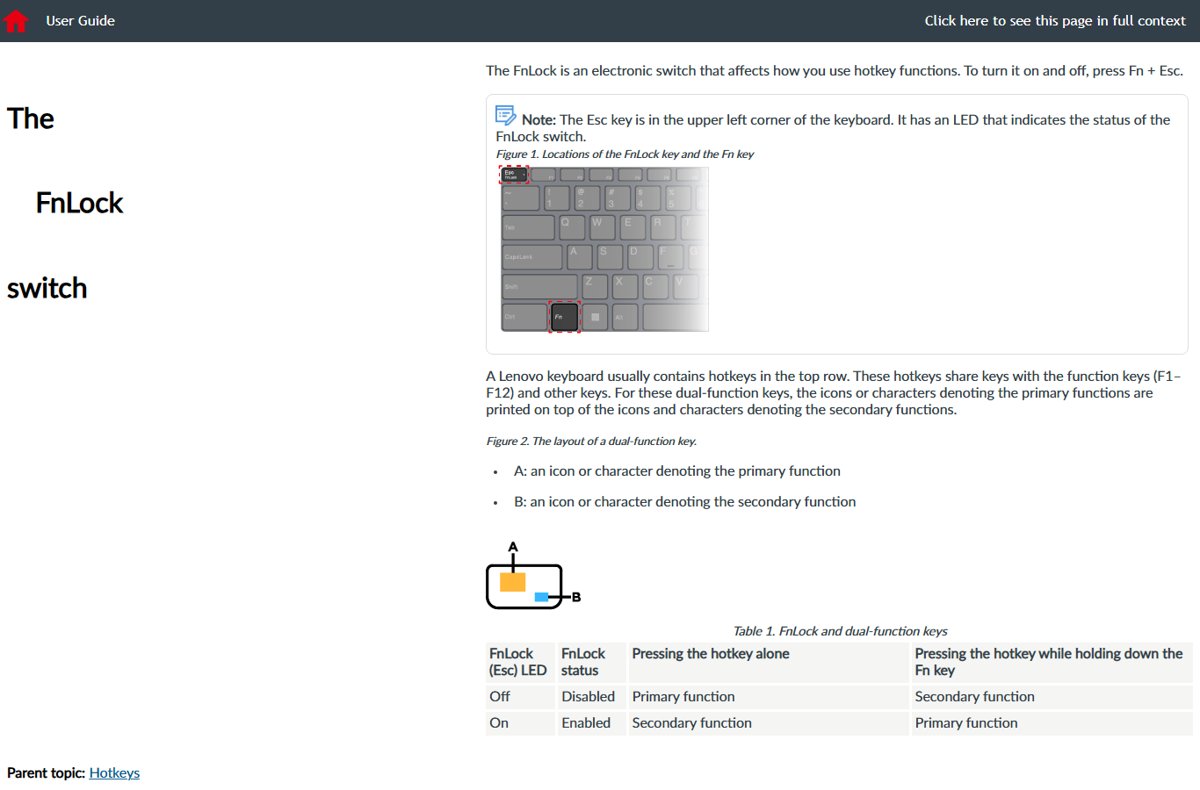
The fastest way to turn off Fn Lock: press Fn + Esc
Fn Lock decides what the top row does when you press a key on its own. With the lock set one way, F5 refreshes a page; set the other way, the same key changes volume or brightness.
Windows 11 has no switch for it in Settings. The keyboard and firmware handle the shortcut, so it works the same in every app.
- Find the Esc key in the top-left corner. On many laptops it carries a small padlock with Fn on it, or the label FnLock.
- Hold Fn and press Esc once, then release both keys.
- Watch the small light on the Esc key or the Fn key. It should change state.
- Press F5 in a browser. If the page reloads, the top row now sends standard F1–F12 keys.
- If it changed the wrong way, press Fn + Esc again to switch back.
No light and no change means your model uses a different key, a BIOS setting or a vendor app. The brand table below lists the documented option for each maker.
Pick the right way to disable Fn Lock for your keyboard
Match your situation to a row. The rows run in the order worth trying, so the table doubles as a quick reference when a fix fails.
| Your situation | Use this | Why |
|---|---|---|
| Esc key shows a padlock, FnLock label or indicator light | Fn + Esc | Instant toggle, no restart, documented by Dell, Lenovo and ASUS |
| You want the change to survive restarts and never flip by accident | BIOS or UEFI setting (Dell Fn Lock Options, Lenovo Hotkey Mode) | Sets the default the keyboard starts with |
| ASUS laptop where Fn + Esc does nothing | MyASUS > Input Device Settings | ASUS says Fn + Esc switching is not on every model |
| Microsoft Surface keyboard or Type Cover | Press Fn until its light turns off | Surface keyboards lock function keys with the Fn key alone |
| Separate USB or wireless keyboard | The keyboard's own F Lock key or Fn + Esc | The laptop's BIOS does not control an external keyboard |
| Keyboard has no Fn Lock key, light or setting | Hold Fn with each F-key as needed | Some keyboards only offer the momentary Fn modifier |
| Looking for a tile in Windows Mobility Center | Use the maker's BIOS or app instead | None of the vendor pages cited here document an Fn control in Windows Mobility Center |
Brand-specific ways to turn off Fn Lock
Each row comes from the maker's own documentation. Model families differ inside a brand, so check your exact model's user guide if a key does nothing.
| Brand and models | Keyboard toggle | Permanent setting | What the light means |
|---|---|---|---|
| Dell Latitude and other Dell laptops with an Fn Lock key | Fn + Esc; press again to release | BIOS: POST Behavior > Fn Lock Options | Varies by model; test with F5 |
| Lenovo ThinkPad (for example X1 Carbon Gen 13) | Fn + Esc (the key is labelled FnLock) | Keyboard settings in Lenovo Vantage > Device > Input & Accessories | Esc light on = standard F1–F12; off = special functions |
| Lenovo IdeaPad, Slim and ThinkBook | Fn + Esc | UEFI: Configuration > Hotkey Mode | Esc light on = secondary function without Fn |
| Lenovo Legion 5 | Fn + Esc | Not covered in the cited guide | Light on = FnLock enabled, so F1 mutes sound |
| ASUS laptops with an LED on the Fn key | Fn + Esc | MyASUS > Device Settings > Input Device Settings | The LED shows the toggle is supported |
| Microsoft Surface keyboards and Type Covers | Press Fn | None needed | Fn light off = function keys deactivated |
| HP notebooks, including EliteBook and OmniBook | Listed per model by HP | Listed per model by HP | See HP's support article How to lock or unlock the fn (function) key |
Acer, Samsung, MSI and LG are not listed because no key combination could be confirmed on their own support sites. Use the user guide for your model number.
Change Fn key behavior in BIOS or UEFI so it sticks
A BIOS setting changes what the top row does from the moment the laptop starts. Use it when Fn + Esc keeps getting pressed by accident or resets after a restart.
- Save your work, open Start, select Power, then hold Shift while you select Restart.
- Select Troubleshoot > Advanced options > UEFI Firmware settings, then select Restart. Alternatively, press the maker's key at power-on: F2 on Dell, F2 at the Lenovo logo on IdeaPad and Slim models (Fn + F2 if Hotkey Mode is on).
- On a Dell laptop, open POST Behavior > Fn Lock Options. Choose Lock Mode Disable/Standard for plain F1–F12 keys, or Lock Mode Enable/Secondary for media keys.
- On a Dell laptop, leave Fn Lock ticked if you still want Fn + Esc to toggle. Clearing it stops the shortcut from working.
- On a Lenovo IdeaPad, Slim or ThinkBook, open Configuration > Hotkey Mode. Set it to Disabled for plain F1–F12, or Enabled for hotkeys first.
- Save and leave setup. On Lenovo consumer models select Exit > Exit Saving Changes; on other models use the save-and-exit option shown on screen.
- Let Windows 11 start, then test F5 in a browser.
Turn off Fn Lock in MyASUS on ASUS laptops
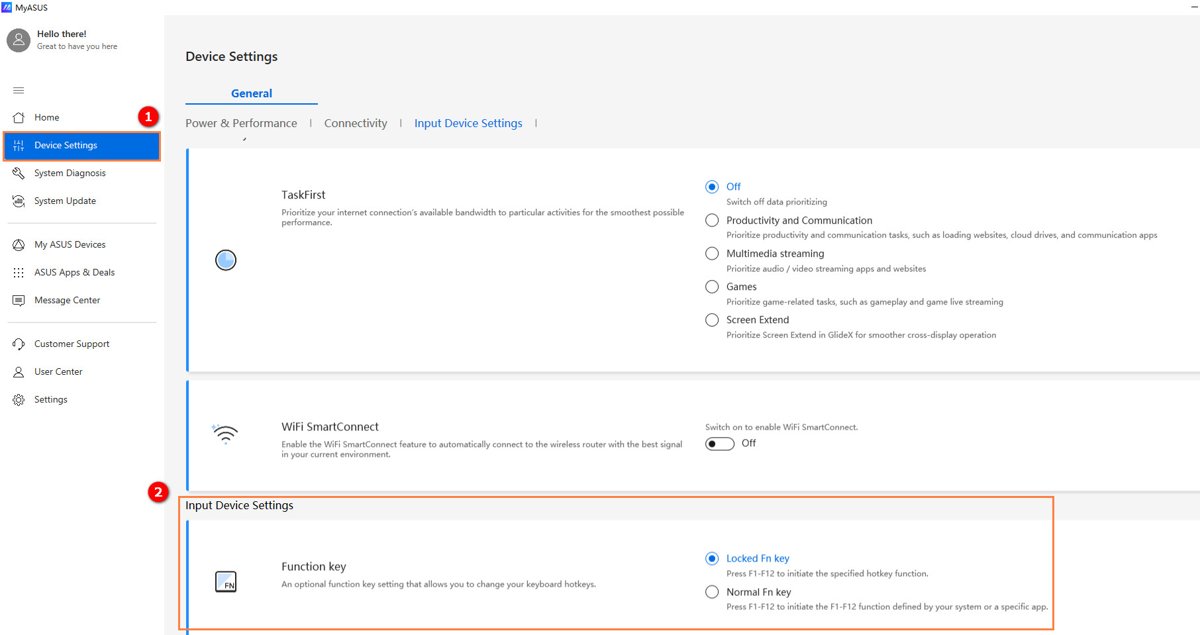
ASUS states that Fn + Esc switching is not supported on every model. MyASUS works on models where the shortcut does not, and it stays in sync if you use the shortcut later.
- Select the Search icon on the taskbar, type MyASUS and open the app.
- Select Device Settings.
- Open Input Device Settings and find the Fn function key option.
- Choose F1-F12 so each key sends its standard function, with Fn plus the key for volume or brightness.
- Choose hotkeys instead if you want volume and brightness without Fn.
How to turn off Fn Lock on external keyboards
A USB or Bluetooth keyboard keeps its own lock state. The laptop's Fn Lock and BIOS setting do not affect it.
| Keyboard | How to switch | How to tell which mode is on |
|---|---|---|
| Dell KB216, KB500, KB700, KB740, KM117, KM3322W, KM5221W, KM7120W, KM7321W | Fn + Esc; press again to swap back | Press a media-key icon on its own and see what happens |
| Microsoft keyboards with an F Lock key | Press F Lock | F Lock light on = standard F1, F2; off = alternate commands such as Help and Undo |
| Microsoft All in One Media Keyboard | Fn + Caps Lock; repeat to disable | Press F5 in a browser to test |
| Surface Keyboard or Type Cover | Press Fn until its light turns off | Fn light off = function keys deactivated |
| Any other brand | Check the keyboard maker's manual or app | No shared standard exists across brands |
If a wireless keyboard ignores the toggle, turn it off and on or reconnect it, then try again.
Make sure it is really Fn Lock and that it is now off
Volume or brightness changing when you expected F-keys is Fn Lock. Letters typing as numbers is Num Lock, and capitals everywhere is Caps Lock, which Fn + Esc will not fix.
- Read the printed key legends: the icon is the special function and the F1–F12 text is the standard function.
- Open a browser and press F5 on its own. A page reload means standard function keys are active.
- Press Fn + F5. It should now do the printed special action, or nothing if F5 has no icon.
- Press the key with the speaker icon on its own. The volume should not change if standard keys are active.
- Check the lock light against your brand's meaning in the table above, because Lenovo ThinkPad and IdeaPad models use the light in opposite ways.
- Restart the laptop and repeat the F5 test to confirm the setting held.
Fn Lock still will not turn off: fixes by symptom
Fn + Esc does nothing and no light changes
The model has no keyboard toggle, or the toggle is disabled in firmware.
- On ASUS, look for an LED on the upper right of the Fn key; without one, use MyASUS instead.
- On Dell, open BIOS setup with F2 and check that Fn Lock is ticked under POST Behavior > Fn Lock Options.
- On Lenovo IdeaPad, Slim or ThinkBook, set Hotkey Mode in UEFI instead of using the shortcut.
- Check the user guide for your exact model number for a different key.
Fn Lock turns back on after every restart
The BIOS default or vendor app reapplies its own setting at startup.
- Set the default in BIOS or UEFI using the steps above, then save before exiting.
- On ASUS, set the same choice in MyASUS so both agree.
- On Lenovo ThinkPad, review keyboard settings in Lenovo Vantage > Device > Input & Accessories.
- Restart and run the F5 test again.
Can't turn off Fn Lock after a Windows 11 update
The keyboard driver or the manufacturer's hotkey software is missing or outdated.
- Right-click Start and select Device Manager.
- Expand the category that holds your keyboard, right-click the keyboard and select Update driver.
- Select Search automatically for drivers and let it finish.
- Run Windows Update and install any waiting updates, since Microsoft recommends it for most drivers.
- Update MyASUS or Lenovo Vantage if your laptop uses one, then restart.
Fn Lock won't turn off on a USB or wireless keyboard
External keyboards keep their own lock state, separate from the laptop.
- Use the external keyboard's own F Lock key or Fn + Esc, not the laptop's keys.
- Unplug the keyboard or turn it off, wait a few seconds and reconnect it.
- Test F5 again in a browser.
Recommended setting for most people before you lock it in
Leave the top row on media and hotkeys if you mainly browse and watch video, and switch to standard F1–F12 if you use F2 to rename, F5 to refresh or keyboard-heavy apps every day. Either way the other set stays one Fn press away. The hotkey setting has one side effect on Lenovo consumer laptops: you must press Fn + F2 instead of F2 to open UEFI setup.
Frequently asked questions
How do I turn off Fn Lock on Windows 11?
Press Fn + Esc on most laptops. Windows 11 has no Fn Lock switch of its own, because the keyboard and firmware control it. If the shortcut does nothing, use your maker's BIOS setting or app, such as Dell Fn Lock Options, Lenovo Hotkey Mode or MyASUS.
How do I turn off Fn Lock on an HP laptop?
Follow HP's support article How to lock or unlock the fn (function) key, which covers HP notebooks including EliteBook and OmniBook families. HP lists the method per model. Select your model on that page, then use the key combination or BIOS option it shows.
How do I turn off Fn Lock on a Lenovo laptop?
Press Fn + Esc on Lenovo IdeaPad, Slim, ThinkBook and Legion models. The light on the Esc key shows the state. For a setting that survives restarts, open UEFI with F2 at the Lenovo logo and change Configuration > Hotkey Mode.
How do I turn off Fn Lock on a ThinkPad?
Press Fn and the Esc key labelled FnLock together. On ThinkPad models such as the X1 Carbon Gen 13, the Esc light on means standard F1–F12 keys, and the light off means volume, brightness and other special functions.
How do I turn off Fn Lock on a keyboard?
Press the keyboard's F Lock key or Fn + Esc, depending on the model. Microsoft keyboards use F Lock, the Microsoft All in One Media Keyboard uses Fn + Caps Lock, and Dell external keyboards such as the KB216 and KB740 use Fn + Esc.
Why won't my Fn Lock turn off?
Usually the model has no keyboard toggle, or firmware has disabled it. ASUS notes Fn + Esc works only on models with an LED on the Fn key. On Dell, clearing Fn Lock in BIOS stops Fn + Esc from toggling, so tick it again.
Why can't I turn off Fn Lock after restarting?
A BIOS default or vendor app is reapplying its own setting at startup. Change the default in BIOS or UEFI, such as Dell Fn Lock Options or Lenovo Hotkey Mode, and match it in MyASUS or Lenovo Vantage if your laptop uses one.
How do I disable Fn Lock permanently?
Change the setting in BIOS or UEFI rather than using the shortcut. On Dell choose Lock Mode Disable/Standard under POST Behavior > Fn Lock Options. On Lenovo IdeaPad, Slim and ThinkBook set Configuration > Hotkey Mode to Disabled, then save.
What if my keyboard has no Fn Lock?
Hold Fn each time you need the other function of a top-row key. Keyboards without a lock key, light or BIOS option only support the momentary Fn modifier. Check your maker's app, such as MyASUS, before assuming there is no setting.


![How to appear offline on Steam [easy & quick guide]](https://techdows.com/wp-content/uploads/2026/10/Steam-Friends-List-in-a-browser-with-the-status-line-under-the-profile-name-600x338.jpg)

How to Turn Off Scroll Lock in Excel (2 Ways) - Techdows
[…] the Fn row behaves the wrong way round on a laptop, see how to turn off Fn Lock in Windows 11 before blaming Scroll […]