Apple Music usually skips the next song you chose because Shuffle or Repeat is on, the song went to the end of the queue with Add to Queue, or AutoPlay is filling the queue with similar songs.
This guide shows how the queue decides what plays next on iPhone, Mac and the Apple Music app for Windows, and how to fix each cause.
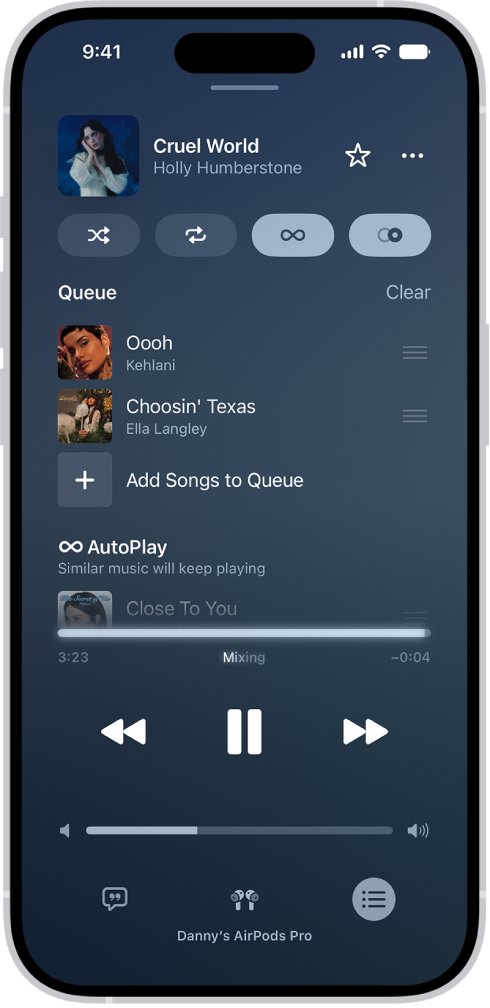
Make Apple Music play the song you chose next
Use Play Next, not Add to Queue, and turn off Shuffle before you pick the song. These steps are for the Music app on iPhone.
- Open the Music app and tap the MiniPlayer to open the Now Playing screen.
- Tap the Queue button, then tap the Shuffle button so it is no longer highlighted.
- Tap the Repeat button until it is no longer highlighted.
- Go back to your library, then touch and hold the song you want to hear next.
- Tap Play Next. The song now sits directly after the one that is playing.
- Open the queue again and confirm the song is at the top of the list.
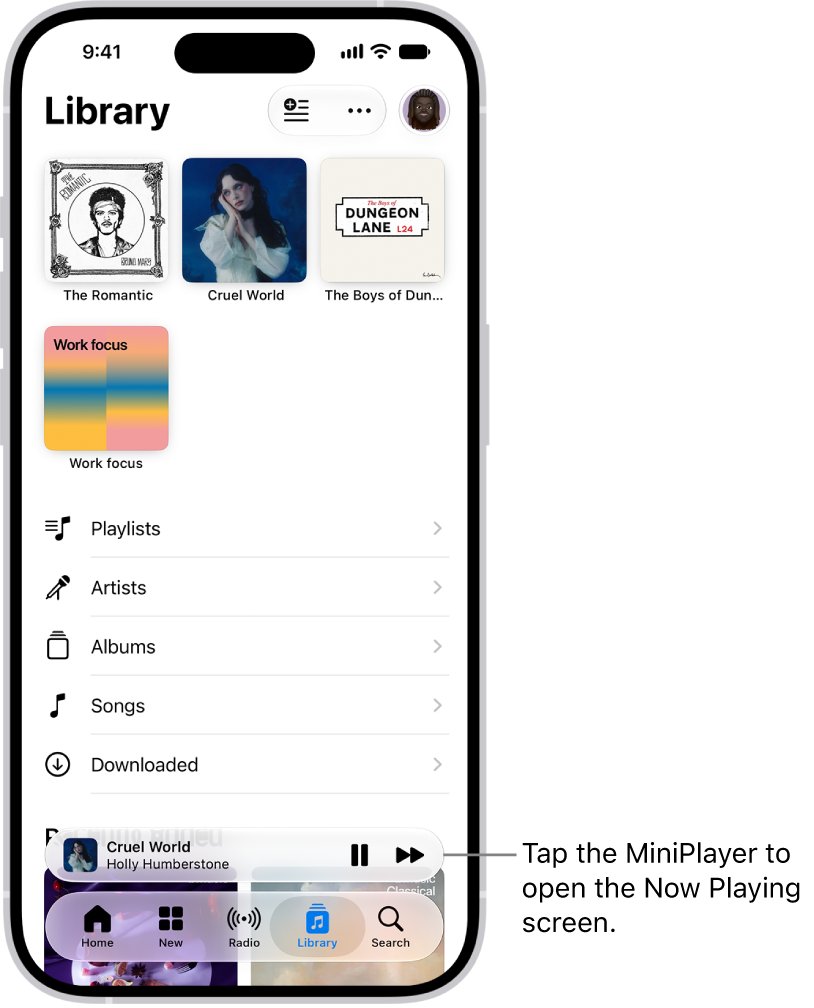
Why Apple Music plays a different song than the one you picked
Each queue setting changes what plays next in a different way. Match what you see to the row below.
| What happens | Likely cause | What to change |
|---|---|---|
| A random song plays instead of the next one in the playlist | Shuffle is on | Turn off Shuffle in the queue |
| The same song or album plays again | Repeat is set to one song or to the whole queue | Tap Repeat until it is off |
| Your chosen song plays only after many others | You used Add to Queue, Play After or Play Last, which add it to the end | Use Play Next instead |
| Songs you never picked play after your list ends | AutoPlay adds similar songs to the end of the queue | Turn off AutoPlay at the top of the queue |
| Tapping a song in the queue skips the songs above it | Tapping a queue song plays it and the songs that follow | Drag songs into order instead of tapping |
| Songs change order while a HomePod is playing | People on the same Wi-Fi can add and reorder items when HomePod is streaming | Check the queue on the HomePod session |
| A playlist stops after one song on a Mac | The next item is a song preview | Double-click the next song to resume the playlist |
Play Next vs Add to Queue in Apple Music
Play Next puts music right after the song that is playing. Play After or Add to Queue on iPhone, and Add to Queue on Mac, put it at the end of the queue instead.
On the Apple Music app for Windows the same two options are called Play Next (top of the queue) and Play Last (bottom of the queue).
- Open the Music app on iPhone while a song is playing.
- Find the song, album, playlist or video you want to hear next.
- Touch and hold it, then tap Play Next.
- Use Play Next again for each extra song; each one goes right after the current song.
- On a Mac, click the More button next to the item and choose Play Next.
- On Windows, select the More button and choose Play Next rather than Play Last.
Turn off shuffle in Apple Music on iPhone
With Shuffle on, the songs in the playlist or album play in random order, so the song listed after the current one is not the one that plays next.
- Open the Music app and start any song.
- Tap the MiniPlayer to open the Now Playing screen.
- Tap the Queue button.
- Tap the Shuffle button. When it is not highlighted, Shuffle is off.
- Tap the Repeat button until it is off if the same songs keep coming back. A double tap sets Repeat to a single song.
Turn off shuffle and repeat in Apple Music on Mac
A song needs to be playing before the Shuffle and Repeat controls work in Music on Mac.
- Open the Music app on your Mac and play a song.
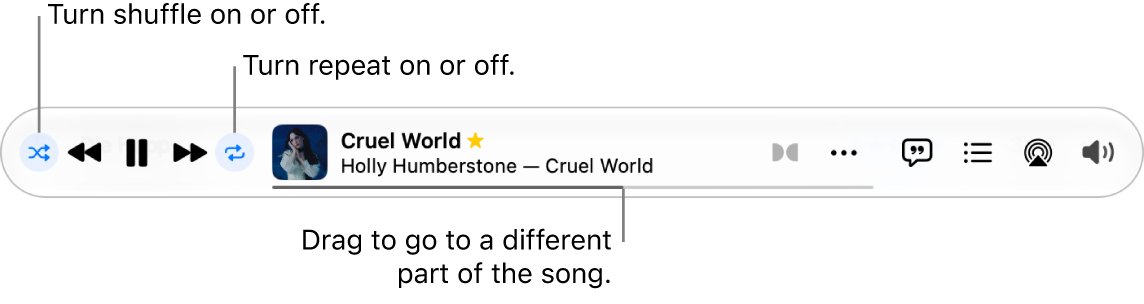
- Click the Shuffle button in the playback controls. When it is grey, Shuffle is off.
- Check Controls > Shuffle and make sure Albums or Groupings shuffle is not what you want before you pick songs.
- Click the Repeat button until it is grey to turn Repeat off.
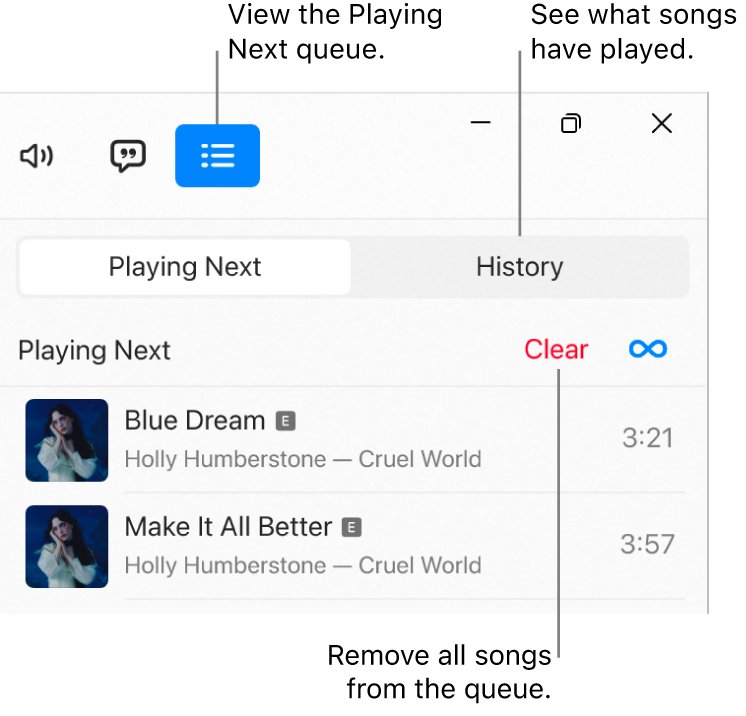
- Click the Playing Next button to open the queue and confirm the order.
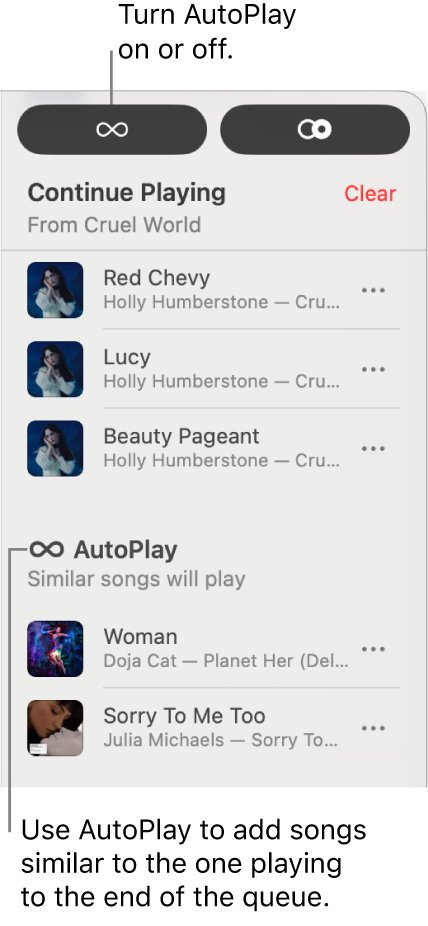
Turn off AutoPlay in Apple Music
AutoPlay is for Apple Music subscribers. When it is on, it adds similar songs to the end of the queue, so music keeps playing after your own picks run out.
Turning AutoPlay off on one device turns it off on every device signed in with the same Apple Account.
- Play any song in the Music app.
- On iPhone, tap the MiniPlayer, then tap the Queue button. On Mac, click the Playing Next button. On Windows, select the queue button, then Playing Next.
- Look for the AutoPlay button at the top of the queue.
- Tap or click AutoPlay so it no longer shows its highlight colour.
- Check the queue again: the similar songs that AutoPlay added are no longer appended after your songs.
Clear and rebuild the Apple Music queue
An old queue can carry songs from an earlier session. Music on Mac and Apple Music on Windows save the queue when you quit, so it comes back the next time you open the app.
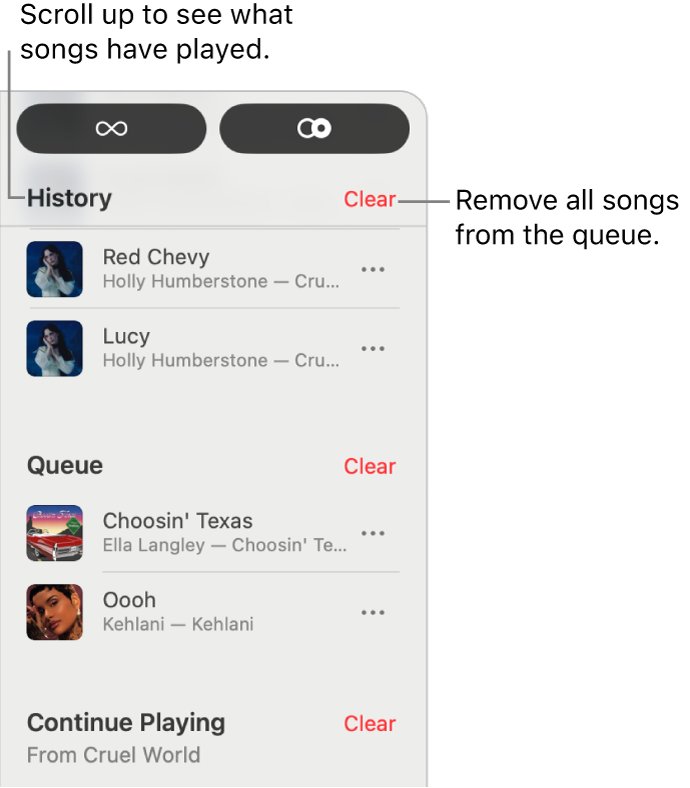
- Open the queue: on iPhone tap the MiniPlayer, then the Queue button; on Mac click Playing Next.
- Tap or click Clear at the top of the queue to remove everything.
- To clear only part of the queue on Mac or Windows, click Clear next to that album or playlist.
- Start the album or playlist you want.
- Add any extra songs with Play Next.
- Drag songs in the queue into the order you want instead of tapping them.
Reorder songs in the Apple Music queue without skipping songs
Tapping a song in the queue starts that song and the songs that follow it, so everything above it is skipped. Dragging keeps every song.
- Open the Now Playing screen and tap the Queue button.
- Touch and hold the reorder handle on the right of a song.
- Drag the song to the position right below the current song.
- Swipe left on any song you do not want, then tap the delete button to remove it.
- Scroll to the bottom of the queue to see how many songs are left.
Check what Apple Music will play next
- Open the queue on the device that is playing.
- Check that Shuffle, Repeat and AutoPlay are not highlighted.
- Confirm the song you chose is the first entry under the current song.
- Swipe down in the queue on iPhone, or scroll to History on Mac, to see what played before and confirm nothing was skipped.
- Let the current song finish and confirm your chosen song starts.
Apple Music not playing songs: causes and fixes
Apple Music stops playing after one song
On a Mac, a playlist stops after a song preview, which shows a price button next to it.
- Open the playlist and find the song with a price button.
- Double-click the next song to resume the playlist.
- Remove the preview from the playlist so it does not stop again.
Apple Music skips some songs in a playlist
Music skips iTunes Store purchases the computer is not authorised to play, for example in a shared library.
- Double-click the skipped song to try to play it directly.
- If it still will not play, sign in with the Apple Account that bought it.
- If you have reached the limit of five authorised computers, deauthorise one you no longer use.
Apple Music songs not playing offline
Music you add from Apple Music streams over the internet unless it has been downloaded.
- Go to Settings > Apps > Music and turn on Sync Library.
- In the Music app, touch and hold the song, album or playlist, then tap Download.
- On the Library tab, tap Downloaded, then Downloading to watch progress.
Apple Music app not responding on iPhone
The Music app has stopped responding to taps.
- Open the App Switcher and swipe up on the Music app to quit it.
- Open Music again from the Home Screen or App Library.
- If it is still unresponsive, restart your iPhone.
- Go to Settings > General > Software Update and install any available update.
Apple Music will not play on a computer through speakers
The progress bar moves but output volume or the AirPlay selection is wrong.
- Check the volume slider in the Music window and the computer's output volume.
- Check that powered speakers are plugged in, switched on and turned up.
- Open the AirPlay menu and confirm the correct speaker is selected.
- If a dash appears next to an AirPlay device, click it to reconnect.
Does turning off Sync Library fix Apple Music playback?
Turning off Sync Library on iPhone removes all Apple Music songs from that iPhone. They stay in your library on your other devices, and purchased or synced music remains.
Do not turn off Sync Library just to fix the play order. The play order is set by Shuffle, Repeat, AutoPlay and how songs were added to the queue. Turning off Sync Library deletes your Apple Music downloads from the iPhone and you would need to download them again.
Apple Music next song FAQ
Why does Apple Music play a random song next?
Shuffle is on, or AutoPlay has added similar songs to the end of the queue. Open the queue from the Now Playing screen, turn off Shuffle, and turn off AutoPlay at the top of the queue if you only want your own picks.
Why does Apple Music not play the song I added to the queue?
Add to Queue and Play After put the song at the end of the queue, so everything already queued plays first. Use Play Next to place a song directly after the current one, or drag it to the top of the queue.
Why does Apple Music stop playing?
On a Mac, a playlist stops after a song preview. Double-click the next song to resume. On iPhone, songs that are not downloaded stop when the internet connection drops, so download music you want to play offline.
Why won't Apple Music play a song?
An iTunes Store purchase will not play on a computer that is not authorised for that Apple Account. Sign in with the account that bought it, or deauthorise an old computer if you have reached the five-computer limit.
Why isn't Apple Music playing songs on my iPhone?
If the Music app has stopped responding, quit it from the App Switcher and reopen it. If it still does not respond, restart the iPhone and install any update in Settings > General > Software Update.
Why is Apple Music not working on my PC?
Check the volume in the Apple Music app and in Windows, and that the right speakers are selected. Songs bought from the iTunes Store also need the computer to be authorised for the Apple Account that purchased them.
Does AutoPlay change the order of my queue?
No. AutoPlay adds similar songs to the end of the queue after your own songs. It does not move the songs you added, but it keeps music playing after your queue ends.
Why does Apple Music remember an old queue?
Music on Mac and Apple Music on Windows save the queue when you quit, so it returns the next time you open the app. Tap or click Clear at the top of the queue to start fresh.