No, Apple's iCloud+ plans and pricing page lists monthly prices only and says that after you upgrade, you're billed monthly.
This guide covers what a year costs, how to prepay with Apple Account balance, Apple One, how to change the card you pay with, and how to downgrade or cancel.
Can you pay for iCloud annually?
Apple publishes no yearly iCloud+ price. One note in Apple's iCloud User Guide does mention a "monthly or annual subscription" when it explains downgrades, so the plan screen on your own account is the final word.
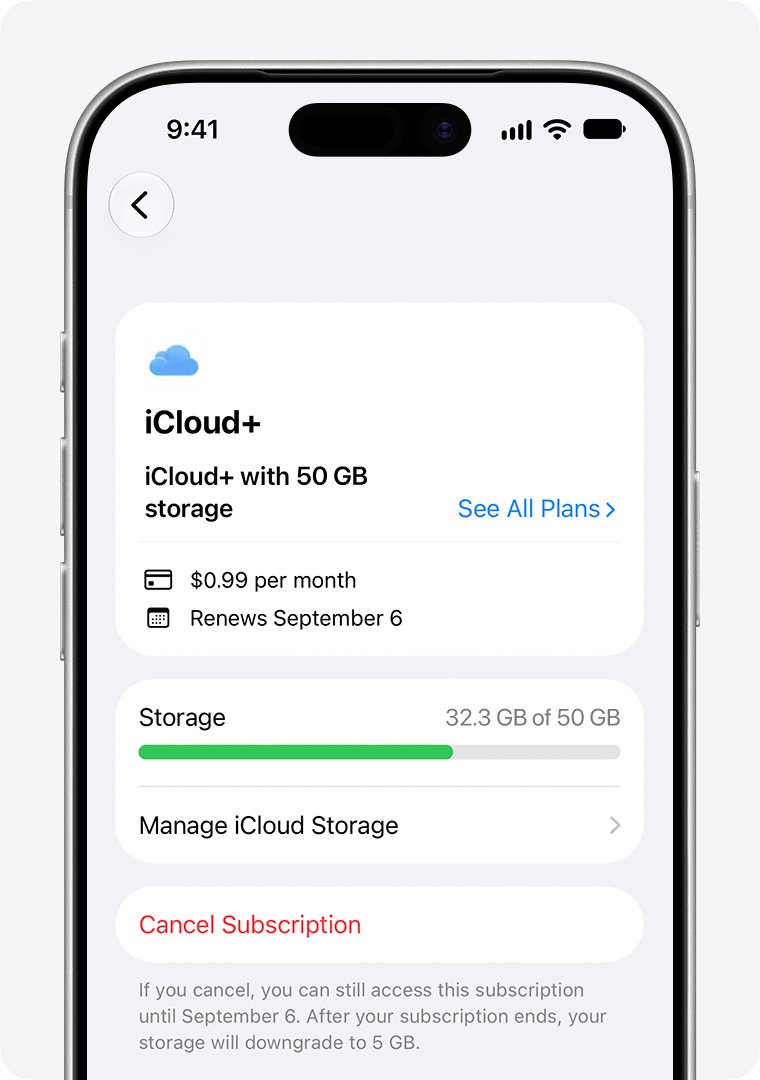
- Open the Settings app on an iPhone or iPad with iOS 18.4, iPadOS 18.4 or later.
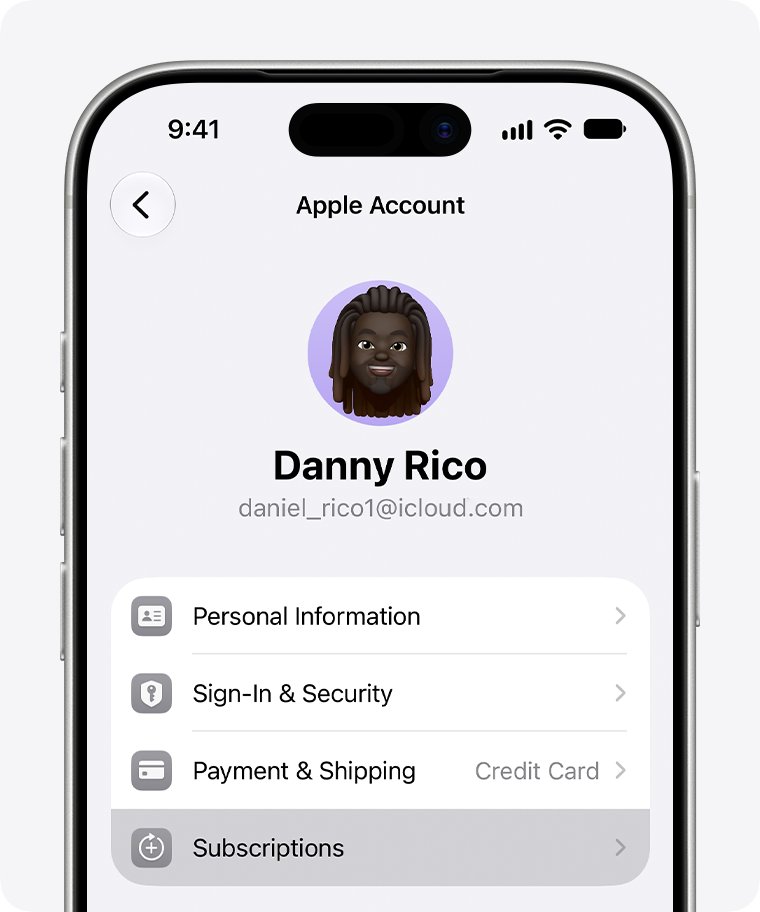
- Tap your name, then tap Subscriptions.
- Tap iCloud+ under Active.
- Tap See All Plans and read the plans offered to your account.
- Choose a yearly plan only if the screen shows one. If it shows monthly plans only, you can't switch to annual billing.
If you want to avoid a card charge every month, the closest alternative is to prepay with Apple Account balance, covered below.
How much should I pay for iCloud
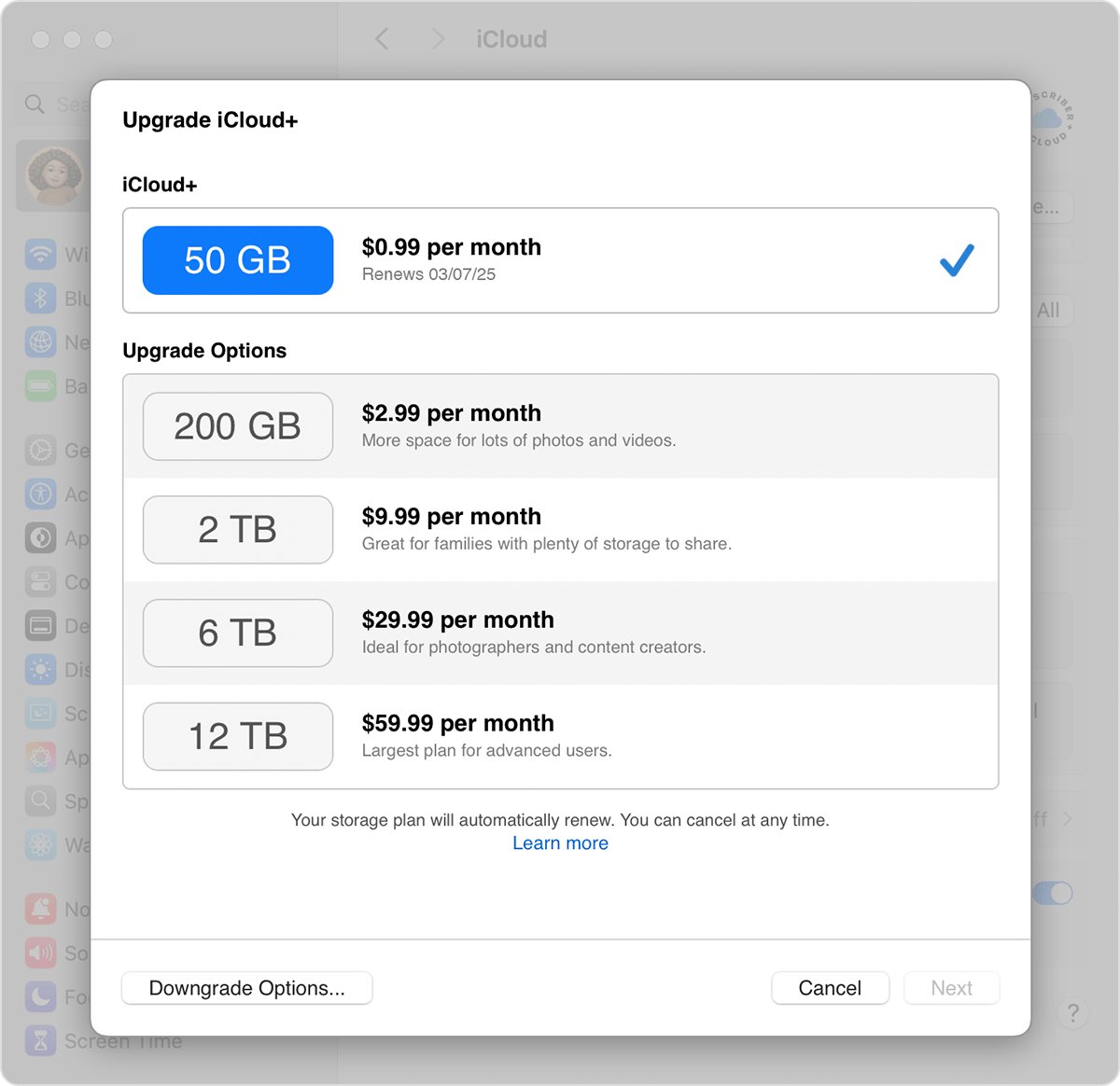
These are Apple's United States prices. The 12-month column is simple multiplication before tax, not a yearly plan or a discount, and some US states add tax to the monthly payment.
| iCloud+ plan | Monthly price | 12 monthly payments | HomeKit Secure Video cameras |
|---|---|---|---|
| 50 GB | $0.99 | $11.88 | One |
| 200 GB | $2.99 | $35.88 | Up to five |
| 2 TB | $9.99 | $119.88 | Unlimited |
| 6 TB | $29.99 | $359.88 | Unlimited |
| 12 TB | $59.99 | $719.88 | Unlimited |
Every paid plan includes iCloud Private Relay, Hide My Email, Custom Email Domain and Apple Invites, and you can share it with up to five other family members. Prices differ by country or region, and some include Value Added Tax.
How is iCloud paid
| Question | Answer |
|---|---|
| How often | Monthly, after you upgrade |
| What pays for it | The payment method on your Apple Account |
| Accepted payment | Credit cards, debit cards and Apple Account balance |
| Not accepted | Apple Store gift cards |
| If balance runs short | You are charged the remaining amount |
| Currency | Local currency, or US dollars where the local currency isn't supported, such as Argentina |
| Free tier | 5 GB, with no payment |
Your Apple Account and iCloud are not separate bills: the charge appears against the Apple Account you sign in with.
How to pay for iCloud on iPhone
Payment starts from the storage upgrade screen. The path depends on your iOS version.
- Open the Settings app and tap your name.
- If you have no iCloud+ plan on iOS 18.4 or later, tap iCloud, scroll down, then tap Upgrade to iCloud+.
- If you already have iCloud+ on iOS 18.4 or later, tap Subscriptions, tap iCloud+ or Apple One, then tap See All Plans.
- On iOS 18.3 or earlier, tap iCloud, tap your storage, then tap Change Storage Plan or Get More Storage.
- Choose the amount of storage you want.
- Follow the onscreen instructions to finish paying.
Where do I pay for iCloud storage
You can upgrade from an iPhone, iPad, Mac or PC. iCloud.com can start the purchase, but you need to complete it on a supported device.
| Device | Where to go | Then |
|---|---|---|
| iPhone or iPad | Settings > your name | Follow the iOS steps above |
| Mac | System Settings > your name > iCloud > Manage > Change Storage Plan | Pick a plan and follow the onscreen instructions |
| Windows PC | iCloud for Windows > Storage | Click Buy More Storage or Change Storage Plan |
| iCloud.com | icloud.com/plan |
Click Change iCloud Plan or Upgrade iCloud+ Plan, then finish on a supported device |
Use Apple gift card to pay for iCloud storage
Redeeming an Apple Gift Card, App Store Card or App Store & iTunes Gift Card adds funds to your Apple Account balance, and Apple accepts that balance for iCloud+. Apple Store gift cards aren't accepted as payment for upgrading iCloud+.
- Find the 16-digit code on the back of the card, peeling or scratching off the label if needed.
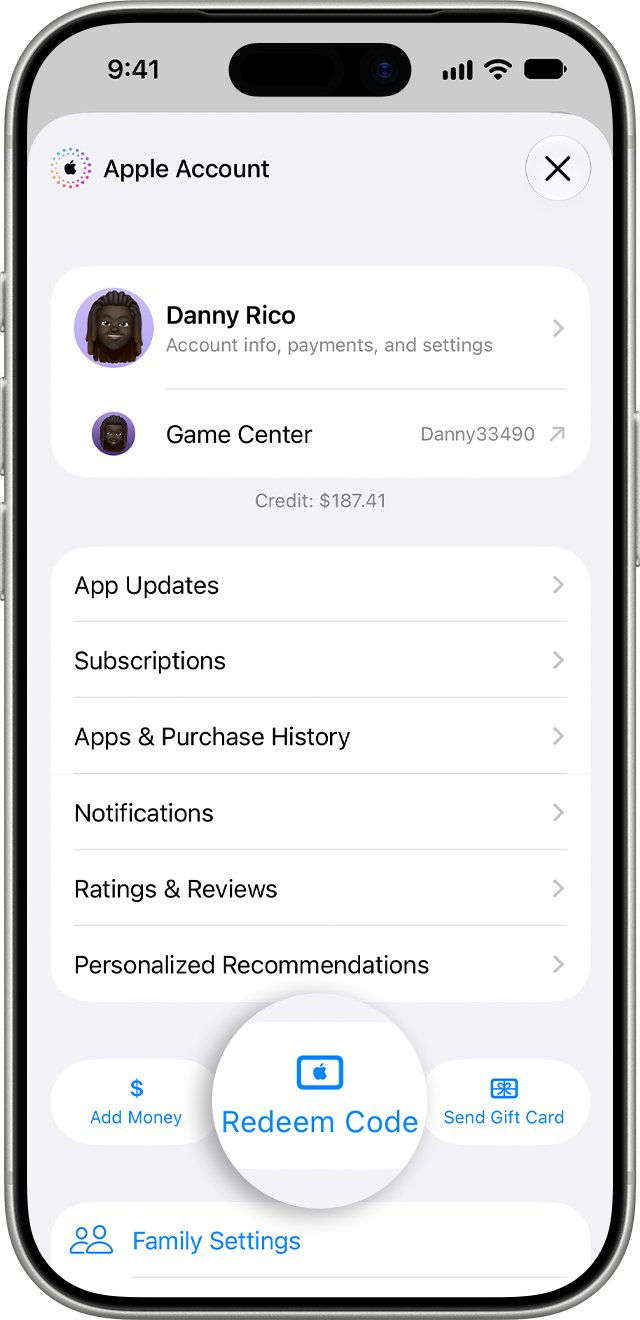
- Open the App Store and tap your photo, initials or the My Account button.
- Tap Redeem Code.
- Tap Use Camera, or tap Enter Code Manually if the camera can't read it.
- Tap Redeem to add the funds to your balance.
How to prepay iCloud storage for a year with Apple Account balance
This gets you the closest result to yearly billing. Apple still charges monthly, but the money comes out of balance you have already loaded.
- Take the 12-month total for your plan from the price table, and add any tax your state charges.
- Buy Apple Gift Cards that add up to that total.
- Redeem them to your Apple Account balance using the steps above.
- Keep a card on your Apple Account, because you're charged the remainder if the balance falls short.
- Check the balance before the 12 months end, and add more if you plan to keep the plan.
A price change or a plan upgrade uses up the balance sooner, so treat the total as an estimate rather than a locked-in yearly rate.
Is Apple One a monthly or annual subscription?
Apple One is monthly too, so switching to the bundle does not get you annual billing. You can cancel at least a day before your monthly renewal date. These are US prices.
| Apple One plan | Monthly price | iCloud+ storage | Sharing |
|---|---|---|---|
| Individual | $21.95 | 50 GB | Just you |
| Family | $27.95 | 200 GB | Up to five other people |
| Premier | $39.95 | 2 TB | Up to five other people |
If you need more space, you can buy additional iCloud storage separately on top of an Apple One plan.
How to pay iCloud subscription with a different card
Your iCloud+ subscription is billed to the payment method on your Apple Account, so you change it in your Apple Account billing settings and not inside iCloud.
- Open Settings on your iPhone or iPad and tap your name.
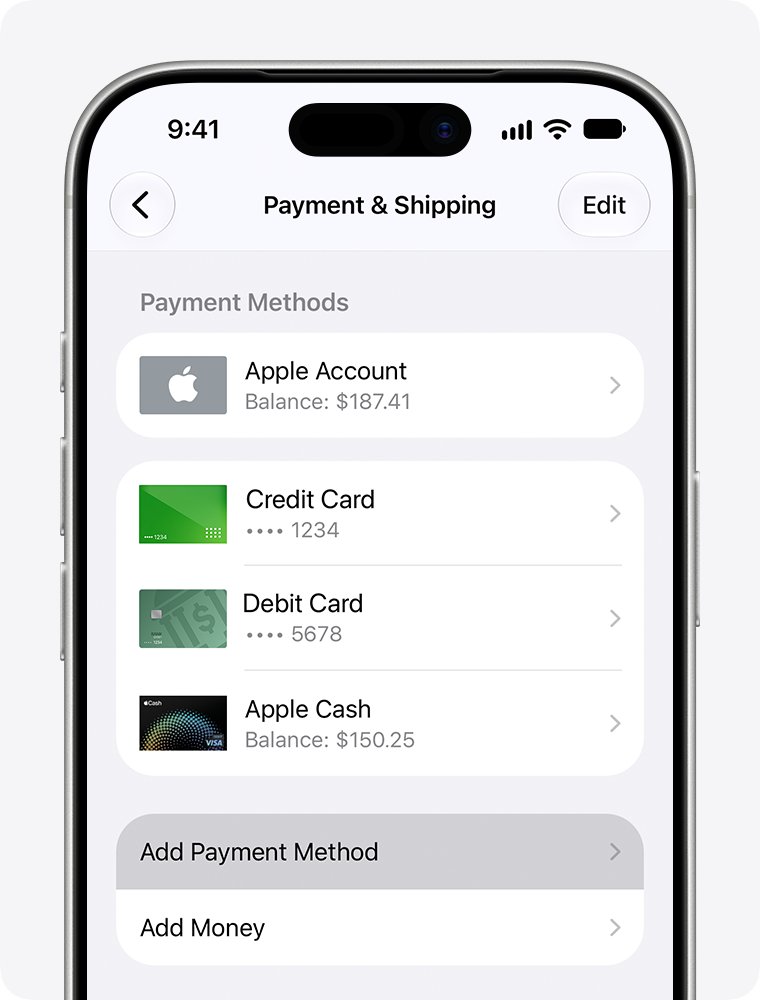
- Tap Payment & Shipping, and sign in if asked.
- To update an existing card, tap it, tap Edit, enter the new billing information, then tap Done.
- To add a new card, tap Add Payment Method, enter it, then tap Done.
- To remove the old card, tap Edit, tap the red delete button next to it, then tap Remove.
How to check your iCloud plan and storage
- Go to
icloud.com/planand sign in to your Apple Account if asked. - Read how much storage your iCloud plan includes.
- Check which premium features you have access to.
- On iPhone, open Settings, tap your name, then tap Subscriptions and look for iCloud+ under Active.
How to downgrade or cancel iCloud+ on iPhone
The change takes effect after your current billing period ends. Before downgrading, download or remove anything over your new storage amount, because iCloud stops syncing and iCloud backups won't complete while you're over the limit.
- Open Settings and tap your name.
- Tap Subscriptions, then tap iCloud+ under Active.
- To cancel, tap Cancel Subscription.
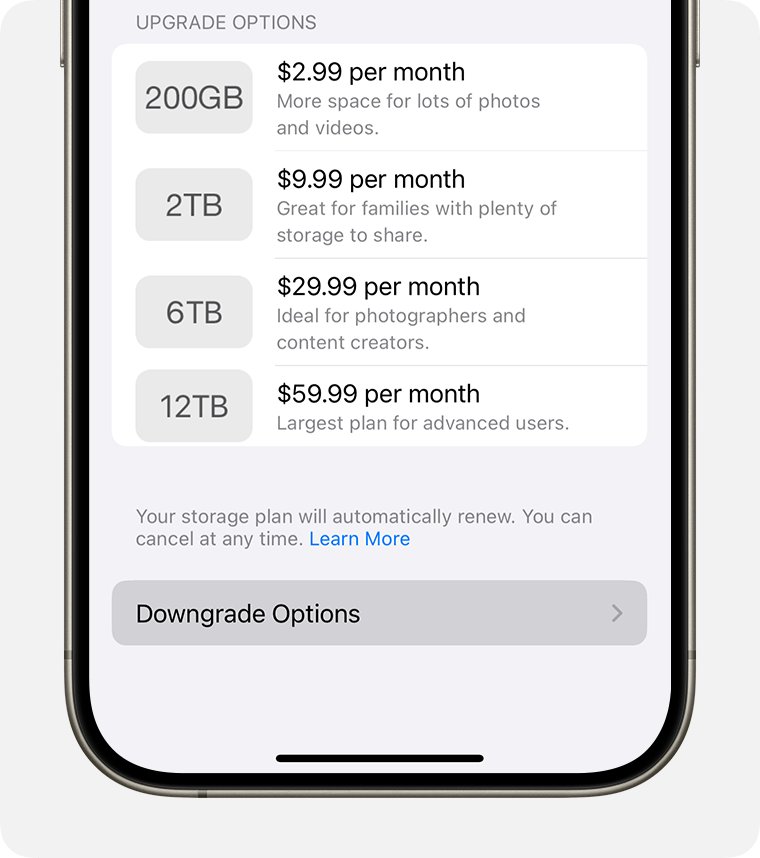
- To downgrade, tap See All Plans, select a new plan and follow the onscreen instructions.
- On iOS 18 to 18.3, go to iCloud > Manage Plan > Downgrade Options instead. On iOS 17 and earlier, go to iCloud > Manage Account Storage > Downgrade Options.
If you drop to the free plan, you lose iCloud+ features such as Hide My Email and Private Relay. Partial refunds are available where required by law, and if you recently changed your plan, contact Apple within 14 days to ask for a refund.
Why am I paying for iCloud
An iCloud+ charge you don't recognize
The plan may sit on another Apple Account you use, or a family member may have bought it.
- Search your email for "receipt from Apple" or "invoice from Apple".
- Check which Apple Account appears on the receipt.
- Sign in to that account to cancel it if it is yours.
- Ask the family member to cancel it if it is theirs, because you can't cancel a family member's subscription.
No receipt from Apple for the iCloud charge
You might have bought the subscription through another company, such as a wireless carrier.
- Check your bank or card statement to see which company bills you.
- Contact that company to cancel the subscription.
iCloud+ payment was declined
The card details on your Apple Account may be out of date.
- Open Settings, tap your name, then tap Payment & Shipping.
- Update the card, or add a new payment method and remove the old one.
- If the charge still fails, get iCloud support from Apple.
iCloud storage yearly billing FAQ
Can I pay iCloud yearly?
Apple's pricing page lists monthly billing only, with no yearly price for any iCloud+ plan. Check See All Plans under Subscriptions on your own account. The nearest alternative is loading a year of Apple Account balance, which Apple then draws on each month.
Do I have to pay for iCloud?
No. Every iCloud account gets 5 GB of storage for free. You pay only if you upgrade to iCloud+ for more storage or features such as Private Relay, Hide My Email and HomeKit Secure Video support.
Does iCloud cost money for iPhone?
The first 5 GB costs nothing on iPhone. Paid plans in the United States run from $0.99 a month for 50 GB to $59.99 a month for 12 TB, and you can upgrade directly from the iPhone Settings app.
Can I use an Apple gift card to pay for iCloud?
Yes, indirectly. Redeem an Apple Gift Card to add funds to your Apple Account balance, and Apple accepts that balance for iCloud+. If the balance runs short, the remaining amount is charged. Apple Store gift cards aren't accepted for iCloud+ upgrades.
How do I pay for iCloud?
Choose a plan in iCloud settings on an iPhone, iPad or Mac, or in iCloud for Windows under Storage. The charge goes to the payment method on your Apple Account, and you can pay with a credit card, debit card or Apple Account balance.
How do you pay an iCloud bill?
You don't pay it by hand. After you upgrade, Apple bills iCloud+ every month to the payment method on your Apple Account. If a payment fails, update the card under Payment & Shipping in Settings, or add a new payment method and remove the old one.
Do we pay for iCloud storage separately in a family?
No. Every iCloud+ plan can be shared with up to five other family members through Family Sharing, on one subscription. On iPhone, go to Settings, tap Family, tap Subscriptions, tap iCloud+, then follow the onscreen instructions to share it.
Is paying for iCloud worth it
Pay for the smallest plan that fits your data, and stay on monthly billing. Apple lists no discount for paying ahead, and you can change or cancel from Subscriptions, with the change applying after the current billing period ends. One shared plan can cover up to six people, so a household rarely needs separate plans. Stay on the free 5 GB only if your backups and photos already fit.