Most HP mouse failures are a loose connection or flat batteries, so unplug the USB cable or receiver, plug it into a different USB port on the PC, and fit fresh batteries before anything else.
If that does not bring the pointer back, this guide covers testing the mouse on another PC, restarting, Device Manager drivers, Bluetooth pairing, Windows mouse settings, HP's diagnostic tool, and when to replace the mouse.
Check the mouse connection and power
Start with the connection type your HP mouse uses. Each line takes seconds and fixes most dead mice.
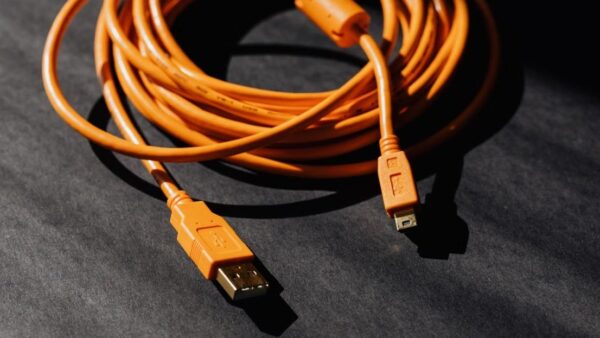
- For a wired HP mouse, unplug the USB cable, wait a few seconds for Windows to unload the driver, then plug it into a different USB port on the PC.
- If the mouse goes through a USB hub, make sure the hub has power, or plug the mouse straight into the PC.
- Check the cable for cuts, kinks or a bent plug.
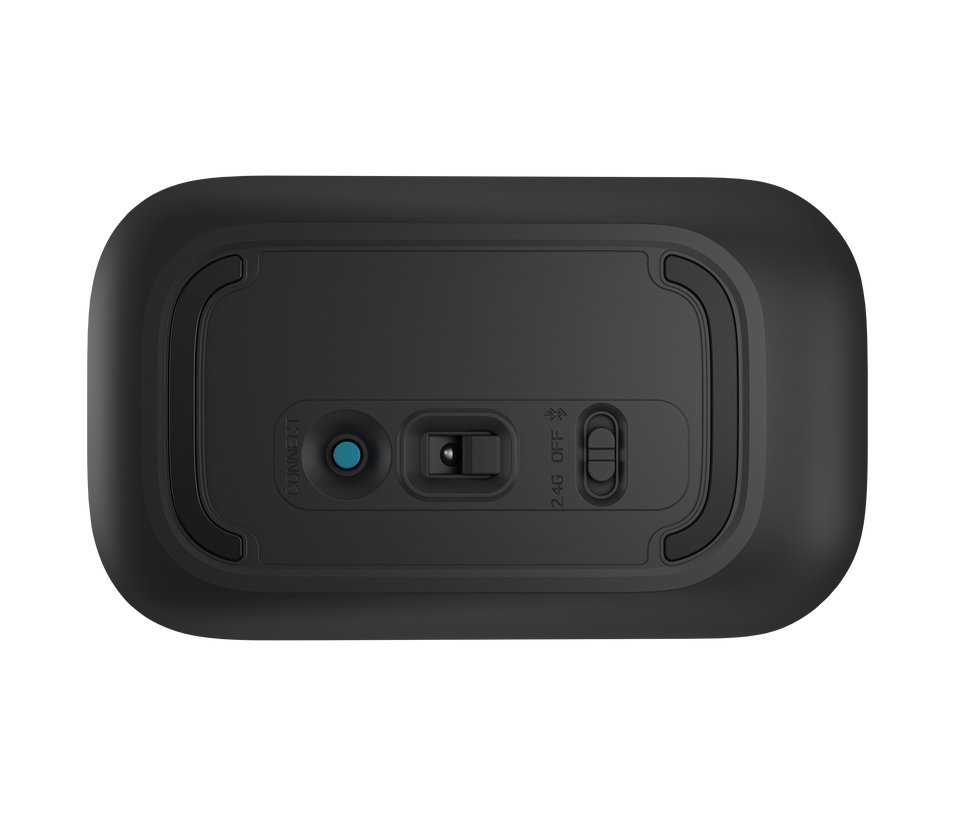
- For a wireless HP mouse with a USB receiver, check the power switch on the bottom is on, fit fresh batteries or charge it, then unplug the receiver, wait about 10 seconds and plug it back in.
- For a Bluetooth HP mouse, charge it or replace the batteries, then turn it off and back on.
- Wipe the sensor on the underside and try the mouse on a plain, non-glossy surface.
Many wireless mice and receivers have a Reset button. Pressing it drops and rebuilds the wireless link, which often brings a frozen pointer back.
How to control an HP laptop without a mouse
You need the keyboard to reach the fixes below while the mouse is dead. On a laptop, the touchpad works too, unless it has the same problem.
| Press | What it does |
|---|---|
| Windows logo key, then type | Opens Start search, for example type device manager and press Enter |
| Windows logo key + X | Opens the Quick Link menu, the same as right-clicking Start |
| Windows logo key + I | Opens Settings |
| Tab and the arrow keys | Move through options in a window or dialog box |
| Spacebar | Selects or clears the highlighted check box |
| Shift + F10 | Opens the context menu for the selected item, like a right-click |
| Alt + Tab | Switches between open windows |
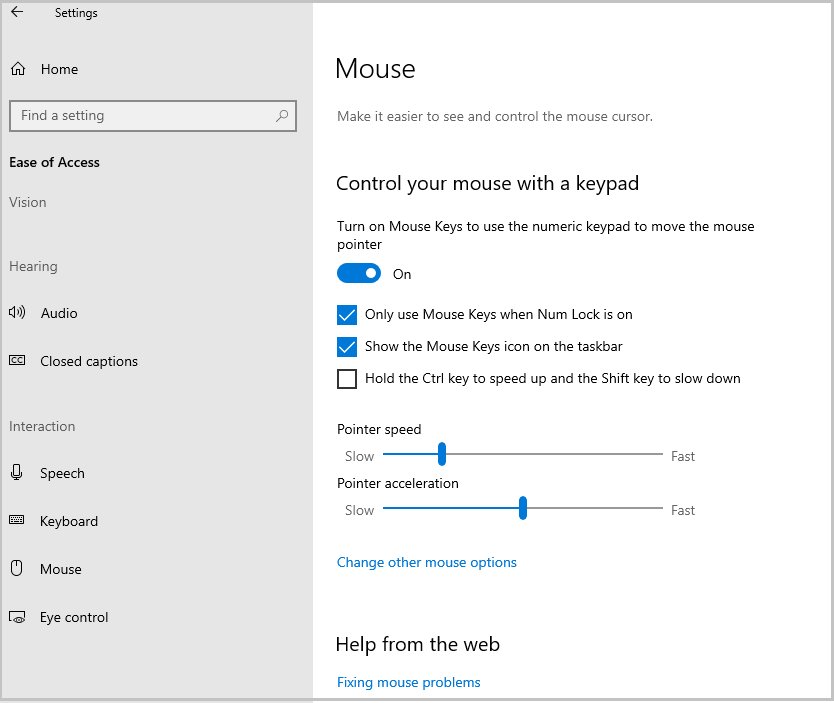
For longer sessions, you can move the pointer with Mouse Keys on the numeric keypad.
Test the mouse on another device
This one test tells you whether to keep troubleshooting the HP PC or replace the mouse.
- Unplug the mouse or its receiver from the HP computer.
- Plug it into a different PC, or pair the Bluetooth mouse with another computer.
- Move the mouse and click. Watch for the pointer moving and for any light on the mouse.
- Plug a different, known-good mouse into the HP computer.
- Compare the results using the table below.
How to interpret the test: if your HP mouse fails on the other PC too, the mouse is faulty. If it works there but not on your HP, and the spare mouse also fails on the HP, the problem is in Windows, a driver or the USB port. Some mice need their own driver before they work on any PC, so a mouse that only fails on a fresh PC may just be missing it.
Restart your HP laptop or desktop
A restart reloads USB and Bluetooth drivers and clears temporary faults that leave the pointer frozen.
- Save open work with Ctrl + S in each app.
- Press Windows logo key + X to open the Quick Link menu.
- Use the arrow keys to select Shut down or sign out and press the right arrow key.
- Select Restart and press Enter.
- After Windows starts, plug the mouse or receiver back in and test it.
Try a full power reset if a normal restart does not help: choose Shut down instead, wait until the PC is completely off, then turn it back on.
Check mouse device and connections
Device Manager shows whether Windows sees the mouse at all, and flags driver problems with a warning icon.
- Press Windows logo key + X and select Device Manager.
- Press Tab to move into the device list, then use the arrow keys to reach Mice and other pointing devices.
- Press the right arrow key to expand it and look for your mouse entry, often listed as HID-compliant mouse.
- Look for a yellow warning icon next to the entry. It means the driver failed to load.
- If no mouse entry appears, unplug the mouse or receiver, plug it into another USB port, and watch the list refresh.
- For a Bluetooth mouse, also expand Bluetooth to make sure the PC's Bluetooth adapter is listed.
Update or reinstall mouse drivers
Check for driver problems in Device Manager first. Reinstalling the driver fixes a mouse that Windows lists but ignores.
- Save all work and close all apps.
- Press Windows logo key + X and select Device Manager.
- Expand Mice and other pointing devices and select the mouse.
- Press Shift + F10 and select Uninstall device, then confirm with Uninstall.
- Restart the PC. Windows reinstalls the driver automatically when it starts.
- If the mouse still fails, open the device again, press Shift + F10, select Update driver and choose Search automatically for updated driver software.
- If the problem began after an update, open the device's Properties, select the Driver tab and choose Roll Back Driver.
Windows Update also delivers driver updates: open Settings > Windows Update and select Check for updates. Get HP drivers only from HP's own Software and Drivers page or the HP Support Assistant app, never from third-party driver sites.
Fix wireless or Bluetooth mouse issues
Wireless HP mice fail in two ways: the receiver link drops, or the Bluetooth pairing breaks.
- For HP wireless mice with a USB receiver, unplug the receiver, wait about 10 seconds and plug it into a USB port directly on the PC, not a hub.
- Press the Reset button on the mouse or receiver if it has one.
- Move the receiver to a front or side port closer to the mouse and away from metal objects.
- For HP Bluetooth mice, open Settings > Bluetooth & devices, find the mouse, select More options (…) and choose Remove device.
- Put the mouse in pairing mode, select Add device and pick the mouse from the list.
- Keep the mouse close to the PC while it pairs, with a full charge or fresh batteries.
Low batteries stop some Bluetooth devices from entering pairing mode at all, so charge the mouse before you try other wireless mouse fixes.
Check Bluetooth status
A Bluetooth HP mouse cannot connect if Bluetooth is off or the adapter has stalled.
- Press Windows logo key + I and open Bluetooth & devices.
- Make sure the Bluetooth toggle is On.
- Turn Bluetooth off, wait 10 seconds and turn it on again.
- On Windows 11, run the automated Bluetooth troubleshooter in the Get Help app.
- Open Settings > Windows Update and select Check for updates to install pending fixes.
- Restart the PC and pair the mouse again.
If the Bluetooth toggle is missing entirely, reinstall the Bluetooth driver for the PC's adapter.
Check Windows mouse settings
A working mouse can look broken when a setting changes how it behaves. All of these live under Settings > Bluetooth & devices > Mouse.
- Check basic mouse options: confirm Primary mouse button is set to Left if clicks seem reversed.
- Move the Mouse pointer speed slider if the pointer barely moves or flies across the screen.
- Review advanced pointer and click settings: under Related settings, select Additional mouse settings.
- On the Buttons tab, adjust Double-click speed and clear Turn on ClickLock if items stay selected after you release the button.
- Back on the Mouse page, switch Enhance pointer precision on or off and test which feels right.
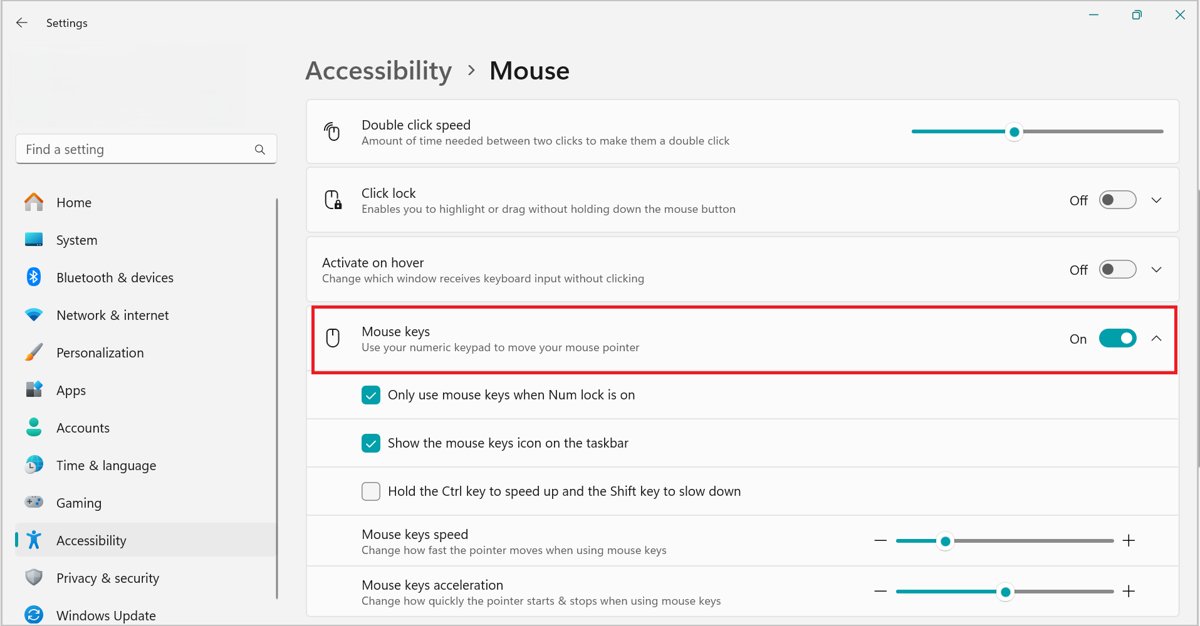
- Check accessibility settings that affect the mouse: open Settings > Accessibility > Mouse and turn off Mouse keys if you do not use it.
Run HP diagnostic app
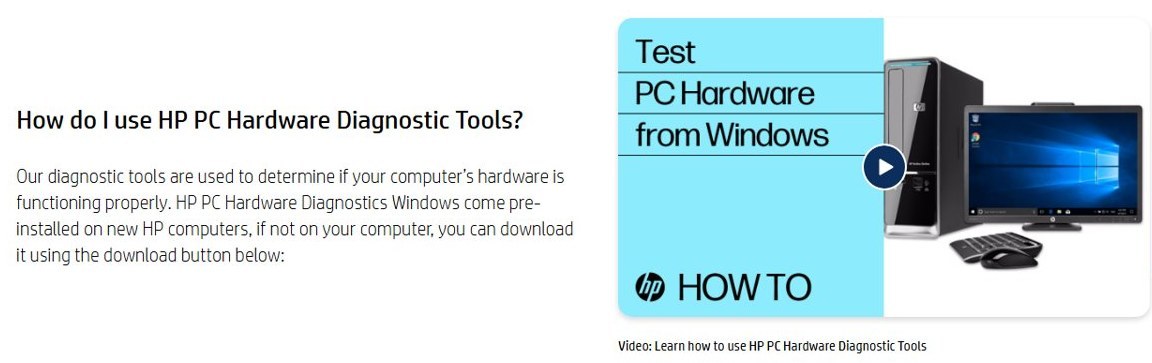
HP PC Hardware Diagnostics Windows checks drivers on select components and tests your HP computer's hardware. It helps when a mouse works elsewhere but not on the HP.
- Press the Windows logo key, type HP PC Hardware Diagnostics Windows and press Enter.
- If it is not installed, get it from the HP PC Hardware Diagnostics page on support.hp.com.
- Run the test for the input device or USB component that matches your problem.
- Note any failure ID the tool reports.
- Contact HP Support with the failure ID if the hardware test fails.
HP Support Assistant, HP's built-in support app, also checks for updates and fixes for the computer.
HP wireless mouse not working
These are the patterns people describe most often with HP mice, each with its most likely cause.
HP wireless mouse not working even with new batteries
The receiver has lost its link to the mouse, or the USB port is not supplying the receiver.
- Check the power switch on the bottom of the mouse is on.
- Unplug the receiver, wait about 10 seconds, and plug it into a different USB port on the PC itself.
- Press the Reset button on the mouse or receiver if it has one.
- Test the mouse and receiver on another PC.
HP Bluetooth mouse will not connect
The old pairing is stale, the mouse is not in pairing mode, or Bluetooth is off.
- Turn Bluetooth on in Settings > Bluetooth & devices.
- Remove the mouse with More options (…) > Remove device.
- Put the mouse in pairing mode and select Add device.
- Run the Bluetooth troubleshooter in the Get Help app on Windows 11.
Wired HP mouse lights up but does not move the cursor
The mouse has power, but the driver, sensor or surface is the problem.
- Clean the sensor and try a different surface or a mouse pad.
- Uninstall the mouse in Device Manager and restart the PC.
- Try the mouse on another PC to rule out a failed sensor.
HP mouse works on another PC but not on the HP computer
A USB port, driver or Windows setting on the HP is at fault.
- Try every USB port, including the rear ports on a desktop.
- Reinstall the driver and run Check for updates in Windows Update.
- Run HP PC Hardware Diagnostics Windows and note any failure ID.
On a laptop, a touchpad that also stops responding points to a wider input problem, so work through the Windows 11 touchpad fixes next.
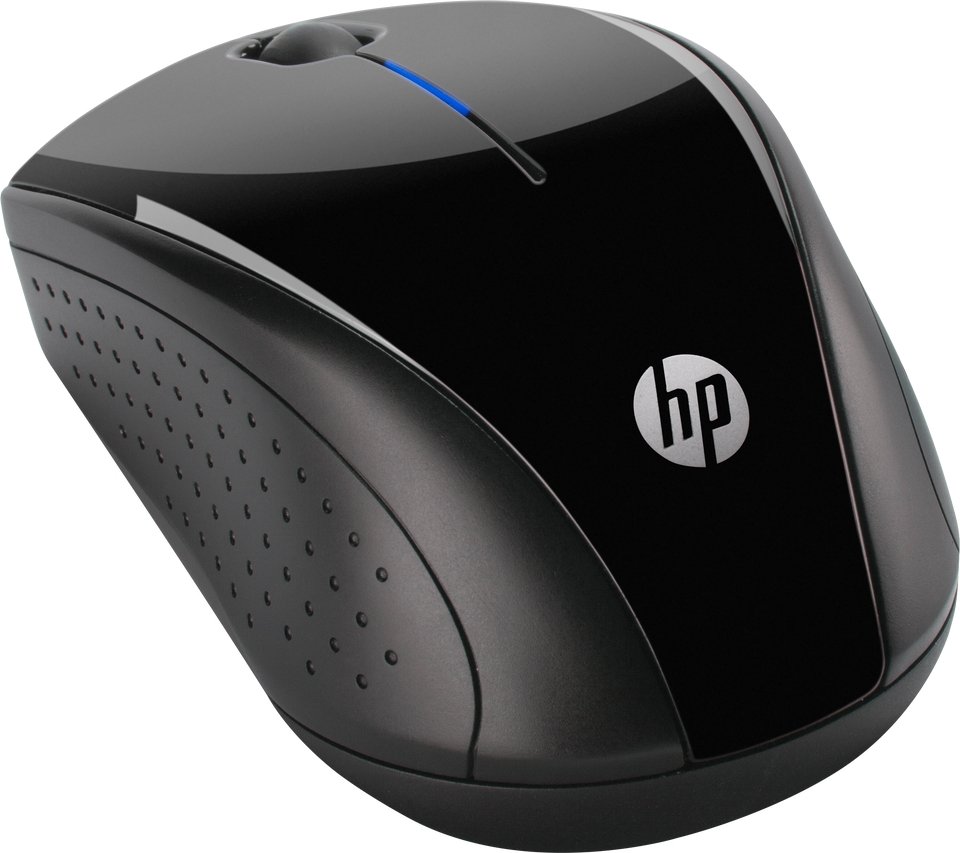
When to replace the HP mouse
Stop troubleshooting once the mouse fails the same way on two computers. Signs the mouse itself has failed are listed below.
| Sign | What it means |
|---|---|
| No light and no movement on any PC, with fresh batteries or a different cable port | The mouse has no power or a dead circuit board |
| Pointer moves on another PC only in jerks, on every surface | The optical sensor is failing |
| One button misses or double-registers clicks on every PC | The switch under that button is worn |
| Cable only works when held at an angle | A broken wire inside the cable |
| Receiver not recognized on any PC | A faulty receiver; check HP Support for a replacement under warranty |
HP mouse not working FAQ
Why is my HP wireless mouse not working even with new batteries?
The receiver has most likely lost its link to the mouse. Check the power switch, unplug the receiver for about 10 seconds and plug it into a different USB port on the PC, then press any Reset button on the mouse or receiver.
How do I fix an HP Bluetooth mouse that will not connect?
Turn Bluetooth on in Settings > Bluetooth & devices, remove the mouse with More options > Remove device, then put it in pairing mode and select Add device. A full charge helps, because low batteries can stop pairing mode.
What should I do if my wired HP mouse lights up but does not move the cursor?
Clean the sensor and try another surface first. If the pointer still does not move, uninstall the mouse in Device Manager and restart, then test it on another PC to rule out a failed sensor.
Can Windows settings make my HP mouse seem like it is not working?
Yes. A swapped primary mouse button, very low pointer speed, ClickLock or Mouse keys can all look like a fault. Check them in Settings > Bluetooth & devices > Mouse and Settings > Accessibility > Mouse.
When should I replace my HP mouse instead of troubleshooting it?
Replace it when it fails the same way on a second computer, with fresh batteries and a different port. Worn buttons, a jerky sensor on every surface and a cable that works only at an angle are hardware faults.
Do HP mice need a driver?
Many mice work with the driver Windows installs automatically when you plug them in. Some devices do not work without their own driver, so check HP's Software and Drivers page for your model if the mouse is not recognized.
How do I reset my HP wireless mouse?
Look for a Reset button on the bottom of the mouse or on the USB receiver and press it. If there is none, switch the mouse off, unplug the receiver for about 10 seconds, plug it back in and switch the mouse on.