To create an email template in Gmail, turn on Templates under Settings > See all settings > Advanced, write the message in a compose window, then click More options > Templates > Save draft as template.
This guide covers enabling templates, saving, inserting, editing and deleting them, sending one as an automatic reply, and the limits that catch people out.
How to create and save a new Gmail template
Templates work only in Gmail on the web, so sign in to Gmail in a browser on your computer. If Templates is missing from the menu in step 4, turn the feature on first using the next section.
- Open Gmail in a browser on your computer.
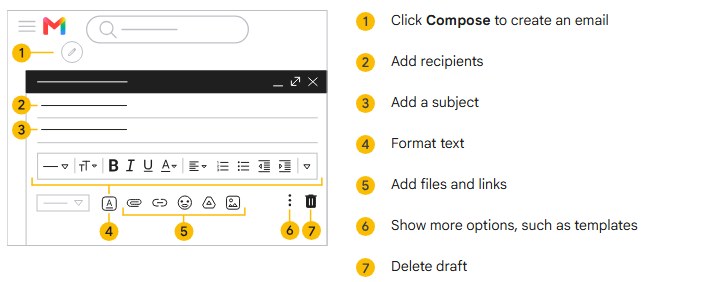
- At the top left, click Compose.
- In the compose window, type the text you want to reuse, including your signature if you want it in every copy.
- At the bottom of the compose window, click More options > Templates.
- Click Save draft as template > Save as new template.
The template now appears under Insert template every time you open More options > Templates in a compose window.
What Gmail email templates are and when to use them
A Gmail template is a saved message you can drop into any new email instead of retyping it. Google describes it as a way to reuse a message whose information does not change often.
| Situation | Why a template helps |
|---|---|
| Answering the same customer or support question | One saved reply replaces typing the same answer each time |
| Sending office directions or video meeting joining steps | The details stay identical in every message |
| Writing to new clients on someone else's behalf | Everyone on the team sends the same approved wording |
| Using different signatures for internal and external mail | Each signature can live in its own template |
| Auto-answering a type of incoming email | A Gmail filter can send a template automatically |
Templates are not available in the Gmail mobile apps. You can turn them on and use them only from Gmail on your computer.
How to enable templates in Gmail
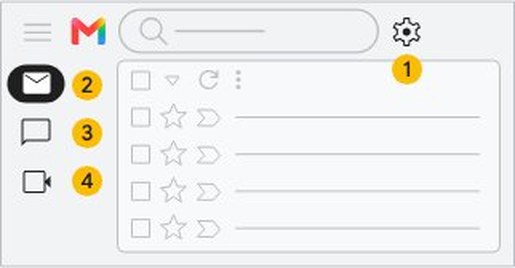
Gmail ships with templates switched off. Settings sit behind the gear icon in Gmail at the top right of the inbox.
- On your computer, open Gmail.
- At the top right, click Settings > See all settings.
- At the top, click Advanced.
- Next to Templates, click Enable.
- At the bottom, click Save Changes.
Open a new compose window and Templates now appears under More options.
How to insert a template into an email
- On your computer, open Gmail.
- At the top left, click Compose.
- At the bottom of the compose window, click More options > Templates.
- Under Insert template, choose the template you want.
- Add the recipients, then edit any details that change from one email to the next.
- Click Send.
If you send a template to the wrong address, you can recall the email in Gmail during the short undo window after sending.
How to edit, rename, or delete Gmail templates
All three changes start from a compose window: click Compose, then More options > Templates.
| What you want | What to click | Result |
|---|---|---|
| Edit a template | Insert the template, change the text, then Save draft as template and choose the template under Overwrite Template, then Save | The old version is replaced, so no duplicate is created |
| Rename a template | Insert it, then Save draft as template > Save as new template with the new name, and delete the old one | The same text is saved under the new name |
| Delete a template | Delete template, choose the template, then Delete | The template is removed permanently |
The Templates menu offers save, overwrite and delete, with no separate rename option. A deleted template cannot be recovered, so overwrite it instead if you only want new wording.
How to send a Gmail template as an automatic reply
Gmail can answer certain incoming emails with a template on its own. You set this up with a filter, and the template must already exist.
- On your computer, open Gmail.
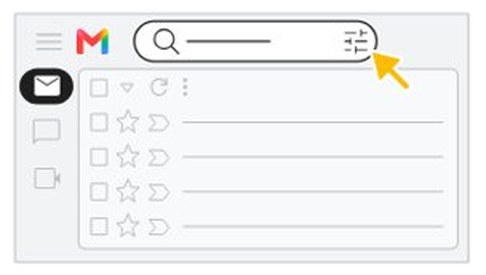
- In the search box at the top, click Show search options.
- Enter the criteria that identify the emails to answer, such as the sender or words in the subject.
- Optional: click Search to check the right emails show up, then click Show search options again.
- Click Create filter.
- Check the box next to Send template, then choose your template.
- Click Create filter.
To change or remove the auto-reply later, go to Settings > See all settings > Filters and Blocked Addresses and click Edit or Delete next to the filter.
How to create multiple signatures in Gmail
If all you need is a different sign-off for different audiences, Gmail's named signatures are a lighter option than a full template.
- Open Gmail and click Settings > See all settings.
- In the General tab, scroll to Signature and click Create new.
- Name the signature, then click Create. The name is only a label for you.
- In the text box at the right, add the signature text.
- Optional: use the format bar to add colors, links or images.
- At the bottom, click Save Changes.
While writing an email, click Insert signature at the bottom of the compose window to switch signatures.
Gmail templates vs email layouts
| Templates | Email layouts | |
|---|---|---|
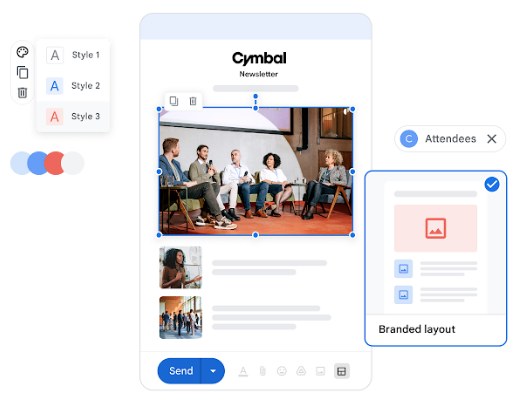
| What it saves | Message text you reuse | A designed email with logo, colors, fonts, images and buttons |
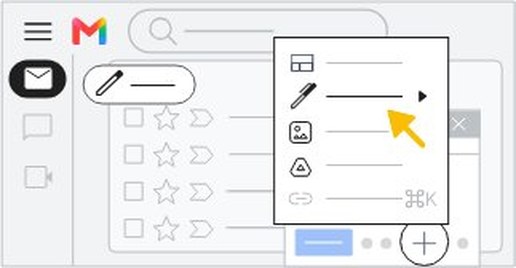
| Where to find it | More options > Templates in the compose window | Layouts at the bottom of the compose window |
| Who gets it | Gmail on the web, once enabled under Advanced | Business Standard, Business Plus, Education Standard and Plus, Enterprise Standard and Plus, and Workspace Individual |
| Where it is stored | In Gmail | Saved layouts under My layouts are kept in Google Drive |
| Editing after inserting | Edit the text directly in the draft | Click Edit to change it in the layout editor |
Use a template for repeated wording and a layout for branded newsletters or announcements.
Tips for using Gmail templates effectively
| Tip | Why |
|---|---|
| Name each template after its job, such as "Pricing reply" | Clear names make the right one easy to pick from the Insert template list |
| Mark the parts you must change, such as [Name] or [Date] | Placeholders are easy to spot and fill in before you click Send |
| Keep one template per purpose | Short, single-purpose templates are easier to keep up to date |
| Update with Overwrite Template, not Save as new template | Overwriting keeps one current version instead of near-duplicates |
| Plan for mobile | Templates cannot be inserted from the Gmail mobile apps, so keep phone replies short or use a computer |
| Check the Sent folder in Gmail after an auto-reply filter goes live | You can confirm the filter is answering only the emails you meant |
Gmail templates not showing or not working
Templates option missing from More options
The Templates feature is not turned on for your account.
- Click Settings > See all settings.
- Open the Advanced tab.
- Next to Templates, click Enable, then Save Changes.
- Open a new compose window and check More options > Templates again.
Can't find Gmail templates on iPhone or Android
Templates are available only in Gmail on the web, not in the Gmail mobile apps.
- Open Gmail in a browser on a computer.
- Click Compose, then More options > Templates.
- Insert the template there and send the email from the computer.
Saving created a second copy of the template
Save as new template always makes a new entry.
- Click More options > Templates > Delete template.
- Choose the copy you do not want and click Delete.
- Next time, use Save draft as template and pick the template under Overwrite Template.
Template auto-reply is not being sent
The filter's criteria do not match the incoming emails, or Send template was not checked.
- Go to Settings > See all settings > Filters and Blocked Addresses.
- Click Edit next to the filter and check its search criteria.
- Click Continue, confirm Send template is checked with the right template, then click Update filter.
Gmail email templates FAQ
Where do I find templates in Gmail if I don't see the option?
Turn the feature on first. In Gmail on your computer, click Settings, then See all settings, open the Advanced tab, click Enable next to Templates and click Save Changes. Templates then appears under More options in every compose window.
Can I use Gmail templates on my phone?
No. Google states that templates can be turned on and used only from Gmail on a computer, and they are not available in the Gmail mobile apps for iPhone, iPad or Android. Open Gmail in a desktop browser to insert one.
How do I update an existing Gmail template without creating a duplicate?
Insert the template, edit the text, then click More options, Templates, Save draft as template. Under Overwrite Template, choose the existing template and click Save. Choosing Save as new template instead would create a second copy.
Can I recover a deleted Gmail template?
No. Google warns that after you delete a template, you can't recover it. If you only want to change the wording, overwrite the template with Save draft as template and Overwrite Template rather than deleting it and starting again.
Can a Gmail template include my signature?
Yes. Type or insert your signature in the compose window before you save the draft as a template, and it is stored with the rest of the text. Google's Workspace guidance suggests this for reusable replies that should always end the same way.
Can Gmail send a template automatically?
Yes. Create a Gmail filter that matches the emails you want to answer, check the box next to Send template, choose your template and click Create filter. Gmail then replies with that template whenever a matching email arrives.
Do Gmail templates work with work or school accounts?
Yes. The Google Workspace Learning Center documents the same steps for work and school accounts: enable Templates under the Advanced settings tab, then save and insert them from More options in the compose window.
Are Gmail templates the same as email layouts?
No. Templates save reusable message text. Email layouts are designed emails with logos, colors, images and buttons, found under Layouts in the compose window, and they are available only on certain Google Workspace editions and Workspace Individual.