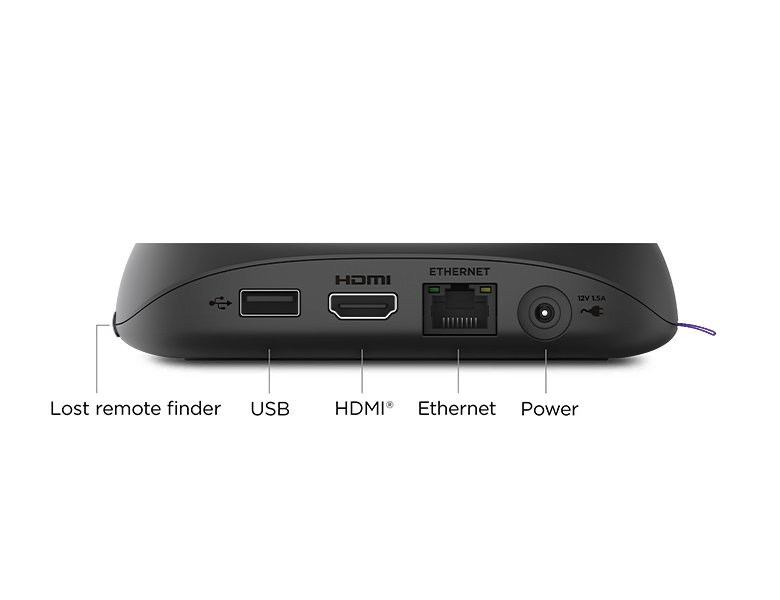
To fix the HDCP Error Detected message on a Roku player, unplug both ends of the HDMI cable and the power cords of the Roku and the TV, soundbar or receiver, then reconnect everything firmly and power it back on.
If the message or purple screen returns, this guide covers HDCP 2.2 for 4K and HDR, HDMI switches and soundbars, display settings, and the Roku network error codes 014.40, 016 and 018.
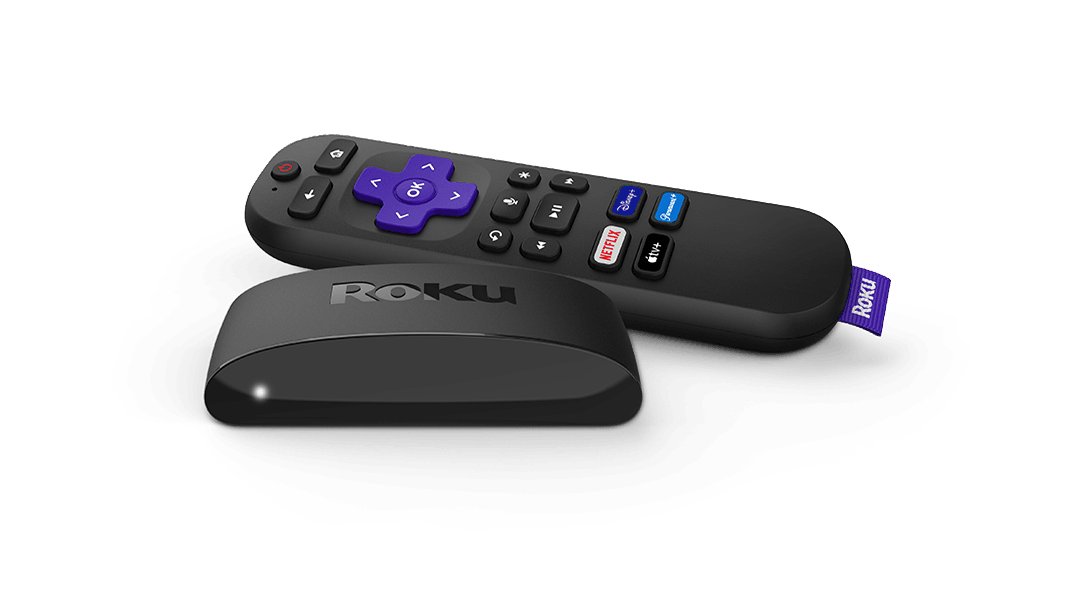
Fix HDCP error detected error code 020 on Roku devices
Roku shows the HDCP Error Detected message, or a purple screen, when it decides the HDMI link to your TV, audio/video receiver (AVR) or soundbar does not support HDCP. A full power-cycle with the cable reseated clears most cases.
- Unplug both ends of the HDMI cable, at the Roku player and at the TV, AVR or soundbar.
- Turn off the TV, AVR or soundbar and unplug its power cord.
- Remove the power cord from the Roku player.
- Reconnect both ends of the HDMI cable, pushing each connector in firmly.
- Plug the power cords back into the TV, AVR or soundbar and the Roku player.
- Wait for both devices to power on, pressing the TV or soundbar power button if needed.
- Play the same show or movie again.
Roku's own help article for this screen does not list a numeric code. Whether the screen shows 020 or no number at all, the HDCP fixes on this page are the ones that apply.
What is HDCP and HDCP error on Roku?
HDCP (High-bandwidth Digital Copy Protection) is the copy protection standard the movie and TV industry uses on HDMI connections. Every device in the HDMI chain must support it before protected video will play.
| Question | Answer |
|---|---|
| What HDCP protects | Movies and TV shows sent over HDMI by Blu-ray players, cable boxes and Roku streaming devices |
| What the error means | The Roku player detected that the TV, AVR or soundbar on the HDMI link does not support HDCP |
| How it looks | An HDCP Error Detected message or a purple screen in place of the video |
| Version needed for 4K and HDR | HDCP 2.2 on every connection and device in the chain |
| Where it also appears | The Roku Channel on a computer when the external monitor or its HDMI cable does not support HDCP |
| Roku's help link | The screen can point to go.roku.com/hdcphelp, which opens Roku's HDCP support article |
Why do I keep getting HDCP error detected on Roku?
A message that keeps coming back points to one weak link in the HDMI chain. Match your setup to a row and use that fix first.
| Your setup or symptom | Likely cause | Fix first |
|---|---|---|
| Error only on 4K or HDR shows | The TV, HDMI input, AVR or cable does not support HDCP 2.2 | Move to an HDCP 2.2 input and use a Premium High Speed HDMI Cable |
| Roku runs through an HDMI switch, AVR or soundbar | Not all HDMI switches support HDCP | Connect the Roku player straight to the TV |
| Error on every show, even in HD | A loose connector or a damaged HDMI cable | Reseat the cable, then try a different one under 6 feet |
| Error started on a new TV or soundbar | That device does not support HDCP | Check the device documentation or ask its manufacturer |
| Error after changing the TV's HDMI input | That input does not handshake with the Roku | Try a different HDMI input on the TV or AVR |
| The Roku Channel on a laptop with a monitor | The monitor or its HDMI cable lacks HDCP support | Play on the laptop screen or use a TV that supports HDCP |
Roku HDCP 2.2 error with 4K or HDR
4K Ultra HD and HDR content needs HDCP 2.2 on every link. An older input or cable can play HD video fine and still fail the moment 4K or HDR starts.
- Check your TV's documentation for which HDMI inputs support 4K and HDCP 2.2, and plug the Roku into one of those.
- Use a Premium High Speed HDMI Cable. A Roku Streaming Stick plugs straight into the TV and needs no cable.
- If a soundbar or AVR sits between the Roku and the TV, confirm it also supports HDCP 2.2, or connect the Roku directly to the TV.
- Update the TV's software from the TV manufacturer's instructions.
- Turn on HDR for the specific HDMI input the Roku uses, since some HDR TVs leave it off by default.
- On the Roku, go to Settings > Display type and choose Automatic so the player matches your TV.
- Play a 4K or HDR title again.
If 4K still fails on that TV, Roku suggests trying a different display type while you check the TV or AVR maker's HDCP 2.2 support.
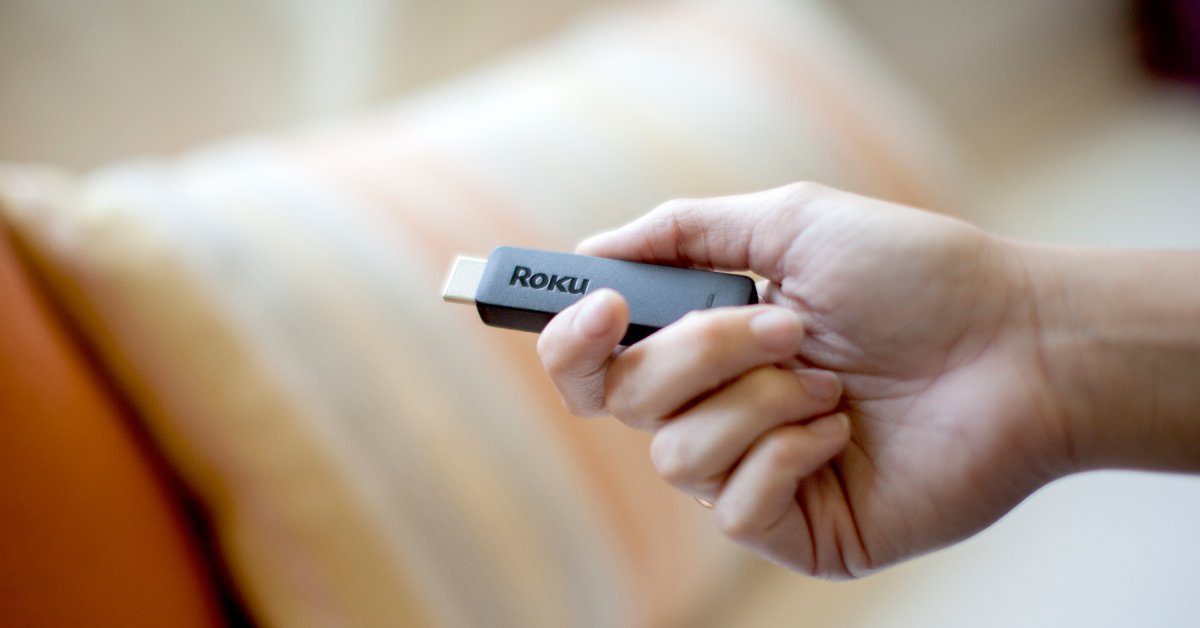
Roku HDCP error through a soundbar, AVR or HDMI switch
Each extra box in the HDMI chain has to pass HDCP along. Taking it out of the chain is the quickest way to find the device that fails.
- Unplug the HDMI cable from the soundbar, AVR or HDMI switch.
- Connect the Roku player directly to an HDMI input on the TV.
- Switch the TV to that input with its Input or Source button.
- Play the same content. If it works, the soundbar, AVR or switch is the device that lacks HDCP support.
- Check that device's documentation or contact its manufacturer about HDCP support.
- Leave the Roku on the TV directly until the in-between device is replaced or confirmed compatible.
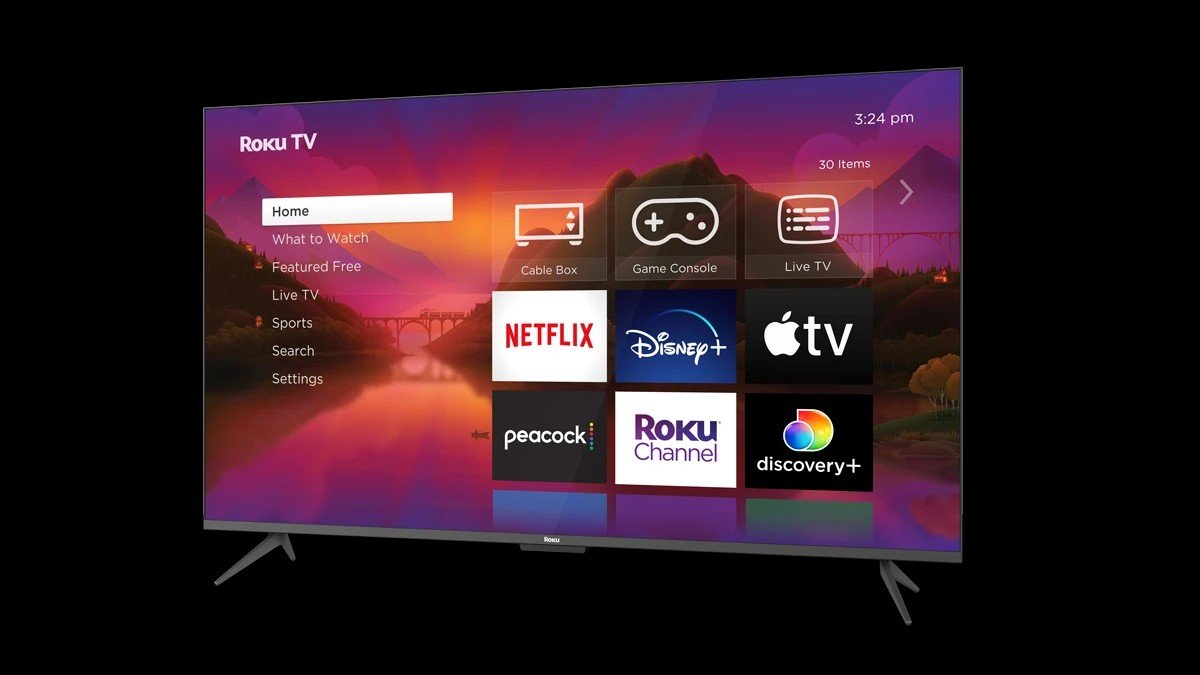
Change Roku display type to fix HDCP unauthorized content disabled
A display type that asks more of the TV than it can deliver can trigger the purple screen. Trying a different setting is safe and easy to undo.
- Press Home on your Roku remote.
- Scroll and select Settings.
- Select Display type.
- Choose Automatic to let the Roku pick the resolution that matches your TV.
- If the error stays, choose a lower display type, then try the content again.
- Switch back to Automatic once the HDMI chain is fixed.
HDCP error detected on The Roku Channel on a computer monitor
The Roku Channel in a web browser checks HDCP on an external monitor too. A monitor or HDMI cable without HDCP support blocks playback.
- Disconnect the HDMI cable to the external monitor.
- Play the same content on the computer's own screen, such as a laptop display.
- If it plays, reconnect the HDMI cable firmly at both ends and try the monitor again.
- Try a different HDMI input on the monitor, if it has one.
- Try a different HDMI cable, under 6 feet if you have one.
- Try another monitor that supports HDCP, or connect the computer to a TV that supports HDCP.
Fix Roku error code 014.40 and 018
Roku lists 014.40 (also shown as 14.40) as a wrong Wi-Fi password and 018 as a slow internet connection. Neither has anything to do with HDCP.
- For 014.40, go to Settings > Network > Set up connection and choose your network again.
- Enter the Wi-Fi password carefully and try again. Ask whoever set up the network if you are unsure of it.
- For 018, move the Roku player closer to the router or remove obstacles between them.
- Restart the modem and router: unplug both, wait 10 seconds, and plug them back in.
- Restart the Roku from Settings > System > Power > System restart.
- Run Settings > Network > Check connection to see the signal and download speed.
Roku lists typical download speeds of 3 Mbps for SD, 5 Mbps for HD and 25 Mbps or more for 4K Ultra HD. If your result sits below the tier you watch, error 018 can keep coming back.
Fix Roku error 011 and 016
Roku lists 016 as a weak Wi-Fi signal, alongside 14.20, 14.62, 14.64 and 017. Code 011 is not on Roku's published connection list, so treat it with the same restart and network steps.
- Move the Roku device closer to the router.
- Restart the router and the Roku device.
- If the router has both 2.4 GHz and 5 GHz networks, connect the Roku to the other one.
- Use an Ethernet cable if your Roku player or TV has an Ethernet port.
- Go to Settings > Network > Check connection and look for a green check mark next to each item.
- If the code returns, reset the network from Settings > Advanced system settings > Network connection reset > Reset connection, then set up Wi-Fi again.
Fix Roku error code 006 and 020
Roku does not publish a meaning for 006 or 020 in its connection error list. When 020 appears with the HDCP Error Detected message or a purple screen, use the HDCP steps above. For 006, or any code that will not clear, work through these general fixes in order.
- Do a system restart: unplug the Roku's power cord for at least 10 seconds, then plug it back in.
- Check for updates from Settings > System > Software update > Check Now. The Roku reboots after installing.
- Run Settings > Network > Check connection and fix any red X before streaming again.
- Reset the network from Settings > Advanced system settings > Network connection reset.
- As a last resort, factory reset from Settings > System > Advanced system settings > Factory reset, then complete Guided Setup again.
A factory reset unlinks the device from your Roku account and removes every app. Have your Roku account email and password, Wi-Fi password and app sign-ins ready before you set up the Roku again. If the same code still returns after the reset, contact Roku support with the code and your device model.
Roku TV error codes and what they mean
These are the connection codes Roku publishes for its players and Roku TV models, with the action Roku recommends for each.
| Issue | Error codes | What to do |
|---|---|---|
| Wrong Wi-Fi password | 14.40, 14.41, 14, 014 | Check the Wi-Fi password and try again |
| Weak Wi-Fi signal | 14.20, 14.62, 14.64, 016, 017 | Move the Roku closer to the router; restart the router and Roku |
| Ethernet cable issue | 012, 013 | Unplug the cable for 10 seconds, try another cable, or use Wi-Fi |
| Slow internet | 018 | Move the Roku closer to the router; restart the modem and router |
| Can't connect to the internet | 009, 14, 14.10, 14.11, 14.30, 14.50, 14.62, 14.64 | Restart the Roku, router and modem, then reconnect |
| Can't update | 003 | Move closer to the router, restart both, or contact your internet provider |
| HDCP Error Detected or purple screen | Often no number | Reseat HDMI and power-cycle the Roku and TV |
Check Roku network connection in Settings
After any network fix, the built-in test shows whether the Roku reaches your router and the internet.
- Press Home on your Roku remote.
- Select Settings > Network > Check connection.
- Wait for a green check mark next to each item and the pop-up with results.
- Open Settings > Network > About to read the signal strength and internet download speed.
- Aim for Good or Excellent signal and at least 25 Mbps for 4K, then play a show to confirm there is no error screen.
How to troubleshoot Roku TV HDMI and connection issues
If the error has gone but the picture or connection still misbehaves, find your symptom below.
Roku TV not detecting HDMI or showing a black screen
The TV is on the wrong input, or the cable or port is faulty.
- Press Input, Source or Video on the TV remote and pause 10 seconds on each input.
- Plug the Roku player into a different HDMI port on the same TV.
- Try a different HDMI cable.
- Connect the player to a different TV to see whether the TV or the Roku is the problem.
Roku HDMI not working with a flashing light or low-power warning
The player is not getting enough power, often from a TV USB port.
- Use the Roku-supplied power adapter.
- Plug the player directly into a wall outlet with the supplied cable.
- Disconnect and reconnect every cable, including the power cord.
Network error on Roku or apps say Not connected
The Roku lost its connection to the router or the internet.
- Open a website on a phone or computer on the same Wi-Fi. If it fails, contact your internet provider.
- Unplug the Roku and the router for 30 seconds, then plug them back in.
- Run Settings > Network > Check connection and follow the result.
Picture freezes or cuts out but no HDCP message appears
A poor-quality HDMI cable struggles with the data rate, especially for 4K and HDR.
- Test with a different HDMI cable, at least temporarily.
- Use a Premium High Speed HDMI Cable for a 4K or HDR TV.
- Stream on another device on the same network to rule out Wi-Fi.
HDCP error appeared for the first time after setup
The new TV, AVR or soundbar may not support HDCP.
- Look up HDCP support in each device's documentation.
- Try another TV that supports HDCP, if you have one.
- Contact the equipment manufacturer if its HDCP support is unclear.
Roku HDCP error FAQ
How do I get rid of HDCP error on Roku?
Unplug both ends of the HDMI cable and the power cords of the Roku and the TV, AVR or soundbar. Reconnect the cable firmly, plug everything back in, and play the content again. If it returns, try another HDMI input, a shorter cable, or connect the Roku straight to the TV.
How to fix HDMI error on Roku?
Reseat the HDMI cable at both ends, switch the TV to the correct input, and try a different HDMI port and cable. Remove any HDMI switch, AVR or soundbar from the chain. For 4K and HDR, every device and cable must support HDCP 2.2.
Why do I keep getting HDCP error detected on Roku?
One device or cable in the HDMI chain does not support HDCP, or a connector is loose. HDMI switches, older AVRs, older TV inputs and damaged cables are the usual causes. Errors only on 4K or HDR content mean something in the chain lacks HDCP 2.2.
What does Roku HDCP unauthorized content disabled mean?
It means the Roku blocked protected video because the HDMI link failed the HDCP check. Roku shows it as an HDCP error message or a purple screen. Power-cycle every device with the HDMI cable reseated, then check HDCP support on the TV and anything between it and the Roku.
What is go.roku.com/hdcphelp?
It is Roku's short link to its official support article for the HDCP Error Detected message and the purple screen. It opens the same troubleshooting steps for Roku players and for The Roku Channel on a computer monitor.
Do I need a special HDMI cable for Roku 4K?
Yes, for 4K or HDR Roku recommends a Premium High Speed HDMI Cable, and every connection must support HDCP 2.2. For a 720p or 1080p TV, a High Speed HDMI Cable is enough. A Roku Streaming Stick plugs straight into the TV and needs no cable.
How to fix Roku TV connection issues?
Restart the Roku and the router, move the Roku closer to the router, and run Settings > Network > Check connection. If the router has 2.4 GHz and 5 GHz networks, try the other one, or use Ethernet. A network connection reset under Advanced system settings is the next step.
How to troubleshoot Roku?
Start with a system restart by unplugging the Roku for 10 seconds. Then check for a software update under Settings > System > Software update, run the network check, and reseat the HDMI cable. Use a factory reset only after everything else fails.