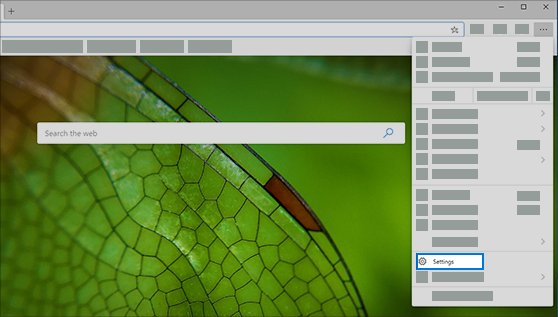
Edge settings in Windows 11 are one click away: select Settings and more (the three dots in the top-right corner of Microsoft Edge), then select Settings, or type edge://settings in the address bar.
This guide covers every way to open the Settings page, what each settings category controls, direct addresses for specific pages, how to reset Edge settings, and what to do when a setting is missing or greyed out.
How to open Edge settings in Windows 11
The Settings and more menu is the same in Windows 11 and Windows 10, so these steps work on both.
- Open Microsoft Edge.
- Select Settings and more (the three dots) in the upper-right corner, or press Alt + F.
- Select Settings near the bottom of the menu.
- Pick a category from the left-hand menu, such as Profiles, Privacy, search, and services or Appearance.
To skip the menu, click the address bar, type edge://settings and press Enter. The Settings page opens in a new tab.
How to launch Microsoft Edge
You need Edge running before you can reach its settings. Windows 11 gives you three quick starting points.
| Starting point | What to do | Best when |
|---|---|---|
| Start menu | Select Start, type Edge, then select Microsoft Edge in the results |
Edge is not pinned anywhere |
| Taskbar or desktop | Select the Microsoft Edge icon on the taskbar, or double-click its desktop shortcut | The icon is already pinned |
| Run dialog | Press Windows + R, enter "C:\Program Files (x86)\Microsoft\Edge\Application\msedge.exe", then press Enter |
You prefer the keyboard or the Start menu misbehaves |
The Run entry uses the default install folder Microsoft gives for msedge.exe. If Edge does not open from any of these, the troubleshooting section below covers stuck processes and repairing the browser.
Step-by-step: How to access Edge settings
Edge has several keyboard routes to the Settings and more menu, which helps when the mouse is awkward or the toolbar is crowded.
- Click anywhere inside an Edge window so the browser has focus.
- Press Alt + F or Alt + E to open the Settings and more menu. F10 then Enter also opens it.
- Use the arrow keys or the mouse to move to Settings, then press Enter.
- On the Settings page, use the left-hand menu to open a category.
- Change the option you need in the right-hand pane.
Pressing Alt on its own or F10 only moves focus to the Settings and more button, so press Enter afterwards to open it.
Overview of Microsoft Edge settings menu
The Settings and more menu is not only a route to Settings. Several tasks people look for in Settings open from the menu or from a shortcut.
| Feature | What it opens | Keyboard shortcut |
|---|---|---|
| Settings | The full Settings page with every category | Alt + F, then select Settings |
| History | Recent history, plus Open history page for deleting browsing data | Ctrl + H |
| Downloads | The downloads list | Ctrl + J |
| Favorites | Saved favorites | Ctrl + Shift + O |
| Collections | Saved collections | Ctrl + Shift + Y |
| New InPrivate window | A private browsing window | Ctrl + Shift + N |
| Help and feedback | Help and Send feedback | F1 for Help, Alt + Shift + I for feedback |
| Clear browsing data | The clear browsing data options | Ctrl + Shift + Delete |
Key settings categories in Microsoft Edge
Each category sits in the left-hand menu of the Settings page. Where Microsoft documents a direct address, it is listed so you can jump straight there.
| Category | What you change there | How to get there |
|---|---|---|
| Profiles | Sign in, Sync options, sign out, sharing browsing data with Windows | Settings > Profiles |
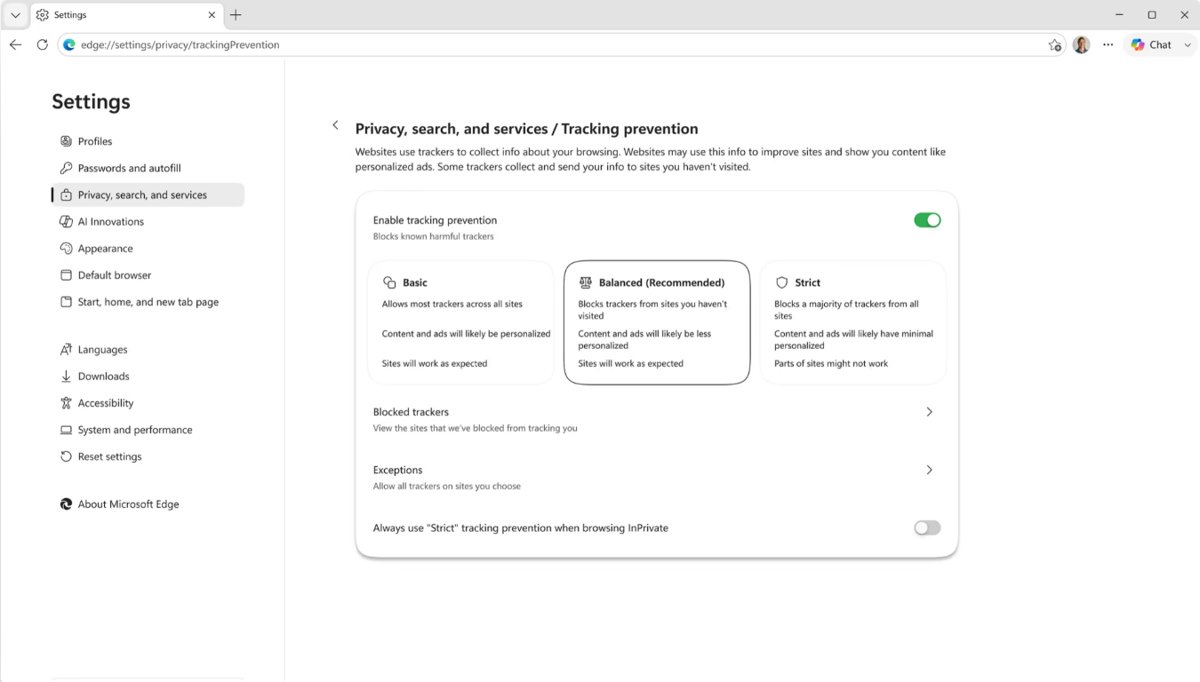
| Privacy, search, and services | Tracking prevention (Basic, Balanced, Strict), clearing browsing data, address bar search engine, diagnostic data | Settings > Privacy, search, and services |
| Appearance | Theme, zoom, toolbar and fonts | Settings > Appearance |
| Start, home, and new tab page | What Edge opens on startup and how the new tab page looks | Settings > Start, home, and new tab page |
| Site permissions | Location, camera and other per-site permissions | Settings > Privacy, search, and services > Site permissions > All permissions |
| Default browser | Making Edge the browser Windows uses for links | Windows Settings > Apps > Default apps > Microsoft Edge |
| Downloads | Download folder location and asking where to save each file | Settings > Downloads |
| Languages | Preferred languages and the language Edge displays | Settings > Languages |
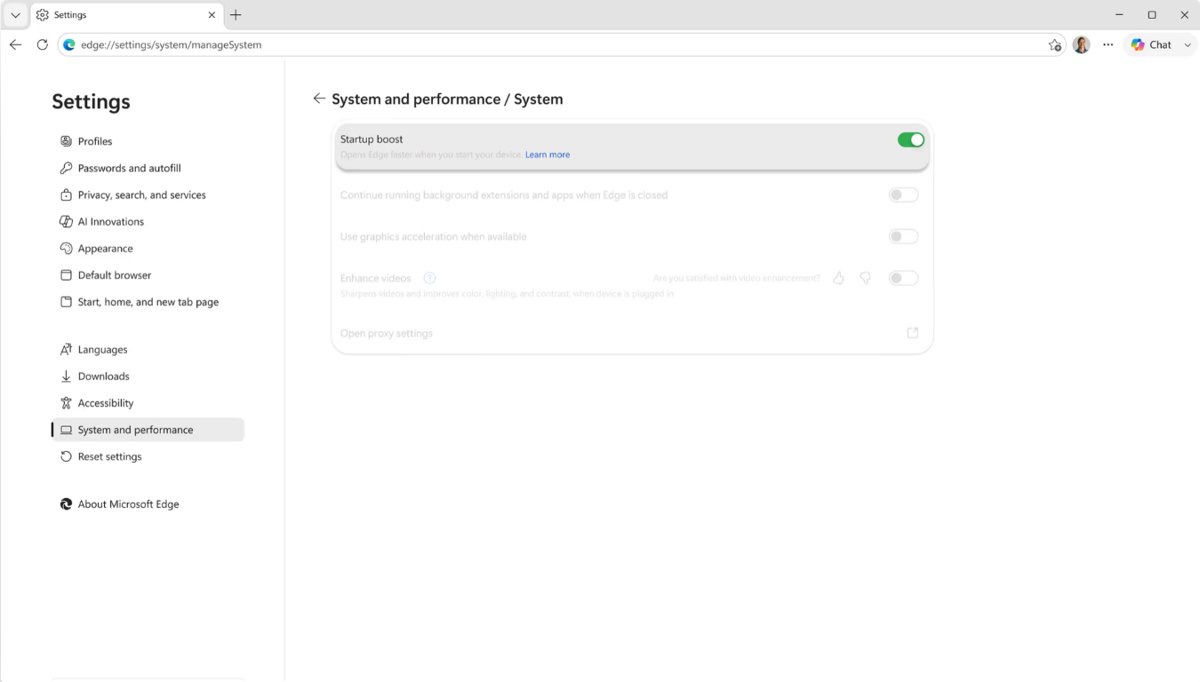
| System and performance | Graphics acceleration, background apps, sleeping tabs | edge://settings/system |
| Reset settings | Restore settings to their default values | edge://settings/reset |
| About Microsoft Edge | Version number and updates | edge://settings/help |
The privacy category holds most of the Edge privacy and security settings people go looking for, and the site permission page also controls Edge notification settings.
Using search to find specific Edge settings
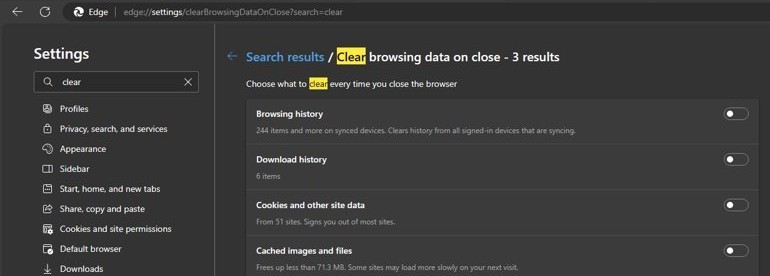
When you know the setting but not the category, search beats scrolling. The address bar can take you straight to a documented settings page, and find on page locates a word once you are there.
- Press Ctrl + L or Alt + D to select the address bar.
- Type a direct settings address, such as
edge://settings/system/managePerformancefor sleeping tabs, then press Enter. - If you are unsure of the address, open
edge://settingsand select the closest category in the left-hand menu. - Press Ctrl + F to open find on page and type a word from the setting, such as
graphicsorlocation. - Press Ctrl + G to jump to the next match and Ctrl + Shift + G for the previous one.
Microsoft documents these direct addresses: edge://settings/system (system options), edge://settings/system/managePerformance (sleeping tabs), edge://settings/reset (reset), edge://settings/help (version and updates) and edge://extensions (extensions).
Change Edge home page and startup settings
Startup behaviour is the setting people most often go looking for after Windows 11 opens Edge on a page they did not expect.
- In Edge, select Settings and more > Settings.
- Select Start, home, and new tab page from the left-hand menu.
- Under On startup, choose Open the new tab page, Open tabs from the previous session or Open custom sites.
- To change the search engine instead, go to Privacy, search, and services > Search and connected services > Address bar and search.
- Choose an engine from Search engine used in the address bar.
A search engine appears in that list only after you have searched with it once in the address bar.
Change the downloads folder location in Microsoft Edge
- Select Settings and more > Settings.
- Select Downloads.
- In the Location area, select Change.
- Choose the new folder in the dialog box.
- Optionally, turn on the option to have Edge ask where to save each file.
Make Microsoft Edge the default browser in Windows 11
The default browser is a Windows setting, not an Edge one, so you set or remove Edge as the default in the Windows Settings app.
- Select Start > Settings.
- Select Apps > Default apps.
- Under Set defaults for applications, select Microsoft Edge.
- Next to Make Microsoft Edge your default browser, select Set default.
To stop Edge reopening when you sign in, go to Settings > Accounts > Sign-in options and turn off Automatically save my restartable apps and restart them when I sign in.
How to reset Microsoft Edge settings to default
A reset undoes changes made by you or by an unwanted extension without wiping your saved data.
- Type
edge://settings/resetin the address bar and press Enter. - Select Restore settings to their default values.
- Restart Edge and reapply the startup page and search engine you want.
Bookmarks, history and saved passwords are kept. Pinned tabs, the startup page, the search engine and extensions are reset, so turn back on any extensions you still want.
Tips for managing Microsoft Edge settings
| Tip | Where to do it | Why it helps |
|---|---|---|
| Sync settings across PCs | Settings > Profiles > Sync, then turn on the data types you want | Your preferences follow you to every device signed in with the same account |
| Use separate profiles | Select your profile picture, then Set up a new profile | Work and personal settings, favorites and extensions stay apart |
| Turn on sleeping tabs | edge://settings/system/managePerformance > Save resources with sleeping tabs |
Inactive tabs stop using CPU and memory |
| Stop background running | edge://settings/system > turn off Continue running background extensions and apps when Microsoft Edge is closed |
Edge stops using resources after you close it |
| Keep Edge updated | Settings > About Microsoft Edge | New settings and fixes arrive with updates |
| Pick a tracking level | Settings > Privacy, search, and services > Tracking prevention | Balanced is the default; Strict blocks more trackers |
Once these basics are set, you can move on to other Microsoft Edge fixes and tweaks, such as extension and cache problems.
Edge settings missing or not opening in Windows 11
Some settings are missing or greyed out
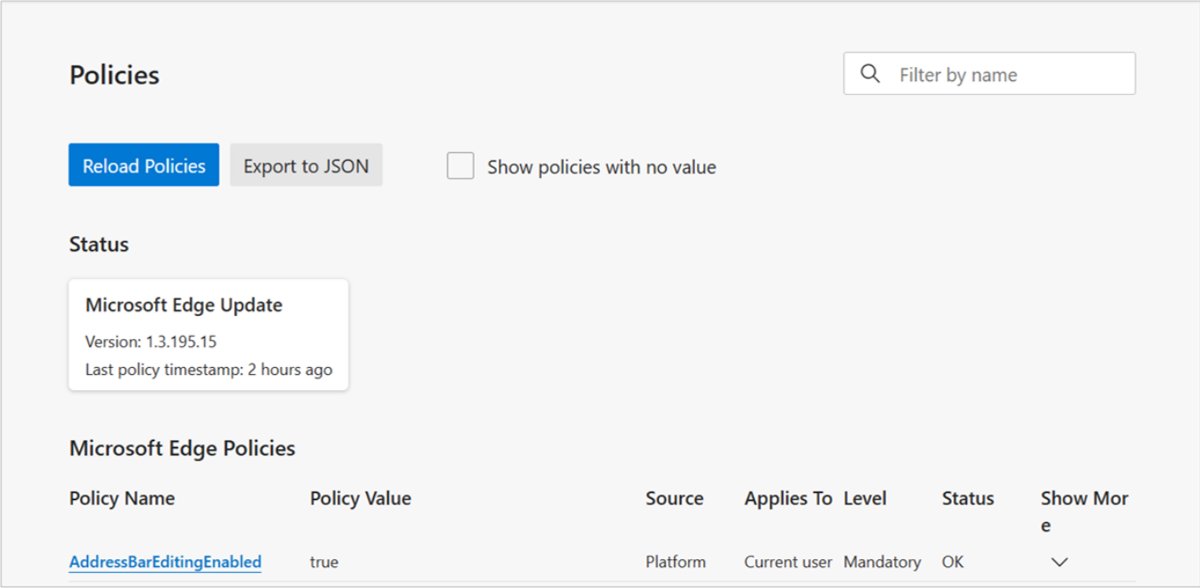
Your organization manages Edge with policies, which lock or hide the settings they control.
- Go to Settings > Apps > Installed apps and select Microsoft Edge; if Modify is not available, your organization installed and manages Edge.
- Ask your IT administrator to change a setting the organization controls.
- On a personal PC with unexpected policies, run a Microsoft Defender scan from Windows Security.
Edge does not open, so you cannot reach Settings
Leftover msedge.exe processes from a previous session can block a clean start.
- Press Ctrl + Shift + Esc to open Task Manager.
- End every msedge.exe task.
- Start Edge again.
- If it still fails, go to Settings > Apps > Installed apps, select Microsoft Edge > Modify > Repair.
Edge opens a blank window or crashes on the Settings page
A graphics driver problem or a corrupted profile.
- If Edge stays open long enough, go to
edge://settings/systemand turn off Use graphics acceleration when available. - Restart Edge and check whether the problem is gone.
- If it is, update your GPU driver and turn graphics acceleration back on.
Settings keep changing back after you set them
An extension or sync from another device is overwriting the setting.
- Go to
edge://extensionsand turn off all extensions. - Change the setting again and restart Edge.
- Turn extensions back on one at a time to find the one that changes it.
- If the setting still reverts, check what syncs in Profiles > Sync.
Administrators who set these values centrally can configure Microsoft Edge with policy settings.
Edge settings frequently asked questions (FAQs)
How do I open Edge settings directly without using the menu?
Type edge://settings in the Edge address bar and press Enter. Microsoft also documents direct addresses for specific pages, such as edge://settings/system for system options and edge://settings/reset for resetting the browser.
What is the keyboard shortcut for Edge settings?
Press Alt + F or Alt + E to open the Settings and more menu, then select Settings. F10 followed by Enter also opens the menu. There is no single shortcut that opens the Settings page itself.
Why can't I find certain settings in Microsoft Edge?
Settings that an organization manages are locked or hidden, so on a work PC ask your IT administrator. Other options are not in Edge at all: the default browser, for example, is set in Windows Settings > Apps > Default apps.
Is it possible to have multiple profiles in Edge?
Yes. Select your profile picture in the top-right corner, then select Set up a new profile. Each profile keeps its own favorites, settings and extensions, and you switch between them from the same profile menu.
How do I reset Microsoft Edge settings?
Go to edge://settings/reset and select Restore settings to their default values. Bookmarks, history and saved passwords are kept, while pinned tabs, the startup page, the search engine and extensions are reset.
Where are the Edge download settings?
Select Settings and more > Settings > Downloads. In the Location area, select Change to choose a new folder, and turn on the option to have Edge ask where to save each file if you want to pick a folder every time.
How do I change the search engine in Edge settings?
Search once with the engine you want in the address bar. Then go to Settings > Privacy, search, and services > Search and connected services > Address bar and search, and choose it from Search engine used in the address bar.
How do I find the Edge version in settings?
Go to Settings and more > Settings > About Microsoft Edge, or type edge://settings/help. The page shows the full version number and installs any available update.