To schedule a Microsoft Teams meeting, open Calendar in Teams, select New, add attendees, keep the Teams meeting toggle on and select Send; invitees then join from the link in their invite.
This guide covers scheduling from Teams, a chat, a channel, Outlook and the mobile app, every way to join, and fixes for blurry video, error 657rx and meetings you cannot enter.
How to set up and join a Microsoft Teams meeting
These steps work in the Teams desktop app and in Teams on the web with a work or school account. Everyone you invite gets an email with the meeting link.
- Open Teams and select Calendar on the left.
- Select New in the upper-right corner, or select a free time slot in the calendar.
- Type a title, then pick the date, start time and end time.
- Enter names in Required attendees. For someone outside your organization, type the full email address.
- Make sure the Teams meeting toggle is on.
- Select Send. The meeting lands on your calendar and on each invitee's calendar.
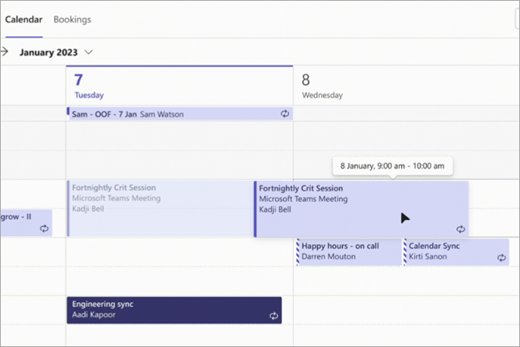
- At meeting time, open the meeting in Calendar and select Join.
- Set your camera and microphone on the pre-join screen, then select Join now.
Invitees can also join from the link in the email. In invites sent after January 20, 2026, Teams shows the full meeting URL; older invites show a Join meeting now link. Both work the same way.
How to schedule a Teams meeting and send an invite
The basic form is enough for most meetings. These extra fields help you pick a time that suits everyone and set up repeat meetings.
- In Calendar, select New to open the meeting form.
- Add required people in Required attendees.
- To add optional people in the new calendar, go to Response options > Add optional attendees and type names in Invite optional attendees. In the classic calendar, select Optional + in the attendee field.
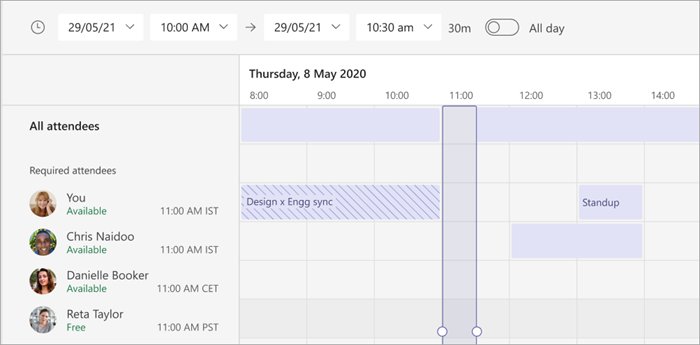
- Select Scheduler to see each person's availability and time zone. Shaded blocks are busy or tentative; unshaded blocks are free.
- To repeat the meeting, open the Does not repeat dropdown and choose daily, weekly, monthly, yearly or a custom pattern.
- Add an agenda or notes in the details box.
- Select Send to send the invites with the Teams join link.
A Teams meeting holds up to 1,000 interactive attendees. When a meeting already has 1,000 people, up to 10,000 more can join as view-only attendees.
How to schedule a meeting from a Teams chat or channel
Scheduling from a chat pre-fills everyone in that chat. A channel meeting invites the whole team and keeps the meeting thread in the channel.
| Where you start | Steps | What attendees get |
|---|---|---|
| A one-to-one or group chat | Open Chat, select More chat options at the top of the chat, select Schedule a meeting, add details and select Send | An invite for everyone in the chat |
| A team channel | Open Teams, choose the team, select the dropdown arrow next to Meet now, select Schedule a meeting, add anyone outside the team and select Send | A personal invite for every team member, plus the meeting in the channel |
| A private channel | Not available | Schedule from Calendar instead and invite people by name |
A channel meeting cannot have its channel changed after the invite goes out. To move it to another channel, send a new invite.
How to schedule a Teams meeting in Outlook
Teams is built into the new Outlook for Windows, so no add-in is needed. Classic Outlook uses the Teams add-in; if its button is not on the ribbon, fix the missing Teams Meeting button first. Both need a Microsoft 365 work or school (Exchange) account; Gmail, Yahoo, iCloud and other POP or IMAP accounts are not supported.
- In the new Outlook or Outlook on the web, select Calendar > New event.
- Next to Title, turn on the Teams meeting toggle.
- Add the meeting details and invite attendees, then select Send. Outlook adds the Teams join details when the invite is sent.
- In classic Outlook, on the Home tab, select the dropdown arrow next to New Email and select Meeting.
- On the Meeting tab, select the dropdown arrow next to Teams Meeting and select Schedule meeting.
- Add details and attendees, then select Send.
Save as draft in the new Outlook creates the event without Teams join details. To make every Outlook meeting a Teams meeting, open Calendar settings > Events and invitations and select Add online meeting to all meetings with Microsoft Teams as the provider.
How to schedule a Teams meeting on iPhone or Android
The Teams mobile app schedules meetings from the same calendar as the desktop app, so the meeting shows up on every device you sign in to.
- Open the Teams app and tap Calendar.
- Tap New event.
- Add a meeting title.
- Tap Add participants and add the people you want. To hold it in a channel, tap Share to a channel.
- Set the date, time and any other details.
- Tap Done to send the invites.
How to start an instant meeting in Teams with Meet now
Use Meet now when you need a meeting right away. Attendees keep access to the meeting chat, recording and shared files after it ends, just as with a scheduled meeting.
- Select Calendar, then select Meet now in the upper-right corner.
- Edit the meeting name, then select Get a link to share if you want to send the link first.
- Select Start meeting to open the pre-join screen.
- Select Join now.
- Select Copy meeting link and paste it into a chat or email, or open People and search for names to call them in.
- From any chat, you can also type
/meetnowin the compose box and press Enter to start a meeting with that chat.
Meet now in the Teams calendar needs an Exchange Online mailbox. Without one, the button does not appear, but Meet now at the top of a group chat still works.
How to set up a meeting in Microsoft Teams for personal use
The free Teams for personal use app has its own Meet tab instead of a full calendar. The steps below are from the mobile app; desktop and web use the same labels.
- Tap Meet at the bottom of the screen, then tap Schedule.
- Name the meeting under Add Title.
- Tap Add participants and enter names, email addresses or phone numbers of Teams users.
- Set the start and end times, or choose All day. Set it to repeat if needed.
- Tap Submit. The meeting appears in the Meet tab under Scheduled.
- Tap Share meeting invite or Copy meeting link to send the link to people.
- Open Meeting options to set Who can bypass the lobby and Who can present, then tap Save.
How to join a Microsoft Teams meeting by link, calendar or meeting ID
Pick the route that matches what the organizer sent you. Every route ends on the same pre-join screen, where you set your camera and microphone.
| What you have | How to join |
|---|---|
| An email invite | Select the meeting link. It opens in the Teams app if installed, otherwise in the browser |
| The meeting on your Teams calendar | Select Calendar, select the meeting, then select Join |
| A meeting ID and passcode | In Calendar, select the dropdown arrow next to Meet now, select Join with an ID, and enter both |
| A meeting already running in a chat or channel | Open the chat or channel and select Join at the top |
| Only a phone | Dial the number and conference ID in the invite, or select Call me on the pre-join screen to have Teams call you |
| A second Teams account | Select Join, then Change next to your account on the pre-join screen and pick the other account |
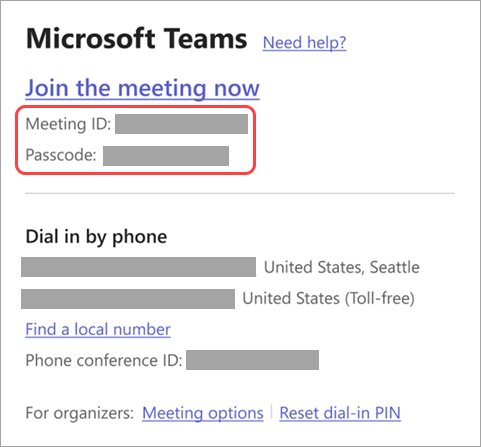
The meeting ID and passcode sit at the top of the invite email, or under Details > Show meeting info in your Teams calendar. Join with an ID needs an Exchange Online mailbox. The live meeting bar and room devices are other ways to join a Teams meeting.
How to join a Teams meeting without an account
You do not need a Teams account or the Teams app to join a meeting, unless the organizer's admin blocks unverified guests.
- Open the invite and select the meeting link.
- Select Continue on this browser. Teams on the web works in Microsoft Edge and Google Chrome.
- Select Allow if the browser asks for your microphone and camera.
- Type your name on the pre-join screen.
- If asked for an email address, enter it, select Send code and type the one-time passcode from your inbox.
- Select Join now, then wait in the lobby until someone admits you.
Other attendees see Unverified next to your name if you skipped email verification, or Email verified if you used a passcode. If no one admits you within 30 minutes, Teams removes you from the lobby and you need to rejoin.
How to make a test call in Microsoft Teams
A test call shows whether your microphone, speaker and camera work before people are waiting on you. You can also set up and test a microphone in Windows 11 first if Teams does not detect it.
- At the top right of Teams, select Settings and more > Settings > Devices.
- Under Audio settings, select Make a test call.
- Follow the Test Call Bot's prompt and record a short message.
- Listen to the playback and read the summary of your mic, speaker and camera results.
- Change any device in Devices if one failed, then run the test again.
The test call is not available in Teams on the web. There, join the meeting up to 15 minutes early and check your devices on the pre-join screen.
How to reschedule or edit a Teams meeting
| Change | How to do it |
|---|---|
| Move the meeting to a new time | Drag it to a new slot in Calendar, or open it, pick a new time and select Send update |
| Add or remove attendees | Open the meeting, edit Required attendees and select Send update |
| Share the join link again | Open the meeting details and select Share > Copy join link |
| Edit on mobile | Open the meeting from Calendar, tap Edit and tap Done. Only organizers can edit |
| Remove Teams from an Outlook meeting | Turn off the Teams meeting toggle in the new Outlook, or select More commands > Don't Host Online in classic Outlook, before you send it |
Attendees get the update automatically. Teams also warns you when an invitee is busy at the new time.
Blurry or pixelated video in Microsoft Teams
Teams lowers video quality when your connection, or the other person's, cannot carry it. Open More actions > Settings > Call health during the meeting to see which side is struggling.
Video turns blocky or freezes during the call
Not enough bandwidth, a weak Wi-Fi signal, or packet loss on the network.
- Open Call health and check the network figures. Microsoft's targets are round-trip time under 200 ms and received packet loss under 2%.
- Move closer to the router, or switch between the 2.4 GHz and 5 GHz bands. 5 GHz is faster but has a shorter range.
- Run a speed test in your browser and compare the result with your internet plan.
- Close other apps or devices that stream or download on the same connection.
Only one person's video looks bad
The problem is on that participant's connection, not yours.
- Ask the participant to check their own Call health figures.
- Ask them to move closer to their router or turn off their video for a moment to free up bandwidth.
Your own video looks dark or grainy
Poor lighting makes the camera raise its gain, which adds noise.
- On the pre-join screen, select Open device settings.
- In Video Settings, turn on the Adjust brightness filter.
- Face a light source instead of sitting with a window behind you.
Low frame rate and poor picture together
The PC is short of processing power or memory for video.
- Close other heavy apps and browser tabs during the meeting.
- Install the latest Windows updates and Teams updates.
- In large meetings, choose a smaller Gallery size from View so Teams shows fewer video feeds.
How to fix Microsoft error 657rx "Something went wrong"
Error 657rx appears on a Teams Something went wrong screen. Microsoft does not publish a specific cause for this code, so work through its standard sign-in and cache fixes in order. If you sign in with a work or school account and the fixes fail, send the code to your IT admin.
657rx appears when Teams starts or signs in
Stale sign-in data or a damaged local cache in the Teams app.
- Check that your PC's date, time and time zone are correct. A wrong clock blocks secure sign-in.
- Select your profile picture at the top right of Teams, select Sign out, then open Teams and sign in again.
- Open Settings > Apps > Installed apps and search for Microsoft Teams.
- Select the More options (…) button next to Microsoft Teams, then select Advanced options.
- Under Reset, select Reset, then open Teams and sign in. Reset removes your Teams personalization settings.
657rx keeps returning after a reset
A network path, VPN or the installed app itself is at fault.
- If you use a VPN, turn it off and back on, then retry.
- Sign in at
https://teams.microsoft.com/in your browser. If that works, the problem is limited to the desktop app. - Uninstall Teams from Settings > Apps > Installed apps, restart the PC and install it again.
- Restart your router or modem if other Microsoft 365 apps also fail to connect.
Microsoft advises against clearing the Teams cache for chat or channel problems, such as missing messages, because it deletes the logs needed to find the cause.
Why can't I join a Teams meeting?
Teams usually shows a message that names the reason. Match the message to the fix below.
"Sign in to join this meeting"
The meeting only admits people signed in with a work or school account.
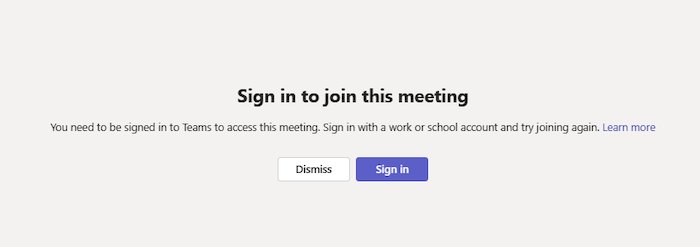
- Sign in to your Teams work or school account, then open the link again.
- If you are the organizer and want guests to join, ask your IT admin. Policy changes can take up to 24 hours.
"Sign in with a different account to join this meeting"
Your organization or the organizer's blocks the account you used.
- Switch to the account the invite was sent to, using Change on the pre-join screen.
"This meeting is locked" or "Your organizational policy does not allow you to join this meeting"
The organizer locked the meeting after it started, or turned on end-to-end encryption.
- Message the organizer and ask them to unlock the meeting or let you in.
- Join again once they confirm.
"The meeting lobby is full right now" or "Sorry, no one has responded to your request to join"
The lobby is at capacity, or nobody admitted you within 30 minutes.
- Wait a few minutes and join again.
- Check that you are using the correct meeting link.
- Message the organizer so they watch for your request.
No join option at all
The meeting was not set up as an online meeting, or you are using a phone browser.
- On a phone or tablet, install the Teams mobile app; Teams meetings do not run in mobile web browsers.
- If you are the organizer, open the meeting in Calendar and turn on the Teams meeting toggle.
Use Teams troubleshooters to fix Teams problems in Windows 11
Windows 11's Get Help app runs automated checks for the hardware a Teams meeting depends on. Microsoft's current list has no separate troubleshooter for the new Teams app, so run the one that matches the failing device.
Camera not working in Teams
Another app holds the camera, a privacy setting blocks Teams, or the driver has failed.
- Close other apps that use the camera and replug an external webcam.
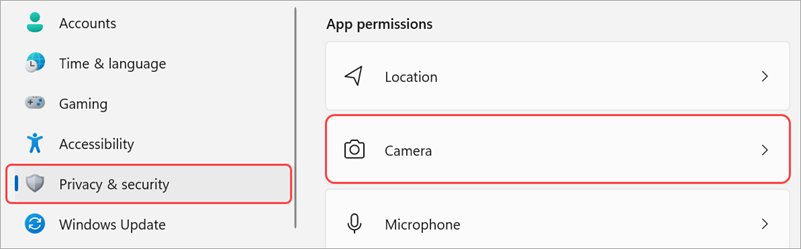
- Open Settings > Privacy & security > Camera and turn on Let apps access your camera and the toggle for Microsoft Teams.
- Open the Get Help app, type
camera troubleshooterin the search bar and follow the steps.
No sound or microphone in Teams meetings
Windows is using the wrong device or the audio driver has a fault.
- Open the Get Help app and type
audio troubleshooterin the search bar. - Select Yes if asked to consent to diagnostics, then follow the prompts.
- Pick the right devices in Teams Settings > Devices. You can also choose a preferred speaker and microphone per app in Windows 11.
Teams cannot connect or keeps reconnecting
The PC has lost its network or internet connection.
- Open the Get Help app and type
connect to network and internetin the search bar. - Select Run network diagnostics and complete the steps it shows.
- Open any website in your browser to confirm the connection is back, then restart Teams.
After each troubleshooter finishes, Get Help lists what it found and the fixes it suggests. Restart Teams before testing again.
Microsoft Teams meeting FAQ
How do I set up a schedule on Teams?
Open Calendar in Teams, select New, add a title, time and attendees, keep Teams meeting on and select Send. Use the Does not repeat dropdown to turn it into a daily, weekly or monthly meeting on a regular schedule.
How do you schedule a Teams meeting and send an invite?
Create the meeting in the Teams Calendar and add people in Required attendees. When you select Send, each person gets an email invite with the join link and the meeting appears on their calendar.
Do you need to create a Teams account to join a meeting?
No. Select the link in the invite, choose Continue on this browser, type your name and select Join now. Some organizations require you to verify your email with a one-time passcode first, and signed-in users get more meeting features.
How do I set up a Teams meeting in Outlook?
In the new Outlook, select Calendar > New event and turn on the Teams meeting toggle next to the title. In classic Outlook, use New Email > Meeting > Teams Meeting > Schedule meeting. Both need a Microsoft 365 work or school account.
Can I schedule a Teams meeting with a Gmail account in Outlook?
No. Outlook only schedules Teams meetings for Microsoft 365 business Exchange accounts, and POP or IMAP accounts such as Gmail, Yahoo and iCloud are not supported. Use the free Teams for personal use app with a Microsoft account instead.
Where do I find the Teams meeting ID and passcode?
They are at the top of the Teams invite email. In your Teams calendar, open the meeting and select Details > Show meeting info. Enter both under Meet now > Join with an ID to join.
How early can I join a Teams meeting?
You can enter a Teams meeting up to 15 minutes before its start time. That gives you time to check your camera and microphone on the pre-join screen. Participants and organizers are notified when you enter.
How long can you wait in a Teams meeting lobby?
Up to 30 minutes. If no one admits you in that time, Teams shows "Sorry, no one has responded to your request to join" and removes you from the lobby. Check the link and join again, or message the organizer.
How many people can join a Microsoft Teams meeting?
Up to 1,000 invitees can join and take part in a Teams meeting. When a meeting already has 1,000 attendees, up to 10,000 more people can join as view-only attendees.
Can I join a Teams meeting by phone?
Yes, when the invite lists a phone number and conference ID. Dial the number and enter the ID. From the Teams app, you can also select Call me on the pre-join screen so Teams calls your phone instead.