To add Bing to your desktop, right-click an empty part of the Windows desktop, select New > Shortcut, enter https://www.bing.com as the location and name the shortcut Bing.
This guide also shows how to install Bing as a Microsoft Edge app with its own icon, how to put the daily Bing image on your desktop, how to add Bing to a Mac, and what to do when the icon does not appear.
Method 1: Create a regular Bing shortcut
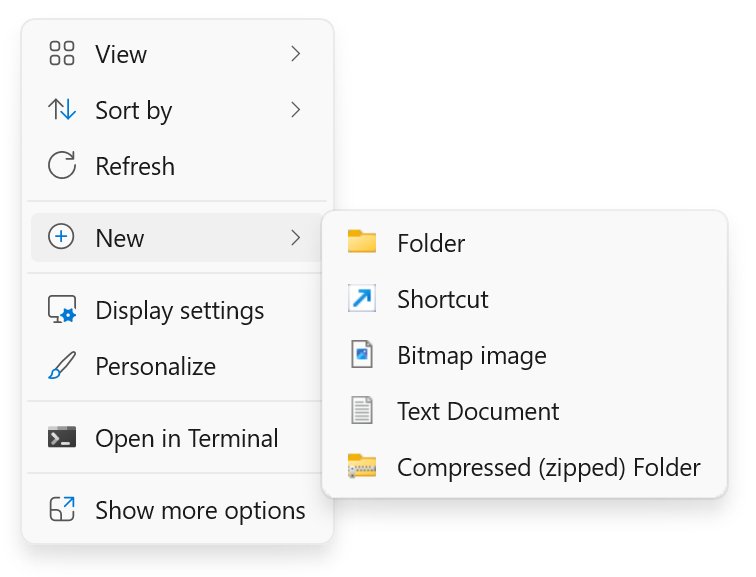
A regular shortcut is the simplest way to put Bing on the desktop in Windows 11 and Windows 10. It opens bing.com in your default browser, whichever browser that is.
The same wizard works for any site, so you can use it to add other shortcuts to the desktop later.
- Go to the desktop and right-click an empty area.
- Select New > Shortcut.
- In the location box, type
https://www.bing.comand select Next. - Type Bing as the name for the shortcut.
- Select Finish. The Bing shortcut appears on the desktop.
- Double-click the shortcut to open the Bing home page in your default browser.
Want the shortcut to open a Bing page other than the home page? Use that page's address instead, for example https://www.bing.com/images for Bing Images or https://www.bing.com/maps for Bing Maps.
Method 2: Install Bing as an Edge app
Microsoft Edge can install any website as an app. Bing then opens in its own window and can have a desktop icon, a taskbar pin and a Start menu entry, just like a regular program.
The Bing app always opens in Edge, even if another browser is your default. The same approach works for sites like Outlook on the web.
- Open Microsoft Edge and go to
https://www.bing.com. - Select Settings and more (the three dots in the top corner).
- Select More tools > Apps > Install this site as an app.
- Confirm the install. Edge opens Bing in its own app window.
- In Edge, go to
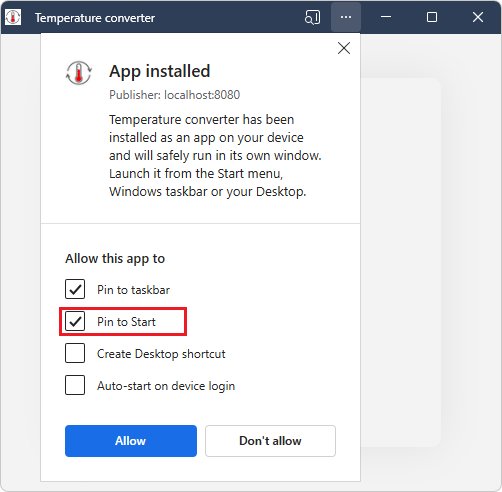
edge://appsand select Details on the Bing app card. - Select Create Desktop shortcut. You can also select Pin to taskbar or Pin to Start from the same card.
To have Bing open every time you sign in to Windows, turn on Auto-start on device login on the same Details page.
Method 3: Put Bing's daily image on the desktop
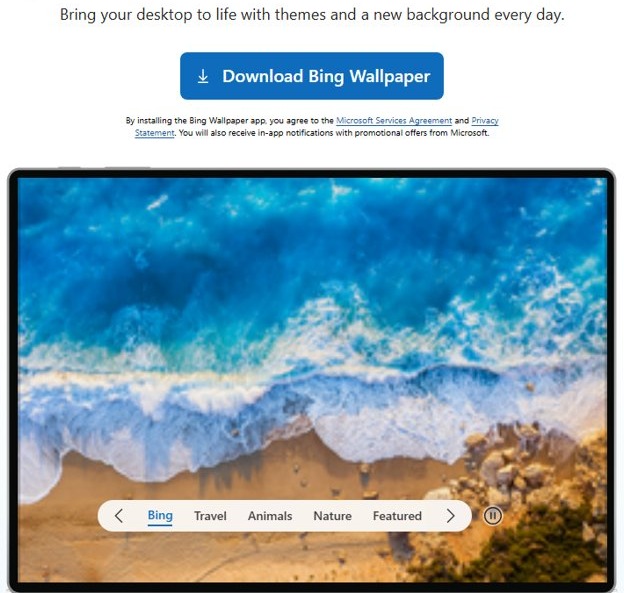
If "Bing on the desktop" means the Bing home page photo, use the Bing Wallpaper app from Microsoft. It changes your desktop background to the Bing image of the day and shows a short description of each picture.
Microsoft says the app works on Windows 10 and later only. You can also pick image themes once you set Bing's daily photos as your wallpaper.
- Open
https://www.bing.com/apps/wallpaperin your browser. - Select the download button for Bing Wallpaper.
- Open the downloaded installer from your Downloads folder and follow the prompts.
- Read each installer screen before you continue, because installing it means agreeing to the Microsoft Services Agreement and the app sends promotional in-app notifications.
- When setup finishes, the desktop background changes to the current Bing image.
Built-in alternative: Windows Spotlight
Windows has its own daily photo feature, so you can get a fresh desktop background without installing anything. Windows spotlight shows a new image from around the world every day.
- Right-click the desktop and select Personalize. You can also open Settings > Personalization.
- Select Background.
- Under Personalize your background, choose Windows spotlight.
- Close Settings. The desktop shows the current Spotlight image, and it changes daily.
To go back to your own photo, choose Picture in the same list and select Browse to pick an image.
Bing shortcut vs Bing app vs Bing Wallpaper
| What you want on the desktop | Use this | Why |
|---|---|---|
| An icon that opens bing.com in your usual browser | Method 1: regular shortcut | No extra software, follows your default browser |
| A Bing icon that opens in its own window | Method 2: Edge app | Own window, desktop icon, taskbar and Start pins |
| Bing open automatically when you sign in | Method 2 with Auto-start on device login | Edge starts the app at sign-in |
| The Bing photo of the day as your background | Method 3: Bing Wallpaper | Uses the actual daily Bing image |
| A daily photo without installing an app | Windows spotlight | Built into Windows 11 and Windows 10 |
| Bing on a Mac | Safari Add to Dock | Creates a Bing web app on macOS Sonoma or later |
Make Bing open in a particular browser
A regular shortcut to bing.com opens in your default browser. To change which browser that is, change the default browser in Windows Settings.
- Open Settings and select Apps > Default apps.
- Under Set defaults for applications, select the browser you want Bing to open in, for example Microsoft Edge.
- Select Set default next to the option to make it your default browser.
- Double-click the Bing shortcut again. It now opens in that browser.
If you want Bing to open in Edge while another browser stays your default, use Method 2 instead. An Edge app always opens in Edge.
How to put Bing on desktop on a Mac
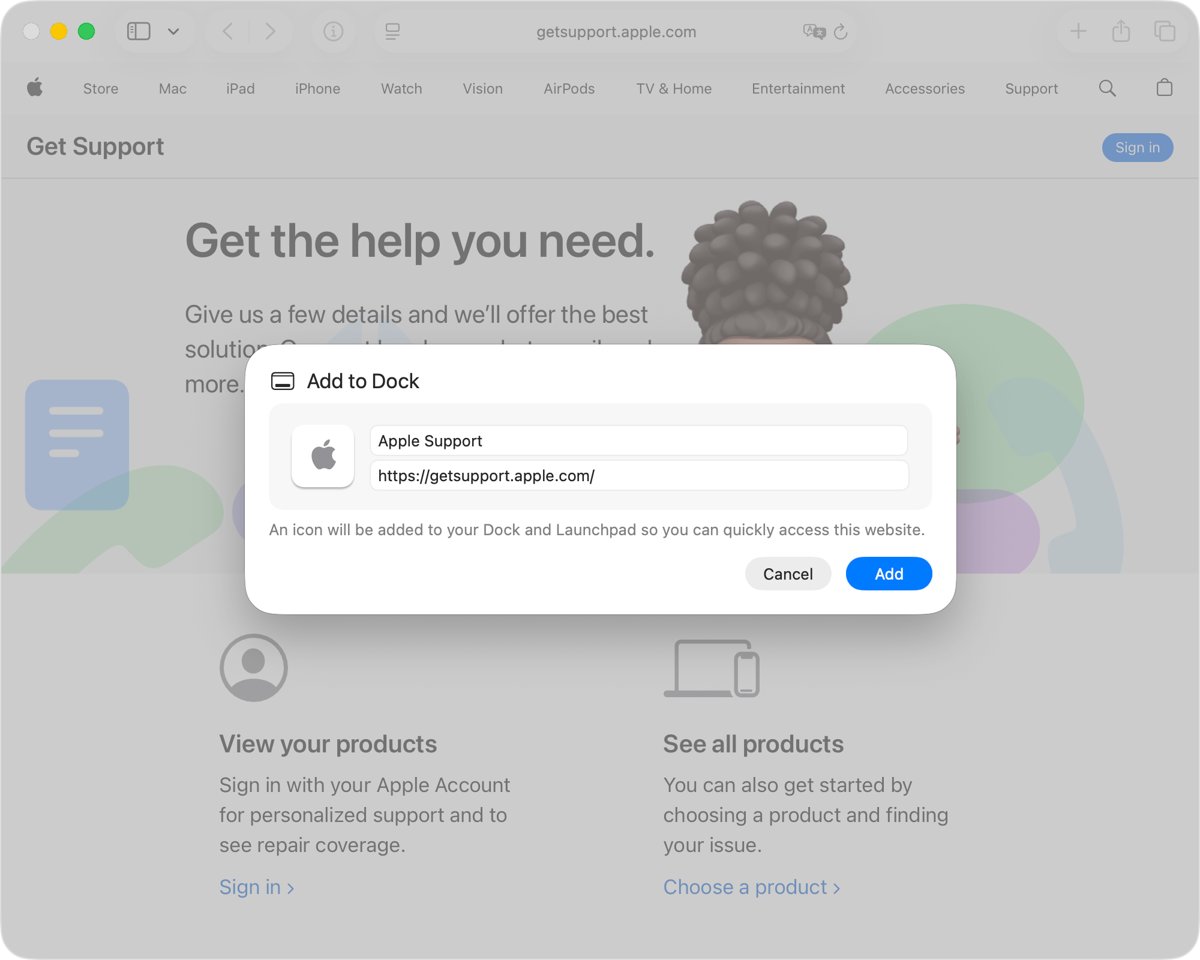
On a Mac, Safari can turn bing.com into a web app that sits in the Dock. Apple says this needs macOS Sonoma 14 or later.
- Open Safari and go to
https://www.bing.com. - From the menu bar, choose File > Add to Dock. You can also click the Share button in the toolbar and choose Add to Dock.
- Type Bing as the name of the web app.
- Click Add. Bing appears in the Dock and is saved in the Applications folder in your home folder.
- Open Bing from the Dock or search for it with Spotlight.
What adding Bing does not change
A desktop icon is only a way to open a page. It does not change any browser or Windows setting on its own.
| Setting | Changed by a Bing shortcut or app? | Where to change it yourself |
|---|---|---|
| Default search engine in Edge | No | Edge: Settings > Privacy, search, and services > Search and connected services > Address bar and search |
| Default browser | No | Windows Settings > Apps > Default apps |
| Desktop background | No (only Bing Wallpaper or Windows spotlight change it) | Settings > Personalization > Background |
| Other browsers' search engine | No | That browser's own search settings |
| Your files and other desktop icons | No | Nothing to change |
How to make Bing the default search engine in Microsoft Edge
If you came here to search with Bing from the Edge address bar, set it as the default search engine. Edge uses Bing by default, but the setting can be changed.
- In Microsoft Edge, select Settings and more > Settings.
- Select Privacy, search, and services.
- Select Search and connected services, then select Address bar and search.
- Choose Bing from the Search engine used in the address bar menu.
- Type a search in the address bar. The results now open on Bing.
About "Bing Desktop"
Bing Desktop was an older Microsoft app that put a Bing search box on the Windows desktop and changed the wallpaper to the Bing image. Microsoft's Bing apps page no longer lists it.
| Question | Answer |
|---|---|
| Is Bing Desktop still offered? | No. The Bing apps page lists only Bing Wallpaper |
| What replaces its wallpaper feature? | Bing Wallpaper, for Windows 10 and later |
| What replaces its search box? | A Bing shortcut or Edge app on the desktop, or Bing as Edge's address bar search engine |
| Is a site offering a Bing Desktop download safe? | Get Microsoft software only from bing.com or microsoft.com; a third-party download page is not an official source |
How to remove Bing from desktop
- For a regular shortcut, right-click the Bing icon on the desktop and select Delete.
- For the Edge app, open Edge, go to
edge://apps, select Details on the Bing card, then select Uninstall. - Choose whether to also delete the app's history and data, then select Uninstall again.
- For Bing Wallpaper, select Start > Settings > Apps > Installed apps.
- Find Bing Wallpaper, select More > Uninstall, and follow the prompts.
- For Windows spotlight, go to Settings > Personalization > Background and choose Picture instead.
Common problems and fixes
The Bing icon does not appear on the desktop
Desktop icons are hidden, or the shortcut was saved somewhere else.
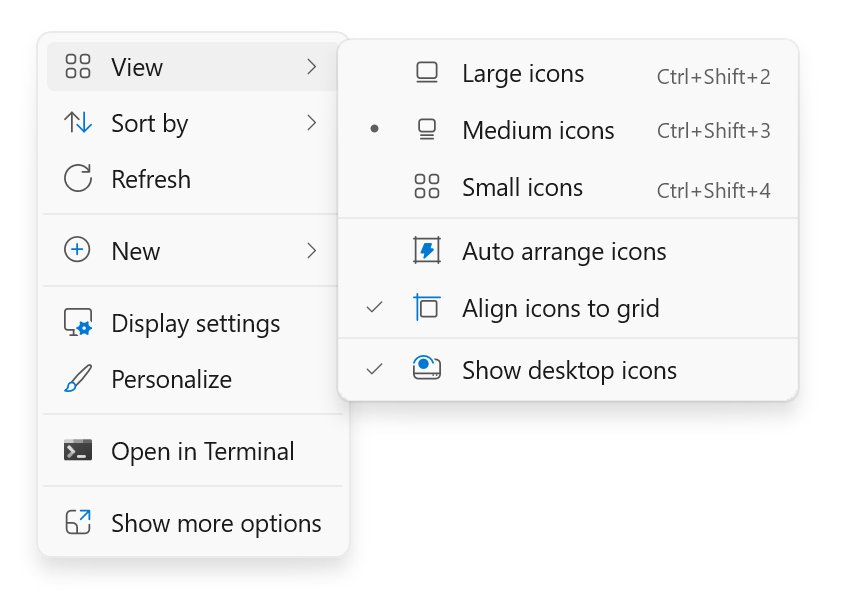
- Right-click the desktop, select View and make sure Show desktop icons is ticked.
- If it still does not show, repeat Method 1 and start from a right-click on the desktop itself, not inside a folder window.
"Install this site as an app" is missing in Edge
You are on a different browser, an older Edge build, or a page Edge treats differently.
- Make sure you are in Microsoft Edge, not another browser.
- Open
https://www.bing.comitself rather than a search results page, then look again under Settings and more > More tools > Apps. - Close every Edge window, open Edge again and repeat the install from the Apps menu.
The Bing shortcut opens in the wrong browser
A regular shortcut always uses the Windows default browser.
- Change the default browser in Settings > Apps > Default apps.
- Or install Bing as an Edge app (Method 2), which always opens in Edge.
The Edge app was installed, but there is no desktop icon
Installing a site as an app does not always add a desktop shortcut.
- In Edge, go to
edge://apps. - Select Details on the Bing card and select Create Desktop shortcut.
The wallpaper changed, but no Bing icon appeared
Bing Wallpaper and Windows spotlight change the background only; they do not add a bing.com shortcut.
- Add the icon separately with Method 1 or Method 2.
The daily image does not update
The background is set to a fixed picture, or the PC is offline.
- Open Settings > Personalization > Background and check that Windows spotlight is still selected if you use Spotlight.
- Connect to the internet, because new daily images are downloaded.
- If you use Bing Wallpaper, check that the app is still listed in Settings > Apps > Installed apps, and reinstall it from bing.com if it is missing.
Bing desktop shortcut FAQ
How do I put a Bing icon on my desktop?
Right-click the desktop, select New > Shortcut, type https://www.bing.com, select Next, name it Bing and select Finish. For an icon with the Bing logo that opens in its own window, install bing.com as an app in Microsoft Edge and create a desktop shortcut from edge://apps.
Can I install Bing as a desktop app?
Yes. Open bing.com in Microsoft Edge and select Settings and more > More tools > Apps > Install this site as an app. Bing then runs in its own window and can be pinned to the desktop, taskbar or Start menu.
Does adding Bing to the desktop make it my default search engine?
No. A shortcut or Edge app only opens bing.com. To search with Bing from the Edge address bar, choose Bing under Settings > Privacy, search, and services > Search and connected services > Address bar and search.
How do I get Bing's daily photo as my wallpaper?
Install the Bing Wallpaper app from bing.com/apps/wallpaper. It sets the Bing image of the day as your desktop background on Windows 10 and later. For a similar daily photo without an app, choose Windows spotlight under Settings > Personalization > Background.
What is Bing Desktop?
Bing Desktop was an older Microsoft app that added a Bing search box and the daily Bing image to the Windows desktop. Microsoft's Bing apps page now lists only Bing Wallpaper, so use a Bing shortcut or Edge app for search and Bing Wallpaper for the image.
How do I add Bing to desktop on Windows 11?
Right-click the Windows 11 desktop, select New > Shortcut and enter https://www.bing.com as the location. Name it Bing and select Finish. The steps are the same on Windows 10.
How do I add a website to the desktop from Bing?
Open the website from your Bing results, copy its address from the address bar, then right-click the desktop and select New > Shortcut. Paste the address, select Next, type a name and select Finish.
How do I put Microsoft Bing on desktop on a Mac?
Open bing.com in Safari and choose File > Add to Dock, then click Add. Bing becomes a web app in the Dock and in the Applications folder in your home folder. This needs macOS Sonoma 14 or later.