To install a Windows 11 Insider Preview build, register for the Windows Insider Program with your Microsoft account, then open Settings > Windows Update > Windows Insider Program, select Get started, pick a channel and restart.
This guide covers the Windows Update route, installing from an Insider ISO, choosing between the Experimental, Beta and Release Preview channels, moving from Windows 10, and how to stop or remove preview builds later.
Install Windows 11 Insider Preview build from Windows Update
This is the standard route and keeps your apps, files and settings. You need a licensed, activated copy of Windows 11 and an administrator account, because the Insider page is hidden from standard users.
- Register on the Windows Insider Program website with your Microsoft account, and accept the Program Agreement and Privacy Statement.
- Save your work, because the PC restarts during setup.
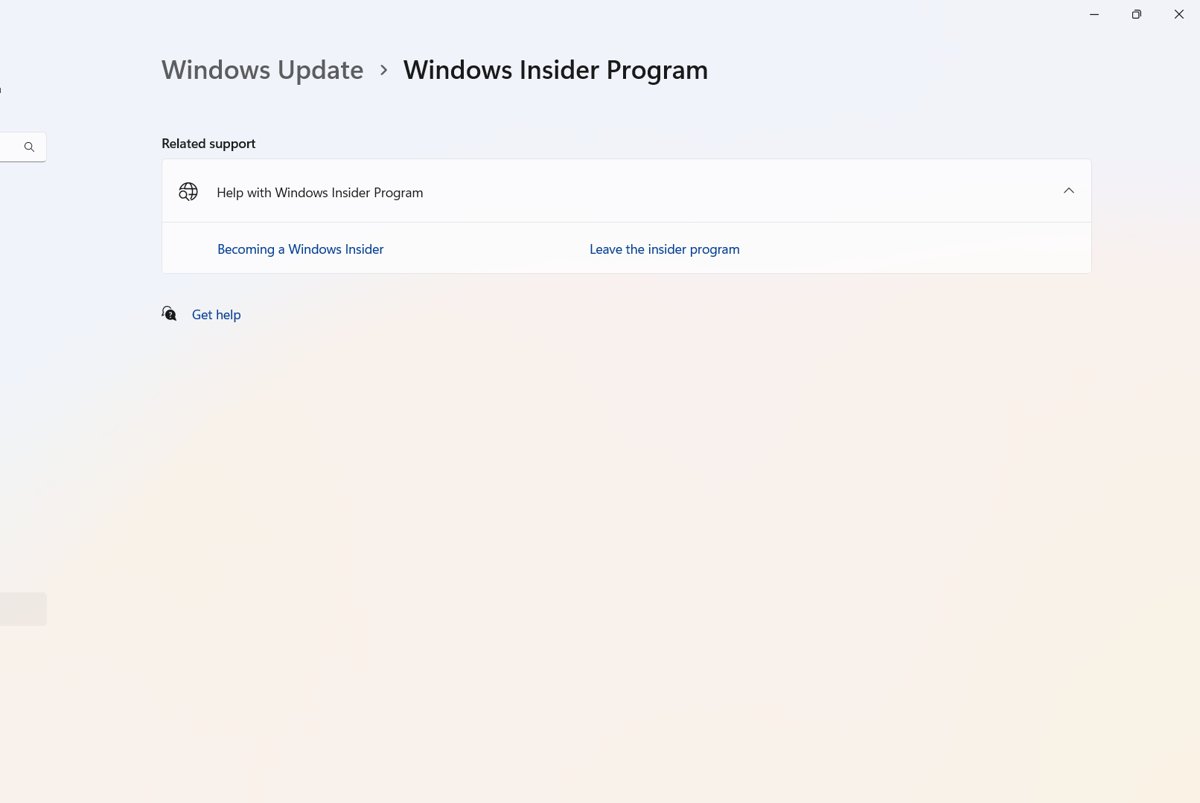
- Open Settings > Windows Update > Windows Insider Program.
- If prompted to turn on optional diagnostic data, select Open Diagnostics & feedback, set Send optional diagnostic data to On, then go back to the Windows Insider Program page.
- Select Get started, link the Microsoft account you registered with, and select Continue.
- Choose the channel you want to receive builds from.
- Review and accept the Program Agreement and Privacy Statement.
- Select Restart now (or Restart later) to finish setting up the device.
- After the restart, open Settings > Windows Update and select Check for updates to download the latest preview build for your channel.
The first upgrade from a retail build to an Insider build sometimes fails. Microsoft notes that trying again succeeds.
Work or school users can register for the Windows Insider Program for Business with a work account instead of a personal Microsoft account.
Which Windows 11 Insider channel to choose
The Windows Insider Program now uses Experimental, Beta and Release Preview channels. Each channel gives a different experience, depending on how early you want to see new features. Devices that have not yet updated to the new program may still show the old Canary and Dev channel names.
| You want | Choose | What to expect |
|---|---|---|
| The newest features first and accept rough edges | Experimental channel | Variable stability; many features roll out gradually; some may never ship |
| Platform changes such as kernel and new APIs, long before release | Experimental (Future Platforms) under Advanced options | Not tied to any retail release; leaving or switching channel needs a clean install |
| Features planned for the coming weeks, with reliable updates | Beta channel | Builds tied to the next H1 or H2 release; every device gets the same features |
| The next Windows 11 version shortly before general release | Release Preview, enabled in Advanced options | Closest to retail quality; supported by Microsoft under the Windows Insider Program for Business |
Advanced options also let you pick a Windows core version within the Experimental and Beta channels, such as version 25H2/26H2 or version 26H1. Version 26H1 is a higher core version, so choosing it means a clean reinstall to get back to 25H2/26H2. Each 26H2 Insider channel gets a different build this year. Leaving Advanced options alone installs the build recommended for your device, and that is the best choice unless you need another core version.
App developers can also use the Windows Insider Program for Developers, which pairs Insider Preview builds with preview releases of the Windows Software Development Kit (SDK) so apps are ready for new Windows features sooner.
Windows 11 Insider Preview requirements
| Requirement | Why it matters | Where to check |
|---|---|---|
| Licensed Windows 11 | Insider builds install only on top of Windows 11 | Settings > System > About |
| Windows is activated | Preview builds need an activated copy | Settings > System > Activation |
| Administrator account | The Windows Insider Program page is visible only to administrators | Settings > Accounts |
| Microsoft account registered as an Insider | The device links to this account during setup | Windows Insider Program website |
| Optional diagnostic data turned on | Microsoft needs enough data to investigate crashes on preview builds | Diagnostics & feedback settings, opened from the Insider setup prompt |
| Supported display language | Some languages are not offered in preview builds | Microsoft's supported languages list for Insider builds |
Install Insider Preview build of Windows 11 from ISO
Use an ISO when Windows Update will not offer a build, to set up a new PC, or to do a clean start. Insider ISOs are on the Windows Insider Preview Downloads page, which only opens after you sign in with an account registered in the program.
- Sign in on the Windows Insider Preview Downloads page and save the ISO for your channel to the PC.
- Open File Explorer, go to the saved ISO and open it so Windows mounts the image.
- Run
setup.exefrom the mounted drive. - For an in-place upgrade, select Keep Windows settings, personal files, and apps.
- For a clean install instead, back up your files first, select Change what to keep, then choose Nothing on the next screen.
- When setup finishes, open Settings > Windows Update > Windows Insider Program and confirm the channel and account are correct.
A clean install erases all files, settings and apps on the PC, so copy anything you need to another drive before you start.
Create a bootable USB from a Windows Insider ISO
A bootable USB drive lets you install an Insider build on a PC that cannot download the ISO itself, or on a new device. Use a USB drive of at least 8 GB; everything on it is erased.
- Download the Insider ISO and connect the USB drive.
- Open Start, search for Recovery Drive and launch it.
- Clear Back up system files to the recovery drive and select Next.
- Select the USB drive, select Next, then select Create.
- Right-click the ISO file, select Mount, and copy all of its contents onto the USB drive.
- Eject the mounted ISO from the File Explorer toolbar.
- To upgrade a PC, run
setup.exefrom the USB drive; to clean install, boot the target PC from the USB drive.
Booting from USB may require changing the boot order in the PC's BIOS or UEFI settings.
Install Windows 11 Insider builds on Windows 10 or an old Insider setup
| Starting point | What to do |
|---|---|
| Windows 11 on the new Insider program | Settings > Windows Update > Windows Insider Program > Get started, then pick Experimental, Beta or Release Preview |
| Windows 11 still showing the old Canary or Dev channel names | Use the same page; the channel names change once the device updates to the new program |
| Windows 10 | Windows 10, version 22H2 (released October 2022) is the final Windows 10 version, and its support ended on October 14, 2025. Upgrade to a licensed Windows 11 first, or clean install from a Windows 11 Insider Preview ISO, then join from Windows Insider Program settings |
| Insider build in one channel, want another | Choose your Insider settings and select the new channel; an in-place upgrade moves you on the same core version |
The Windows 10 route assumes the PC meets the Windows 11 hardware requirements, since Insider builds are Windows 11.
How to check you are running an Insider Preview build
- Open Settings > System > About and read the OS build under Windows specifications, or type
winverin Search and open it. - Compare the number with Flight Hub on Microsoft Learn, which lists the latest build for every channel.
- Open Settings > Windows Update > Windows Insider Program and check your channel under Choose your Insider settings.
- Check the Microsoft account under Windows Insider account is the one you registered.
- Look for the watermark in the lower-right corner of the desktop, which is normal on pre-release builds.
In October 2026, Experimental channel builds for version 26H2 carry 26H2 build numbers starting 26340, and Beta channel builds for version 25H2 start 26220.
Switch Windows 11 Insider channels
Within the same Windows core version you can move between Experimental, Beta and Release Preview without wiping the PC. Windows uses an in-place upgrade, which takes longer than a normal update but keeps apps, settings and data.
- Open Settings > Windows Update > Windows Insider Program.
- Select Choose your Insider settings.
- Select the radio button beside the channel you want.
- Wait for the next update, which comes from the new channel.
Experimental (Future Platforms) is the exception. Moving to any other channel or core version from it needs a clean installation of Windows, then setting up the Insider program again.
Turn on Windows 11 Insider features with Feature flags
Many Experimental channel features use Controlled Feature Rollout, so they reach a small group of Insiders first and spread to everyone over time. If a feature has been announced and you cannot find it on your PC, Feature flags let you turn it on yourself and explore it before it reaches everyone.
- Install the latest Experimental channel build from Settings > Windows Update.
- Open Settings > Windows Update > Windows Insider Program > Feature flags.
- Find the announced feature in the list and turn it on.
- To go back, return to Feature flags and turn the feature off.
Feature flags cover visible new features announced for Insiders, so smaller changes such as bug fixes and system improvements may not be listed. The Beta channel does not use Controlled Feature Rollout, so every Beta device gets the same features without flags.
How to stop Windows 11 Insider Preview updates and remove the build
Unenrolling a device stops preview builds on it; leaving the program also stops the Insider emails. Back up important files before any rollback or reinstall.
- Open Settings > Windows Update > Windows Insider Program > Stop Insider Preview Builds.
- In the Beta, Experimental or Release Preview channel, turn on the switch to stop getting preview builds; the device moves back to a retail build.
- To remove a build installed in the last 10 days, open Settings > System > Recovery and select Get started under Go back to the previous version of Windows 11.
- In Experimental (Future Platforms), clean install Windows 11 from a standard Windows 11 ISO, choosing Change what to keep > Nothing.
- To stop the emails too, leave the program on the Windows Insider website after unenrolling every device.
The rollback option disappears after 10 days or once you install the next build. After that, take a new update or do a clean install. A Windows 11 clean install with the Media Creation Tool returns the PC to a retail release.
On a work PC, preview builds continue until your organization leaves the program or changes your settings.
Fix Windows 11 Insider Preview builds not installing
Windows Insider Program page is missing in Settings
The signed-in account is not an administrator.
- Sign in with an administrator account.
- Open Settings > Windows Update > Windows Insider Program again.
No Insider Preview update is offered
You may already be on the latest build, or a setting blocks flights.
- Check Flight Hub to see if your build is already the newest for your channel.
- Check the known issues in the latest Windows Insider blog post for your build.
- Confirm Windows is activated under Settings > System > Activation.
- Confirm a channel is selected under Choose your Insider settings.
- Turn on optional diagnostic data, then select Check for updates in Settings > Windows Update.
- Keep the PC on and signed in outside active hours so the update can install.
Build expiring notification
Insider builds expire, and outdated builds lose their flight certificates.
- Open Settings > Windows Update and select Check for updates.
- If no update appears, check your Insider settings or clean install from the latest Insider ISO.
An app stops working after an Insider Preview build
Insider builds are prerelease software, and an app may not support a change in the new build yet.
- Check the known issues in the Windows Insider blog post for your build.
- Report the app problem in Feedback Hub, where you can also see what others are saying about recent builds.
- Roll back from Settings > System > Recovery within 10 days if you need the app working now.
Preview build is unstable after the update
A bug in the new build.
- Report the problem in Feedback Hub with screenshots and logs.
- Roll back from Settings > System > Recovery within 10 days.
- Or use Reset this PC under Settings > System > Recovery to reinstall the current build.
Windows 11 Insider Preview install FAQ
What is Windows 11 Insider Preview?
Windows 11 Insider Preview builds are early versions of Windows 11 that are not yet released to the public. Members of the Windows Insider Program run them to try upcoming features and send feedback to Microsoft through Feedback Hub.
What is the Windows Insider Preview program?
It is Microsoft's program for testing pre-release Windows. You register with a Microsoft account or a work account, then enrol as many devices as you want, each in its own channel: Experimental, Beta or Release Preview.
Where do I download a Windows 11 Insider Preview ISO?
Insider ISOs are on Microsoft's Windows Insider Preview Downloads page. The page opens only after you sign in with a Microsoft account registered in the Windows Insider Program.
How do I stop Windows 11 Insider Preview updates?
Open Settings > Windows Update > Windows Insider Program > Stop Insider Preview Builds and turn on the switch. In the Beta, Experimental or Release Preview channel this returns the device to a retail build.
How do I remove a Windows Insider Preview build?
Within 10 days of installing it, go to Settings > System > Recovery and select Get started under Go back to the previous version of Windows 11. After that, or on Future Platforms builds, clean install Windows 11 from an ISO.
Can I install Windows 11 Insider builds on Windows 10?
Not directly. The device must run licensed Windows 11 first. Upgrade to Windows 11, or clean install from a Windows 11 Insider Preview ISO, then join from Settings > Windows Update > Windows Insider Program.
Can I switch Insider channels without reinstalling Windows?
Yes, between Experimental, Beta and Release Preview on the same Windows core version. Select the new channel under Choose your Insider settings. Leaving Experimental (Future Platforms) still needs a clean install.
Bottom line: which way to install Windows 11 Insider builds
Use Settings > Windows Update > Windows Insider Program on a spare or secondary PC and start in the Beta channel; use an Insider ISO only for a new device or a clean start. The Settings route keeps your files and lets you switch channels later with an in-place upgrade, while Beta gives near-term features with reliable updates and avoids the clean install that Future Platforms needs to leave.