Windows 11 26H2 Insider builds go to two channels: Experimental carries 26H2 builds numbered 26340 (26300 until mid-August 2026), and Release Preview carries the retail-bound 26H2 build 26300.
This guide maps every Insider channel to the build it receives as of September 30, 2026, then shows how to join, switch channels, check your build and leave once 26H2 is on your PC.
Which Insider channel gets which 26H2 build
Microsoft replaced the old Canary, Dev, Beta and Release Preview line-up with a new program in 2026. The Dev channel became Experimental, and Canary 29600 builds now sit under Experimental (Future Platforms).
| Channel | Latest build (as of Sep 25-30, 2026) | Windows version it tracks | Gets 26H2? |
|---|---|---|---|
| Experimental | 26340.9577 (September 25, 2026) | 26H2 via an enablement package on top of 25H2 | Yes, earliest features |
| Release Preview 24H2/25H2/26H2 | 26300.9539 (KB5124010, September 10, 2026) | 26H2, the build that shipped to the public | Yes, since August 27, 2026 |
| Beta | 26220.9568 (September 25, 2026) | 25H2 with an enablement package that raises the build to 26220 | Not listed under 26H2 on Flight Hub |
| Experimental (26H1) / Beta (26H1) | 28120.3122 / 28020.3112 | 26H1, a different Windows core | No |
| Release Preview 26H1 | 28000 series | 26H1 | No |
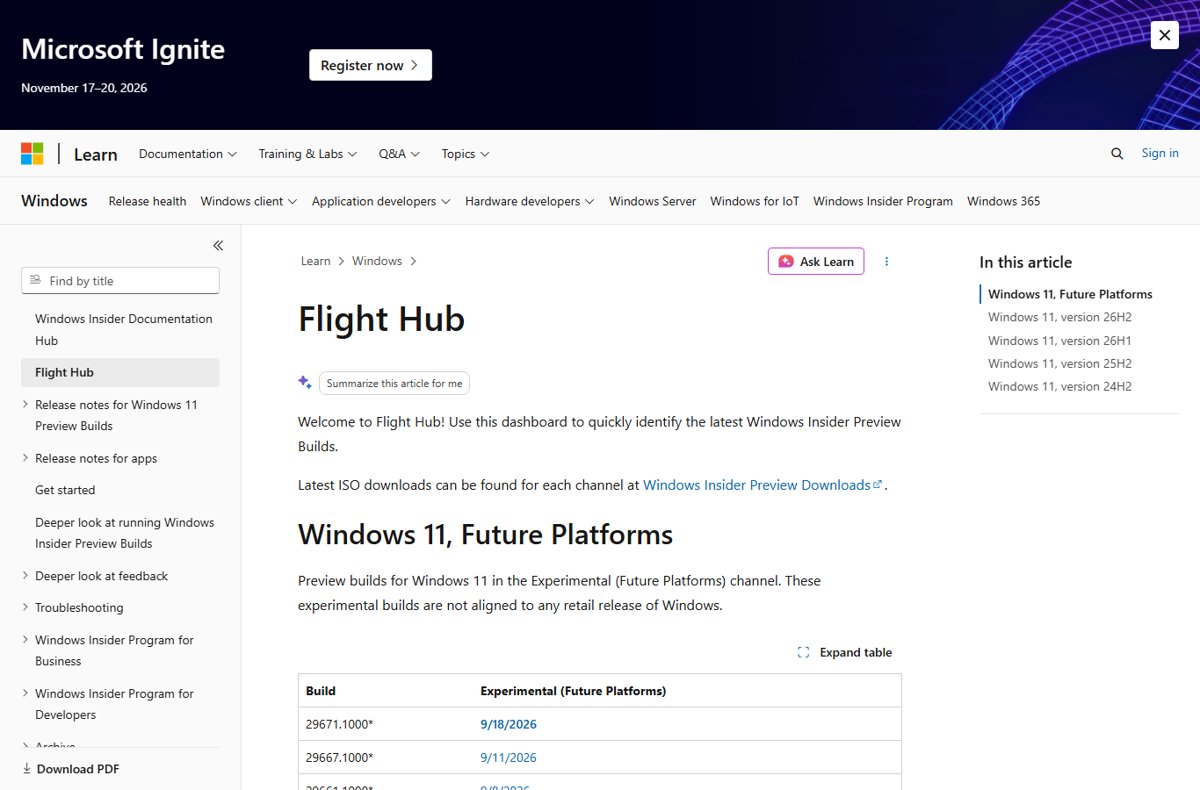
| Experimental (Future Platforms) | 29671.1000 (September 18, 2026) | Not aligned to any retail release | No |
Flight Hub on Microsoft Learn is the official tracker and lists every build with its date for each channel.
Which Insider channel should you pick for 26H2
| Your situation | Pick | Why |
|---|---|---|
| You want the finished 26H2 on your main PC | No channel: use Windows Update | 26H2 has been generally available since September 29, 2026 |
| You want next month's fixes early on a 26H2 PC | Release Preview | Advanced quality updates and Microsoft support for Insider for Business |
| You want new 26H2 features first and accept rough edges | Experimental | Features arrive here first, often through Controlled Feature Rollout |
| You validate upcoming releases for a business | Beta or Release Preview | Beta has no Controlled Feature Rollout, so every device gets the same features |
| Your PC shipped with Windows 11 26H1 | A 26H1 channel | 26H1 devices cannot select the 25H2/26H2 core |
| You want kernel and API changes years out | Experimental (Future Platforms) | Earliest builds; leaving needs a clean install |
What you need before joining an Insider channel
| Requirement | Details |
|---|---|
| Windows | A licensed, activated copy of Windows 11 |
| Account | A Microsoft account registered with the Windows Insider Program, or a work account for Insider for Business |
| Permissions | Administrator rights; the Insider settings page is hidden otherwise |
| Diagnostic data | Send optional diagnostic data turned on |
| Language | A display language Microsoft supports for preview builds |
| Backup | Save your work; setup restarts the PC |
How to join an Insider channel to get 26H2 builds
Once you have registered on the Windows Insider website, enrolment happens in Settings. The channel list you see depends on your Windows core; the new channel names reached retail PCs gradually from June 26, 2026.
- Go to Settings > Windows Update > Windows Insider Program.
- If prompted, select Open Diagnostics & feedback, turn Send optional diagnostic data on, then return.
- Select Get started, link the Microsoft account you registered with and select Continue.
- Choose Experimental for early 26H2 features; to pick Release Preview, open Advanced options first.
- Accept the Program Agreement and Privacy Statement.
- Select Restart now, then go to Settings > Windows Update and select Check for updates.
If you only want the release itself, skip the program and follow the 26H2 download and install steps instead.
How to switch Insider channels without reinstalling
Within the same Windows core, Microsoft moves you between Experimental, Beta and Release Preview with an in-place upgrade. It takes longer than a normal update but keeps apps, settings and data.
- Go to Settings > Windows Update > Windows Insider Program.
- Select Choose your Insider settings.
- Select the radio button beside the channel you want.
- Select Check for updates in Settings > Windows Update; the next update comes from the new channel.
Two moves still need a clean install: leaving Experimental (Future Platforms), and going from 26H1 back to the 25H2/26H2 core.
Hidden changes for build 26300.8697
Build 26300.8697, released to Experimental on June 19, 2026, is the build where the version label first read 26H2. It shipped as an enablement package on top of 25H2.
| Area | Change in 26300.8697 |
|---|---|
| General | Version under Settings > System > About and in winver changes to 26H2 |
| File Explorer | Copy dialog looks and behaves more consistently in Dark mode |
| Start menu | Reflects newly installed or removed apps without sign-out or restart |
| Taskbar | Fix for the system tray being cut off with the smaller taskbar option |
| Settings | More reliable Settings > Apps > Startup page |
| Virtualization | Fix for HYPERVISOR_ERROR (0x20001) and KMODE_EXCEPTION_NOT_HANDLED (0x1E) bugchecks on some devices |
| Channel change | Dev channel registrations began transitioning to the Experimental name |
Download Windows 11 update 26300.8697
Build 26300.8697 is no longer offered: Experimental moved to 26340 builds on August 17, 2026 and reached 26340.9577 on September 25. Windows Update installs the current build for your channel, not a specific older one.
- Join the Experimental channel in Settings > Windows Update > Windows Insider Program.
- Select Check for updates in Settings > Windows Update to get the newest Experimental 26H2 build.
- For a clean install instead, sign in to the Windows Insider Preview Downloads page with your Insider account and pick the ISO for your channel.
- Keep taking new builds; flight certificates expire and outdated builds can stop receiving updates.
A full breakdown of 26300, 26200 and 26100 sits in the 26H2 build numbers explainer.
26H2 Insider build timeline
| Date | Channel | Build | What happened |
|---|---|---|---|
| January 27, 2026 | Experimental (then Dev) | 26300.7674 | First build Flight Hub lists under version 26H2 |
| June 19, 2026 | Experimental | 26300.8697 | Version label switches to 26H2 |
| June 26, 2026 | All | – | New channel names begin rolling out to retail Windows 11 |
| August 17, 2026 | Experimental | 26340.9212 | Experimental 26H2 builds move to the 26340 series |
| August 27, 2026 | Release Preview | 26300.9278 | 26H2 released to Release Preview |
| August 31, 2026 | Release Preview | – | 26H2 ISOs posted on the Insider ISO page |
| September 10, 2026 | Release Preview | 26300.9539 | KB5124010 preview for 24H2, 25H2 and 26H2 |
| September 29, 2026 | Retail | 26300.9550 | 26H2 general availability |
Microsoft has not published why Experimental switched from 26300 to 26340; its release notes describe both as 26H2 delivered through an enablement package.
How to check your channel and 26H2 build
- Go to Settings > System > About and read OS build under Windows specifications; 26300 or 26340 means 26H2.
- Or type
winverin Search and open it to see the version and build. - Go to Settings > Windows Update > Windows Insider Program and look under Choose your Insider settings for your current channel.
- Compare your build with the newest one for that channel on Flight Hub.
How to leave the Insider program and stay on 26H2
From Beta, Experimental or Release Preview you can stop preview builds without reinstalling; Windows returns the PC to a retail build.
- Go to Settings > Windows Update > Windows Insider Program > Stop Insider Preview Builds.
- Turn on the switch to stop getting preview builds on this device.
- Select Check for updates in Settings > Windows Update to pick up retail updates.
- To stop Insider emails too, unregister from the program on the Windows Insider website.
Experimental (Future Platforms) is the exception: leaving it requires a clean install of Windows 11 from an ISO.
Fix problems getting 26H2 Insider builds
You still see Dev or Canary instead of Experimental
The new channel names reached retail PCs gradually over several weeks from June 26, 2026.
- Install all pending updates in Settings > Windows Update and restart.
- Reopen Settings > Windows Update > Windows Insider Program; Dev maps to Experimental for 26H2.
No 25H2/26H2 option under Advanced options
PCs that shipped with Windows 11 26H1 cannot choose the 25H2/26H2 core.
- Check Settings > System > About; a 28000-series build means 26H1.
- Pick a 26H1 channel instead. 26H1 runs on a separate core and has no path to 26H2.
Insider builds stopped arriving
An expired flight certificate, missing activation, diagnostic data turned off or no channel selected.
- Confirm activation in Settings > System > Activation.
- Confirm a channel is chosen in Settings > Windows Update > Windows Insider Program.
- Make sure Send optional diagnostic data is on.
- Select Check for updates; if nothing arrives, compare your build with Flight Hub and clean install from an Insider ISO.
A new 26H2 build broke something
Preview builds carry known issues listed in each flight blog post.
- Check the known issues in the latest Windows Insider blog post for your build.
- Within 10 days, go to Settings > System > Recovery and select Get started under Go back to the previous version of Windows 11.
- File the problem in Feedback Hub with logs and screenshots.
Frequently asked questions
Is Windows 11 26H2 in the Beta channel?
No. As of September 25, 2026, Beta receives 26220 builds, which Microsoft's Flight Hub lists under version 25H2 with an enablement package. The 26H2 builds go to Experimental and Release Preview.
What happened to the Dev channel for 26H2?
Microsoft turned the Dev channel into the Experimental channel in 2026. New Insiders who wanted 26H2 in June 2026 were told to register for Dev while it transitioned; the channel now appears as Experimental.
When did 26H2 reach Release Preview?
Microsoft released Windows 11, version 26H2 (Build 26300.9278) to the Release Preview Channel on August 27, 2026, a month before general availability on September 29, 2026.
Can I download a Windows 11 26H2 Insider preview ISO?
Yes. Microsoft posted 26H2 ISOs on the Windows Insider Preview Downloads page on August 31, 2026. The page only opens after you sign in with an account enrolled in the Windows Insider Program.
What build number is the 26H2 Insider preview?
Release Preview is on 26300, matching the public 26H2 release. Experimental used 26300 from January to August 2026 and switched to 26340 builds on August 17, 2026.
Do I need to stay in the Insider program now that 26H2 is released?
No. From Release Preview, Beta or Experimental you can turn off preview builds under Stop Insider Preview Builds, and the PC returns to a retail build without a reinstall.
Can a Windows 11 26H1 PC join a 26H2 Insider channel?
No. Devices that shipped with 26H1 cannot select the 25H2/26H2 core under Advanced options, because 26H1 is a different, higher Windows core. Those PCs stay on 26H1 channels.
Bottom line
Pick Release Preview if you want 26H2 plus early monthly fixes on a PC you rely on, and Experimental only on a spare PC where new features matter more than stability. Release Preview runs the same 26300 build as the public release and is supported for businesses, while Experimental builds change weekly and carry features that may never ship.