To increase the attachment size limit in Outlook, raise the MaximumAttachmentSize registry value for POP and IMAP accounts, or ask an Exchange admin to raise the mailbox's maximum send size for work accounts.
This guide covers the registry change for classic Outlook, the Exchange Online and Microsoft 365 limits, the admin center and PowerShell routes, Exchange Server settings, and what to do when a file is still too big.
Increasing the maximum attachment size limit in Outlook
Classic Outlook 2013 and later caps attachments at 20 MB (20480 KB) for Internet email accounts such as POP3 and IMAP. The cap covers the total of all attachments in one message, not each file.
Back up the registry before you change it. Exchange and Microsoft 365 accounts ignore this value, so skip to the Exchange sections if you sign in with a work account.
- Close Outlook completely.
- Press Win + R, type
regeditand press Enter, then select Yes at the User Account Control prompt. - Go to
HKEY_CURRENT_USER\Software\Microsoft\Office\16.0\Outlook\Preferences. Use15.0instead of16.0for Outlook 2013. Create the Preferences key if it does not exist. - Right-click an empty area in the right pane and select New > DWORD (32-bit) Value.
- Name the value
MaximumAttachmentSizeand press Enter. - Double-click it, select Decimal, and type the new limit in kilobytes, for example
30720for 30 MB or51200for 50 MB. Select OK. - Close Registry Editor and start Outlook again.
A value of 0 removes the Outlook-side limit entirely. Your mail provider still enforces its own maximum, so a message larger than the provider allows will bounce after you send it.
Which Outlook attachment limit applies to your account?
The error looks the same in every case, but the setting that controls it depends on the account type.
| Your account | Default limit | Where to raise it | Who can change it |
|---|---|---|---|
| POP3 or IMAP in classic Outlook (Gmail, Outlook.com, ISP mail) | 20 MB total per message | MaximumAttachmentSize registry value |
You, on your own PC |
| Microsoft 365 or Exchange Online mailbox | 35 MB to send, 36 MB to receive | Exchange admin center or Set-Mailbox |
An Exchange or Microsoft 365 admin |
| New Exchange Online mailboxes | 35 MB to send, 36 MB to receive | Set-MailboxPlan |
An Exchange admin |
| On-premises Exchange Server | 10 MB organization-wide | Set-TransportConfig plus connector limits |
An Exchange Server admin |
| Outlook.com in a browser | 25 MB per file, 2 GB as a OneDrive link | Cannot be raised; share through OneDrive | Nobody |
Attachment size limit in Exchange and Microsoft 365
Exchange Online lets admins set a custom message size between 1 MB and 150 MB per mailbox. The client you send from can impose a lower ceiling than the mailbox setting.
| Limit in Exchange Online | Value |
|---|---|
| Default maximum send size | 35 MB |
| Default maximum receive size | 36 MB |
| Highest configurable message size | 150 MB |
| Classic Outlook and Outlook for Mac, per attachment | 150 MB |
| Outlook on the web, per classic attachment | 112 MB |
| Outlook on the web, OneDrive attachment | Up to 2 GB |
| Outlook for iOS and Android, whole message | 33 MB |
| Messages leaving Microsoft datacenters | 112 MB after the 33% encoding increase |
| Attachments per message | 250 |
| On-premises Exchange Server default | 10 MB message size |
Base64 encoding makes a message about 33% larger in transit. A 64 MB setting therefore carries roughly 48 MB of actual files, so set the limit about a third higher than the largest file you expect.
Among the features included with Exchange Online (Plan 1), the web-based Exchange admin center is where these message size limits are changed, and Outlook connected to an Exchange account uses the mailbox limit set there, not the registry value.
Change the Exchange Online attachment size limit in the Exchange admin center
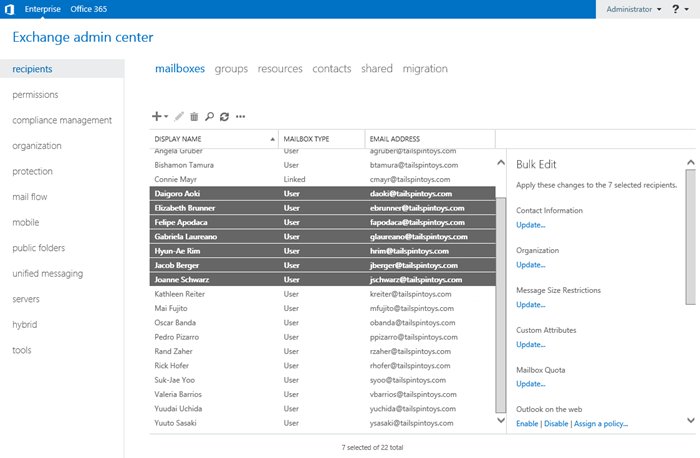
This changes one mailbox at a time, and it works the same way for a shared mailbox in Microsoft 365. You need an admin role with permission to manage recipients, and the Exchange admin center is also linked from the Microsoft 365 admin center.
- Sign in to the Exchange admin center with an admin account.
- Go to Recipients > Mailboxes.
- Select the mailbox you want to change. A details pane opens.
- Open the Mailbox tab.
- Under Message Size Restrictions, select Manage message size restriction.
- Enter the new maximum size for sent messages and for received messages, up to 150 MB.
- Save the change and close the pane.
To change several mailboxes at once, select two or more in Recipients > Mailboxes and use the bulk edit actions that appear.
Exchange Online set max attachment size with PowerShell
Connect to Exchange Online PowerShell first. The values take MB, KB or B units, and 150MB is the ceiling.
Set-Mailbox -Identity [email protected] -MaxSendSize 150MB -MaxReceiveSize 150MBRaises one existing mailbox's send and receive limits to 150 MB. Replace the address with the real mailbox. To change every user mailbox, pipe Get-Mailbox -ResultSize unlimited -Filter "RecipientTypeDetails -eq 'UserMailbox'" into the same Set-Mailbox parameters.
You should see: The command returns no output. Run Get-Mailbox [email protected] | Format-List MaxSendSize,MaxReceiveSize and both values show 150 MB.
Exchange Online default attachment size limit for new mailboxes
Mailbox plans are templates applied when a user gets a license. Changing a plan affects only mailboxes created or licensed afterwards, so existing mailboxes still need Set-Mailbox.
Get-MailboxPlan | Set-MailboxPlan -MaxSendSize 150MB -MaxReceiveSize 150MBSets the send and receive limits in every mailbox plan in the tenant, so new and newly licensed mailboxes start at 150 MB instead of 35 MB and 36 MB.
You should see: Get-MailboxPlan | Format-Table Name,MaxSendSize,MaxReceiveSize lists 150 MB for each plan.
Increase the maximum attachment size on Exchange Server
On-premises Exchange Server 2016, 2019 and Subscription Edition default to 10 MB for the whole organization. The most restrictive limit along the path always wins, so raise the organization and connector limits together.
- Open the Exchange Management Shell on an Exchange server.
- Check the current values with
Get-TransportConfig | Format-List MaxReceiveSize,MaxSendSize. - Raise the organization limits, for example
Set-TransportConfig -MaxSendSize 50MB -MaxReceiveSize 50MB. - Raise the Send connector with
Set-SendConnector -Identity "<connector name>" -MaxMessageSize 50MB. - Raise each Receive connector with
Set-ReceiveConnector -Identity "<connector name>" -MaxMessageSize 50MB. - Set per-mailbox values with
Set-Mailbox -MaxSendSizeand-MaxReceiveSizeif some users need more than the rest. - Wait for the server cache to refresh. Microsoft notes Outlook can take several hours to pick up the new limit.
Outlook on the web on Exchange Server has its own 35 MB default set in the OWA and EWS web.config files. Raising it means editing maxAllowedContentLength, maxReceivedMessageSize and maxRequestLength, then restarting the MSExchangeOWAAppPool and MSExchangeServicesAppPool application pools.
Send files larger than the Outlook attachment limit
When you cannot change the limit, shrink the file or send a link to it instead. Recipients outside your organization often have lower receive limits anyway.
- Upload the file to OneDrive, then copy the sharing link it generates.
- Paste the link into the body of your Outlook message and send it. The recipient downloads the file from the link.
- In a work account, save the file to a SharePoint library and share that link the same way.
- To shrink a folder of files, right-click it in File Explorer and compress it into a ZIP file before attaching.
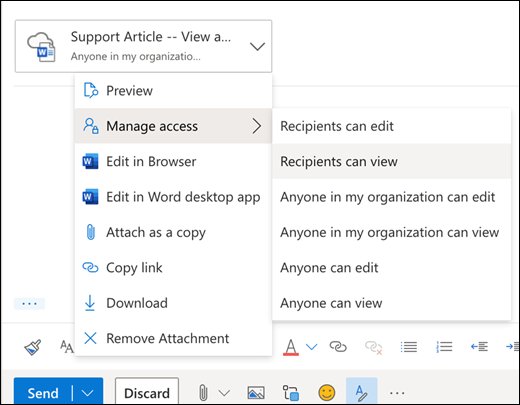
- For photos in classic Outlook, attach them, select File > Info, and under Image Attachments choose Resize large images when I send this message.
Outlook.com accepts OneDrive files up to 2 GB as attachments, compared with 25 MB for a regular file.
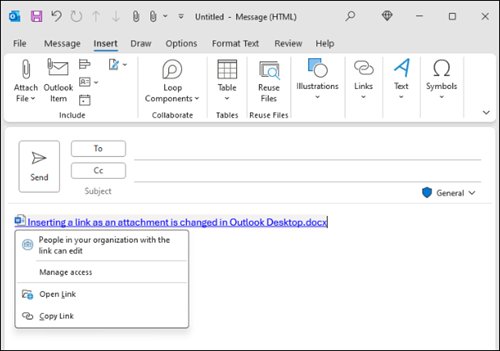
Check the Outlook attachment size limit after the change
- For a POP or IMAP account, attach a file just over the old 20 MB limit. Outlook should accept it without the size error.
- For Exchange Online, run
Get-Mailbox [email protected] | Format-List MaxReceiveSize,MaxSendSizeand confirm the new values. - For Exchange Server, run
Get-TransportConfig | Format-List MaxReceiveSize,MaxSendSizeandGet-SendConnector | Format-Table Name,MaxMessageSize. - Send a test message with a large attachment to a colleague inside the organization, then to an external address. An external bounce points to the 112 MB external ceiling or the recipient's own limit.
Fix Outlook attachment size limit errors
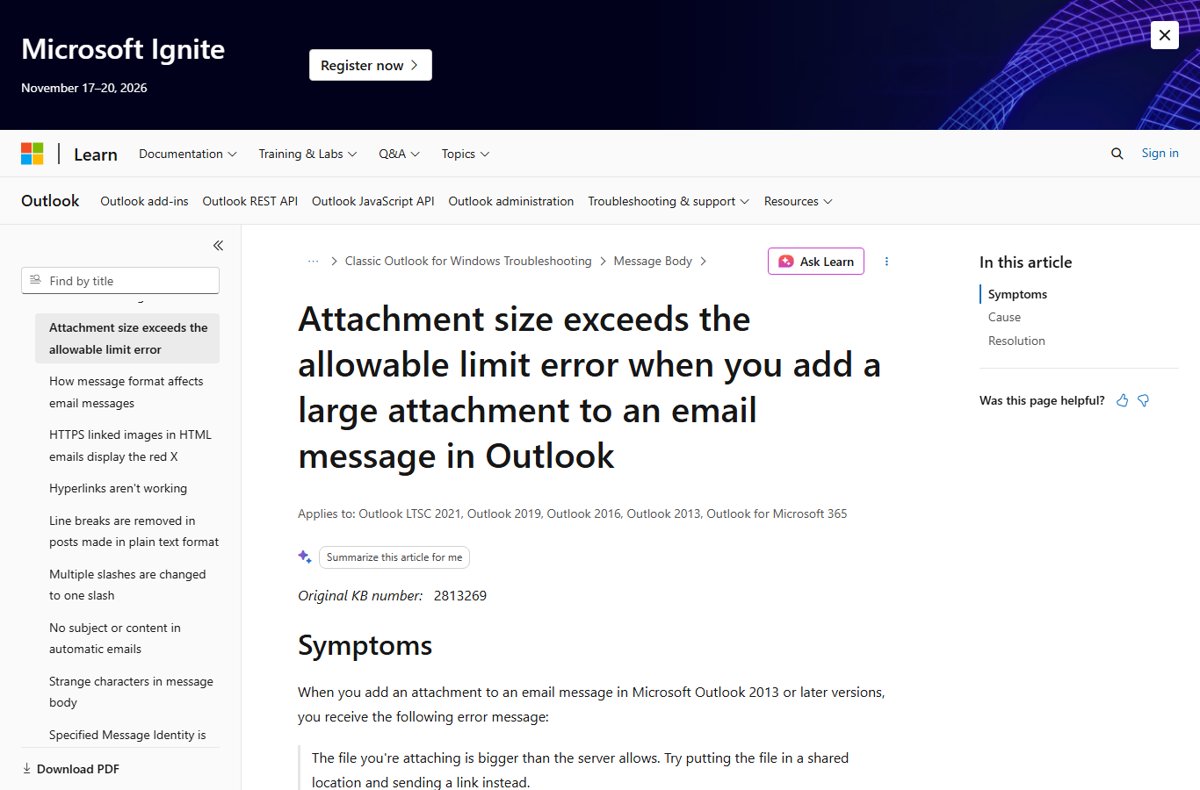
"The file you're attaching is bigger than the server allows"
The message total is over 20 MB on a POP or IMAP account, or over the Exchange send limit on a work account.
- Check which account type you are sending from in File > Account Settings.
- For POP or IMAP, add or raise MaximumAttachmentSize as shown above.
- For Exchange or Microsoft 365, ask your admin to raise MaxSendSize for your mailbox.
Exchange limit raised but Outlook still refuses the file
Exchange caches its settings, so Outlook does not see the new value right away.
- Confirm the new value with
Get-MailboxorGet-TransportConfig. - Wait several hours for the cache to refresh.
- Close and restart Outlook, then try the attachment again.
Outlook on the web allows less than the configured limit
Outlook on the web restricts messages to 25% below the configured size to allow for encoding.
- Set the mailbox limit about a third higher than the largest file you need.
- Attach large files from OneDrive instead, which allows up to 2 GB.
Large message delivers internally but bounces to external recipients
Messages leaving Microsoft datacenters grow by about 33%, which caps them at 112 MB, and the recipient's server may accept less.
- Read the non-delivery report to see which server rejected the message.
- Send the file as a OneDrive or SharePoint link instead.
Outlook for iOS or Android cannot send the attachment
The mobile apps cap the whole message at 33 MB and honor the lowest of the mobile device policy, MaxSendSize and MaxRequestSize.
- Send the message from classic Outlook or Outlook on the web.
- Ask your admin to check the MaxAttachmentSize in the mobile device mailbox policy assigned to you.
Restore the default Outlook attachment size limit
- Close Outlook and open Registry Editor.
- Go to
HKEY_CURRENT_USER\Software\Microsoft\Office\16.0\Outlook\Preferences. - Right-click MaximumAttachmentSize and select Delete, then confirm. Outlook returns to the 20 MB default.
- For an Exchange Online mailbox, run
Set-Mailbox -Identity [email protected] -MaxSendSize 35MB -MaxReceiveSize 36MBto restore the defaults.
Outlook and Exchange attachment size limit FAQ
What is the Exchange Online attachment size limit?
Exchange Online mailboxes send messages up to 35 MB and receive up to 36 MB by default. Admins can raise either value to 150 MB per mailbox. Outlook on the web caps classic attachments at 112 MB, and Outlook for iOS and Android caps a message at 33 MB.
What is the default attachment size limit in Exchange Online?
The default is 35 MB for sending and 36 MB for receiving, including the message body and all attachments. Base64 encoding adds about 33%, so the largest file that fits under the default is noticeably smaller than 35 MB.
How do I change the attachment size limit in Exchange Online?
Open the Exchange admin center, go to Recipients > Mailboxes, select the mailbox, and use Manage message size restriction on the Mailbox tab. In PowerShell, run Set-Mailbox with the MaxSendSize and MaxReceiveSize parameters, up to 150MB.
Can I increase the attachment size for every new Exchange Online mailbox?
Yes. Run Set-MailboxPlan with MaxSendSize and MaxReceiveSize against your mailbox plans. The change applies only to mailboxes created or licensed afterwards, so existing mailboxes still need Set-Mailbox.
What is the maximum attachment size in Microsoft Exchange Server?
On-premises Exchange Server 2016, 2019 and Subscription Edition default to a 10 MB message size for the organization. Admins raise it with Set-TransportConfig, plus the MaxMessageSize setting on Send and Receive connectors.
What is the Office 365 attachment size limit in Outlook on the web?
Outlook on the web allows classic file attachments up to 112 MB and OneDrive file attachments up to 2 GB. It also restricts messages to 25% below the configured mailbox limit to allow for encoding.
Is there a limit on the number of attachments in Exchange Online?
Yes. Exchange Online allows 250 attachments per message, controlled by the 250-part multipart message limit. The total size must still fit within the mailbox's send limit.
Does the MaximumAttachmentSize registry value work for Microsoft 365 accounts?
No. Outlook uses the registry value only for Internet email accounts such as POP3 and IMAP. Exchange and Microsoft 365 accounts follow the limit configured on the server.
What is the Outlook.com attachment size limit?
Outlook.com accepts regular file attachments up to 25 MB. Files shared from OneDrive can be attached up to 2 GB, and the recipient opens them through a link.
Bottom line: should you raise the Outlook attachment limit?
Raise the limit only to the size your mail provider actually accepts, and send anything larger as a OneDrive or SharePoint link. The Outlook registry value and the Exchange mailbox setting only remove one ceiling. Encoding overhead, the 112 MB external cap and the recipient's own server still reject oversized messages after you press Send.