Most mic echo on Windows stops when the person producing it switches to headphones, because the echo is the microphone picking up sound from the speakers and sending it back into the call. Headphones solve most cases, but a few Windows microphone settings can add echo even when nobody uses speakers.
This guide covers who causes the echo, the Windows 11 and Windows 10 settings that feed it (Listen to this device, microphone levels, audio enhancements, default devices), Teams echo controls, driver fixes and how to test the result.
How to fix mic echo on Windows
Acoustic echo happens when a microphone picks up sound from nearby speakers and sends it back into the call. Sound played through headphones does not leak, so the microphone has nothing to pick up.
- Plug in a headset or earbuds and select it as your output device in the call app.
- If you must use speakers, lower the speaker volume until the echo stops.
- Point external speakers away from the microphone, or move the microphone further from them.
- Lower the microphone's input level so it picks up less room sound (steps below).
- If two devices in the same room are in the same call, mute the microphone and speakers on all but one of them.
If the echo persists with headphones, the cause is a Windows setting rather than the room. Work through the methods below in order.
Why does your microphone echo?
Echo is not always a fault on your PC. The table lists the common causes, which side of the call they sit on, and the fix that matches each.
| Cause | What happens | Fix |
|---|---|---|
| Speakers next to the microphone | The mic records the other caller's voice from your speakers and sends it back to them | Use headphones, lower speaker volume, aim speakers away |
| Microphone level or boost set too high | A very sensitive mic picks up speaker output and room reflections | Lower Input volume or Microphone Boost |
| Listen to this device turned on | Windows plays your mic through your own speakers or headset, so you hear yourself | Clear Listen to this device on the Listen tab |
| Two devices in one room on the same call | Each device's mic picks up the other device's speakers | Keep one device's mic and speakers active, mute the rest |
| Remote desktop session playing through speakers | The extra delay puts the echo outside what echo cancellation can remove | Use headphones on the remote session |
| Both people talking at once (double talk) | Echo cancellation works less well while both sides speak | Use headphones; pause between turns |
| Audio enhancements or a faulty driver | Vendor sound effects or a broken driver change how the mic signal is processed | Disable enhancements; update or roll back the driver |
Which PC is causing the mic echo in a call?
The person who hears the echo is usually not the person causing it. Match what you hear to a row before you change any settings.
| What you notice | Whose PC causes it | What to do |
|---|---|---|
| You hear your own voice repeated back in a call | Another participant's mic is picking up their speakers | Ask that person to wear headphones or lower their speaker volume |
| Other people say they hear themselves when talking to you | Your mic is picking up your speakers | Wear headphones, lower your speaker volume and mic level |
| You hear your own voice in your headset all the time, even outside calls | Your PC is playing the mic back to you | Turn off Listen to this device |
| Echo starts only when a colleague in the same room joins | Two devices in one room | Leave one mic active and set the other device's speakers to zero |
| Echo started right after a driver or Windows update | Your audio driver | Roll back or update the audio driver |
Turn off Listen to this device for your microphone
Listen to this device sends your microphone's input straight to your playback device. It is useful for testing, but left on it makes you hear yourself and can loop sound from speakers back into the mic. The checkbox lives in the classic Sound dialog, not on the main Settings page.
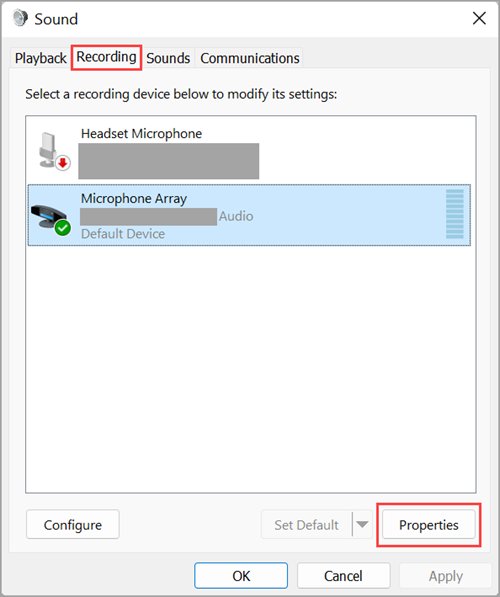
- On Windows 11, open Start > Settings > System > Sound and select More sound settings under Advanced. On Windows 10, open Control Panel > Hardware and Sound > Sound.
- Select the Recording tab.
- Right-click your microphone and select Properties.
- Open the Listen tab.
- Clear the Listen to this device checkbox.
- Select OK, then repeat for any other microphone in the list.
Lower microphone volume and Microphone Boost in Windows
A lower microphone sensitivity means the mic hears your voice up close but picks up less sound from speakers across the desk. Lower it in steps from your Windows 11 sound settings and test after each change.
- On Windows 11, open Start > Settings > System > Sound and select your microphone under Input.
- Under Input settings, move the Input volume slider down a little.
- Select Start test, speak at a normal volume, then select Stop test to see the result.
- On Windows 10, or for the boost setting on either version, open the Sound dialog, select the Recording tab, right-click the microphone and select Properties.
- On the Levels tab, lower the Microphone Boost slider (if your device has one), then lower Microphone if needed.
- Select OK and test again in your call app.
Disable audio enhancements on the microphone
Audio enhancements are signal-processing effects added by Windows or the sound card maker. When they conflict with a call app's own processing, turning them off for the microphone is a quick test.
- Open Start > Settings > System > Sound.
- Under Input, choose your microphone.
- Select Device properties, then Additional device properties.
- On the Enhancements tab, select Disable all enhancements or Disable all sound effects, whichever your device shows, and select OK.
- If there is no Enhancements tab, open the Advanced tab and clear Enable audio enhancements.
- Repeat for each input device, then test the microphone.
Set the default device and default communication device for your headset
When the laptop's built-in mic stays active while you use a headset, the built-in mic can pick up the headset's leaked sound or the laptop speakers. Make the headset both the default device and the default communication device.
- Open the Sound dialog and select the Recording tab.
- Right-click the headset microphone and select Set as Default Device.
- Right-click it again and select Set as Default Communication Device.
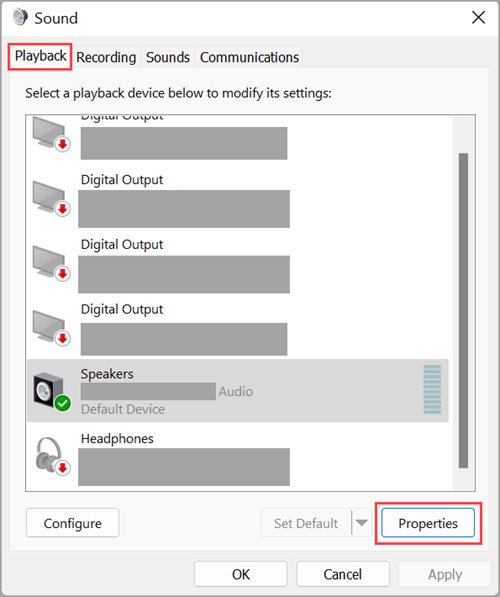
- Select the Playback tab and set the headset as the default there as well.
- In your call app's audio settings, pick the same headset for both microphone and speaker.
Reduce echo in Microsoft Teams with voice isolation and noise suppression
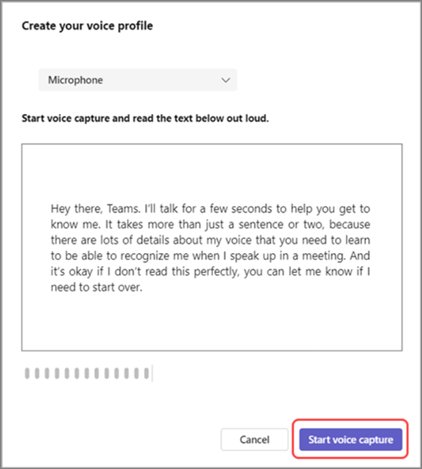
Teams uses AI to cancel echo during calls. With a voice profile, voice isolation also filters out sound from other speakers to prevent echoes.
- In Teams, select Settings and more > Settings.
- Select Devices and turn on the Noise suppression toggle.
- Select Recognition, then Start voice capture to create a voice profile for voice isolation.
- During a meeting, select the dropdown arrow next to Mic and choose More audio settings to check the noise suppression setting.
- Restart Teams if voice isolation shows an alert that it could not turn on.
Voice isolation works after Teams finishes your voice profile. If Recognition is missing from Settings, your organisation's admin controls it.
Run the Windows recording audio troubleshooter
- On Windows 11, open Settings > System > Sound.
- Under Advanced, select Troubleshoot common sound problems and choose Input devices.
- On Windows 10, open Settings > Update & Security > Troubleshoot > Additional troubleshooters.
- Select Recording Audio and run the troubleshooter.
- Apply any fix it suggests, then test your microphone again.
Update or roll back the audio driver
If echo or odd mic processing began right after an update, the audio driver is a likely cause. Roll back first when the timing matches, otherwise update.
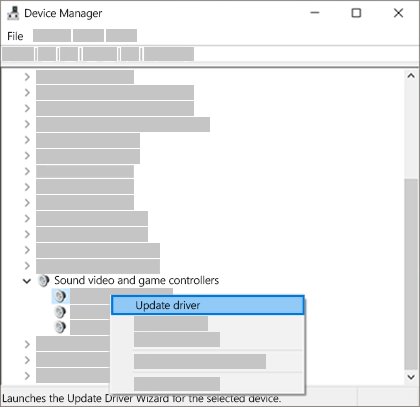
- Right-click Start and open Device Manager.
- Expand Sound, video and game controllers.
- Right-click your audio device and select Update driver, then Search automatically for drivers.
- To go back to the previous driver, right-click the device, select Properties, open the Driver tab and select Roll Back Driver.
- If neither helps, right-click the device, select Uninstall device, tick the option to remove the driver, and restart the PC so Windows reinstalls it.
- If the device does not return, right-click Sound, video and game controllers and select Scan for hardware changes.
Your PC or headset maker's support site often has a newer audio driver than Windows Update. If the echo survives a fresh driver, reset the audio settings to their defaults and set the levels again.
Where microphone echo settings are in Windows 11 and Windows 10
| Setting | Windows 11 | Windows 10 |
|---|---|---|
| Input volume and mic test | Settings > System > Sound > Input > your mic > Input settings | Settings > System > Sound > Input > Test your microphone |
| Recording tab (Listen, Levels, defaults) | Settings > System > Sound > More sound settings > Recording | Control Panel > Hardware and Sound > Sound > Recording |
| Audio enhancements for the mic | Sound > Input > Device properties > Additional device properties | Sound > Input > Device properties > Additional device properties |
| Microphone troubleshooter | Settings > System > Sound > Troubleshoot common sound problems > Input devices | Settings > Update & Security > Troubleshoot > Additional troubleshooters > Recording Audio |
| Audio driver | Device Manager > Sound, video and game controllers | Device Manager > Sound, video and game controllers |
Test your microphone for echo in Windows
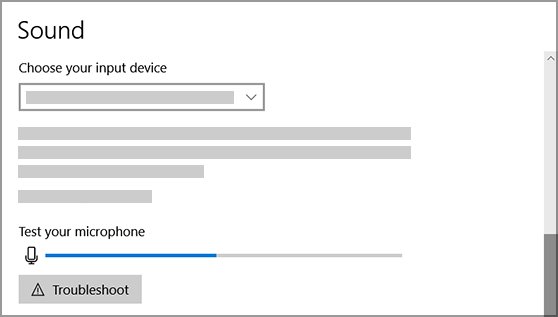
- Open Settings > System > Sound, select your microphone and open its properties.
- Under Input settings, select Start test and speak at a normal volume.
- Select Stop test, then select Play to hear the recording.
- Listen for a second, delayed copy of your voice or sound from your speakers in the recording.
- Join a test call with someone and ask whether they still hear their own voice when they talk.
A clean local recording plus a clean Teams test call means the echo is gone. A clean recording but echo in calls points at speaker volume, room setup or the other participant.
Mic echo troubleshooting by symptom
You hear your own voice in your headset or speakers all the time
Listen to this device is playing the microphone back through your output.
- Open the Sound dialog and select the Recording tab.
- Open the microphone's Properties and select the Listen tab.
- Clear Listen to this device and select OK.
Other people hear an echo of their own voice when talking to you
Your microphone is picking up their voice from your speakers.
- Switch to headphones for calls.
- If you stay on speakers, lower the speaker volume and point them away from the mic.
- Lower Input volume and Microphone Boost a step at a time.
You hear yourself echo back during a call, but your local mic test is clean
Another participant's microphone is picking up their speakers.
- Ask participants to mute one at a time until the echo stops.
- Ask the person whose mute stops the echo to use headphones or lower their speakers.
Echo when two people in the same room join the same call
Each device's mic picks up the other device's speakers.
- Keep one device's microphone unmuted.
- Mute the other device's microphone and set its speaker volume to zero.
Echo only in a Remote Desktop session
The extra delay puts the echo beyond what echo cancellation can remove.
- Wear headphones on the PC running the remote session.
- If you must use speakers, lower them and move them away from the mic.
Echo or distorted mic sound after a Windows or driver update
The new audio driver or its enhancements process the mic differently.
- Disable audio enhancements on the microphone.
- In Device Manager, open the audio device's Driver tab and select Roll Back Driver.
- Check your PC maker's support site for a newer audio driver.
Mic echo on Windows FAQ
Why does my microphone echo on Windows?
Your microphone is usually picking up sound from your speakers and sending it back into the call. Other causes are a mic level set too high, Listen to this device being on, two devices in one room, or an audio driver problem after an update.
Why can I hear myself in my headset on Windows?
Listen to this device is probably turned on for your microphone. Open the Sound dialog, select the Recording tab, open the microphone's Properties, select the Listen tab and clear Listen to this device.
Do headphones stop mic echo?
Yes, in most cases. Echo exists because the mic picks up sound from speakers, and sound played through headphones does not leak into the microphone. It is the fastest fix for the person producing the echo.
Is the echo coming from my PC or someone else's?
If you hear your own voice repeated back, another participant's mic is picking up their speakers. If other people hear themselves when talking to you, your mic is picking up your speakers and your PC needs the fix.
Does Microphone Boost cause echo?
A high Microphone Boost makes the mic more sensitive, so it picks up more sound from speakers and the room. Lowering the boost and microphone level on the Levels tab reduces the echo the mic can capture.
Can audio enhancements cause mic problems on Windows?
Yes. Enhancements are extra processing from Windows or the sound card maker, and Microsoft lists them as a cause of microphone problems. Disable them in Additional device properties on the Enhancements or Advanced tab, then test again.
How do I stop echo in Microsoft Teams?
Use headphones, turn on Noise suppression in Teams Settings > Devices, and create a voice profile under Recognition so voice isolation can filter out sound from other speakers. Teams also cancels echo automatically during calls.
Can a driver update cause microphone echo?
A new audio driver can change how the microphone signal is processed. If echo started after an update, open Device Manager, go to the audio device's Driver tab and select Roll Back Driver, or install the latest driver from your PC maker.
Bottom line: the quickest way to stop mic echo on Windows
Put headphones on whoever produces the echo first, then turn off Listen to this device and lower the microphone level if the echo persists. Nearly all mic echo is speaker sound leaking into a microphone, so headphones remove the cause for as long as they are worn, while the Windows settings handle the cases where your own PC plays the mic back or captures too much room sound.