Chrome can't be installed while Windows 11 is in S mode, so switch out of S mode from the Microsoft Store first, then run the Chrome installer from google.com/chrome.
Leaving S mode is free but permanent. This guide covers both stages, what changes on your PC, how to set Chrome as default, and fixes for install errors.
How to install Chrome on Windows 11 S mode
- Select Start, then open Settings > System > Activation.
- Find the Switch to Windows 11 Pro section and select the Go to the Store link.
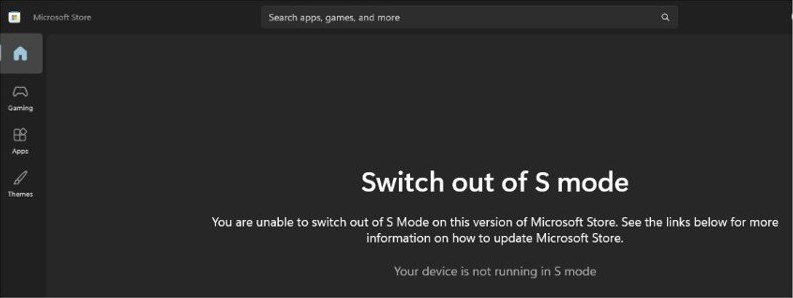
- On the Switch out of S mode page in Microsoft Store, select Get.
- Confirm the action and wait for the confirmation message.
- Open Microsoft Edge and go to google.com/chrome.
- Download the Chrome installer and run it.
- Select Run or Yes if Windows asks, then wait for the Chrome window to open.
Don't use the link under Upgrade your edition of Windows on the Activation page. Microsoft says that is a different process, and it keeps you in S mode.
Can I install Chrome on Windows 11 S mode?
No. Google's help says Chrome can't be installed in S mode, and Microsoft limits S mode to apps from Microsoft Store.
| Your situation | What to do | Why |
|---|---|---|
| You need Chrome | Switch out of S mode, then install it | The installer comes from outside Microsoft Store |
| You only need to browse the web | Stay in S mode and use Microsoft Edge | Edge is the required default browser in S mode |
| You want another browser but want to keep S mode | Look in Microsoft Store | S mode allows any browser available in the Store |
| The PC belongs to work or school | Ask your administrator | An organization can keep all its devices in S mode |
| The PC has a Snapdragon processor | Check that any drivers you rely on support it before switching | Chrome on ARM needs Windows 11 or later, and hardware drivers still must be built for Snapdragon |
| The PC runs Windows 11 Pro, Enterprise or Education | Install Chrome normally | Windows 11 in S mode only exists in the Home edition |
Not sure which mode you are in? You can check if Windows 11 is in S mode before you change anything.
What changes when you switch out of S mode in Windows 11
| Area | In S mode | After you switch |
|---|---|---|
| App sources | Microsoft Store only | Microsoft Store and other sources |
| Default browser | Always Microsoft Edge | Your choice, including Chrome |
| Default search engine | Always Bing | Your choice |
| Cost | Not applicable | No charge to switch |
| Going back | Not applicable | Not possible on that device |
| Security and performance benefits | Kept | Lost, according to Microsoft |
| Domain join | Not available | Needs an upgrade to Windows 11 Pro or Enterprise as well |
Is it safe to switch out of S mode?
Switch if you need Chrome or another app that isn't in Microsoft Store, and stay in S mode if Edge and Store apps cover what you do. The switch is an official Microsoft option, but it is one-way and gives up the security and performance benefits S mode provides. After it, you can install software from any source, so download Chrome only from Google's own site.
How to switch out of S mode in Windows 11 from Microsoft Store
This route skips Settings and goes straight to the Store page. Both routes end at the same Get button, and you can switch out of S mode on Windows 10 as well.
- Select Microsoft Store on the taskbar, or select Start, type
Microsoft Storeand open it. - Search for
Switch out of S mode. - Open the Switch out of S mode page, or the similar page the Store shows.
- Select Get.
- Confirm the action and wait for the confirmation message on the page.
How to install Chrome in Windows 11 after leaving S mode
Chrome on Windows needs Windows 10 or later on an Intel processor with SSE3 support. On an ARM processor it needs Windows 11 or later.
- Open Microsoft Edge and go to google.com/chrome.
- Download the installation file.
- Open the file and follow the on-screen instructions.
- Select Run if you see Do you want to run this file?
- Select Yes if you see Do you want to allow this app to make changes to your device?
- Wait for the Chrome window to open when installation finishes.
Chrome also lets you import settings from another browser such as Firefox, so your existing setup can come across.

How to tell if Chrome is installed on Windows 11
- Select Start, then Settings.
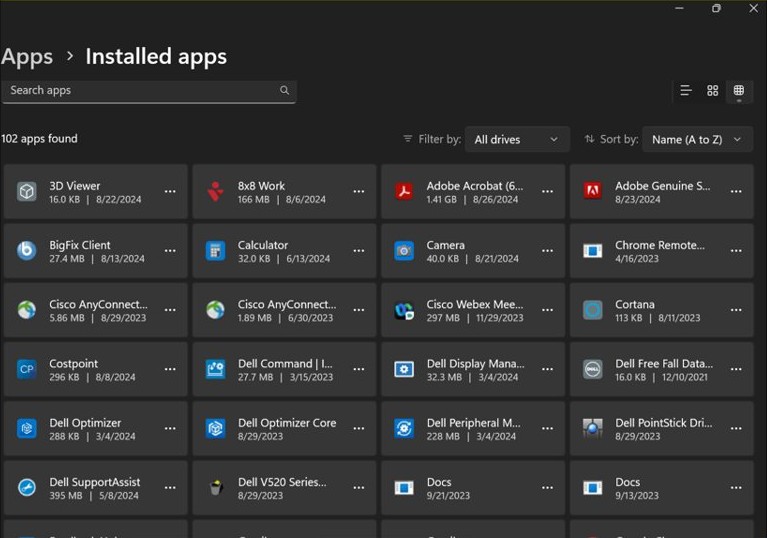
- Select Apps, then Installed apps.
- Find Google Chrome in the list.
- Open Chrome from the Start menu to confirm that it launches.
How to set Chrome as default browser on Windows 11
S mode doesn't allow this change, so it only works after you switch. You can then make Chrome your default browser from Windows Settings.
- Open the Start menu and select Settings.
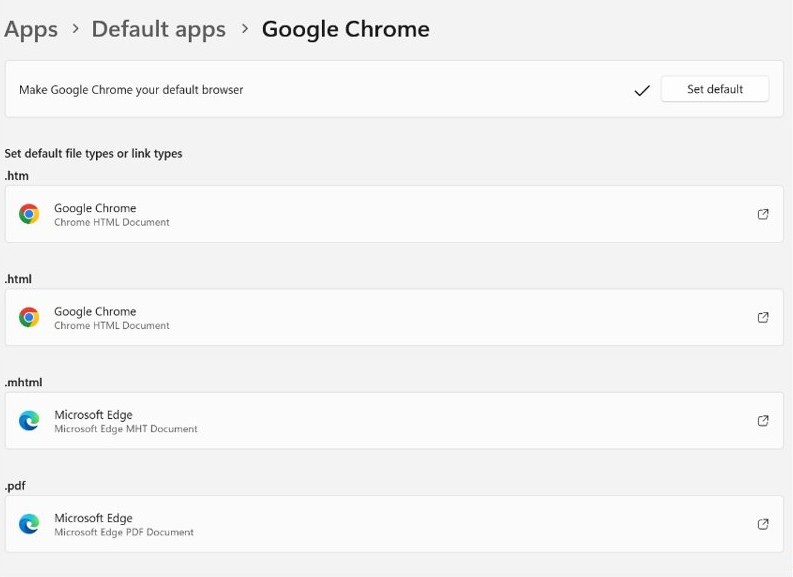
- Select Apps, then Default apps.
- Under Set defaults for applications, search for
Chrome. - Select Google Chrome.
- Click Set default next to Make Google Chrome your default browser.
How to uninstall Chrome on Windows 11
Removing Chrome doesn't put the PC back in S mode. To reinstall it later, download the installer again from google.com/chrome.
- Close all Chrome windows.
- Open the Start menu and select Settings.
- Select Apps, then Installed apps.
- Next to Google Chrome, open the More menu and select Uninstall.
- Select Uninstall again to confirm.
- Select Yes when Windows asks to let the app make changes to your device.
You can also completely uninstall Chrome if you want leftover data gone too.
Tips for installing Chrome on Windows 11 S mode
| Tip | Why it helps |
|---|---|
| Look for the app you need in Microsoft Store first | Most Store apps work the same whether the PC is in S mode or not |
| Check app and accessory needs before you switch | The change can't be reversed on that device |
| Use the Go to the Store link under Switch to Windows 11 Pro | The link under Upgrade your edition of Windows keeps you in S mode |
| Download Chrome from google.com/chrome only | Google's own site is the source its install help points to |
| Free up space on drive C before you install | A full system disk causes error 0x80070070 |
| Keep antivirus protection on after you switch | Microsoft recommends antivirus software on all Windows devices |
Why can't I install Chrome on Windows 11?
Windows says the app isn't an option in S mode
The PC is still in S mode, which blocks apps from outside Microsoft Store.
- Open Settings > System > Activation.
- Select Go to the Store under Switch to Windows 11 Pro.
- Select Get, confirm, and wait for the confirmation message.
- Run the Chrome installer again.
You can't switch out of S mode on a work or school PC
Your organization can choose to keep all its devices in S mode.
- Ask your administrator whether the device is locked to S mode.
- Ask the administrator to allow the switch or install Chrome for you.
Chrome install error 0x80070070
The system disk is full.
- Free up space on drive C by deleting temporary files and unneeded programs or documents.
- Download Chrome again from google.com/chrome.
- Run the new installer.
Chrome install errors 4, 7, 12, 13, 31, 35, 57, 102 or 103
Error 4 means a newer Chrome is already installed, error 31 means Chrome couldn't be reinstalled, and the others are unknown failures.
- Check your disk space and clear temporary files and the browser cache.
- Download Chrome again from google.com/chrome.
- Run the new file instead of the old installer.
- Contact your system administrator if the PC is managed.
Chrome won't download on a poor connection
The standard installer needs a stable internet connection to finish.
- Open the Chrome download page on a different computer.
- Under Chrome Family at the bottom of the page, select Other Platforms.
- Select Windows and download the file.
- Move the file to your PC and follow the on-screen instructions.
Chrome says OS not supported
The installer doesn't support your Windows version.
- Select Start, then open Settings > System > About.
- Compare your Windows version and processor against Chrome's requirements listed above.
Chrome on Windows 11 S mode frequently asked questions
Can I install Chrome on Windows 11 S mode?
No. Google states Chrome can't be installed in S mode. Switch out of S mode through the Microsoft Store page first, which is free, then install Chrome from google.com/chrome the normal way.
Can I switch back to S mode after installing Chrome?
No. Microsoft says switching out of S mode is one-way, and uninstalling Chrome doesn't change that. After the switch, you keep using the standard version of Windows 11 on that device.
Do I need to pay to switch out of S mode?
No. Microsoft and Google both say there is no charge to switch out of S mode. The Microsoft Store page still shows a Get button, and you only need to select it and confirm the action.
Will switching out of S mode affect my computer's performance?
Microsoft says you lose the security and performance benefits that come with S mode, but it publishes no figure for the difference. The practical effect depends on what you install after the switch.
Can I set Chrome as the default browser while in S mode?
No. Microsoft says Edge is always the default browser and Bing is always the default search engine in S mode. You can change both only after you permanently switch out of S mode.
How do I install Chrome on a Windows 11 laptop or Lenovo PC?
The steps are the same on any Windows 11 laptop, including Lenovo models. Check whether the PC is in S mode, switch out if it is, then run the installer from google.com/chrome and follow the prompts.
How do I install Chrome on Windows 11 Pro?
Download the installer from google.com/chrome and run it. Windows 11 in S mode is only available in the Home edition, so a Windows 11 Pro PC has no S mode step to complete first.
How do I reinstall Chrome on Windows 11?
Uninstall Chrome from Settings under Apps and Installed apps, then download the installer again from google.com/chrome and run it. Google suggests this when Chrome has problems with search engines, pop-ups or updates.
Why won't Chrome install on Windows 11?
S mode is the first thing to rule out, because Chrome can't install there. Other causes Google lists include a full system disk, an unstable connection, an unsupported Windows version and a user account without administrator rights.