To get started with Alexa on Android, install the Amazon Alexa app from Google Play, sign in with your Amazon account, allow the microphone permission and press the button to talk, or type your request.
This guide covers each step, what the Alexa+ plans cost, which permissions matter, how to add smart home devices or an Echo, and how to fix the common problems.
Step by step tutorial: Getting started with Alexa on Android
You do not need an Echo or any other Amazon device for these steps. An Android phone and an Amazon account are enough.
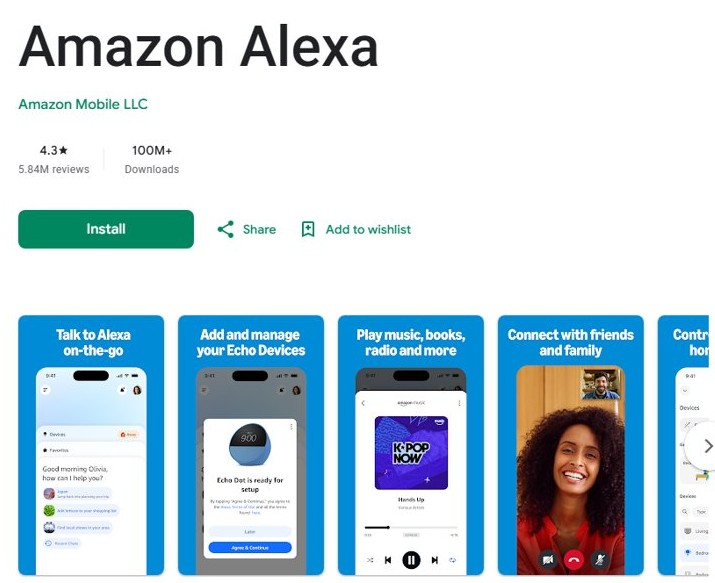
- Download the Alexa app: open Google Play, search for Amazon Alexa and select Install.
- Sign in with your Amazon account: select Open, then enter your Amazon sign-in details.
- Grant the app permissions: allow Microphone when Android asks, so the app can hear your requests.
- Talk to Alexa: press the button in the app and speak, or type your request.
- Try a first request, such as "What is the weather today in New York?" or "Add batteries to my shopping list."
If the app asks for a password you do not have, create a temporary password for your Amazon account.
What do I need to get started with Alexa on Android?
| Item | Required? | Why |
|---|---|---|
| Android phone or tablet | Yes | Runs the Alexa app and supplies the microphone |
| Amazon account | Yes | Alexa is tied to the account you sign in with |
| Internet connection | Yes | Amazon processes your requests in its cloud |
| Prime membership | No | Prime adds full Alexa+ access, but the app has a free tier |
| Echo or other Alexa device | No | Only needed for hands-free use around the home |
| Smart home devices | No | Only needed if you want Alexa to control lights, plugs and similar devices |
How to sign up for Alexa on Android
There is no separate Alexa account. Your Amazon account is your Alexa sign-in, so one existing account is all you need.
- Open Google Play and select Install on the Amazon Alexa app if you have not yet.
- Select Open when the install finishes.
- Sign in with your Amazon account. If you do not have one, create it on amazon.com first.
- Use a temporary password if a password field appears and your Amazon account does not have a password.
- Allow the permissions you want when Android shows each prompt.
Alexa uses your default Amazon payment and shipping settings for orders. If you share the phone, you can disable Alexa voice purchasing in the app.
What permissions does the Alexa app need on Android?
Only the microphone is central for talking to Alexa. The others switch on specific features, and you can manage all of them when you open Android settings.
| Permission | What Amazon uses it for | Skip it if |
|---|---|---|
| Microphone | Voice requests to Alexa | You only plan to type |
| Contacts | Calling and messaging friends and family | You will not use Alexa calling |
| Location | Weather, traffic, restaurants, location-based Reminders and Routines, and finding nearby devices during setup | You accept less relevant results |
| Bluetooth | Finding and connecting to new Alexa devices | You have no Alexa devices to set up |
| Camera | Video calls and scanning a device barcode during setup | You will not use either |
| Notifications | Alerts for new messages and calls | You do not want alerts |
| Run in the background | Reminders, Routines and devices such as Echo Auto | You do not use those features |
How to turn on the Alexa microphone permission on Android
If you denied the prompt during setup, Android lets you change it later. Labels can differ slightly between phone makers.
- Open the Settings app.
- Tap Apps.
- Select the Alexa app. If you do not see it, tap See all apps first.
- Tap Permissions, then tap Microphone.
- Choose Allow only while using the app, or another option that allows access.
How to start Alexa on an Android phone
How you open Alexa depends on the phone setup you want. The app works by button or by typing, and it also has wake-word and widget options.
| Way to start Alexa | How | Best for |
|---|---|---|
| Button in the app | Open the Alexa app, press the button and speak | Everyday voice requests |
| Typing | Open the Alexa app and type your request | Quiet places |
| Wake word | Turn on wake word use in the Alexa app, then say your chosen wake word | Hands-free use while the feature is on |
| Home screen widget | Add an Alexa widget, then use it from the home screen | Fast access without opening the app list |
| Default assistant | Set Alexa as your default voice assistant in Android settings | Replacing your phone's current assistant |
The wake word options Amazon lists are Alexa, Amazon, Computer, Echo and Ziggy. With Follow Up Mode on, you can make another request without repeating the wake word.
How to add the Alexa widget on Android
Alexa widgets appear in your phone's widget menu only after you sign in to the app.
- Sign in to the Alexa app at least once.
- Long-press an empty spot on your Android home screen.
- Open the widget menu and find the Alexa widgets.
- Follow the on-screen instructions to place one on the home screen.
How to set Alexa as the default assistant on Android
Amazon supports using Alexa as the default voice assistant on an Android device. The exact wording of the setting varies by phone and Android version.
- Open the Settings app.
- Tap Apps, then tap Default apps.
- Tap the assistant entry in the list.
- Tap the Alexa app.
To undo it, repeat the steps and pick your previous assistant. Google notes that some default-app steps only work on Android 14 and up.
Can I use Alexa on Android without an Echo?
Yes. All customers can use Alexa+ in the Alexa app for free with daily limits. A Prime membership or Standard plan is only required to use Alexa+ on Echo devices, and both plans add expansive daily usage in the app.
| Alexa+ plan | Price | In the Android app | On Echo devices |
|---|---|---|---|
| Free | $0 per month | Limited daily usage, refreshed regularly | Not included |
| Prime | Included with Prime, which is $14.99 per month after any free trial | Full access with expansive daily usage | Included on compatible devices |
| Standard | $19.99 per month | Full access with expansive daily usage, plus 1TB of photo and video storage | Included on compatible devices |
Alexa+ is available in English and Spanish for customers in the US. The same plans work on Alexa.com in a browser.
How to use Alexa on Android
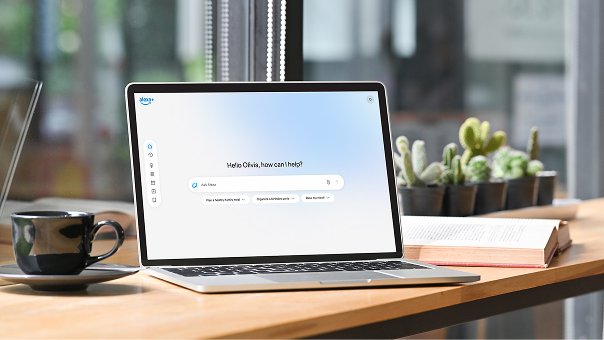
Once you are signed in, talk to Alexa in plain sentences. These requests are good first tests of what the app can do.
| What you want | Say or type | Notes |
|---|---|---|
| Get an answer | "What is the weather today in New York?" | Location permission improves local results |
| Manage a list | "Add batteries to my shopping list" | You can also edit lists in the app |
| Play music | "Play jazz" | Link a music service for more choice |
| Control a device | "Alexa, discover my devices" | Use this after a compatible device is ready to connect |
| Keep a note | Ask Alexa to remember something | Alexa+ keeps it as a note you can review in Alexa Privacy |
Alexa calling cannot reach 911 or other emergency numbers, so keep using your phone's own dialer for emergencies.
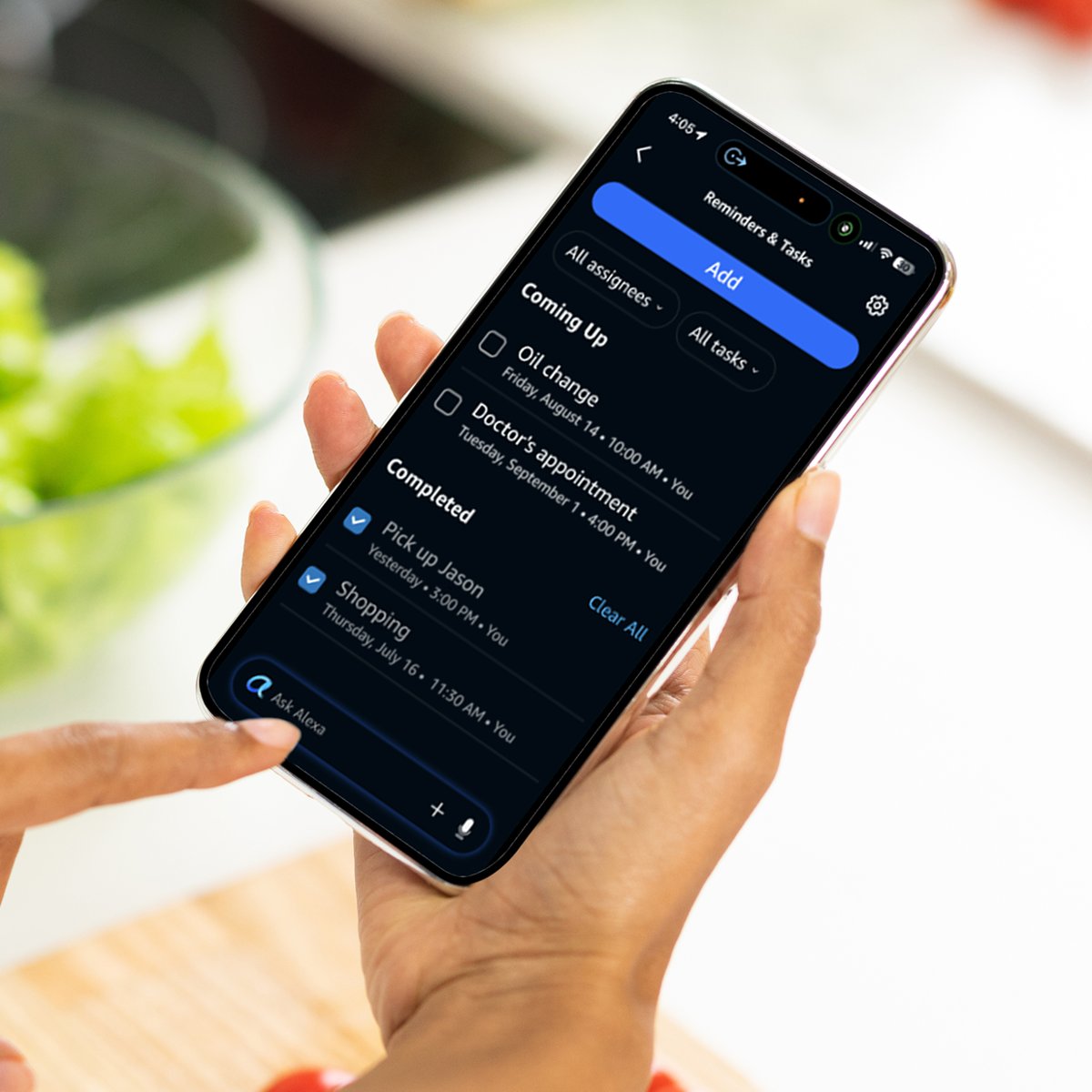
How to set up Alexa smart home devices on Android
Alexa on your phone can control compatible lights, plugs, thermostats, locks and similar devices. Some connect automatically, and others need the maker's app first.
- Set up a Wi-Fi device in the manufacturer's app first if it is not Matter certified.
- Link your Alexa account in the maker's app during setup, or activate the matching skill in the Alexa app.
- Say "Alexa, discover my devices", or use the Alexa app to connect the device.
- Open Devices in the Alexa app and select the device.
- Select the gear icon to check its settings, including Wi-Fi Network.
Only Amazon and Matter devices can change Wi-Fi in the Alexa app. For anything else, change the network in the maker's app.
How to set up Alexa on an Echo from an Android phone
An Echo adds hands-free use around the home, and the Android app handles the setup.
- Update the Alexa app, then plug in the Echo.
- Open the Alexa app and select Devices.
- Select the plus icon, then Add Device.
- Select Amazon Echo, then Echo, Echo Dot, Echo Pop and more.
- Follow the instructions to finish.
Once you set up Alexa on an Echo, its light ring shows what the speaker is doing. If the speaker later loses its network, you can connect Alexa to Wi-Fi again from the app.
How to customize Alexa settings on Android
Open More > Settings in the Alexa app to reach these options. Permissions such as the microphone stay in your phone's Android settings.
| Setting | What it changes |
|---|---|
| Language | The language you use to talk to Alexa in the app |
| Wake word and wake sensitivity | Whether the app responds to your wake word, and how readily |
| Follow Up Mode | Whether you can continue without repeating the wake word |
| Light or dark mode | The Alexa app's appearance |
| Adaptive Volume | Turns the Adaptive Volume feature on or off |
| More > Settings > Communication > Email my contacts | Links an email account for Alexa+ |
| More > Settings > Amazon Kids | Sets up Amazon Kids on Alexa for a child |
How to delete Alexa voice history on Android
You can review and delete voice recordings, transcripts and typed requests from your phone. The same controls are at amazon.com/alexaprivacysettings.
- Open the Alexa app and tap More.
- Tap Alexa Privacy.
- Open Review Alexa History to read and delete past requests.
- Open Manage Your Alexa Data to control how your recordings are used.
- Open Manage Skill Permissions and Ad Preferences to review what skills can access.
Tips for using Alexa on Android
A few choices during the first week make the app more useful and easier to control.
| Tip | Why it helps |
|---|---|
| Allow location if you ask local questions | Weather, traffic and restaurant answers use it |
| Add the widget first | It gives you a home screen shortcut, with no change to your default assistant |
| Type when the room is noisy | Typed requests reach Alexa the same way, without the microphone |
| Turn off Follow Up Mode if Alexa cuts in | Alexa can mistake other speech for a follow-up request |
| Check the free tier limit | Daily usage can vary with your activity and demand |
| Review skills you activate | Some skills can receive information from your requests |
How to tell if Alexa is working on Android
A short test covers the sign-in, the microphone and the connection in one go.
- Open the Alexa app and check that you are signed in.
- Press the button and ask, "What is the weather today in New York?"
- Check that Alexa answers out loud or on screen.
- Type the same request to compare. If typing works but voice does not, check the microphone permission first.
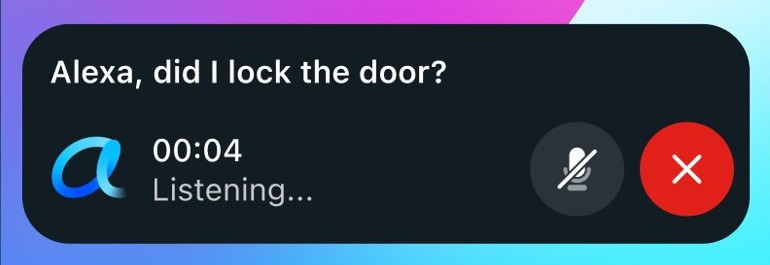
Alexa not working on Android phone
Alexa does not hear you
The Microphone permission is off.
- Open Settings > Apps and select the Alexa app.
- Tap Permissions > Microphone and choose Allow only while using the app.
You cannot log into Alexa
The account may have no password, or you are using a different sign-in from your Amazon account.
- Check that you are entering the details for the Amazon account you want to use.
- Create a temporary password if the app asks for a password you do not have.
The Alexa app is slow or unresponsive
An out-of-date app is the first thing to rule out.
- Open Google Play, tap your profile icon and tap Manage apps & device.
- Under Updates available, tap See details, then Update next to the Alexa app.
- Press your phone's power button for about 30 seconds, and tap Restart if prompted.
Alexa just starts talking
With Follow Up Mode on, Alexa can treat other speech as a follow-up request.
- Say "Alexa, turn off Follow Up Mode".
- Or open Settings in the Alexa app and turn the mode off there.
Alexa cannot control a smart home device
The device or its Alexa skill has lost its connection.
- Try controlling the device in the manufacturer's app to check its connection.
- If the maker's app works but Alexa does not, reactivate the skill in the Alexa app.
An Echo will not finish setup
The usual causes are a weak connection or an out-of-date app.
- Check your internet connection and update the Alexa app.
- Unplug the Echo, wait 30 seconds and plug it back in.
- Reset the Echo if setup or registration still fails.
Alexa on Android FAQ
How to get started with Alexa?
Install the Amazon Alexa app from Google Play, sign in with your Amazon account and allow the microphone. Press the button in the app and speak, or type a request. No Echo or Prime membership is needed to begin.
Can I use Alexa on my Android phone without an Amazon Echo?
Yes. The Alexa app gives all customers free, limited access to Alexa+ on an Android phone. You only need Prime or the $19.99 Standard plan to use Alexa+ on Echo devices, or for expansive daily usage.
Is the Alexa app for Android free?
Yes, the free Alexa+ plan costs $0 per month and works in the app with daily usage limits. Prime members get full access at no extra charge, and non-Prime customers can pay $19.99 per month for the Standard plan.
How do I customize Alexa's settings on my Android device?
Open the Alexa app and tap More, then Settings. From there you can manage options such as Amazon Kids and email linking. Permissions such as the microphone are managed in your phone's Android settings instead.
Can Alexa on Android control smart home devices?
Yes. Alexa can control compatible lights, switches, plugs, thermostats, locks and more through the app. Some devices connect automatically, while others need the maker's app first, a skill, or the request "Alexa, discover my devices".
How do I troubleshoot if Alexa isn't working on my Android phone?
Check the Microphone permission in Android settings, update the Alexa app in Google Play, then restart your phone. Test by typing a request. If typing works but voice does not, recheck the microphone permission for the Alexa app.
How to open Alexa?
On Android, tap the Alexa app icon, then press the button to speak or type your request. You can also add an Alexa widget to your home screen, or use Alexa.com in a browser.
How to log into Alexa?
Open the Alexa app and sign in with your Amazon account details. If a password field appears and your account has no password, create a temporary password for that Amazon account, then sign in again.
How to get Alexa on the internet?
Go to Alexa.com in a browser. Amazon offers the free, limited Alexa+ experience there as well as in the app, and Prime and Standard customers get full access on the site too.
Why does Alexa just start talking?
With Follow Up Mode on, Alexa can mistake nearby speech for a follow-up request after it responds. Amazon says joining Alexa+ turns the mode on for the app. Say "Alexa, turn off Follow Up Mode" to stop it.