Press Windows logo key + R, type mmsys.cpl and press Enter to open the old Sound window in Windows 11.
This guide covers five documented routes to that window, what its Playback and Recording tabs control, and what to do when it will not open or a device is missing.
Method 1: Open the old Sound window with the Run dialog
Mmsys.cpl is the Windows multimedia control panel, the classic Sound window that lists your audio endpoint devices. Running it from the Run box is the shortest route on any Windows 11 PC.
- Press Windows logo key + R to open the Run dialog box.
- Type
mmsys.cplin the Open box. - Press Enter or select OK.
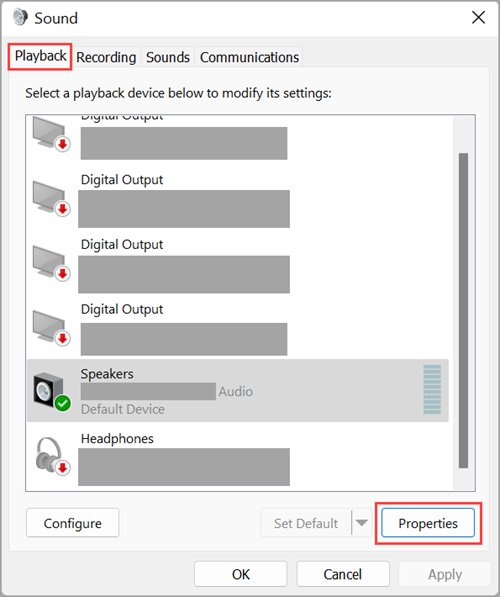
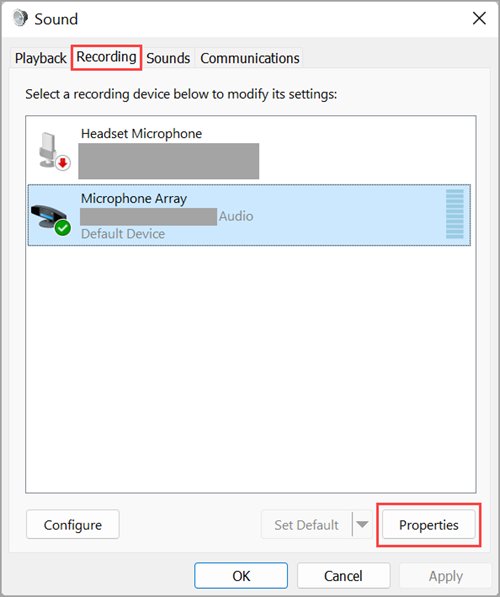
- Use the Playback tab for speakers and headphones, or the Recording tab for microphones.
If nothing happens, try control mmsys.cpl,,0 in the same box, then use the troubleshooting section further down.
Which of the 5 methods to open old Sound settings should you use?
Every route below ends in the same classic Sound window. They differ in how many clicks they take and whether you need a keyboard.
| Your situation | Use this method | Why |
|---|---|---|
| You have a keyboard and want the quickest route | Method 1: Run dialog with mmsys.cpl |
Three keystrokes and one short command |
| You are already changing output or input devices in Settings | Method 2: Settings > System > Sound > More sound settings | The link sits on the page you already have open |
| You prefer menus and do not want to type commands | Method 3: Control Panel > Hardware and Sound > Sound | Mouse-only, and Control Panel shows related audio items nearby |
| You want the Recording tab to open straight away | Method 4: Command Prompt with control mmsys.cpl,,1 |
The tab number selects Playback or Recording directly |
| You are writing a shortcut or script and want a stable name | Method 5: control /name Microsoft.Sound |
Microsoft names canonical names as the preferred command-line launch method |
Bottom line: use the Run dialog for speed and the Settings link when you are already in Settings. Keep the command versions for shortcuts and scripts.
Prerequisites: a quick checklist before you open the old Sound window
| Check | Why it matters | What to do if it fails |
|---|---|---|
| Control Panel items are not hidden by policy | Group Policy can hide individual items, including Sound, by its canonical name | See the troubleshooting fix for a hidden Sound item |
| Your audio device is plugged in and powered on | The classic window shows active devices by default and hides unplugged ones | Reconnect the device, or turn on Show Disconnected Devices |
| The device is not disabled in Device Manager | A device disabled in Device Manager is effectively removed from the system | Enable it again in Device Manager under Sound, video and game controllers |
| You have administrator rights for repairs | System File Checker needs an administrator account | Sign in with an administrator account before running sfc /scannow |
Method 2: Open More sound settings from the Settings app
Windows 11 keeps a link to the old window at the bottom of its modern Sound page, under Advanced.
- Select Start > Settings, or press Windows logo key + I.
- Select System > Sound.
- Scroll down to the Advanced section.
- Select More sound settings.
- Select the Playback or Recording tab to find your device.
Method 3: Open Sound from Control Panel
- Select the search box on the taskbar, or press Windows logo key + S.
- Type control panel and select it from the results.
- Select Hardware and Sound.
- Select Sound.
- Pick the Playback or Recording tab for the device you want to change.
Windows lists Sound under the canonical name Microsoft.Sound, which is the name to look for if a policy hides it.
Method 4: Open the Playback or Recording tab from Command Prompt
Microsoft documents a tab number after mmsys.cpl. Use 0 for playback (rendering) devices and 1 for recording (capture) devices.
- Select the search box on the taskbar and type Command Prompt.
- Select Command Prompt from the results.
- Type
control mmsys.cpl,,0and press Enter to open the Playback tab. - Type
control mmsys.cpl,,1and press Enter to open the Recording tab instead. - Type
mmsys.cplon its own if you only need the window, not a specific tab.
The same commands work in the Run box, which makes them handy for a desktop shortcut target.
Method 5: Open Sound by its Control Panel canonical name
Every built-in Control Panel item has a canonical name that stays in English on every system language. Sound's canonical name is Microsoft.Sound, and its module is mmsys.cpl.
Microsoft describes this as the preferred command-line launch method for Windows Vista and later.
- Press Windows logo key + R, or open Command Prompt.
- Type
control /name Microsoft.Sound. - Press Enter.
- Select the Playback or Recording tab in the Sound window that opens.
Where the old Sound window lives in Windows 11 and Windows 10
Windows 11 feels like it moved your Sound settings because device choices now start on the modern Settings > System > Sound page. The classic window still exists, and the Settings link to it sits under Advanced.
| Windows version | Menu route to the old Sound window | Command route |
|---|---|---|
| Windows 11 | Start > Settings > System > Sound > More sound settings | mmsys.cpl or control mmsys.cpl,,0 |
| Windows 11 | Control Panel > Hardware and Sound > Sound | control /name Microsoft.Sound |
| Windows 10 | Right-click the Volume icon on the taskbar > Sounds | mmsys.cpl or control mmsys.cpl,,0 |
The Sounds entry on the taskbar volume icon is documented for Windows 10. On Windows 11, use one of the five methods above instead.
How to check you opened the old Sound window
- Look for a small dialog titled Sound with tabs along the top, not the full-page Settings app.
- Select the Playback tab and confirm your speakers or headphones are listed.
- Find the device labelled Default Device; that is where Windows sends sound.
- Right-click Default Device and select Properties to confirm the device dialog opens with an Advanced tab.
- Select the Recording tab and confirm your microphone is listed.
What you can change in the old Sound window
The classic window matters because several device controls still live only there, or are quicker to reach there than in Settings.
| Where | Control | What it does |
|---|---|---|
| Playback tab | Device list | Shows speakers, headphones and other rendering devices |
| Recording tab | Device list | Shows microphones and other capture devices |
| Right-click in either list | Show Disabled Devices / Show Disconnected Devices | Reveals devices that are disabled, not present, or unplugged |
| Device Properties > General | Device name | Renames the device; the new name applies to that device only |
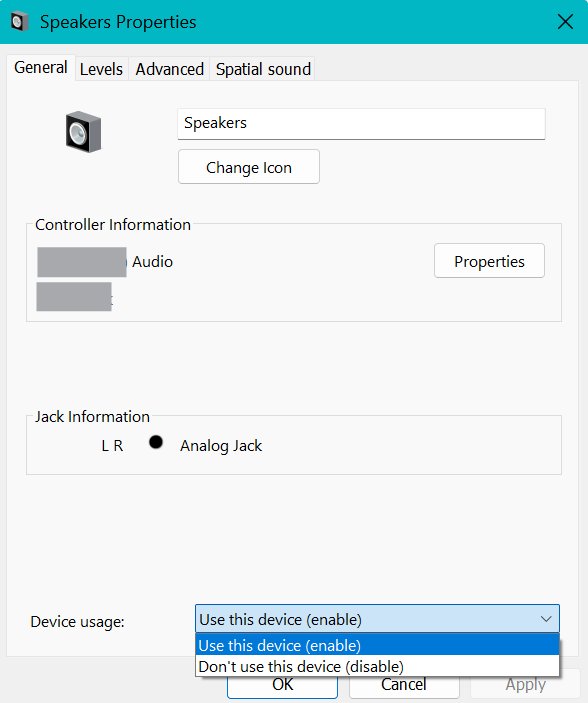
| Device Properties | Device usage | Choose Use this device (enable) or Don't use this device (disable) |
| Device Properties > Advanced | Default Format | Changes the default audio format the device uses |
| Playback or Recording tab | Set Default Communication Device | Sends call audio to a different device from your main output |
Disabling a device in this window hides it from apps but keeps it installed. Disabling it in Device Manager effectively removes it from the system.
Fix the old Sound window when it won't open or looks wrong
Cannot open sound settings in Windows 11
One entry point is failing, a policy hides the item, or Windows audio services are stuck.
- Try a different entry point first: press Windows logo key + R, type
control mmsys.cpl,,0and press Enter. - If that fails, open Control Panel and select Hardware and Sound > Sound.
- Select the search box on the taskbar, type services and select it from the results.
- Right-click Windows Audio, select Restart, then select Yes.
- Repeat for Windows Audio Endpoint Builder and Remote Procedure Call (RPC).
- Try opening
mmsys.cplagain.
Sound is missing from Control Panel
A Group Policy setting hides specific Control Panel items or shows only an approved list.
- Press Windows logo key + R, type
gpedit.mscand press Enter. - Go to User Configuration > Administrative Templates > Control Panel.
- Open Hide specified Control Panel items and check whether
Microsoft.Soundis in the list. - Open Show only specified Control Panel items and check whether it is enabled without
Microsoft.Sound. - Set the policy that blocks Sound to Not Configured and select OK.
- On a work or school PC, ask your IT administrator, because the policy may come from the organisation.
Windows 11 sound settings not working because a device is missing from the list
The classic window only shows active devices until you tell it to show disabled and disconnected ones.
- Open the old Sound window with
mmsys.cpl. - Select the Playback or Recording tab.
- Right-click an empty part of the device list and select Show Disabled Devices.
- Right-click again and select Show Disconnected Devices.
- Select the greyed-out device and select Properties.
- Next to Device usage, select Use this device (enable) and select OK.
Sound settings open but there is still no sound
The wrong output is selected, an enhancement is interfering, or the driver needs an update.
- Select Start > Settings > System > Sound and pick your device under Output.
- Select the device, then set Audio enhancements to Off.
- Go to Settings > System > Troubleshoot > Other troubleshooters and select Run next to Audio.
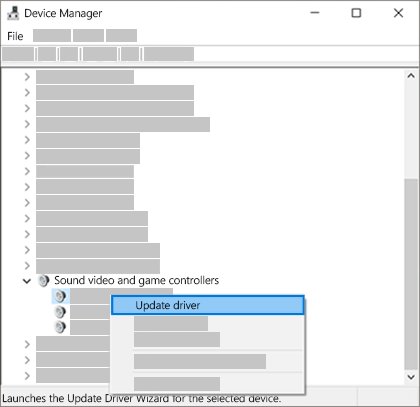
- Open Device Manager, expand Sound, video and game controllers, right-click your audio device and select Update driver.
- Select Search automatically for drivers.
The Sound window still fails after all the fixes above
Protected Windows files may be damaged, or the PC is missing recent updates.
- Select the search box, type Command Prompt, right-click it and select Run as administrator.
- Type
sfc /scannowand press Enter. - Wait for the scan to finish, then restart the PC.
- Select Start > Settings > Windows Update and check for updates.
- Select Download & install if updates are available, then restart.
Avoid the common mistakes that cause confusion
| Mistake | What actually happens | Do this instead |
|---|---|---|
| Disabling a device in Device Manager to hide it | The device is effectively removed from the system for every app | Use Don't use this device (disable) in the old Sound window |
| Assuming a device is gone because it is not listed | The window hides disabled and unplugged devices by default | Turn on Show Disabled Devices and Show Disconnected Devices |
| Changing the default device but calls still use another one | Windows keeps a separate default for communication apps | Set Set Default Communication Device on the same device |
| Looking for Sounds on the Windows 11 taskbar volume menu | That entry is documented for Windows 10 | Use More sound settings in Settings or run mmsys.cpl |
Frequently asked questions
How do I open old sound settings in Windows 11?
Press Windows logo key + R, type mmsys.cpl and press Enter. The classic Sound window opens with Playback and Recording tabs. You can also reach it from Settings > System > Sound > More sound settings, or from Control Panel > Hardware and Sound > Sound.
How do I open Sounds in Windows 11?
Open the classic Sound window with mmsys.cpl from the Run box, or select More sound settings at the bottom of Settings > System > Sound. The window lists playback and recording devices and opens their Properties dialogs, including the Advanced tab for audio format.
How do I set sound output in Windows 11?
Select Start > Settings > System > Sound, then choose your speakers or headphones in the Output section. For a separate call device, open More sound settings, select the device on the Playback tab and select Set Default Communication Device.
How do I fix sound settings in Windows 11?
Start with the Audio troubleshooter at Settings > System > Troubleshoot > Other troubleshooters. If that does not help, restart the Windows Audio and Windows Audio Endpoint Builder services, turn off Audio enhancements, and update the driver in Device Manager.
Why can't I open sound settings in Windows 11?
Usually one entry point is failing or a Group Policy hides the Sound item. Try control mmsys.cpl,,0 from the Run box, then check Hide specified Control Panel items in the Local Group Policy Editor for Microsoft.Sound, and restart the Windows Audio services.
Is mmsys.cpl the same thing as old Sound settings?
Yes. Mmsys.cpl is the Windows multimedia control panel, which Control Panel lists as Sound under the canonical name Microsoft.Sound. Running mmsys.cpl, control mmsys.cpl or control /name Microsoft.Sound all open the same classic Sound window.
Why does my speaker show in Settings but not in the classic Sound window?
The classic window hides disabled and unplugged devices by default. Right-click an empty area of the Playback list and select Show Disabled Devices and Show Disconnected Devices. Then open the device's Properties and choose Use this device (enable).

Adjust volume for individual programs in Windows 11/10 - Techdows
[…] The classic mixer shows playback devices only, not microphones. For device settings such as the default format, use the classic Sound window instead; see 5 Methods to Open Old Sound Settings in Windows 11. […]
How to manage sound settings on Windows 11 - Techdows
[…] Settings lacks, such as the Default Format list and device enable switches; there are several other ways to open old Sound settings […]