Most dead touchpads in Windows 11 are switched off, not broken: open Settings > Bluetooth & devices > Touchpad and turn the Touchpad switch On.
If that switch is already on, the fixes below move from the touchpad key on your keyboard to the driver, a bad Windows update and your laptop's firmware, in the order that solves the problem fastest.
Method 1: Toggle the Touchpad On in Windows Settings
The touchpad has its own on/off switch in Settings, and it is easy to flip by accident. With no working pointer, use the keyboard: Tab and the arrow keys move between items, and Space or Enter selects them.
- Press Windows logo key + I to open Settings.
- Select Bluetooth & devices in the left pane.
- Select Touchpad. If the page is missing, Windows does not see a touchpad at all, so jump to Method 4.
- Turn the Touchpad switch On.
- Drag a finger across the pad to confirm the pointer moves.
A shortcut that lands on the same page: press Windows logo key + R, type ms-settings:devices-touchpad and press Enter. Microsoft documents that this page only exists when touchpad hardware is present.
11 Ways to Fix Touchpad Not Working in Windows 11
Match what you see to a row. The methods run from quickest to most involved, so work down the list if you cannot tell the cause.
| # | What you see | Fix | Why it works |
|---|---|---|---|
| 1 | Pointer dead, Touchpad page exists | Toggle the touchpad on in Settings | The Settings switch turns the whole pad off |
| 2 | Touchpad dies only while a mouse is plugged in | Keep the touchpad on when a mouse is connected | Windows ignores touchpad input with a mouse present if this box is cleared |
| 3 | Stopped after you pressed an Fn key combination | Check OEM shortcut keys and hardware switches | Many laptops toggle the pad with a key or button |
| 4 | Touchpad greyed out or arrow icon in Device Manager | Enable the touchpad in Device Manager | A disabled device reports Code 22 and does nothing |
| 5 | Touchpad page missing, no driver listed | Install driver updates through Windows Update | Windows Update is Microsoft's recommended driver source |
| 6 | Device listed but misbehaving | Update the touchpad driver in Device Manager | Replaces an out-of-date driver |
| 7 | Broke right after a driver update | Roll back the touchpad driver | Restores the driver that worked |
| 8 | Yellow warning, Code 10 or Code 43 | Reinstall the touchpad driver the clean way | Forces a fresh driver download |
| 9 | Broke right after a Windows update | Uninstall the recent Windows update | Removes the change that caused it |
| 10 | Works on and off, or only after some apps start | Test in Safe Mode and with a clean boot | Rules out third-party software |
| 11 | Not detected anywhere, even after a reinstall | Check the touchpad in UEFI firmware settings | Firmware can switch the pad off below Windows |
Before You Start: Quick Checks That Save Time
These checks take a minute and rule out the causes that no driver fix can touch. They also give you a way to move around Windows while the touchpad is dead.
| Check | How | What it tells you |
|---|---|---|
| Restart once | Press Windows logo key + X, pick Shut down or sign out > Restart with the arrow keys | A restart reloads the touchpad driver |
| Clean the pad | Wipe it with a dry cloth and dry your fingers | Microsoft lists dirt blocking sensors as a common input fault |
| Plug in a USB mouse | Any wired mouse works as a stopgap | If the mouse works, Windows input is fine and the fault is the touchpad |
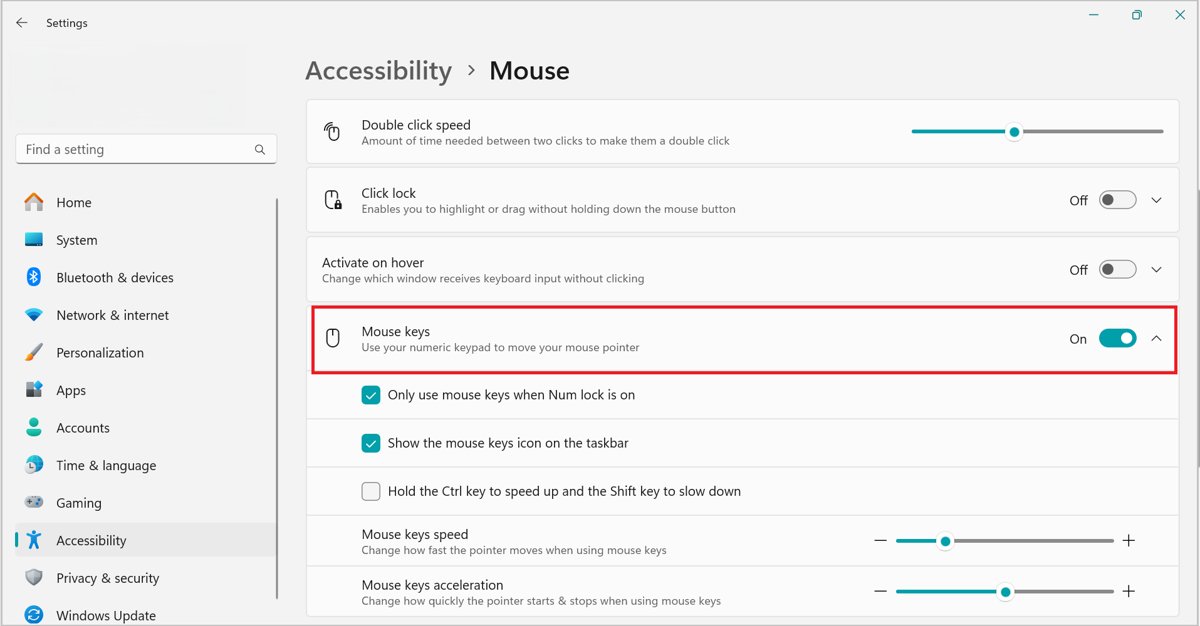
| Turn on Mouse keys | Settings > Accessibility > Mouse, switch Mouse keys On | Moves the pointer with the numeric keypad: 8, 2, 4 and 6 to move, 5 to click |
| Learn the keyboard shortcuts | Windows logo key + X opens the Quick Link menu; Shift + F10 opens a right-click menu | Lets you reach Device Manager and Settings without a pointer |
| Touchscreen laptop | Turn on Virtual Touchpad under Taskbar settings > System tray icons | An on-screen touchpad appears from the tray icon |
Method 2: Keep the Touchpad On When a Mouse Is Connected
Windows has a setting that ignores all touchpad input while an external mouse is present. If it is cleared, a paired Bluetooth mouse or a USB receiver left in a port switches the touchpad off silently.
- Open Settings > Bluetooth & devices > Touchpad.
- Find the options under the Touchpad switch at the top of the page.
- Select the Leave touchpad on when a mouse is connected check box.
- Unplug the mouse or its USB receiver and test the touchpad again.
Microsoft's touchpad documentation lists this option as on by default, so a cleared box means someone or some software changed it.
Method 3: Check OEM Shortcut Keys and Hardware Switches
Microsoft's touchpad specification lets laptop makers toggle the touchpad with a hardware button or a keyboard combination. Pressing it by accident is the most common reason a touchpad dies mid-session.
The key differs by brand, so look for a function key printed with a touchpad icon.
- Find the key on the top row that shows a touchpad symbol.
- Press it once, or hold Fn and press it if the top row defaults to media keys.
- Watch for an on-screen message or a light on the pad showing the new state.
- Look for a separate touchpad button or a small indicator light near the pad itself.
- On a 2-in-1 or detachable keyboard, unfold the keyboard fully or reseat it, since the pad can switch off while the keyboard is folded back.
- Check the manufacturer's manual for your exact model if no key is marked.
Method 4: Enable the Touchpad in Device Manager (Disable/Enable Reset)
Device Manager lists the touchpad under Human Interface Devices or Mice and other pointing devices, often with a name such as HID-compliant touch pad or the maker's own name. A disabled device shows a small down-arrow and reports Code 22.
- Press Windows logo key + X, then select Device Manager.
- Expand Human Interface Devices, then Mice and other pointing devices.
- Select the touchpad entry and press Shift + F10 to open its menu.
- Select Enable device if it appears. Microsoft also documents Action > Enable Device in the menu bar.
- If the device was already enabled, select Disable device, confirm, then select Enable device again to reset it.
- Test the touchpad.
Do not disable the entry if it is your only working pointer and you have no mouse. Keyboard navigation still works, but it is slower to recover from.
Method 5: Verify Touchpad Drivers Are Installed Through Windows Update
Microsoft's own touchpad article names a missing or out-of-date driver as the usual cause and recommends Windows Update as the first place to get one. Touchpad drivers often arrive as optional updates, which Windows does not install automatically.
- Open Settings > Windows Update and select Check for updates.
- Install anything offered, then select Advanced options.
- Make sure Receive updates for other Microsoft products is turned On.
- Under Additional options, select Optional updates.
- Select any driver listed for the touchpad or pointing device, then select Download and install.
- Restart the PC even if Windows does not ask you to.
Method 6: Update the Touchpad Driver in Device Manager
Use this when Windows Update offers nothing. If Windows cannot find a newer driver, the laptop maker's support site is the only other source Microsoft recommends.
- Open Device Manager and expand Human Interface Devices or Mice and other pointing devices.
- Right-click the touchpad, or select it and press Shift + F10, then select Update driver.
- Select Search automatically for updated driver software.
- If nothing is found, select Search for updated drivers on Windows Update.
- For a driver from the laptop maker, choose Browse my computer for drivers, select Browse…, pick the folder and select Next.
- Select Close and restart the PC.
Method 7: Roll Back a Bad Touchpad Driver
If the touchpad stopped right after a driver update, the previous driver is still stored and one button restores it. A greyed-out Roll Back Driver button means no earlier driver is saved.
- Open Device Manager and find the touchpad entry.
- Right-click it and select Properties.
- Select the Driver tab.
- Select Roll Back Driver.
- Choose a reason when prompted, then select Yes.
- Restart the PC if prompted.
Method 8: Reinstall the Touchpad Driver the Clean Way
Reinstalling clears a corrupted driver, which is the usual story behind Code 10 or Code 43 on the touchpad entry. Microsoft states that reinstalling through Device Manager forces the latest driver to download from Windows Update, so it is safe to uninstall.
- Save your work and close open apps.
- Open Device Manager and expand Human Interface Devices or Mice and other pointing devices.
- Right-click the touchpad and select Uninstall device.
- Select Uninstall in the Uninstall Device window.
- Restart from Start > Shut down or sign out > Restart.
- Let Windows reinstall the driver during startup, then test the touchpad.
- If the touchpad still has no driver, run Method 5 or Method 6.
Method 9: Uninstall the Windows Update That Broke the Touchpad
When the touchpad dies straight after a Windows update, removing that update is the direct test. Some updates cannot be uninstalled.
- Open Settings > Windows Update.
- Under More options, select Update history.
- Note the date of the newest quality update and compare it with when the touchpad stopped.
- Under Related settings, select Uninstall updates.
- Select that update and select Uninstall.
- Restart and test the touchpad.
If Windows will not start normally, the same removal is available in Windows Recovery Environment under Troubleshoot > Advanced options > Uninstall Updates.
Method 10: Test in Safe Mode and Rule Out Conflicts
Safe Mode loads a limited set of drivers, and a clean boot keeps Windows drivers but stops third-party services and startup apps. If the touchpad works in a clean boot, installed software is interfering with it.
- Select Search, type
msconfigand open System Configuration. - On the Services tab, select Hide all Microsoft services, then Disable all, then Apply.
- On the Startup tab, select Open Task Manager and disable each enabled startup app, noting which ones you changed.
- Close Task Manager, select OK and restart.
- Test the touchpad. If it works, re-enable half the services at a time until the culprit returns.
- To test Safe Mode instead, go to Settings > System > Recovery, select Restart now next to Advanced startup, then Troubleshoot > Advanced options > Startup Settings > Restart, and press 4.
- Return to normal startup in System Configuration with Normal Startup on the General tab and Enable all on the Services tab.
Pointer movement is the test that matters in Safe Mode. Restart normally to leave it; if Windows keeps starting in Safe Mode, clear Safe boot on the Boot tab of System Configuration.
Method 11: Check the Touchpad in UEFI Firmware Settings
Some laptops can disable the internal pointing device in firmware, below Windows. If Device Manager shows no touchpad at all after Methods 5 and 8, check the firmware before assuming the hardware is dead. Have your BitLocker recovery key ready in case the PC asks for it.
- Open Settings > System > Recovery.
- Select Restart now next to Advanced startup.
- Select Troubleshoot > Advanced options > UEFI Firmware Settings, then Restart.
- Look for an internal pointing device or touchpad option in the firmware menus.
- Set it to Enabled, save the changes and exit.
- If the firmware does not list the touchpad, contact the laptop manufacturer for a hardware check.
The menu names differ by manufacturer, so the model's manual is the reference for the exact option.
How to check the touchpad is working again
- Move the pointer across the whole screen with one finger.
- Tap once to select and tap with two fingers to open a right-click menu.
- Place two fingers on the pad and slide to scroll a web page.
- Swipe up with three fingers to show all open windows. Some gestures only work on precision touchpads.
- Open Device Manager, right-click the touchpad, select Properties and confirm the Device status box says the device is working properly.
- Restart once more and confirm the touchpad still works after sign-in.
Why a Windows 11 Touchpad Stops Working
| Cause | Typical sign | Fix |
|---|---|---|
| Touchpad switched off in Settings | Pointer dead, Touchpad switch Off | Method 1 |
| Mouse-connected rule | Pad stops whenever a mouse or receiver is attached | Method 2 |
| Touchpad key or button pressed | Stopped mid-session, often with an on-screen message | Method 3 |
| Device disabled | Down-arrow icon, Code 22 in Device Manager | Method 4 |
| Missing or outdated driver | No Touchpad page in Settings, or a generic HID entry only | Methods 5, 6 and 8 |
| Faulty new driver | Failed right after a driver update | Method 7 |
| Faulty Windows update | Failed right after a cumulative update | Method 9 |
| Software conflict | Works in a clean boot but not in normal startup | Method 10 |
| Disabled in firmware or hardware fault | Missing from Device Manager entirely | Method 11, then the manufacturer |
Troubleshooting Matrix: What to Try When Nothing Works
The Touchpad page is missing from Settings
Windows does not detect a touchpad, so it has no driver or the device is disabled.
- Open Device Manager.
- Look under Human Interface Devices and Mice and other pointing devices for a greyed or warning entry.
- Enable it (Method 4) or reinstall it (Method 8).
- If there is no entry at all, check firmware settings (Method 11).
Pointer moves but clicks, scrolling or gestures do not work
Tap and gesture options are off, or a basic driver lacks precision touchpad support.
- Open Settings > Bluetooth & devices > Touchpad.
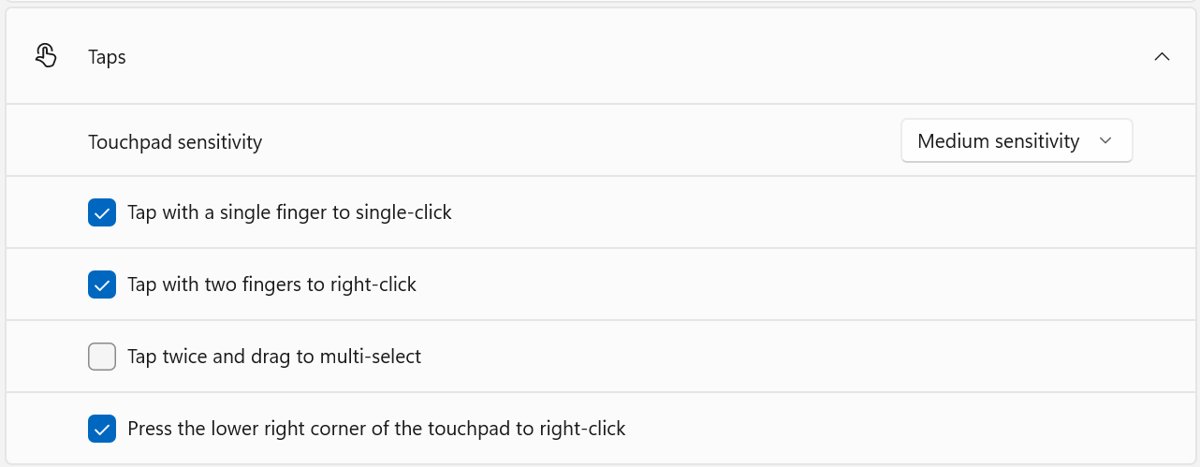
- Expand Taps and turn on Tap with a single finger to single-click and Tap with two fingers to right-click.
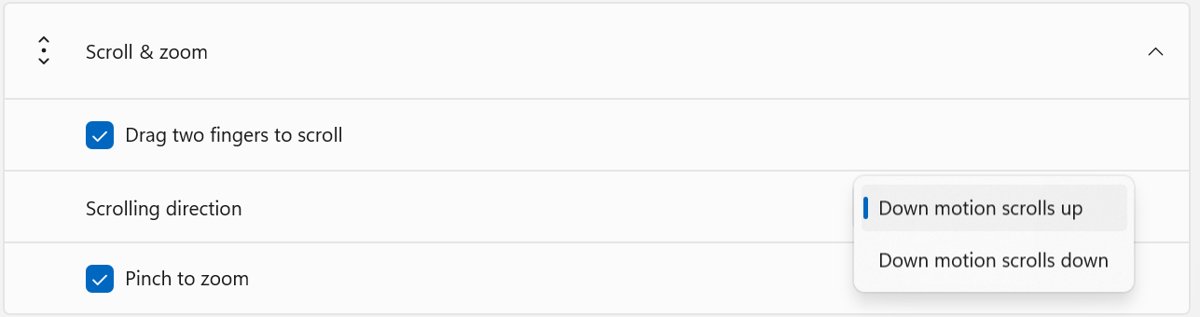
- Expand Scroll & zoom and turn on Drag two fingers to scroll.
- Install the maker's driver through Windows Update optional updates (Method 5).
Touchpad ignores you right after typing
Touchpad sensitivity suppresses input for a moment after keystrokes to block palm touches.
- Open Settings > Bluetooth & devices > Touchpad.
- Expand Taps and set Touchpad sensitivity to a more sensitive level.
- Test by typing, then tapping straight away.
Touchpad stopped working after a Windows update
The update replaced the touchpad driver or introduced a regression.
- Roll back the driver first (Method 7).
- If Roll Back Driver is greyed out, uninstall the update (Method 9).
- Check Optional updates a few days later for a fixed driver (Method 5).
Touchpad not working in Windows 10
The same causes apply, but the Settings path is different.
- Open Start > Settings > Devices > Touchpad.
- Turn the touchpad switch on and check Leave touchpad on when a mouse is connected.
- Use the Device Manager methods (4, 6, 7 and 8), which are identical on Windows 10.
Nothing works, including in firmware
A disconnected cable or failed touchpad is a hardware fault Windows cannot repair.
- Use a USB mouse or Mouse keys in the meantime.
- Contact the laptop manufacturer's support with the model and serial number.
- Mention that the touchpad is missing from both Device Manager and firmware settings.
FAQs
How do I fix a touchpad not working in Windows 11?
Open Settings > Bluetooth & devices > Touchpad and turn the Touchpad switch on. If it is already on, press the touchpad key on your keyboard, then enable, update, roll back or reinstall the driver in Device Manager under Human Interface Devices or Mice and other pointing devices.
How do I fix a touchpad not working in Windows 10?
Open Start > Settings > Devices > Touchpad and turn the touchpad on. The Device Manager fixes are the same as on Windows 11: enable the device, update the driver, roll it back after a bad update, or uninstall it and restart so Windows reinstalls it.
Why does my touchpad stop working only after a Windows update?
The update usually replaced the touchpad driver with one that does not suit your hardware. Roll back the driver from Properties > Driver > Roll Back Driver, or remove the update under Windows Update > Update history > Uninstall updates, then watch optional updates for a fixed driver.
Does a touchpad need a special driver to work on Windows 11?
It needs a driver, but Windows Update supplies one for most laptops. Microsoft recommends Windows Update as the source, including Optional updates for drivers. If Windows has none, download the driver only from the laptop manufacturer's official support site.
How can I tell if Windows is actually detecting my touchpad?
Check two places. A Touchpad page under Settings > Bluetooth & devices only appears when Windows sees touchpad hardware. In Device Manager, the touchpad should be listed under Human Interface Devices or Mice and other pointing devices with a working status.
Will resetting the touchpad settings in Windows help?
It helps only when a setting is the cause, such as the touchpad switch, the mouse-connected rule or tap options being off. Setting those back by hand in Settings > Bluetooth & devices > Touchpad fixes that case. It cannot fix a missing driver or a hardware fault.
Is it safe to uninstall touchpad drivers?
Yes, when you restart straight afterwards. Microsoft states that reinstalling the touchpad through Device Manager forces the latest driver to download from Windows Update. Keep a USB mouse or Mouse keys ready in case the driver takes a moment to return.
Is there a touchpad troubleshooter in Windows 11?
Not on current releases. Microsoft removed the legacy Hardware and Devices and Keyboard troubleshooters instead of moving them to Get Help, and no touchpad troubleshooter replaced them. Windows 11 version 22H2 and older still run the legacy troubleshooters.
Why does my touchpad stop working when I plug in a mouse?
The Leave touchpad on when a mouse is connected box is cleared, so Windows ignores touchpad input while a mouse is present. Select that box under Settings > Bluetooth & devices > Touchpad and the touchpad works alongside the mouse.
Final Thoughts
Start with the Settings switch and the touchpad key, then go straight to Device Manager and roll back or reinstall the driver. A switched-off pad or a bad driver explains most failures, and all four checks take under five minutes. If the touchpad is missing from both Device Manager and firmware settings, treat it as a hardware fault and contact the manufacturer; for an external mouse that also fails, see how to fix a mouse that isn't working.






Logitech mouse not working? 9 ways to fix it - Techdows
[…] laptop's built-in pad has its own fixes; you can fix a touchpad that stops working while you sort out the external […]
15 ways to fix fingerprint not working in Windows 11 - Techdows
[…] a hardware fault for the manufacturer. When the same update also broke your pointer, the steps to fix a Windows 11 touchpad and repair an unresponsive touchscreen use the same Device Manager […]