To update Intel drivers with Intel Driver & Support Assistant (Intel DSA), install the free app, start a scan from its tray icon, then select Download all and Install all on the dashboard that opens in your browser.
This guide covers downloading and installing DSA, reading its update list, checking the new driver version, fixing scan and install errors, and rolling a driver back.
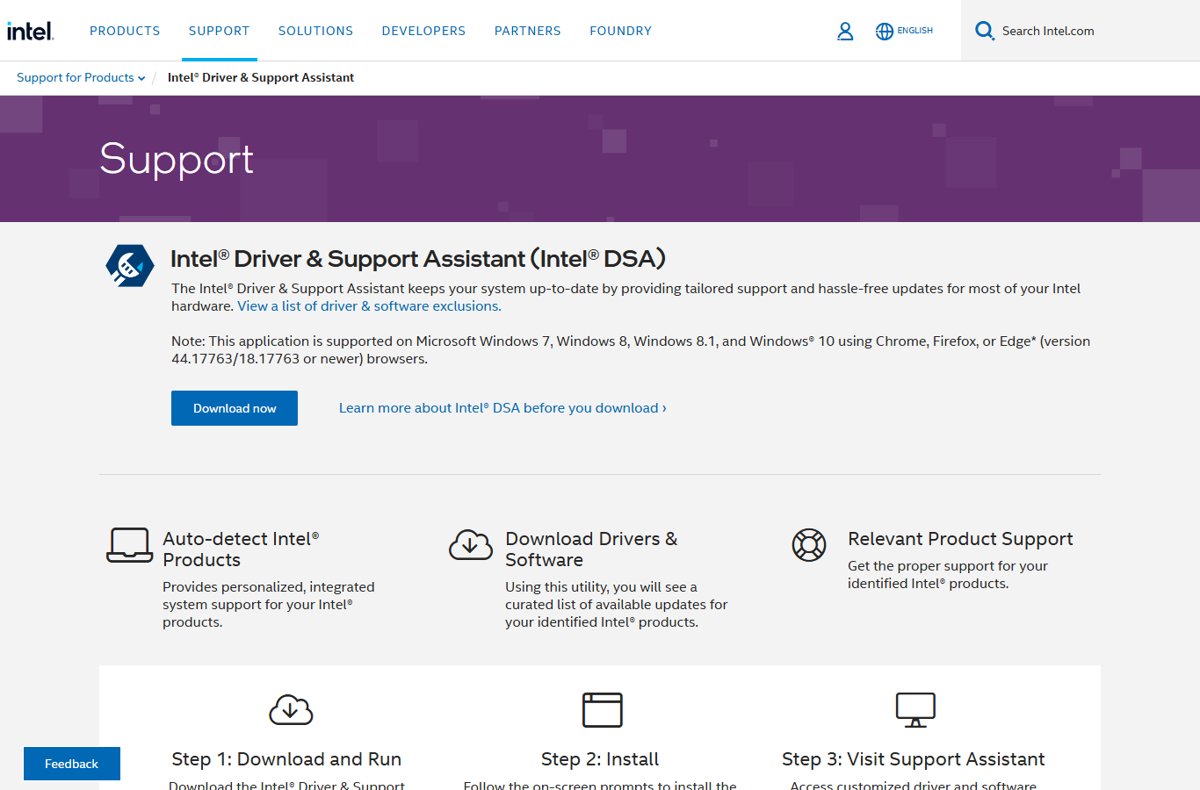
The fastest way to update Intel drivers with Intel DSA
These steps assume a Windows PC with Chrome, Edge or Firefox installed. Intel says a typical install, load and scan takes about three to six minutes on a broadband connection.
- Open Intel's Driver & Support Assistant page at intel.com/content/www/us/en/support/detect.html and select Download now.
- Run the downloaded installer, accept the license terms and select Install.
- Select Launch when setup finishes. Your default browser opens the DSA dashboard and scans the PC.
- Under Available Updates, select Download all.
- Select Install all and approve any administrator prompt.
- Restart Windows if an installer asks for it, then run the scan again to confirm nothing is left.
What does Intel Driver & Support Assistant do?
Intel DSA is a free Windows app that identifies Intel hardware in your PC and offers driver and software updates for it. It runs as a small local service with a tray icon, and the results appear as a web page in your browser.
| Dashboard area | What it shows |
|---|---|
| Available Updates | Driver and software updates for detected Intel components. Each must be downloaded before it can be installed. |
| Install History | Appears after your first install. Lists only updates installed through DSA, not ones from Windows Update or a manual install. |
| Messages | Shown only when Intel has an important notice about your system or a device. |
| This PC | Operating system and BIOS details for the computer. |
| Devices and Drivers | Key components, their current driver versions and an icon showing which ones need an update. |
| Intel Software | Shown only when certain Intel applications are installed. |
| Settings | Notification frequency, automatic downloads, WHQL-only graphics updates, language and download folder. |
DSA offers a subset of what Intel's Download Center carries. It detects drivers from Intel and from third parties, but it only offers Intel updates.
Before you download Intel Driver & Support Assistant
Check these requirements first. Most failed scans trace back to the browser or the network, not to DSA itself.
| Requirement | What Intel specifies |
|---|---|
| Operating system | Windows 11, Windows 10, Windows 8.1, Windows 8 or Windows 7, 32-bit or 64-bit. Multi-session editions are not supported, and there is no macOS or Linux version. |
| Browser | Chrome, Firefox, or Edge version 44.17763/18.17763 or newer. Other browsers may work but are not validated. |
| Network access | HTTPS (port 443) to www.intel.com, dsadata.intel.com and downloadmirror.intel.com. The app also uses localhost ports 28385 to 28389. |
| Account rights | An administrator account to approve the DSA setup and each driver installer. |
| Supported hardware | Intel graphics, active Intel wireless adapters, some Intel Ethernet adapters and desktop boards, certain Intel NUCs and Intel Rapid Storage Technology. |
| Cost | Free. Intel charges no fee for the app. |
On a laptop or branded desktop, also note which drivers the PC maker supplies. Intel advises getting graphics drivers from the computer manufacturer first, because OEM drivers can carry customizations.
How do you download Intel Driver & Support Assistant?
Intel hosts the only official installer, and every Intel DSA download link worth using points to that same Intel file.
- Open intel.com/content/www/us/en/support/detect.html in Chrome, Edge or Firefox.
- Select Download now under Intel Driver & Support Assistant.
- Save the installer to your Downloads folder.
- Confirm the download came from an intel.com address before you run it.
How do you install Intel Driver & Support Assistant?
- Double-click the Intel Driver & Support Assistant Installer file.
- Read the license terms and select the box to agree.
- Select Install, then select Yes in the User Account Control prompt.
- Select Launch when setup completes.
- Wait for the DSA tray icon to appear and for your default browser to open the dashboard.
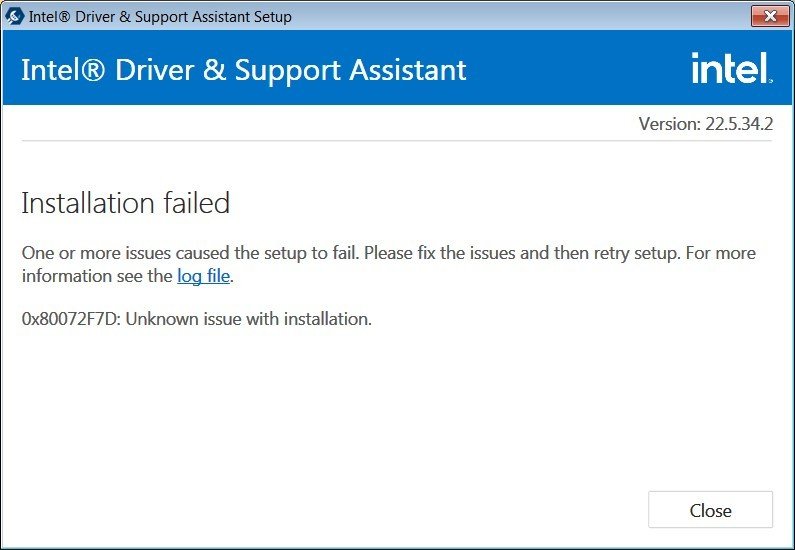
If setup stops with an error code, the table of installation errors further down explains each one.
How do you scan for Intel driver updates?
DSA scans automatically each time it opens. Start a fresh scan whenever you want to check for new Intel drivers.
- Select the Intel DSA icon in the notification area of the taskbar.
- Select Check for new drivers.
- If the tray icon is missing, open Start, type Intel Driver & Support Assistant and select the app.
- Wait for the browser tab to finish the scan and show the dashboard.
- Select Refresh Results on the left of the dashboard if the list looks out of date.
How do you review and download the offered drivers?
Read each update before you download it. The details tell you which device it targets and whether it replaces a driver your PC maker installed.
- Open Available Updates on the DSA dashboard.
- Select the title of an update to expand its details.
- Compare the offered version with the current one listed under Devices and Drivers.
- Select Download on the updates you want, or Download all to fetch every listed update.
- To skip an update, expand it and select Hide just this update, then choose how long to hide it.
- Wait until each update shows it is ready to install.
Downloads are saved to C:\ProgramData\Intel\DSA\Downloads by default. You can change that folder under Settings > Folder Location > Change location. The new folder must be writable and cannot contain hard links, junction points or symbolic links.
How do you install Intel drivers through DSA?
- Close games, video editors and other apps that use the graphics or network driver.
- On the DSA dashboard, select Install next to one update, or Install all.
- Select Yes when User Account Control asks for permission.
- Follow the driver's own installer if it opens, and accept its license terms.
- Expect the screen to flicker or the Wi-Fi connection to drop briefly while a graphics or wireless driver installs.
- Restart Windows when the installer asks.
If you install graphics drivers by hand instead, the Intel graphics driver download page lists the current package. The same goes for the Intel Wireless Bluetooth driver on laptops with Intel Wi-Fi cards.
Should you install every Intel DSA update?
Not always. Most offers are safe to install, but two cases deserve a pause: drivers your PC maker customized, and graphics drivers outside Microsoft's WHQL certification.
| Update type | Install it? | Why |
|---|---|---|
| WHQL-certified graphics driver on a self-built desktop | Yes | This is the default DSA offer, and no OEM customizations are at stake. |
| Graphics driver on a laptop or branded PC | Check the PC maker first | Intel warns that its driver may remove the manufacturer's customizations. Use the OEM driver unless the maker no longer updates it. |
| Non-WHQL graphics driver | Only if you need a specific fix | DSA offers these only after you clear WHQL Certified Updates in Settings. The box is checked by default. |
| Intel Wi-Fi or Bluetooth driver | Usually yes | DSA detects active Intel wireless products. Discontinued adapters may be detected without an update. |
| Intel Rapid Storage Technology software | Yes, with a recent backup | Storage drivers touch the boot disk, so back up first. |
| An update DSA keeps offering after install | Hide it | Use Hide just this update to snooze the repeat notice. |
Intel's OEM warning reads: "Installing this Graphics driver from Intel may remove customizations from your computer manufacturer (OEM)." Treat it as a reason to compare versions on the PC maker's support page first.
How do you verify an Intel driver update?
Check the result in two places: DSA itself and Device Manager.
- Select Check for new drivers from the DSA tray icon to run a new scan.
- Confirm the updated device no longer appears under Available Updates.
- Open the Install History tab and check the update is listed.
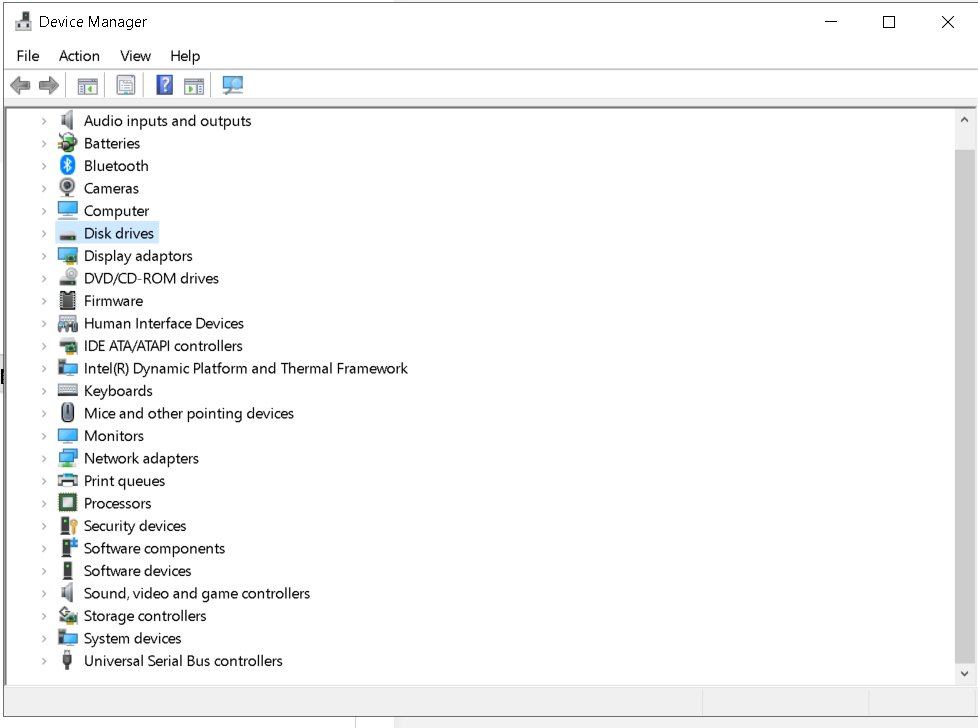
- Press Windows + X and select Device Manager.
- Expand the category, such as Display adapters or Network adapters, and double-click the Intel device.
- Select the Driver tab and compare Driver Version with the version DSA installed.
Install History lists only updates installed through DSA. A driver delivered by Windows Update or installed by hand will not appear there.
Why can Intel DSA fail to scan?
"Sorry, something went wrong while trying to scan" in Chrome or Edge
Chrome and Edge 142 and newer block Local Network Access by default, and DSA's web page needs it to reach the local app.
- Select the View site information icon on the left of the address bar.
- In Chrome, turn on Local Network Access. In Edge, open the Local Network Access drop-down and select Allow.
- Refresh the page.
- If the error remains, open the same panel and turn on Apps on Device, then refresh.
- If you prefer not to grant the permission, open the scan in Firefox instead.
- Reinstall DSA if none of the above clears the error.
Scan shows error 4000 to 4028 or "No Configuration Data"
DSA could not reach Intel's servers, or its cached system data is stale.
- Check the PC has a working internet connection.
- Allow HTTPS access to www.intel.com, dsadata.intel.com and downloadmirror.intel.com if a proxy or firewall filters traffic.
- Select Refresh Results on the left of the dashboard.
- Restart the PC and run Check for new drivers again.
Error 4021 "Invalid Configuration Folder"
DSA cannot write to its download folder.
- Open Settings on the DSA dashboard.
- Under Folder Location, select Change location.
- Pick a folder on a local drive you can write to, and select OK.
- Run the scan again.
What do Intel DSA download and installation errors mean?
Intel publishes the meaning of each DSA error. Match the code or title you see to the row below.
| Error | Meaning | What to do |
|---|---|---|
| 0x80070642 or 0x800704C7 | DSA setup was cancelled | Run the installer again and let it finish. |
| 0x80072ee7 | Setup could not connect to the internet | Check the connection and retry setup. |
| 0x80070652 or 1618 | Another installation is already running | Wait for Windows Update or other setups to finish, or restart, then retry. |
| HttpProxyAuthentication or HttpServerAuthentication | Setup could not get through the network proxy | Check proxy settings and retry. |
| 0x80070570 or 0x80070666 | Missing or corrupt file, often a damaged Microsoft Visual C++ Redistributable or a blocked program | Repair the installation, or download DSA again and reinstall. |
| Download Write Error | DSA could not save the update | Check free space and permissions on the DSA download folder. |
| Download Unavailable | Intel withdrew that update | Select Refresh Results for the current list. |
| Download Timed Out or Failed Unexpectedly | The connection dropped during the download | Check the connection and download again. |
| 1633 Unsupported Platform | The package does not support this PC | Skip it and get the driver from the PC maker. |
| 1632 Temp Folder Inaccessible | The Temp folder is full or locked | Free disk space, then retry. |
| 1623 Unsupported Language | The package language does not match the system | Get the driver from Intel's Download Center or the PC maker. |
| -2147483648 Failed to elevate | The administrator prompt was cancelled | Install again and select Yes at the prompt. |
What should you do if Intel DSA will not install or uninstall?
DSA setup fails or a newer DSA version will not install over the old one
A damaged previous installation or a blocked component stops setup.
- Open Add or remove programs in Windows and search for Intel Driver & Support Assistant.
- Select it and choose Uninstall, then follow the prompts.
- Restart the PC.
- Download a fresh installer from Intel and install DSA again.
DSA will not uninstall from Settings
The normal uninstaller is damaged or missing.
- Download the Intel Driver & Support Assistant Uninstaller from Intel's Download Center.
- Run it and accept the terms and conditions.
- Select Next, then Close when it finishes.
- Restart Windows before you install DSA again.
Updates download but do not install
Another installation is running, the elevation prompt was dismissed, or the package does not fit the PC.
- Restart Windows to finish any pending Windows Update installation.
- Select Install again and choose Yes at the User Account Control prompt.
- Check the error code against the table above.
- If the error is 1633, get that driver from the PC maker's support page instead.
If DSA still fails, Intel asks for screenshots and the DSA log files through Intel Support or the Intel Community forum.
What should you do if Intel DSA does not detect the hardware?
A device is missing from the DSA scan
Intel lists four reasons: the part is old, discontinued or unsupported, not made by Intel, or not in Intel's database.
- Open Devices and Drivers on the dashboard and check whether the device appears there at all.
- If it is not an Intel part, get the driver from that hardware maker or from Windows Update.
- If it is an older or discontinued Intel part, search Intel's Download Center by model.
- On a laptop or branded desktop, check the PC maker's support page for the model.
The device is detected but no update is offered
Intel excludes some downloads from DSA even when the component is detected.
- Check whether the part is on Intel's exclusion list: chipset drivers, server drivers, Linux drivers, Intel Graphics Media Accelerator 500 drivers, Intel NUC laptop drivers and legacy wireless adapters.
- Note that DSA offers BIOS files only for Intel NUCs and Intel Compute Sticks, and firmware only for Intel Trusted Execution Engine and Intel SSDs.
- Download excluded items from Intel's Download Center or the PC maker.
A graphics driver shows "Computer Manufacturer Graphics Driver Detected"
The installed driver came from the PC maker. On 6th Gen Core and newer, it means the current driver is non-DCH.
- Check the PC maker's support page for a newer graphics driver first.
- On 6th Gen Core and newer, follow Intel's steps for moving from a non-DCH to a DCH driver.
- On 5th Gen Core and older, install a generic Intel driver only if the maker no longer provides updates, and accept the risk of lost OEM features.
How do you roll back an Intel driver?
Use Device Manager's rollback when a new Intel driver causes crashes, display problems or a dropped connection.
- Press Windows + X and select Device Manager.
- Expand Display adapters, or the category that holds the Intel device.
- Double-click the Intel device.
- Select the Driver tab.
- Select Roll Back Driver and confirm the prompt.
- Restart Windows.
If Roll Back Driver is grayed out, Windows kept no earlier driver for that device. Download the older version from Intel's Download Center or the PC maker instead. Intel warns against manually installing or removing DCH graphics drivers through Device Manager, because that bypasses Intel's own installer.
What are the alternatives to Intel DSA?
| Your situation | Use this | Why |
|---|---|---|
| You want drivers with no extra app | Windows Update optional updates | Windows 11 installs recommended drivers automatically and lists optional ones under Settings > Windows Update > Advanced options > Optional updates. |
| Laptop or branded desktop | The PC maker's support tool or site | OEM drivers keep the maker's customizations. HP owners can use HP Support Assistant, for example. |
| A driver DSA excludes, such as chipset | Intel Download Center | Search by product and download the package by hand. |
| One device needs a driver you already downloaded | Device Manager | Update or reinstall that one device's driver manually without touching anything else. |
| A PC without a validated browser or with an unsupported OS | Intel Download Center | DSA needs Chrome, Edge or Firefox and Windows 7 or later. |
Microsoft advises against downloading drivers from any site other than the device maker's official one. That rules out third-party driver updaters.
What is the safest Intel DSA workflow?
Combine the steps above into one routine you can repeat every few weeks.
- Create a restore point or back up important files.
- Check the PC maker's support page for newer OEM drivers on a laptop or branded PC.
- Run Check for new drivers from the DSA tray icon.
- Read each update's details and hide the ones your PC maker supplies.
- Install one update at a time, starting with the device that has a problem.
- Restart, then confirm the new version on the Driver tab in Device Manager.
- Use Roll Back Driver if the device misbehaves after the update.
In DSA Settings, switch notifications from daily to weekly and leave WHQL Certified Updates checked to keep the offers to certified graphics drivers.
Intel Driver & Support Assistant: frequently asked questions
Is Intel Driver & Support Assistant free?
Yes. Intel charges no fee for Intel Driver & Support Assistant, and you can download it from Intel's support site. It collects only system and device information to match updates to your hardware.
Does Intel Driver & Support Assistant install every driver on a PC?
No. DSA offers only a subset of Intel's Download Center. It skips chipset, server and Linux drivers, most firmware, and BIOS files except for Intel NUCs and Compute Sticks. Non-Intel hardware needs its own maker's driver.
How do you install Intel driver updates that DSA has downloaded?
Open the DSA dashboard from the tray icon, go to Available Updates and select Install next to the update or Install all. Approve the User Account Control prompt and restart Windows if the installer asks.
Why are Intel DSA updates not downloading?
Downloads usually fail because of a dropped connection, a blocked Intel server or a download folder DSA cannot write to. Check the connection, allow dsadata.intel.com and downloadmirror.intel.com, check folder permissions and select Refresh Results.
Why do Intel DSA updates download but not install?
Another installation may be running, the administrator prompt may have been cancelled, or the package may not support the PC. Restart Windows, install again, select Yes at the prompt and check the error code against Intel's list.
Why does Intel DSA show no updates when a newer driver exists on Intel's website?
DSA offers only drivers validated for your detected hardware, and it holds back OEM-customized graphics drivers and non-WHQL releases by default. Download the newer package from Intel's Download Center only if it lists your device.
Should laptop users use Intel's generic graphics or Wi-Fi driver?
Start with the laptop maker's driver. Intel advises getting graphics drivers from the computer manufacturer, because a generic driver can remove OEM customizations. Use Intel's generic driver when the maker no longer releases updates.
What is the difference between WHQL and non-WHQL updates in Intel DSA?
WHQL drivers carry Microsoft's Windows certification, and non-WHQL drivers do not. DSA offers only WHQL graphics drivers by default. Clear WHQL Certified Updates in Settings to see non-WHQL graphics releases.
Why is Install History missing an Intel driver update?
Install History lists only updates installed through DSA. Drivers installed by Windows Update, by the PC maker's tool or by hand do not appear there. Check the Driver tab in Device Manager for the installed version.
Can Intel DSA download and install a BIOS update?
Only on Intel NUCs and Intel Compute Sticks. For any other PC, download BIOS updates from the motherboard or computer maker's support page and follow its instructions.
Does Intel DSA replace Windows Update for drivers?
No. Windows Update still installs recommended drivers automatically and lists optional ones under Advanced options > Optional updates. DSA adds Intel's newer releases for supported Intel components on top of that.
Does Intel DSA work on Windows 11?
Yes. Intel lists Windows 11 64-bit alongside Windows 10, 8.1, 8 and 7 in 32-bit and 64-bit editions. Multi-session editions of Windows are not supported.
The bottom line on updating Intel drivers with DSA
Use Intel DSA on desktops and on laptops whose maker has stopped releasing drivers, keep WHQL-only offers on, and install one update at a time. DSA matches Intel's validated drivers to detected hardware and keeps an install history, while Device Manager's rollback gives you a way back if an update causes trouble. On branded laptops, the PC maker's driver remains the safer first choice.






Thunderbolt software Windows 11 - Techdows
[…] Detection of Intel components and Intel's generic drivers […]