Most Windows 11 PCs with Thunderbolt 4, Thunderbolt 5 or USB4 need no extra Thunderbolt software, because Windows 11 runs those ports with its own USB4 drivers and shows them in Settings.
Older Intel Thunderbolt 3 systems that use the Intel DCH Thunderbolt driver also need Intel's Thunderbolt Control Center app from the Microsoft Store. This guide shows how to tell which case you have, where to get each piece, and how to fix docks, displays and cables that misbehave.
Thunderbolt software for Windows 11: the fastest setup
Run these steps in order. Most readers are finished after step 3.
- Select Start > Settings > Windows Update and select Check for updates, then install everything offered.
- Go to Settings > Windows Update > Advanced options > Optional updates and install any Thunderbolt, USB4 or chipset driver listed there, then restart.
- Open Settings > Bluetooth & devices > USB. If a USB4 Hubs and Devices entry appears, Windows 11 manages your port and no extra Thunderbolt app is needed.
- If that entry is missing and your PC has an Intel Thunderbolt port, install the latest Thunderbolt driver from your PC maker's support page.
- Install Thunderbolt Control Center (publisher: Intel Corp) from the Microsoft Store.
- Connect your dock or device directly to the Thunderbolt port and confirm it works.
What Thunderbolt software does in Windows 11
Thunderbolt software on Windows 11 is not one program. It is a stack of drivers, a settings page, firmware and, on some PCs, an Intel app.
| Piece | What it does | Where it comes from |
|---|---|---|
| USB4 connection manager (Usb4HostRouter.sys, Usb4DeviceRouter.sys) | Detects and configures USB4 and Thunderbolt 3 hubs and devices, sets up data paths, manages bandwidth and power states | Built into Windows 11; Microsoft requires it for USB4 ports starting with Windows 11 |
| USB4 Hubs and Devices page | Shows the PC's USB4 capabilities and a tree of attached hubs and devices | Built into Windows 11 Settings on USB4-capable PCs |
| Intel DCH Thunderbolt driver | Runs Intel Thunderbolt controllers that are not handled by the Windows USB4 stack | PC maker's support page or Windows Update |
| Thunderbolt Control Center | Intel's companion app; its Store listing says it may be required for the Thunderbolt port to work properly | Microsoft Store, published by Intel Corp |
| Kernel DMA Protection | Blocks external PCIe devices with incompatible drivers from accessing memory until a user signs in | Windows 11 plus UEFI firmware support |
| Dock and device firmware | Fixes dock bugs, display output and charging behavior | Windows Update, the dock maker's tool or the PC maker |
| Thunderbolt Share | Optional Intel app for PC-to-PC screen, file and peripheral sharing | Intel; needs a licensed PC or accessory |
Thunderbolt, USB-C, and USB4: Why the software matters
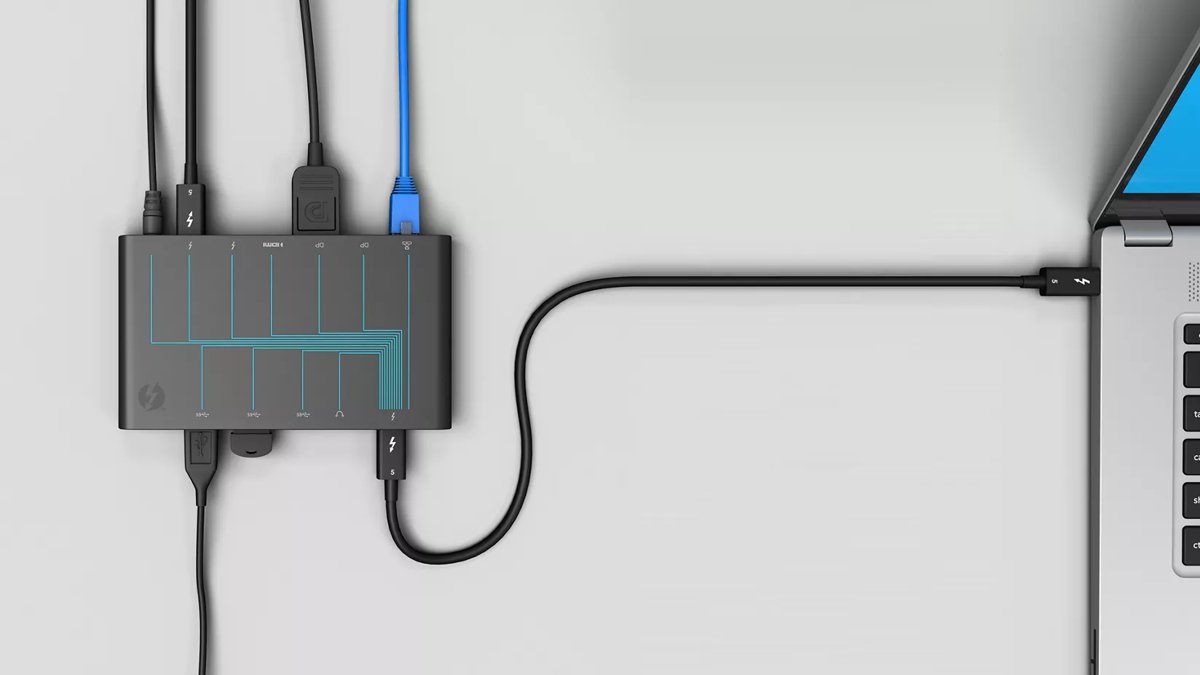
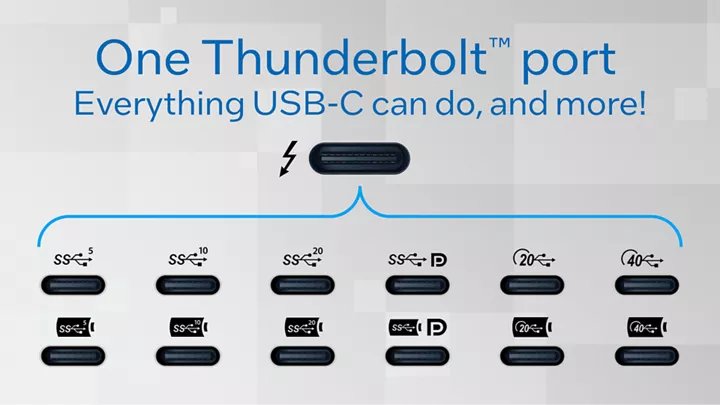
USB-C is only the connector shape. Thunderbolt and USB4 are protocols that run over it, and Windows only uses the full feature set when the PC, cable, device and drivers all support it.
| Standard | Bandwidth | Displays and charging | Windows 11 software notes |
|---|---|---|---|
| Thunderbolt 3 | Depends on the PC and device | Depends on the PC maker's implementation | Intel DCH Thunderbolt driver plus Thunderbolt Control Center on many Intel systems; Thunderbolt 3 devices also work on USB4 ports |
| Thunderbolt 4 | 40 Gbps minimum | Two 4K displays minimum; laptop charging up to 100 W | Built into 11th Gen and later Intel Core processors; requires Intel VT-d based DMA protection |
| Thunderbolt 5 | Up to 80 Gbps both ways; Bandwidth Boost up to 120 Gbps one way | Dual 8K displays; charging up to 240 W | Requires Windows 11 version 23H2 or later |
| USB4 | 20 Gbps minimum | Varies by PC; 7.5 W minimum port power for accessories | Uses the Windows 11 USB4 connection manager; no vendor app needed |
| Plain USB-C | USB 3.x speeds | Depends on Alternate Mode support | No Thunderbolt software applies |
Windows 11 warns you when the link falls short with notifications such as "USB4 device functionality might be limited" or "Thunderbolt device functionality might be limited".
Do you need Thunderbolt software on Windows 11?
Intel's own Thunderbolt page states that Thunderbolt accessories need no extra software or drivers to work together. The exception is the driver layer on PCs that still use Intel's Thunderbolt controller driver.
| Your situation | What to install | Why |
|---|---|---|
| Settings shows USB4 Hubs and Devices | Nothing extra; keep Windows Update current | Windows 11's own USB4 connection manager runs the port |
| Intel Thunderbolt port, no USB4 page, Intel DCH Thunderbolt driver installed | Thunderbolt Control Center from the Microsoft Store | The Store listing says it may be required for the port to work properly |
| AMD laptop with USB4 ports | Windows Update and the PC maker's chipset and BIOS updates | Windows 11 requires its own USB4 connection manager; the Intel app needs the Intel driver |
| Dock connects but misbehaves | Dock firmware update | Dock bugs are fixed in firmware, not in a Windows app |
| You want to link two PCs | Nothing for basic networking; Thunderbolt Share for screen and peripheral sharing | Windows 11 creates a USB4 network adapter on its own |
How to check whether your Windows 11 PC has Thunderbolt
A USB-C port is not proof of Thunderbolt. Check the port marking first, then confirm in Windows.
- Look beside each USB-C port for the Thunderbolt logo or a USB4 marking. Unmarked ports are often plain USB-C.
- Open Settings > Bluetooth & devices > USB and look for USB4 Hubs and Devices. Its presence means the PC has USB4 ports run by Windows.
- Right-click Start and select Device Manager.
- Select View > Devices by connection and look for USB4 Host Router.
- If neither appears, check the specifications page for your exact model on the PC maker's site; it lists Thunderbolt 3, Thunderbolt 4, Thunderbolt 5 or USB4 per port.
Where to get Thunderbolt software for Windows 11
Get every piece from Microsoft, Intel or your PC maker. Avoid unofficial driver download sites and third-party driver updater tools.
| Source | What you get there | Use it when |
|---|---|---|
| Windows Update (including Optional updates) | USB4 drivers, some Thunderbolt drivers and dock firmware | Always, first |
| PC maker support page (Dell, HP, Lenovo and others) | BIOS or UEFI firmware, chipset driver, Thunderbolt driver and Thunderbolt firmware for your exact model | Windows Update offers nothing, or the PC is a business model |
| Microsoft Store | Thunderbolt Control Center by Intel Corp | Your PC uses the Intel DCH Thunderbolt driver |
| Intel Driver & Support Assistant | Detection of Intel components and Intel's generic drivers | Your PC maker has stopped publishing updates |
| Dock or device maker | Dock firmware updater and release notes | A dock or drive misbehaves after other updates are current |
| Intel download center | Thunderbolt Share for PC-to-PC sharing | You own a licensed Thunderbolt 4 or 5 PC or accessory |
On an AMD laptop the graphics side of a dock setup comes from AMD Software for Windows 11, while the USB4 port itself uses Windows' own drivers.
How to install Thunderbolt software on Windows 11
Install in this order. Firmware first prevents a new driver from talking to old controller code.
- Run Windows Update: select Start > Settings > Windows Update > Check for updates and restart when asked.
- Install BIOS or UEFI firmware updates from your PC maker's support page for your exact model. Keep the laptop plugged in until it finishes.
- Install the Thunderbolt or USB4 driver: open Settings > Windows Update > Advanced options > Optional updates, select any Thunderbolt or USB4 driver, and choose Download and install. If nothing is listed, install the Thunderbolt driver from the PC maker's page.
- Restart the PC, even if the installer does not ask.
- Install Intel Thunderbolt Control Center if required: open the Microsoft Store, search for Thunderbolt Control Center, confirm the publisher is Intel Corp, and select Get or Install.
- Connect the Thunderbolt device directly to the PC and open Thunderbolt Control Center from Start to confirm it is listed.
The Store listing for Thunderbolt Control Center lists the Intel DCH Thunderbolt driver as a requirement. On a PC without that driver, the app has nothing to manage.
Using Thunderbolt Control Center to approve devices
Thunderbolt Control Center is the Intel app that pairs with the Intel DCH Thunderbolt driver. It is where a Thunderbolt device on those PCs is approved and where its details are listed. Approval options and labels vary by app version and by the security level your PC maker set.
- Open Start, type Thunderbolt Control Center and open the app.
- Connect the Thunderbolt device or dock directly to the PC's Thunderbolt port.
- Approving a Thunderbolt device: if the app or a Windows notification asks for approval, approve only devices you own and recognize.
- Select the connected device in the app's device list to check its details, such as its name, vendor and connection.
- If the device should connect automatically in future, choose the option that keeps it approved, where the app offers one.
- Remove approval for a dock or drive you no longer use, so it cannot reconnect without asking.
On PCs where Windows' own USB4 connection manager runs the port, Thunderbolt Control Center does not apply. Use the Windows 11 USB4 settings page instead.
Windows 11 USB4 settings
Windows 11 added a USB4 page in Settings with the June 27, 2023 update KB5027303 (OS Build 22621.1928). It appears only on PCs that support USB4 through the Microsoft USB4 connection manager.
| What you want | Where it is in Windows 11 | What you see |
|---|---|---|
| USB4 capabilities and connected devices | Settings > Bluetooth & devices > USB > USB4 Hubs and Devices | The PC's USB4 capabilities and a tree view of attached USB4 hubs and devices, with an option to copy the details |
| Warnings about limited Thunderbolt or USB4 functionality | Search for usb, select USB settings, then Connection notifications | Turns the "functionality might be limited" alerts on or off |
| USB4 router devices | Device Manager > View > Devices by connection | USB4 Host Router, USB4 Root Device Router and any connected USB4 Device Router |
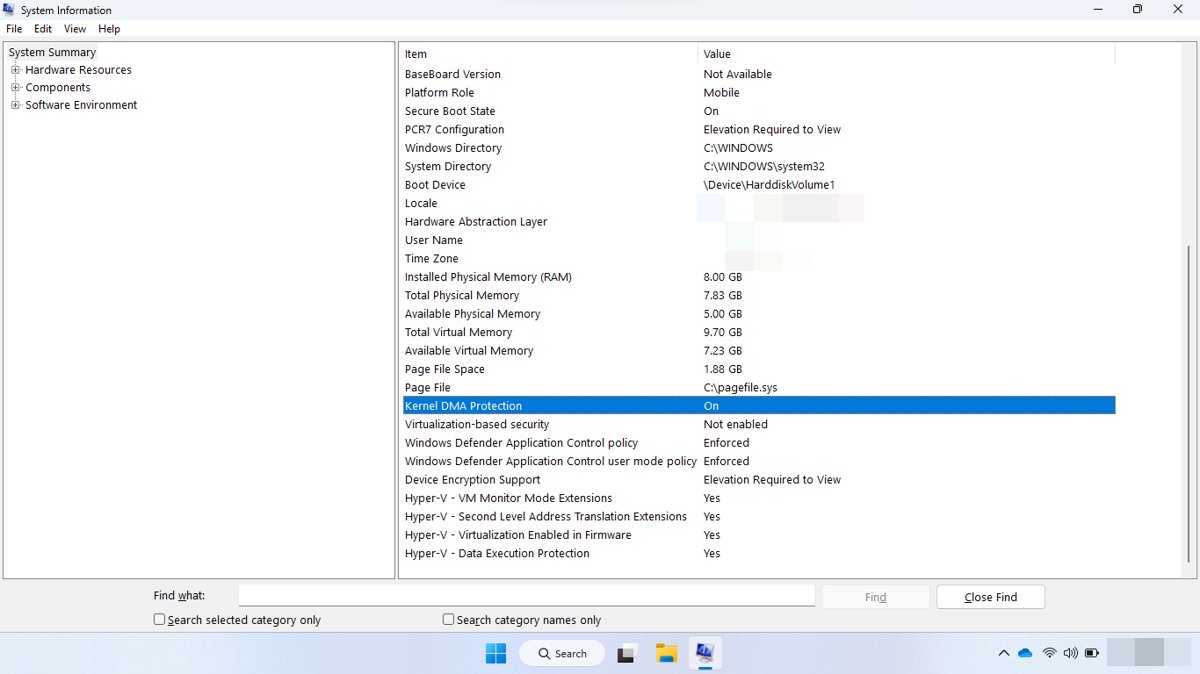
| DMA protection state | Windows Security > Device security > Core isolation details > Memory access protection | Whether Kernel DMA Protection is on |
There is no switch to turn Thunderbolt or Alternate Modes on in Windows. A device switches modes automatically when the PC, cable and device all support it.
Check Thunderbolt is working in Windows 11
- Connect the dock or device directly to the Thunderbolt port and wait for Windows to finish setting it up.
- Open Settings > Bluetooth & devices > USB > USB4 Hubs and Devices and confirm the dock or device appears in the tree.
- On an Intel DCH driver system, open Thunderbolt Control Center and confirm the device is listed as connected.
- Open Device Manager and confirm no device under the dock shows a yellow exclamation mark.
- Check that each part of the dock works: a monitor shows a picture, Ethernet gets a connection and USB drives open in File Explorer.
- Press Win + R, type msinfo32 and press Enter. In System Summary, confirm Kernel DMA Protection reads ON if your PC supports it.
Updating Thunderbolt dock firmware
Dock firmware fixes many display, charging and detection faults that no Windows driver can. Keep the PC on power and the dock connected for the whole update.
- Connect the PC to the dock and to power.
- Open Settings > Windows Update > Advanced options and turn on Receive updates for other Microsoft products.
- Select Optional updates, choose any firmware or driver listed for the dock, and select Download and install.
- If Windows Update lists nothing, open the dock maker's support page for your model and run its firmware updater.
- For a Surface Thunderbolt 4 Dock, use Windows Update, the Surface app or Microsoft's MSI firmware package.
- Do not unplug the dock or the PC until the updater reports it has finished, then restart the PC.
Microsoft notes that the Surface Thunderbolt 4 Dock works with any host PC that has USB4 or Thunderbolt 4, but automatic firmware updates through Windows Update only work on Windows PCs.
Thunderbolt networking on Windows 11: connect two PCs
Windows 11 can link two PCs with a USB4 or Thunderbolt cable and treat the link like a network. The protocol is backward compatible with Thunderbolt 3, so one of the PCs can be a Thunderbolt 3 PC.
- Connect the two PCs with a USB4 or Thunderbolt cable.
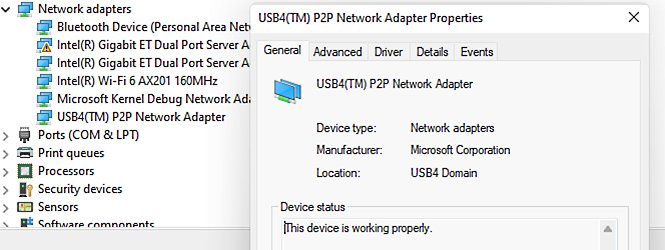
- Wait for a new USB4 network adapter to appear; Windows assigns it a 169.254.x.x address automatically.
- Open the network adapter's properties on each PC and note its IP address.
- On the PC you want to reach, set the network type to Private or turn on network discovery, and share the folders you need.
- On the other PC, open File Explorer and type \\ followed by the peer's IP address, for example \\169.254.76.91.
- Sign in with an account that exists on the remote PC.
Use the IP address, not the computer name. The name can route over Wi-Fi instead of the cable. For shared screens, keyboard and mouse between two PCs, Intel's Thunderbolt Share needs Thunderbolt 4 or 5 on both PCs and a licensed PC or accessory.
Choosing the right Thunderbolt cable
Many USB-C cables only carry charging and USB 2.0 data. A dock that charges but shows no displays is often a cable problem.
| Cable | Good for | Watch out for |
|---|---|---|
| Cable that came with the dock or device | Guaranteed to match that device | Keep it with the device; Microsoft recommends using it first |
| Certified Thunderbolt 4 cable | 40 Gbps at lengths up to 2 m (6.56 ft) | Check for the Thunderbolt logo on the connector |
| Certified Thunderbolt 5 cable | Up to 120 Gbps at lengths up to 2 m | Needed only for Thunderbolt 5 speeds |
| Certified USB4 cable | USB4 devices and docks | Windows warns when a USB4 device is on a cable without USB4 support |
| Generic USB-C charging cable | Charging and basic USB data | Usually no display output or Thunderbolt speed |
Thunderbolt 4 and Thunderbolt 5 require certification for cables, so a certified cable carries the Thunderbolt marking.
Thunderbolt security settings in BIOS or UEFI
Thunderbolt and USB4 devices can read and write system memory directly, which is why Windows and the firmware gate them. Keep these protections on; they rarely block a device you own once you are signed in.
| Setting | Where | What it does |
|---|---|---|
| Intel Virtualization Technology and VT-d (Intel) or IOMMU | BIOS or UEFI setup | Required for Kernel DMA Protection; Microsoft says to turn both on if Kernel DMA Protection shows Off |
| Kernel DMA Protection | Turns on automatically on supported PCs; check in msinfo32 or Memory access protection | Blocks devices with DMA-incompatible drivers until a user signs in or unlocks the PC |
| Thunderbolt security level or PCIe tunneling option | BIOS or UEFI setup on some PCs; names vary by maker | Controls whether Thunderbolt devices need approval or only get USB and DisplayPort; check your PC maker's manual |
| Pre-boot DMA protection | System firmware | Kernel DMA Protection only covers the time after Windows loads; firmware protects boot |
Kernel DMA Protection is available on Windows 11 Pro, Enterprise, Pro Education/SE and Education. It does not protect against DMA through FireWire, PCMCIA, CardBus or ExpressCard.
Uninstalling and reinstalling Thunderbolt software
Reinstalling fixes a Thunderbolt Control Center that will not open or a driver that stopped loading after an update.
- Select Start > Settings > Apps > Installed apps.
- Find Thunderbolt Control Center, select More, then Advanced options, and try Repair or Reset first.
- If that fails, select More > Uninstall on the app.
- To reinstall the driver, right-click Start, open Device Manager, right-click the Thunderbolt controller, select Uninstall device, and confirm with Uninstall.
- Restart the PC; Windows tries to reinstall the driver automatically.
- Install the latest Thunderbolt driver from your PC maker, then reinstall Thunderbolt Control Center from the Microsoft Store.
Thunderbolt on business and managed Windows 11 PCs
On a work PC, IT policy can block Thunderbolt devices, the USB4 network link or dock ports. If a device works at home but not on a work laptop, ask IT before changing anything.
| Control | Where IT sets it | Effect on you |
|---|---|---|
| Enumeration policy for external devices incompatible with Kernel DMA Protection | Group Policy: Administrative Templates > System > Kernel DMA Protection, or MDM DmaGuard policy | Devices with incompatible drivers are blocked, allowed, or allowed only after sign-in (the default) |
| Block the USB4 network adapter | Device installation policy for the compatible ID USB4\USB4NET | PC-to-PC networking over USB4 stops working |
| Block Thunderbolt controllers | Device installation policy for the ID PCI\CC_0C0A | Thunderbolt ports stop working entirely |
| Surface Enterprise Management Mode for Dock | Surface Thunderbolt 4 Dock with supported Surface devices | Dock ports can be locked to specific devices |
| Firmware and driver servicing | Windows Update for Business, the PC maker's tools or MSI packages | Updates may arrive on IT's schedule rather than yours |
Common Thunderbolt problems in Windows 11 and how to fix them
Thunderbolt not working in Windows 11
The port is plain USB-C, a driver or firmware is missing, or the device sits behind a hub.
- Confirm the port is Thunderbolt or USB4 using the checks above.
- Install all Windows updates, including Optional updates, and restart.
- Install the PC maker's latest BIOS and Thunderbolt driver.
- Connect the device directly to the PC, not through a hub.
Thunderbolt dock not detected
Wrong port, wrong cable, missing controller driver or outdated dock firmware.
- Plug the dock into the port marked for Thunderbolt.
- Swap in the cable that came with the dock or a certified Thunderbolt cable.
- Check USB4 Hubs and Devices or Thunderbolt Control Center for the dock.
- Update the dock firmware, then restart with the dock connected.
Dock works as USB only, but displays do not work
The cable, the port or the dock lacks the Alternate Mode or Thunderbolt link the displays need, or too many Alternate Mode devices are connected.
- Replace the cable with a Thunderbolt or USB4 certified one.
- Move the dock to a port that supports Thunderbolt or DisplayPort.
- Disconnect other USB-C displays or adapters.
- Update the graphics driver and the dock firmware.
Thunderbolt device needs approval every time
Kernel DMA Protection blocks devices with DMA-incompatible drivers when they are plugged in before sign-in or while the screen is locked.
- Sign in or unlock the PC; the device starts and keeps working until you unplug it or restart.
- Plug the device in after you sign in.
- Update the device's driver; a driver that supports DMA remapping starts automatically.
- On Intel DCH driver systems, keep the device approved in Thunderbolt Control Center where offered.
Devices on the dock stop working after sleep or hibernate
A known Windows 10 and Windows 11 issue with Fast Startup when the dock is plugged or unplugged during a power-state change; Device Manager can show Code 10, Code 24 or Code 43.
- Unplug the dock and plug it back in.
- If the devices still fail, restart the PC.
- Avoid connecting or disconnecting the dock while the PC enters or resumes from sleep or hibernate.
"Thunderbolt device functionality might be limited" notification
The device has features the PC, cable or port lacks, or it is connected through a hub or dock.
- Connect the device directly to the PC.
- Use the USB-C port labeled for Thunderbolt.
- Use a cable that supports the device's full feature set.
How to tell whether the problem is the laptop, dock, cable, or device
Swap one part at a time. The part that moves the fault with it is the culprit.
The fault follows the cable
The cable lacks Thunderbolt or USB4 support or is damaged.
- Connect the same dock and PC with the dock's own cable or a certified Thunderbolt cable.
- Replace the original cable if the fault disappears.
The fault follows the dock
Dock firmware or dock hardware.
- Connect the dock to a second Thunderbolt or USB4 PC.
- Update the dock firmware if it fails there too, then contact the dock maker.
The fault follows the laptop
PC firmware, the Thunderbolt driver or the port.
- Connect a known-good dock or device to the laptop.
- Install the PC maker's BIOS and Thunderbolt driver, then try the other Thunderbolt port.
The fault follows the device behind the dock
The monitor, drive or adapter itself, or its driver.
- Connect that device directly to the PC.
- Update its driver in Device Manager with Update driver > Search automatically for updated driver software.
FAQ about Thunderbolt software on Windows 11
What is Thunderbolt software on Windows 11?
It is the set of drivers, firmware and apps that run a Thunderbolt port. On most new PCs that is Windows 11's own USB4 connection manager. On PCs with the Intel DCH Thunderbolt driver, it also includes Intel's Thunderbolt Control Center app from the Microsoft Store.
Where do I download Thunderbolt software for Windows 11?
Get drivers from Windows Update and your PC maker's support page, and get Thunderbolt Control Center from the Microsoft Store, where it is published by Intel Corp. Avoid third-party driver download sites; they are not a safe source for controller drivers.
Do Lenovo, HP and Dell laptops need different Thunderbolt software?
The app is the same Intel Thunderbolt Control Center, but the Thunderbolt driver, BIOS and Thunderbolt firmware come from each maker's support page for your exact model. Install those first, then the Store app if your PC uses the Intel DCH Thunderbolt driver.
Is there Thunderbolt software for AMD PCs on Windows 11?
AMD PCs with USB4 ports use Windows 11's built-in USB4 connection manager, which Microsoft requires for USB4 starting with Windows 11. Thunderbolt Control Center needs the Intel DCH Thunderbolt driver, so manage AMD USB4 ports from Settings instead.
Does Thunderbolt 4 need software on Windows 11?
Usually not. Intel states that Thunderbolt accessories need no extra software to work together, and Windows 11 runs USB4-based ports with its own drivers. Keep Windows Update, the BIOS and dock firmware current, and install Thunderbolt Control Center only if your PC uses the Intel driver.
What software does Thunderbolt 3 need on Windows 11?
Thunderbolt 3 PCs that use the Intel DCH Thunderbolt driver need that driver, and Intel's Store listing says Thunderbolt Control Center may also be required. Thunderbolt 3 devices plugged into a USB4 or Thunderbolt 4 port use Windows' USB4 drivers instead.
Is there a Thunderbolt app for Windows 11?
Yes. Thunderbolt Control Center is Intel's app on the Microsoft Store. It requires the Intel DCH Thunderbolt driver. On PCs run by Windows' USB4 stack, the equivalent information is in Settings under USB4 Hubs and Devices.
Does Windows 11 support Thunderbolt networking?
Yes. Connecting two PCs with a USB4 or Thunderbolt cable creates a network adapter with a 169.254.x.x address. You can then share folders and browse to the other PC's IP address in File Explorer. It also works when one PC is Thunderbolt 3.
Where is the Thunderbolt controller driver in Windows 11?
Open Device Manager and select View > Devices by connection. USB4 ports appear as USB4 Host Router and USB4 Device Router. If those entries are missing on an Intel Thunderbolt PC, the port uses the Intel DCH Thunderbolt driver from your PC maker instead.
Why does Windows 11 say my Thunderbolt device functionality might be limited?
The device supports features that the PC, port or cable lacks, or it is connected through a hub or dock. Connect it directly to a port labeled for Thunderbolt, using a cable that supports the device's full feature set.
Should you use Intel driver updates or manufacturer updates?
Use Windows Update and your PC maker's Thunderbolt driver, BIOS and firmware first, and use Intel's generic tools only when the maker has stopped publishing updates. PC makers tune the Thunderbolt controller, firmware and security settings for each model, and Windows 11 already ships the USB4 drivers most new PCs need. A generic driver can mismatch the firmware, while Thunderbolt Control Center from the Microsoft Store is the one Intel component that is safe to install on any PC using the Intel DCH Thunderbolt driver.