To print Avery 5160 labels in Word, open Mailings > Labels, select Options, choose the Avery vendor and product number 5160, type your text and select Print.
This guide covers a full sheet of one address, a single label on a used sheet, different addresses from an Excel list, Word for Mac, Word for the web and fixes for labels that print out of line.
Step by step tutorial: how to print Avery 5160 labels in Word
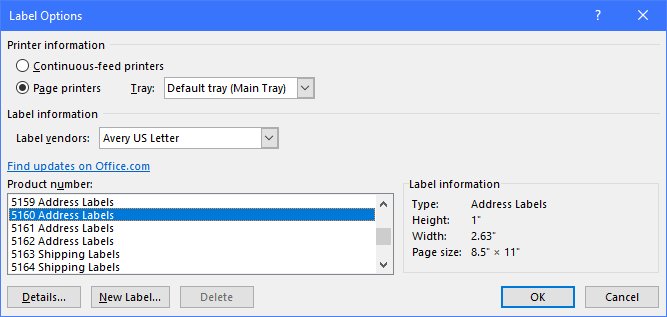
These steps are for Word for Windows, part of Microsoft 365 and the standalone Office versions. They print the same text on every label of the sheet.
- Open Microsoft Word and create a blank document.
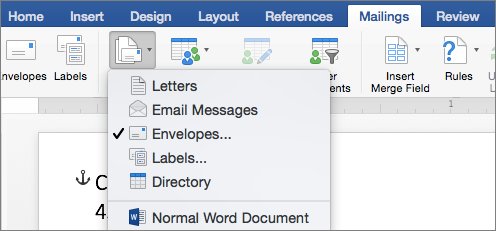
- Select the Mailings tab, then select Labels.
- Select Options, choose the Avery entry in Label vendors, select 5160 in Product number, then select OK.
- Type the address or other text in the Address box, or select the Insert Address icon to pull it from your contacts.
- To change the look, select the text, right-click it and use Font or Paragraph.
- Under Print, select Full page of the same label.
- Load the Avery 5160 sheet into the printer and select Print, or select New Document to edit and save the sheet before printing.
New Document is the better choice when you want to reuse the sheet. Word opens it as a table sized to the 5160 layout, so you can save it and print it again later.
The same Mailings tab is where you print envelopes in Word for the same addresses.
Print Avery 5160 labels from Excel with mail merge
Use a mail merge when every label needs a different address. Word reads the names from an Excel sheet and fills one label per row.
Prepare the workbook first: put the data on the first sheet, give each column a header such as First Name or City, format ZIP code columns as Text so leading zeros survive, and save the file on your PC.
- In Word, select Mailings > Start Mail Merge > Labels.
- In Label Options, choose the Avery vendor, select 5160 under Product number, then select OK.
- Select Mailings > Select Recipients, browse to your Excel workbook, open it and confirm the sheet that holds the addresses.
- Click in the first label and select Mailings > Address Block, choose a format, then select OK.
- Select Mailings > Update Labels to copy the layout to every label on the sheet.
- Select Mailings > Preview Results and step through a few records to check the spacing.
- Select Finish & Merge > Print Documents to print, or Edit Individual Documents to review the merged sheets first.
If you are new to merges, the Word mail merge setup works the same way for letters and labels.
Avery 5160 labels with different addresses in Word
For a short list you can skip Excel and type each address straight into the label grid.
- Select Mailings > Labels > Options.
- Choose the Avery vendor and 5160 under Product number, then select OK.
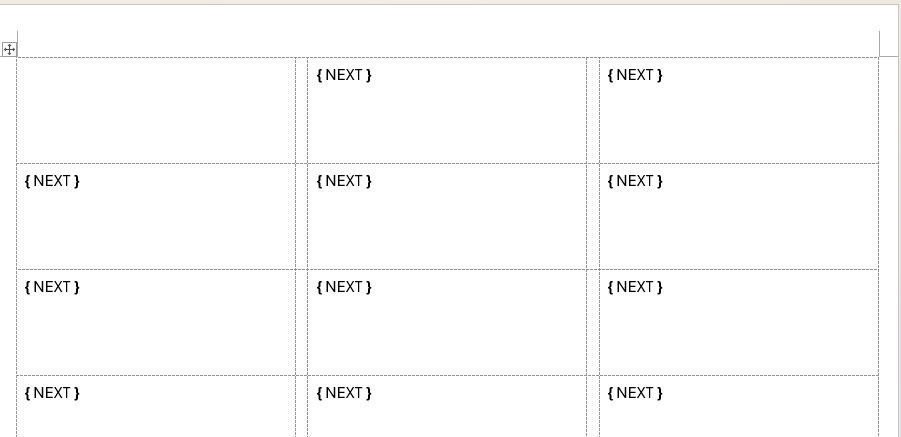
- Leave the Address box empty and select New Document.
- If the cell borders are not visible, select Layout > Align > View Gridlines.
- Type one address in each cell of the table.
- Select File > Print, then Print, and save the document so you can reuse it.
Print one Avery 5160 label on a partially used sheet
Word can place a single label on any free position, so a half-used 5160 sheet is not wasted.
- Select Mailings > Labels.
- Select Options, choose the Avery vendor and 5160, then select OK.
- Type the text for the label in the Address box.
- Select Single label, then set the Row and Column of the first unused label on the sheet.
- Load the partially used sheet into the printer.
- Select Print.
Print Avery 5160 labels in Word for Mac
Word for Mac has the same Labels dialog, with a printer type setting added and fewer formatting options.
- Select Mailings > Labels, then select Options.
- Set Printer type, pick the Avery brand under Label products and choose 5160 under Product number.
- Select OK.
- Type the text in the Delivery Address box, or select Insert Address to use a contact.
- To change the formatting, select the text and select Font.
- Select Full page of the same label, then select OK.
- Select Print, or New Document to edit and save the sheet first.
Avery 5160 template in Word for the web
Word for the web cannot build labels from the Mailings tab. It works from a label template instead.
- Create a new document and select More templates.
- Search the templates for labels and open one that matches your Avery 5160 sheet.
- Fill in the first label with your text.
- Copy that label and paste it into the remaining labels for a sheet of identical addresses.
- Print a test page on plain paper before loading the label sheet.
For exact Avery 5160 positioning, the desktop Word app is the more reliable route because it uses the stored product number.
Test print Avery 5160 labels on plain paper
Microsoft recommends printing the labels on a sheet of paper before loading label stock. The test shows whether the text sits inside each label.
- Print the label document on an ordinary sheet of paper.
- Place the printed sheet behind a blank Avery 5160 sheet and hold both up to a light.
- Check that each address sits inside its label outline, with no text crossing an edge.
- If the text is shifted, fix the layout before printing on the real labels.
Tips for printing Avery 5160 labels in Word
| Tip | Why it helps |
|---|---|
| Always pick 5160 in Product number instead of drawing your own table | Word uses the stored page and label measurements for that product |
| Use New Document for sheets you print often | The saved file reprints without setting the label options again |
| Format ZIP codes in Excel as Text before a merge | Leading zeros, such as 00399, are dropped from number-formatted codes |
| Keep the address short enough for the label | Long lines wrap or run past the label edge |
| Use Single label with Row and Column for leftovers | Partly used sheets get used up instead of thrown away |
| Print on plain paper first | Alignment errors show before you spend a label sheet |
| Turn on View Gridlines when editing the label table | You can see each label boundary while typing |
Avery 5160 labels not lining up or printing in Word
Text prints across two labels or drifts down the page
The wrong label product is set, or the printer scales the page.
- Open Mailings > Labels > Options and confirm 5160 is selected under Product number.
- In the printer's own print settings, choose actual size rather than a fit-to-page option.
- Print a test on plain paper and compare it against a label sheet.
5160 is not in the product list
A different label vendor is selected in Label vendors.
- Open Mailings > Labels > Options.
- Change Label vendors to the Avery entry for US letter sheets.
- If the product still does not appear, select New Label and enter the measurements printed on the label package.
ZIP codes lose their leading zero after a merge
The Excel column is formatted as a number.
- In Excel, select the ZIP code column.
- Select Home, open the Number Format box and choose Text.
- Save the workbook and run the merge again from Mailings > Select Recipients.
The printer jams or skips label sheets
Label stock is thicker than paper and some trays feed it poorly.
- Load a few sheets at a time rather than a full stack.
- Use the tray or feed slot your printer manual lists for labels.
- Remove any sheet with peeled or missing labels before printing.
Avery 5160 labels in Word FAQ
How do I print Avery 5160 labels on Word?
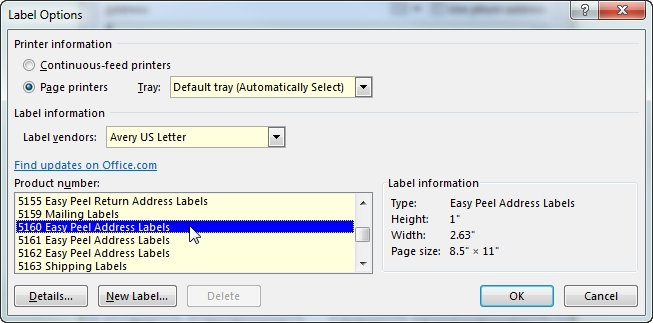
Open Mailings > Labels, select Options, choose the Avery vendor and product number 5160, then select OK. Type the address, choose Full page of the same label and select Print. Use New Document instead if you want to save the sheet.
How do I print Avery 5160 labels from Excel?
Run a mail merge in Word. Select Mailings > Start Mail Merge > Labels, pick 5160, connect the Excel workbook with Select Recipients, add an Address Block, select Update Labels, then Finish & Merge > Print Documents.
What is an Avery 5160 label?
Avery 5160 is a sheet of address labels sold under that product number. Word stores its layout, so choosing 5160 in the label options sizes the page and every label correctly without any manual measuring.
Can I use other Avery label templates in Word?
Yes. The Label vendors list in Mailings > Labels > Options covers many Avery products. Pick the product number printed on your package. If it is missing, select New Label and enter the measurements yourself.
Can I print a full sheet of the same address?
Yes. In the Labels dialog, type the address once, select Full page of the same label and select Print. Word repeats the address in every label position on the 5160 sheet.
How do I ensure proper alignment of my labels?
Confirm product number 5160 is selected, print the page at actual size, and run a test on plain paper first. Hold the test behind a label sheet against a light to check that every address sits inside its outline.
What if my printer doesn't feed label sheets correctly?
Load only a few sheets at a time and use the tray or slot your printer's manual names for labels. Remove sheets with peeled labels, because a loose label can jam the printer.
How do I print Avery 5160 labels in Google Docs?
Google Docs has no Mailings tab, so the Word label tool with its stored 5160 layout is not available there. For exact Avery 5160 positioning, open the addresses in desktop Word and use Mailings > Labels.
How do I print Avery 5160 labels from a PDF?
Open the PDF in your PDF reader and print it at actual size, with any fit or shrink option turned off. Scaling moves the text off the labels. Print one test on plain paper before using label sheets.