Microsoft Support and Recovery Assistant (SaRA) still fixes Office, Outlook and Windows problems, but Microsoft has replaced the standalone tool with troubleshooters built into the Get Help app.
This guide shows which Get Help troubleshooter matches each old SaRA fix, how to run the Office, activation and Outlook ones, and how IT admins run the command line version across many PCs.
Run Microsoft Support and Recovery Assistant fixes in Get Help
Get Help is built into Windows, so there is nothing to download for a single PC. The troubleshooters need Windows 10 or later and must run on the same PC as the Office app that has the problem.
- Select Start, type get help, and choose Get Help from the results.
- Type the problem into the search bar, for example Microsoft 365 activation troubleshooter or full Microsoft Office scan.
- Select the troubleshooter result and select Start.
- If a browser shows This site is trying to open Get Help, select Open.
- Approve the diagnostics prompt and follow the steps in the Get Help window.
- Restart the PC when the troubleshooter asks you to.
Windows 11 also lists the Windows troubleshooters under Settings > System > Troubleshoot > Other troubleshooters. Chat with a support agent or browse the other Windows help options when no troubleshooter fits.
Microsoft Support and Recovery Assistant
SaRA was a free Microsoft diagnostic tool that scanned a Windows PC for known Office, Outlook and Teams problems and applied fixes. Microsoft now lists the Assistant as deprecated and points every former SaRA task to Get Help.
| Question | Answer |
|---|---|
| What SaRA was | A Microsoft tool that ran guided scans and repairs for Office, Outlook, Teams and Windows problems |
| Current status | Deprecated; Microsoft says it has been replaced with troubleshooters integrated into Get Help |
| Replacement for home and single PCs | The full Get Help app, with Windows, Microsoft 365, classic Outlook, classic Teams and Copilot troubleshooters |
| Replacement for IT admins | The command line version of Get Help (GetHelpCmd.exe), historically known as the SaRA enterprise version |
| Supported Windows versions | Windows 10 or later for the Microsoft 365 and classic Outlook troubleshooters |
| Accounts | Get Help works with a Microsoft personal account or a work or school account |
| Not covered | New Outlook for Windows and new Teams; the Get Help fixes target classic Outlook and classic Teams |
Get Help troubleshooters that replace SaRA for Office, Outlook and Windows
Match your problem to a row, then type the search phrase into the Get Help search bar.
| Your problem | Get Help troubleshooter | What to search in Get Help |
|---|---|---|
| Office: Excel crashes, hangs or will not start | Excel check troubleshooter | Excel check troubleshooter |
| Office: you need to remove Microsoft 365, Office 2021, 2019 or 2016 completely | Microsoft 365 uninstall troubleshooter | Microsoft 365 uninstall troubleshooter |
| Office: installation fails | Microsoft 365 setup troubleshooter | Microsoft 365 setup troubleshooter |
| Office: subscription will not activate | Microsoft 365 activation troubleshooter | Microsoft 365 activation troubleshooter |
| Office: sign-in errors in the apps | Microsoft 365 sign-in troubleshooter | sign in to Microsoft Office |
| Office: shared PC needs shared computer activation | Shared computer activation (SCA) troubleshooter | shared computer activation |
| Office: you need a report of installed apps for support | Microsoft 365 inventory scan troubleshooter | full Microsoft Office scan |
| Office: slow or failed connection to Microsoft 365 | Network connectivity test troubleshooter | Microsoft 365 network connectivity test |
| Outlook: email account not set up in classic Outlook | Classic Outlook profile setup troubleshooter | Set up Microsoft 365 email in Outlook |
| Outlook: classic Outlook keeps asking for the password | Classic Outlook authentication check troubleshooter | Outlook password problem |
| Outlook: calendar items missing or wrong | Classic Outlook calendar check troubleshooter | Problem finding Outlook calendar |
| Windows: no sound, Bluetooth, camera or printer problems | Audio, Bluetooth, camera or printer troubleshooter | audio troubleshooter, Bluetooth troubleshooter, camera troubleshooter or printer troubleshooter |
| Windows: updates fail to install | Windows Update troubleshooter | windows update troubleshooter |
| Windows: no internet or network connection | Network and internet troubleshooter | connect to network and internet, then Run network diagnostics |
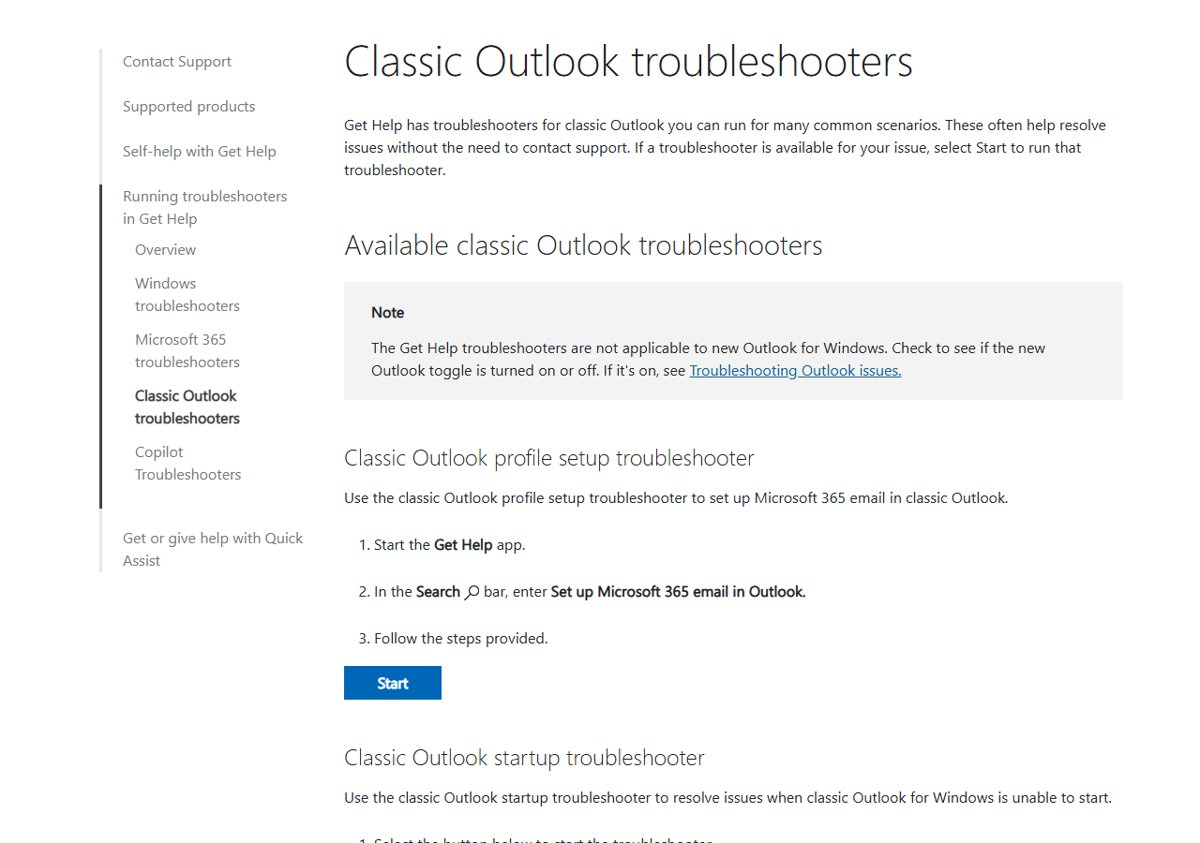
The classic Outlook startup, connectivity and advanced diagnostics troubleshooters start from the Start buttons on Microsoft's classic Outlook troubleshooters page rather than a search phrase.
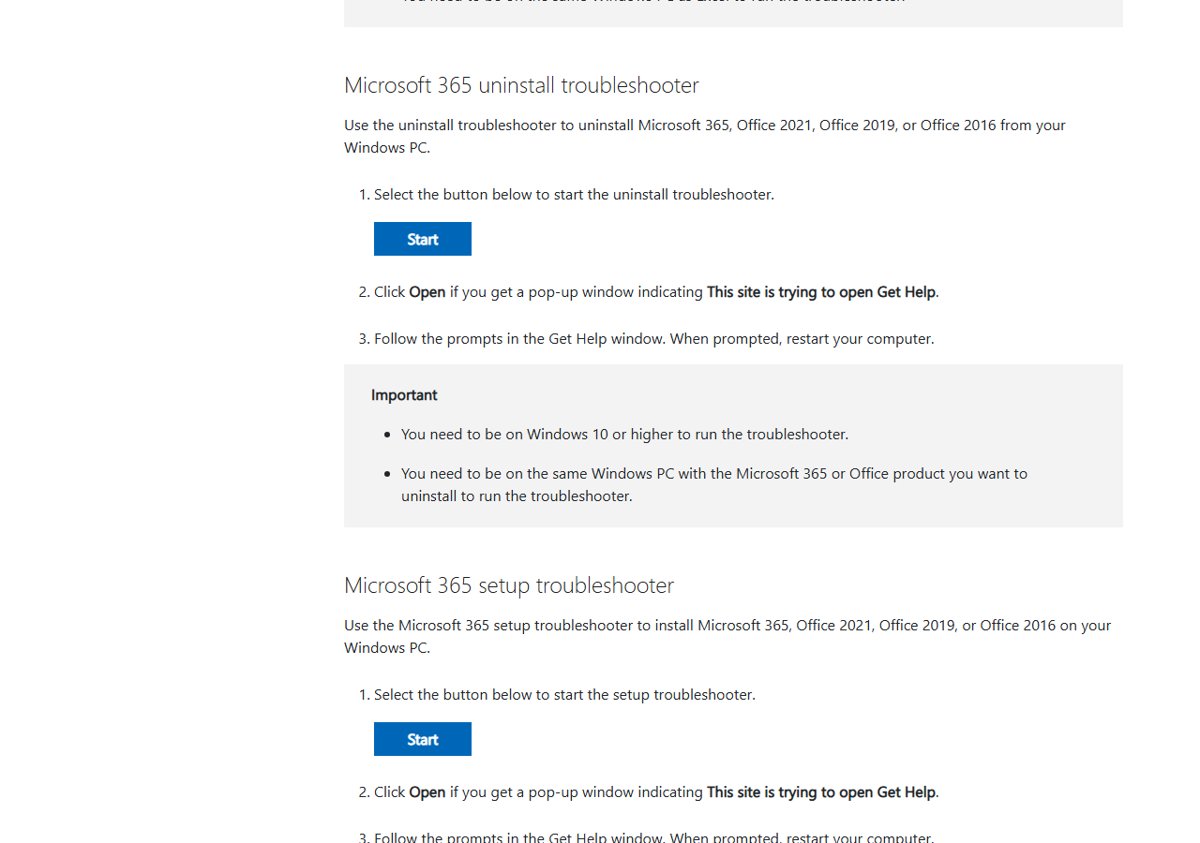
Uninstall Office completely with the Microsoft 365 uninstall troubleshooter
This is the Get Help version of SaRA's Office uninstall scenario. It removes Microsoft 365, Office 2021, Office 2019 or Office 2016 when Installed apps or Control Panel cannot remove it cleanly.
- Save your work and close every Office app.
- Open Get Help from the Start menu.
- Search for Microsoft 365 uninstall troubleshooter and select Start.
- Follow the prompts and choose the Office product to remove.
- Restart the computer when Get Help asks you to.
- Reinstall Office from your Microsoft account if you still need it.
Before you remove a one-time purchase version, note how you will reinstall it, including how to find your Office product key.
Fix Office activation with the Microsoft 365 activation troubleshooter
Use this when Word, Excel or Outlook shows an unlicensed product or subscription activation error. It replaces SaRA's Office activation scenario.
- Close all Office apps.
- Open Get Help and search for Microsoft 365 activation troubleshooter.
- Select Start and approve the diagnostics prompt.
- Follow the steps in the Get Help window.
- Restart the computer when prompted.
- Open Word or Excel and confirm no activation or unlicensed warning appears.
If sign-in fails before activation even starts, run the sign in to Microsoft Office troubleshooter first.
Fix classic Outlook that won't start or keeps disconnecting
Get Help has four classic Outlook fixes that cover what SaRA's Outlook scenarios used to do. They do not work with new Outlook for Windows, so check that the New Outlook toggle is off first.
- Close classic Outlook.
- Open Microsoft's Classic Outlook troubleshooters support page in a browser on the same PC.
- Select Start under Classic Outlook startup troubleshooter if Outlook will not open, or under Classic Outlook connectivity troubleshooter if it drops the connection.
- Select Open when the browser shows This site is trying to open Get Help.
- Follow the steps in the Get Help window and apply the suggested fix.
- Run the Classic Outlook advanced diagnostics troubleshooter if you need a detailed configuration report for your IT team.
Run the Microsoft Support and Recovery Assistant command line version
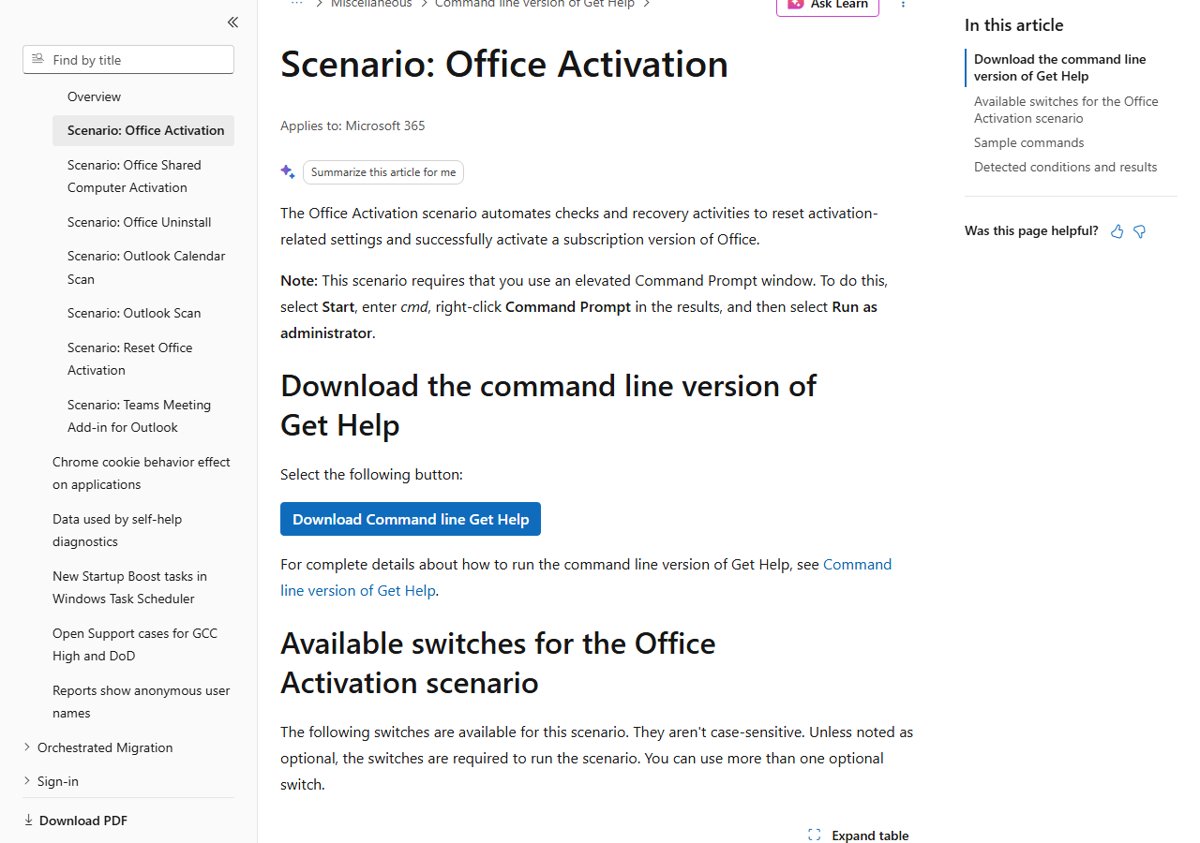
IT admins who used the SaRA enterprise version now use the command line version of Get Help, GetHelpCmd.exe. It runs from Command Prompt or a PowerShell script and suits fixing several PCs remotely.
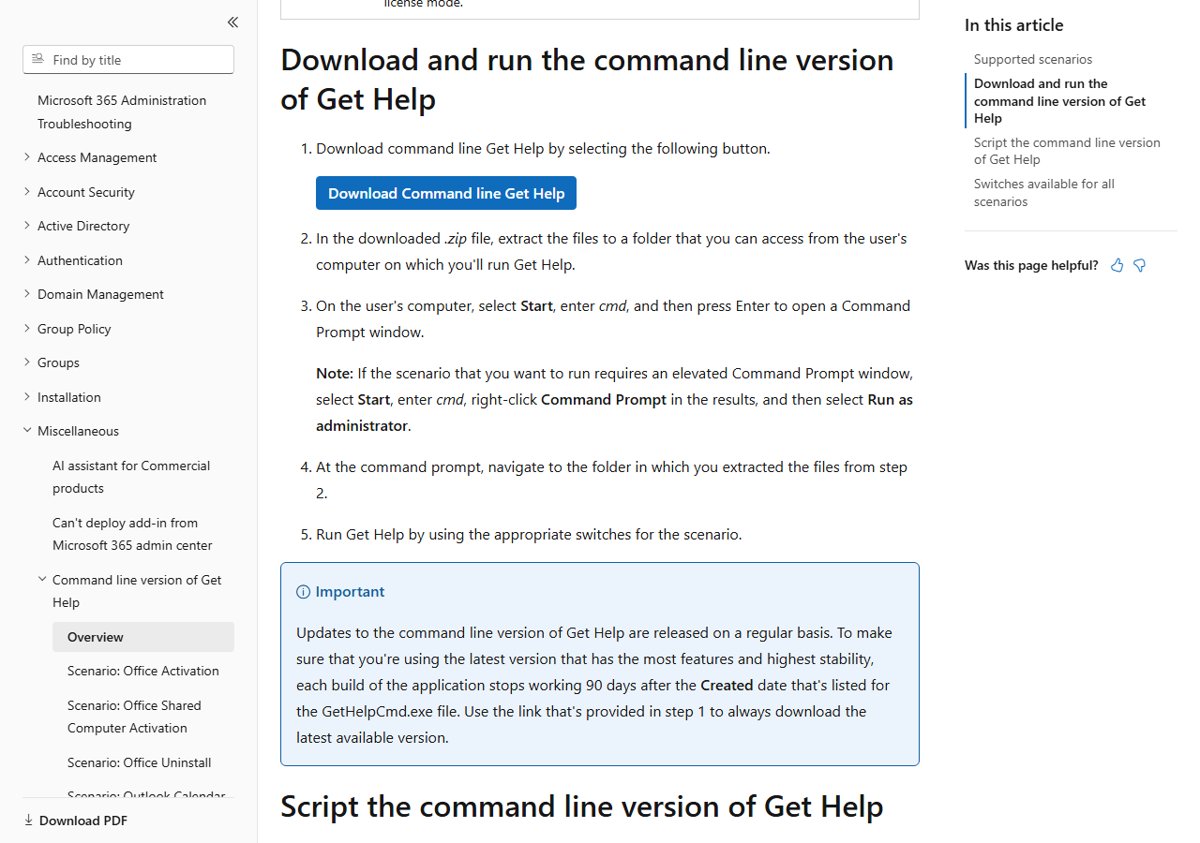
Download the latest zip from the link on Microsoft Learn's Command line version of Get Help page, extract it to a folder the user's PC can reach, then open Command Prompt in that folder. Scenarios that change Office activation need Run as administrator.
GetHelpCmd.exe -S OfficeScrubScenario -AcceptEula -OfficeVersion All-S picks the scenario, -AcceptEula accepts the licence terms (required for every scenario), and -OfficeVersion All removes every Office version from the PC.
You should see: The tool reports the scenario result in the console and writes log files you can collect for support.
Each GetHelpCmd.exe build stops working 90 days after the Created date of the file, so download a fresh copy before each campaign.
SaRA command line scenarios and switches
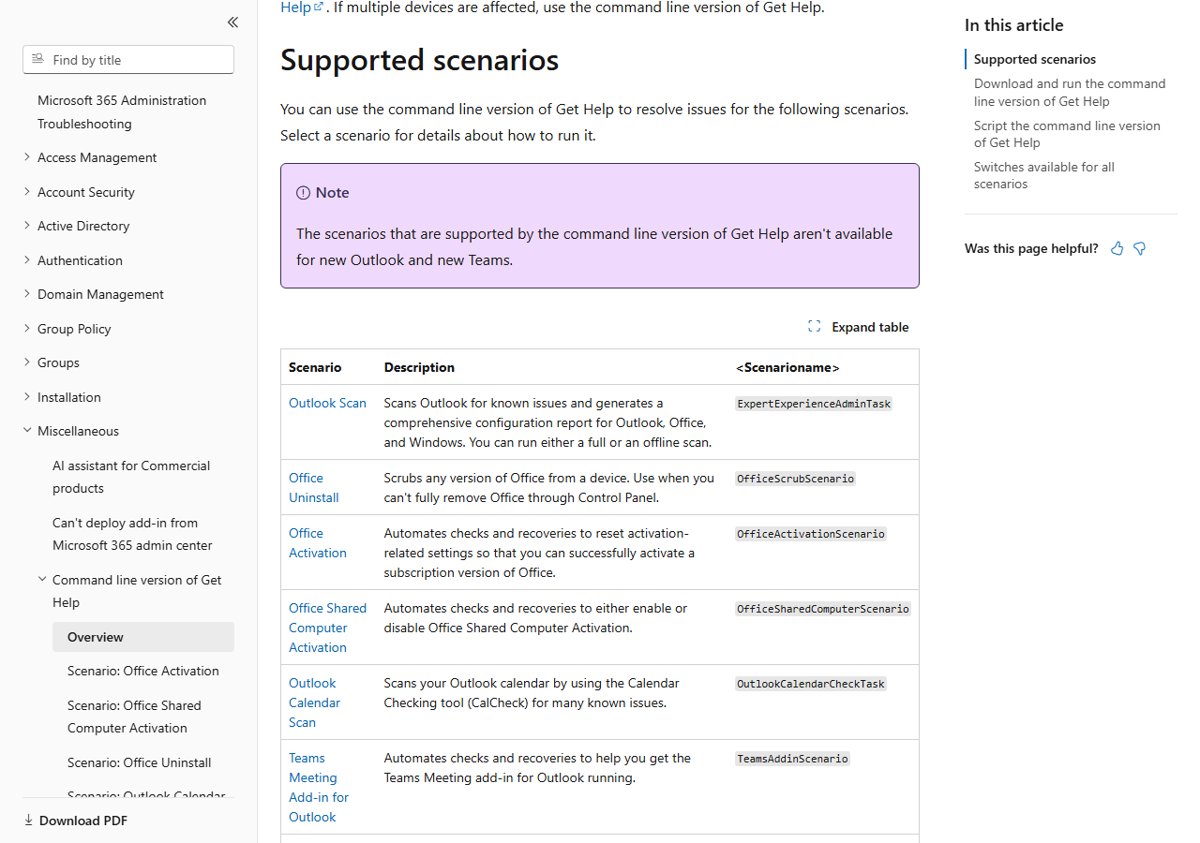
Pass one of these names to the -S switch. The command line scenarios do not support new Outlook or new Teams.
| Scenario | Name for -S | Extra switches |
|---|---|---|
| Outlook Scan: full or offline scan and configuration report | ExpertExperienceAdminTask | -OfflineScan, -LogFolder, -HideProgress |
| Office Uninstall: scrub any Office version | OfficeScrubScenario | -OfficeVersion |
| Office Activation: reset activation settings | OfficeActivationScenario | -CloseOffice (required), -RemoveSCA |
| Office Shared Computer Activation: turn SCA on or off | OfficeSharedComputerScenario | -CloseOffice (required), -RemoveSCA |
| Outlook Calendar Scan with CalCheck | OutlookCalendarCheckTask | -P profile name, -LogFolder, -HideProgress |
| Teams Meeting Add-in for Outlook | TeamsAddinScenario | -CloseOutlook (required) |
| Reset Office Activation: clear cached licences and accounts | ResetOfficeActivation | -CloseOffice (required) |
Add -? to list every switch, or -DisplayEULA to show the licence text before you accept it.
Check Get Help troubleshooter results
- Read the findings screen Get Help shows after the troubleshooter finishes; it lists what it found and the suggested remedies.
- Apply the remedy it suggests, then reopen the Office app that had the problem.
- For activation, open an Office app and confirm the unlicensed or activation banner is gone.
- For an uninstall, confirm the Office apps no longer appear in the Start menu app list.
- If the problem persists, use the contact option inside Get Help to reach Microsoft support with the troubleshooter results.
Microsoft Support and Recovery Assistant not working
The old SaRA download or shortcut no longer opens
Microsoft has deprecated the standalone Assistant and moved its fixes into Get Help.
- Open Get Help from the Start menu instead.
- Search for the troubleshooter that matches your problem from the table above.
- Admins should switch scripts to GetHelpCmd.exe.
Selecting Start on the support page does nothing
The browser blocked the request to launch the Get Help app.
- Select Open when the browser shows This site is trying to open Get Help.
- If no prompt appears, open Get Help from the Start menu and search for the troubleshooter by name.
- Make sure you are on the same Windows PC as the Office app.
The Outlook troubleshooter does not fix new Outlook
The Get Help Outlook troubleshooters only support classic Outlook for Windows.
- Check the New Outlook toggle in the Outlook window.
- Switch to classic Outlook to use the troubleshooters, or use Microsoft's troubleshooting steps for new Outlook instead.
GetHelpCmd.exe stopped running
Each build stops working 90 days after its Created date.
- Download the latest zip from the Microsoft Learn page.
- Extract it over the old folder.
- Run the same command again.
The troubleshooter will not run on an older PC
The Microsoft 365 and classic Outlook troubleshooters need Windows 10 or later.
- Press Win + R, type
winverand press Enter to see your Windows version. - Upgrade to a supported Windows version before you run the troubleshooter.
Microsoft Support and Recovery Assistant FAQ
Is Microsoft Support and Recovery Assistant still available?
No, not as a standalone app. Microsoft lists the Assistant as deprecated and says its fixes have been replaced with troubleshooters integrated into the Get Help app. IT admins use the command line version of Get Help for the same tasks.
What is Microsoft Support and Recovery Assistant (SaRA)?
SaRA was a free Microsoft tool that ran guided scans and repairs for Office, Outlook, Teams and Windows problems on a Windows PC. Its scenarios included Office uninstall, Office activation, Outlook scans and the Teams Meeting add-in for Outlook.
What replaced the Microsoft Support and Recovery Assistant tool?
The Get Help app replaced it for single PCs, with Windows, Microsoft 365, classic Outlook, classic Teams and Copilot troubleshooters. The command line version of Get Help, GetHelpCmd.exe, replaced the SaRA enterprise version for admins.
How do I run Microsoft Support and Recovery Assistant now?
Select Start, type get help, and open Get Help. Search for the problem, such as Microsoft 365 activation troubleshooter, select Start, and follow the prompts. Restart the PC if the troubleshooter asks you to.
Do I need to download anything to use the SaRA fixes?
No, not on a single PC. Get Help is part of Windows. Only IT admins who want the command line version need to download the GetHelpCmd.exe zip from Microsoft Learn.
Can the Microsoft 365 troubleshooters fix Office on Windows 7 or 8.1?
No. Microsoft states that you need Windows 10 or higher to run the Microsoft 365 and classic Outlook troubleshooters, and you must run them on the same PC as the Office app.
Does Get Help fix new Outlook for Windows?
No. The Get Help Outlook troubleshooters and the command line scenarios work with classic Outlook only. Check whether the New Outlook toggle is on before you run them.
Can the Microsoft 365 app troubleshooters remove Office completely?
Yes. The Microsoft 365 uninstall troubleshooter removes Microsoft 365, Office 2021, Office 2019 or Office 2016 from a Windows PC. Admins can do the same with GetHelpCmd.exe and the OfficeScrubScenario.
Is there a Windows support and recovery assistant?
Yes, in Get Help. It includes Windows troubleshooters for audio, Bluetooth, camera, printers, network and internet, program compatibility, video playback and Windows Update. Search for the troubleshooter name in the Get Help search bar.
Why did GetHelpCmd.exe stop working?
Each build of the command line version of Get Help stops working 90 days after the Created date on the GetHelpCmd.exe file. Download the latest zip from Microsoft Learn and run the command again.