To disable CPU throttling in Windows 11, open Settings > System > Power & battery and set Power mode to Best performance, which opts every app out of Windows power throttling.
This guide covers that switch, the power plan and maximum processor state caps, powercfg commands, Task Manager efficiency mode, the Power Throttling policy, and why thermal throttling is a hardware safety limit you should never try to bypass.
Method 1: Select Best performance in Settings
Power throttling runs background work at the CPU's most efficient frequency. Microsoft documents that it stays engaged in every power mode except Best performance, where all apps are opted out.
- Select Start > Settings.
- Select System > Power & battery.
- Open the Power mode dropdown.
- Select Best performance for Plugged in, and for On battery if your laptop shows both lists.
- Close Settings. The change applies at once, with no restart.
Expect higher power use, faster battery drain and a warmer chassis. Microsoft recommends this mode only when power availability is not a limitation.
How to disable CPU throttling in Windows 11: which setting to change
Windows can slow the CPU for four different reasons, and each has its own switch. Match the cause to the setting before you change anything.
| Your situation | Change this | Why |
|---|---|---|
| Background apps run slowly while you work | Power mode: Best performance (Method 1) | Opts every app out of power throttling in one click |
| One app is slowed and shows a green leaf in Task Manager | Efficiency mode off for that process (Method 5) | Only that process changes; the rest of the PC keeps saving power |
| CPU never reaches its full clock speed | Maximum processor state at 100% (Methods 3 and 4) | A cap below 100% limits the frequency the CPU may use |
| Desktop or workstation, power cost is not a concern | High performance power plan (Method 2) | Keeps the processor in its highest performance state |
| Managed Windows 11 Pro, Enterprise or Education PCs | Turn off Power Throttling policy (Method 6) | Turns throttling off for every user and locks the choice |
| CPU slows only when hot, fans are loud | None of the above; fix cooling | That is thermal throttling, a hardware protection |
Method 2: Change power plan settings
A power plan is the collection of power management settings Windows applies to the processor, display and sleep. Microsoft states that the High Performance plan places the system in its highest performance state and disables dynamic performance scaling.
Only one plan is active at a time. On Modern Standby laptops Windows offers only Balanced or plans derived from it, so High performance may not appear in the list. You can add the High performance plan with powercfg when it is missing.
- Select Start, type Control Panel and open it.
- Select Power Options to reach the Select a power plan page. If it is not listed, type power in the Control Panel search box and select Choose a power plan.
- Select Change settings that are currently unavailable if the plan options are greyed out.
- Choose High performance.
- Close the Power Options window.
Selecting High performance hides the Power mode list in Settings, because that list appears only while Balanced, or a plan built from Balanced, is active.
Method 3: Set Maximum processor state to 100%
Microsoft defines the maximum processor performance state as a percentage of the processor's maximum frequency, from 0 to 100. Any value below 100 caps the clock speed, which reads like throttling even when the CPU is cool.
- Open Control Panel > Power Options.
- Select Change plan settings next to the active plan.
- Select Change advanced power settings.
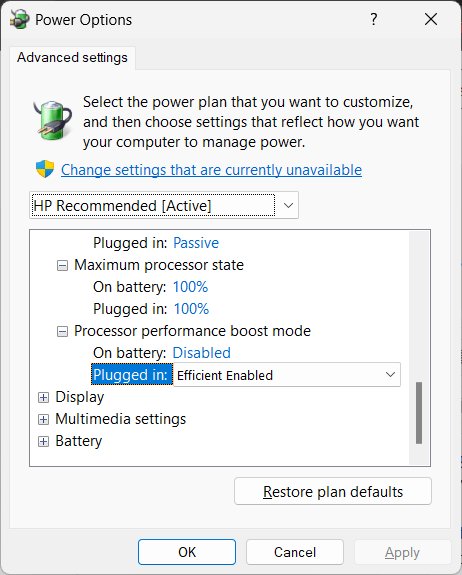
- Expand Processor power management, then Maximum processor state.
- Set Plugged in to 100%, and On battery to 100% on a laptop.
- Select Apply, then OK.
Leave the minimum processor state alone for normal use. Raising the minimum to 100% stops the CPU from dropping to lower states at idle, which Microsoft reserves for servers that need invariant frequency. Turbo clocks have their own hidden entry in the same list, Processor Performance Boost Mode, which you unhide with powercfg before changing it.
Method 4: Remove the cap with PowerShell or Command Prompt
The powercfg tool sets the same value without the Control Panel dialog. The alias for the maximum processor state is PROCTHROTTLEMAX, inside the SUB_PROCESSOR subgroup. Run these in Terminal (Admin), opened from the Win + X menu.
- Press Win + X and select Terminal (Admin).
- Run
powercfg /setacvalueindex scheme_current sub_processor PROCTHROTTLEMAX 100to remove the cap while plugged in. - Run
powercfg /setdcvalueindex scheme_current sub_processor PROCTHROTTLEMAX 100to remove the cap on battery. - Run
powercfg /setactive scheme_currentso Windows applies the new values. No restart is needed. - To switch to the High performance plan instead, run
powercfg /setactive SCHEME_MIN.SCHEME_MINis the documented alias for High Performance.
scheme_current edits whichever plan is active. Microsoft notes that capping performance below 100% only works when the processor supports it, so a cap that seems to do nothing may be a hardware limit.
Method 5: Turn off throttling for specific tasks in Task Manager
Windows 11 efficiency mode limits the resources one process or process group can use when high CPU use is detected. A green double-leaf icon in the Status column shows that it is on.
- Press Ctrl + Shift + Esc to open Task Manager.
- Select the Processes tab.
- Find the app with the green leaf icon. For a group, select the arrow beside its name to expand it.
- Right-click the individual process and select Efficiency mode to clear it. The leaf icon disappears.
- Repeat for each process you want to run at full priority.
- For an app's background behaviour, open Settings > System > Power & battery > Battery usage, select More options > Manage background activity, and set Let this app run in the background to Always.
Efficiency mode cannot be toggled for most process groups, such as Windows Explorer. If the Efficiency mode button at the top of Task Manager is greyed out, the selected process does not support it.
Method 6: Use Group Policy Editor to stop power throttling
The Turn off Power Throttling policy turns throttling off for the whole device. Microsoft lists it for Windows 11 Pro, Enterprise, Education and IoT Enterprise; Windows 11 Home has no Group Policy Editor, so use Method 1 there.
- Press Win + R, type
gpedit.mscand press Enter. - Go to Computer Configuration > Administrative Templates > System > Power Management > Power Throttling Settings.
- Double-click Turn off Power Throttling.
- Select Enabled, then OK.
- Restart the PC so every process starts under the new policy.
With the policy disabled or not configured, users control power throttling through Power mode again.
Method 7: Turn off CPU throttling using Registry Editor
The Power Throttling policy stores its state in the registry, so Registry Editor is the place to confirm the policy took effect or to clear it. Back up the registry before you change anything; Microsoft warns that incorrect edits can cause instability.
- Press Win + R, type
regeditand press Enter, then select Yes at the User Account Control prompt. - Paste
HKEY_LOCAL_MACHINE\SYSTEM\CurrentControlSet\Control\Power\PowerThrottlinginto the address bar and press Enter. - Look for the PowerThrottlingOff value. It is the value the Turn off Power Throttling policy writes, so its presence confirms Method 6 applied.
- To stop Windows lowering the foreground app's priority after a period with no input on battery, create a DWORD (32-bit) Value named DisableUserPresenceQos and set it to 1.
- To undo either change, set DisableUserPresenceQos to 0, or set the policy back to Not Configured so PowerThrottlingOff no longer applies.
- Close Registry Editor and restart the PC.
On Windows 11 Home, Microsoft documents no supported registry switch for power throttling itself. Best performance in Settings is the supported way to opt every app out.
How to check CPU throttling is turned off
- Open Settings > System > Power & battery and confirm Power mode reads Best performance.
- In Terminal (Admin), run
powercfg /getactiveschemeto see which power plan is active. - Run
powercfg /q scheme_current sub_processor PROCTHROTTLEMAX. The current AC and DC values should both equal 100. - Open Task Manager's Processes tab and confirm no green leaf icon remains next to the apps you changed.
- In gpedit.msc, confirm Turn off Power Throttling shows Enabled if you used Method 6.
What “CPU throttling” means in Windows 11
Three Windows features and one hardware protection can all lower clock speed. Only the first three are settings.
| Type | What slows the CPU | Can you turn it off? |
|---|---|---|
| Power throttling | Background work runs at the CPU's most efficient frequency; Microsoft measured up to 11% CPU power savings | Yes: Best performance mode, Efficiency mode per app, or the policy |
| Power plan and processor state | Balanced scales frequency to demand; a maximum state below 100% caps it | Yes: High performance plan or a 100% maximum state |
| Quality of Service on battery | Hidden, minimized and background apps get efficient CPU frequencies and efficient cores | Partly: Best performance and Efficiency mode affect it |
| Thermal throttling | Firmware and the Windows thermal manager cut performance when a temperature trip point is reached | No: it keeps the PC safe to handle and prevents emergency shutdown |
Why the CPU still slows down at 100%
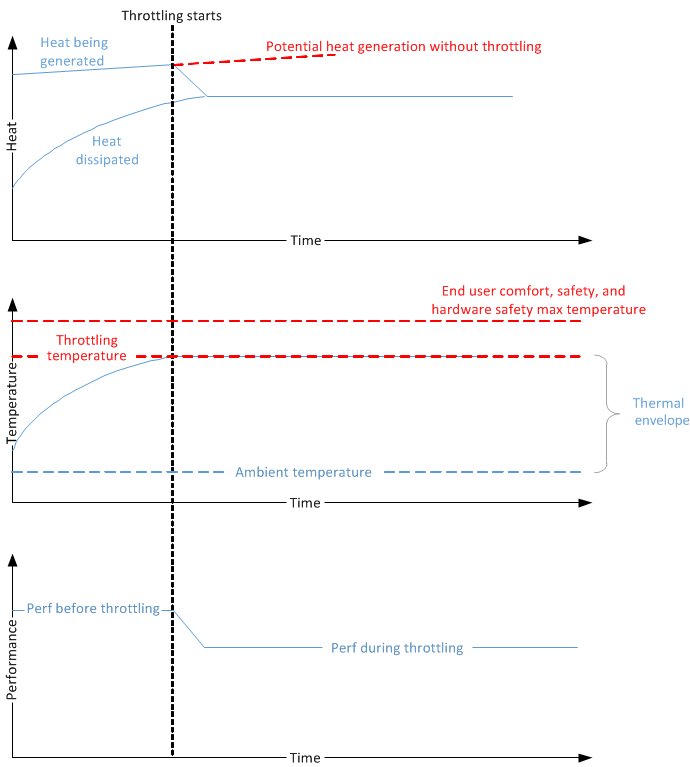
Thermal throttling is passive cooling. When a thermal zone reaches the temperature set in firmware, Windows reduces device performance so the chip generates less heat.
If temperature keeps rising, the critical trip point makes Windows hibernate or shut down. Without it, Microsoft notes the firmware fail-safe can cut power from under the operating system. No Windows setting in this guide removes that limit, and none should.
| Cause | What you notice | Safe fix |
|---|---|---|
| Dust in heatsinks or fans | Speed drops after minutes of load, fans run loud | Clean the vents as your PC maker's manual describes |
| Blocked airflow | Laptop slows on a bed, sofa or lap | Use a hard, flat surface with clear vents |
| High room temperature | Throttling worse in summer or near heaters | Lower ambient temperature or the workload |
| Running on battery | Slower unplugged than plugged in | Plug in; on battery Windows gives background and low-priority work the most efficient frequency |
| Firmware power management | Windows settings change nothing | Check the PC maker's BIOS options; when firmware controls power, Windows plans have no effect |
Recommended order of troubleshooting
Work from the least invasive change to the most, and test your workload after each step.
| Order | Step | What it rules out |
|---|---|---|
| 1 | Plug in the laptop and set Power mode to Best performance | Power throttling and battery limits |
| 2 | Check Task Manager for a green leaf on the slow app | Efficiency mode on one process |
| 3 | Set Maximum processor state to 100% on both lists | A frequency cap in the active plan |
| 4 | Switch to the High performance plan on a desktop | Balanced plan scaling |
| 5 | Enable Turn off Power Throttling on Pro or Enterprise | Users or apps switching the mode back |
| 6 | Clean the cooling and improve airflow | Thermal throttling, the remaining cause |
Best performance is unavailable or locked
Power mode is missing from Settings
The slider appears only while Balanced, or a plan derived from it, is active.
- Open Control Panel > Power Options.
- Select Balanced.
- Return to Settings > System > Power & battery and select Best performance.
Power mode is greyed out or will not stay changed
An organisation policy or a custom plan from the PC maker is in control.
- Ask your IT administrator whether a power policy is assigned to the device.
- On a personal PC, select the Balanced plan in Control Panel > System and Security > Power Options, as Microsoft advises for a locked power mode.
- Open Power mode again and choose Best performance.
Cannot get back to High performance after picking Balanced
Microsoft documents no UI route back once Balanced is applied; only powercfg can switch it.
- Open Terminal (Admin).
- Run
powercfg /setactive SCHEME_MIN. - Run
powercfg /getactiveschemeto confirm High performance is active.
What to do when Maximum processor state is missing
Processor power management lists no Maximum processor state
Microsoft marks the setting as not hidden, so a missing entry points to a plan or OEM configuration that does not expose it in the dialog.
- Open Terminal (Admin).
- Run
powercfg /q scheme_current sub_processor PROCTHROTTLEMAXto read the value directly. - Set it with
powercfg /setacvalueindex scheme_current sub_processor PROCTHROTTLEMAX 100and the matching/setdcvalueindexcommand. - Run
powercfg /setactive scheme_current.
The value is 100% but the CPU still runs slower
A cap is not the cause; heat, battery or firmware limits are.
- Plug in the PC and retest.
- Work through the causes in Why the CPU still slows down at 100%.
- Check your PC maker's documentation for firmware power options.
How to fix CPU throttling when one app stays slow
A minimized or background app is slow on battery
Hidden and background apps get the efficient frequency and efficient cores while on battery.
- Plug the laptop in, or set Power mode to Best performance.
- Keep the app visible while it does heavy work.
- In Battery usage, set its background activity to Always.
Benchmarks on battery give lower scores after idle periods
Windows lowers the foreground app to Medium priority after a period with no input, on battery only.
- Run benchmarks plugged in where possible.
- For battery testing, set
DisableUserPresenceQosto 1 under the PowerThrottling key, as Microsoft documents for test runs. - Set it back to 0 when testing ends.
How to turn CPU throttling back on in Windows 11
- Set Settings > System > Power & battery > Power mode back to Balanced.
- Select the Balanced plan in Control Panel > Power Options, or run
powercfg /setactive SCHEME_BALANCED. - Set Maximum processor state back to the value you noted before the change.
- Set Turn off Power Throttling to Not Configured in gpedit.msc.
- Right-click any process in Task Manager and select Efficiency mode again if you want it back on.
Common mistakes
| Mistake | What happens | Do this instead |
|---|---|---|
| Expecting any setting to stop thermal throttling | The CPU still slows when hot | Fix cooling; heat limits are hardware protection |
| Setting the minimum processor state to 100% | Higher idle power and heat, which can cause more thermal throttling | Change only the maximum state |
| Changing only the Plugged in value | A laptop stays capped on battery | Set both Plugged in and On battery |
| Editing a plan, then switching plans | The edit seems lost | Edit the plan you actually use, or use scheme_current |
| Leaving Best performance on all the time on a laptop | Shorter battery life and a warmer chassis | Switch back to Balanced for light work |
| Using unofficial throttle-unlock tools | Unsupported voltage or limit changes that can damage hardware | Stay with the Windows settings in this guide |
Disable CPU throttling in Windows 11 FAQ
How do I disable CPU throttling in Windows 11?
Open Settings > System > Power & battery and set Power mode to Best performance. Microsoft documents that this opts all apps out of power throttling. For a frequency cap, also set Maximum processor state to 100% in Power Options.
How do I disable CPU throttling in Windows 10?
Select the battery icon on the taskbar and move the power slider to Best performance. The slider appears only while the Balanced plan, or a plan derived from it, is active. Maximum processor state and powercfg work the same as on Windows 11.
How do I disable CPU throttling in the BIOS?
Windows cannot change BIOS settings, and thermal protection in firmware must stay on. Some PC makers expose power management options in their BIOS; check the maker's manual. When firmware controls power management, Windows power plans have no effect.
How do I disable CPU throttling in Control Panel?
Open Control Panel > Power Options, choose High performance, then select Change plan settings > Change advanced power settings. Under Processor power management, set Maximum processor state to 100% for Plugged in and On battery.
Why is my CPU throttling?
Usually because Windows is saving power: the Balanced plan, a maximum processor state below 100%, or power throttling of background apps. If speed drops only under sustained load with loud fans, the CPU is too hot and firmware is protecting it.
How do I prevent CPU throttling?
Keep the PC plugged in, use Best performance or High performance, and keep vents and fans clean so the CPU stays under its thermal trip point. Software settings remove power-saving limits; only better cooling reduces thermal throttling.
How do I fix CPU throttling?
Work in order: plug in, set Best performance, clear Efficiency mode on the slow app, set Maximum processor state to 100%, then check cooling. If the CPU still slows only when hot, clean the cooling system or contact the PC maker.
How do I disable GPU throttling?
GPU throttling is mostly thermal and power protection managed by the graphics hardware and its driver, and it should not be bypassed. Power mode changes CPU settings and power throttling; GPU and thermal behaviour stay under the PC maker's control, so improve cooling for sustained GPU loads.
How do I throttle down my CPU on purpose?
Lower Maximum processor state in Power Options, for example to 75%, or run powercfg /setacvalueindex scheme_current sub_processor PROCTHROTTLEMAX 75 followed by powercfg /setactive scheme_current. Microsoft notes the processor must support frequency caps.
How do I disable CPU throttling on Windows Server 2019?
Select the High Performance plan in Control Panel > Power Options, or run powercfg /setactive SCHEME_MIN. Microsoft states this keeps processors at the highest performance state, including turbo frequencies, at the cost of higher power use and heat.
Is it safe to disable CPU throttling?
Turning off power throttling is safe: it only trades battery life and power for speed. Bypassing thermal throttling is not, because it is the protection that keeps the PC safe to handle and prevents emergency shutdowns.
The bottom line on disabling CPU throttling in Windows 11
Set Power mode to Best performance and keep Maximum processor state at 100%; add the High performance plan or the Turn off Power Throttling policy only on desktops and managed PCs. These two settings remove every power-saving limit Windows controls. Some final advice: if the CPU still slows under load, it is protecting itself from heat, and the fix is cleaner fans and better airflow, not another setting.