Open Settings > Time & language in Windows 11, then use Language & region for language and region and Date & time for the clock, date and time zone.
This guide covers each setting step by step, the regional format, copying settings to the sign-in screen, Secure Time Seeding, and fixes when the time zone will not change.
Time and language settings in Windows 11 at a glance
Every setting in this guide sits on two pages of the Settings app. Press Windows key + I to open Settings from anywhere.
- Press Windows key + I to open Settings.
- Select Time & language in the left pane.
- Select Language & region to change the display language, add a language, or change the country, region and regional format.
- Select Date & time to set the time, date, time zone and daylight saving time.
- Sign out and back in after a display language change, because Windows applies it at the next sign-in.
Language vs region vs regional format in Windows 11
These three settings are separate, and changing one does not change the others. Pick the row that matches what you want to change.
| What you want to change | Setting to use | What it affects |
|---|---|---|
| The language of menus, dialogs and supported apps | Windows display language | Windows text after you sign out and back in |
| Your country for Microsoft Store and local content | Country or region | Store catalogue, prices and region-locked purchases |
| How dates, times, numbers and currency look | Regional format | Date order, clock style, decimal separator and currency symbol |
| The clock and calendar date | Set time automatically or Change next to Set the date and time | The system clock |
| Your time zone | Time zone drop-down or Set time zone automatically | The offset from UTC and daylight saving changes |
| The keyboard language you type with | Keyboard options of an installed language | Input only, not the display language |
How to change language on Windows 11
Save your work first, since the change asks you to sign out. The device must be online, because language packs download from Microsoft.
- Open Settings > Time & language > Language & region.
- Under Preferred languages, select Add a language if the language you want is not listed yet.
- In Choose a language to install, type the language name, select it and select Next.
- Keep Language pack selected and tick Set as my Windows display language.
- Select Install and wait for the download to finish.
- If the language was already installed, pick it from the Windows display language drop-down instead.
- Select Sign out when prompted, then sign back in.
The keyboard layout can switch at the sign-in screen too, so check what you type in the password box. Windows 10 has the same display language preferences, with a slightly different Settings layout.
Find out if a language supports features before installing it on Windows 11
Not every language offers every feature. After you select a language and select Next, the Install language features page lists the features that language supports, so you can check before you select Install.
If a feature is missing from that page, the language does not support it in Windows.
| Language feature | What it does | Where to add it later |
|---|---|---|
| Language pack | Shows Windows menus and dialogs in that language | Install language features page during Add a language |
| Text-to-speech | Reads text aloud in that language | Language options > Language Features > Download |
| Basic speech recognition | Lets you dictate and use voice input | Language options > Language Features > Download |
| Enhanced speech recognition | Improves voice recognition accuracy | Language options > Language Features > Download |
| Keyboard layouts | Adds input layouts for typing in another language | Language options > Keyboards |
Some languages need a base language. Basque, Catalan, Galician and Valencian require Spanish (Spain), and Luxembourgish requires French, for example. Many others require English (United States).
How to change region on Windows 11
The Country or region setting tells apps and the Microsoft Store where you are. It does not change the display language or your time zone.
- Open Settings > Time & language > Language & region.
- Scroll to the Region section.
- Open the Country or region drop-down and select your new country.
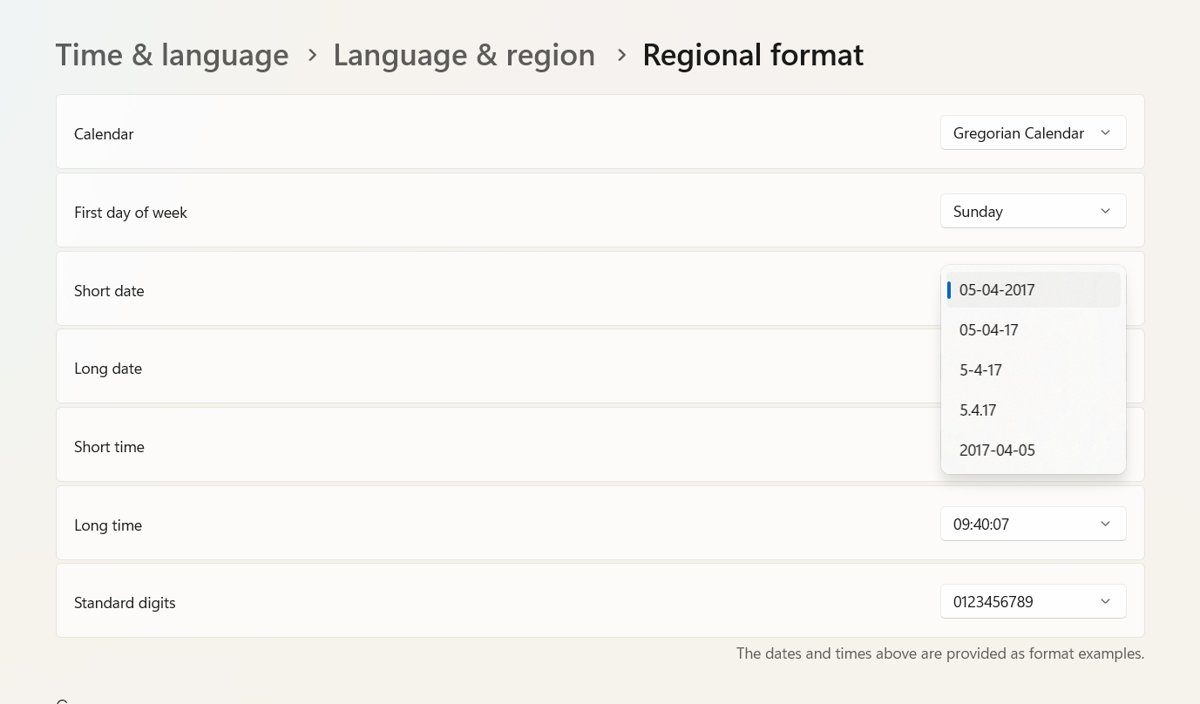
- Open the Regional format drop-down and select the format you want for dates, times and numbers.
- Restart any open app that still shows the old format.
Items bought in one region may not work in another, including Xbox Game Pass, apps, games, movies and your Microsoft account balance. Spend the balance first, because it does not transfer.
The Microsoft Store blocks a region change if you changed region within the last three months or your account is suspended.
Change the date format, number format and currency in Windows 11
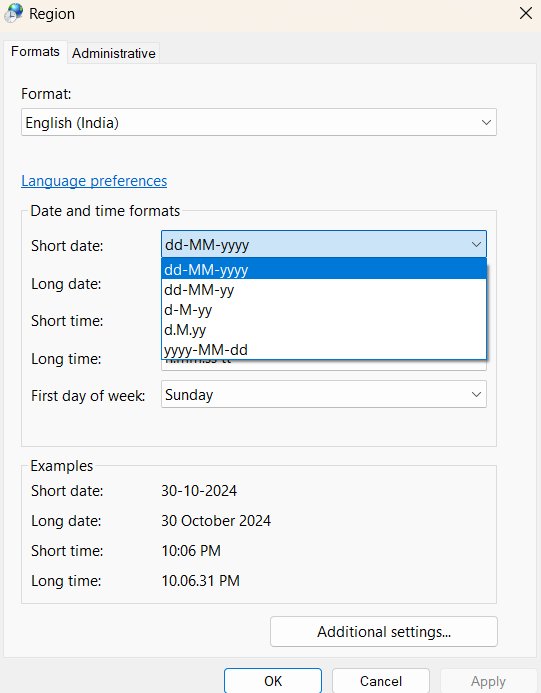
Use the classic Region dialog when a preset regional format is close but not exact, such as a different date order or decimal separator.
- Open Settings > Time & language > Language & region.
- Scroll to Related settings and select Administrative language settings.
- In the Region dialog, open the Formats tab.
- Select Additional settings.
- Use the Numbers tab to change the decimal symbol or digit grouping, and the Date tab to change the date order.
- Select OK to close Customize Format, then OK to close Region.
How to change time and date on Windows 11
Windows sets the clock automatically by default. Turn that off only when you need to set the time manually, such as on an offline PC.
- Open Settings > Time & language > Date & time.
- To let Windows keep the time, make sure Set time automatically is On.
- To set it yourself, switch Set time automatically to Off.
- Select Change next to Set the date and time.
- Set the Date and Time in the Change date and time window.
- Select Change to save.
You can open this page directly by pressing Windows key + R, typing ms-settings:dateandtime and pressing Enter.
Change the time zone and daylight saving time in Windows 11
When Set time zone automatically is on, Windows also handles daylight saving time for you.
- Open Settings > Time & language > Date & time.
- To pick a zone yourself, switch Set time zone automatically to Off.
- Select your zone from the Time zone drop-down.
- Switch Adjust for daylight saving time automatically to On so the clock moves with seasonal changes.
- Switch it to Off only if your area does not observe daylight saving, then set the time manually if needed.
Time & language settings shortcuts in Windows 11
Each page below opens straight from the Run box. Press Windows key + R, paste the address and press Enter.
| Settings page | Run address | Settings path |
|---|---|---|
| Date & time | ms-settings:dateandtime |
Time & language > Date & time |
| Language & region | ms-settings:regionlanguage |
Time & language > Language & region |
| Region formats | ms-settings:regionformatting |
Time & language > Language & region > Region |
| Typing | ms-settings:typing |
Time & language > Typing |
| Speech | ms-settings:speech |
Time & language > Speech |
Change region and regional format with PowerShell
PowerShell sets the same values as Settings for the current user. Run each command in a normal PowerShell window, then sign out and back in.
Set-Culture -CultureInfo de-DE
Set-WinHomeLocation -GeoId 0xF4
Set-Culture sets the regional format (culture) for the current user, here German (Germany). Set-WinHomeLocation sets the country or region; GeoId 0xF4 is the United States.
You should see: Both commands return to the prompt with no output, and the new format shows in Language & region after you reopen Settings.
Copy language and region settings to the welcome screen and new users
Windows 11 keeps the sign-in screen and new accounts on their own settings. Copy yours across so the welcome screen matches your display language, input language, regional format and location.
This is a system setting, so it needs an administrator PowerShell window and a restart.
Copy-UserInternationalSettingsToSystem -WelcomeScreen $True -NewUser $True-WelcomeScreen $True copies your settings to the welcome screen and system accounts. -NewUser $True copies them to accounts created from now on. Set either to $False to skip it.
You should see: After a restart, the sign-in screen uses your display language and keyboard layout.
The same option is available in the Region dialog from Administrative language settings. This cmdlet only exists on Windows 11 and later.
How to enable or disable Secure Time Seeding in Windows computers
Secure Time Seeding (STS) lets the Windows Time service estimate the correct time from data in outgoing SSL/TLS connections. It is on by default in Windows 10 version 1511 and later, including Windows 11, and off by default in Windows Server 2025.
Microsoft recommends disabling it on Windows Server 2016, 2019 and 2022, but not by default on Windows 11. Disable it on a PC only if its clock keeps jumping to a wrong time, and try a resync first.
| Action | Command (administrator Command Prompt) | Then |
|---|---|---|
| Disable Secure Time Seeding | reg add HKEY_LOCAL_MACHINE\SYSTEM\CurrentControlSet\Services\W32Time\Config /v UtilizeSslTimeData /t REG_DWORD /d 0 /f |
Restart, then run net start w32time and w32tm /resync /force |
| Enable Secure Time Seeding | reg add HKEY_LOCAL_MACHINE\SYSTEM\CurrentControlSet\Services\W32Time\Config /v UtilizeSslTimeData /t REG_DWORD /d 1 /f |
Restart the computer |
| Check the current state | Open Event Viewer and find the latest Windows Time event 257, 260 or 263 | UtilizeSslTimeData: 0 means off; any other number means on |
Back up the registry before you change it. A disabled STS stays disabled after you upgrade Windows. Laptops with a worn battery that drains completely may rely on STS to correct large time errors, so leave it on for them.
Check your Windows 11 language, region and time settings
- Look at the Start menu and Settings labels after signing back in; they should appear in the new display language.
- Check the clock in the taskbar notification area; it should show the correct time in your chosen format.
- Open Settings > Time & language > Date & time and confirm the Time zone value.
- Open Language & region and confirm Country or region and Regional format show your choices.
- Open a new File Explorer window and check that file dates use the new date order.
Unable to change the time zone in Windows 11
The Time zone drop-down is greyed out
Set time zone automatically is on, so Windows controls the zone.
- Open Settings > Time & language > Date & time.
- Switch Set time zone automatically to Off.
- Select your zone from the Time zone drop-down.
Set time zone automatically is greyed out or missing
It is a system-wide setting, so a standard user account cannot change it.
- Sign in with an administrator account.
- Open Date & time and change Set time zone automatically.
- On a work or school PC, ask your IT administrator, because policy may lock the setting.
Automatic time zone picks the wrong zone or never updates
Automatic time zone depends on location access, which may be off or blocked by policy.
- Open Settings > Privacy & security > Location.
- If the page says location for this device is off, sign in as an administrator, select Change and turn on Location for this device.
- Go back to Date & time and switch Set time zone automatically off and on again.
- If location stays locked, the Turn off Windows Location Provider policy is set; an administrator must change it to Not Configured.
Fix Windows 11 clock, date and language problems
The clock resets to an old date after a restart without internet
Windows Time used stale Secure Time Seeding data because the PC sent no outbound SSL traffic.
- Reconnect the PC to the internet; the time corrects itself once secure connections resume.
- If it does not, open Command Prompt as administrator.
- Run
net stop w32time,w32tm /unregister,w32tm /register,net start w32timeandw32tm /resync /forcein that order. - Disable Secure Time Seeding only if the problem returns.
The Remove button for a language is greyed out
That language is the current Windows display language.
- Pick another installed language in Windows display language.
- Sign out and back in.
- Return to Language & region, select … next to the old language and select Remove, then Yes.
Only one language pack allowed or one display language supported
The Windows edition has a single-language license.
- Keep the current display language, or upgrade to an edition that supports several display languages.
- Add keyboard layouts instead if you only need to type in another language.
Windows 11 language, region and time FAQ
Where do I change the language in Windows 11?
Change it in Settings > Time & language > Language & region. Pick a language from the Windows display language drop-down, or add one with Add a language, then sign out and back in to apply it.
How do I change the language in Settings if I cannot read the current one?
Press Windows key + R, type ms-settings:regionlanguage and press Enter. That opens Language & region directly, whatever language Windows shows. The display language drop-down is the first control under the Language heading.
Does changing the country or region change the Windows language?
No. Country or region only tells apps and the Microsoft Store where you are. The display language and the regional format for dates and numbers are separate settings on the same Language & region page.
Why is Set time zone automatically greyed out?
It is a system-wide setting, so only an administrator can change it. Sign in with an administrator account, or ask your IT department on a managed PC, where a policy may also lock location access.
How do I show seconds in the Windows 11 taskbar clock?
Open Settings > Time & language > Date & time and turn on Show seconds in system tray clock. Microsoft notes that this option uses more power, which matters most on laptops running on battery.
Will changing my region affect Microsoft Store purchases?
It can. Apps, games, movies, Game Pass and your Microsoft account balance bought in one region may not work in another, and the balance does not transfer. The Store also blocks another change within three months.
Should I disable Secure Time Seeding on Windows 11?
Usually not. Microsoft recommends disabling it on Windows Server 2016 to 2022, not on Windows 11. Disable it only if the clock keeps jumping to a wrong time after a resync and an internet reconnect.
Do I need to restart after changing the display language?
A sign-out is enough. Windows asks you to sign out after you change the Windows display language, and the new language appears when you sign back in. Copying settings to the welcome screen needs a full restart.