To use Alexa on a Windows 11 PC, install the free Alexa app by AMZN Mobile LLC from Microsoft Store, sign in with your Amazon account and speak a request such as "Alexa, set a timer for 10 minutes."
You can also use Alexa+ in any browser at Alexa.com. This guide covers both routes, the microphone settings Alexa needs, what Alexa can do on a PC and fixes when it does not respond.
Install the Alexa app for Windows 11 from Microsoft Store
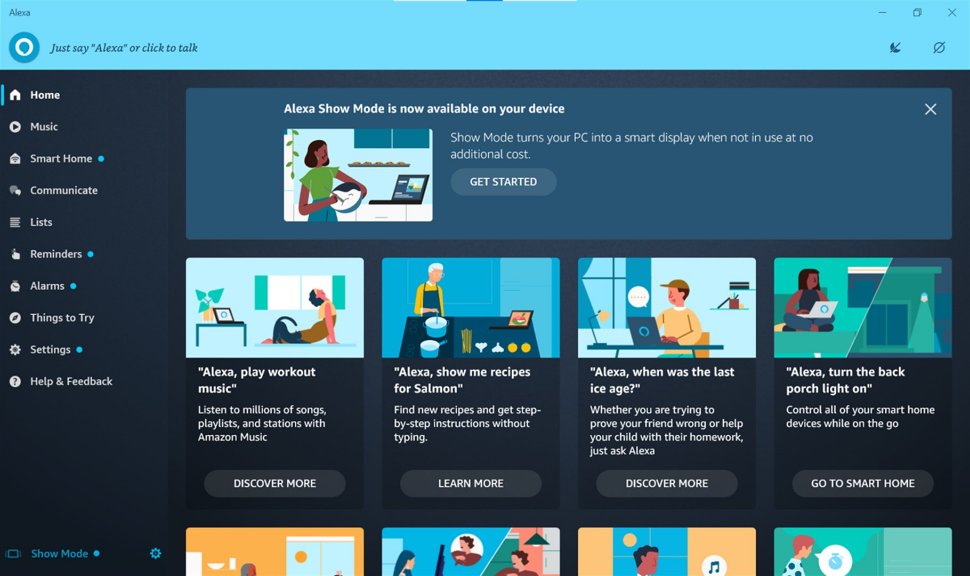
The Alexa app for Windows is free, and Microsoft Store lists it for Windows 10 version 1803 and later, which includes every Windows 11 PC.
- Select Start, then select Microsoft Store.
- Type Alexa in the search box and press Enter.
- Open the Alexa listing whose publisher is AMZN Mobile LLC.
- Select Get or Install and wait for the download to finish.
- Select Open, then sign in with the Amazon account your Echo devices use.
- Allow microphone access when Windows asks, so Alexa can hear you.
Use the same Amazon account as your phone app. Your Echo devices, smart home devices, lists and reminders then appear on the PC too.
Alexa app or Alexa.com on a Windows 11 PC?
| Your situation | Use this | Why |
|---|---|---|
| You want voice control while you work | Alexa app from Microsoft Store | Hands-free voice control with on-screen visuals |
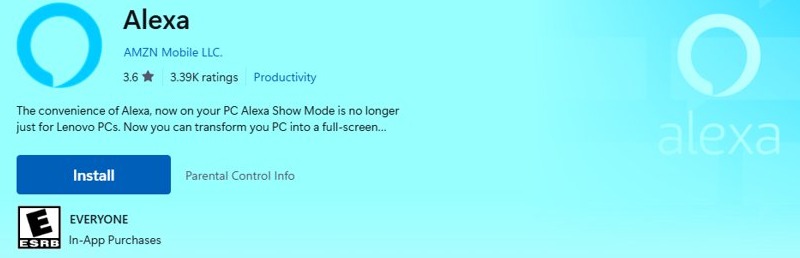
| You want an idle PC to act like an Echo Show | Alexa app, Show Mode | Show Mode takes over the screen with weather, news and recipes |
| You want to chat, type or research with Alexa+ | Alexa.com in Edge or Chrome | Amazon offers Alexa+ in the browser, free with limits or fully with Prime |
| Microsoft Store is blocked on a work PC | Alexa.com in the browser | Nothing to install |
| You need to set up a new Echo speaker | Alexa app on iPhone or Android | Echo setup is not available in the Windows app |
How to use Alexa on Windows 11 PC
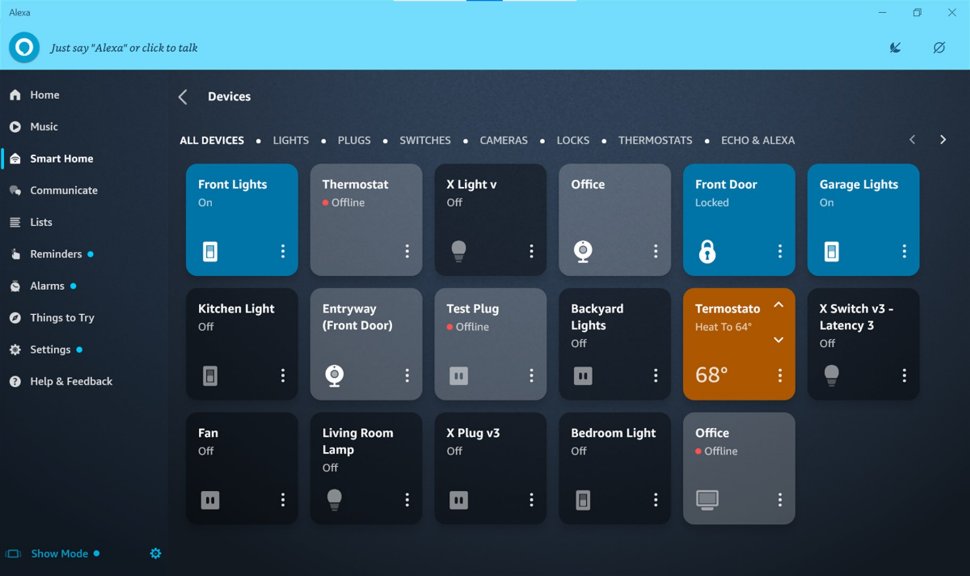
Once you sign in, Alexa on the PC works like an Echo speaker that also shows results on screen.
- Open Alexa from Start > All apps.
- Say "Alexa" followed by your request, for example "Alexa, what's the weather today?"
- Ask for music: "Alexa, play my workout playlist on Spotify."
- Control the PC's sound: "Alexa, turn down the volume."
- Control smart home devices linked to your account: "Alexa, turn on the porch lights."
- Set reminders and timers: "Alexa, remind me to leave in 30 minutes."
- Call a contact: "Alexa, call Ana."
Shopping by voice works on the PC too, so you may want to turn off voice purchasing on shared computers.
Install Alexa on Windows 11 with winget
Run this in Terminal or PowerShell when you prefer a command over the Store window.
winget install 9N12Z3CCTCNZ -s msstore9N12Z3CCTCNZ is the Microsoft Store ID of the Alexa app, and -s msstore tells winget to install it from Microsoft Store instead of the community repository.
You should see: Alexa appears in Start > All apps once winget finishes.
Use Alexa+ on Windows 11 PC in a browser at Alexa.com
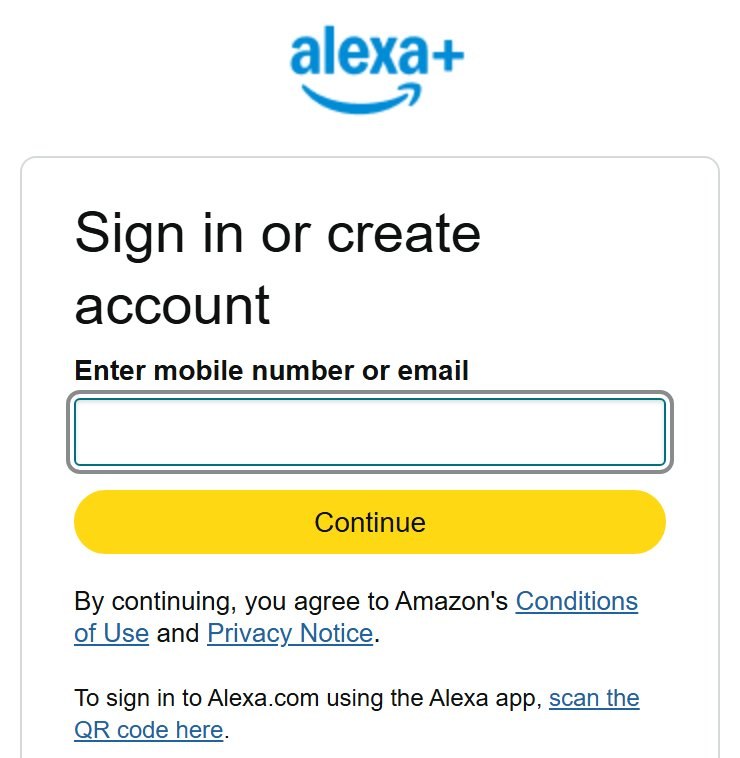
Alexa.com runs Alexa+, Amazon's newer AI assistant. Anyone can try a limited free version, and Prime members get full access at no extra cost.
- Open Microsoft Edge and go to Alexa.com.
- Sign in with your Amazon account.
- Allow the site to use the microphone if you want to talk instead of type.
- Type, say or show Alexa a request, such as a question, a recipe or a shopping list item.
- To make it feel like an app, select Settings and more (…) > More tools > Apps > Install this site as an app.
- Go to edge://apps, select Details on the Alexa card and choose Pin to taskbar or Pin to Start.
Amazon lists Alexa+ in English and Spanish for customers with a US account.
Allow Alexa to use the microphone in Windows 11
Alexa cannot hear anything until Windows lets apps use the microphone. Check these three switches if Alexa ignores your voice.
- Select Start > Settings > Privacy & security.
- Under App permissions, select Microphone.
- Turn on Microphone access.
- Turn on Let apps access your microphone.
- Under Choose which apps can access your microphone, turn on Alexa.
- For Alexa.com in a browser, make sure Let desktop apps access your microphone is on as well.
Then pick the right input under Settings > System > Sound > Input and use Start test to see the level move as you speak.
What can you do with Alexa on your PC?
| Task | Windows Alexa app | Alexa.com (Alexa+) |
|---|---|---|
| Ask questions, weather and news | Yes | Yes, with longer research answers |
| Timers, alarms and reminders | Yes | Yes |
| Play music from linked services | Yes, such as Spotify | Through linked add-ons such as Spotify |
| Smart home control | Yes, devices linked to your Amazon account | Yes |
| Calls and intercom with Echo devices | Yes, including video calls | Not listed by Amazon for the browser |
| Full-screen Show Mode | Yes | No |
| Shopping and to-do lists | Yes | Yes |
| Set up a new Echo device | No, use the phone app | No, use the phone app |
To add a new speaker, use the phone app to set up Alexa on an Echo, and the PC sees it as soon as setup finishes.
Are Cortana and Alexa the same?
| Cortana | Alexa | |
|---|---|---|
| Made by | Microsoft | Amazon |
| Status on Windows 11 | Standalone app retired in spring 2023 | Free app in Microsoft Store, updated in November 2026 |
| Account | Microsoft account | Amazon account |
| Main strength | Was tied to Windows and Microsoft 365 | Echo devices, smart home and Amazon services |
| What replaces it | Voice access and Microsoft Copilot | Alexa+ on Alexa.com and in the Alexa app |
No. They were separate assistants from different companies. Microsoft now points Windows 11 users to Voice access for controlling the PC by voice and to Copilot for questions.
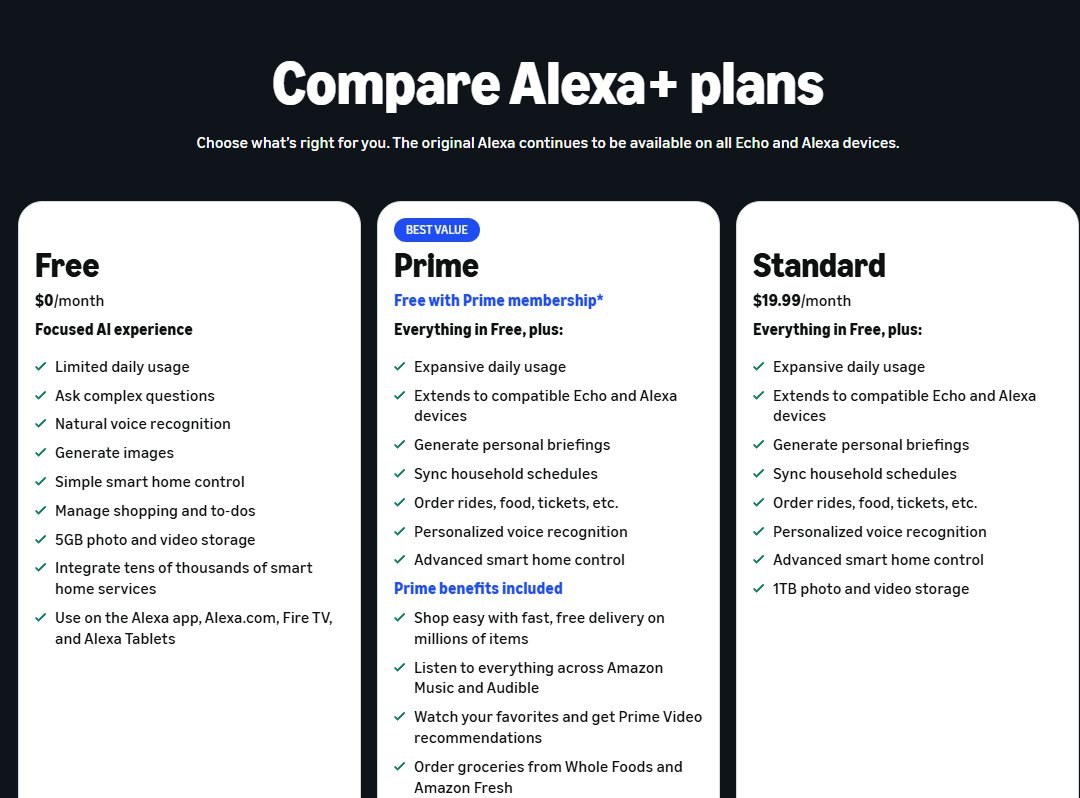
Alexa+ plans for Alexa.com and the Alexa app
| Plan | Price | What you get |
|---|---|---|
| Free | $0 a month | Limited daily Alexa+ use on Alexa.com, the Alexa app, Fire TV and Alexa Tablets |
| Prime | Included with Prime ($14.99 a month) | Full Alexa+ on Alexa.com, the app and compatible Echo devices, plus Prime benefits |
| Standard | $19.99 a month | Full Alexa+ on Alexa.com, the app and compatible Echo devices, without Prime |
The original Alexa stays free on Echo devices and in the Windows app. Prices are Amazon's US prices.
Alexa app not working on Windows 11
Alexa does not appear in Microsoft Store or will not install
The Store cache is stale, a restart is pending, or the app is not offered in your region.
- Press Windows key + R, type
wsreset.exeand select OK. - Restart the PC if Windows installed updates recently.
- Check that you are signed in to Microsoft Store with your Microsoft account.
- Search for Alexa again, or run
winget install 9N12Z3CCTCNZ -s msstore. - Use Alexa.com in a browser if the app is not offered in your country.
Alexa does not hear you or never responds to your voice
Microphone access is off for apps, the wrong input is selected or the mic is muted.
- Turn on Microphone access and the Alexa switch in Settings > Privacy & security > Microphone.
- Pick your microphone under Settings > System > Sound > Input.
- Select Start test and speak to check that the level moves.
- Raise the Input volume slider, and check any mute button on your headset.
Alexa app will not open or closes straight away
The app or Windows is out of date, or the app's data is damaged.
- Close the app with the X button and open it again.
- Select Start > Settings > Windows Update > Check for updates and install what is offered.
- Open Microsoft Store, select Library > Get updates.
- Repair the app from Settings > Apps > Installed apps, and reset it if repair does not help.
The Windows app cannot set up an Echo device
Echo device setup is not available in the Windows Alexa app.
- Install the Alexa app on your iPhone or Android phone.
- Set up the Echo there, then open the Windows app to control it.
On Android, the phone app walks you through the same sign-in; the Alexa for Android setup takes a few minutes.
Uninstall Alexa from Windows 11
- Select Start > All apps and find Alexa.
- Right-click Alexa and select Uninstall, then confirm.
- Or go to Settings > Apps > Installed apps, select More next to Alexa and select Uninstall.
- For the Alexa.com web app, go to edge://apps, select Details on its card, then Uninstall.
Uninstalling the PC app does not remove your Amazon account, Echo devices or smart home links.
Alexa on Windows 11 FAQ
Can I use Alexa on Windows 11?
Yes. Amazon's free Alexa app is in Microsoft Store for Windows 10 version 1803 and later, so it runs on Windows 11. You can also use Alexa+ in Edge or Chrome at Alexa.com without installing anything.
Does the Alexa app work on Windows 11?
Yes. The Microsoft Store listing for Alexa by AMZN Mobile LLC installs on Windows 11 and received an update in November 2026. It supports voice requests, smart home control, calls and Show Mode, but not Echo device setup.
How do I install Alexa on Windows 11?
Open Microsoft Store, search for Alexa, choose the listing from AMZN Mobile LLC and select Get or Install. From a terminal, run winget install 9N12Z3CCTCNZ -s msstore. Then sign in with your Amazon account.
How do I enable Alexa on Windows 11?
Install the app, sign in with your Amazon account and turn on microphone access in Settings, Privacy & security, Microphone. Make sure the Alexa switch under Choose which apps can access your microphone is on, then say "Alexa" and your request.
How do I connect Alexa to Windows 11?
Sign in to the Windows Alexa app with the same Amazon account your Echo devices use. Your devices, routines, lists and smart home controls then show up on the PC. There is no pairing step for the app itself.
How to use Amazon Alexa on Windows 10 and 11?
The steps are the same on both. Install Alexa from Microsoft Store, sign in with your Amazon account, allow the microphone in Privacy & security settings and say "Alexa" before each request. Alexa.com works in a browser on either version.
Is Alexa free on a Windows 11 PC?
Yes. The Windows app costs nothing in Microsoft Store. Alexa+ on Alexa.com has a free plan with daily limits; full Alexa+ is included with Prime or costs $19.99 a month on the Standard plan in the US.
Can Alexa replace Cortana on Windows 11?
Partly. Microsoft retired the Cortana app in 2023. Alexa handles questions, timers, music and smart home control, but Windows 11's own Voice access is the tool for controlling apps and dictating text by voice.