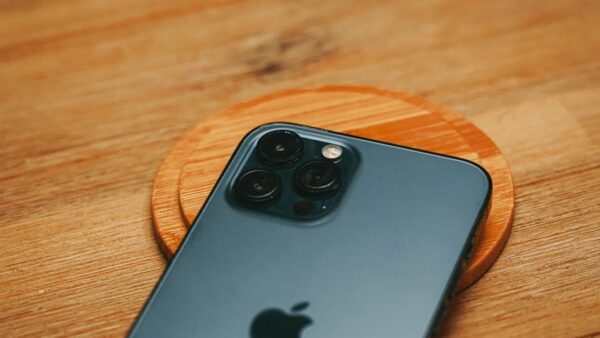
Press the top button once to lock your iPad and turn off its screen, and set a passcode so nobody can unlock it without you.
This guide also covers Auto-Lock, locking single apps, rotation lock, Guided Access, locked settings for a child, locking a lost iPad from an iPhone, and what to do when you are locked out.
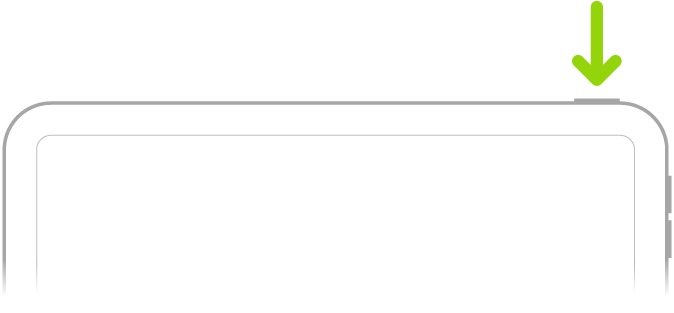
How to lock my iPad screen with the top button
Every current iPad locks the same way, whether it has Face ID, a Touch ID top button or a Home button.
- Find the top button on the top edge of your iPad.
- Press it once and release it. The screen turns off and iPad locks.
- Press the top button again, or tap the screen on supported models, to show the Lock Screen.
- Unlock with Face ID, Touch ID or your passcode when you want to use iPad again.
iPad also locks on its own if you do not touch the screen for a minute or so, and opening a Smart Folio, Smart Cover or Magic Keyboard cover wakes it.
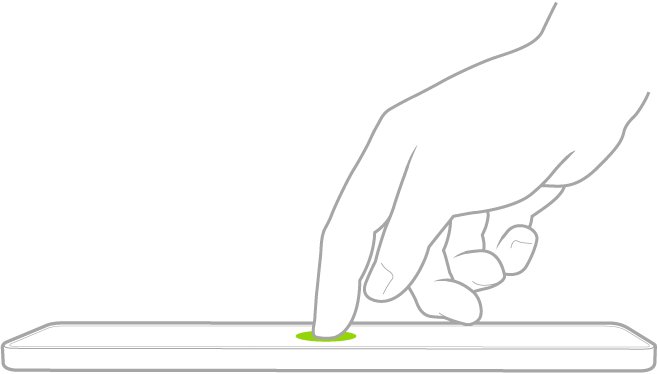
How to lock down an iPad: what each lock does
"Lock" means different things on iPad. Match what you want to stop to a row, then jump to that section.
| What you want | Use this | Where it lives |
|---|---|---|
| Turn off the screen and lock iPad now | Top button | Top edge of iPad |
| Stop anyone unlocking it | Passcode, Face ID or Touch ID | Settings > Face ID & Passcode or Touch ID & Passcode |
| Lock sooner or later when idle | Auto-Lock | Settings > Display & Brightness > Auto-Lock |
| Protect one app, such as Photos or Notes | Require Face ID, Touch ID or Passcode | Touch and hold the app on the Home Screen |
| Keep the screen from turning sideways | Lock Rotation | Control Center |
| Keep a child in one app and block touches | Guided Access | Settings > Accessibility > Guided Access |
| Stop a child changing accounts or privacy settings | Content & Privacy Restrictions | Settings > Family > [child's name] |
| Lock an iPad that is lost or stolen | Lost Mode | Find My on another device or icloud.com/find |
How to set a passcode to lock my iPad
The top button only turns the screen off. A passcode is what keeps the iPad locked, and Face ID or Touch ID use it as the fallback.
- Open Settings.
- Tap Face ID & Passcode on an iPad with Face ID, or Touch ID & Passcode on an iPad with Touch ID.
- Tap Turn Passcode On.
- Enter a six-digit passcode, or tap Passcode Options for a four-digit, custom numeric or alphanumeric code.
- Enter the passcode again to confirm it.
iPad now asks for the passcode when you turn it on or restart it, unlock it, update its software, or erase it. Under Erase Data you can choose to erase iPad after ten failed passcode attempts.
How to keep iPad from locking with Auto-Lock
Auto-Lock decides how long the screen stays on before iPad locks by itself. Shorten it for security, or lengthen it for reading and recipes.
- Open Settings.
- Tap Display & Brightness.
- Tap Auto-Lock.
- Choose a time interval.
A longer delay uses more battery. Maps, video players and reading apps keep iPad awake while you actively use them, so you rarely need to change Auto-Lock for them.
On iPad with Face ID, Attention Aware Features under Settings > Face ID & Passcode keeps the screen from dimming or locking while iPad detects you are looking at it.
How to lock an app on iPad
A locked app asks for Face ID, Touch ID or your passcode every time it opens. Its content also stays out of notification previews, search and Siri suggestions.
- Go to the Home Screen.
- Touch and hold the app until the quick actions menu opens.
- Tap Require Face ID. The label says Require Touch ID or Require Passcode on other models.
- Tap Require Face ID again to confirm.
- To lock and hide a downloaded app instead, tap Hide and Require Face ID, authenticate, then tap Hide App.
The app locks again each time you quit it. Hidden apps move to the Hidden folder at the bottom of App Library. The setting stays on that iPad and does not sync with iCloud.
Built-in apps can be locked but not hidden. Children under 13 in a Family Sharing group cannot lock or hide apps.
How to lock iPad screen from rotating
Rotation lock keeps the screen in its current orientation when you turn iPad sideways in bed or on a stand.
- Swipe down from the top-right edge of the screen to open Control Center.
- Tap the Lock Rotation button. It turns red when the orientation is locked.
- Check for the rotation lock icon in the status bar.
- Swipe up from the bottom center of the screen to close Control Center.
Tap the button again to unlock rotation; it turns gray. If the button is missing, open Control Center, tap the edit button at the top left, tap Add a Control and pick Lock Rotation.
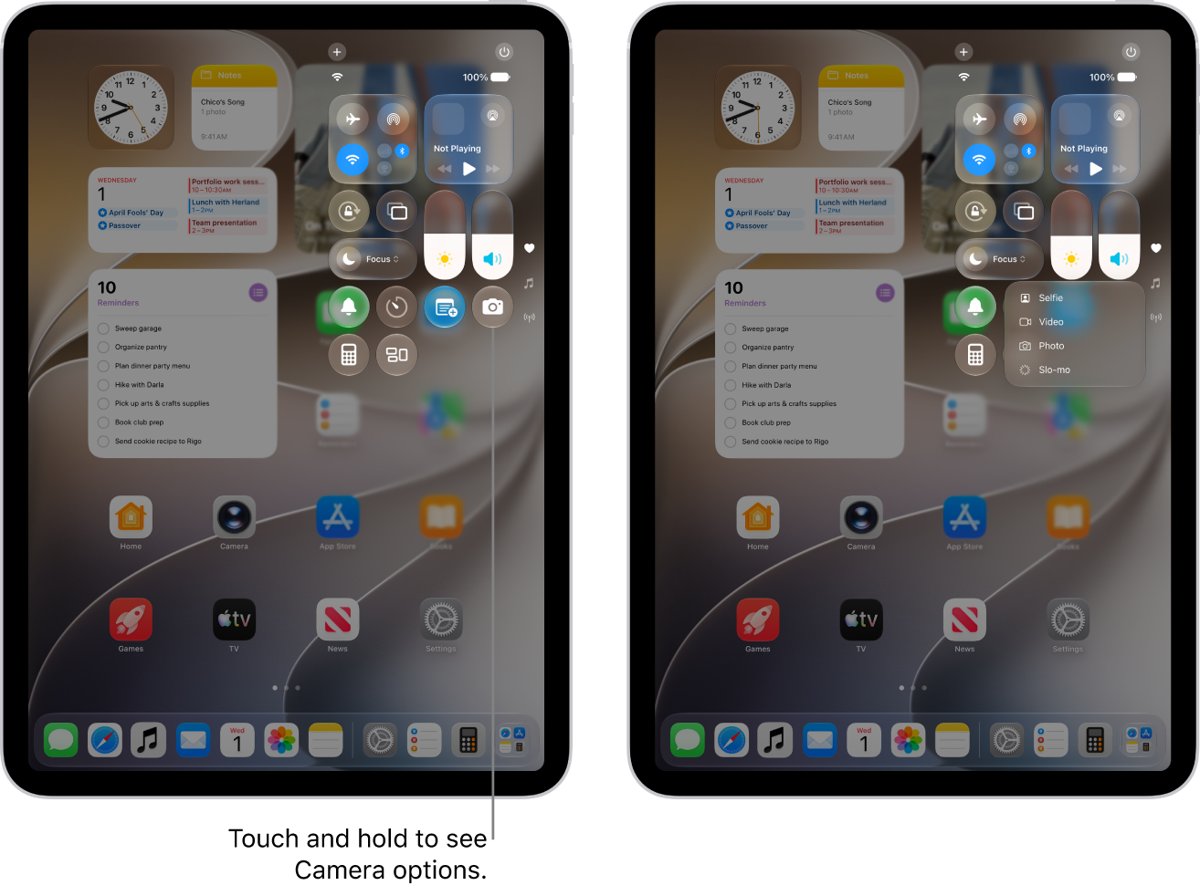
How to lock iPad screen in place with Guided Access
Guided Access keeps iPad in one app and can ignore screen touches, which suits a child watching a video. A Guided Access passcode ends the session.
- Open Settings, tap Accessibility, then tap Guided Access and turn it on.
- Tap Passcode Settings and set a Guided Access passcode.
- Open the app you want to lock iPad to.
- Triple-click the top button, or the Home button on older models.
- Tap Session Settings or Options and turn off Touch to ignore every touch.
- Tap Start. Triple-click the button and enter the passcode to end the session.
Circle parts of the screen instead to block only those areas, or set a time limit when you lock the iPad screen from touch for a child.
How to lock settings on iPad with Screen Time
A parent or guardian in a Family Sharing group can block changes on a child's iPad from their own iPhone or iPad. The child needs their own Apple Account in your family group.
- On your own device, open Settings and tap Family.
- Tap your child's name.
- Tap Content & Privacy Restrictions, and enter your Screen Time passcode if asked.
- Scroll down and tap Privacy Restrictions.
- Choose a category, such as Accounts.
- Choose Don't Allow to stop changes to that setting.
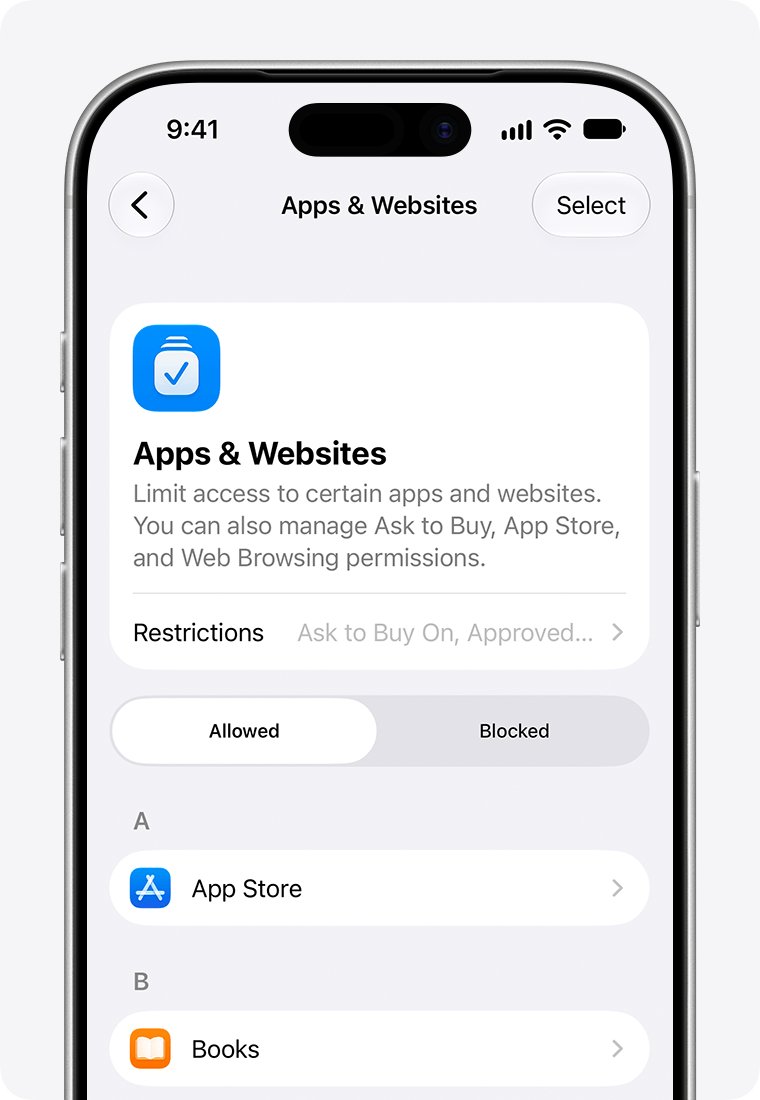
The same screen sets age ratings under Content Restrictions. To block single apps, go back to your child's name, tap Apps & Websites, pick the app and tap Block App; the app stays installed but dims on the Home Screen.
How to lock iPad from iPhone with Find My
Lost Mode locks a missing iPad with its passcode, shows your message on its Lock Screen and suspends Apple Pay. Find My has to be turned on for the iPad before it goes missing.
- On your iPhone, open the Find My app.
- Tap Devices and select your iPad.
- Tap the More button, scroll to Lost [Device] and turn on Lost Mode.
- If iPad has no passcode, create one when asked.
- Add a phone number and message if you want a finder to reach you.
- Tap Activate.
Without an iPhone, sign in at icloud.com/find, select the iPad under All Devices and mark it as lost. You see Pending until the iPad goes online. Entering the passcode on the iPad turns Lost Mode off.
Where is lock screen on iPad
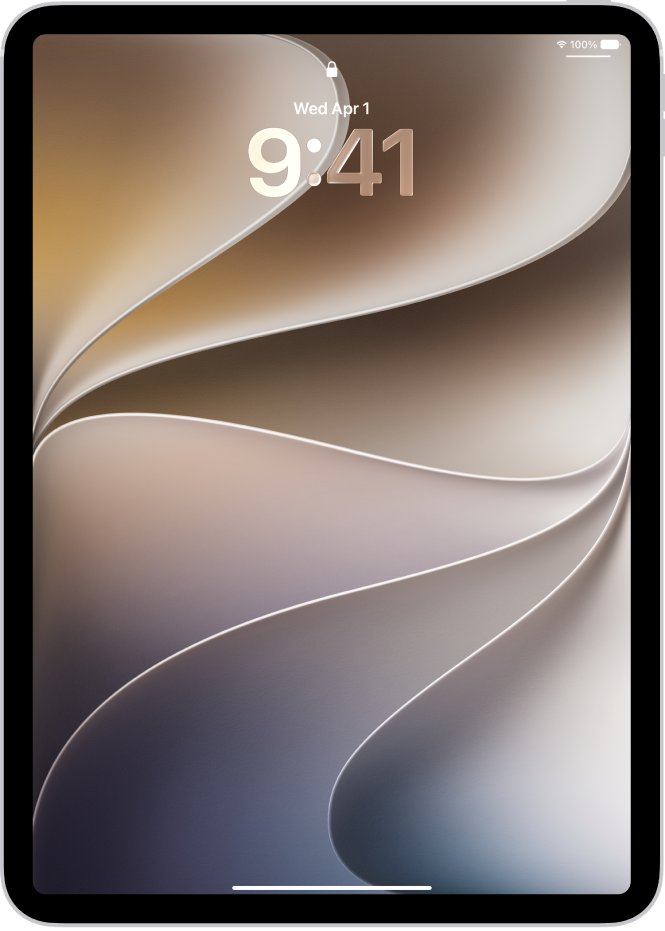
The Lock Screen is the time, date and notifications view you see when you turn on or wake iPad. Several features work from it before you unlock.
| On the Lock Screen | Gesture | What it opens |
|---|---|---|
| Camera | Swipe left | The camera, without unlocking |
| Control Center | Swipe down from the top-right corner | Rotation lock, brightness, Airplane Mode and other controls |
| Notifications | Swipe up from the center | Earlier notifications |
| Widgets | Swipe right | More widgets you can tap and use |
| Unlock | Swipe up from the bottom, or press the Home button | The passcode screen, or the Home Screen after Face ID |
To choose which of these work while iPad is locked, open Settings > Face ID & Passcode and use the Allow Access When Locked list.
How to tell if your iPad is locked
A locked iPad asks for proof of identity before it shows your Home Screen.
- Press the top button to lock iPad, then press it again to wake it.
- Look for the closed lock icon at the top of the Lock Screen.
- Swipe up from the bottom, or press Home, and check that iPad asks for your passcode.
- On a Face ID iPad, glance at the screen and watch the lock icon animate open before you swipe up.
- Open a locked app and check that it asks for Face ID, Touch ID or the passcode.
If swiping up goes straight to the Home Screen, no passcode is set. Turn one on in Face ID & Passcode or Touch ID & Passcode.
How to remove lock on iPad
Turning the passcode off removes the lock, so anyone who picks up iPad can open it and see your data. Keep it on unless the iPad never leaves your home.
- Open Settings.
- Tap Face ID & Passcode or Touch ID & Passcode.
- Enter your current passcode.
- Tap Turn Passcode Off and confirm.
- To remove an app lock instead, touch and hold the app and tap Don't Require Face ID.
Why does my iPad keep locking? Fixes for iPad lock problems
Why does my iPad keep locking up
An app or the system has stopped responding, so the screen freezes instead of locking normally.
- On an iPad without a Home button, press and hold a volume button and the top button until the power-off slider appears.
- On an iPad with a Home button, press and hold the top button until the slider appears.
- Drag the slider and wait a minute for iPad to turn off completely.
- Press and hold the top button to turn iPad back on.
iPad locks too quickly
Auto-Lock is set to a short interval.
- Open Settings > Display & Brightness > Auto-Lock.
- Choose a longer interval.
- On a Face ID iPad, turn on Attention Aware Features in Face ID & Passcode.
You cannot change Auto-Lock
Guided Access is active, and it turns off Auto-Lock while it runs.
- Triple-click the top button, or the Home button on older models.
- Enter your Guided Access passcode.
- Tap End, then change Auto-Lock in Display & Brightness.
- Set Display Auto-Lock under Accessibility > Guided Access if you use Guided Access often.
iPad screen stays on and does not lock
An app in active use, an external display or Stage Manager keeps iPad awake longer than Auto-Lock.
- Close or pause the video, map or reading app.
- Disconnect the external display if one is attached.
- Press the top button to lock iPad yourself.
Why is my iPad locked with a message on the screen
Lost Mode is on, so iPad is locked with its passcode and shows the owner's message.
- If it is your iPad, enter its passcode to turn Lost Mode off.
- Or open Find My on another device, select the iPad and tap Pending or Activated under Lost [Device].
- Tap Turn Off Mark As Lost, then Turn Off.
How to open locked iPad when you forgot the passcode
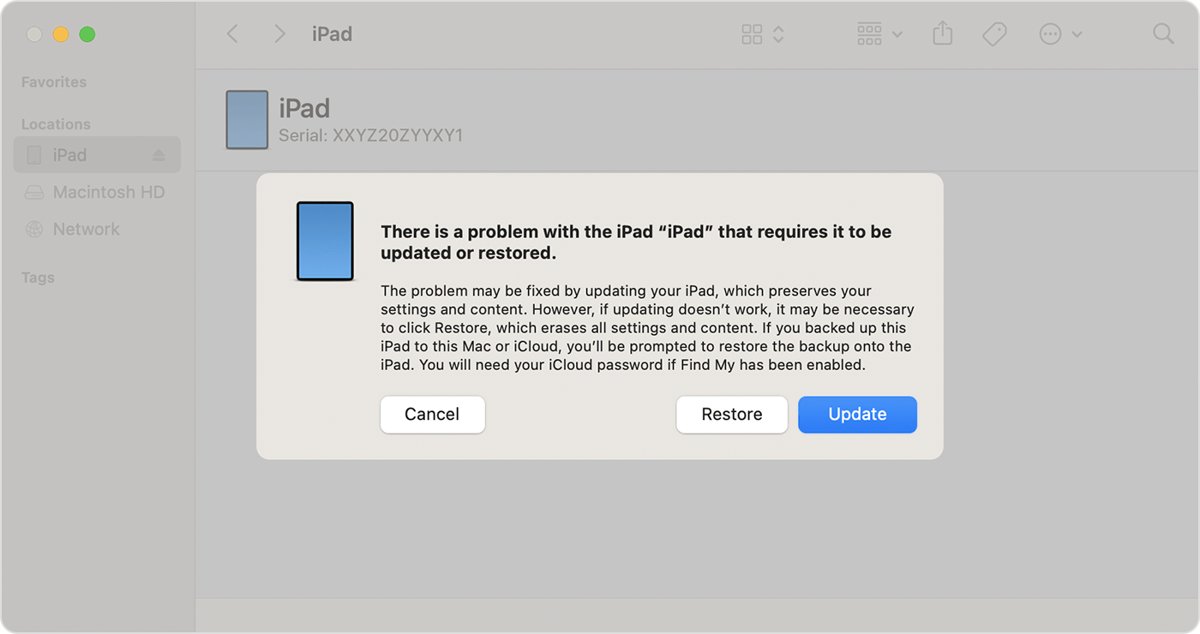
The passcode is unknown, and iPad needs a restore after ten failed attempts unless Erase Data is on.
- If you changed the passcode in the last 72 hours, use the previous passcode once to get in and set a new one.
- Otherwise, turn off iPad and connect it to a Mac or Windows PC with a cable.
- Hold the recovery mode buttons for your model until a computer and cable image appears.
- Select iPad in the Finder or the Apple Devices app and choose Restore.
- Set up iPad again after the restore, which erases data and the passcode.
Recovery mode on iPad without a Home button: press and release the volume button nearest the top button, press and release the other volume button, then hold the top button. On a Home button iPad, hold Home and the top button together.
Lock my iPad FAQ
How do I lock my iPad screen?
Press the top button once. The screen turns off and iPad locks, and it asks for Face ID, Touch ID or the passcode when you wake it. iPad also locks by itself after the Auto-Lock time in Display & Brightness settings.
How do I unlock my locked iPad?
Press the top button or tap the screen, then glance at iPad for Face ID, rest your registered finger on Touch ID, or swipe up and enter the passcode. On a Home button model, press Home and enter the passcode.
How to lock app on iPad?
Touch and hold the app on the Home Screen, tap Require Face ID, Require Touch ID or Require Passcode, and confirm. The app then asks for authentication every time it opens and locks again when you quit it.
Can you lock the settings on iPad?
Yes, for a child in your Family Sharing group. Open Settings, tap Family, tap the child's name, then Content & Privacy Restrictions. Under Privacy Restrictions choose a category, such as Accounts, and select Don't Allow.
How to lock iPad from iPhone?
Open Find My on the iPhone, tap Devices, select the iPad and turn on Lost Mode, then tap Activate. iPad locks with its passcode and shows your message. Find My must already be on for that iPad.
Why is my iPad locked?
It locks after the Auto-Lock time, when you press the top button, or when the owner turns on Lost Mode in Find My. Ten wrong passcodes lock it until it is restored on a computer, unless Erase Data is set.
How to stop iPad from locking?
Open Settings, tap Display & Brightness, tap Auto-Lock and choose a longer interval. On Face ID models, Attention Aware Features keeps the screen on while you look at it. A longer interval uses more battery.
How do I lock my iPad screen from rotating?
Swipe down from the top-right edge to open Control Center and tap the Lock Rotation button. It turns red and a lock icon appears in the status bar. Tap it again to let the screen rotate.
How do I lock my iPad screen in place?
Use Guided Access. Turn it on in Settings > Accessibility > Guided Access, open the app, triple-click the top button, turn off Touch in the options and tap Start. Triple-click and enter the passcode to end it.
How to open my iPad when locked without the passcode?
If you changed the passcode within 72 hours, the previous one works once. Otherwise, put iPad in recovery mode, connect it to a Mac or PC and choose Restore. The restore erases your data and the passcode.