To change the display language in Windows 11, open Settings > Time & language > Language & region, pick a language from the Windows display language menu, then sign out and back in; Windows 10 uses the same menu under Time & Language > Language.
This guide covers adding and installing a language pack, PowerShell commands, regional formats, the Welcome screen, Office and Edge, removing packs, and fixes for Single Language editions and error 0x800f0954.
How to Change Display Language Preferences Easily in Windows 11
You need an administrator account and an internet connection to add a new language. Save your work first, because the change finishes with a sign-out.
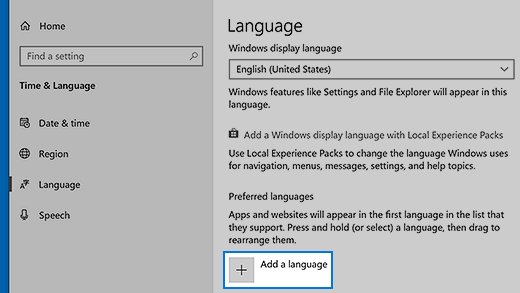
- Select Start > Settings > Time & language > Language & region.
- If the language you want is missing, select Add a language next to Preferred languages, choose it, and select Next.
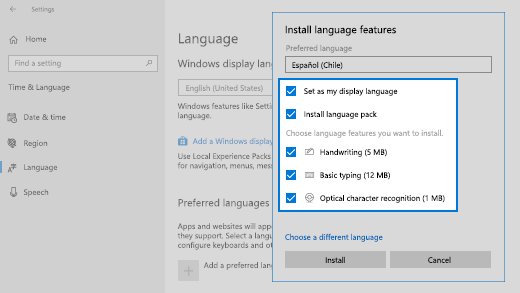
- In the Install language features window, confirm Language pack is selected and tick Set as my Windows display language.
- Select Install and wait for the download to finish.
- If the language was already installed, choose it from the Windows display language drop-down instead.
- Sign out when Windows prompts you, then sign back in to see the new language.
How to Change Display Language Preferences Easily in Windows 10
Windows 10 uses a page called Language rather than Language & region, and the sign-out prompt has its own button. Microsoft ended support for Windows 10 on October 14, 2025, but the language settings still work.
- Select Start > Settings > Time & Language > Language.
- Under Preferred languages, select Add a language, pick the language, and choose Next.
- Confirm Install language pack is selected and tick Set as my Windows display language.
- Select Install.
- For a language that is already installed, pick it from the Windows display language drop-down.
- Choose Yes, sign out now when prompted, then sign back in.
Which route fits your situation?
| Your situation | Use this | Why |
|---|---|---|
| One PC, one account, language not installed yet | Add a language with Set as my Windows display language ticked | Downloads the pack and switches in one pass |
| Language already listed under Preferred languages | Windows display language drop-down | No download needed, only a sign-out |
| Setting up several Windows 11 PCs or scripting it | Install-Language and Set-WinUILanguageOverride in PowerShell |
Repeatable without clicking through Settings |
| Sign-in screen and new accounts still show the old language | Copy settings on the Administrative tab, or Copy-UserInternationalSettingsToSystem |
The Settings change only covers your own account |
| Dates, currency or numbers look wrong | Regional format, or Set-Culture |
Formats are separate from the display language |
| Settings says the license supports only one display language | No setting fixes it | Home Single Language editions cannot add languages |
Check Your Windows Edition and Current Language Settings
Two checks save a wasted download: your edition decides whether extra languages are allowed at all, and the language page shows what is already installed.
- Right-click Start and choose Settings.
- Select System > About, or type
ms-settings:aboutin the Run box. - Read the Edition line under Windows specifications. If it says Single Language, jump to the Single Language section below.
- Open Time & language > Language & region (Windows 10: Time & Language > Language).
- Look at the Preferred languages list to see which languages are already installed and which one is the display language.
Add a New Language in Windows Settings
Adding a language puts it in your Preferred languages list. Only an administrator on the PC can add one, and the download needs a working internet connection.
- Close open apps so the later sign-out does not interrupt anything.
- Open Settings > Time & language > Language & region.
- Select Add a language next to Preferred languages.
- Type the language name in the search box, or scroll the list, and pick the exact variant you want, such as English (United Kingdom) rather than English (United States).
- Select Next to open the Install language features window.
Display language is not the same as screen settings. For resolution, scaling or orientation, see how to change display settings in Windows 10.
Install the Required Language Pack Features
The Install language features window decides what gets downloaded. Only the language pack is needed to switch the interface; the rest are optional extras.
- Keep Language pack selected. Without it, the language cannot become the Windows display language.
- Tick optional features such as speech recognition, text-to-speech or handwriting only if you need them.
- Tick Set as my Windows display language if you want to switch now, then select Install.
- To add a missing feature later, select the … (ellipses) next to the language, choose Language options, and select Download under Language features.
- On Windows 10, select the language under Preferred languages, choose Options, and select Download under Speech.
Speech features download only after the language is set as the display language, and some languages have no speech features at all.
Set Your Preferred Windows Display Language
Windows keeps two separate choices. The Windows display language menu sets menus, dialogs and Settings; the order of the Preferred languages list tells apps and the Microsoft Store which language to use first.
- Open Settings > Time & language > Language & region.
- Choose your language from the Windows display language drop-down.
- To change the Microsoft Store and app language as well, drag that language to the top of Preferred languages.
- On Windows 10, select the language and use the up and down arrows to reorder the list; the first supported language is the one the Store uses.
- Sign out and back in to apply the display change.
Reordering Preferred languages does not change the Windows display language, so set both if you want everything in one language.
For Power Users: Force Change via PowerShell
The LanguagePackManagement and International modules do the same job as Settings. Microsoft documents them for Windows 11 and Windows Server 2025; run them in PowerShell opened as administrator. Replace de-DE with the tag for your language, such as fr-FR or ja-JP.
- Run
Get-InstalledLanguageto list the languages and language features already on the PC. - Run
Install-Language de-DEto download and install the language pack and its features. Add-ExcludeFeaturesto skip the optional features. - Run
Set-WinUILanguageOverride -Language de-DEto make it your display language. - Sign out and back in; the change applies only after a new sign-in.
- To clear the override later and let Windows pick from your language list again, run
Set-WinUILanguageOverridewith no language.
Install-Language de-DE -CopyToSettings also sets the system and default device settings, including the Windows display language and regional formats, to the new language after a restart or new sign-in.
Don’t Forget Regional Formats (Date & Time)
Switching the display language does not always change how dates, times, numbers and currency look. Those come from the regional format, a separate setting on the same page.
- Open Settings > Time & language > Language & region.
- Find Regional format under the Region heading.
- Pick the format you want, or choose Recommended to follow your Windows display language.
- In PowerShell, run
Set-Culture -CultureInfo de-DEto set the same thing for your account. - Reopen apps such as Excel or Outlook so they pick up the new format.
Adjust Region, Keyboard, and Format Preferences
Keyboard layouts belong to a language. Adding a language can add its keyboard, and you can mix any display language with any layout.
- Open Settings > Time & language > Language & region.
- Select … next to the language and choose Language options.
- Under Keyboards, check the layout is not already listed, then select Add a keyboard and pick it.
- To remove a layout, select … next to it under Keyboards and choose Remove.
- Switch layouts quickly with Windows logo key + Spacebar, or select the input language icon on the taskbar.
- On Windows 10, open Time & Language > Language, select the language, choose Options, then Add a keyboard.
Windows 11 hides the taskbar input icon when the old desktop language bar is on. Clear Use the desktop language bar when it's available in Settings > Time & language > Typing > Advanced keyboard settings to bring the icon back.
Why Parts of Windows Are Still in English (LIPs Explained)
Windows offers full language packs for the major languages and language interface packs (LIPs) for many more. A LIP sits on top of a base language and translates only part of the interface.
| What you see | Reason | What to do |
|---|---|---|
| Some menus stay in English after switching to Afrikaans, Albanian, Amharic and similar languages | These are LIPs whose base language is English (United States); untranslated text falls back to the base language | Nothing is broken. Pick a full language pack if one exists for your language |
| Basque shows Spanish text in places; Belarusian shows Russian | Their LIPs use Spanish (Spain) and Russian (Russia) as the base language | Expected behavior for that LIP |
| Text appears in an unexpected language after a monthly update | Local Experience Packs (LXPs) can fall back until the pack is updated | Connect to the internet and let the Microsoft Store update the language pack |
| An app stays in English while Windows changed | Apps carry their own translations and may not include your language | Check the app's own language setting |
Does This Change Microsoft Word or Edge?
Edge follows Windows by default. Word and the rest of desktop Office keep their own display language list, so they may not follow.
| App | Follows Windows? | Where to change it separately |
|---|---|---|
| Microsoft Edge | Yes, by default Edge uses the same language as your system | Settings and more > Settings > Languages, then … next to a language > Display Microsoft Edge in this language |
| Word, Excel, Outlook and other desktop Office apps | Not guaranteed; Office has its own list | File > Options > Language, then under Office display language choose the language and select Set as Preferred |
| Microsoft 365 web apps | No, they use your Microsoft 365 account setting | Settings > Microsoft 365 settings > Language, then Save |
| Microsoft Store | Uses the top supported entry in Preferred languages | Reorder Preferred languages in Windows Settings |
Advanced: Syncing Administrative Settings (Welcome Screen)
Changing the display language affects only your account. The sign-in screen, system accounts and accounts created later keep the old language until you copy your settings to them.
- Sign in with an administrator account that already uses the new language.
- Open Control Panel and select Clock and Region, then Region.
- Select the Administrative tab.
- Select Copy settings… in the Welcome screen and new user accounts section.
- Tick Welcome screen and system accounts, and New user accounts if you want new profiles to match, then select OK.
- Restart the PC.
- On Windows 11 you can do the same in an administrator PowerShell window:
Copy-UserInternationalSettingsToSystem -WelcomeScreen $True -NewUser $True.
Both routes copy the display language, input language, regional format and location, and the change takes effect after a restart.
Sign Out, Restart, and Verify the Language Change
- Sign out from Start and sign back in; the Start menu and Settings should now use the new language.
- Open Settings > Time & language > Language & region and confirm the Windows display language menu shows your choice.
- Check that the language sits at the top of Preferred languages if you also wanted the Store in that language.
- In PowerShell, run
Get-WinUILanguageOverride; it returns the language you set withSet-WinUILanguageOverride. - Restart and look at the sign-in screen if you copied settings to the Welcome screen.
How to Remove Unwanted Language Packs
Windows will not remove the language currently used for display. Switch to another display language and sign out first.
- Set a different Windows display language and sign out and back in.
- Open Settings > Time & language > Language & region.
- Select … next to the language you no longer need and choose Remove.
- Confirm the removal.
- On Windows 10, select the language under Preferred languages and select Remove.
- In PowerShell on Windows 11, run
Uninstall-Language de-DE; it removes the language and all its components in the background.
Why Can’t I Change My Language? (Single Language Edition)
If Settings shows Your Windows license supports only one display language or Only one language pack allowed, the PC runs a Single Language edition. Microsoft states that languages cannot be added to Home Single Language and Home Country Specific editions.
| Edition shown under Windows specifications | Can you add display languages? | What it means for you |
|---|---|---|
| Windows 11 or 10 Home Single Language | No | The limit is part of the license, so no setting or command removes it |
| Windows 11 or 10 Home Country Specific | No | Same restriction as Single Language |
| Home, Pro, Enterprise or Education | Yes, with an administrator account | Use Add a language as shown above |
You can still add keyboard layouts and change the regional format on a Single Language edition, because neither needs a second display language.
Troubleshoot Missing or Unavailable Display Languages
The language is installed but missing from the Windows display language menu
Only the keyboard or basic typing features were added, not the language pack itself.
- Run
Get-InstalledLanguageor open Language options to see which components are installed. - Remove the language, then add it again with Language pack selected.
- Sign out and back in, then check the drop-down again.
The language pack download is stuck or never finishes
Language packs come from Windows Update, so a blocked or broken connection stalls them.
- Check that the PC can reach the internet and that no proxy or firewall is blocking Windows Update.
- Close open apps and restart the PC.
- Retry Add a language, or run
Install-Languagefrom an administrator PowerShell window to see the error text.
Settings says the license supports only one display language
The PC runs a Single Language edition.
- Confirm the edition under Settings > System > About > Windows specifications.
- Use regional formats and keyboard layouts, which remain available, instead of a second display language.
Troubleshooting: Keyboard Layout vs. Display Language
Your keyboard types the wrong characters after changing the display language
Microsoft notes that changing the display language can also switch the keyboard layout to match.
- Press Windows logo key + Spacebar to cycle back to your usual layout.
- Open Language options for the display language and Remove any layout you do not use.
- Add your usual layout under Keyboards with Add a keyboard if it is missing.
The sign-in screen uses a different keyboard than your desktop
Changing the display language does not change the default keyboard shown at the Windows sign-in screen.
- Set the layout you want in your own account first.
- Use Copy settings… on the Administrative tab to copy it to the Welcome screen and system accounts.
- Restart the PC.
Fixing Error 0x800f0954 (Download Failed)
Language packs and their extras are Features on Demand that Windows pulls from Windows Update. Microsoft's documented fixes for these download failures are a working connection to Windows Update and, on managed PCs, the component repair policy.
Error 0x800f0954 on a home PC
Windows cannot fetch the feature files from Windows Update.
- Check the internet connection and any proxy or firewall that could block Windows Update.
- Open Settings > Windows Update, install pending updates, and restart.
- Retry Add a language.
Error 0x800f0954 on a work or school PC
The PC gets updates from Windows Server Update Services (WSUS), which may not carry language features.
- Ask your IT admin, or open Edit group policy from Start search if you manage the PC yourself.
- Go to Computer Configuration > Administrative Templates > System.
- Open Specify settings for optional component installation and component repair and select Enabled.
- Tick Contact Windows Update directly to download repair content instead of Windows Server Update Services (WSUS), then select OK.
- Run
gpupdate /forcefrom an elevated command prompt and retry the install.
Frequently Asked Questions (FAQ)
Do I need to restart my computer to change the language?
No full restart is needed for your own account. Signing out and back in applies a new Windows display language. A restart is needed only when you copy settings to the Welcome screen, system accounts or new user accounts.
Why is my language pack download stuck?
Language packs download from Windows Update, so a blocked connection, a proxy, or a WSUS-managed work PC can stall them. Check the internet connection, install pending updates, restart, and try again. Running Install-Language in PowerShell shows the exact error.
Can I change the language back to English later?
Yes. English stays installed unless you remove it, so pick it from the Windows display language drop-down in Language & region settings and sign out. If you removed it, add it again with Add a language before switching.
Does changing the display language change my keyboard?
It can. Microsoft notes that changing the Windows display language might also change the keyboard layout to match. Press Windows logo key + Spacebar to switch back, or remove the unwanted layout under Language options.
Why can't I add a language on Windows Home Single Language?
Home Single Language and Home Country Specific editions cannot add languages. Settings shows a message that the license supports only one display language. Regional formats and keyboard layouts still work on those editions.
Does the display language apply to every user on the PC?
No. The Windows display language is set per account. To apply it to the sign-in screen and to accounts created later, use Copy settings on the Administrative tab of the Region control panel, then restart.
How do I switch input methods quickly?
Press Windows logo key + Spacebar to cycle through installed keyboard layouts and input methods. You can also select the input language icon on the taskbar and pick a layout from the menu.
Does changing the Windows language change the Microsoft Store language?
Not by itself. The Microsoft Store uses the first supported language in your Preferred languages list, so drag your language to the top of that list as well as choosing it as the Windows display language.
Bottom Line
Use Add a language with Set as my Windows display language ticked, then set Regional format and reorder Preferred languages so Windows, dates and the Store all match. That single pass covers the three settings people most often miss, and it needs only a sign-out; PowerShell and Copy settings are for multiple PCs or the sign-in screen.

How to Download and Install Language Pack in Windows 11/10 [Guide] - Techdows
[…] To switch the whole interface to the new language afterwards, follow the short guide to change display language preferences in Windows 11 and 10. […]